
Kanban card configuration

After creating a project, you can customize its settings directly from the Kanban card by clicking the drop-down toggle button (⋮) on the top-right corner of the card.
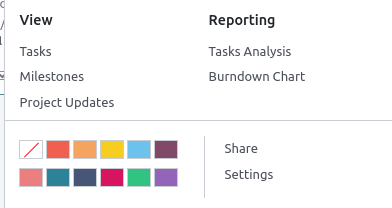
Project card actions

Card settings menu

The card menu provides four main sections:

  • View: access linked components including Tasks, Milestones, and Project Updates. When the Documents app is enabled, the Documents item allows direct access to project attachments;

  • Reporting: analyze progress, costs, and profitability through visual charts;

  • Color: assign a distinctive color strip on the left side of the card for easy identification;

  • Settings: configure detailed parameters:

    • Name of the project;

    • Name of the tasks displayed under this project;

    • Associated Customer;

    • Tags for search filters;

    • Responsible Company;

    • Employee designated as Project Manager;

    • Planned Date for start and completion;

    • Total Allocated Hours for the project.

Detailed configuration

Additionally, click the star icon to mark the project as a Favorite, allowing quick filtering through the My Favorites filter.

Detailed project settings view