
Meeting rooms
The Meeting rooms application in Intech ERP allows organizations to coordinate room reservations, prevent scheduling conflicts, and view real-time facility availability on a dynamic Gantt chart.
Tutorial video
Video topic |
Direct watch link |
|---|---|
Meeting room booking guide |
Book meeting room
To reserve a meeting room:
Step 1: Access the Meeting rooms application, then navigate to . The screen displays a Gantt schedule showing all configured rooms across dates and times.
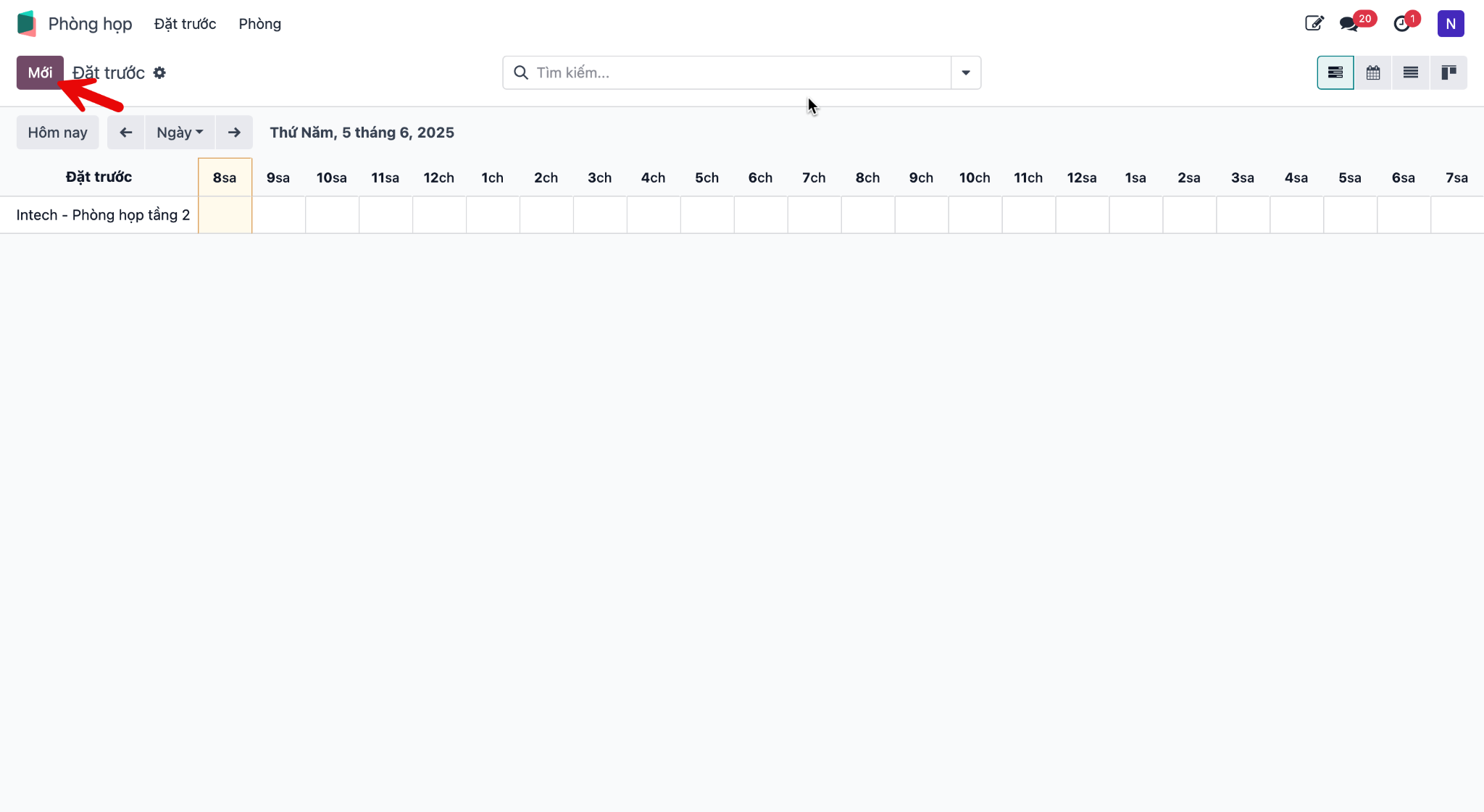
Step 2: Click directly on the desired time slot corresponding to the chosen room on the Gantt chart, or click New in the top toolbar. A booking pop-up window appears.
Step 3: Complete the booking information:
Booking Name: Purpose or event title for the reservation.
Room: Target meeting room.
Organizer: Person responsible for hosting the meeting.
Date: Start and end date or time for the reservation.
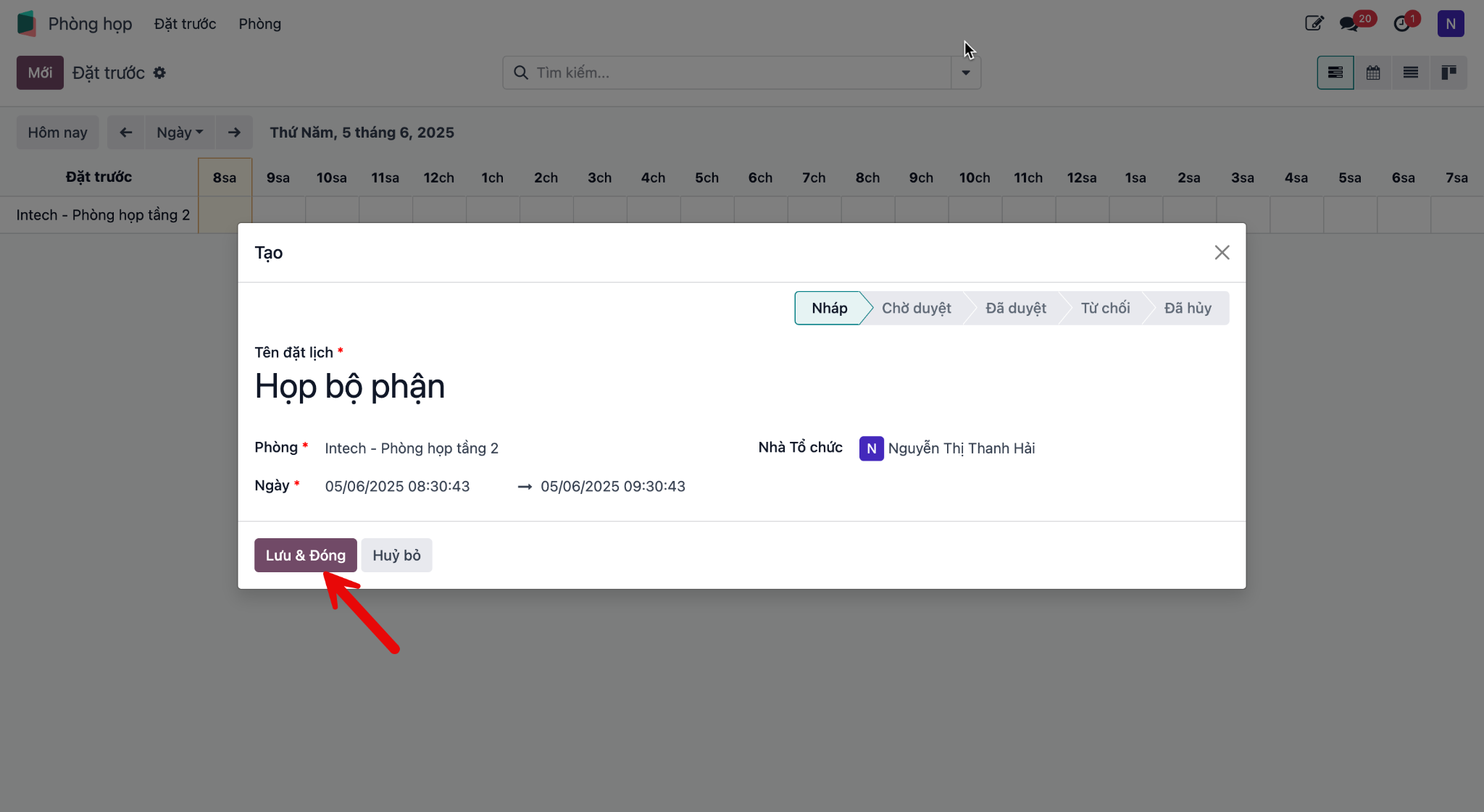
Step 4: Click Save & Close to confirm the reservation. The booked interval displays immediately on the Gantt schedule.
Edit meeting room booking
To review or modify an existing reservation:
Step 1: Click on the booking card on the Gantt schedule view.
Step 2: In the summary pop-up, review reservation details and click Edit.
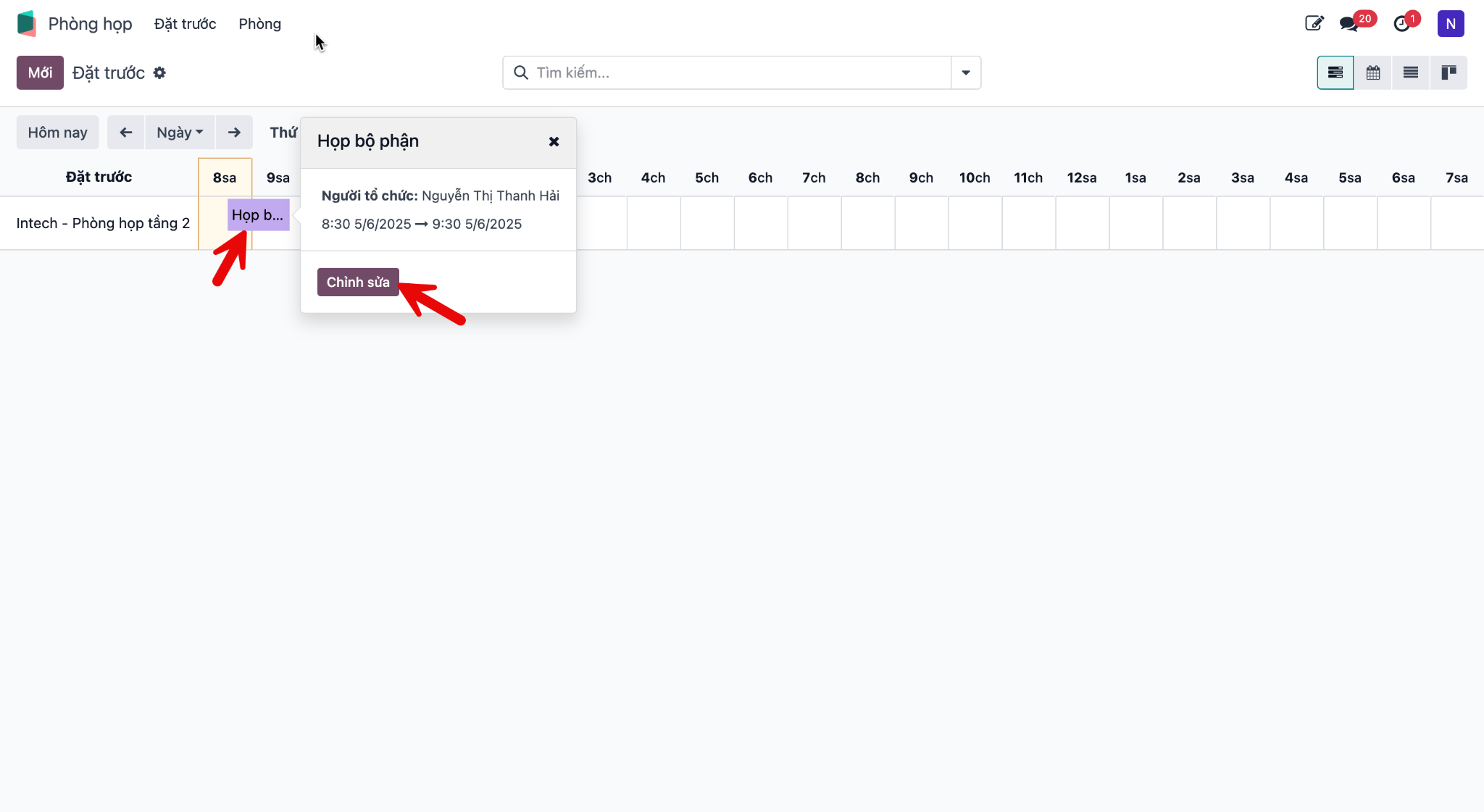
Step 3: Update the necessary information, then save the changes.