Production Inventory & Transfers
Production Inventory & Transfers coordinates warehouse receipts, internal inter-warehouse replenishment, shop floor material staging, physical inventory counts, and bulk Excel adjustments.
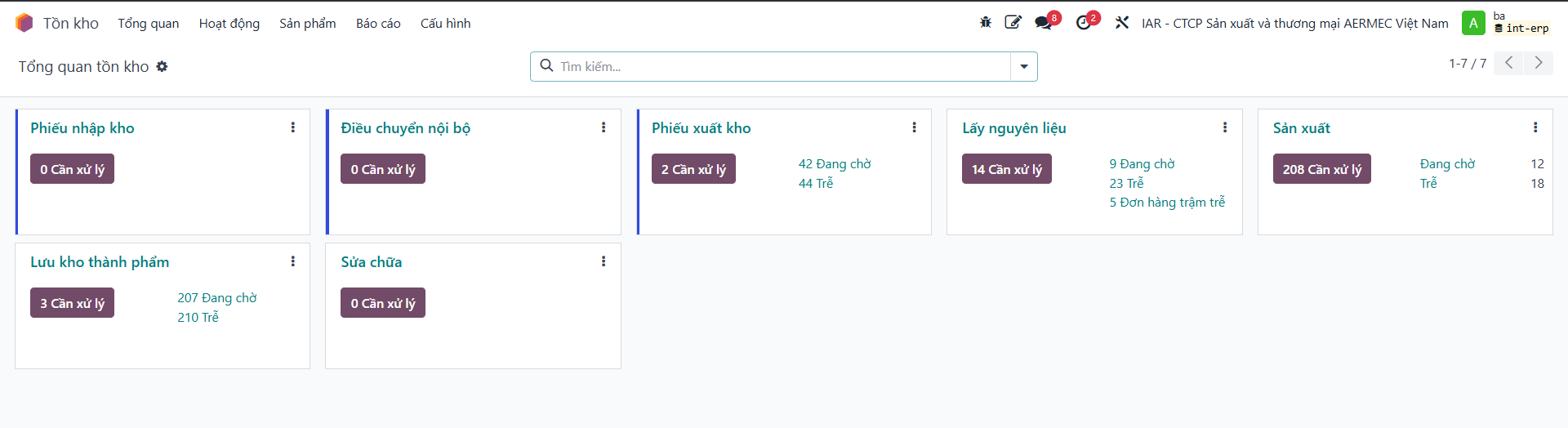
Inventory Overview & Transfer Types
The Inventory dashboard groups material movements by operational transfer types:
Purchasing Receipts: Inbound supplier deliveries.
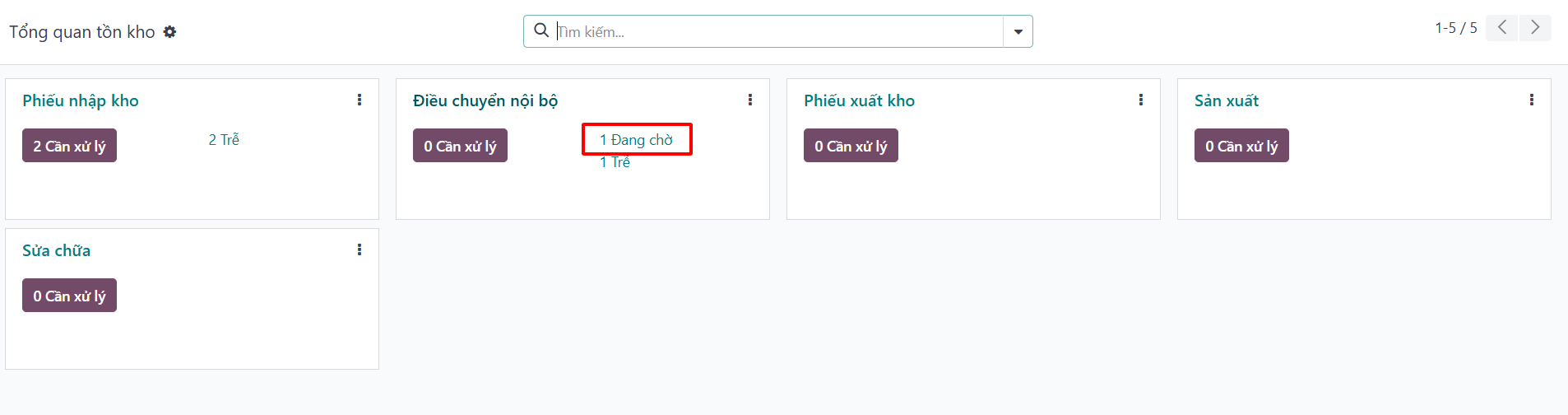
Internal Transfers: Stock replenishment between factory warehouses.
Delivery Orders: Customer shipments and outbound dispatches.
Manufacturing Pickings: Material staging for active production lines.
Finished Goods Receipts: Post-production stock intake.
Purchasing: Material Receipt & Inbound Warehousing
Create Material Receipt Request
Bước 1: Navigate to to request material intake.
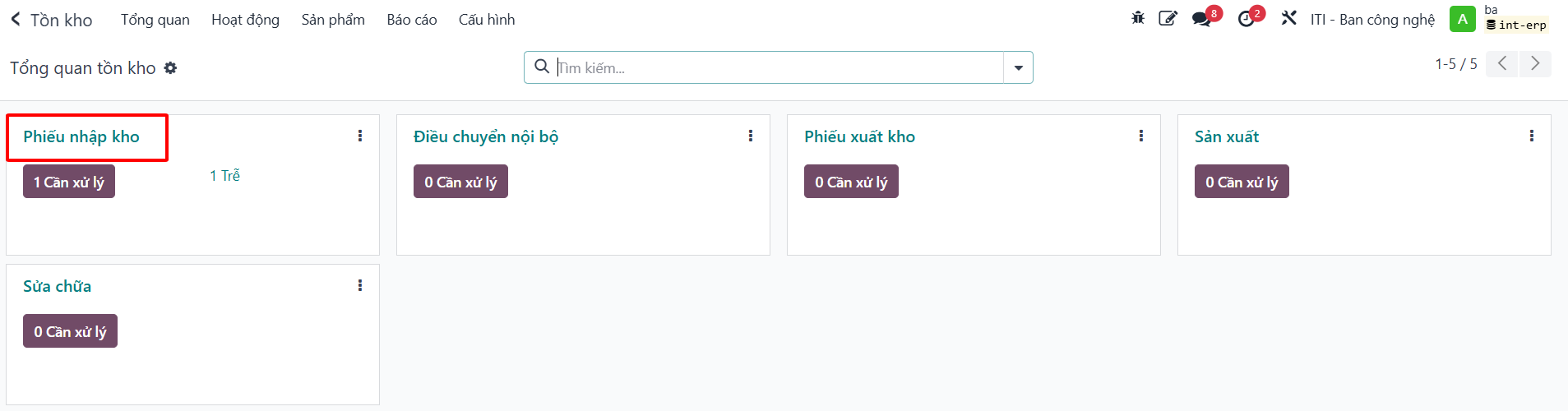
Bước 2: Click New to create a material receipt slip.

Bước 3: Enter supplier information, destination location, and requisitioned materials.
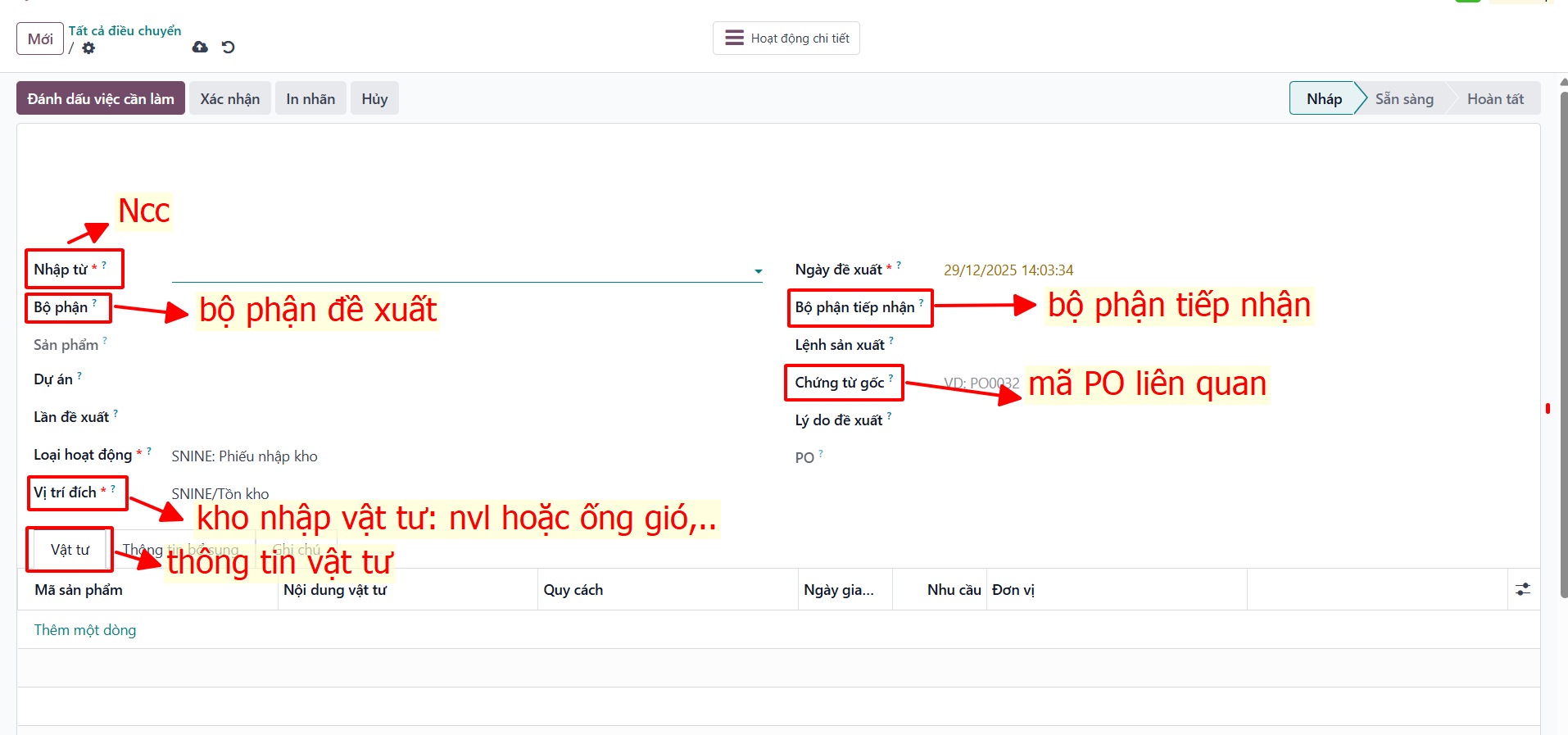
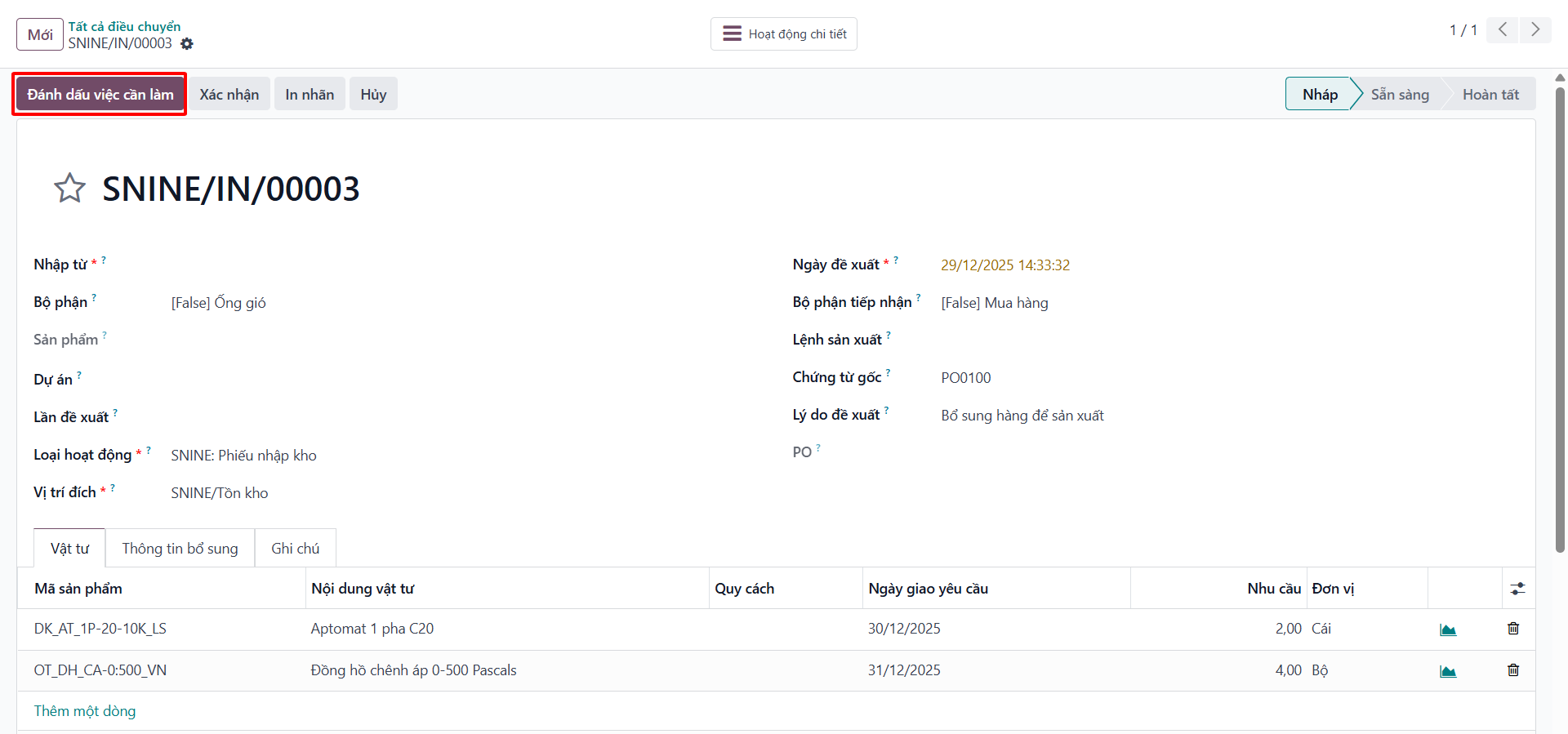
Bước 4: Click Mark as To Do.
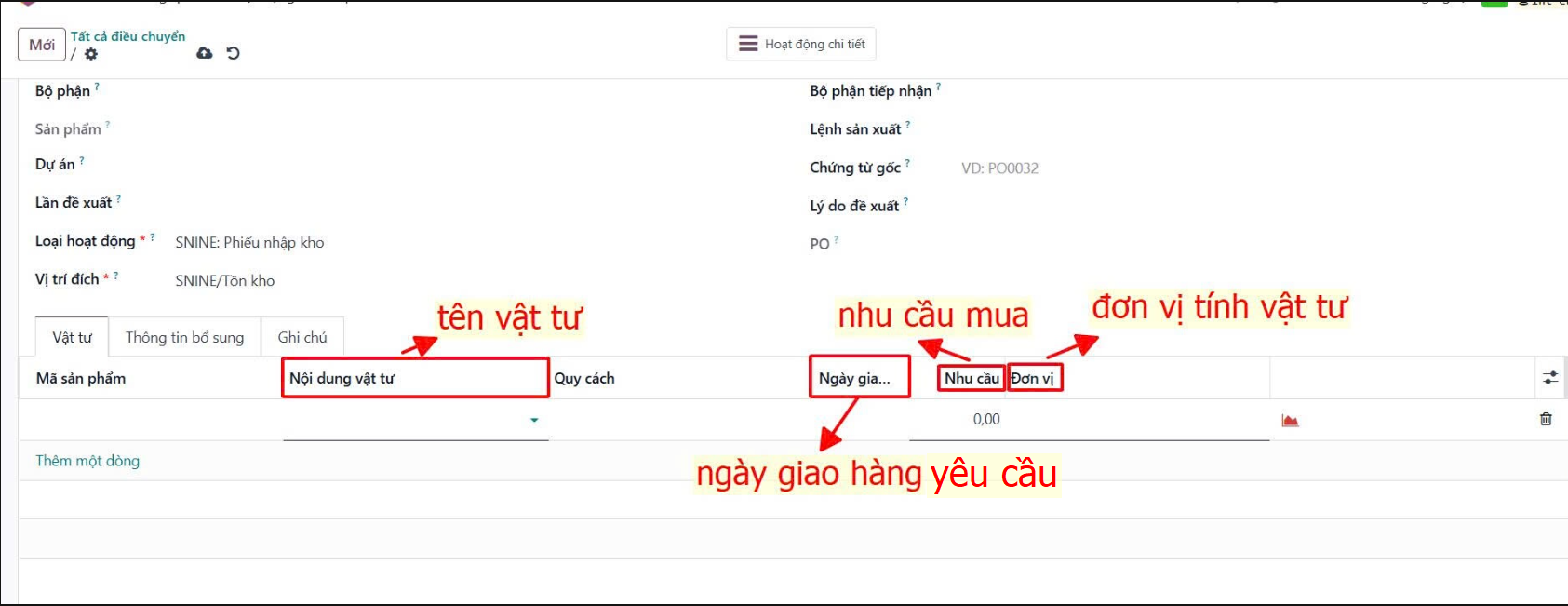
Process and Confirm Material Receipts
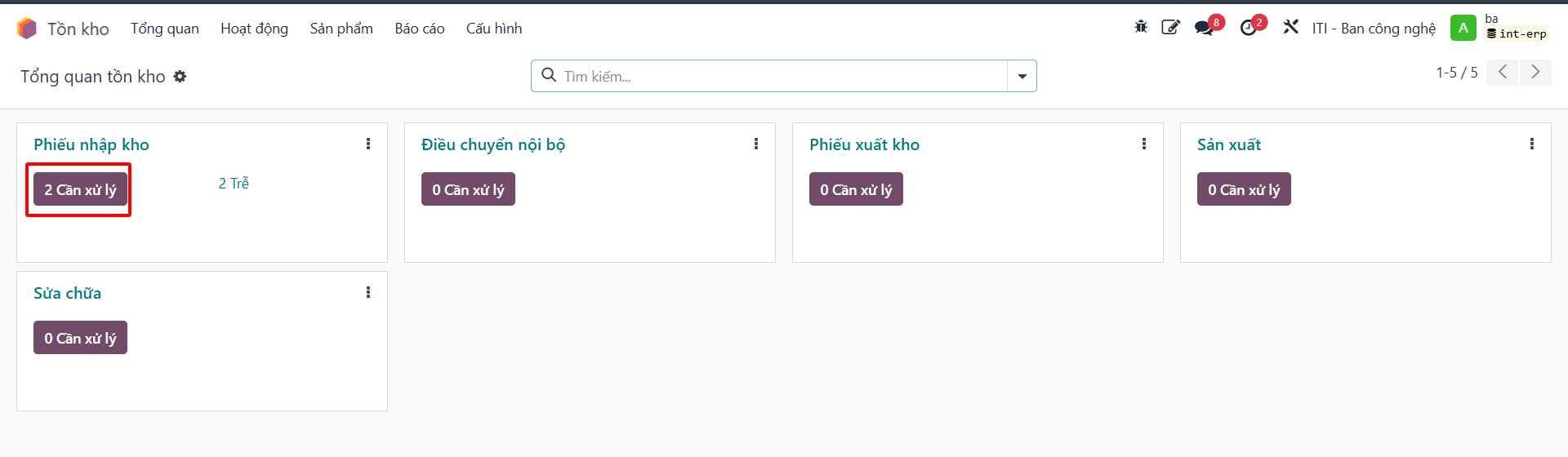
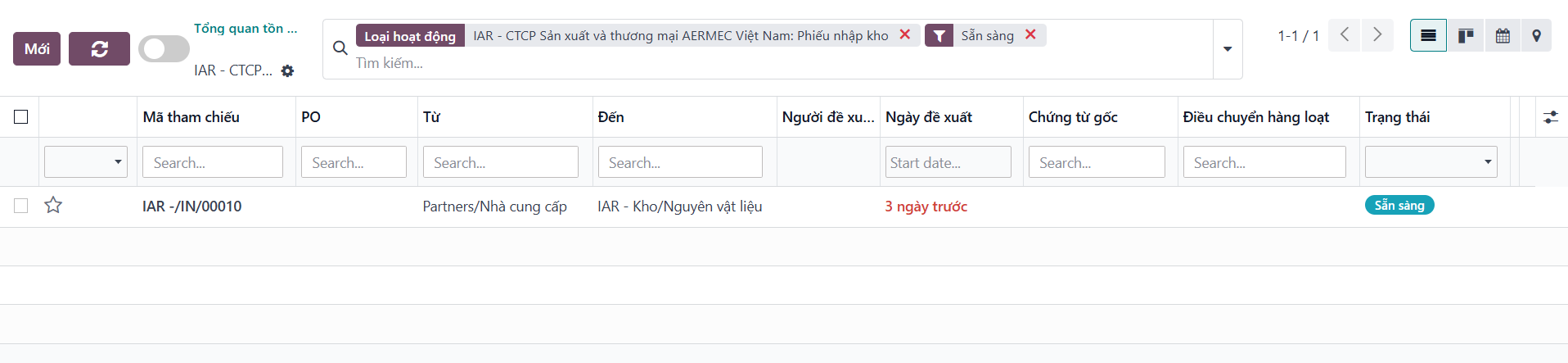
Bước 1: In the receipts list, click the Ready (Cần xử lý) filter button.
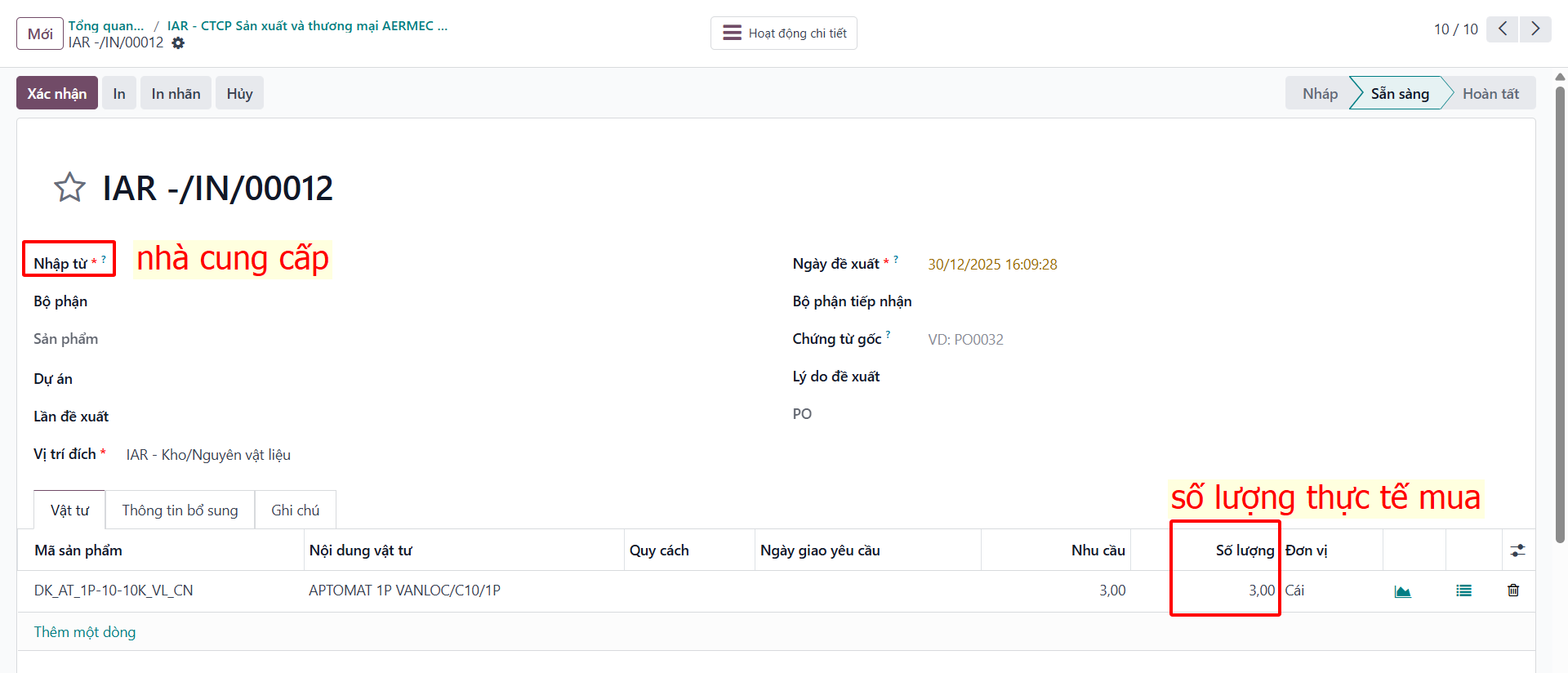
Bước 2: The purchasing officer opens the target receipt, inspects physical deliveries, and enters actual received quantities.
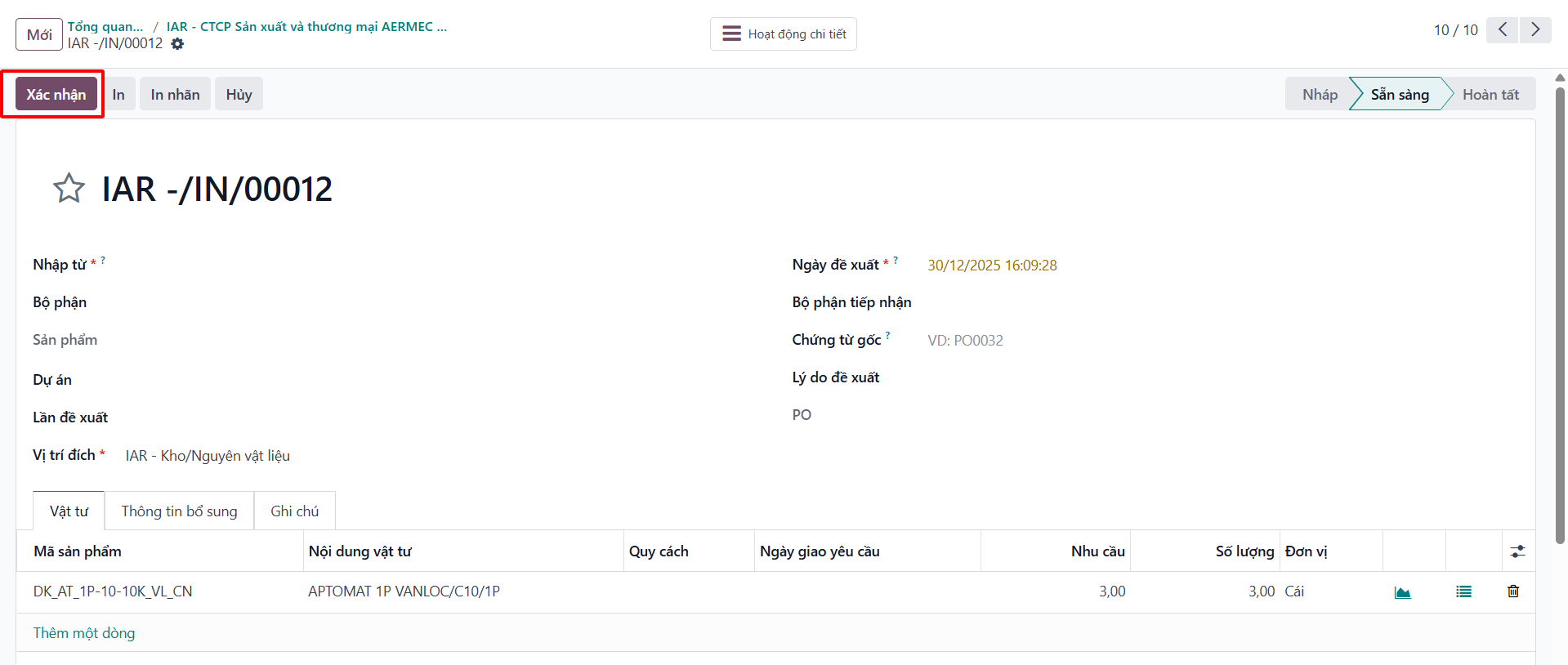
Bước 3: Click Validate to officially record materials into the destination warehouse.
Internal Inter-Warehouse Transfers
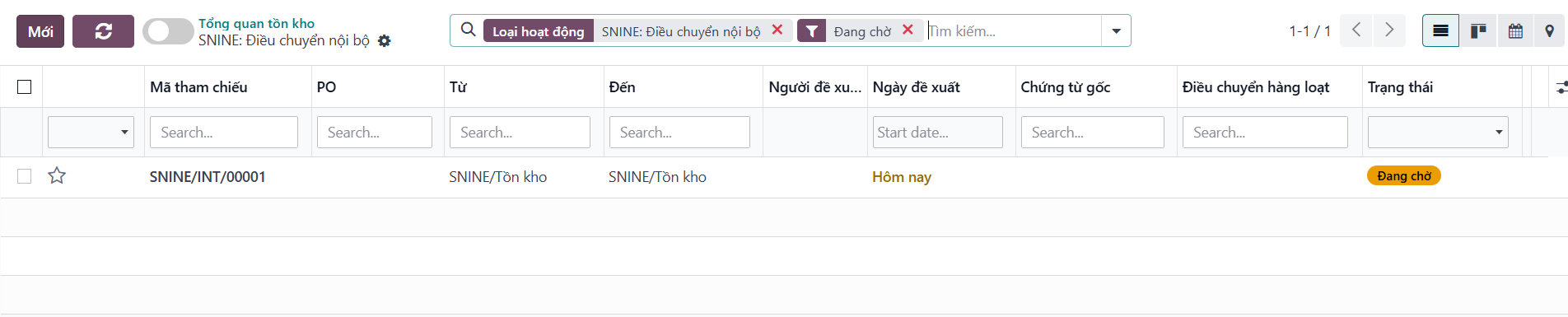
Bước 1: Navigate to .
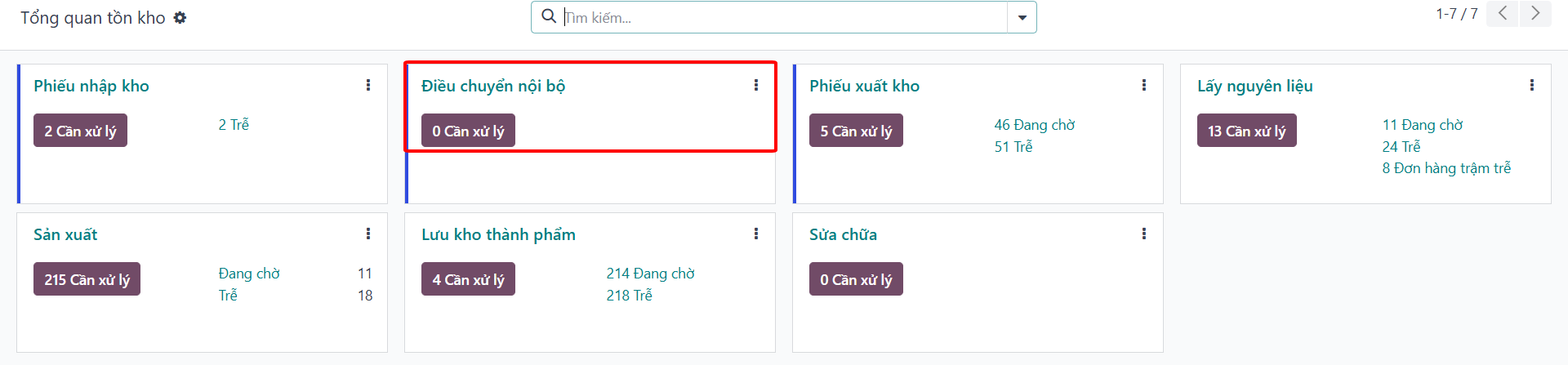
Bước 2: Click New to generate an internal stock transfer slip.
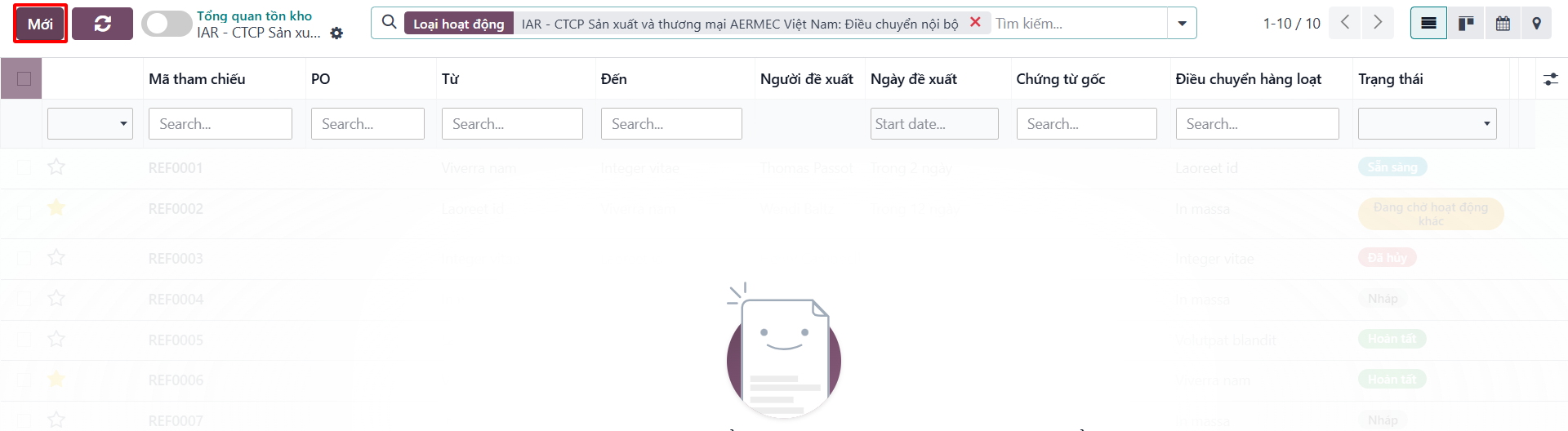
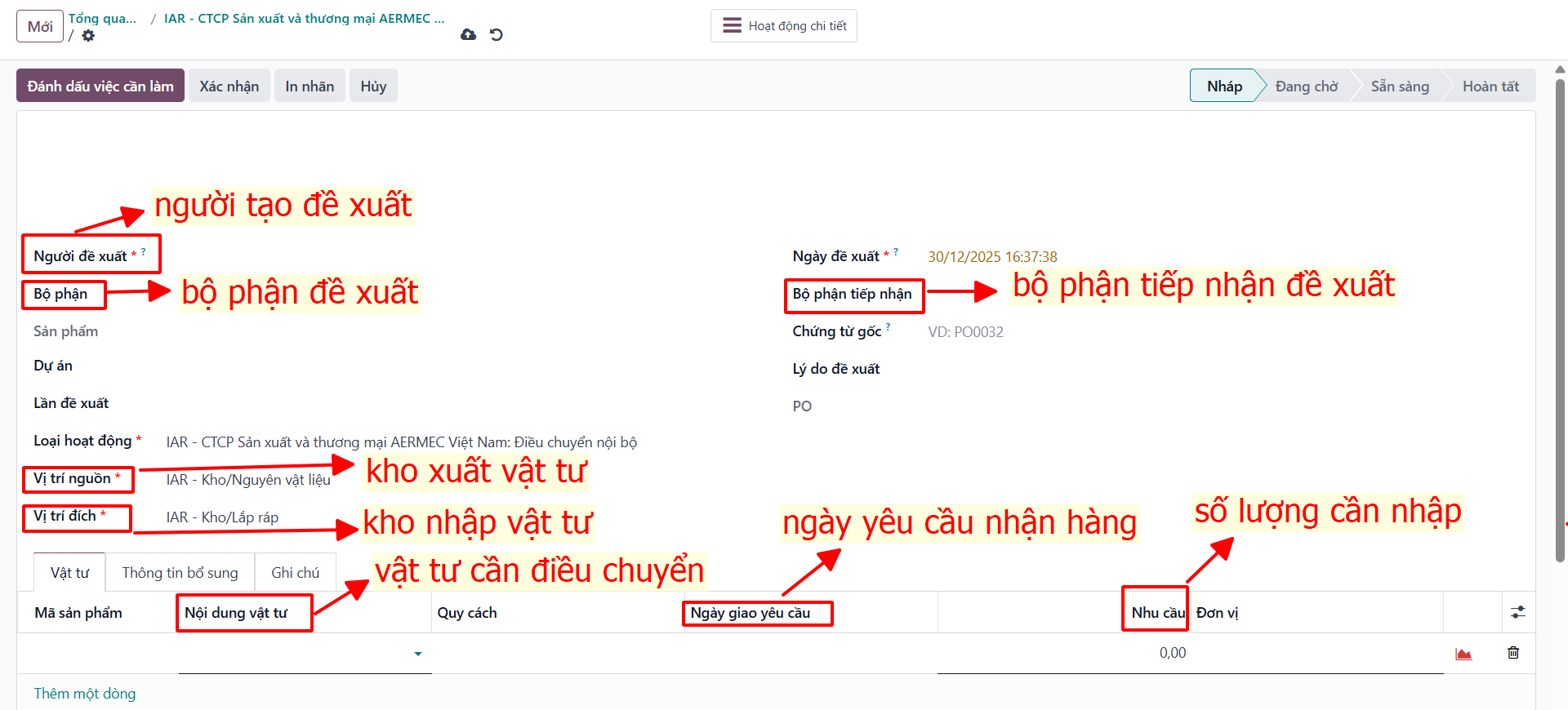
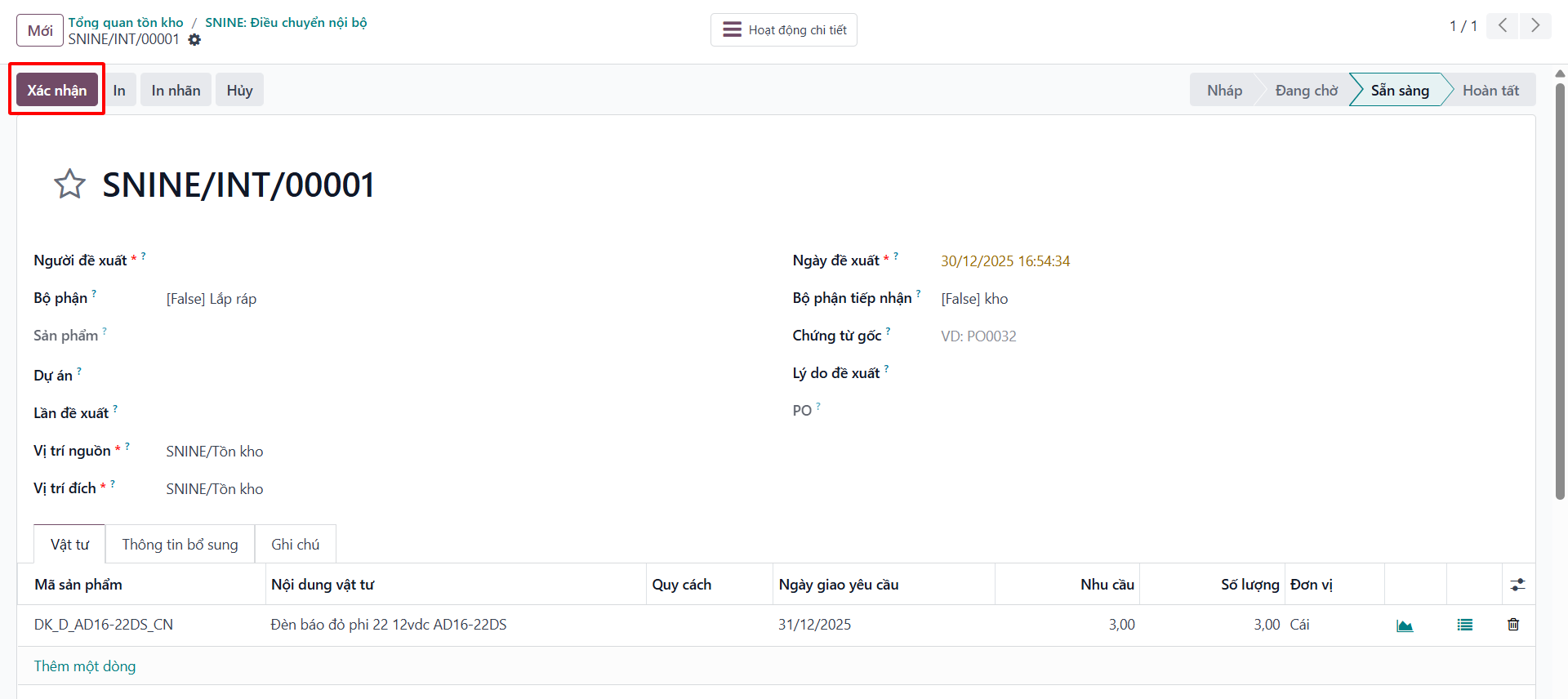
Bước 3: Enter Source Location, Destination Location, and transferred material line items, then click Save.
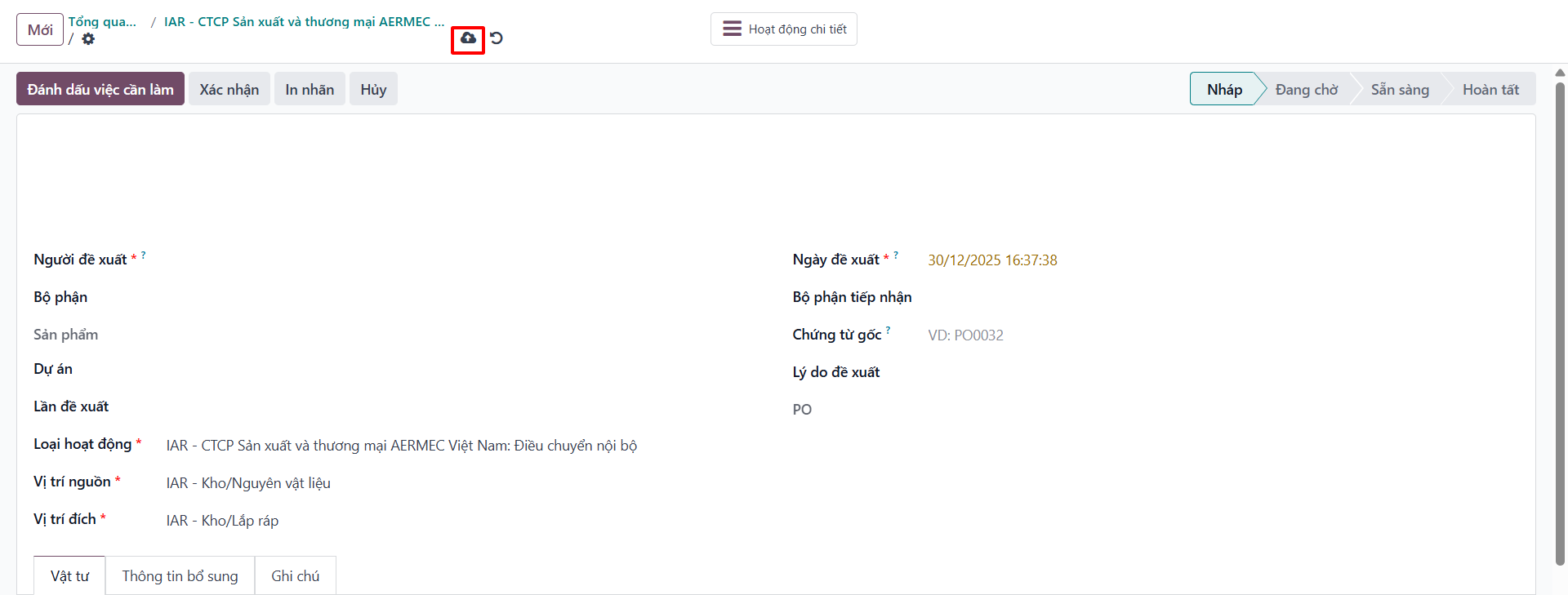
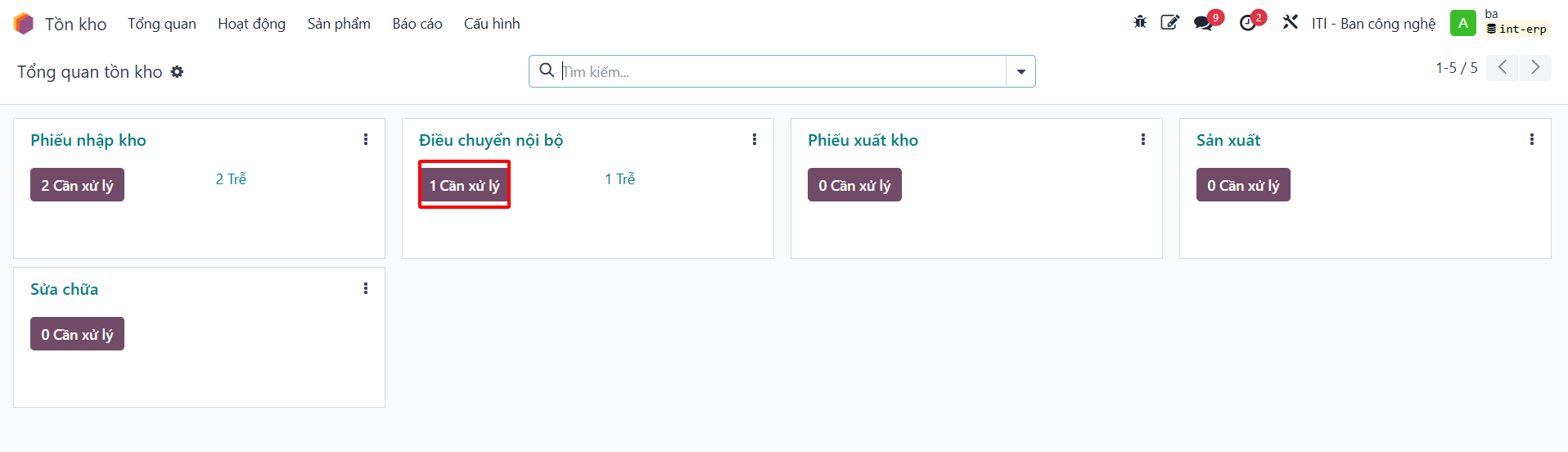
Bước 4: Click Mark as To Do for warehouse handler dispatch.
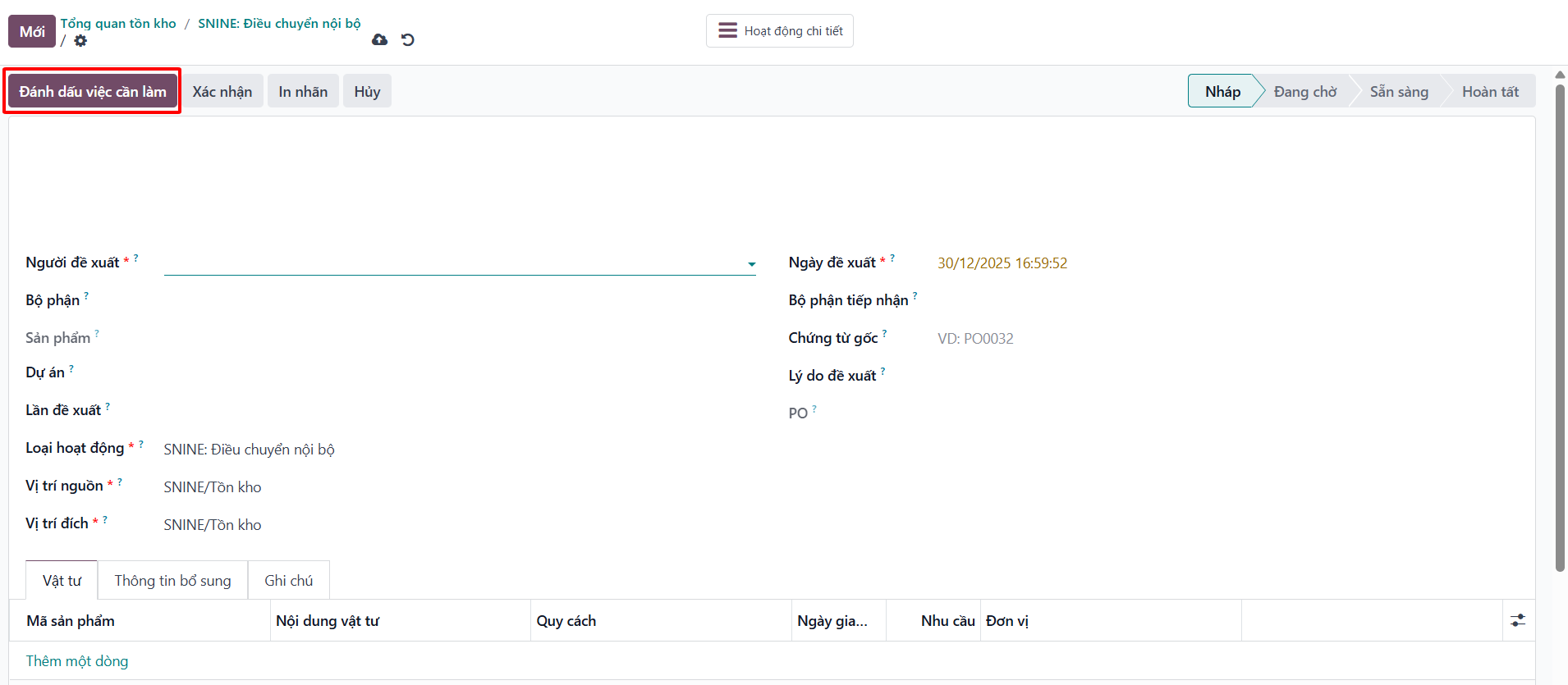
Bước 5: Warehouse handlers verify physical items and validate the transfer.

Manage Warehouse Delivery Slips
Bước 1: On the Inventory dashboard, open Delivery Orders.
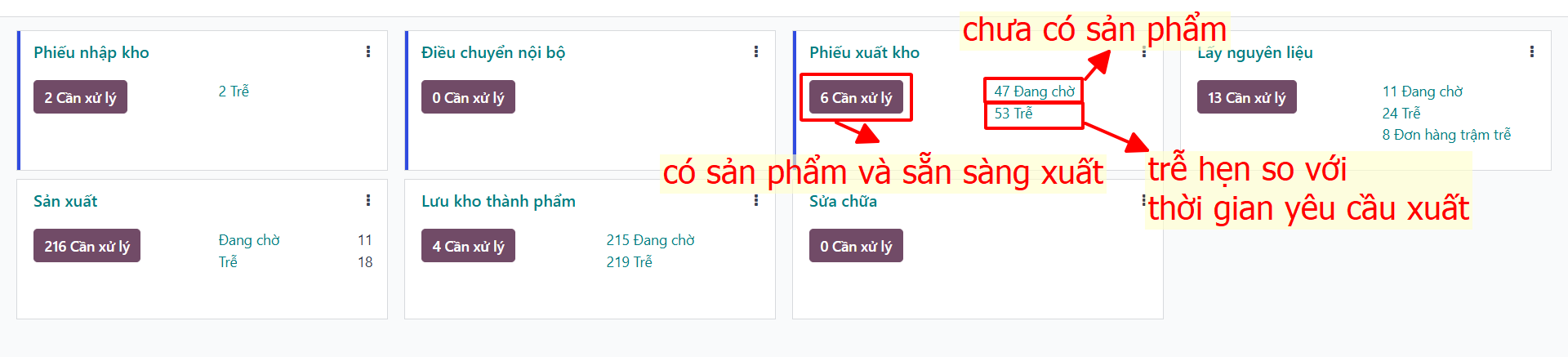
Bước 2: Warehouse managers inspect outgoing shipments to ensure on-time dispatch and accurate fulfillment.
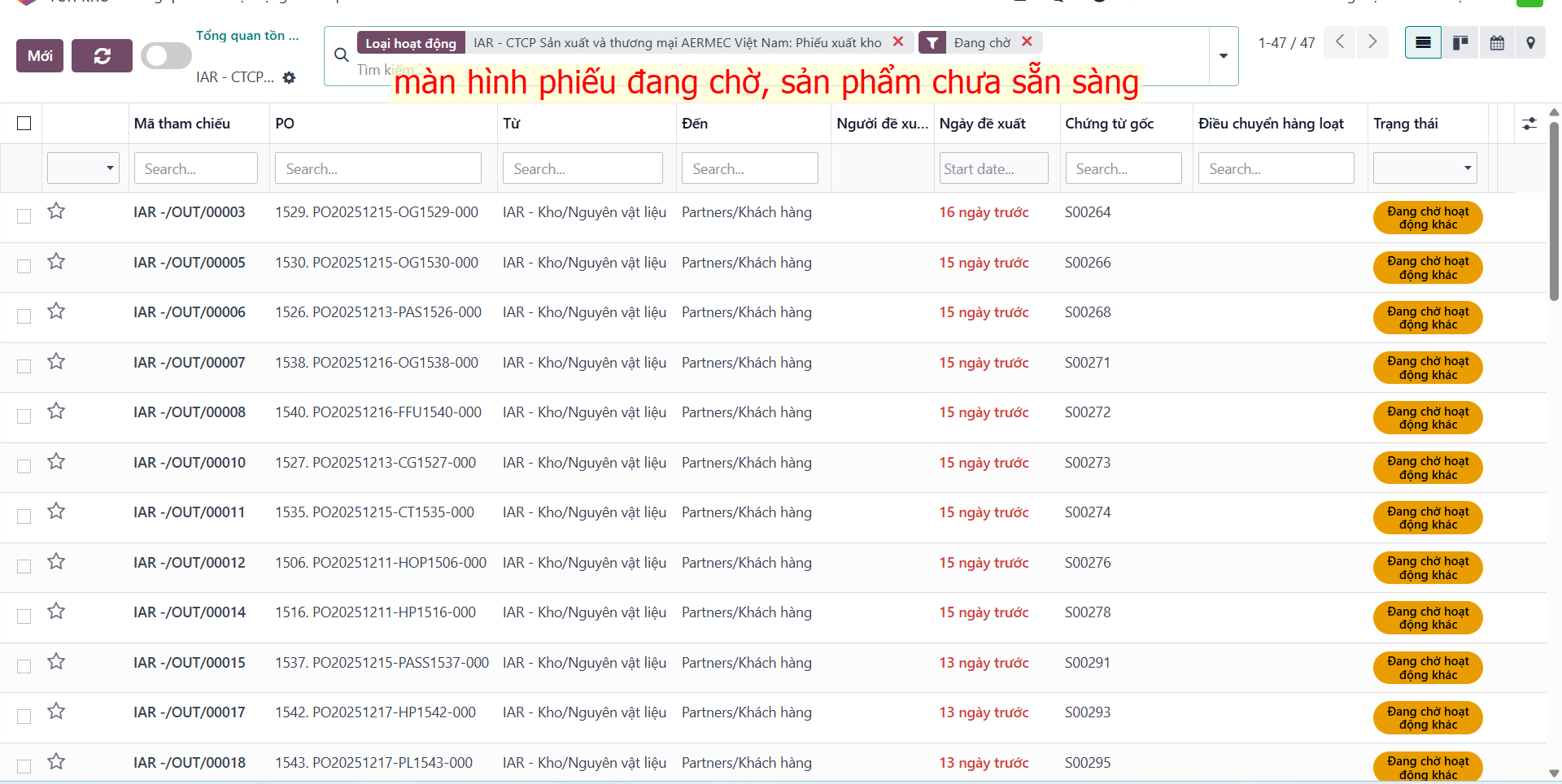
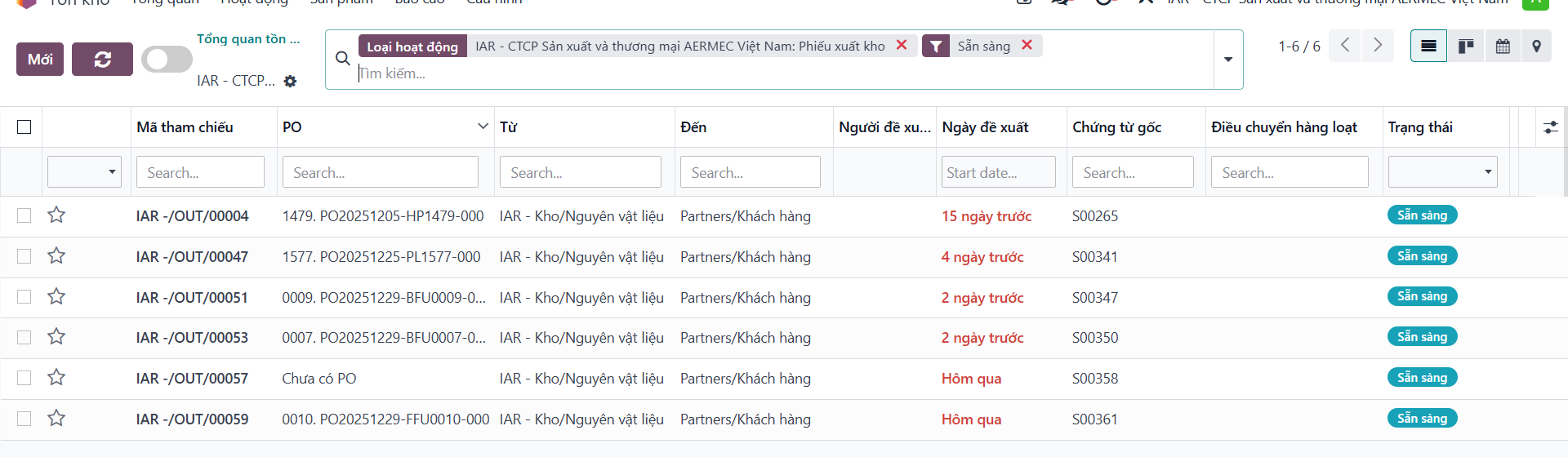
Material Picking for Manufacturing by PO
Bước 1: Access the Inventory Overview dashboard.
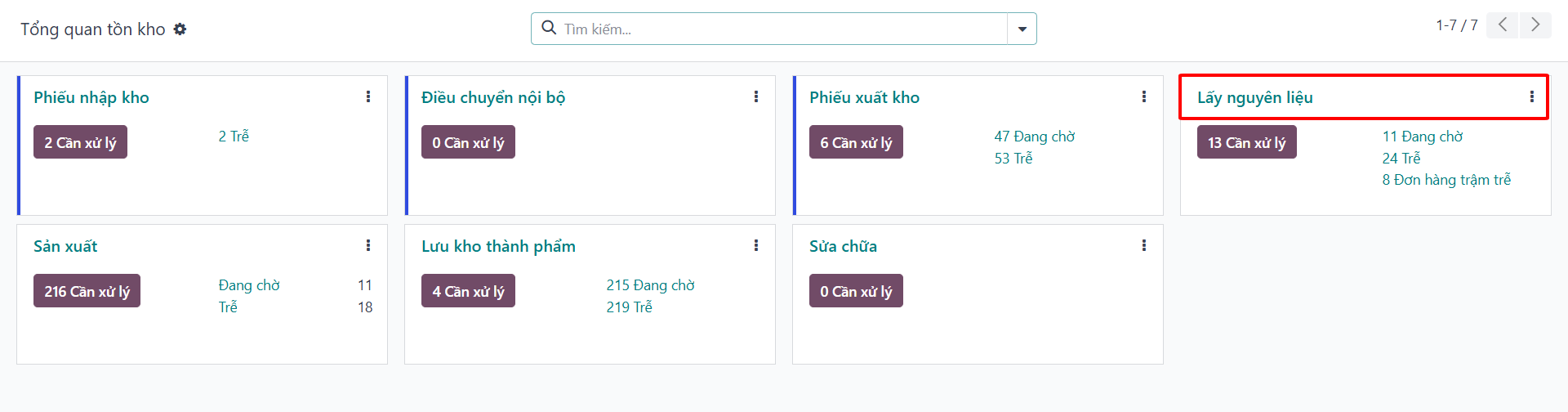
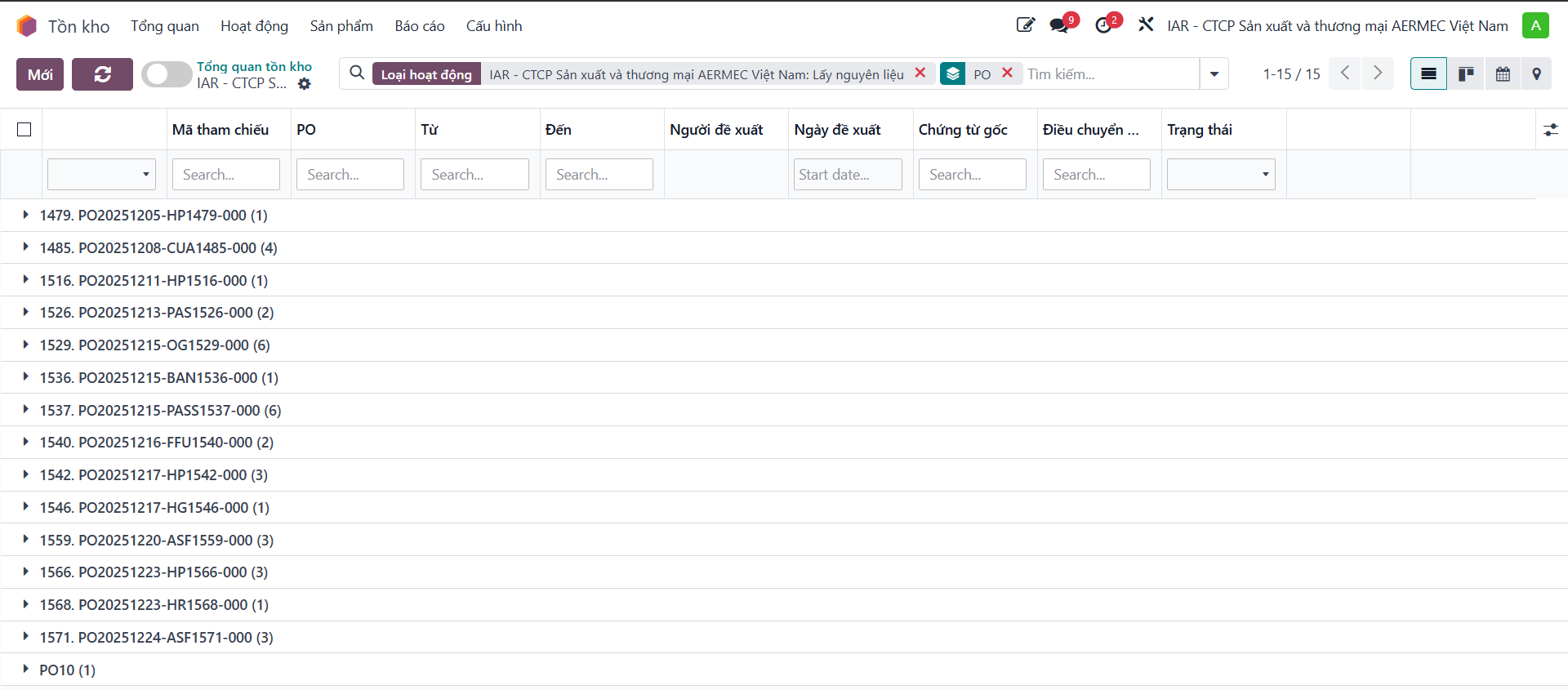
Bước 2: Open the Raw Material Picking screen and filter by project Purchase Order (PO).
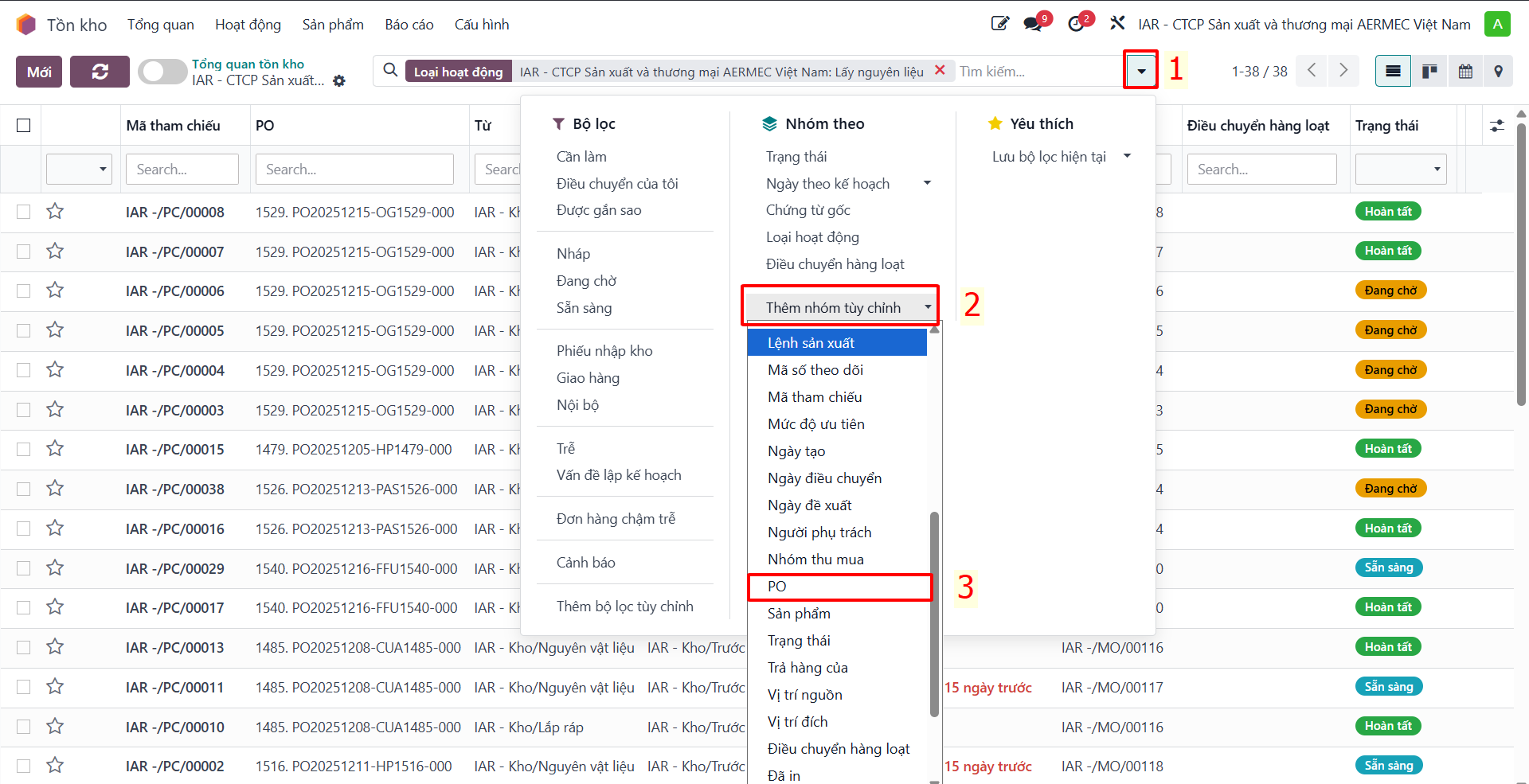
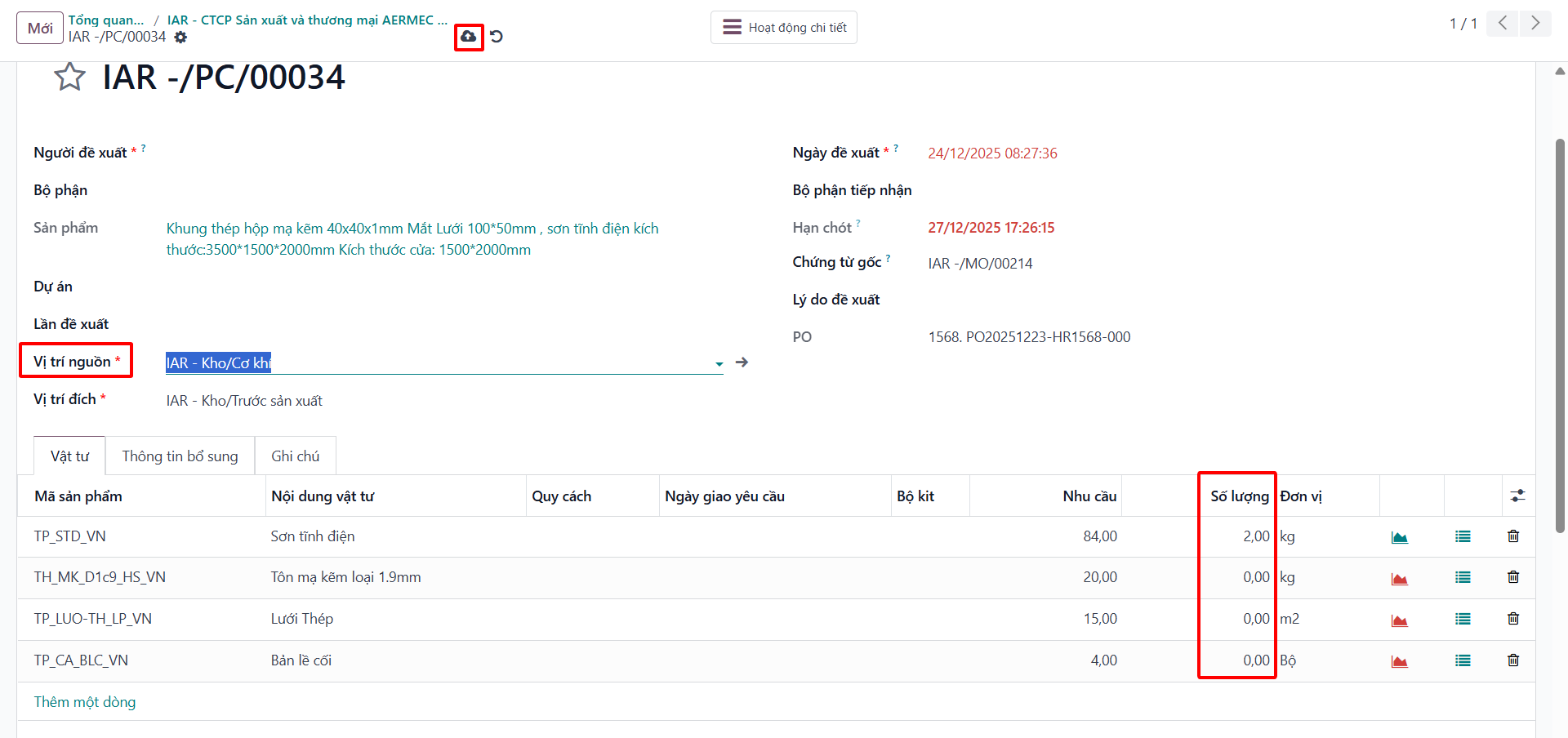
Bước 3: Open the transfer slip, select the Source Warehouse Location, and click Save.
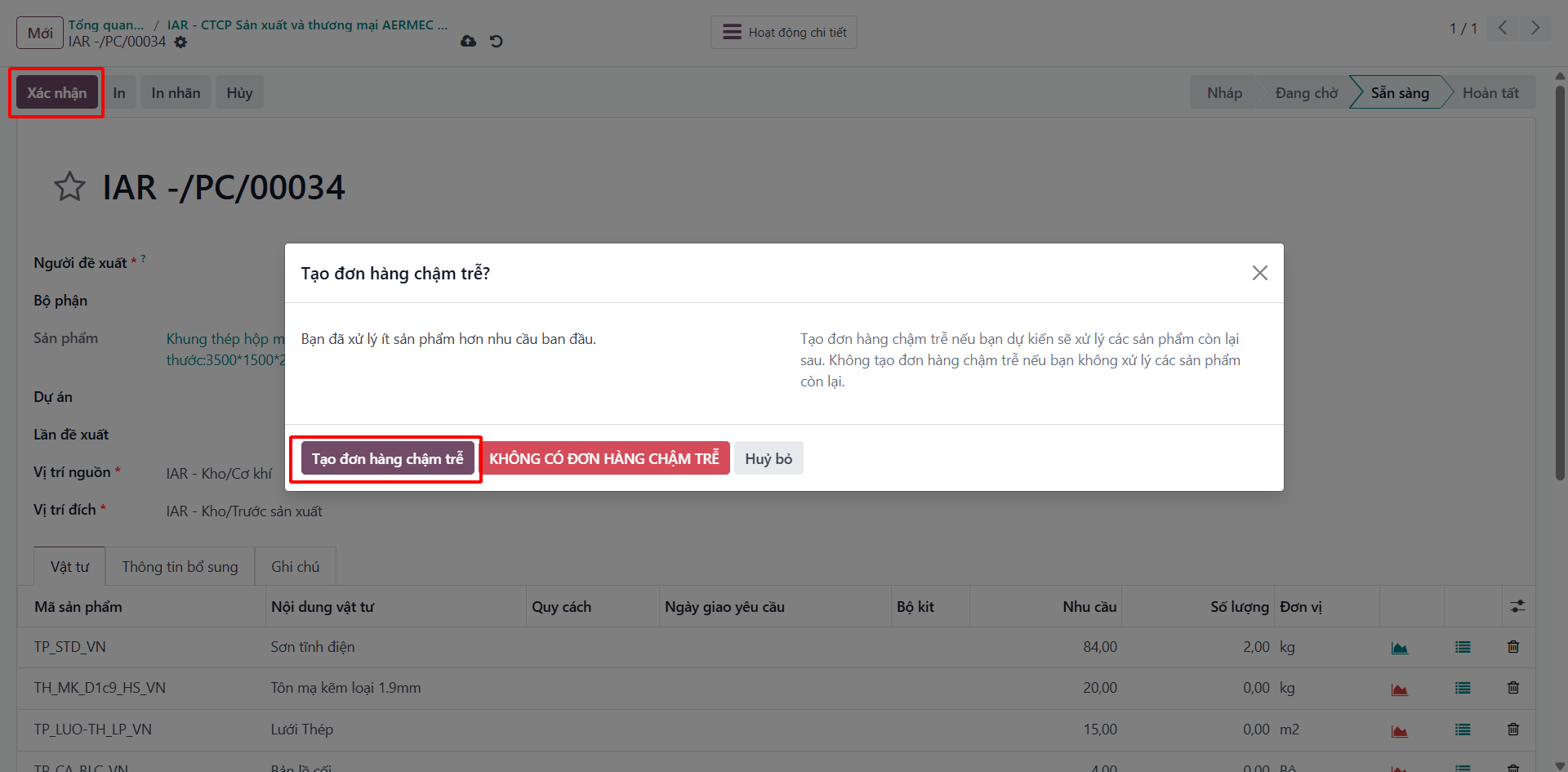
Bước 4: Click Validate. If components are partially missing, click Create Backorder to track remaining parts.
Bước 5: Repeat until all required components are completely staged for production.
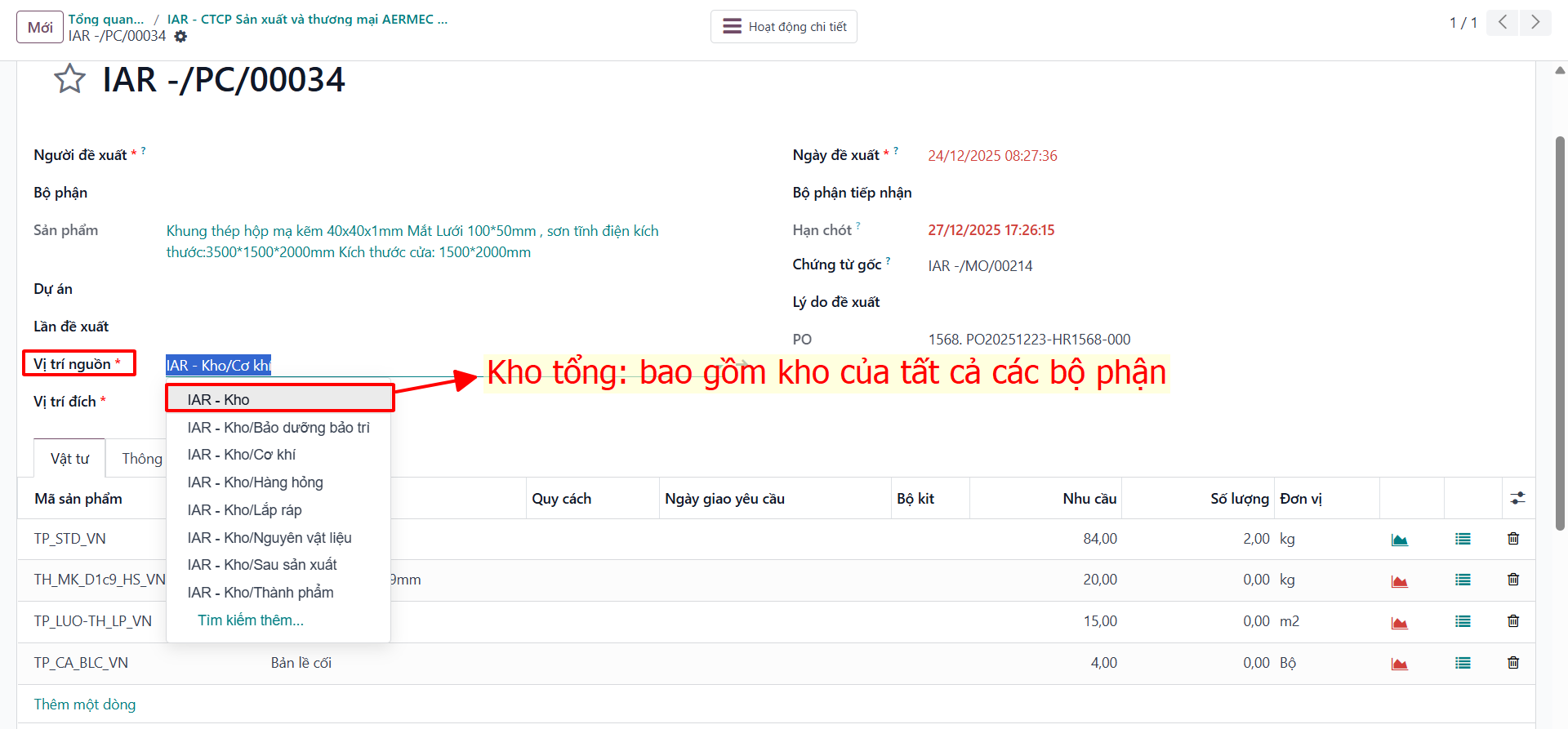
Detailed Bin Location Inspection
Bước 1: On the material picking slip, set the source location to Central Warehouse.
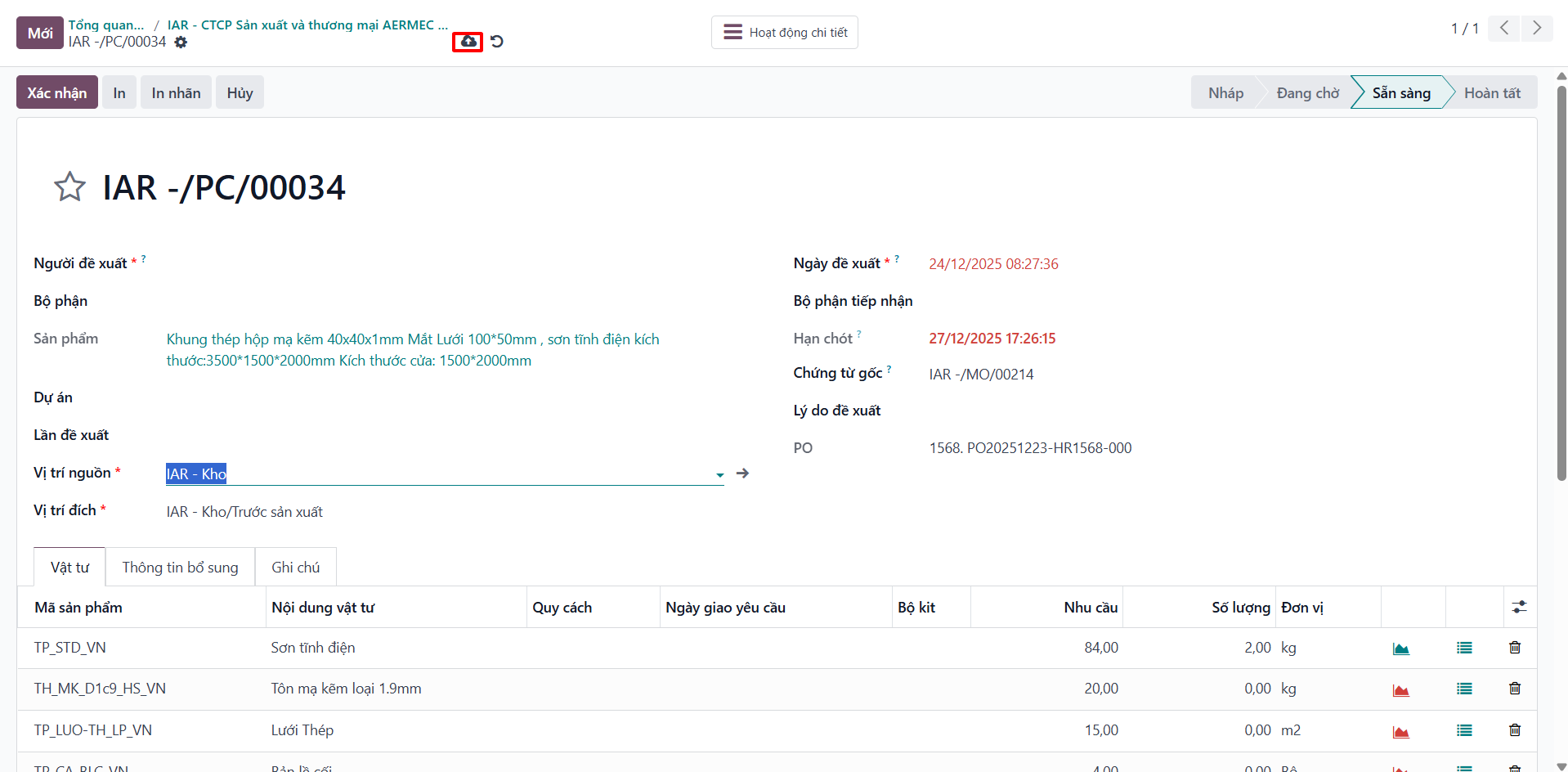
Bước 2: Click Save.
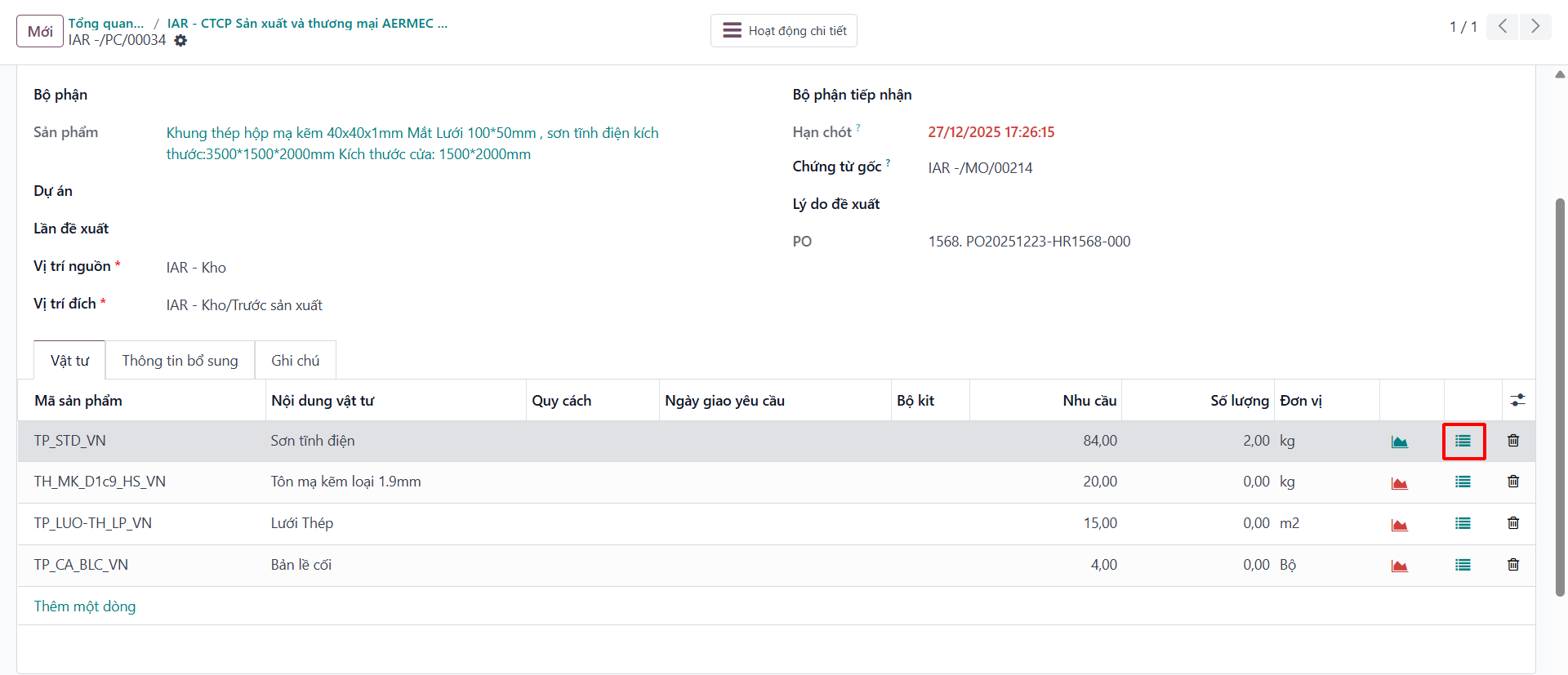
Bước 3: On individual component lines, click the detailed operations icon to inspect specific bin locations.
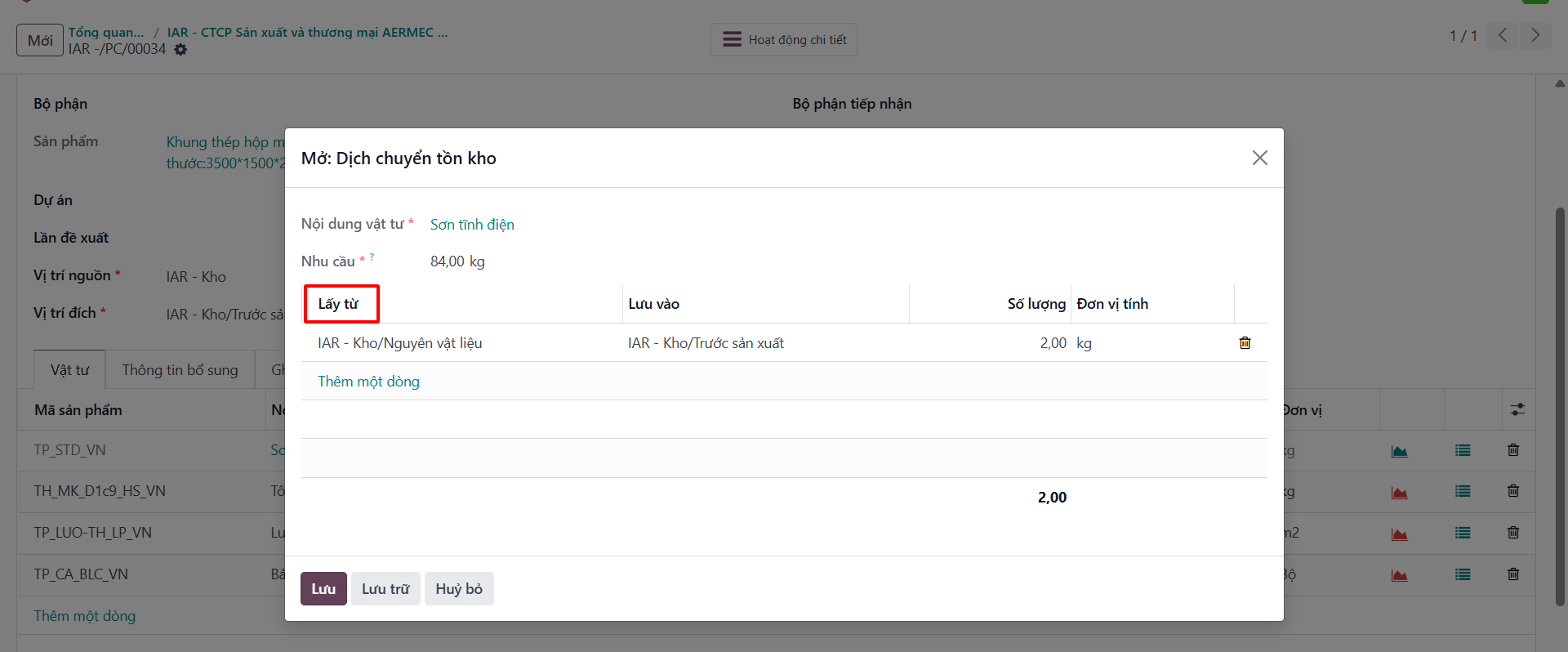
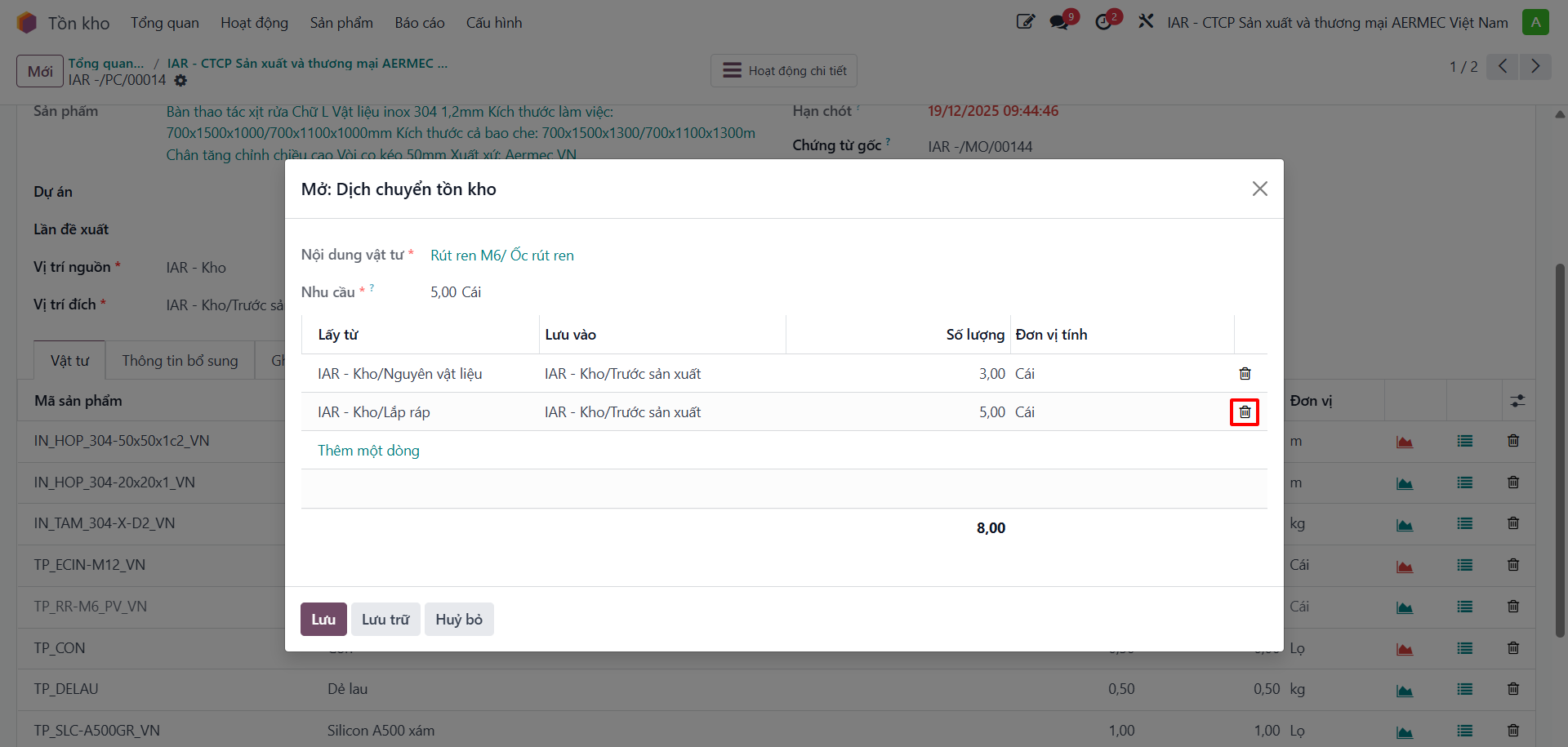
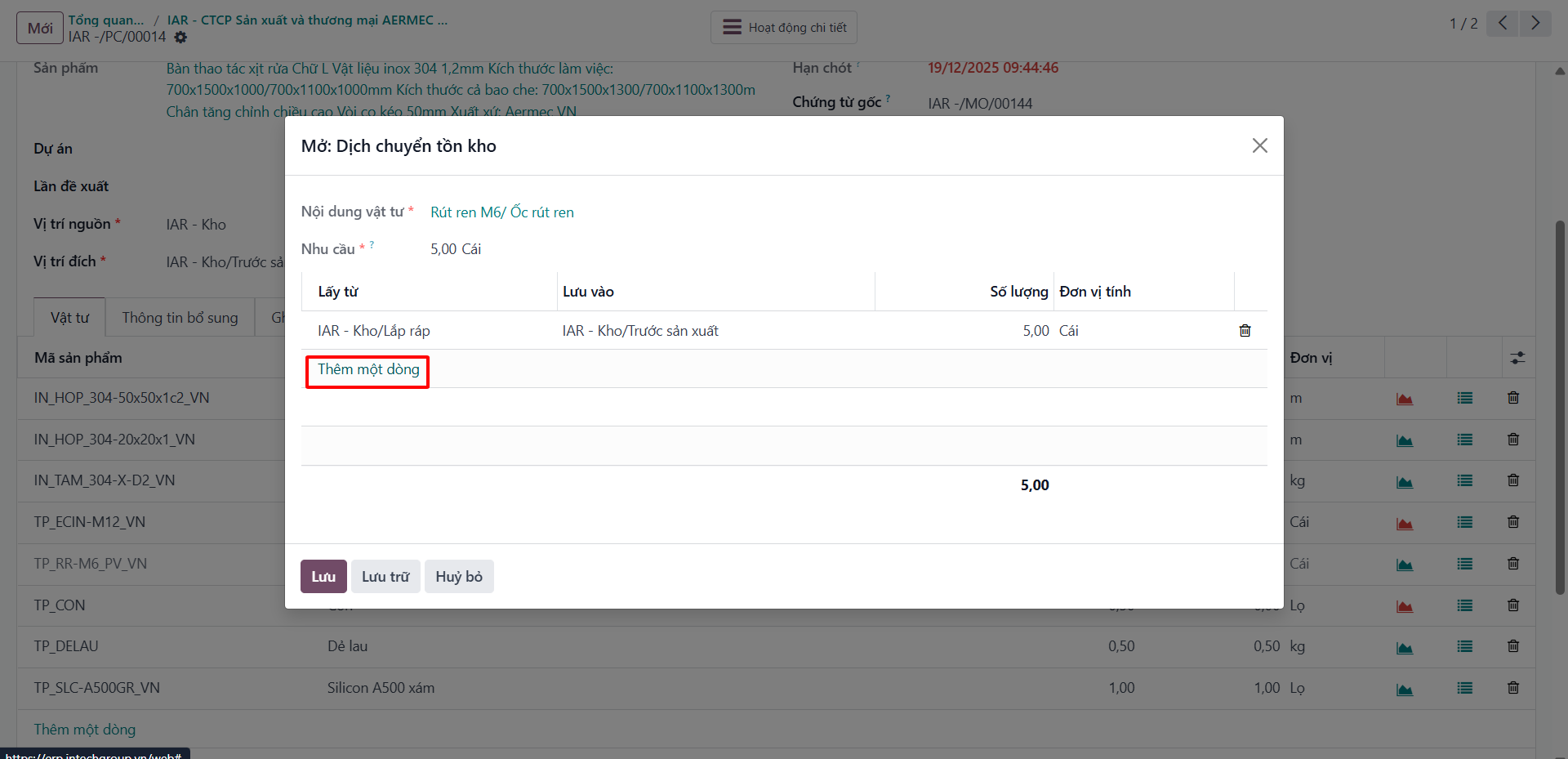
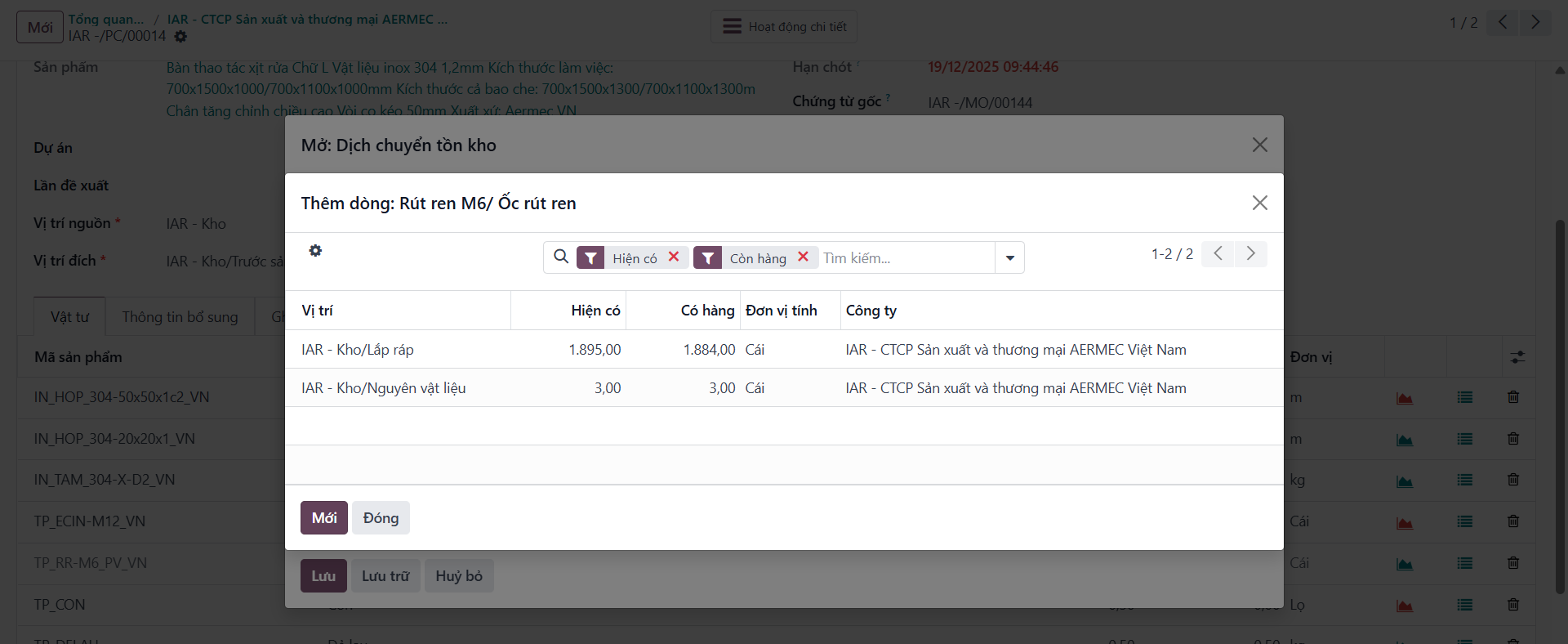
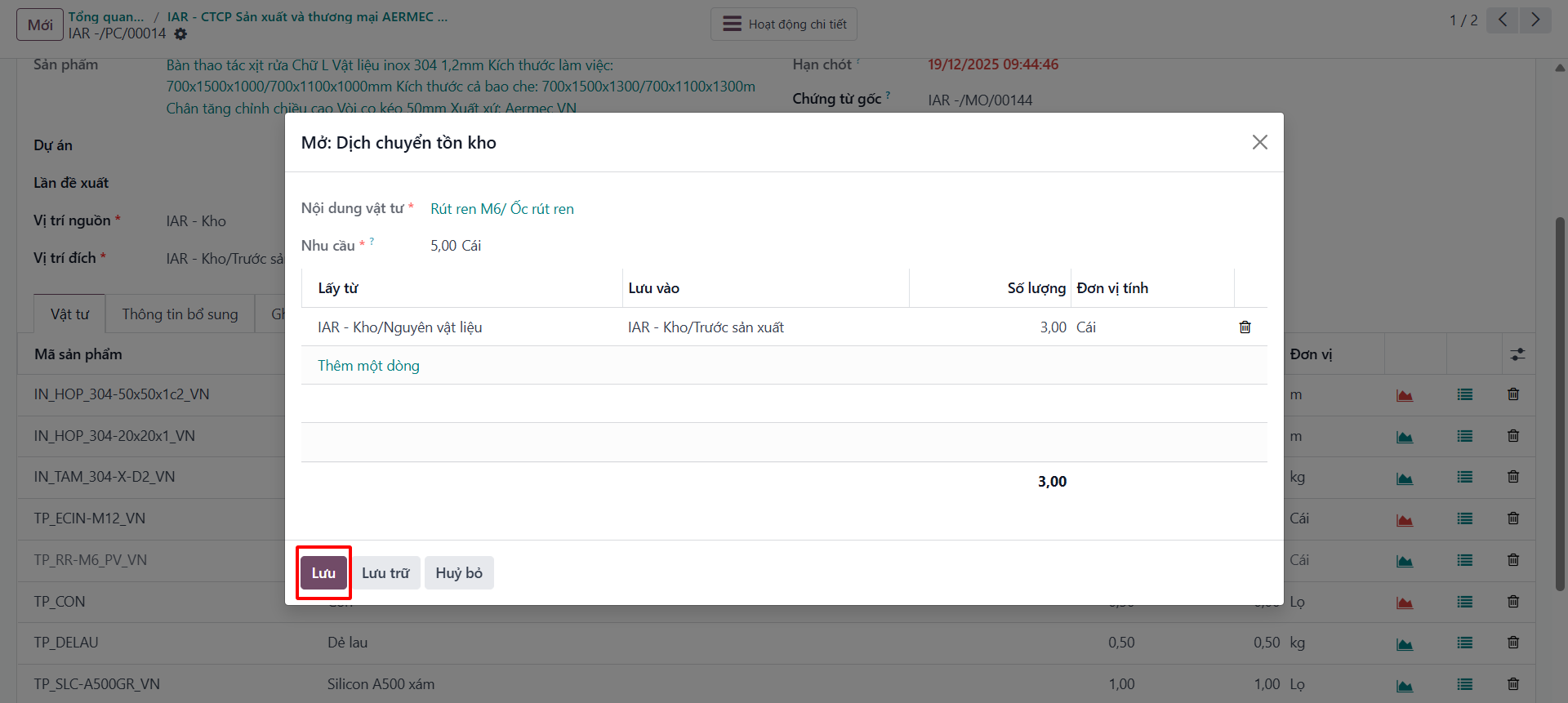
Finished Goods Storage Slips
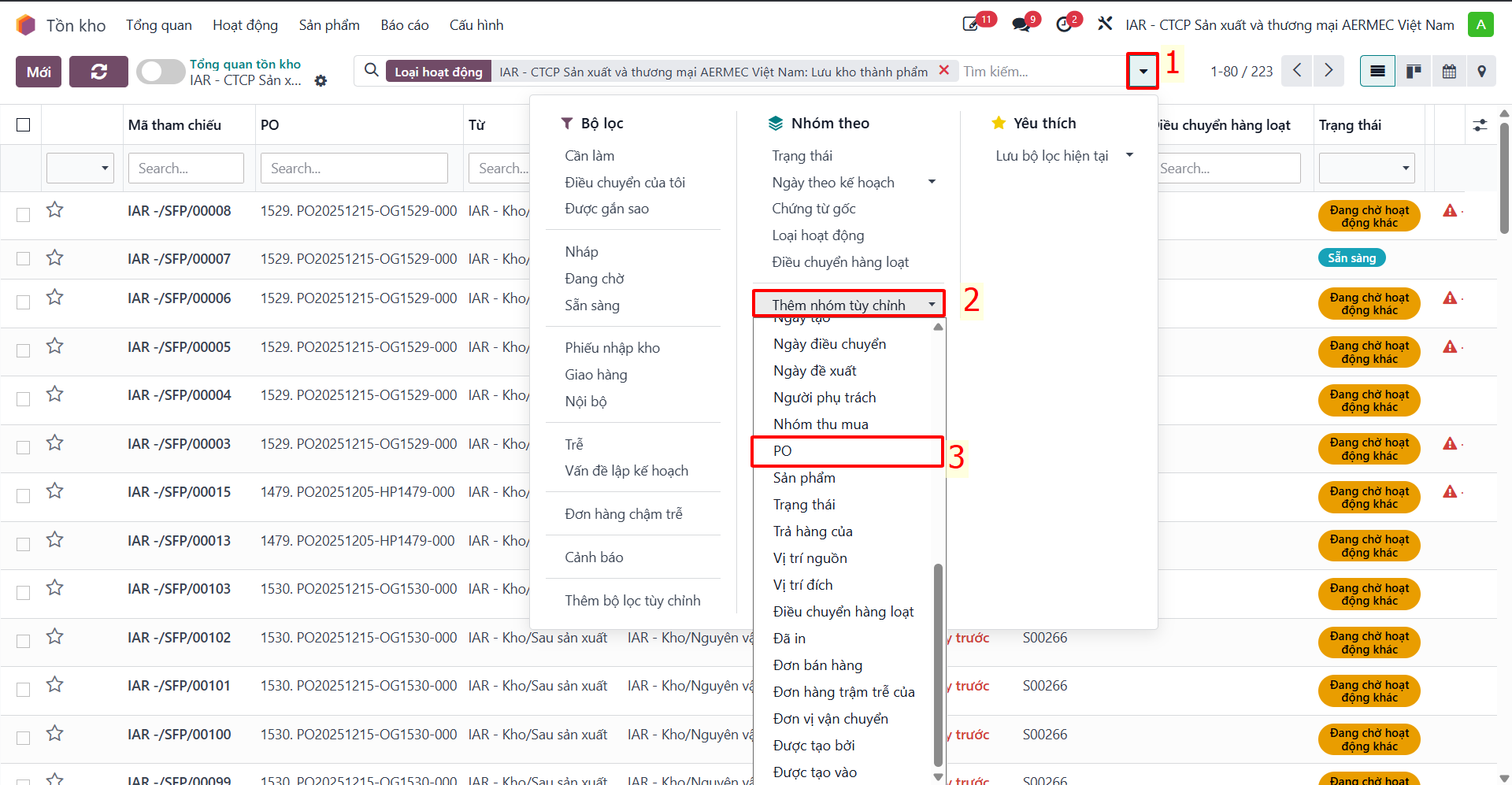
Bước 1: Under Finished Goods Storage slips, filter by project PO to track finished products.
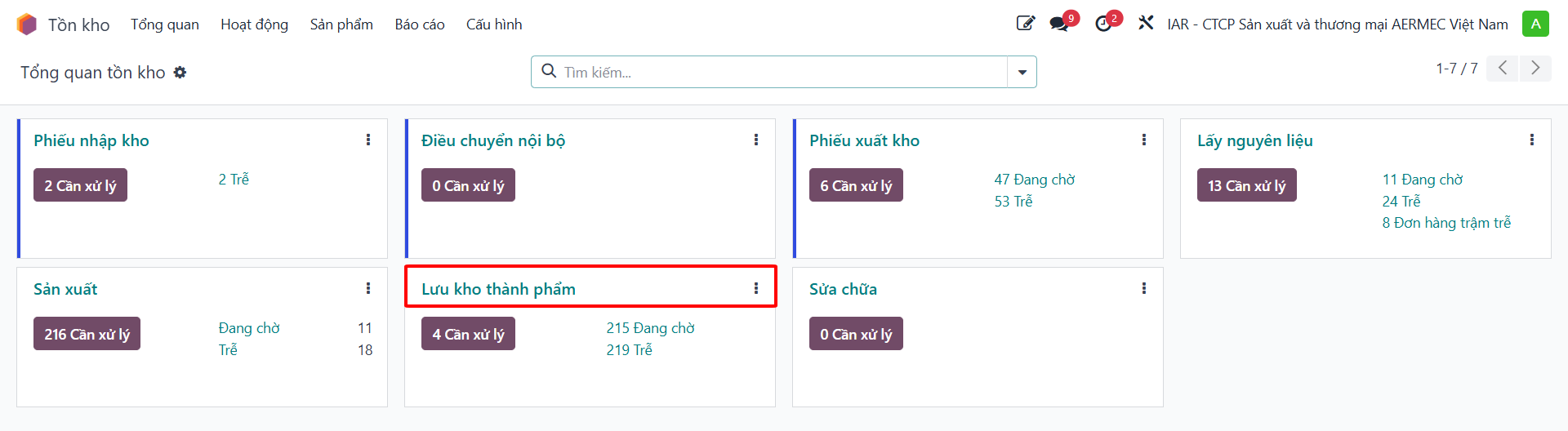
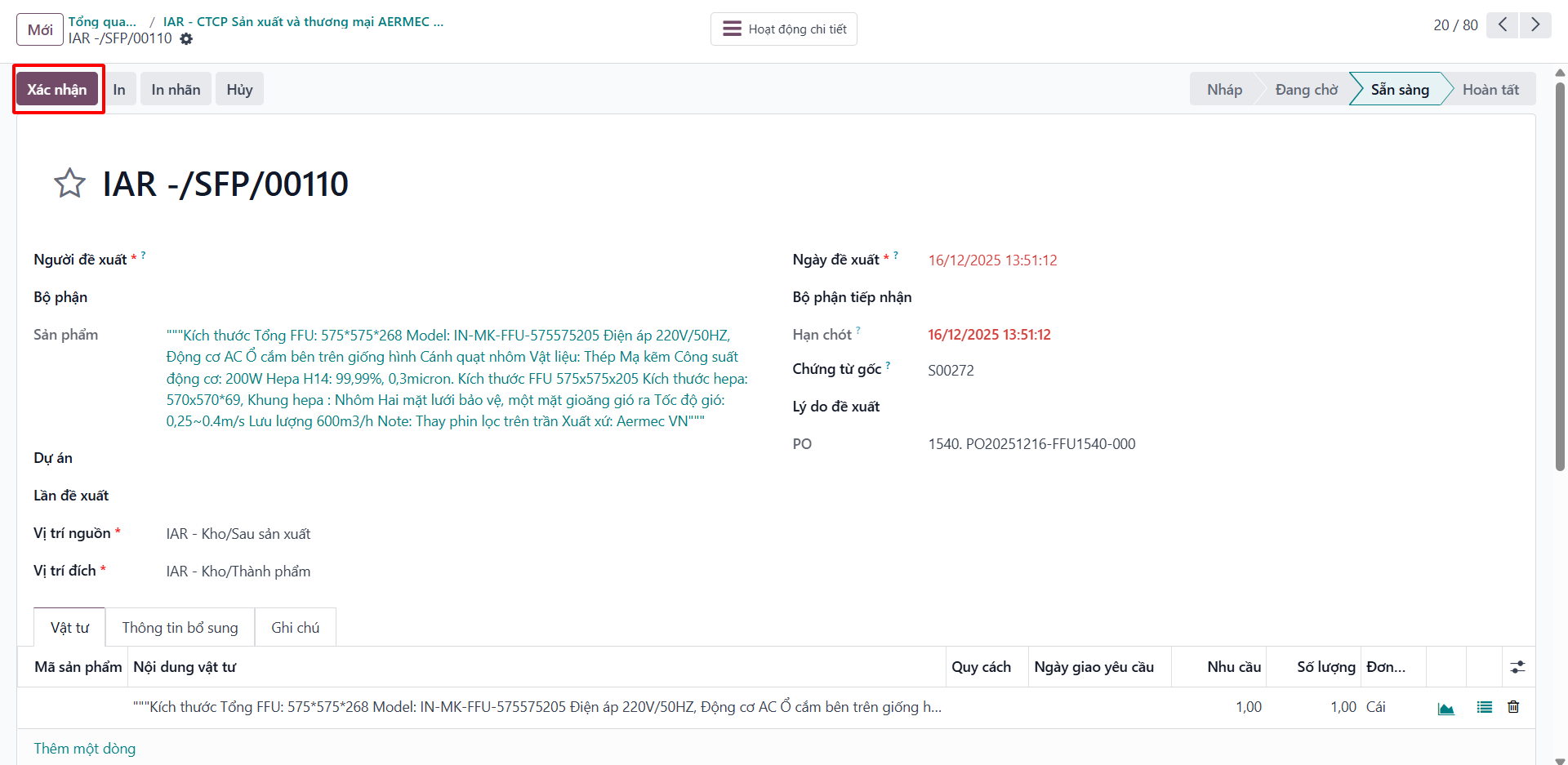
Bước 2: Open the record to verify product quantities. When status is Ready, click Validate to accept into stock.
Departmental Physical Inventory Management
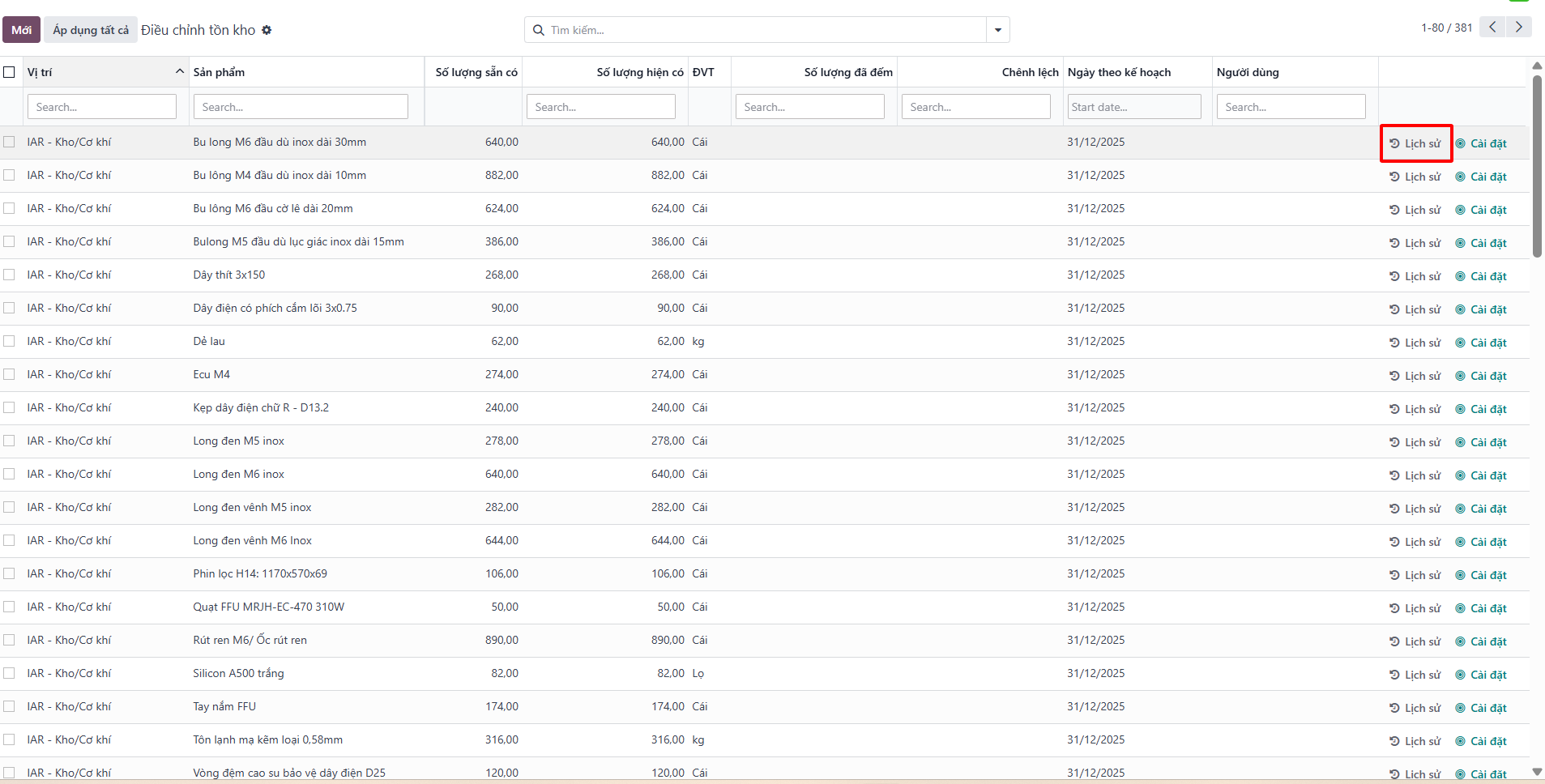
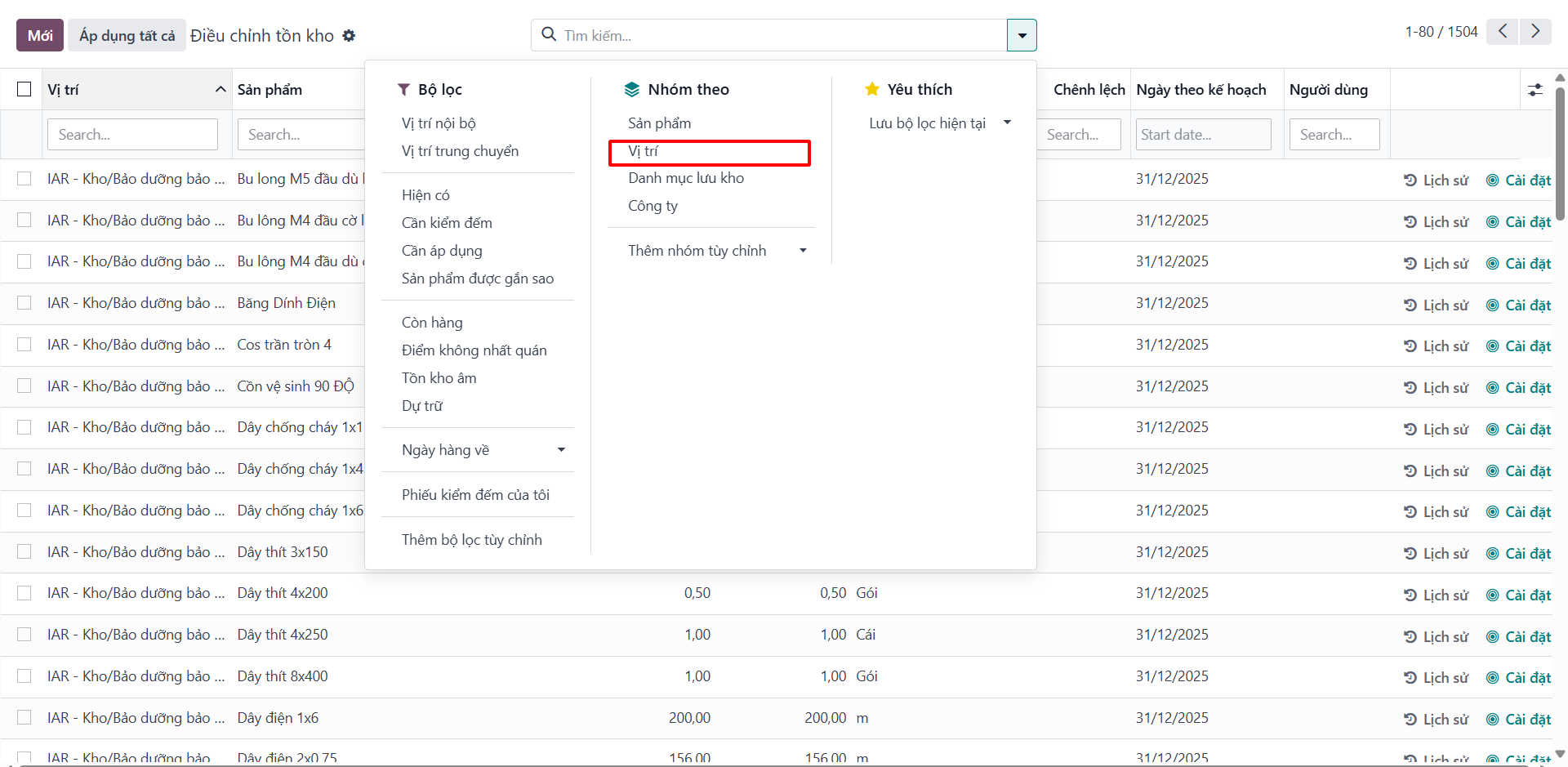
Bước 1: Navigate to .
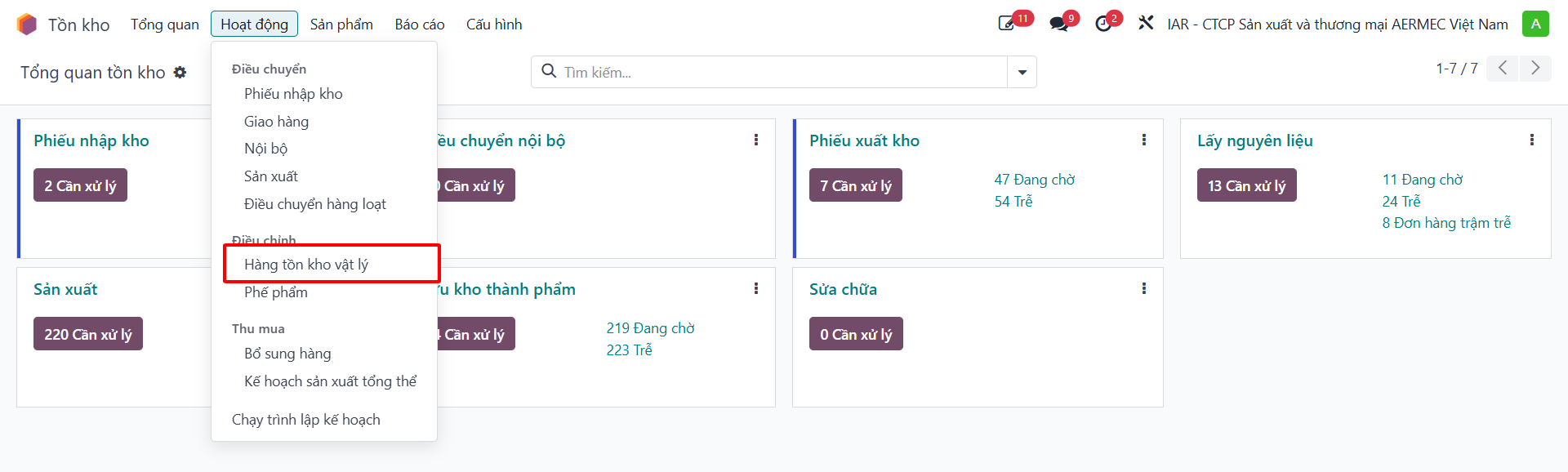
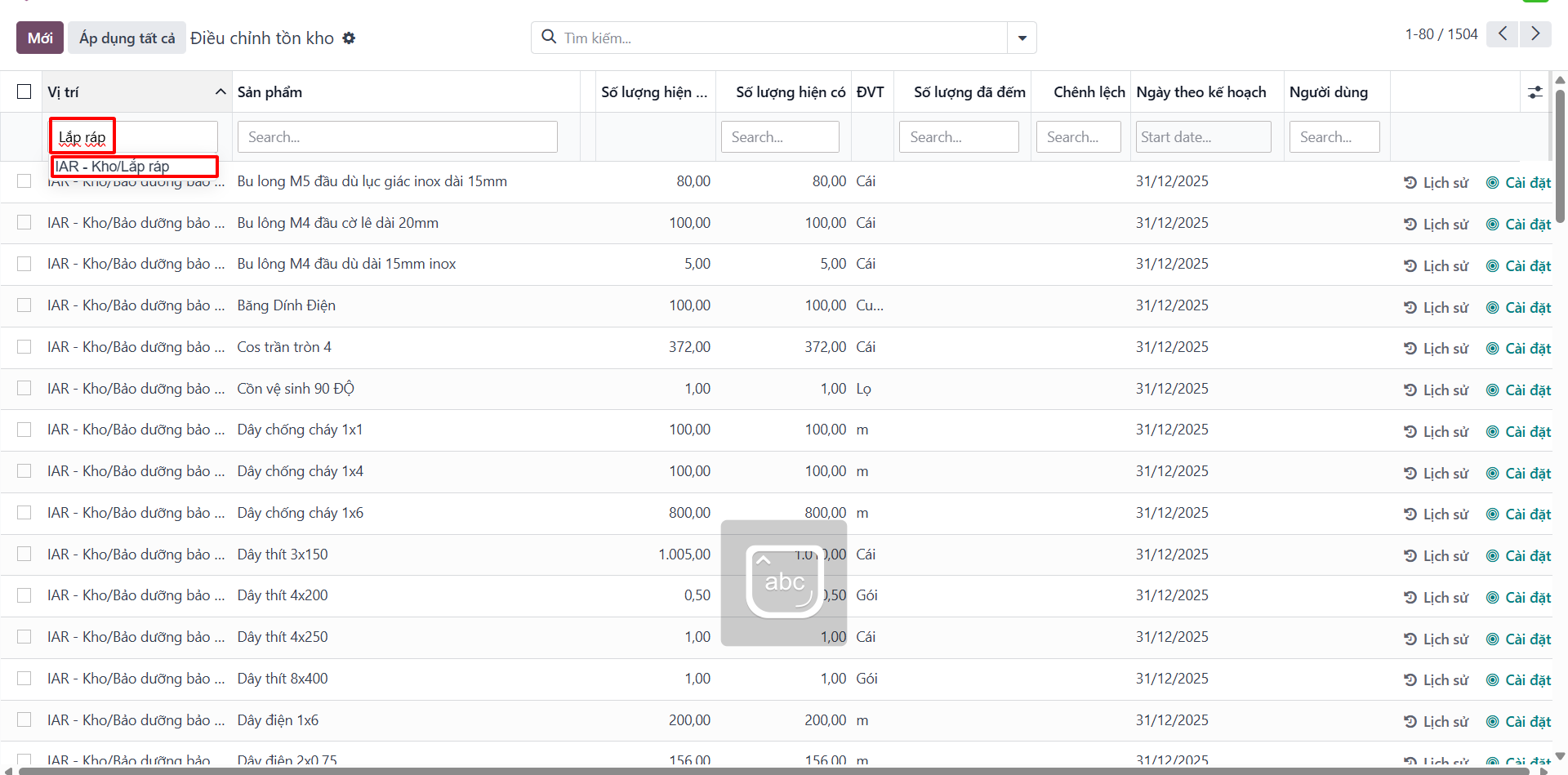
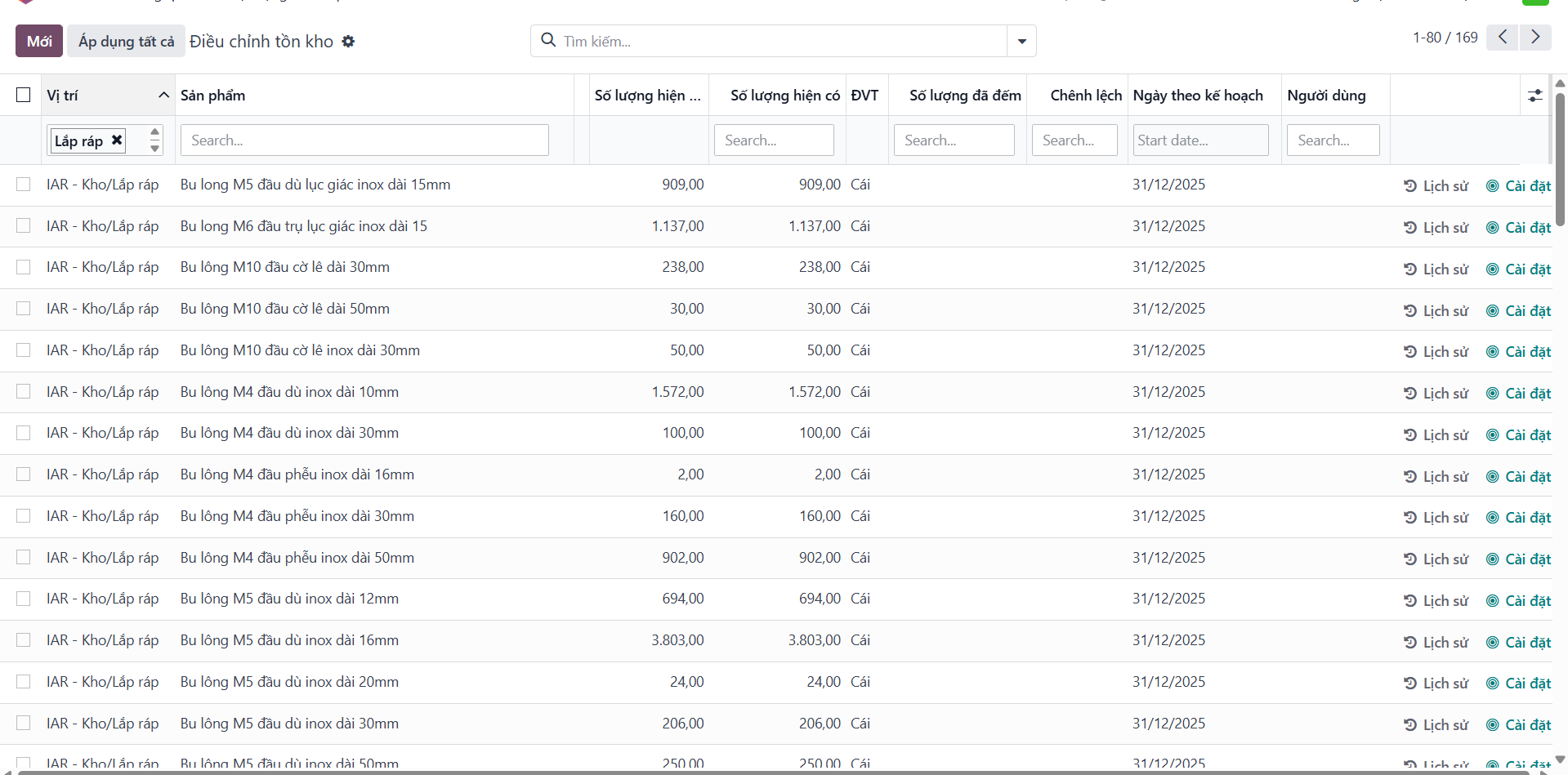
Bước 2: In the search bar, filter by warehouse location to audit stock under your responsibility.
Export and Bulk Inventory Update via Excel
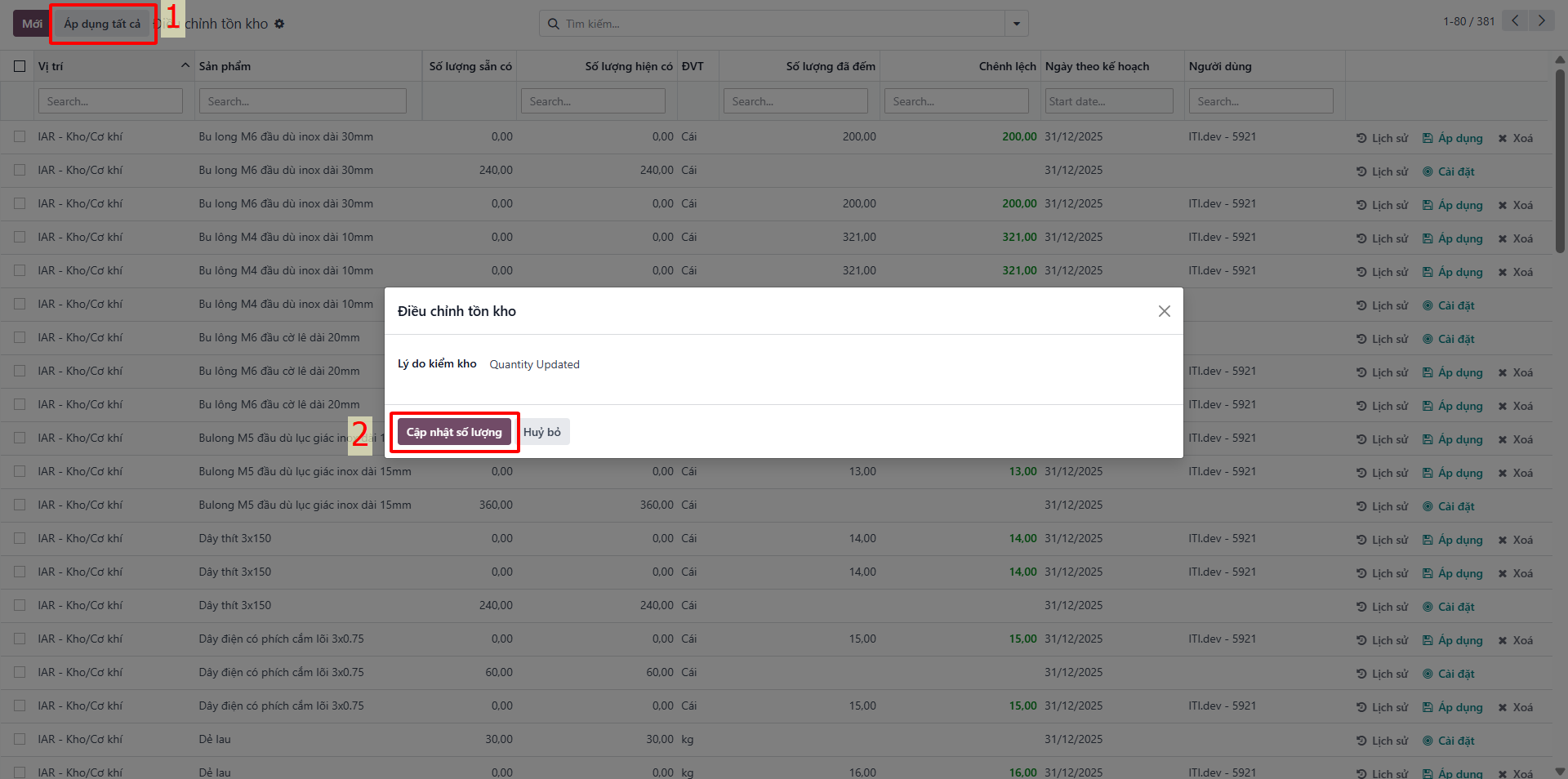
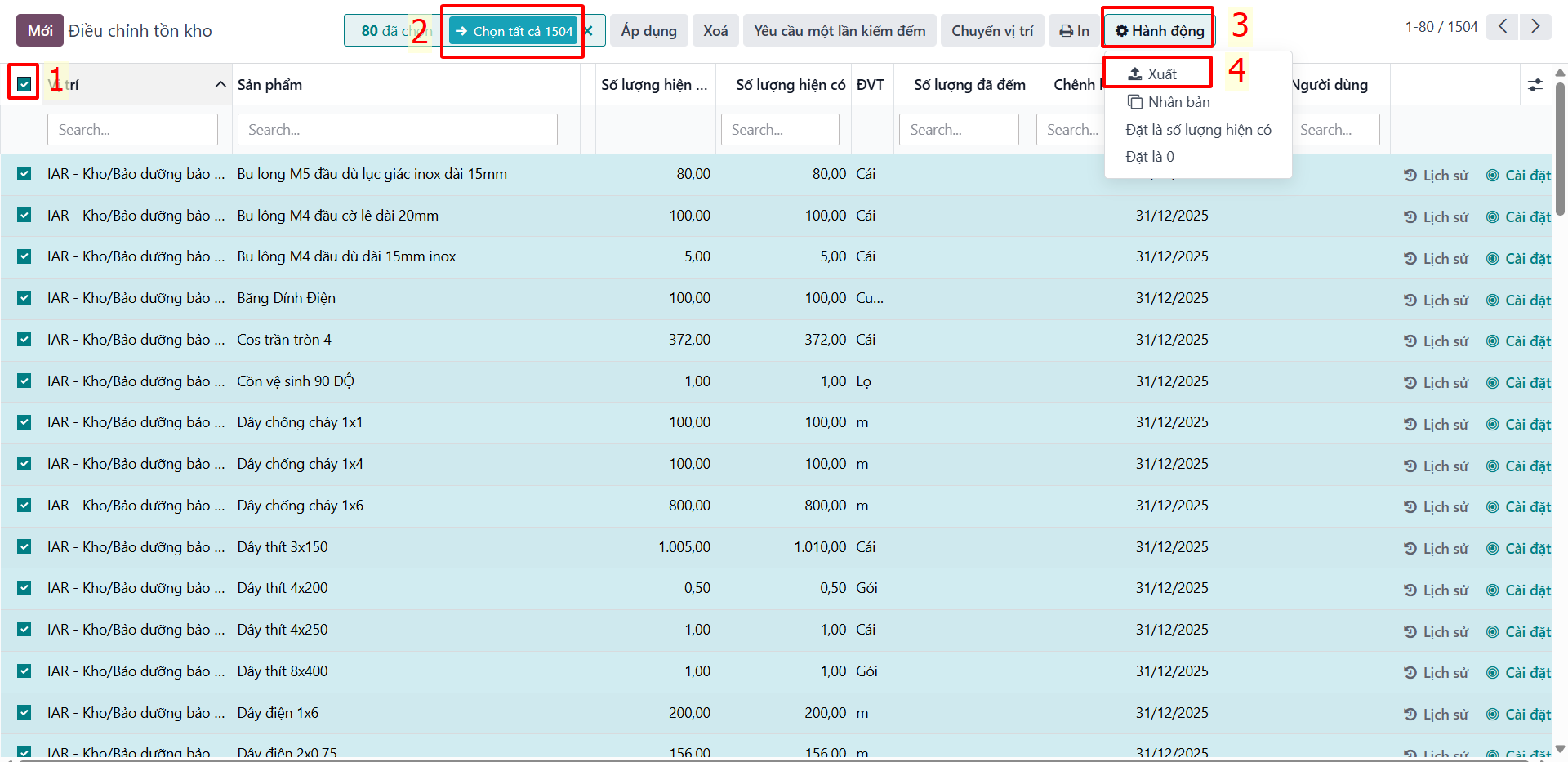
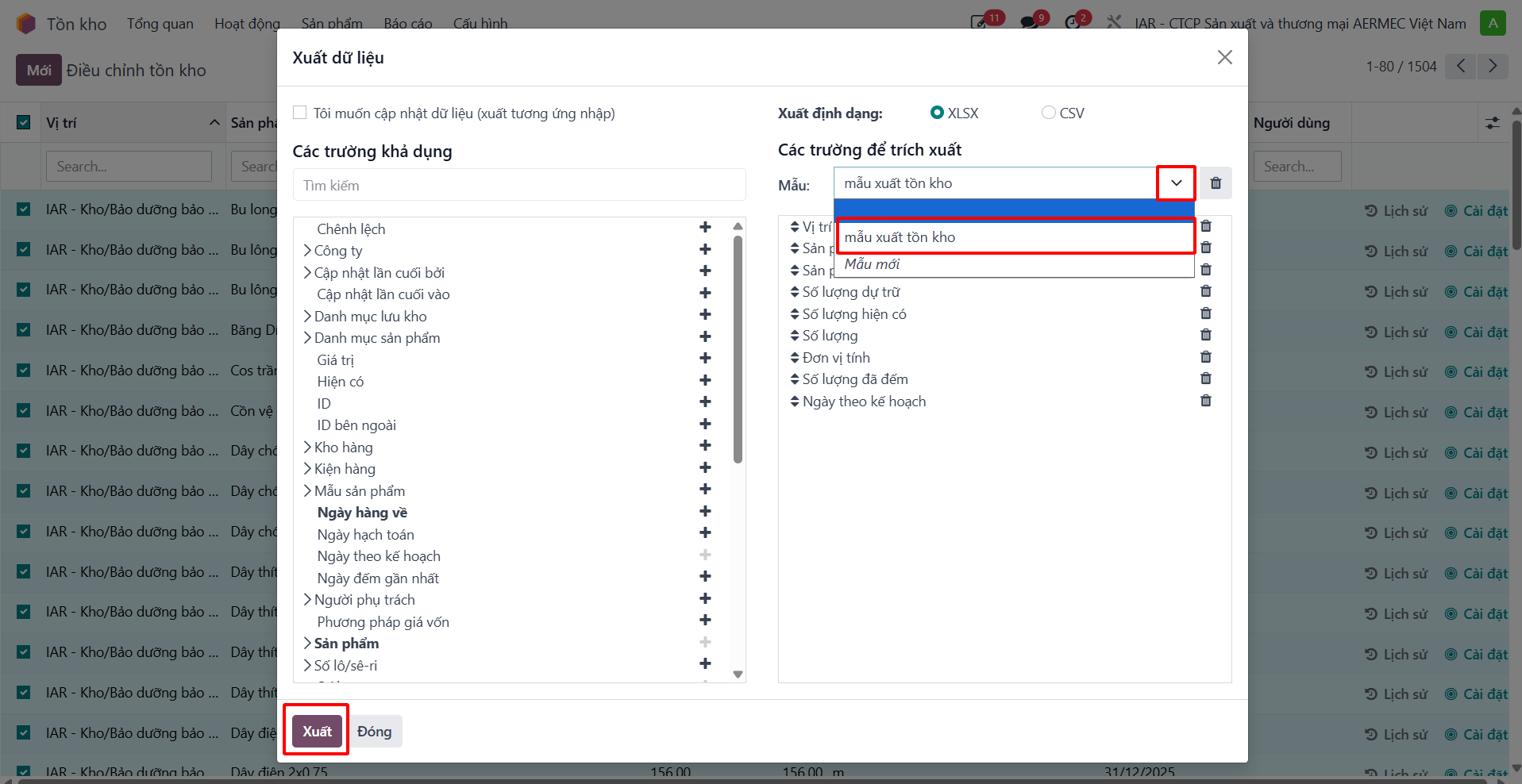
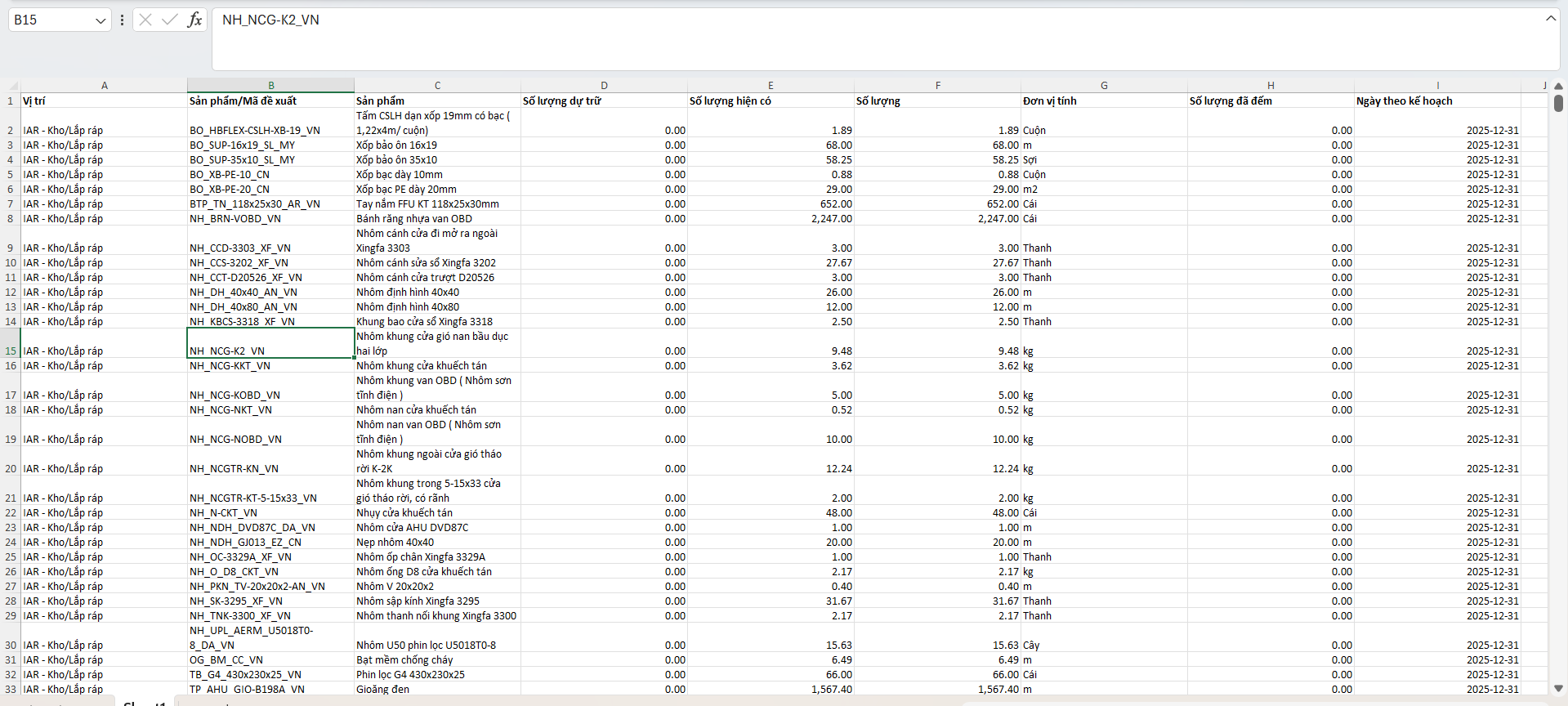
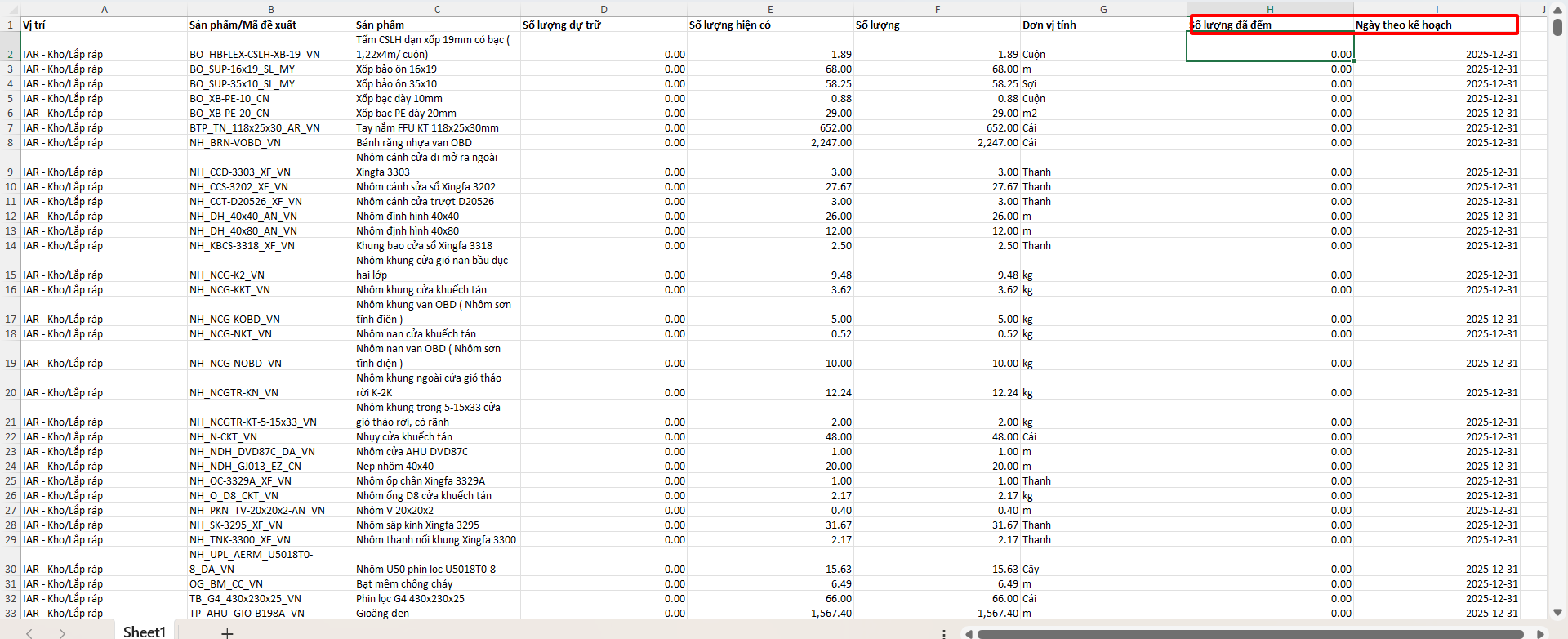
Bước 1: In the Physical Inventory view, select records and export to Excel.
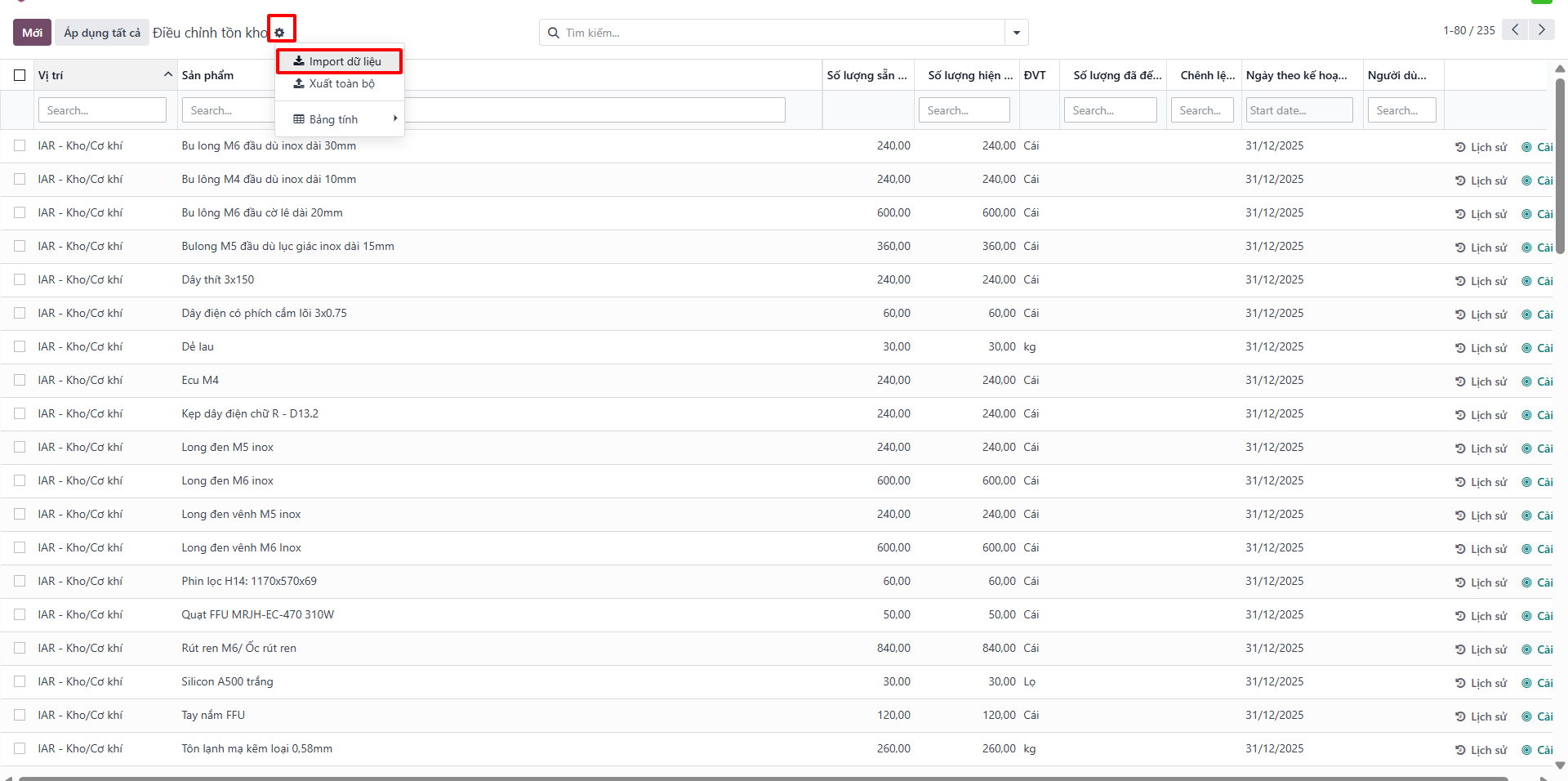
Bước 2: In the inventory management screen, click the gear icon and select Import records.
Bước 3: Select the updated inventory file.

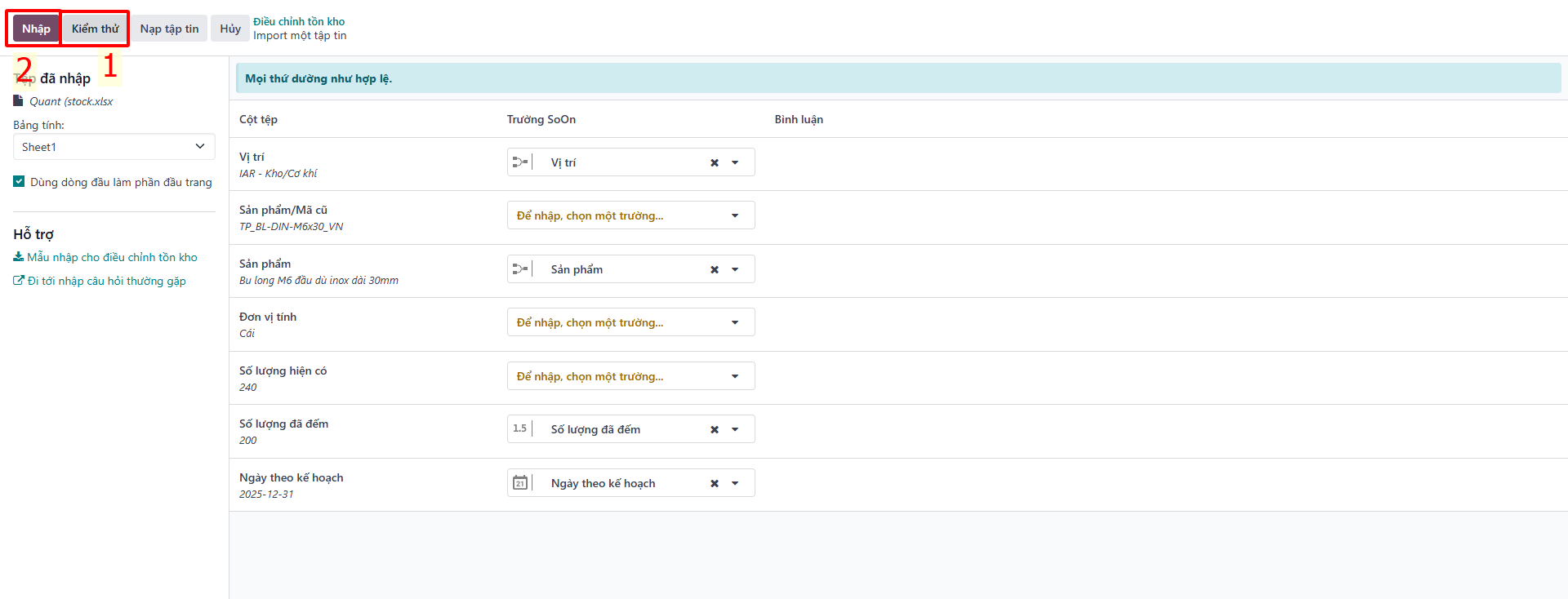
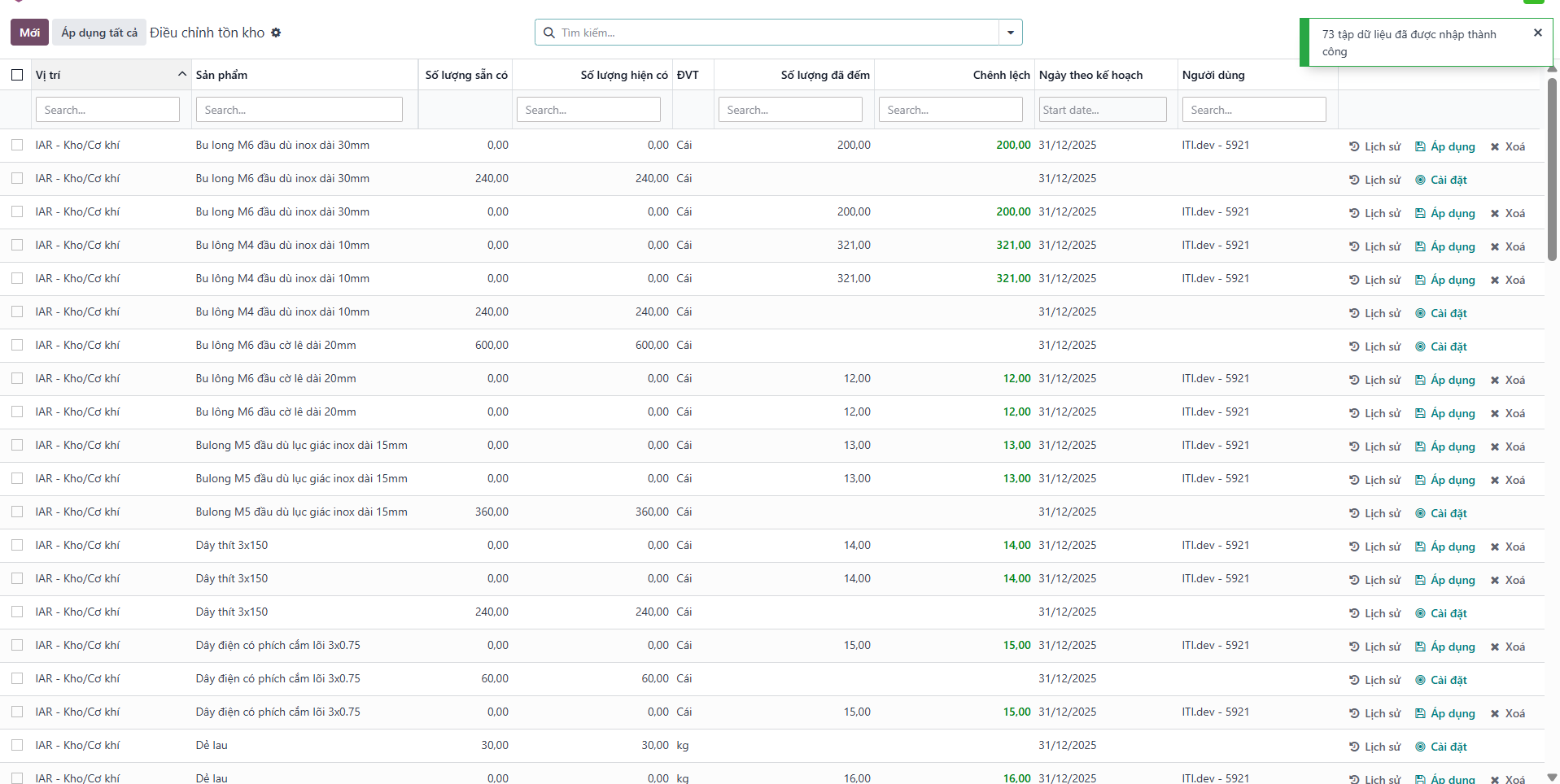
Bước 4: Click Apply All to synchronize on-hand inventory across all audited locations.