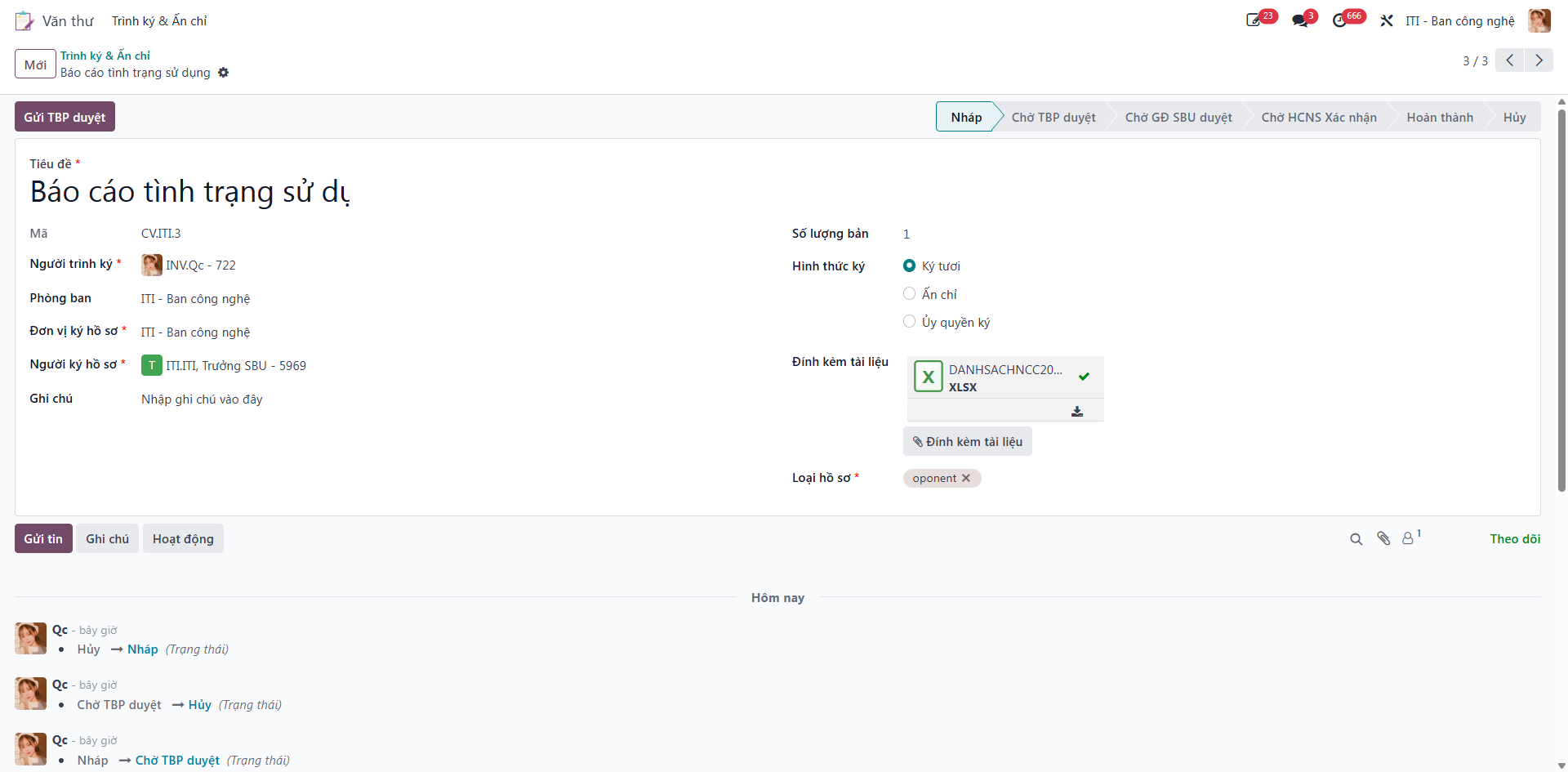
Create & Submit Signing Requisitions
Employees submit official files, contracts, and proposals for executive approval and seal issuance through the Clerical portal.
Initiating a Signing Requisition
Bước 1: From the main S-ERP application menu, navigate to Clerical (Văn thư) and select Sign & Stamp Requisitions (Trình ký / Ấn chỉ).
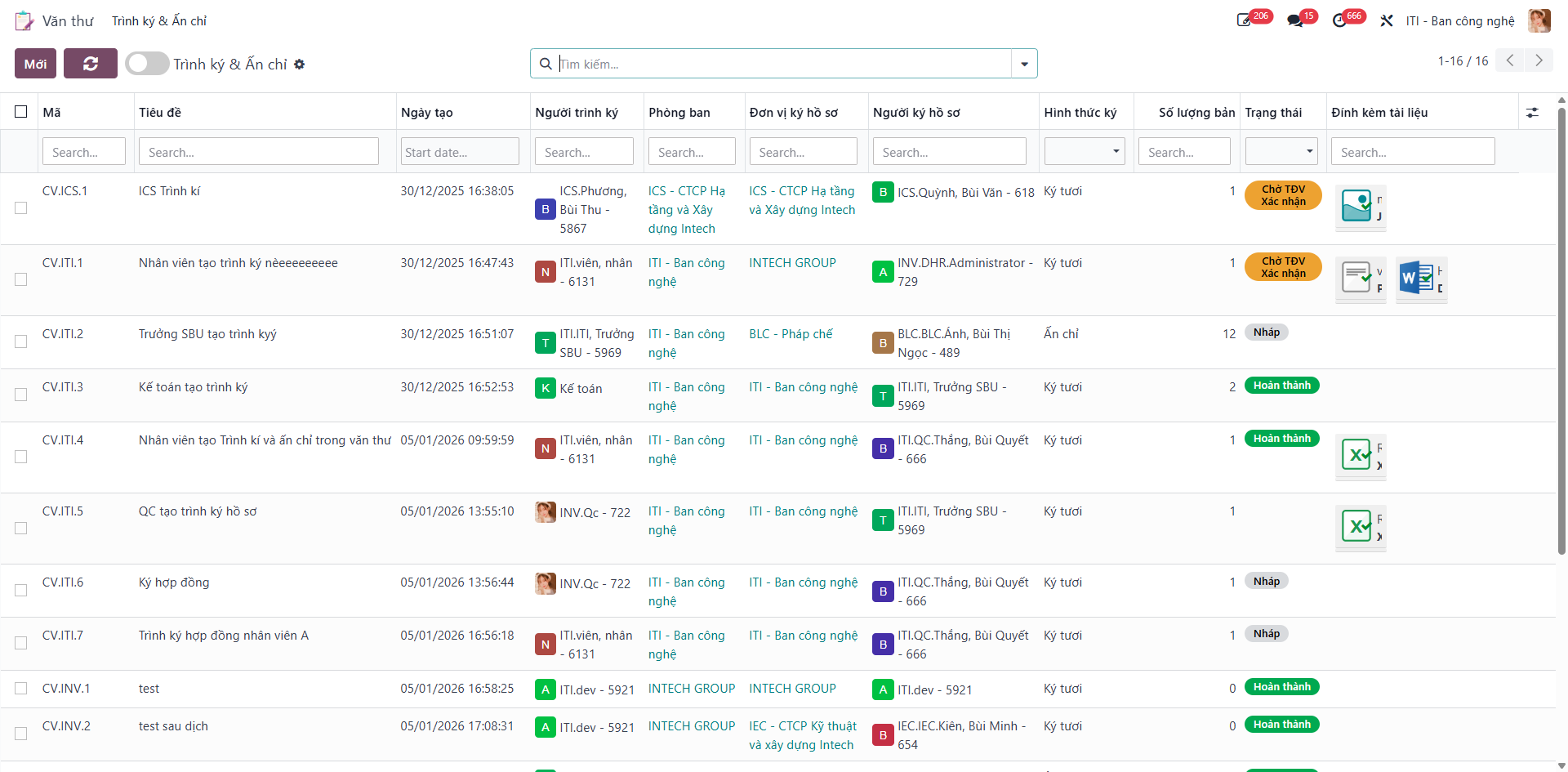
The central registry displays all created signing records with detailed columns: Title (Tiêu đề), Creation Date (Ngày tạo), Submitter (Người trình ký), Department (Phòng ban), Signing SBU (Đơn vị ký hồ sơ), Signer (Người ký hồ sơ), Signing Method (Hình thức ký), Signing Documents (Tài liệu trình ký), Copy Quantity (Số lượng bản), Link, and Status (Trạng thái).
Note
Users can group or filter submissions by Department, Creation Time (Year/Quarter/Month/Week), or Signing SBU.
Bước 2: Click the New (Mới) button in the upper toolbar to open a new requisition form.
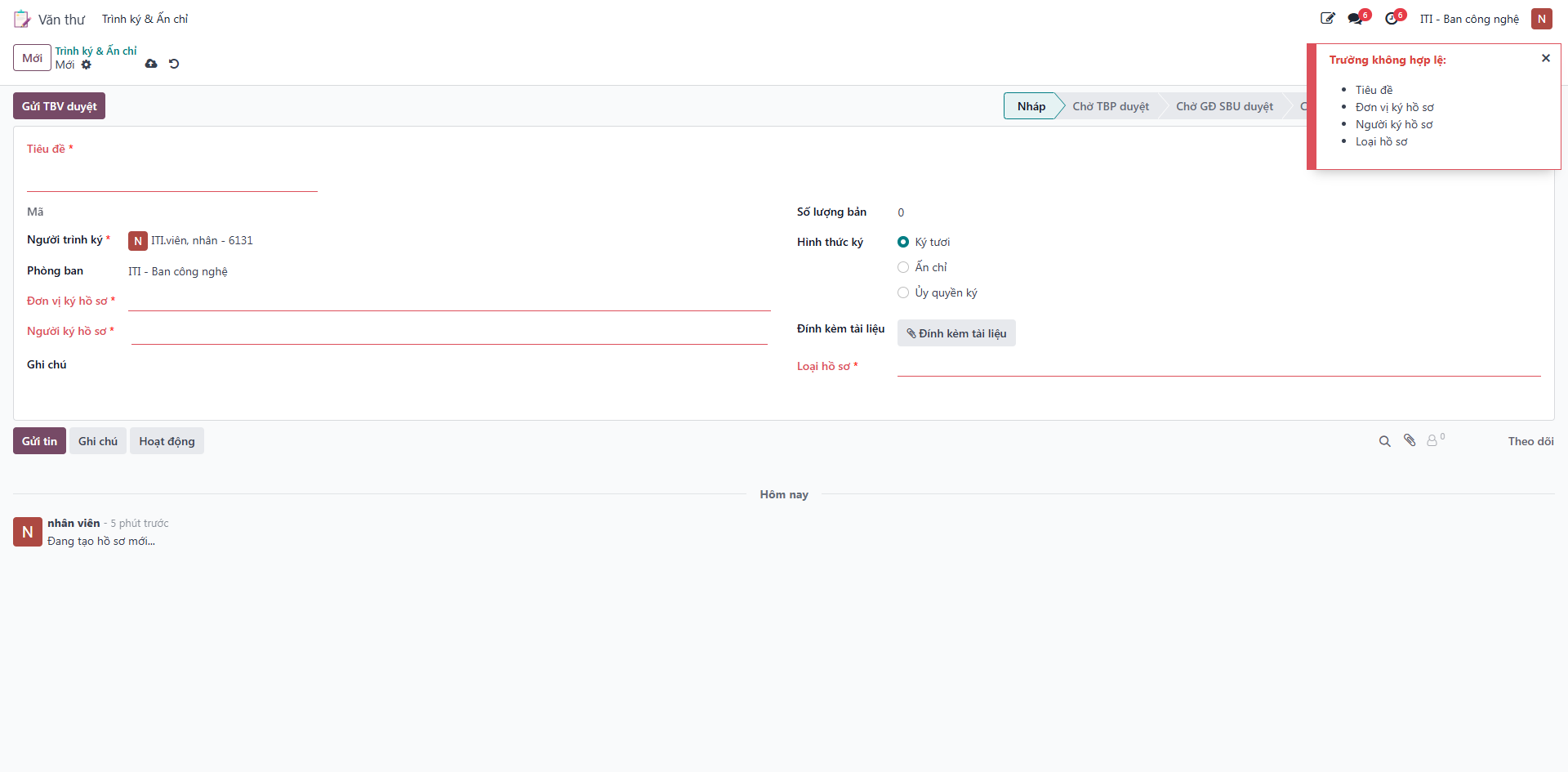
Bước 3: Enter all mandatory parameters on the form:
Title (Tiêu đề): Brief summary of the document or contract.
Signing Method (Hình thức ký): Select digital signature or physical wet ink.
Copy Quantity (Số lượng bản): Number of physical copies requiring stamps.
Signing Documents (Tài liệu trình ký): Attach electronic files or reference links.
Click Save (Lưu) to record the submission in Draft (Nháp) status.
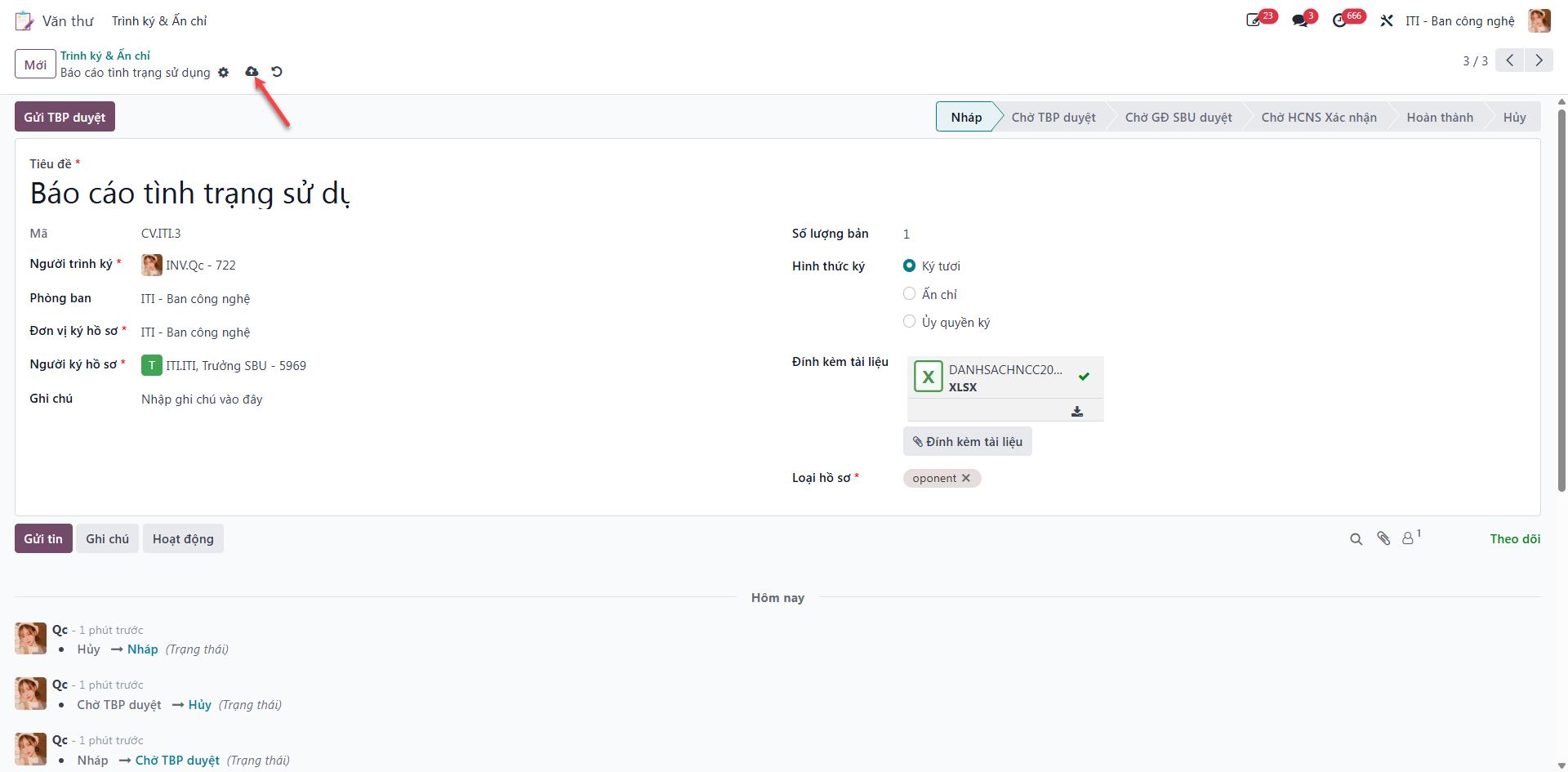
Bước 4: Verify all attached files, then click Submit to Dept Manager (Gửi TBP duyệt) to advance the requisition to the approval pipeline.