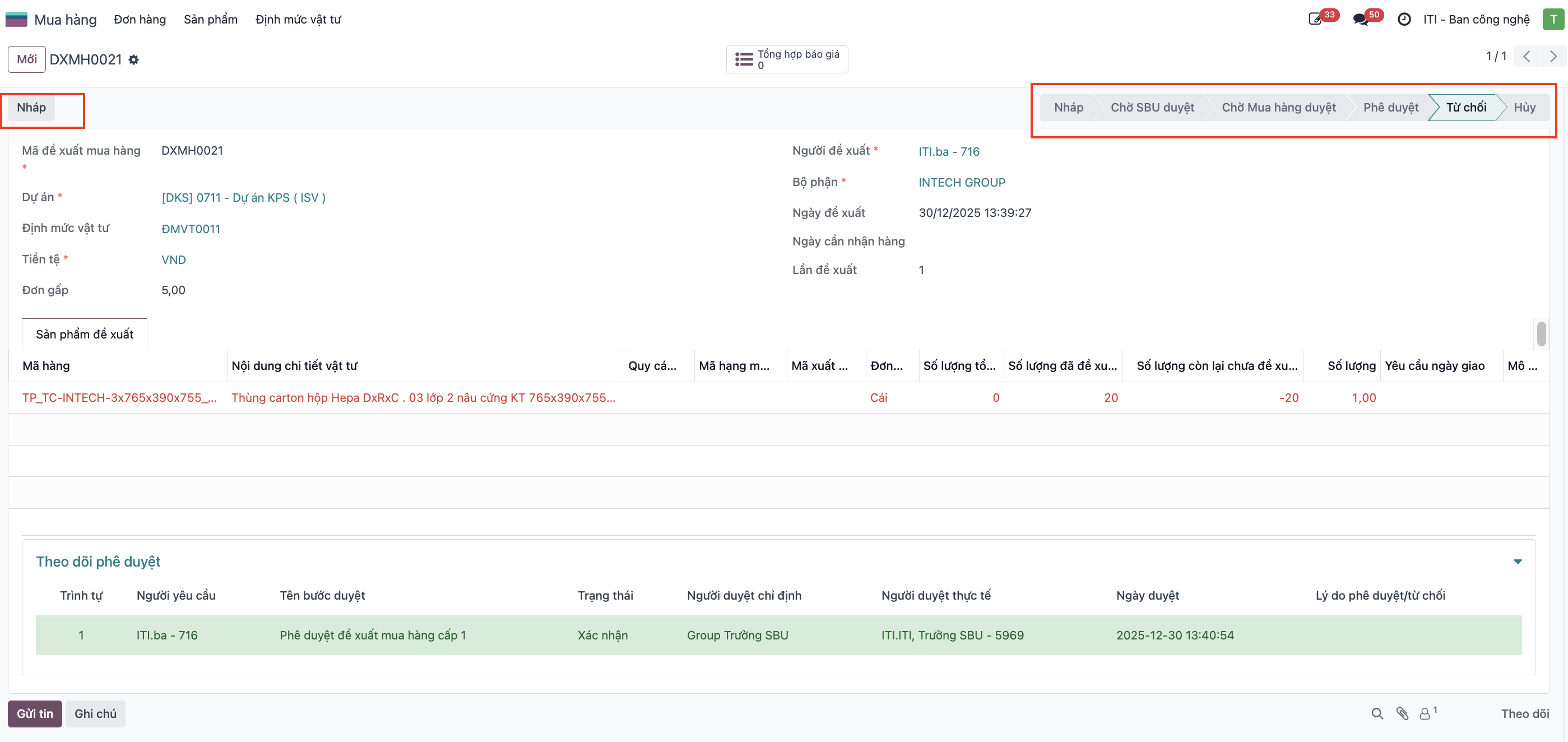
Purchase Requests
Purchase Requests (Đề xuất mua hàng - ĐXMH) allow project engineers and site managers to requisition materials strictly controlled against approved project quotas.
Create Purchase Request
Step 1: Navigate to and click New.
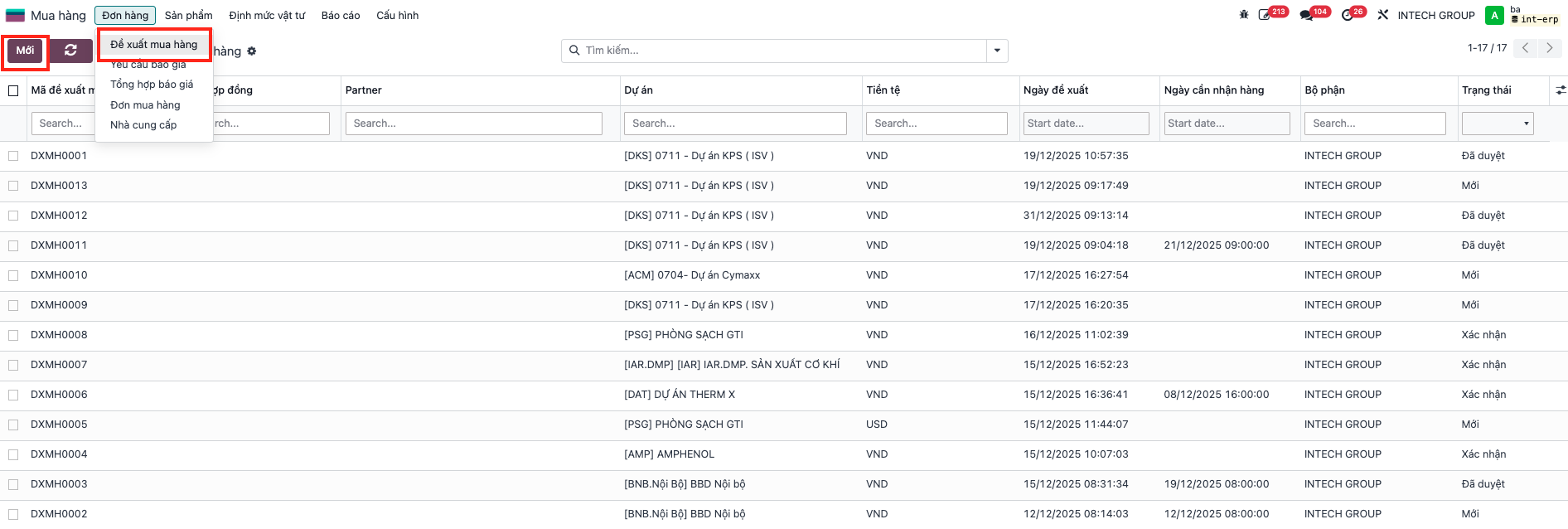
Step 2: Select the applicable Project. The system automatically displays the corresponding approved Material Quota. Enter requisitioned material line items and quantities.
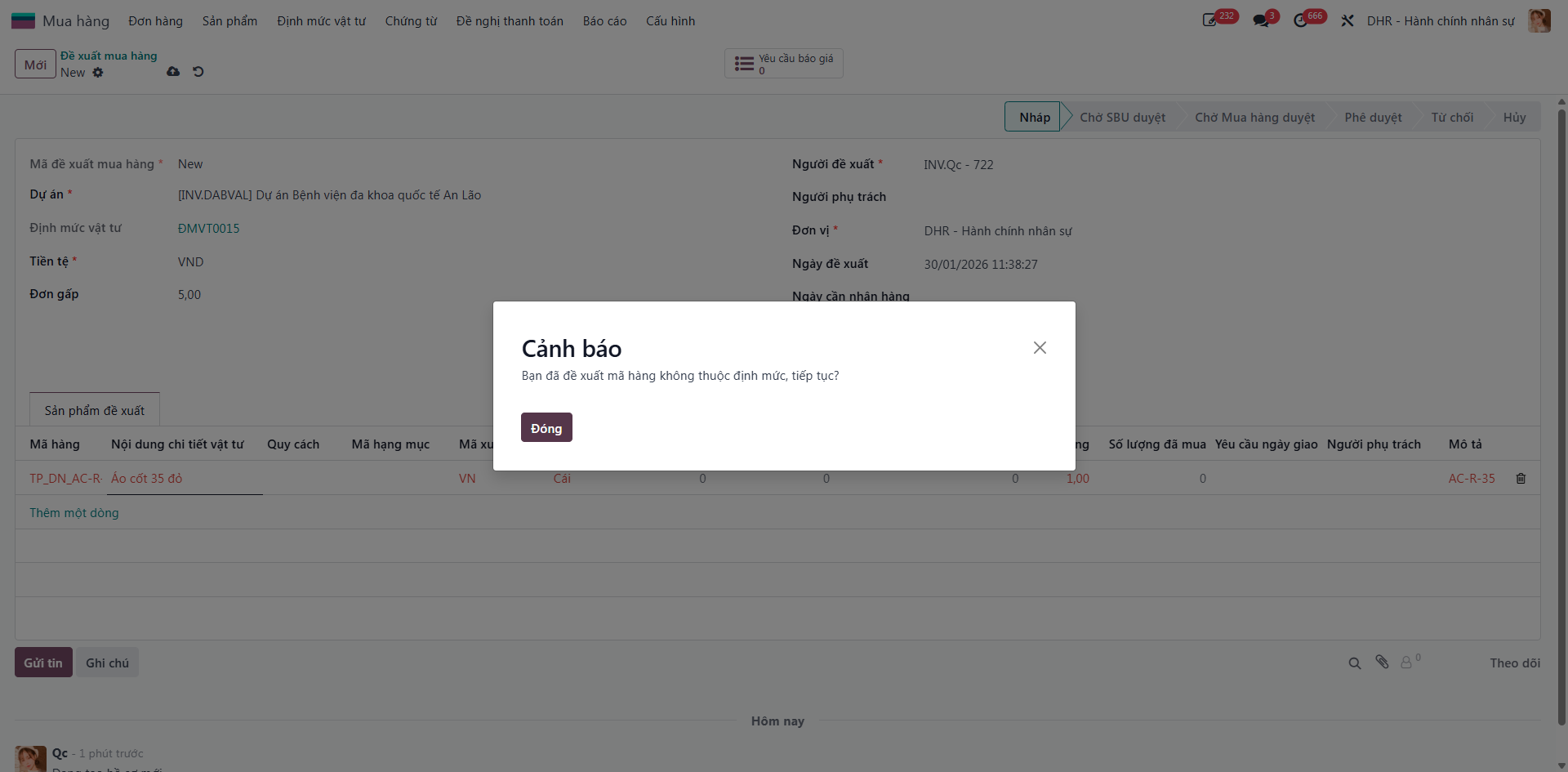
Important
If an item is outside the approved quota, the system displays a warning modal requiring confirmation. Items outside quota will be dynamically appended to the material quota upon approval.

Step 3: After selecting line items and quantities, click Save and Submit for Approval.
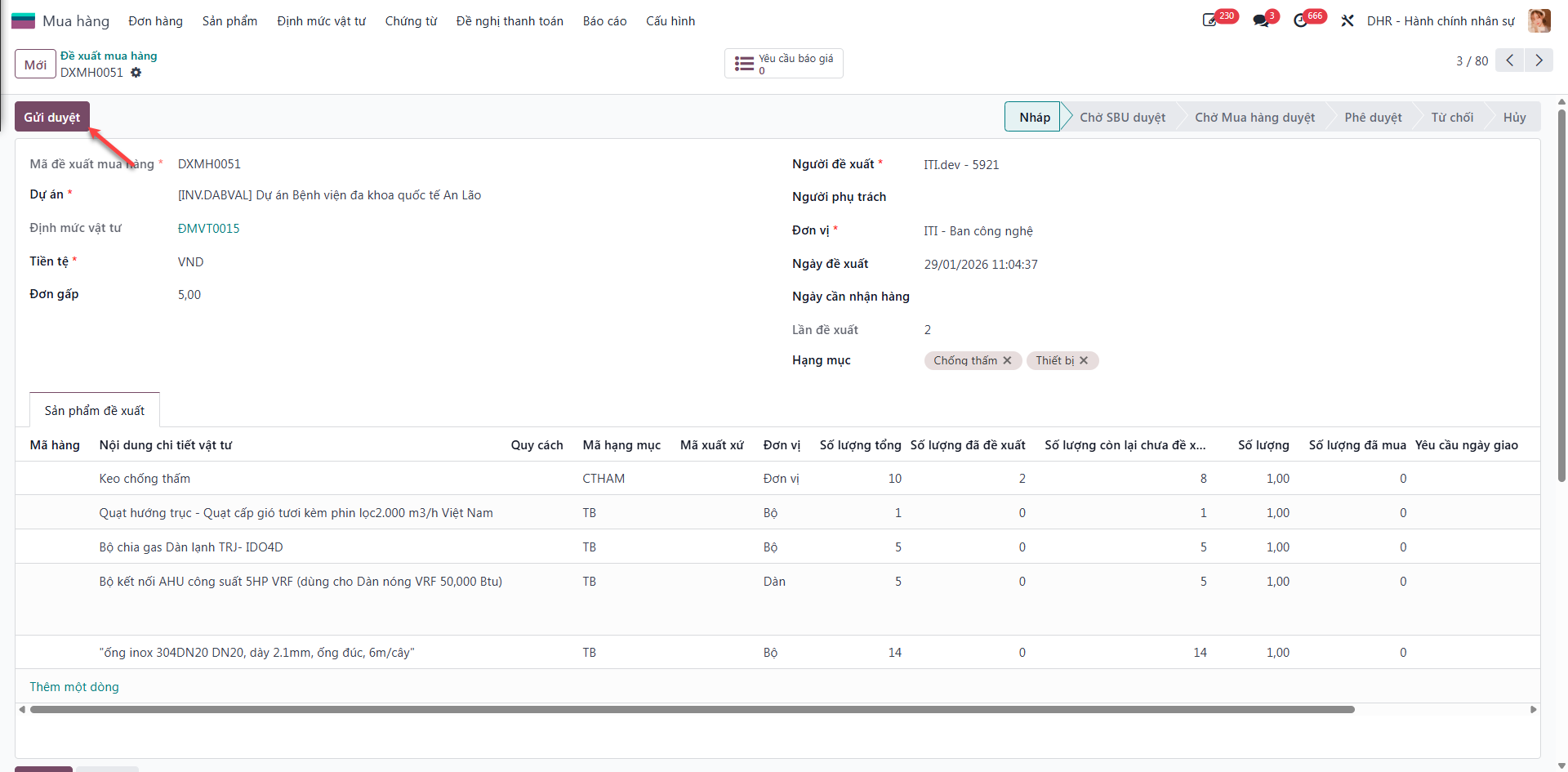
Purchase Request Approval Workflow
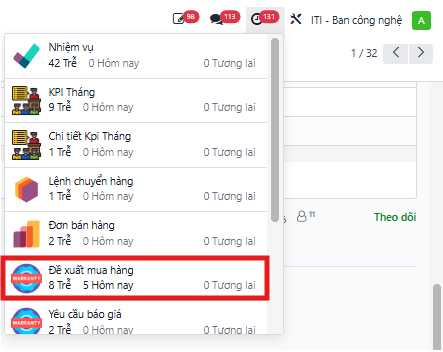
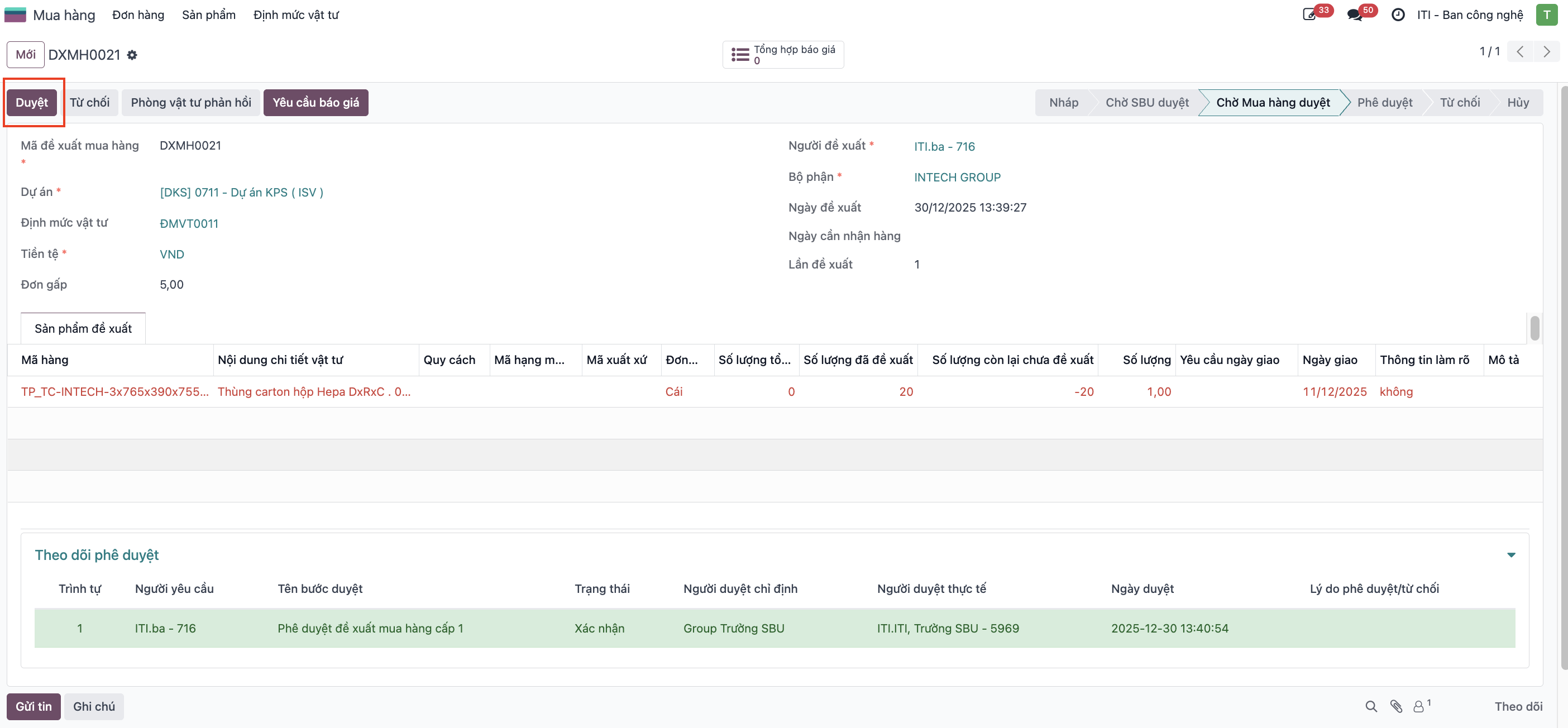
Step 1: Approvers open the purchase request in Waiting Approval status from notifications or under .
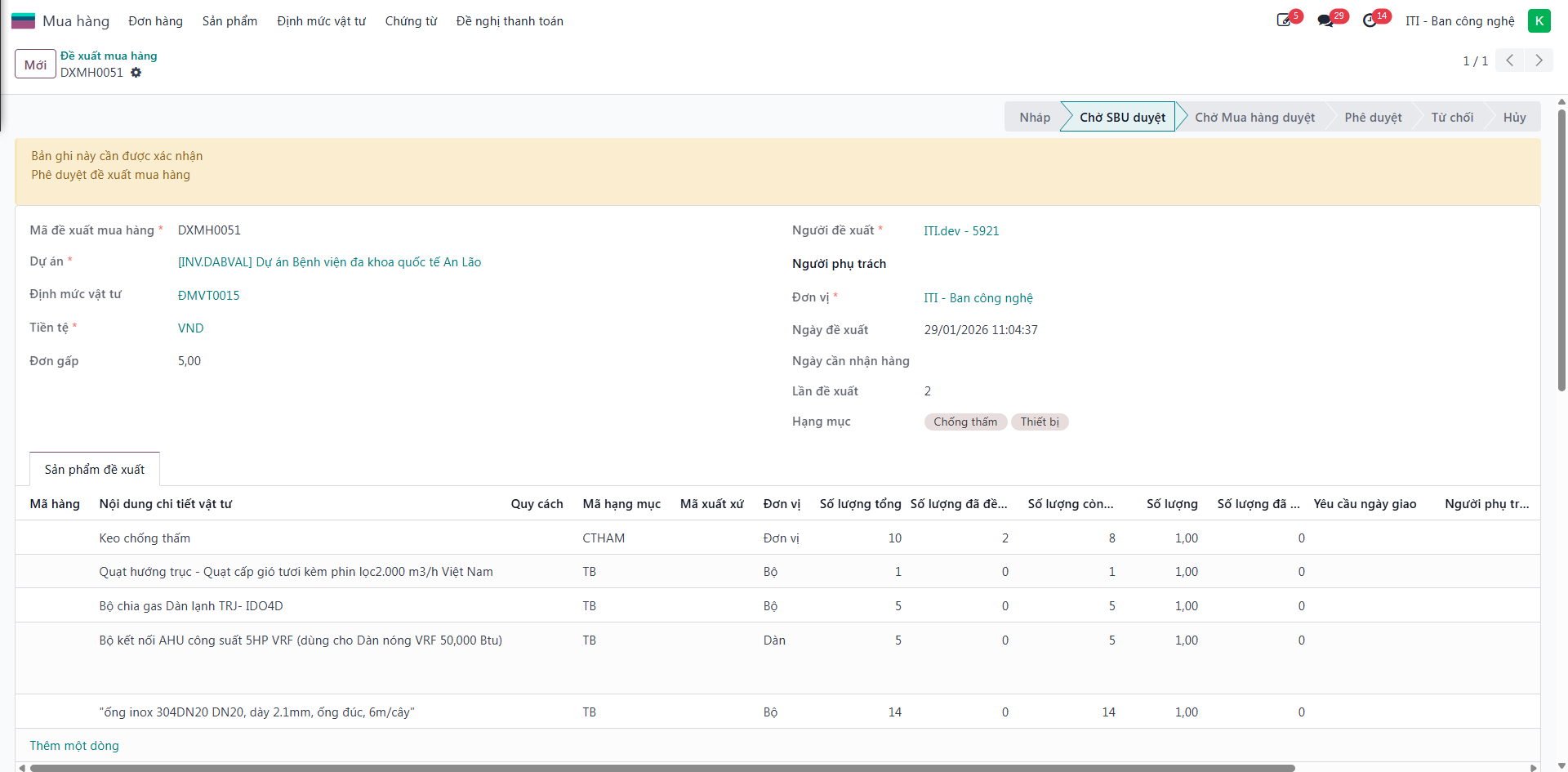
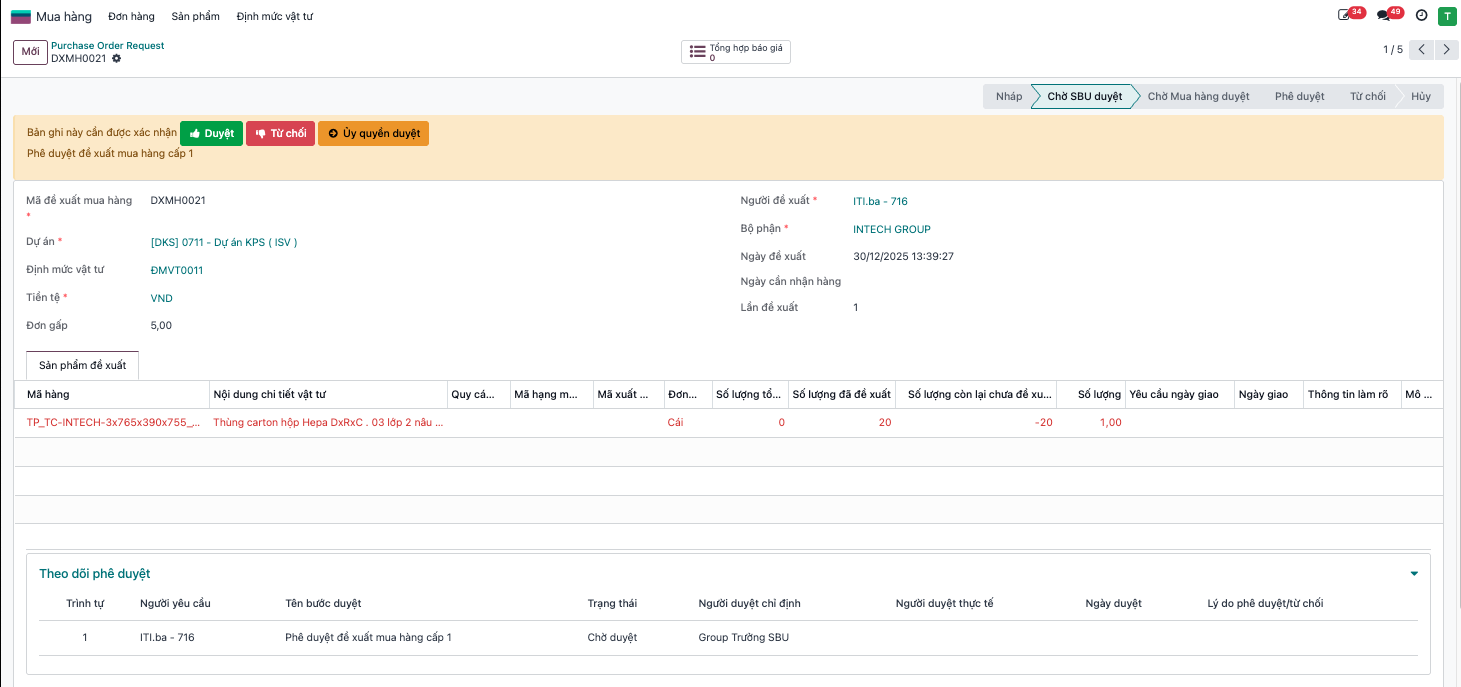
Step 2: The SBU Head audits the request details and clicks Approve.
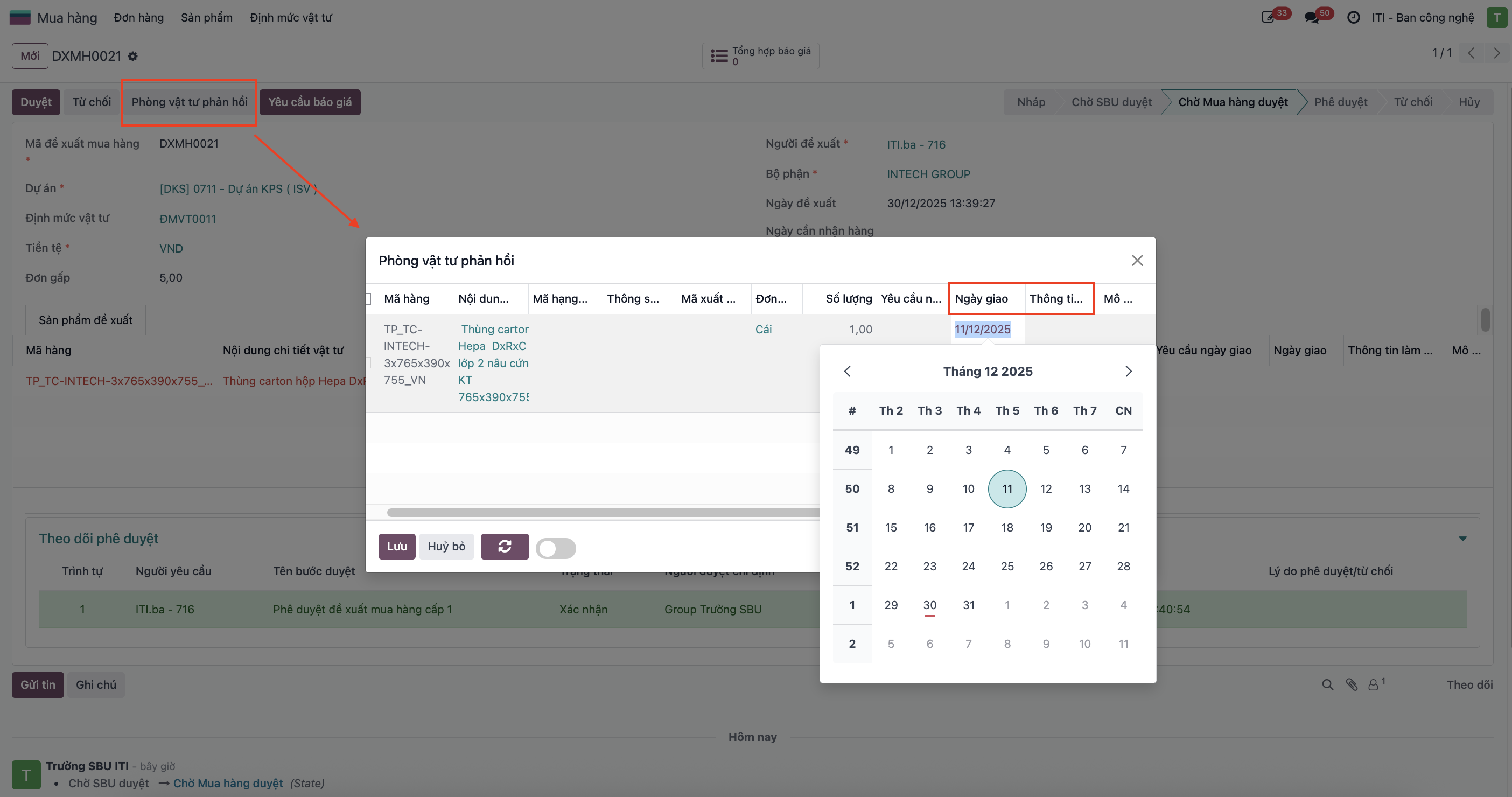
Step 3: The Procurement Department receives notification, adds clarification remarks if needed, and confirms the purchase request.
Note
If a purchase request is rejected at any stage, its status switches to Cancelled. The requester can click Reset to Draft to adjust line items and re-submit.