
Thermal Printer & Scanner Setup for Check-in Desk
Reception staff at the event registration desk use the Xprinter XP-420B thermal label printer and USB barcode/QR scanner to rapidly verify attendees and print identification badges or admission tickets.
Hardware Connection
Bước 1: Connect the hardware cables to your workstation:
Plug the USB communication cable from the Xprinter XP-420B thermal printer into an available USB port on your computer.
Plug the USB barcode / QR scanner gun into a second USB port.
Power on the thermal printer and ensure thermal roll paper is properly seated with the sensor aligned.
Downloading Printer Drivers
Bước 2: Download the printer driver installation package:
Access the internal server driver repository:
Internal server download link:
http://192.168.1.23:5000/sharing/CtbwiVfOg
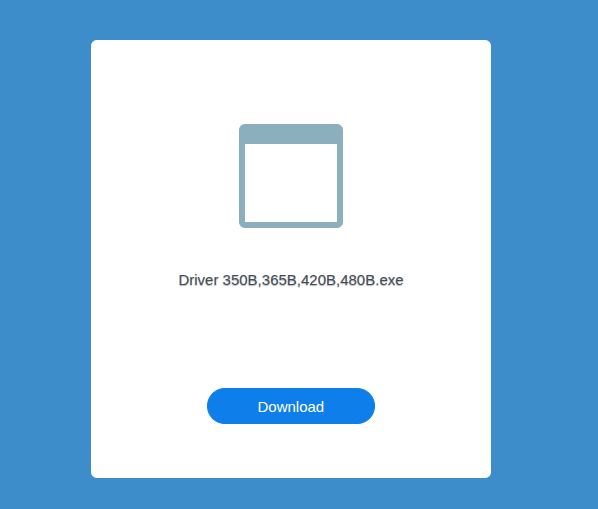
Alternatively, download from the cloud mirror:
Google Drive mirror folder:
https://drive.google.com/drive/folders/1zGzNTiqL7MJ_EMY00oK1Ju1jnedG-4sm

Download the driver installer package to your local computer.
Installing Xprinter XP-420B Driver
Bước 3: Execute the driver setup program:
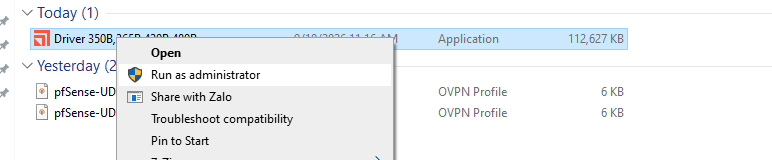
Right-click the downloaded setup file and select Run as administrator.
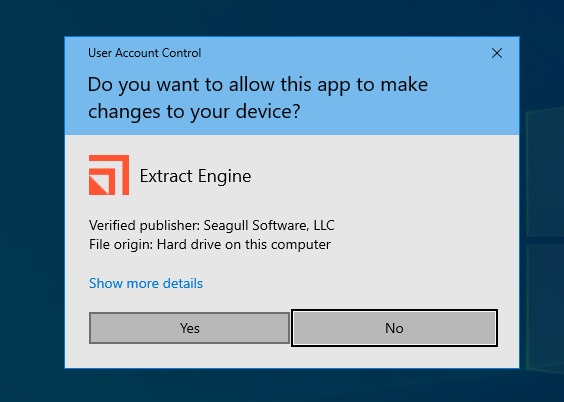
When the Windows User Account Control prompt appears, click Yes to allow the installation.
Select I accept the terms in the license agreement, then click Next sequentially until the installation completes and displays Finish.
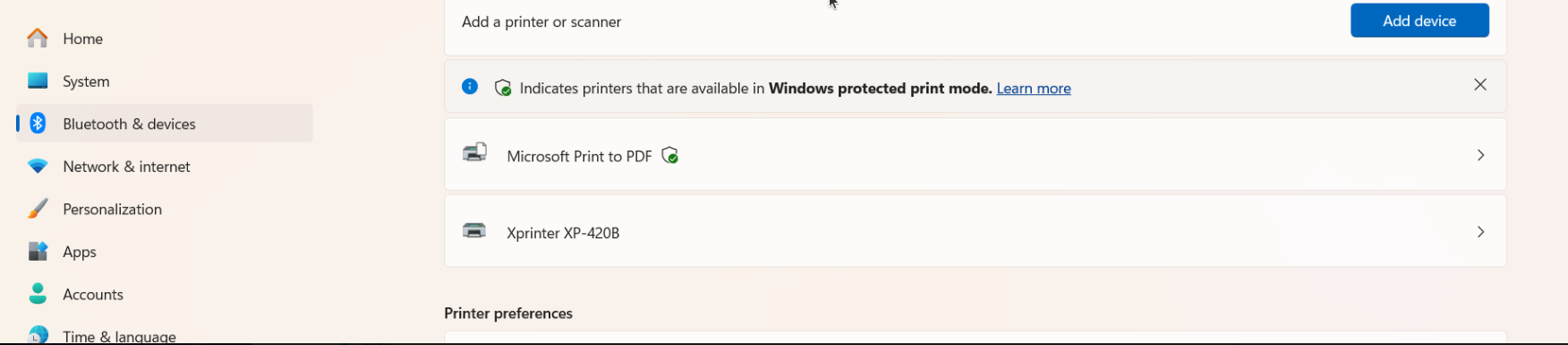
Once the printer name Xprinter XP-420B appears in your device list, the driver installation is complete.
Configuring Print Dimensions (Page Setup)
Bước 4: Adjust the print dimensions to match your badge or ticket paper stock:
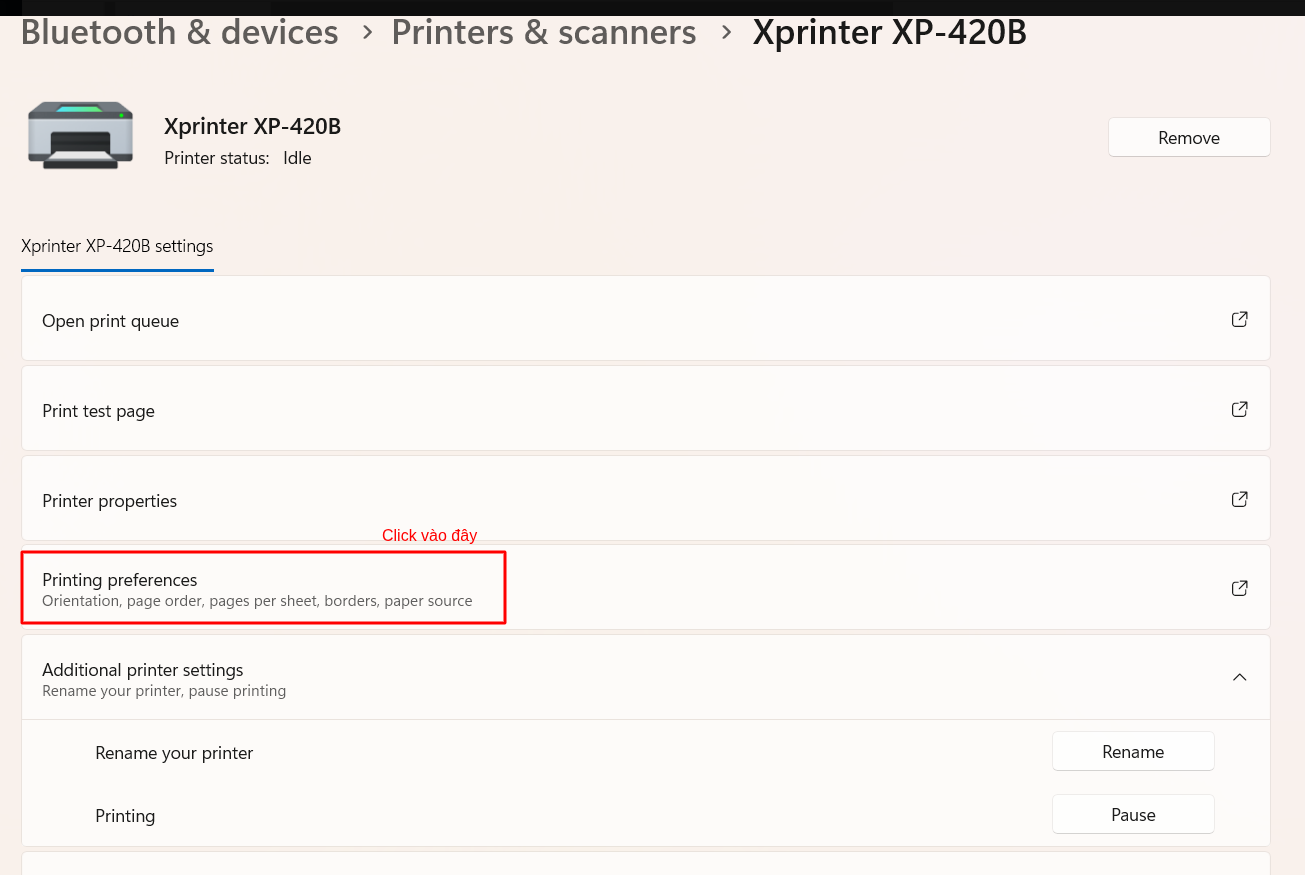
Click on Xprinter XP-420B and select Printing preferences (Tùy chọn in).
Select the Page Setup tab.
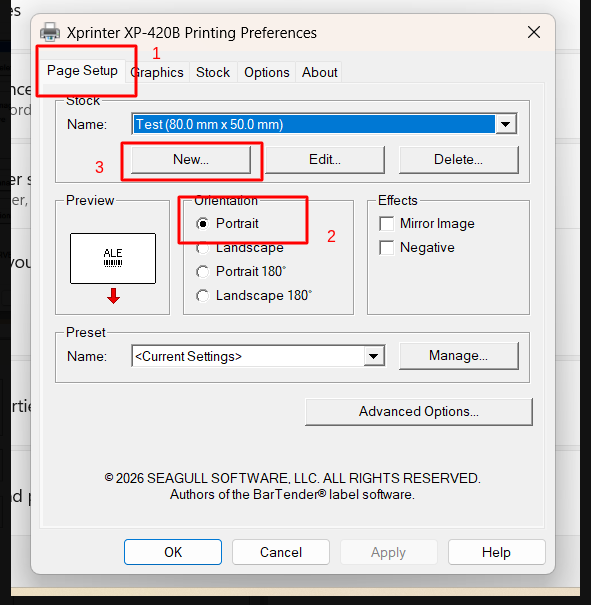
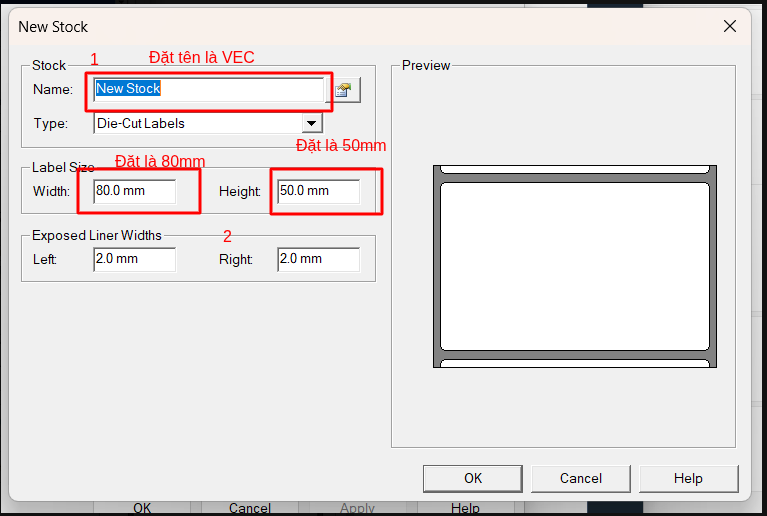
Define the custom label dimensions matching the exact height and width of your event badge or ticket stock.
Testing Print Execution
Bước 5: Print a sample badge or ticket:
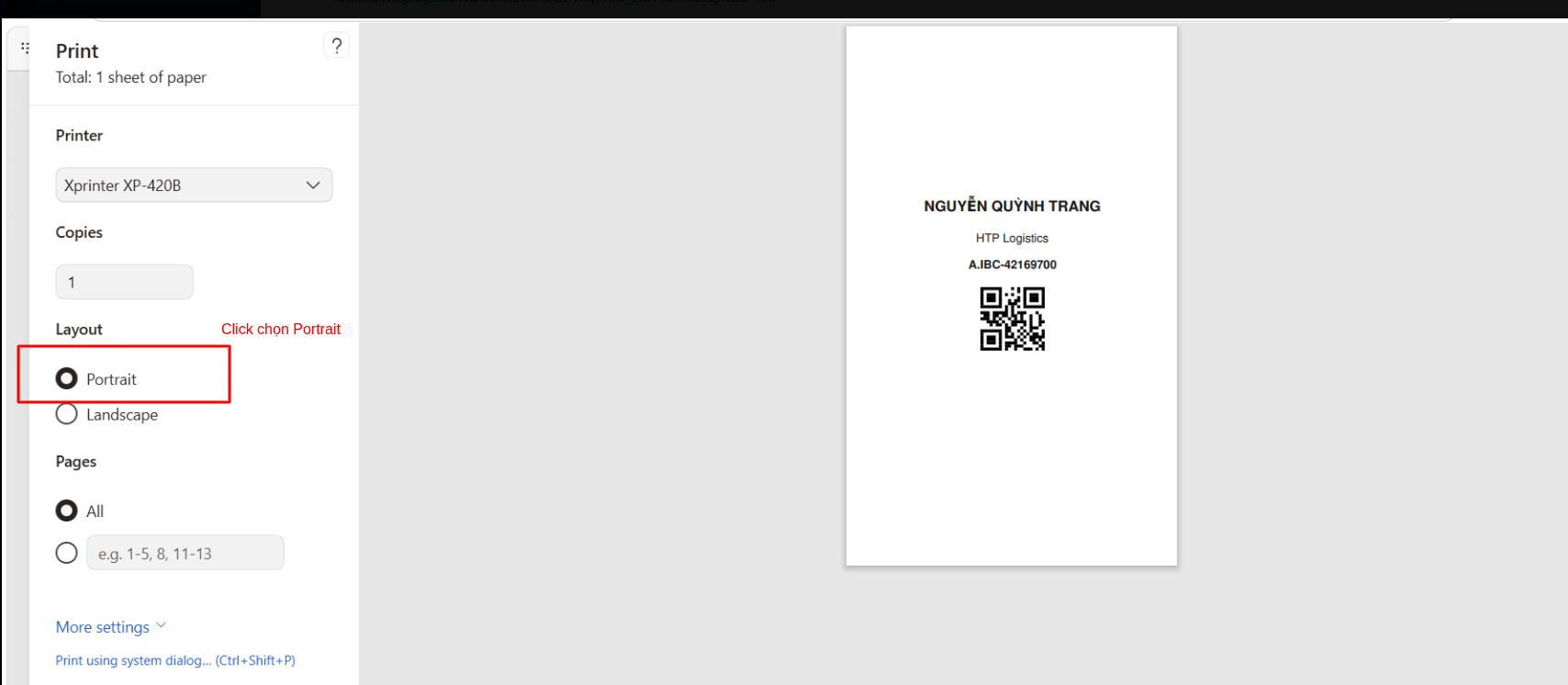
In your browser or application print dialog, set the orientation to Portrait (Dọc) and execute a test print to confirm margin alignment and barcode readability.
Note
For additional guidance on hardware assembly, paper feed calibration, and print troubleshooting, refer to the official video walkthrough: https://www.youtube.com/watch?v=7Rln6RcLWdY.