Personal Expense Claims & Receipts
Employees in the field or on business travel log out-of-pocket expenses for project materials, accommodation, transit, and incidental allowances with line-item digital receipts.
Tutorial video
Video topic |
Direct watch link |
|---|---|
Personal expense claim |
Personal expense claim
Submitting Personal Expense Claims
Bước 1: From the main menu, navigate to Payment Requests (Đề nghị thanh toán) ‣ Personal Expenses (Thanh toán cá nhân).
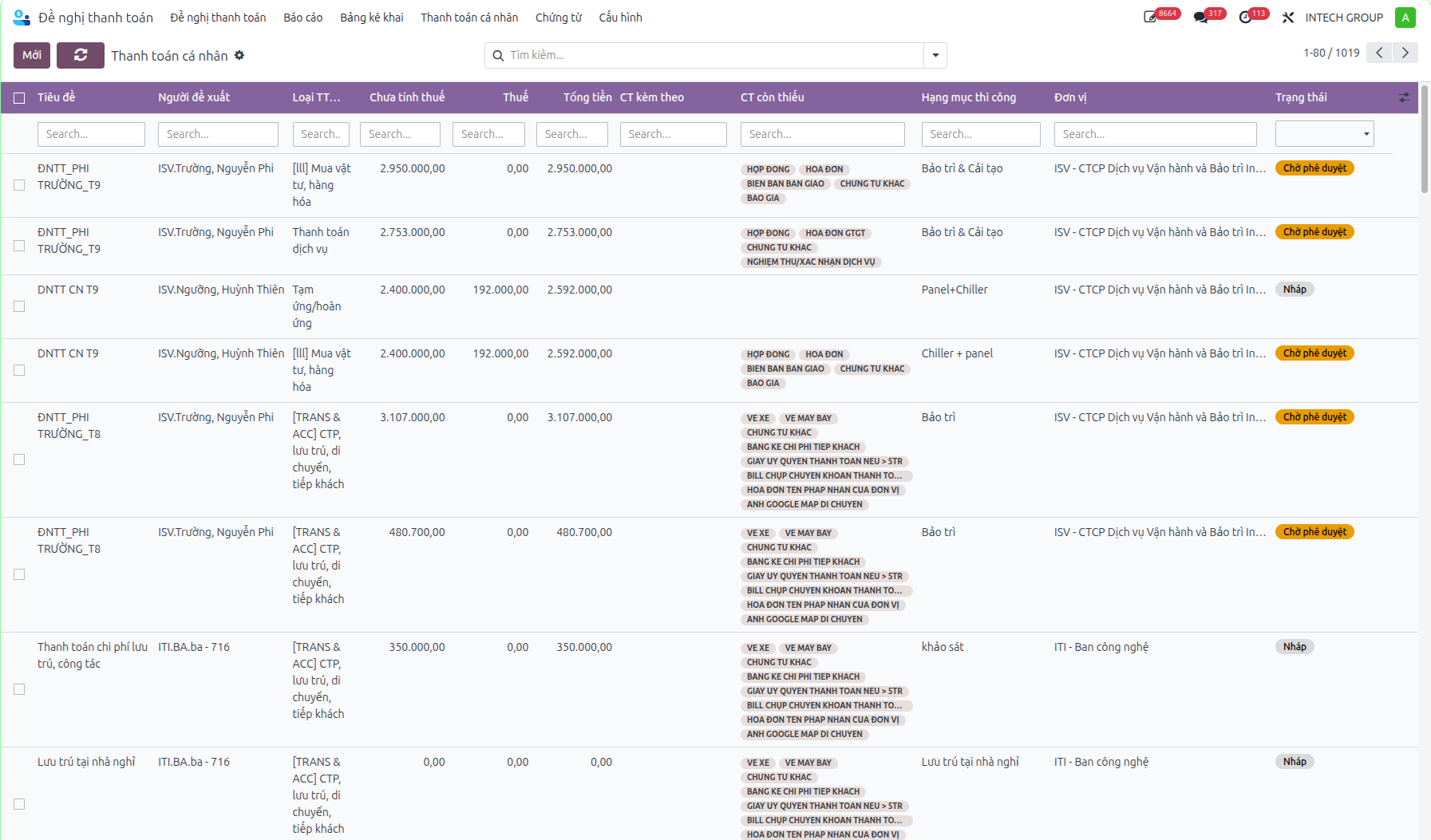
The registry displays all expense vouchers with columns: Title (Tiêu đề), Submitter (Người đề xuất), Expense Type (Loại TTCP), Untaxed Amount (Chưa tính thuế), Tax (Thuế), Total Amount (Tổng tiền), Attached Documents (CT kèm theo), Missing Documents (CT còn thiếu), Construction Item (Hạng mục thi công), Unit (Đơn vị), and Status (Trạng thái: Draft / Pending Approval / Completed / Cancelled).
Bước 2: Click the New (Mới) button and input header information:
Title (Tiêu đề): Operational context of expenses.
Expense Type (Loại TTCP): Project Construction or Travel & Accommodation.
Submitter (Người đề xuất) and Construction Item (Hạng mục thi công).
Under Expense Lines, add individual expense items with descriptions and costs.
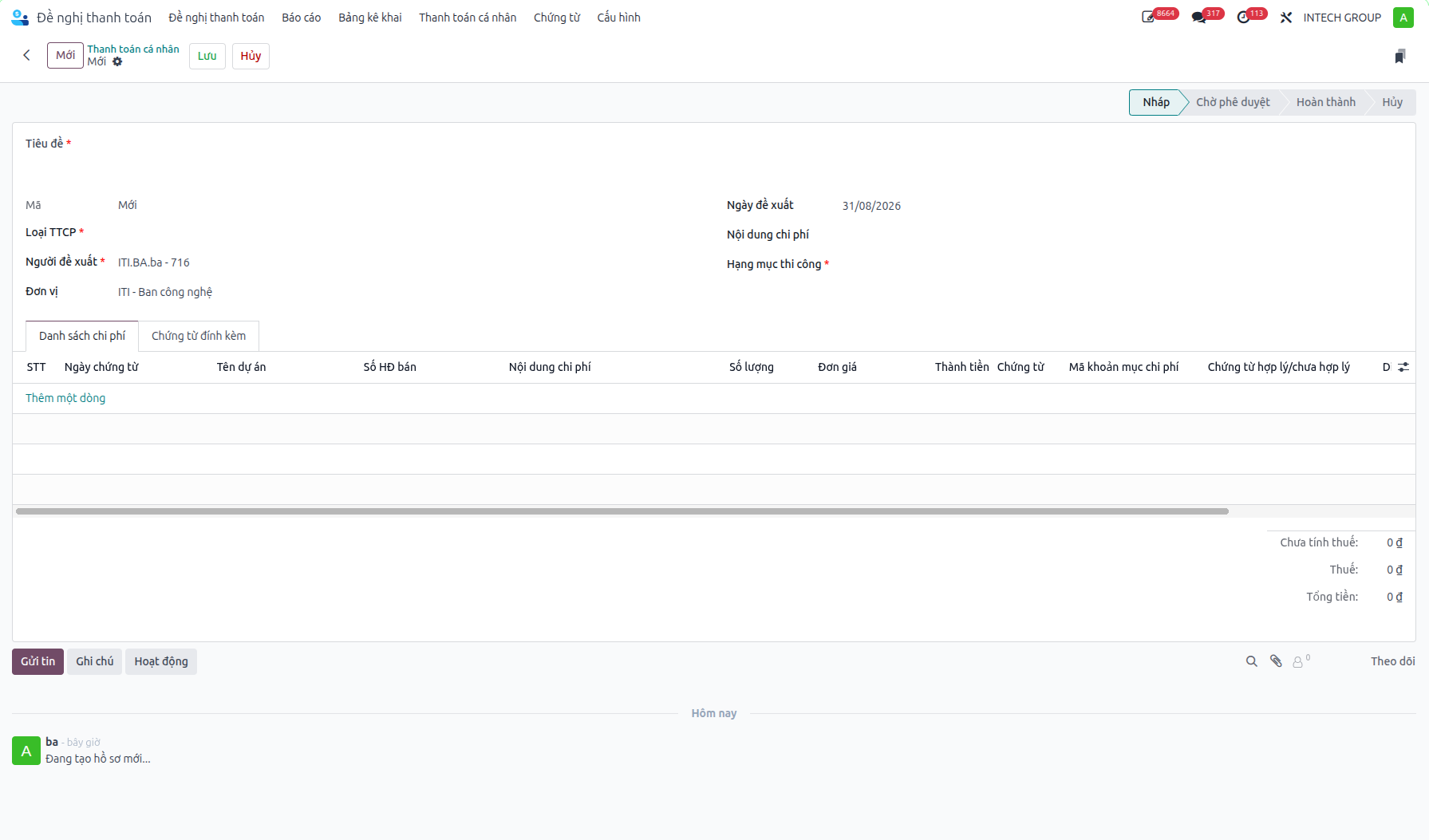
Bước 3: Click Save (Lưu). The voucher is created in Draft (Nháp) status.
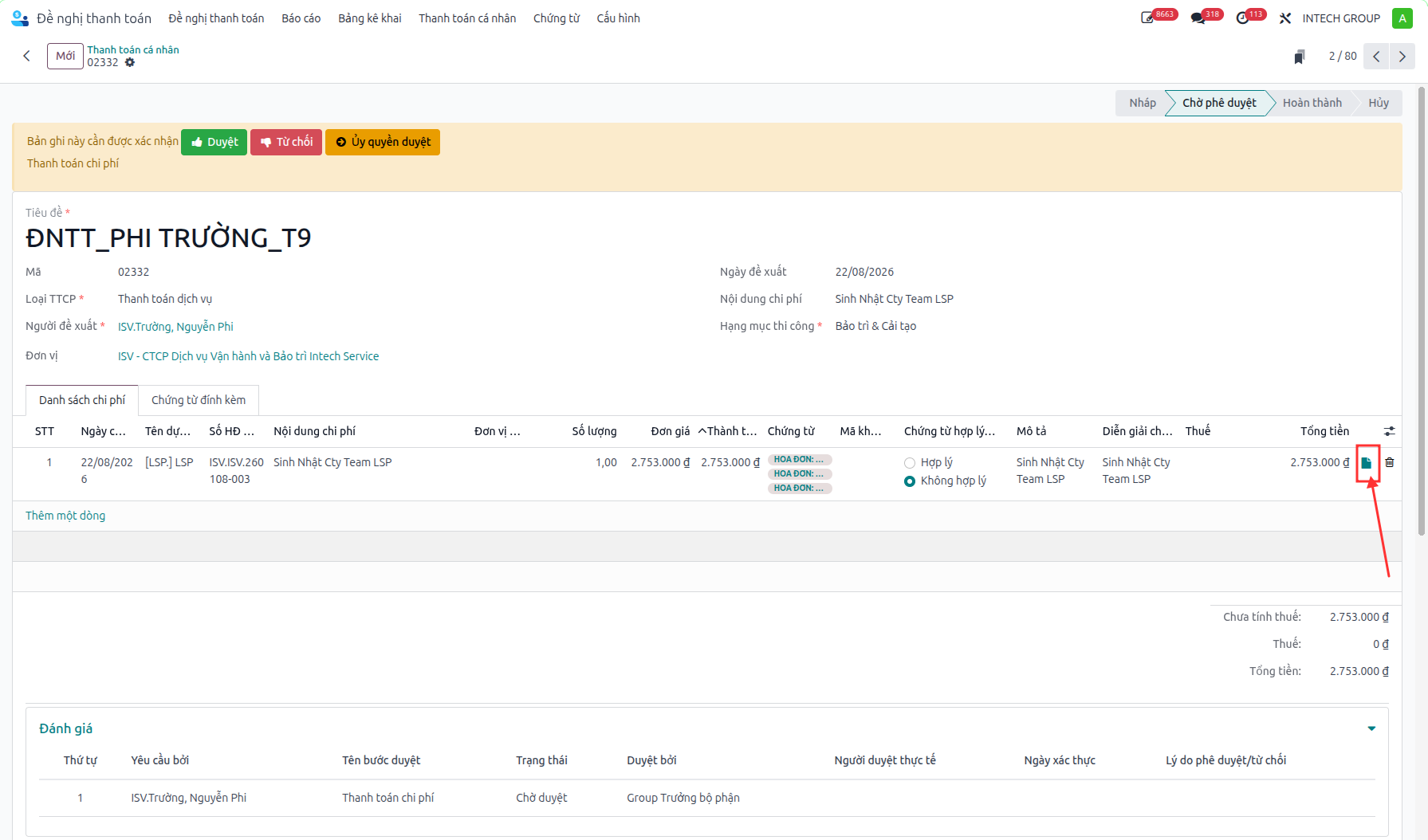
Bước 4: Attach required receipts to each line item (see below), then click Submit for Approval (Gửi duyệt) to advance the status to Pending Approval (Chờ phê duyệt).
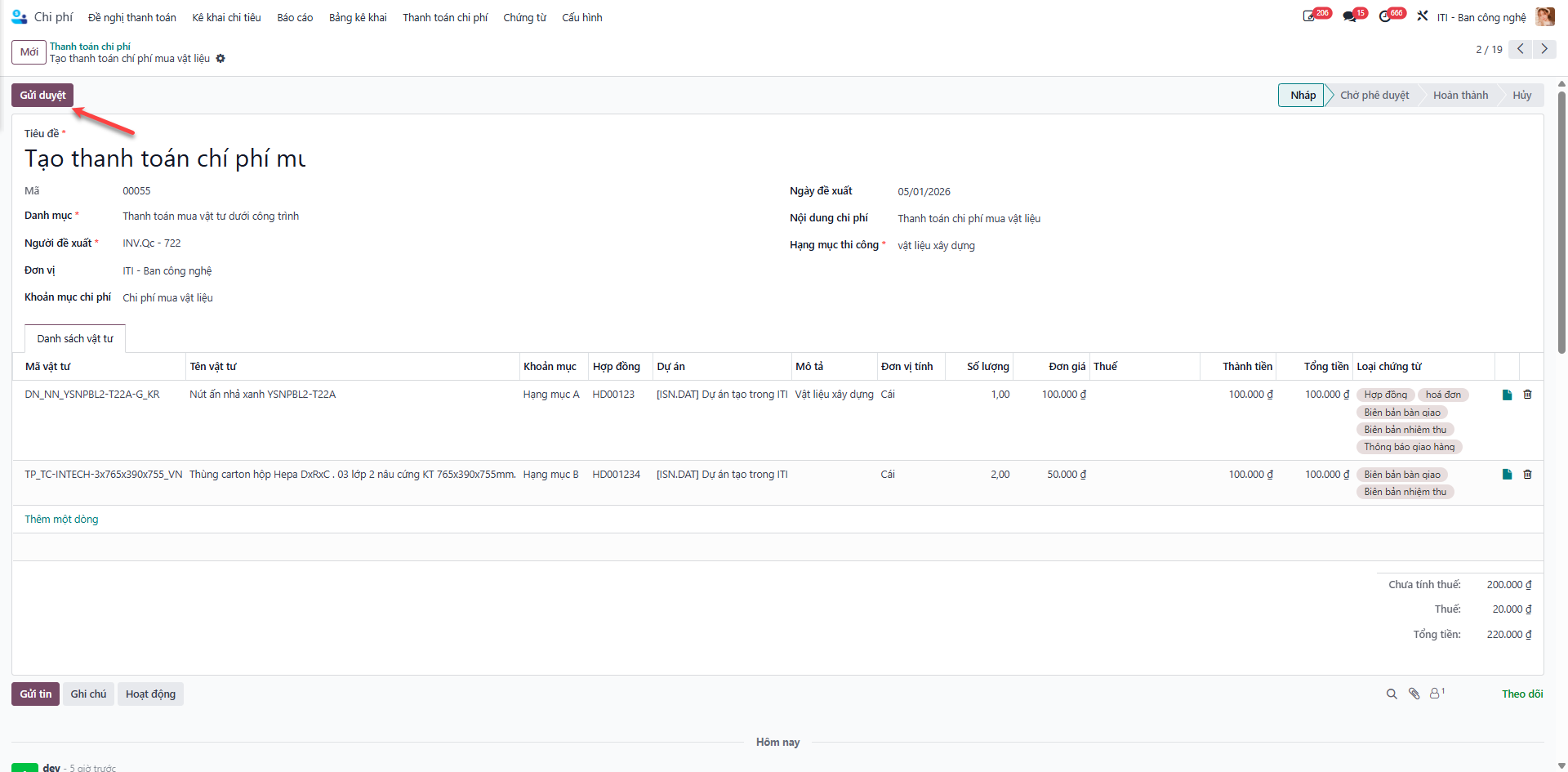
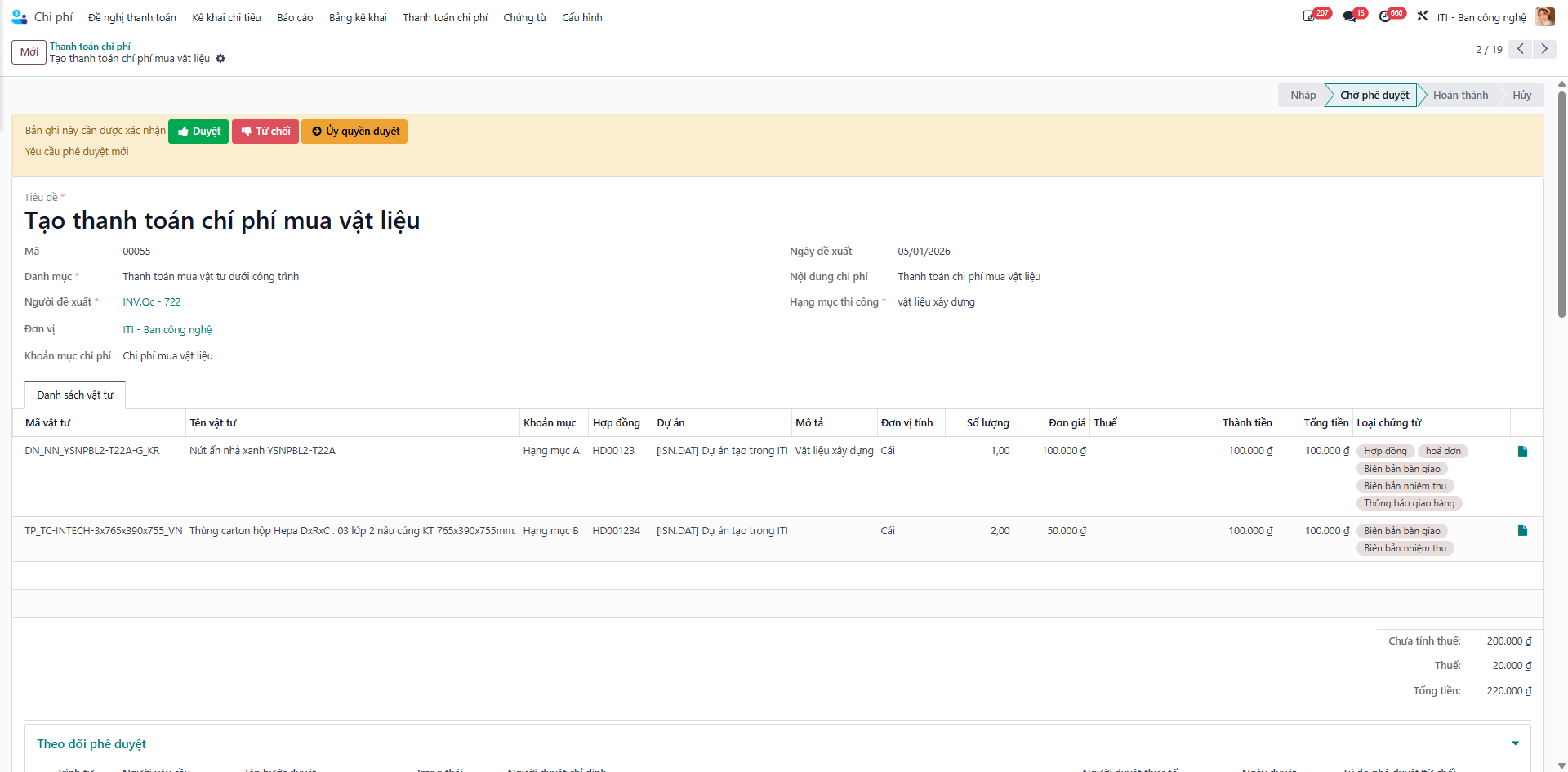
Bước 5: The Department Head inspects line items and attached receipts, then clicks Approve (Duyệt). The voucher transitions to Completed (Hoàn thành).
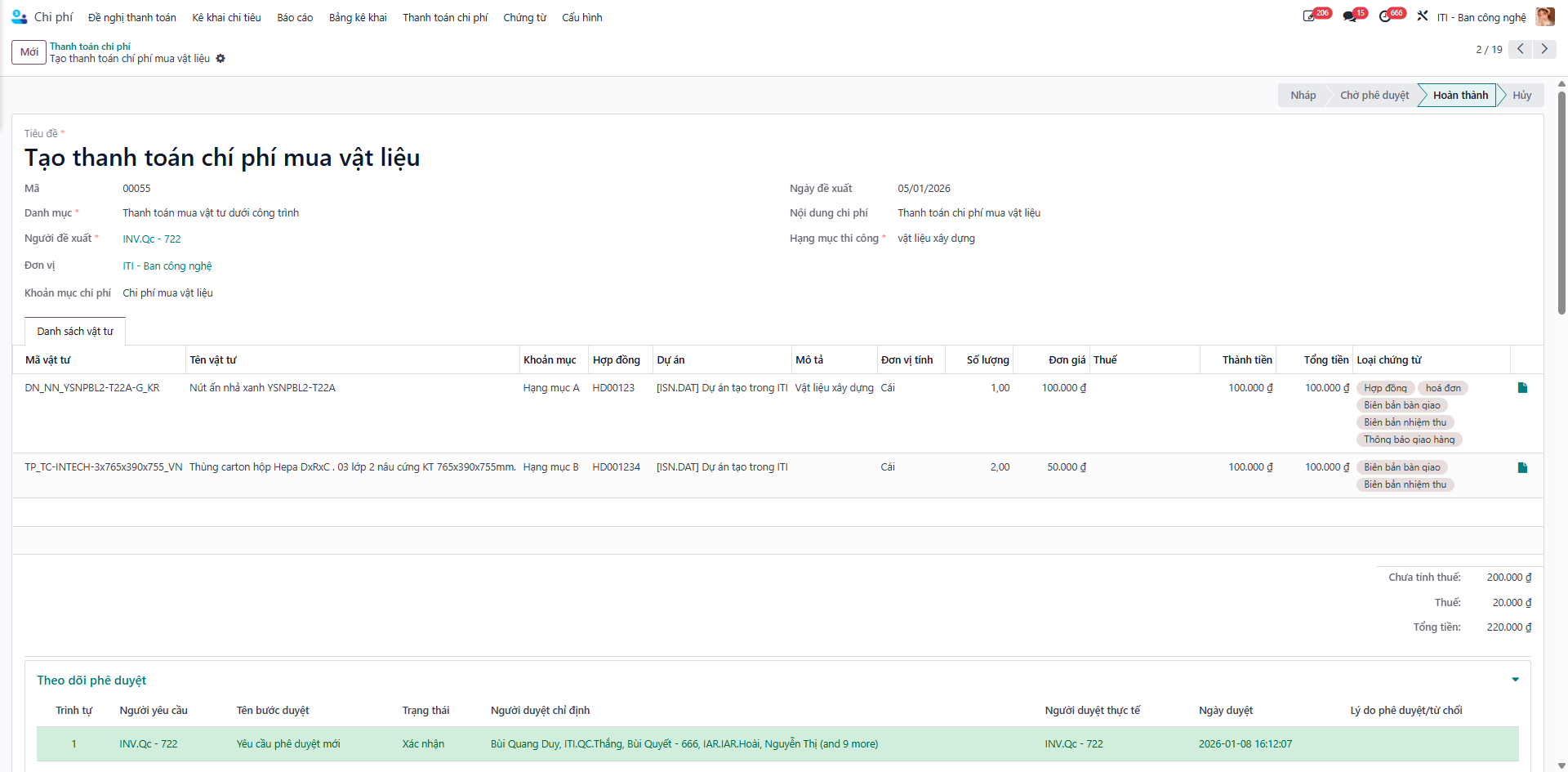
Attaching Line-Item Supporting Documents
Every itemized expense row requires documented financial proof:
Bước 1: On the expense lines table, click the Attachment Icon on the target material or expenditure row to trigger the receipt upload modal.
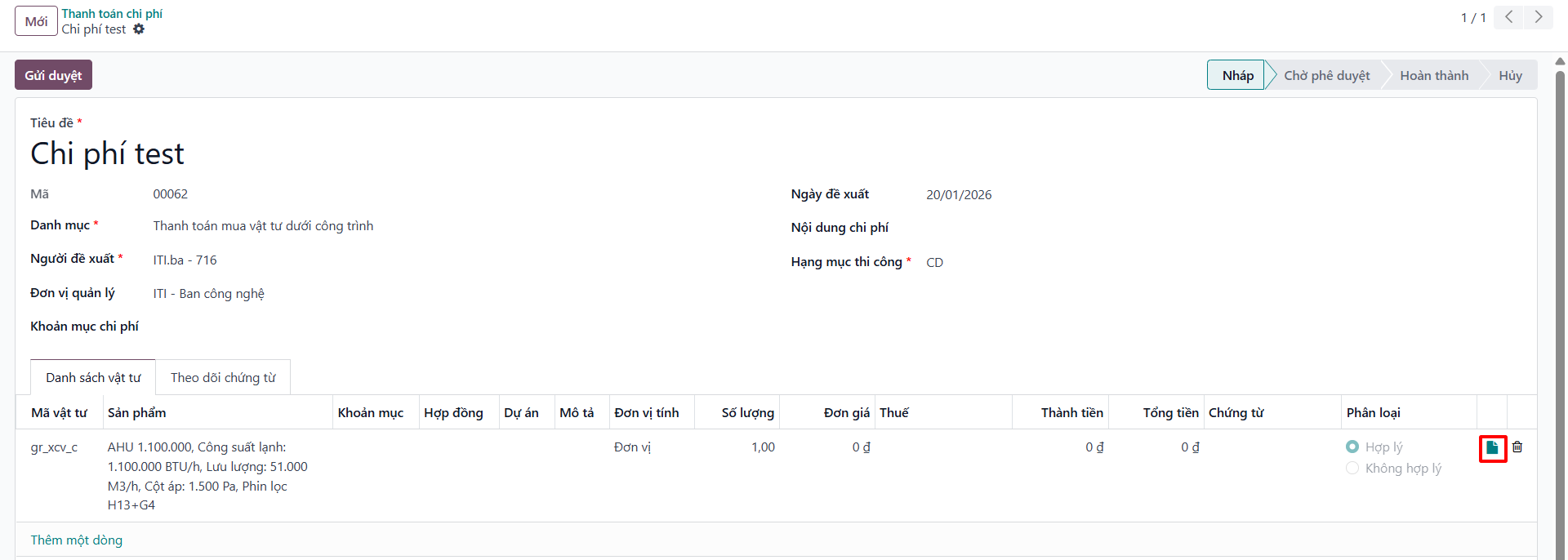
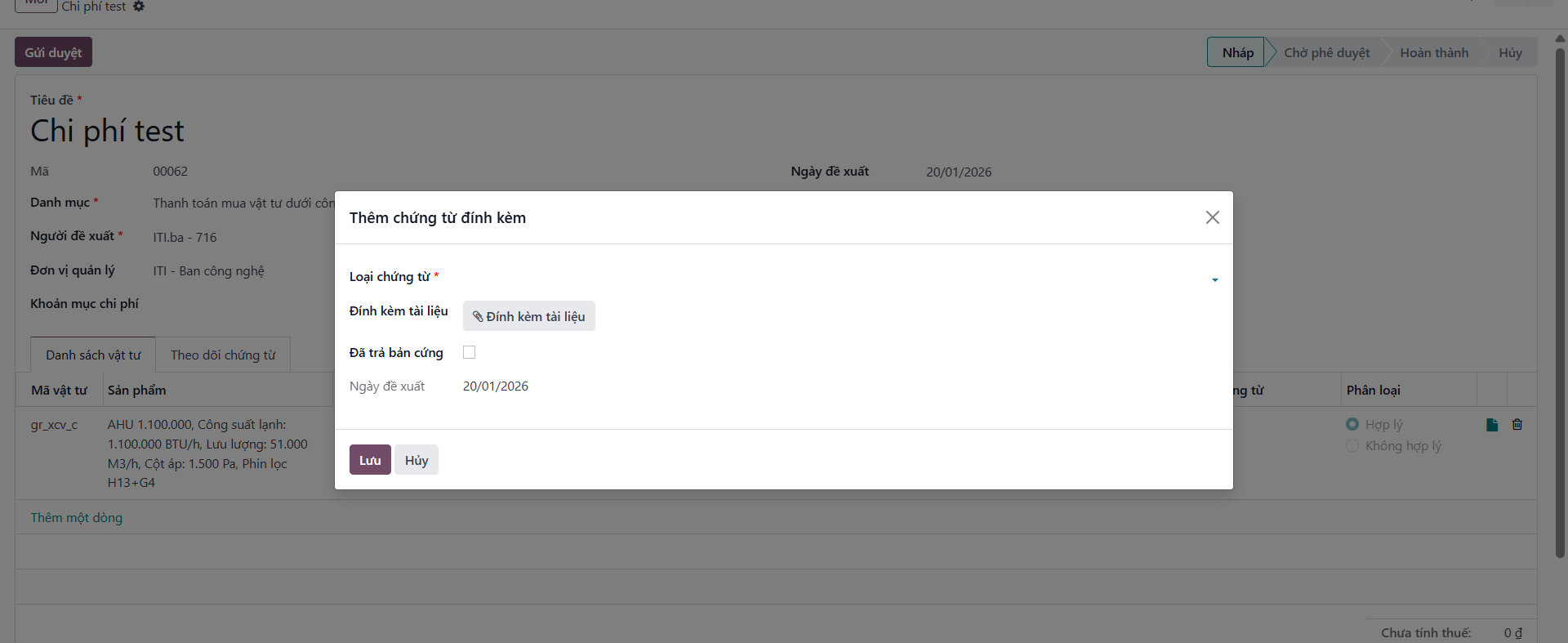
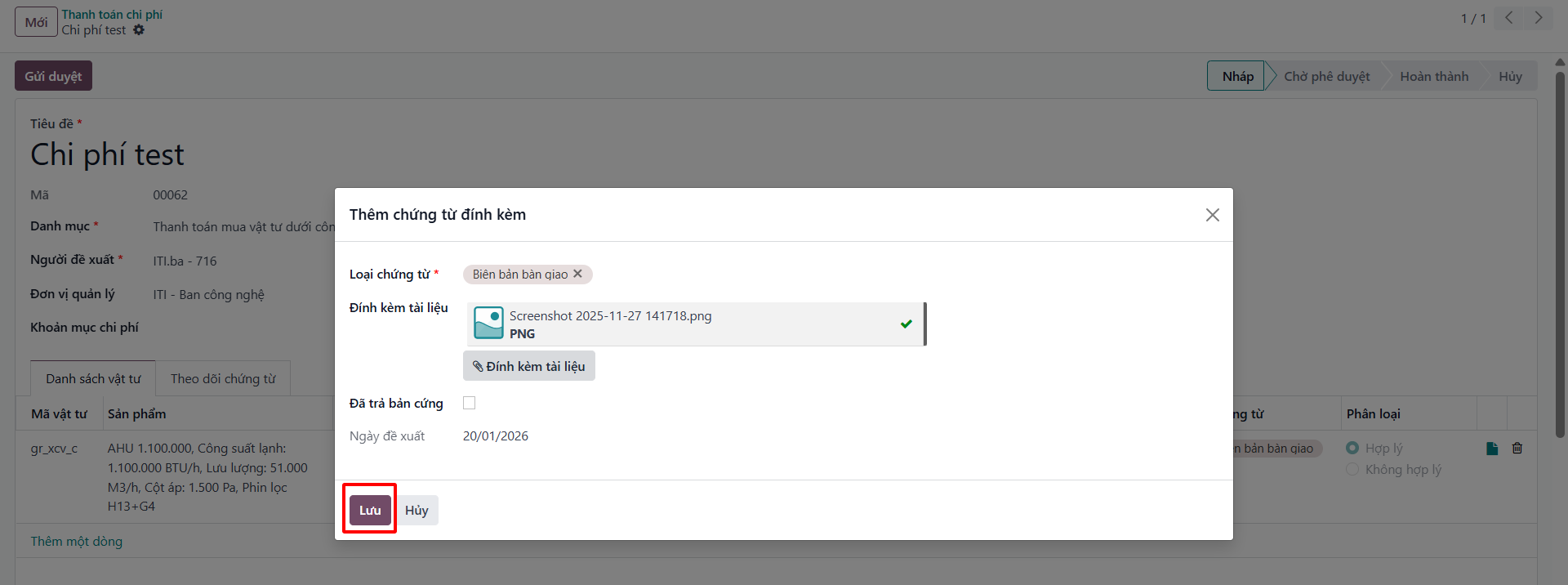
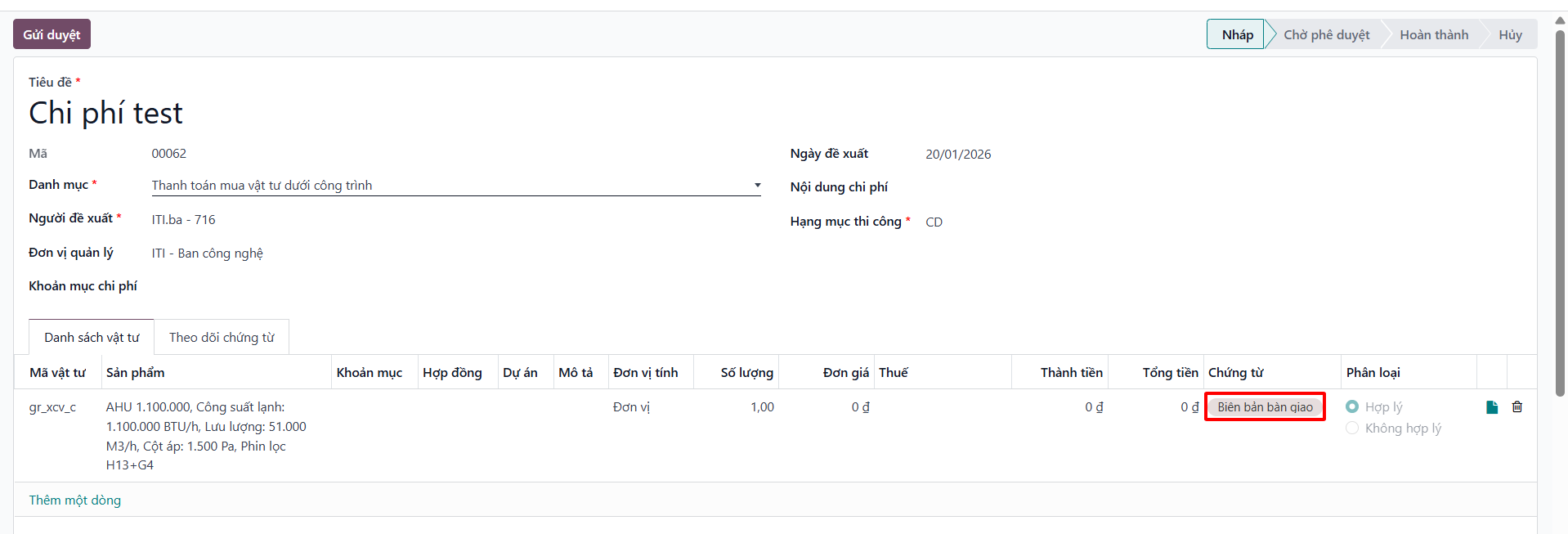
Bước 2: In the popup dialog, input document metadata and upload the electronic invoice or receipt image file, then click Save (Lưu).
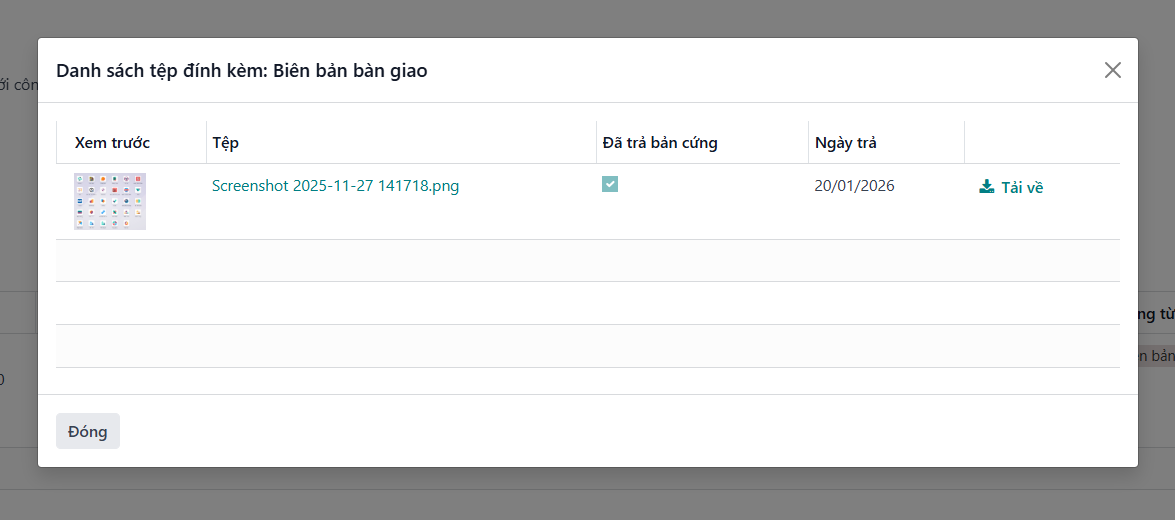
Bước 3: Click on the attached document badge on the row to inspect uploaded files.
Tip
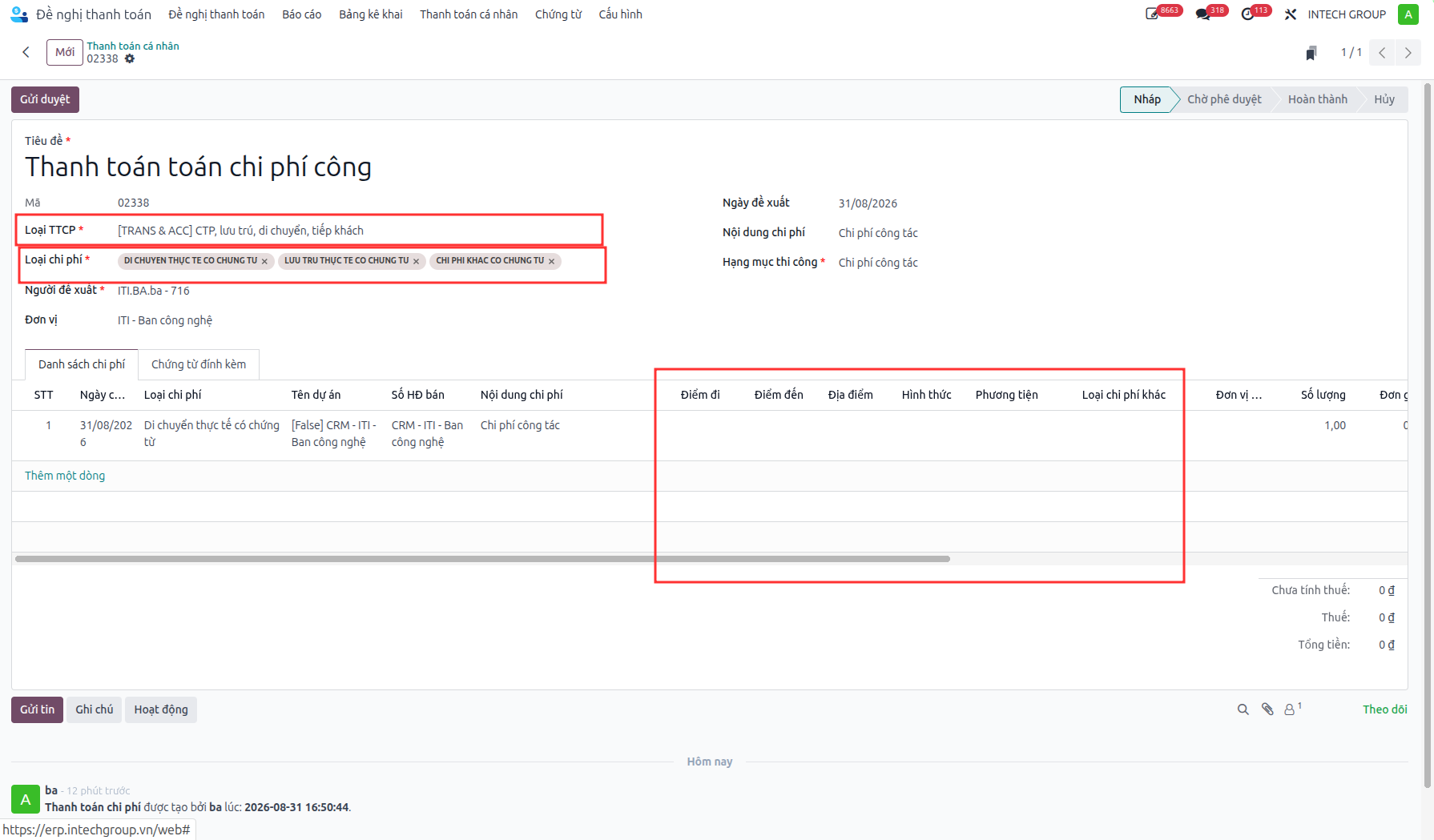
When selecting Travel & Lodging Expense, S-ERP automatically reveals specialized travel fields: Departure Point (Điểm đi), Destination (Điểm đến), Transit Form (Hình thức), Vehicle (Phương tiện), and Lodging Location (Địa điểm).