
Survey Creation & General Configuration
The Survey module in S-ERP allows organizations to build dynamic online forms and customized registration surveys tailored for trade shows and conferences.
Accessing the Surveys Application
Bước 1: From the main application dashboard, navigate to (Khảo sát –> Khảo sát).
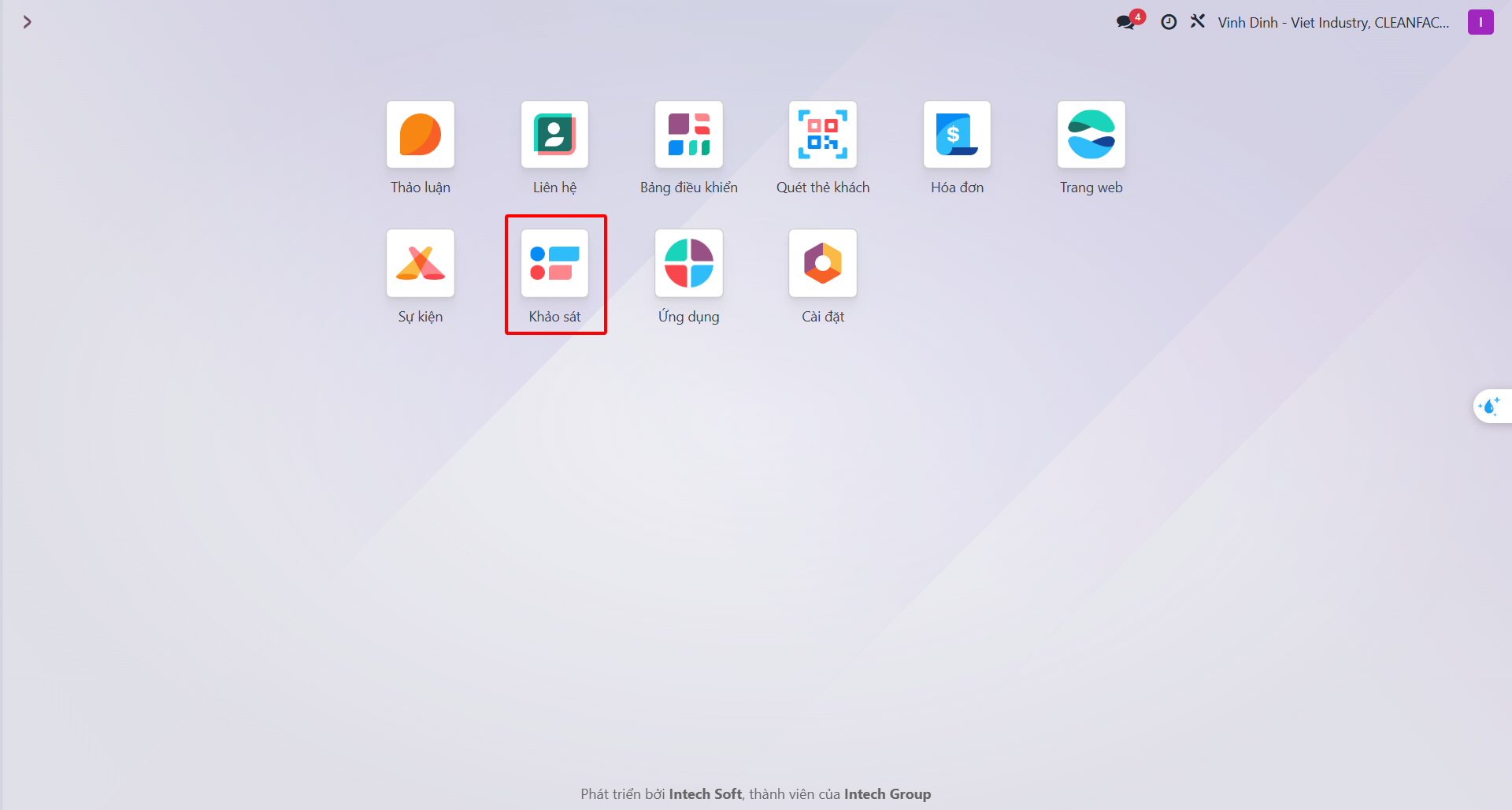
The management view displays all existing surveys alongside key performance indicators such as survey title, total questions, average duration, and registered responses.
Initializing a New Survey
Bước 1: Click the New (Mới) button in the upper command bar.
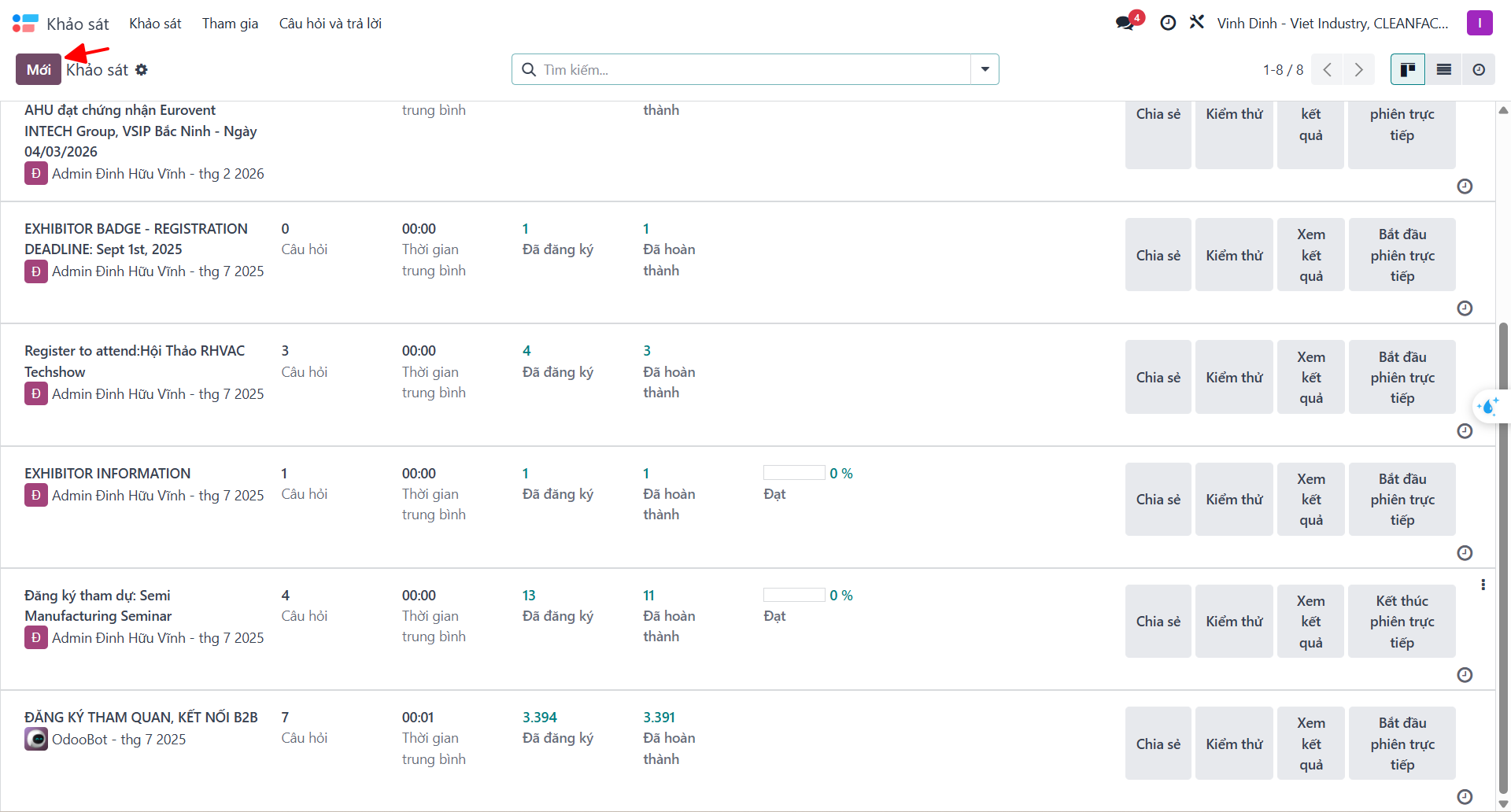
Bước 2: Configure primary survey parameters:
Survey Title (Tên khảo sát): Clear, public name for the survey or registration campaign.
Responsible (Người phụ trách): Account coordinator overseeing survey data.
Survey Type (Loại khảo sát): * Survey (Khảo sát): Standard satisfaction assessments, training needs, and internal surveys. * Live Session (Phiên trực tiếp): Interactive voting, seminars, and real-time polls. * Assessment (Kiểm tra): Competency verification, staff onboarding, and scoring tests. * Custom (Tùy chỉnh): Proprietary operational flows, specifically used for IBC Event Registration Forms.
General Survey Settings
Navigate to the Options (Tùy chọn) tab to define layout and operational behavior.
Pagination & Question Selection
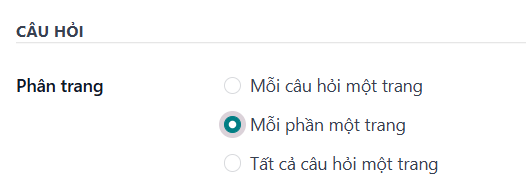
Under Pagination (Phân trang), select how questions are presented:
One page per question (Mỗi câu hỏi một trang): Sequential single-question flow.
One page per section (Mỗi phần một trang): Recommended for IBC. Displays all questions belonging to each Section on a dedicated page.
All questions on one page (Tất cả câu hỏi một trang): Continuous single-page scrolling form.

Under Question Selection (Lựa chọn câu hỏi):
All questions (Tất cả câu hỏi): Presents the complete set of configured questions (Standard for IBC).
Randomized per section (Chọn ngẫu nhiên từ mỗi phần): Randomly selects a subset of questions from each section.
Access Control & Session Timing
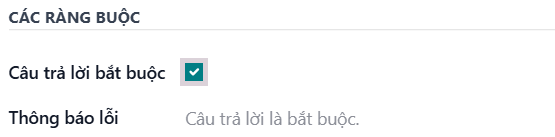
Configure participation policies:
Access Mode (Chế độ truy cập): Choose Anyone with the link (Bất kỳ ai có liên kết) for public event registration, or Invited people only (Người được mời).
Require Login (Yêu cầu đăng nhập): Enforce portal authentication if restricted to internal staff. When enabled, the Attempts Limit (Hạn chế số lần làm) parameter appears.
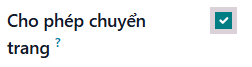
Allow Back Button (Cho phép chuyển trang): Enable this option for IBC to allow attendees to review and amend responses on previous pages before submission.

Survey Time Limit (Giới hạn thời gian của khảo sát): Set a countdown timer for timed assessments or limited-duration interactive forms.
Scoring Rules & Question Hierarchies
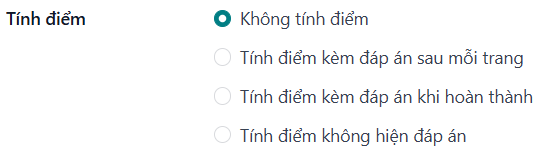
Under Scoring (Tính điểm):
No scoring (Không tính điểm): Standard setting for registration forms.
Scoring with answers at the end of each page.
Scoring with answers after completion.
Scoring without answers.

Under the Sub-questions (Câu hỏi phụ) tab, questions can be linked conditionally to display dynamically based on parent question selections.