Sales to Manufacturing & Quotations
The Sales to Manufacturing workflow enables sales teams to generate accurate technical quotations, embed engineering drawings, synchronize bulk order lines via spreadsheets, and automatically trigger production orders upon customer confirmation.
System Login and Workspace Access
Bước 1: Access the enterprise ERP portal.
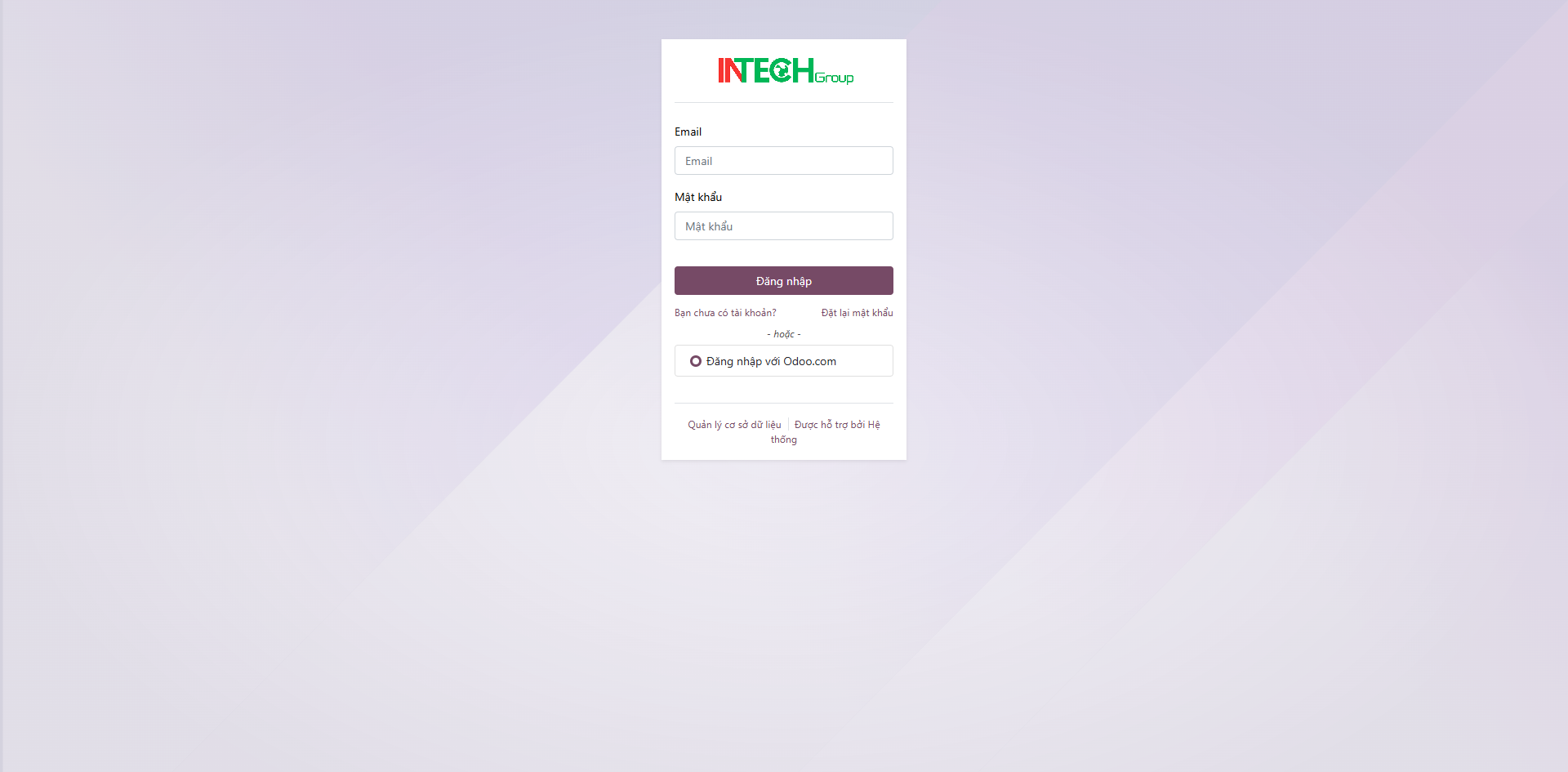
Bước 2: Enter your assigned username and password, then click Log in.
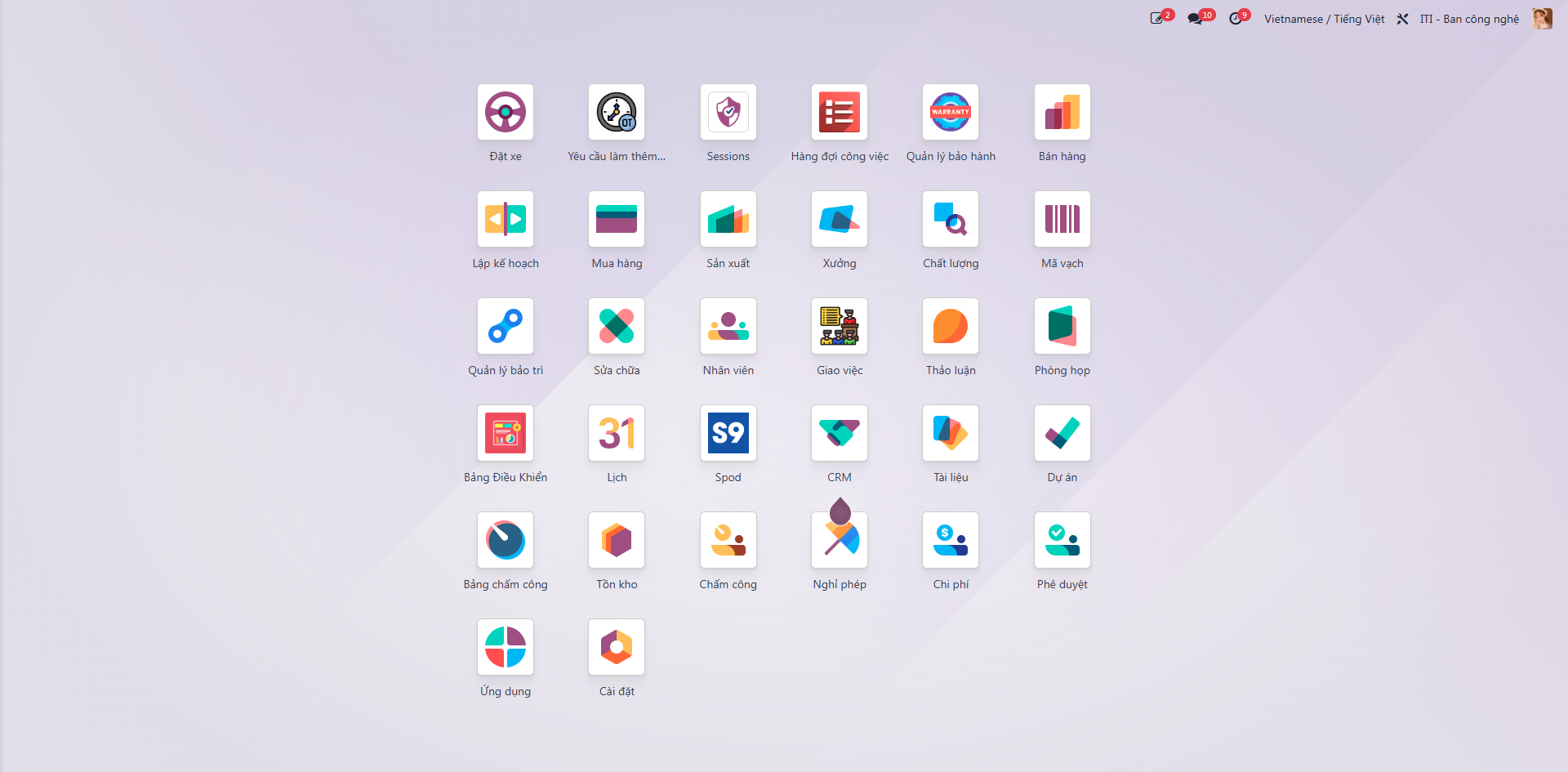
Bước 3: Upon successful authentication, the system presents the personalized home dashboard displaying modules authorized for your user role.
Create Quotation Manually
Bước 1: From the main navigation, open the Sales module.
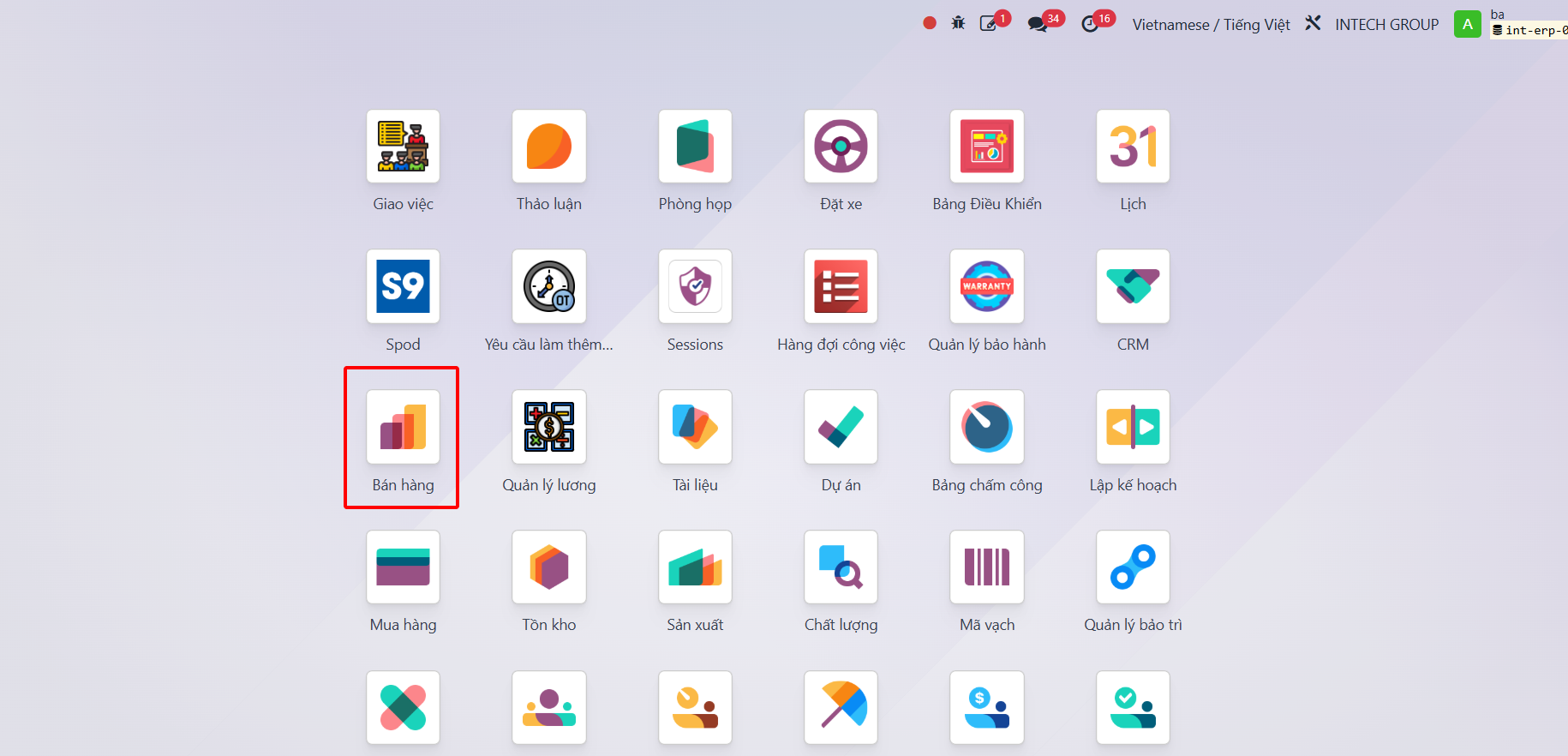
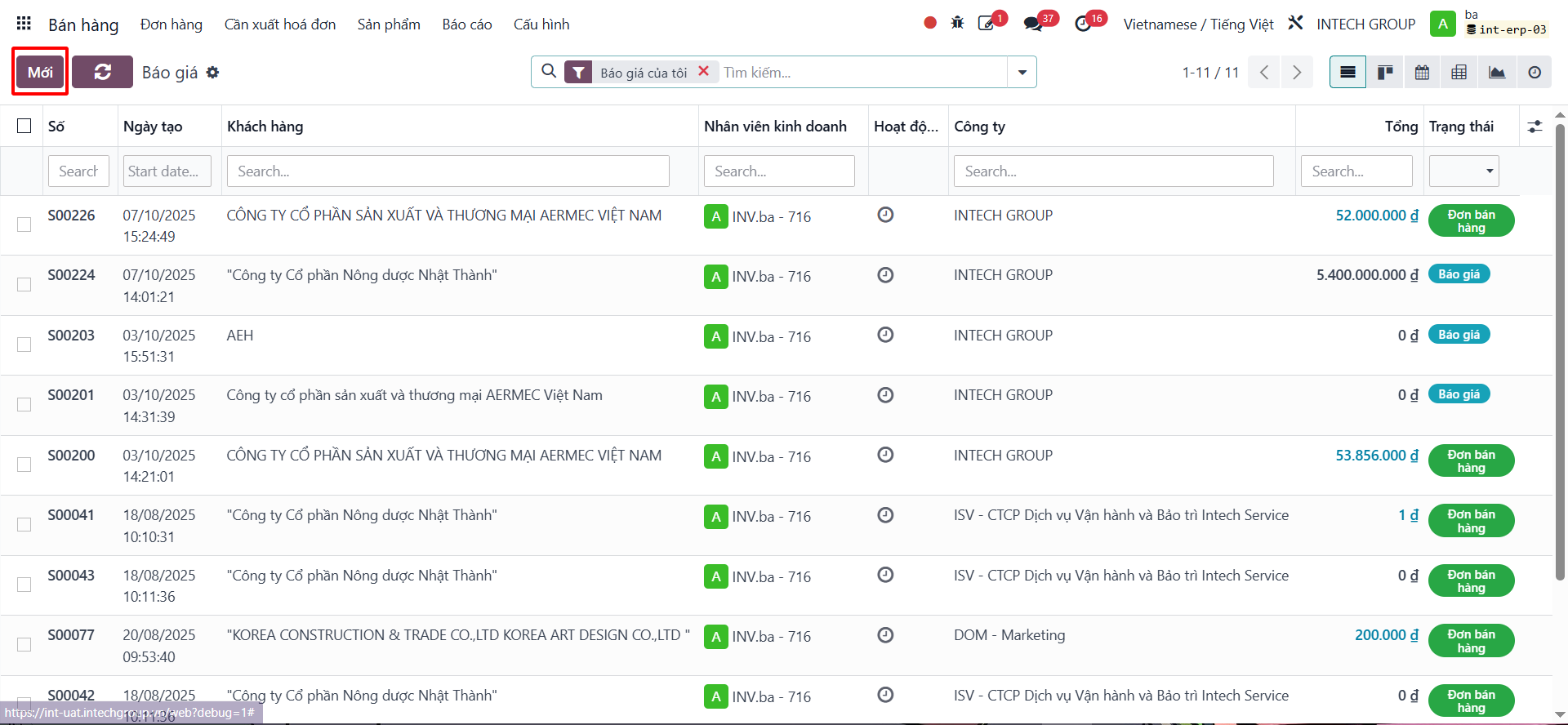
Bước 2: Navigate to and click New.
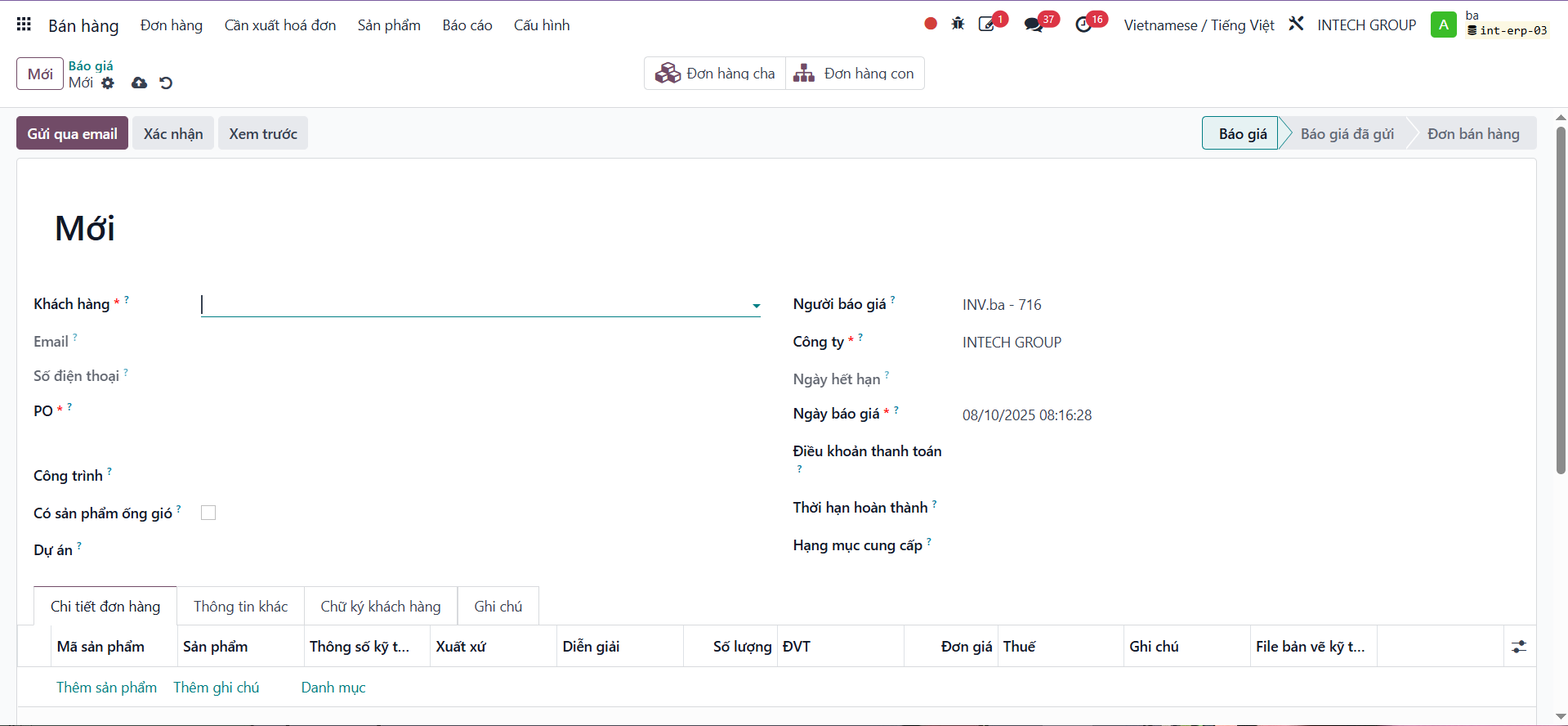
Bước 3: Select the customer and fill in header information. In the Order Lines tab, add products, quantities, unit prices, and taxes.
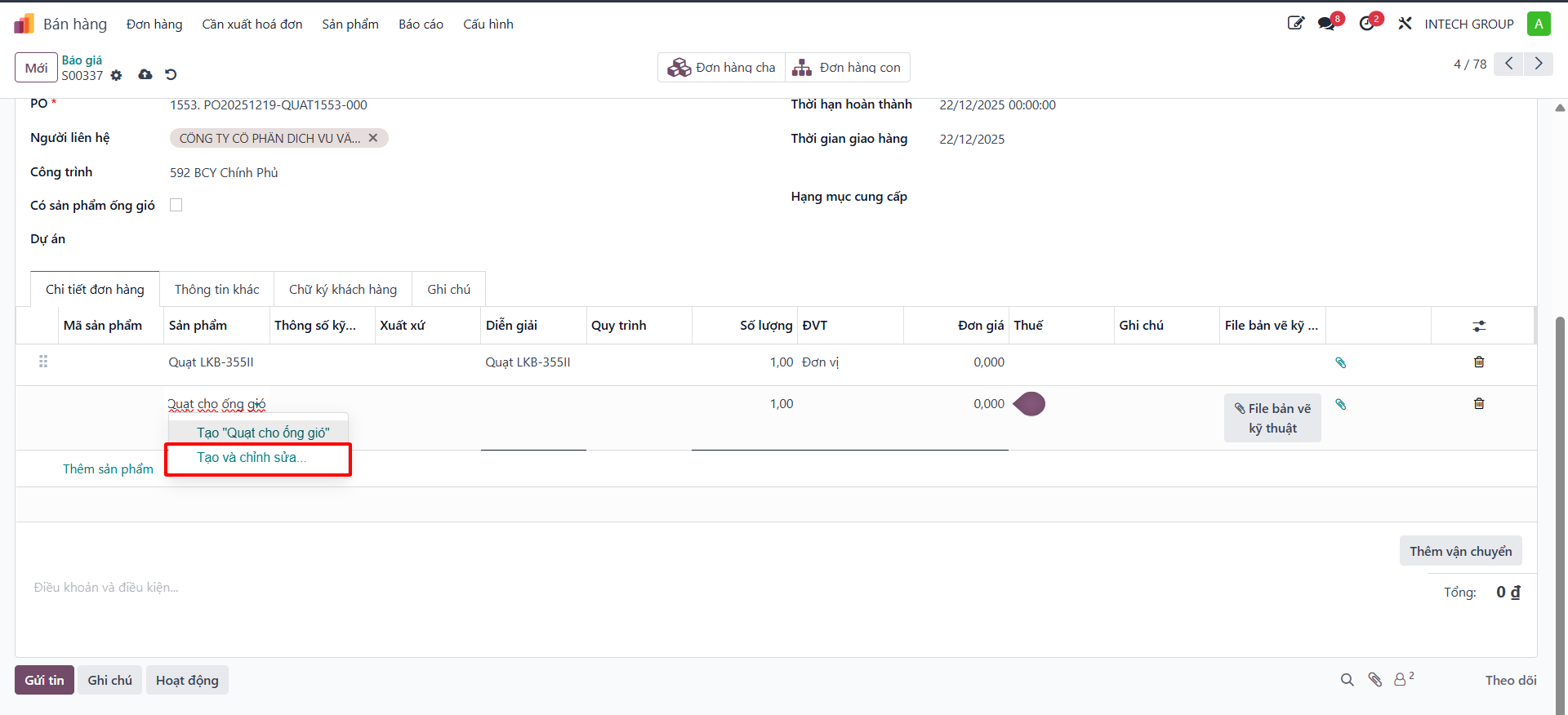
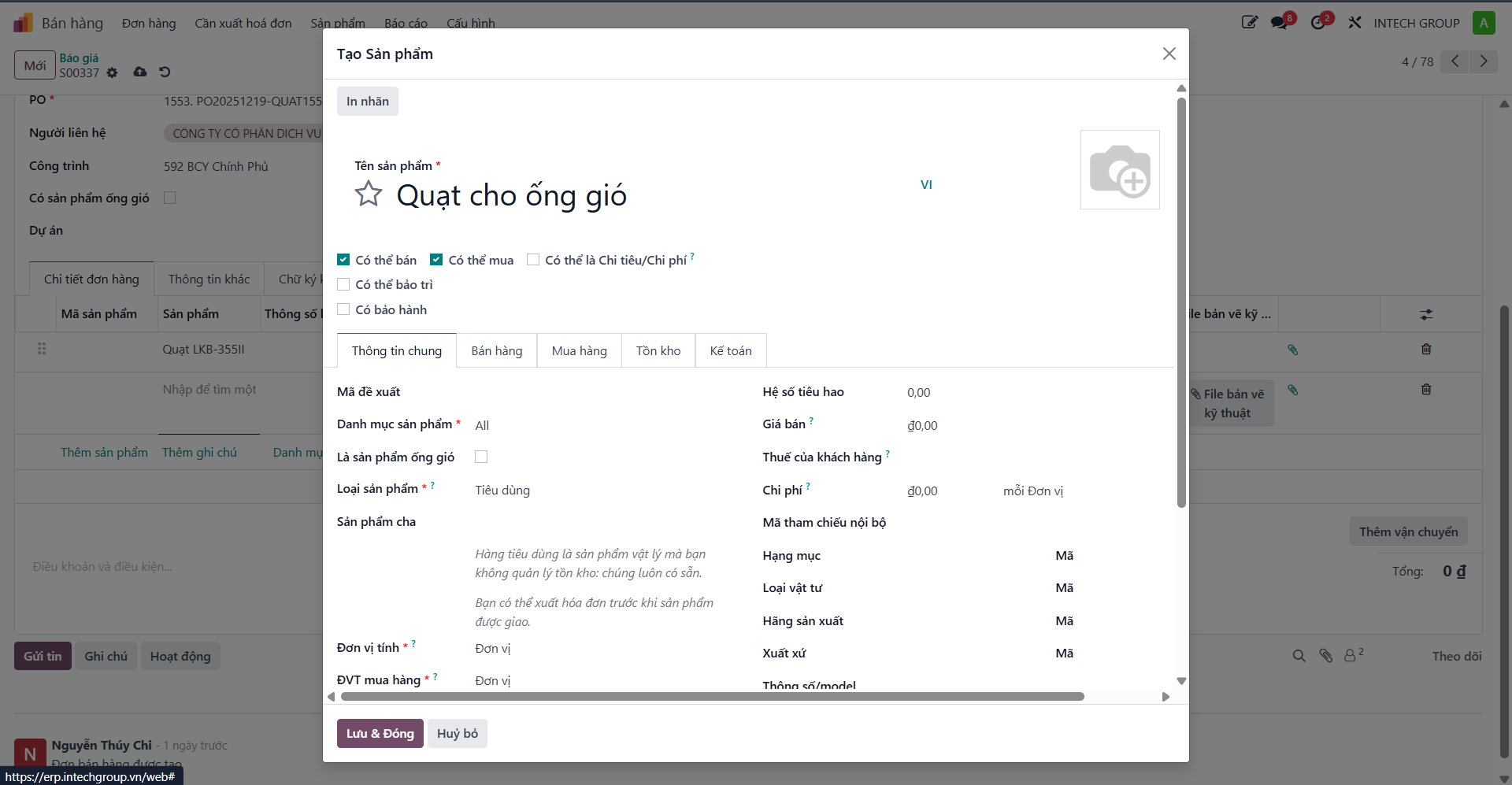
Bước 4: If a requisitioned product does not yet exist in the system, type the product name and click Create and Edit to establish its parameters immediately.
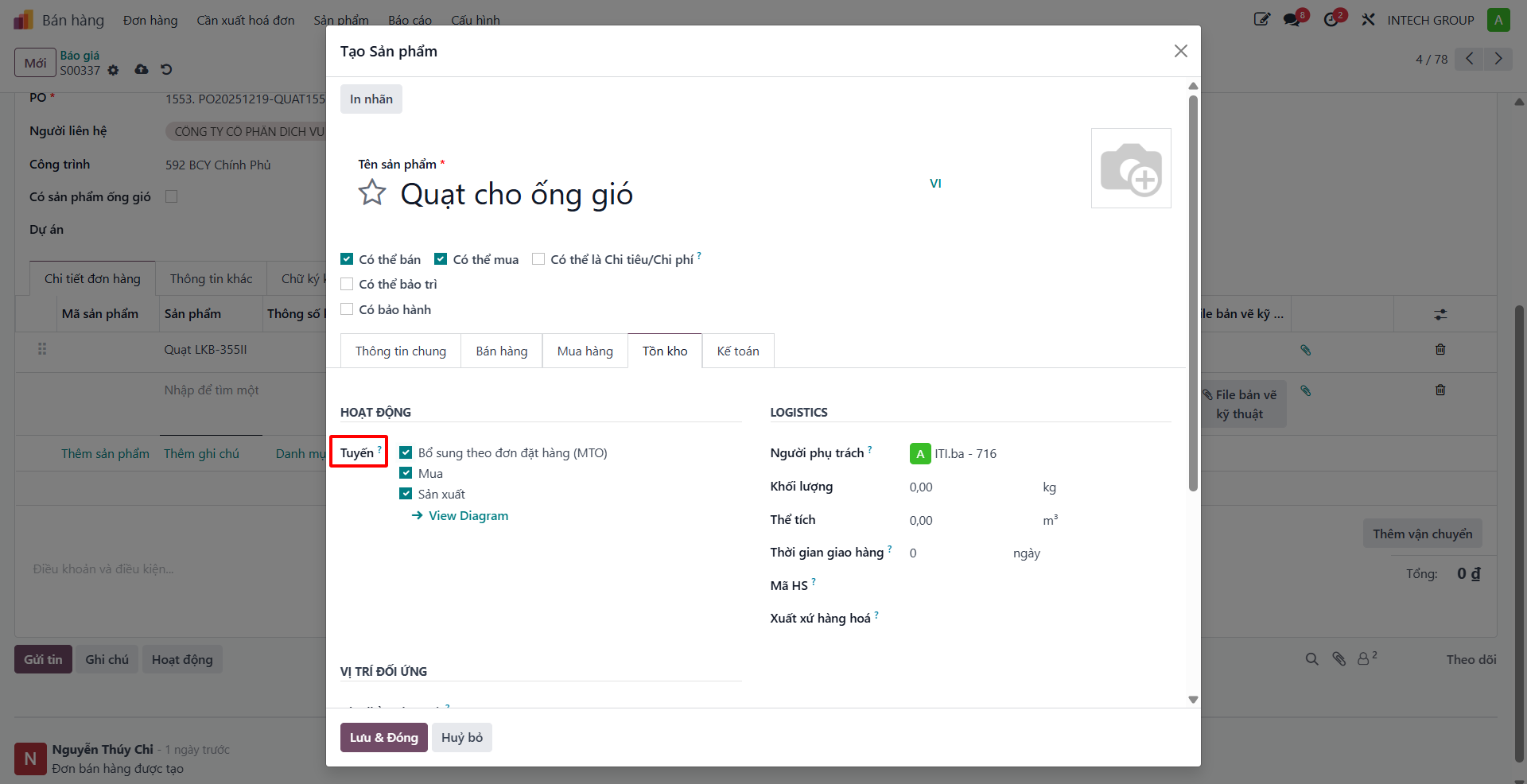
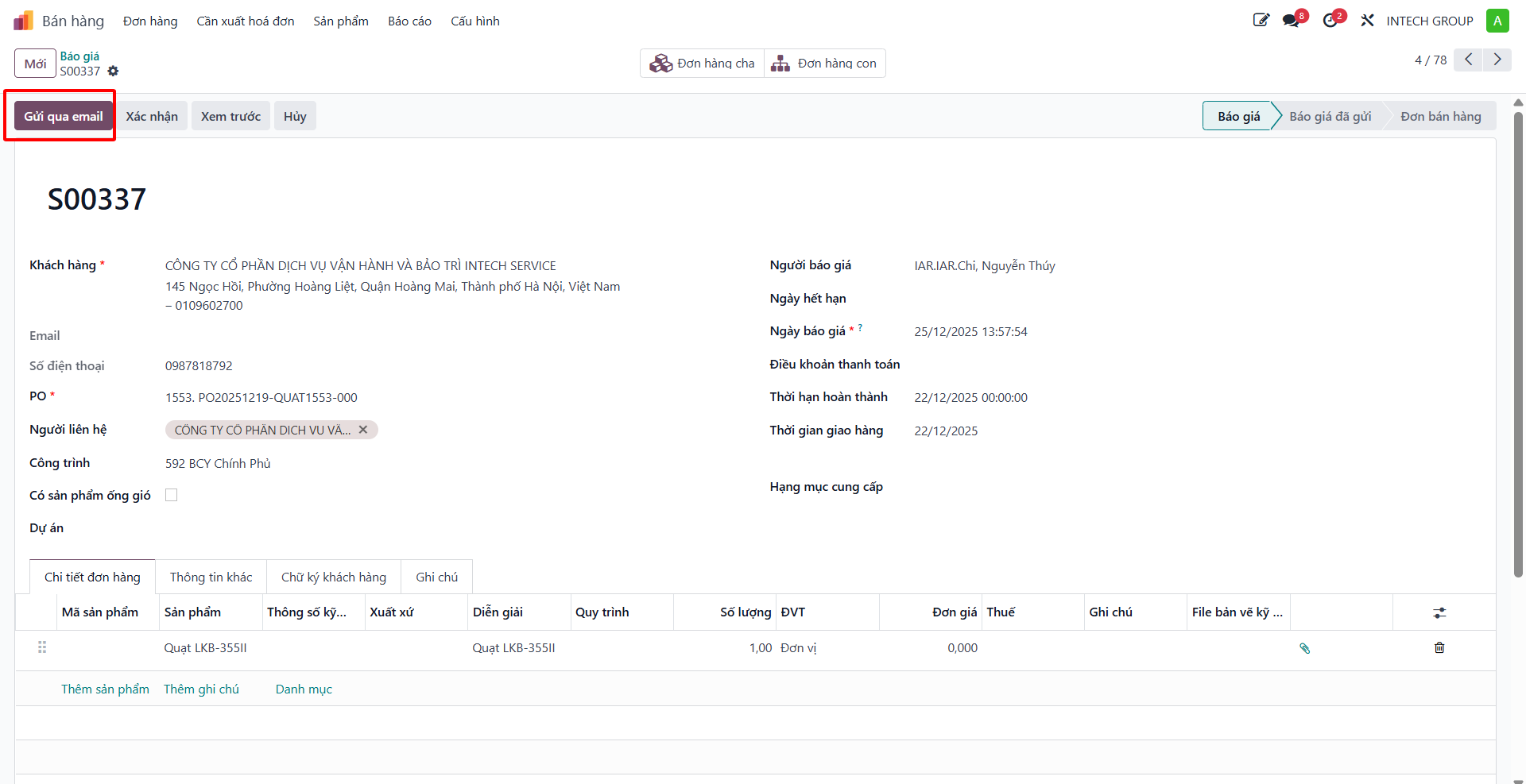
Bước 5: After compiling the quotation, click Send by Email to dispatch the proposal directly to the customer, or click Print to generate PDF and Excel quotation templates.
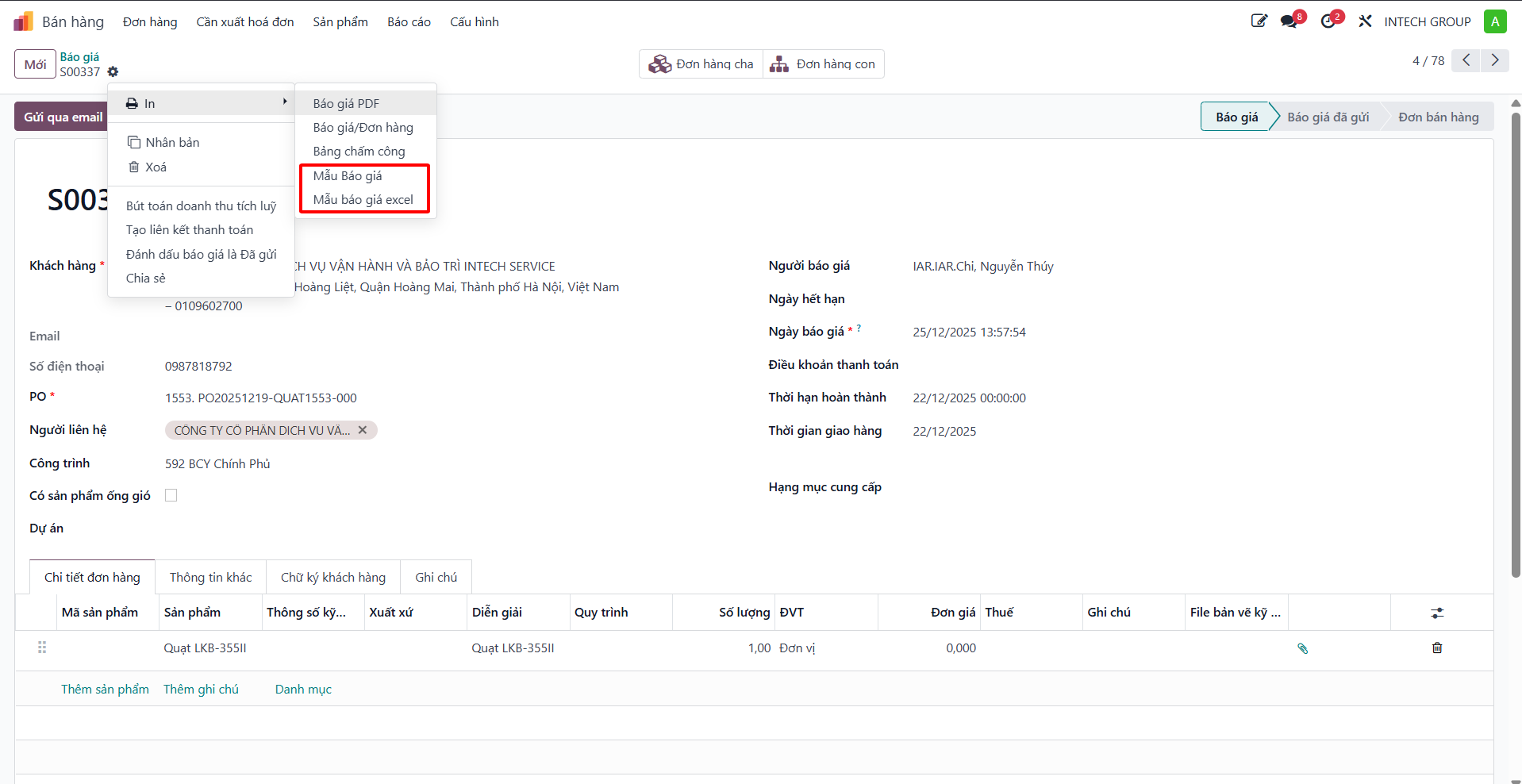
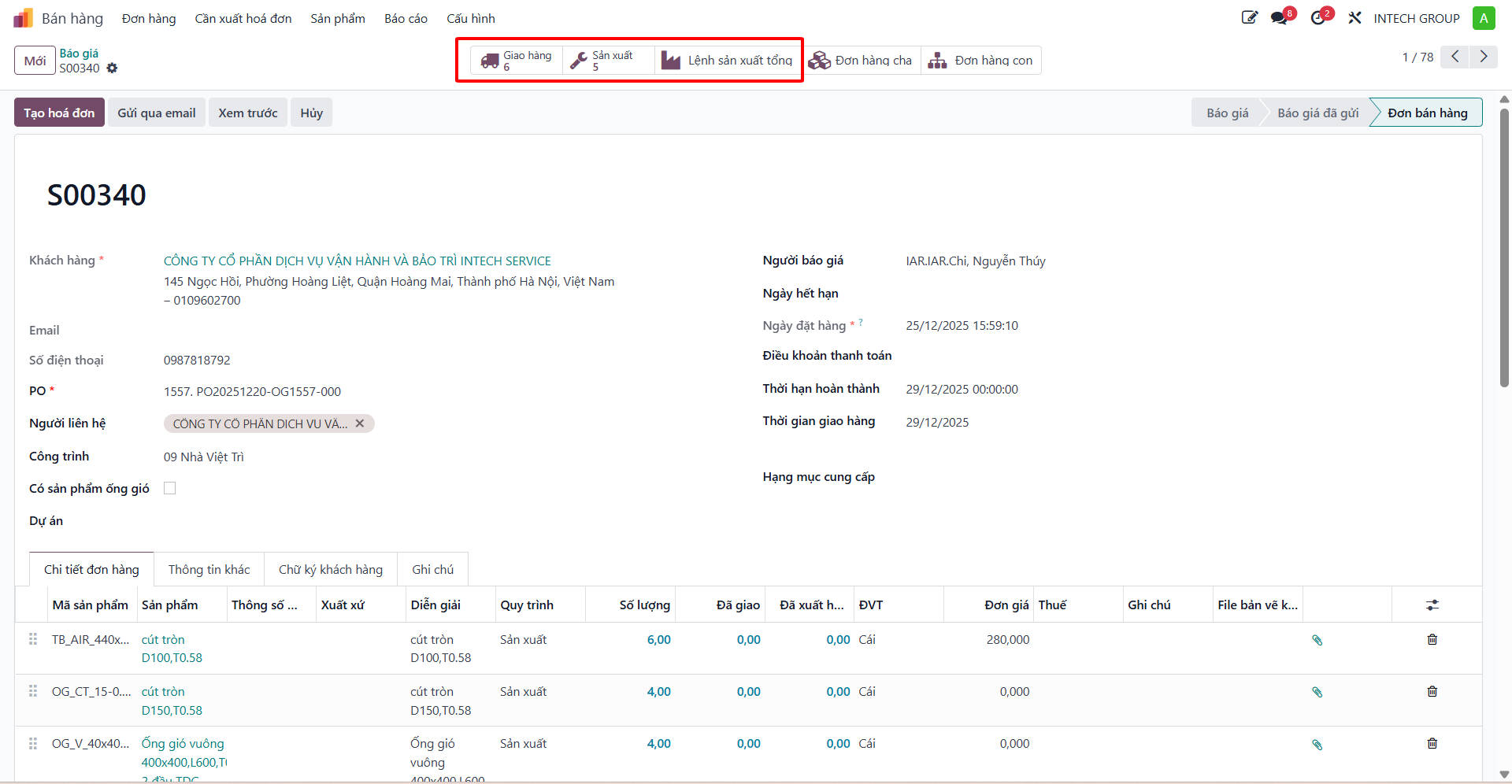
Bước 6: When the customer confirms the bid, click Confirm. The quotation transitions into a confirmed Sales Order. For any items flagged for manufacturing, the system automatically creates linked Manufacturing Orders (MO).
Create Quotation via Spreadsheet
For extensive project quotations containing numerous line items:
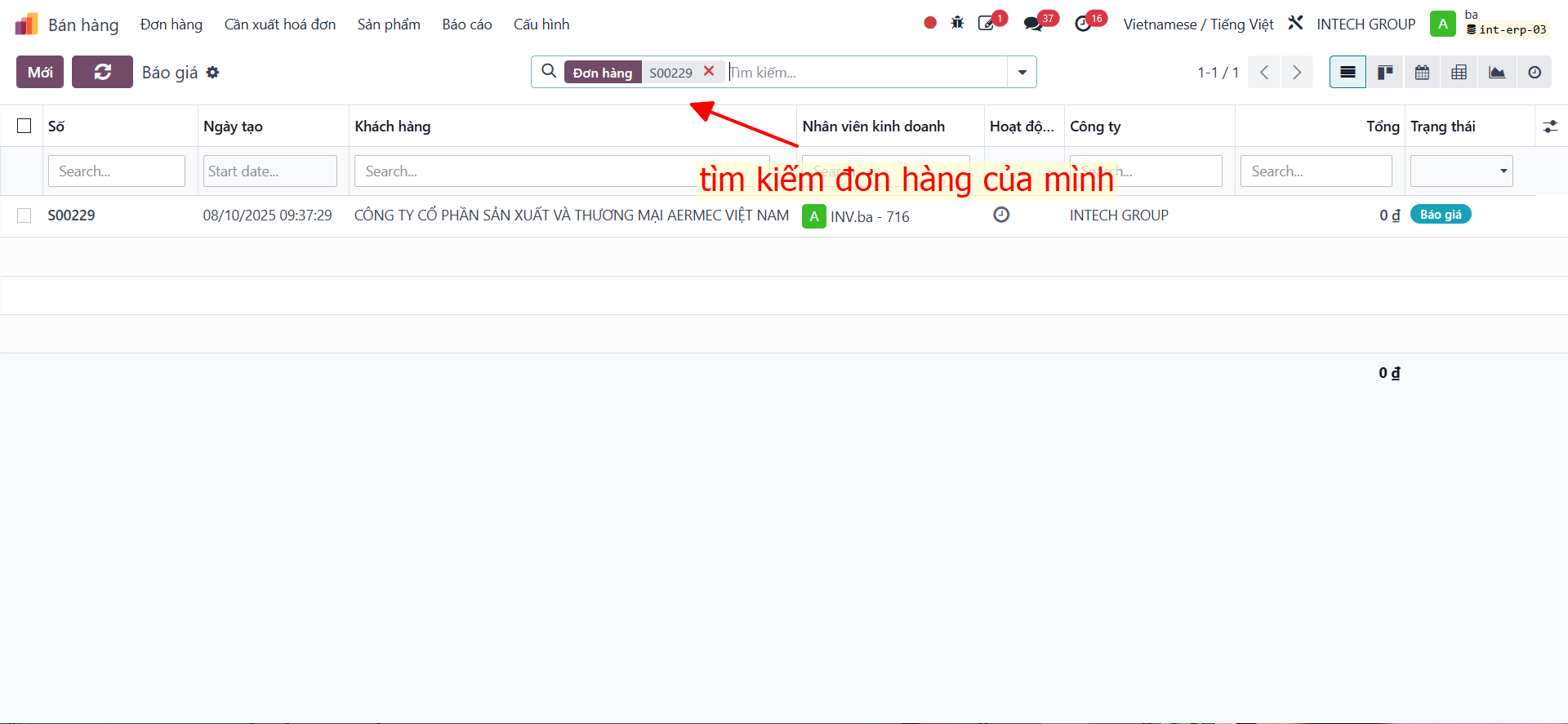
Bước 1: Click the gear actions icon, select Spreadsheet, and choose Insert list into spreadsheet.
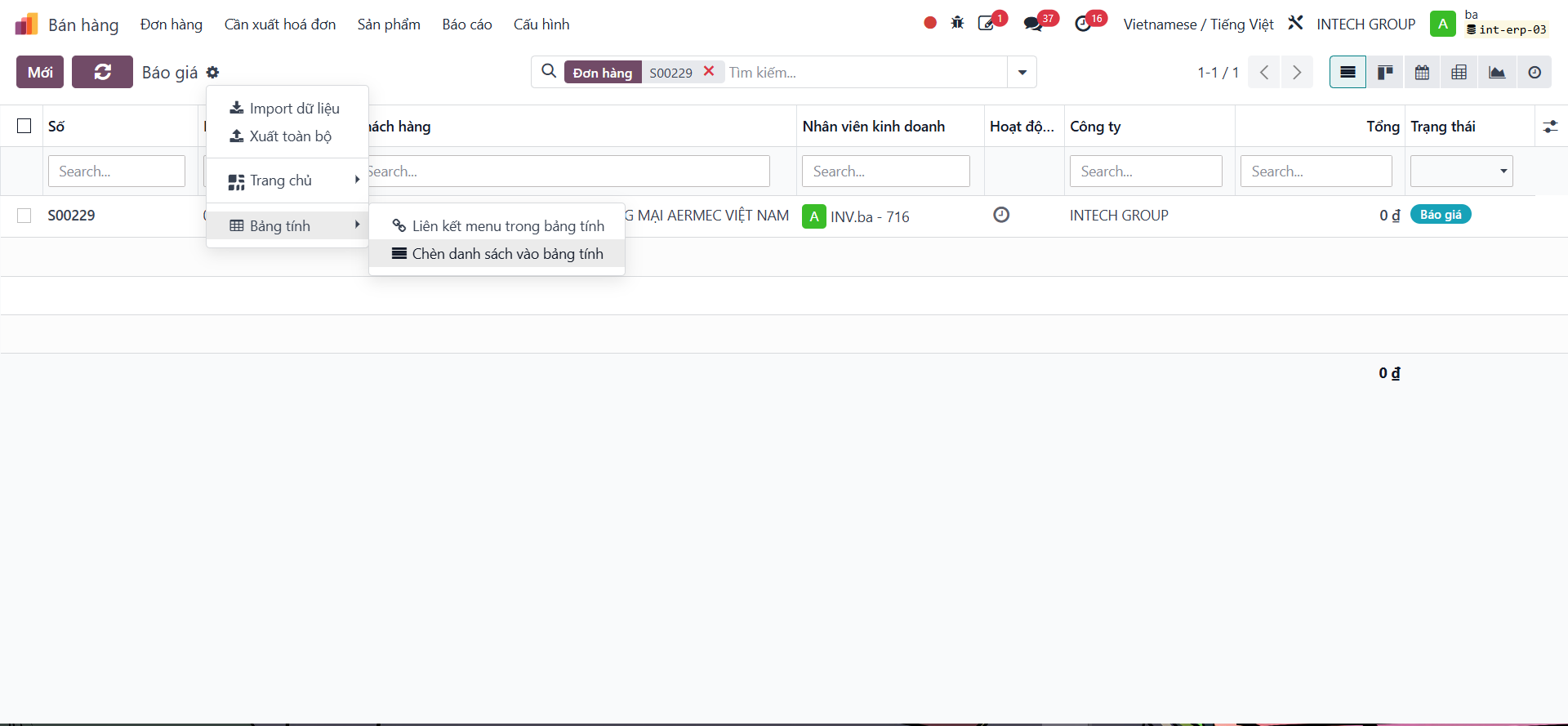
Bước 2: Select Blank Spreadsheet and click Confirm.
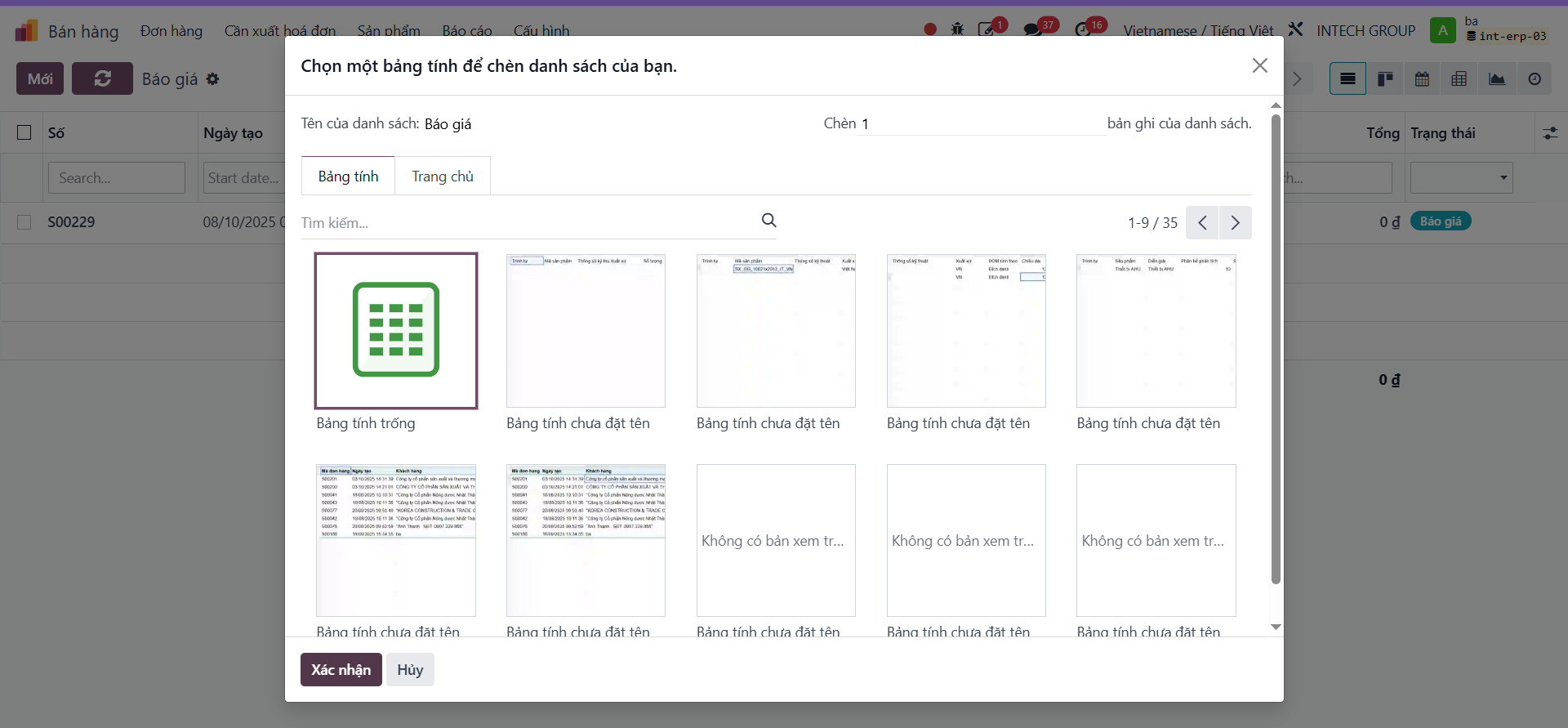
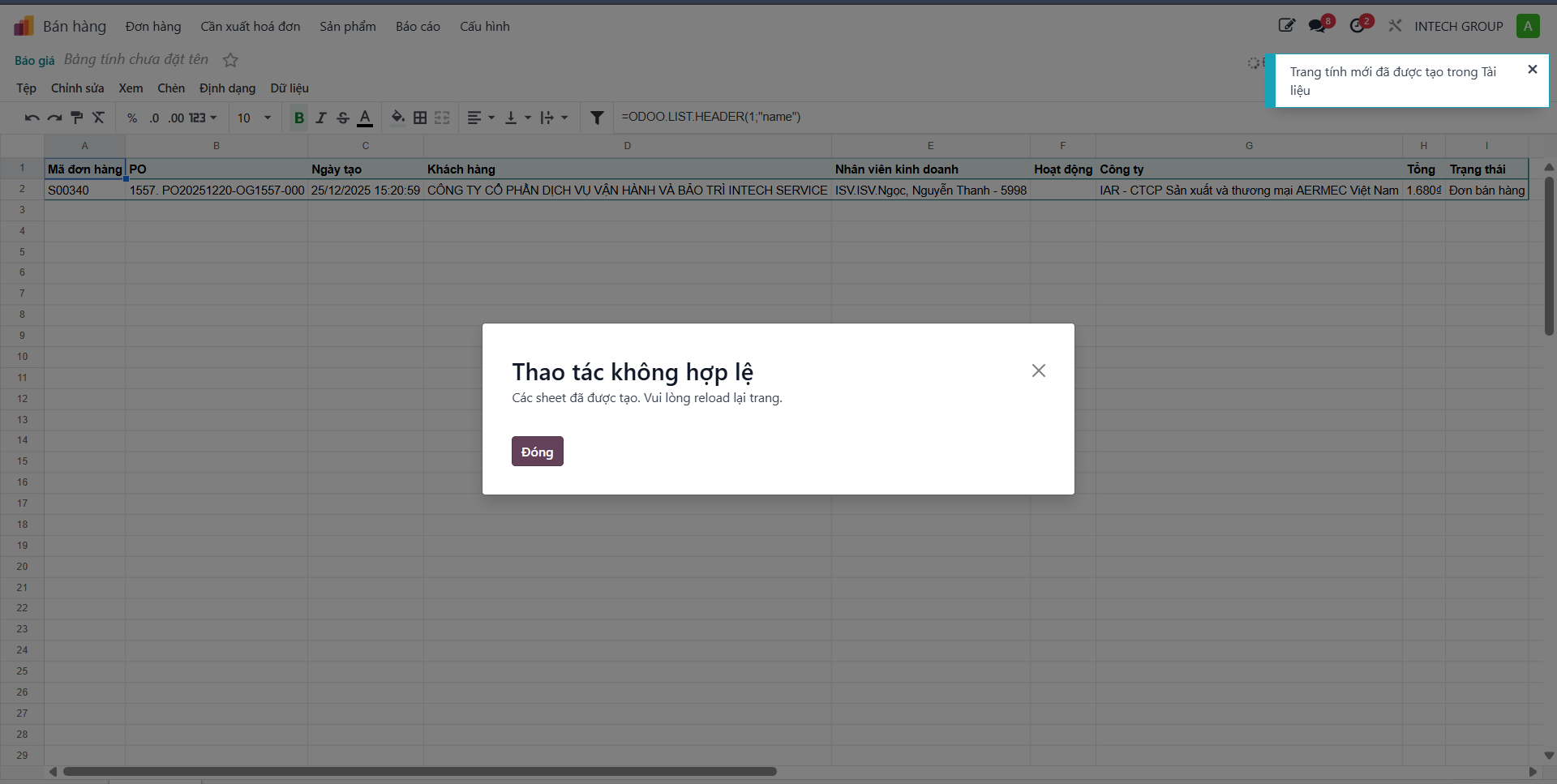
Bước 3: Open the newly generated spreadsheet named after the order code. Enter line item codes, product names, quantities, and pricing into the designated calculation columns.
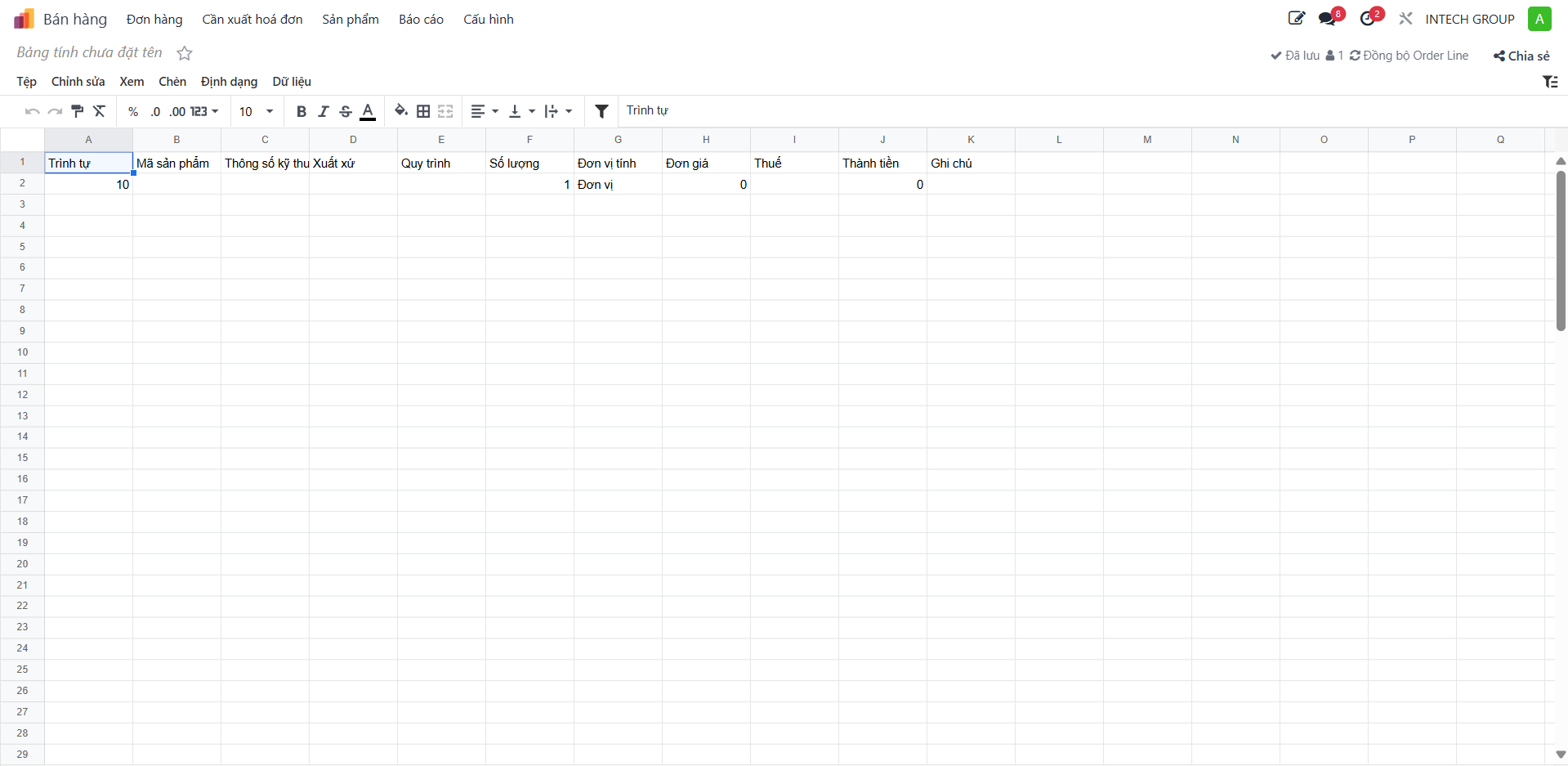
Bước 4: In the top right corner of the spreadsheet view, click Sync Order Line to synchronize data into the quotation form.
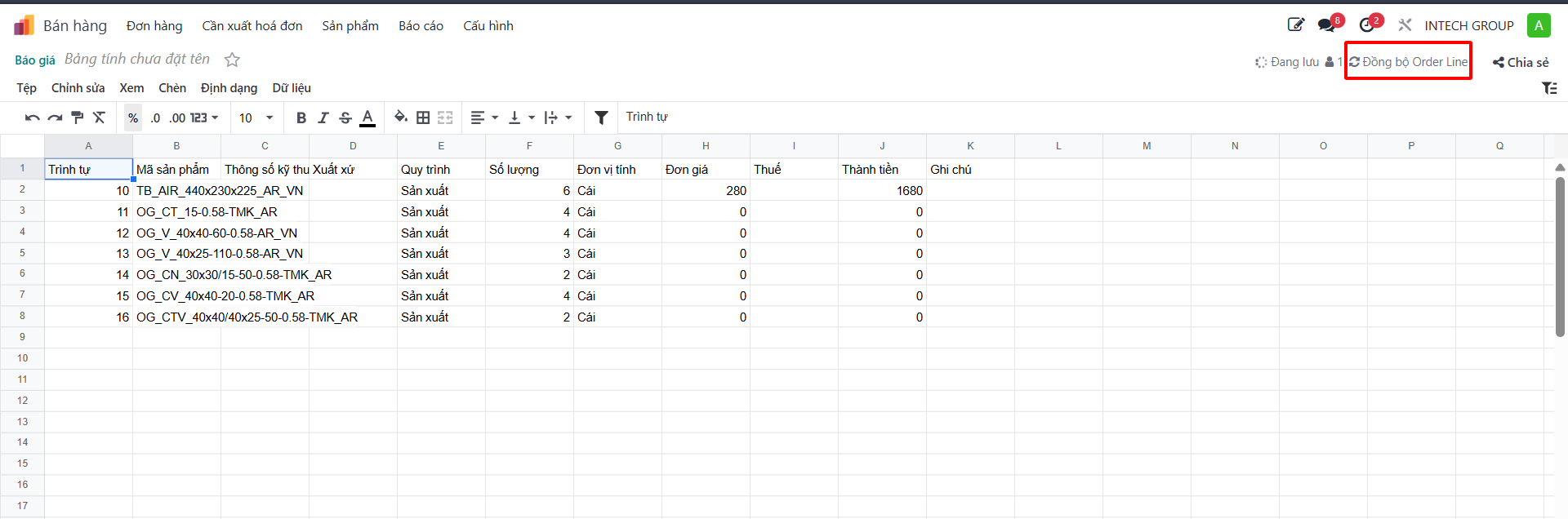
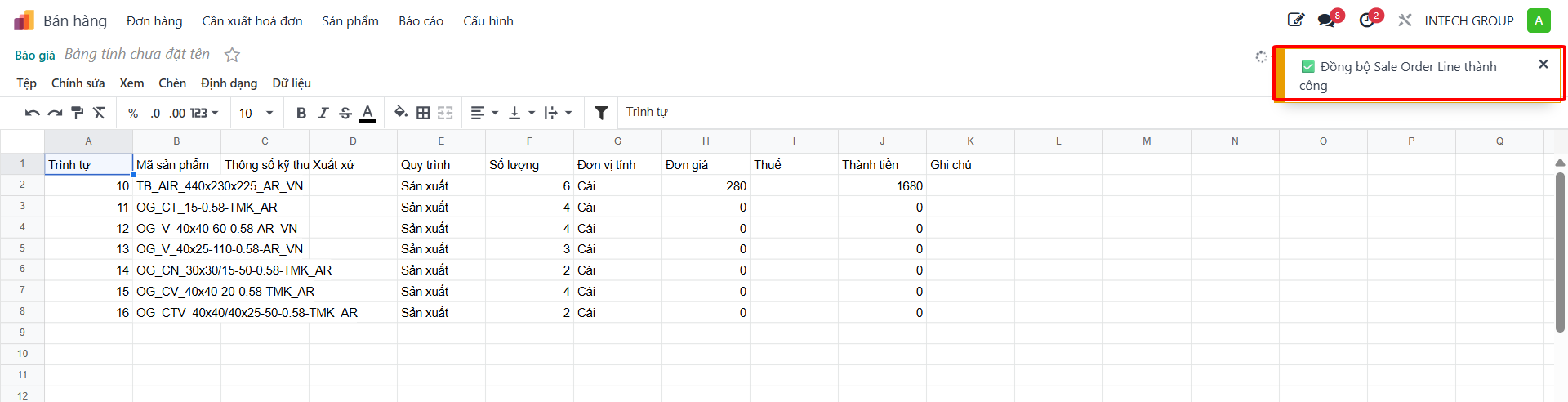
Bước 5: Return to the quotation form to review the populated order lines.
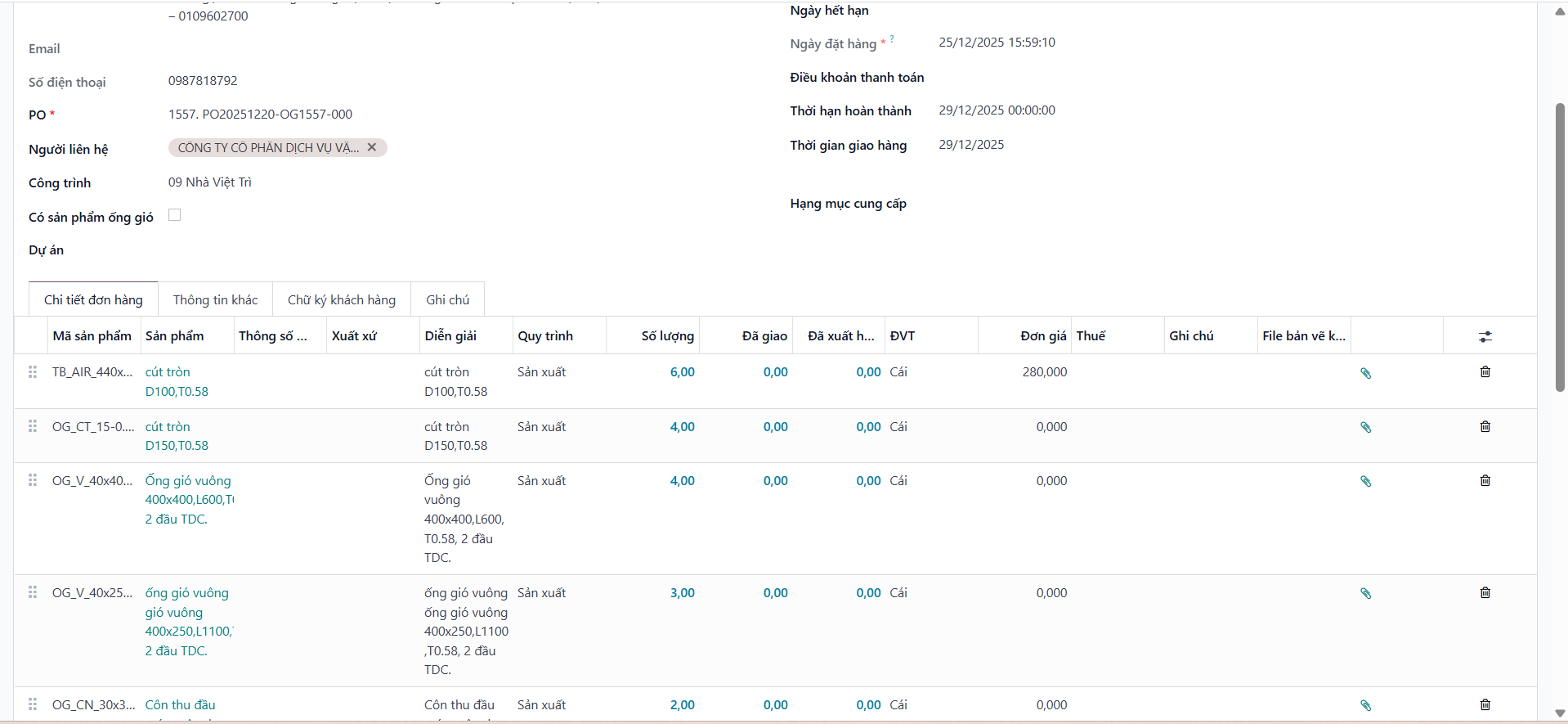
Bước 6: Click Confirm to finalize the order and trigger automated manufacturing orders.
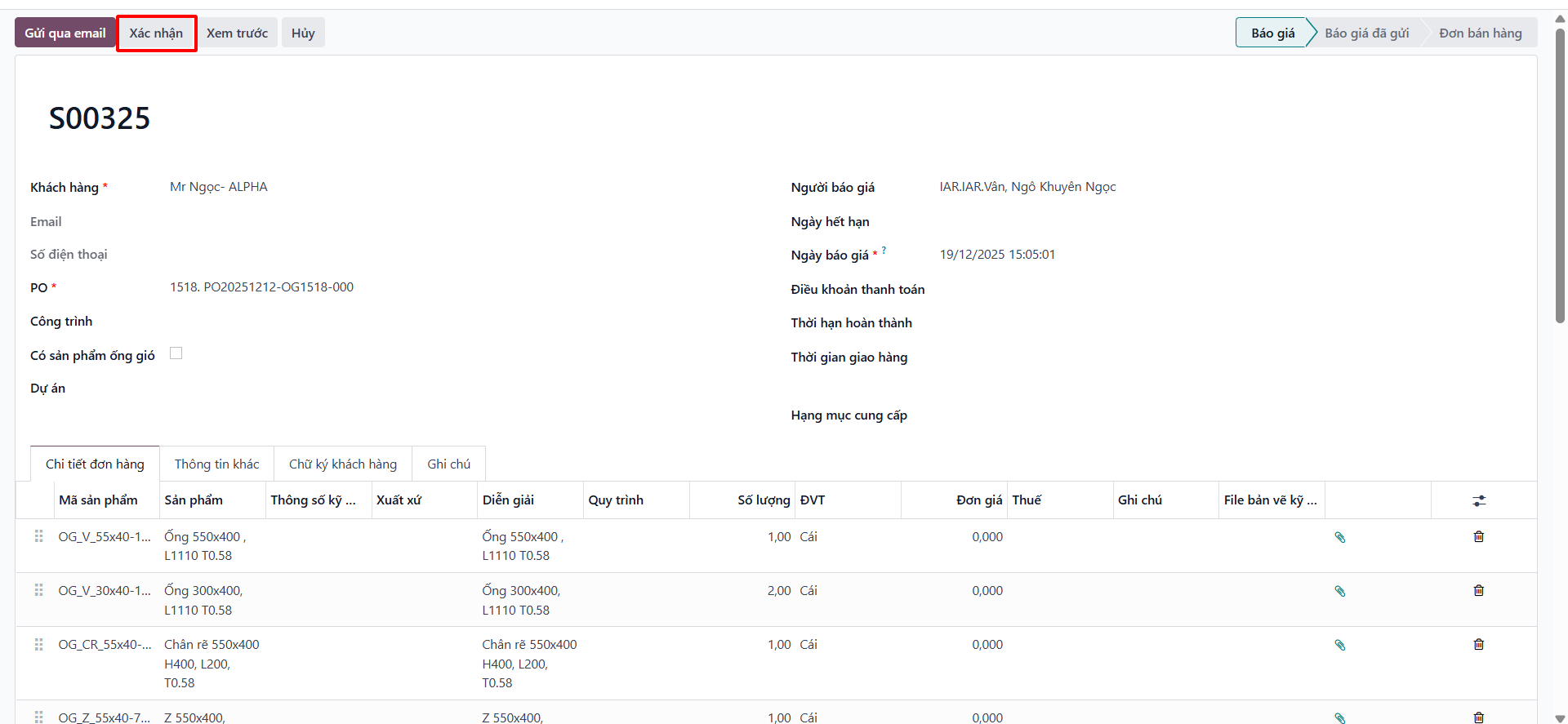
Upload Technical Drawings on Quotation
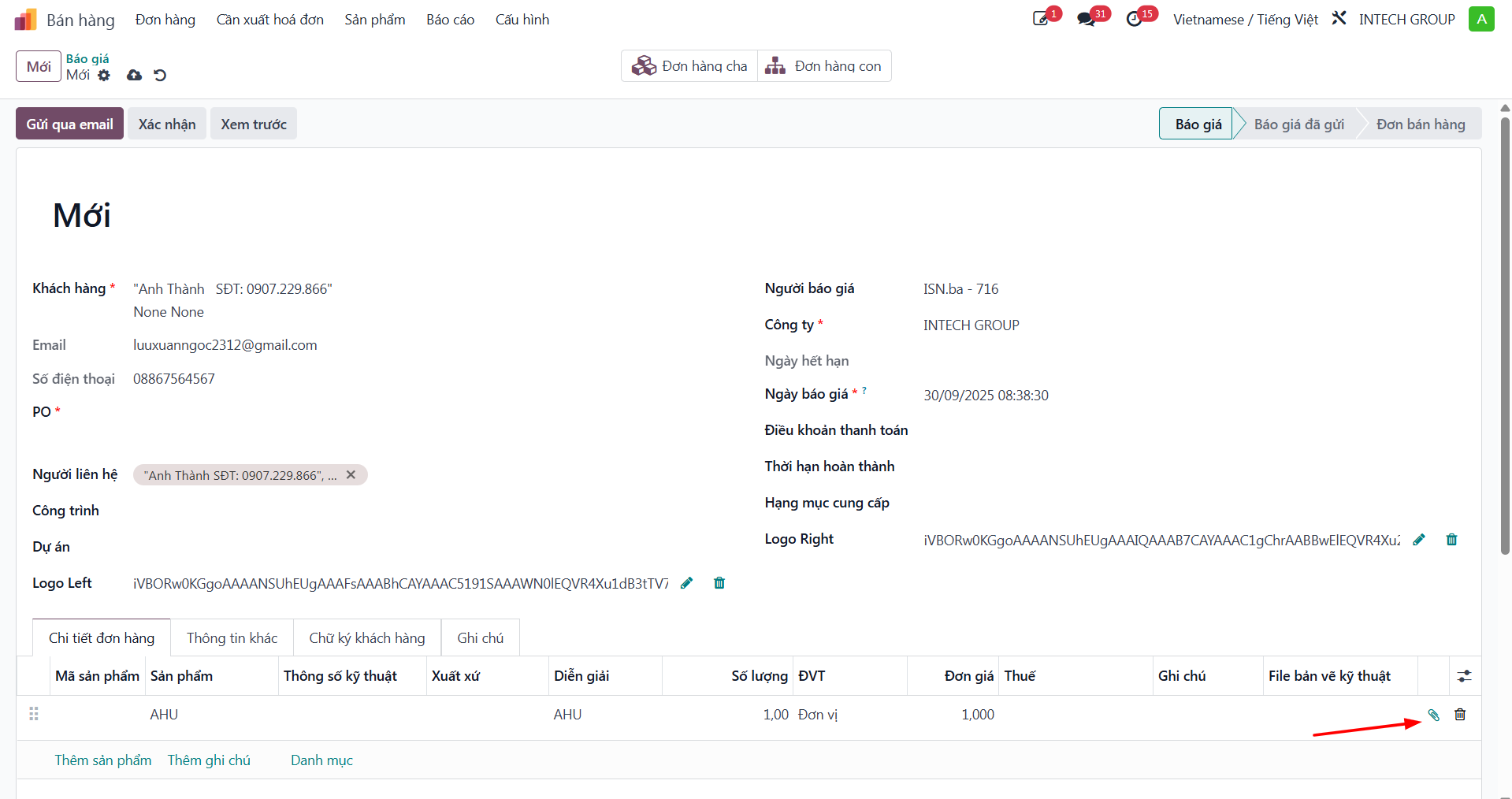
Bước 1: On any order line, click the paperclip attachment icon to link technical drawings intended for the customer. The system supports attaching multiple PDF drawings.
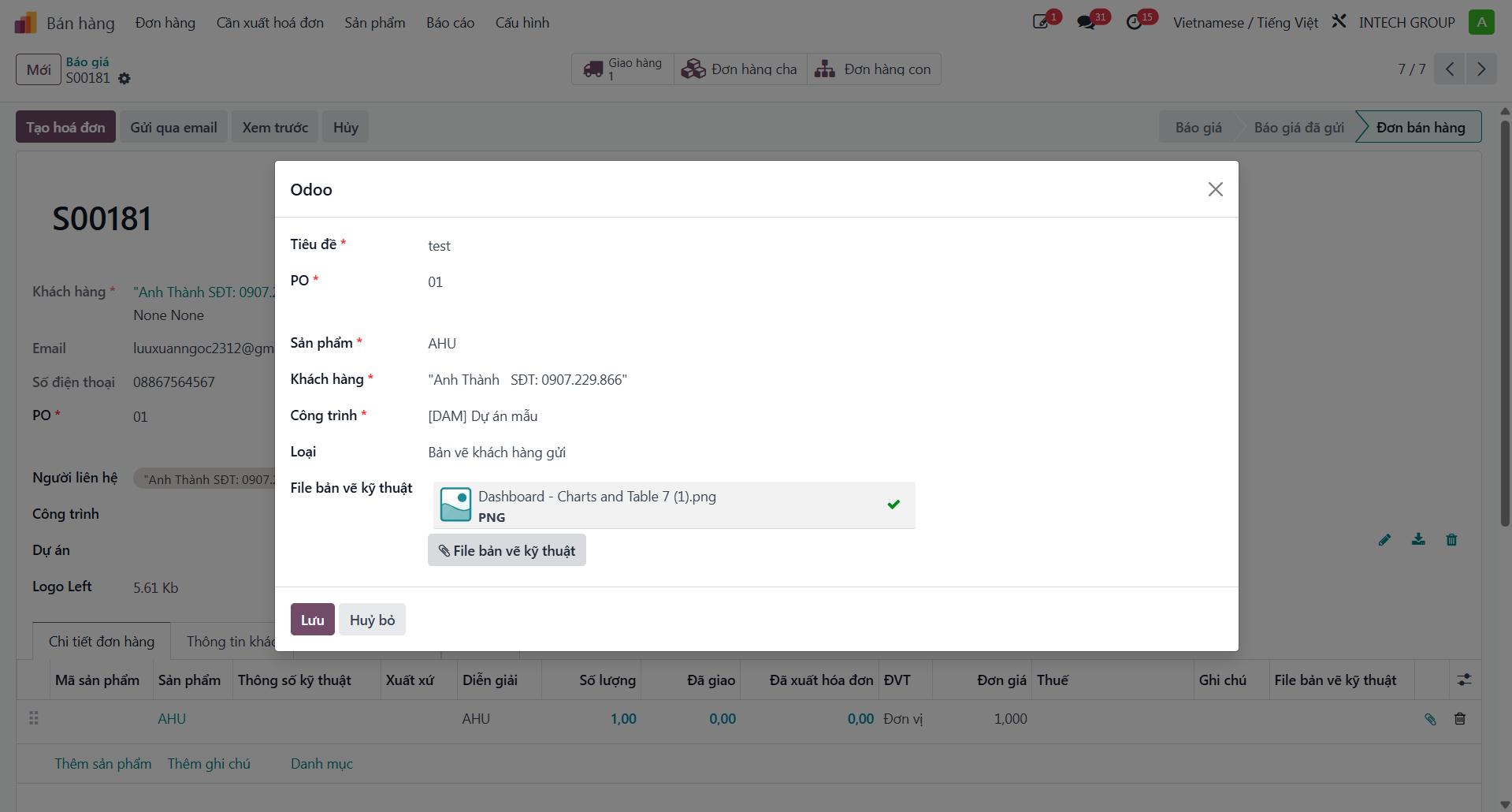
Bước 2: In the technical drawing modal, select the drawing file, specify drawing code and revision, then click Save.
Create and Import Products
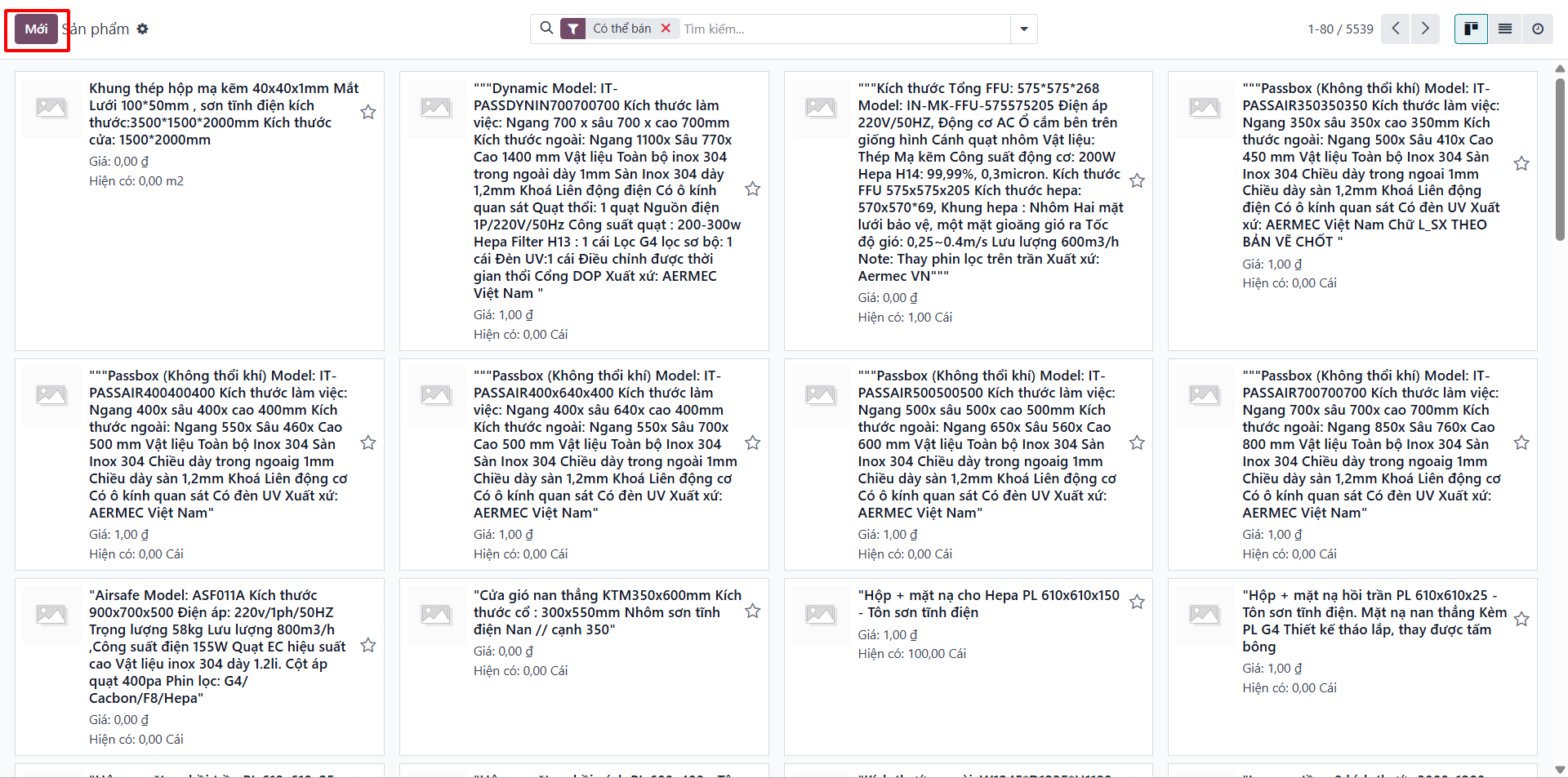
Manual Product Creation
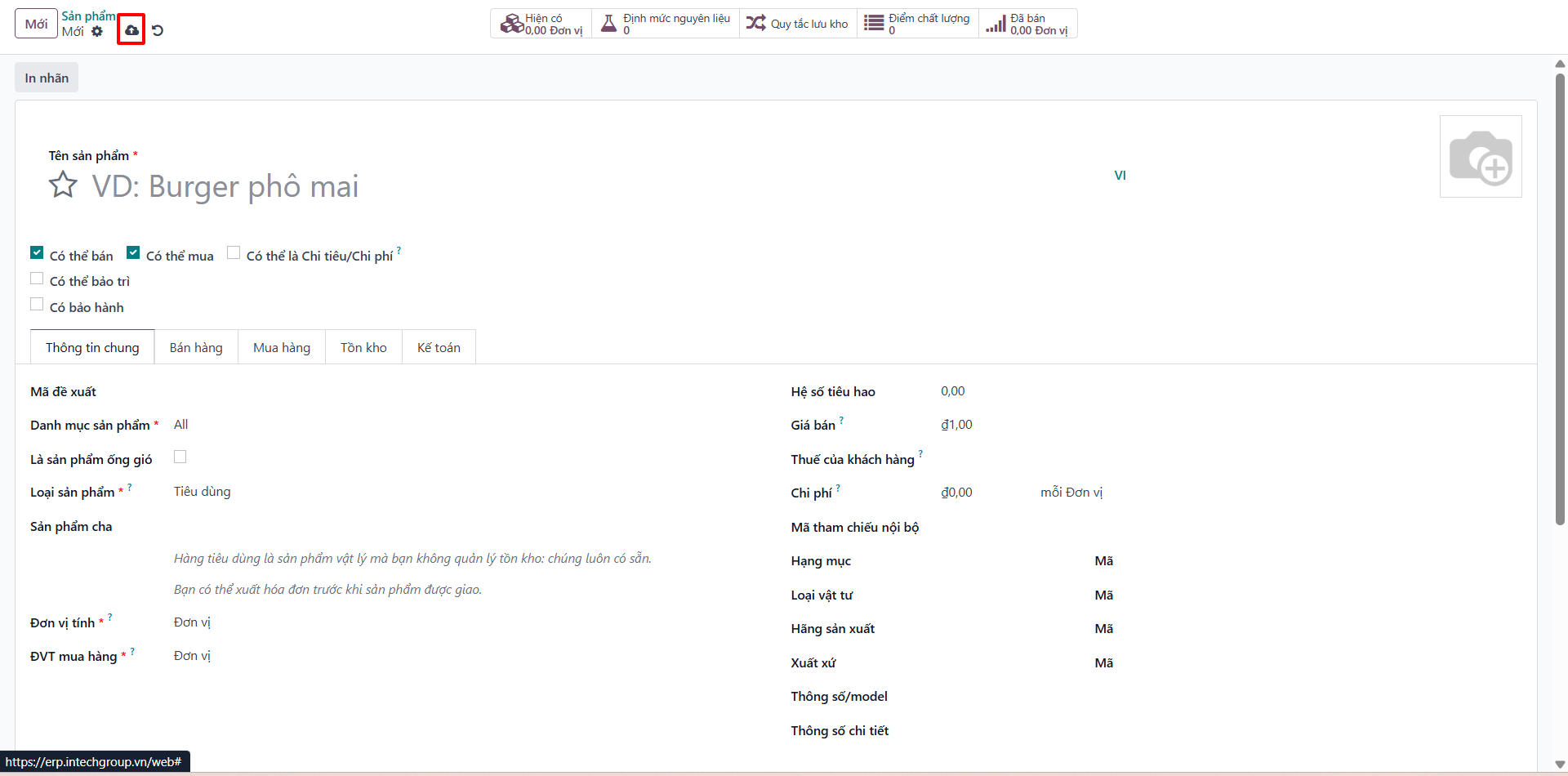
Bước 1: In the Sales module, navigate to .
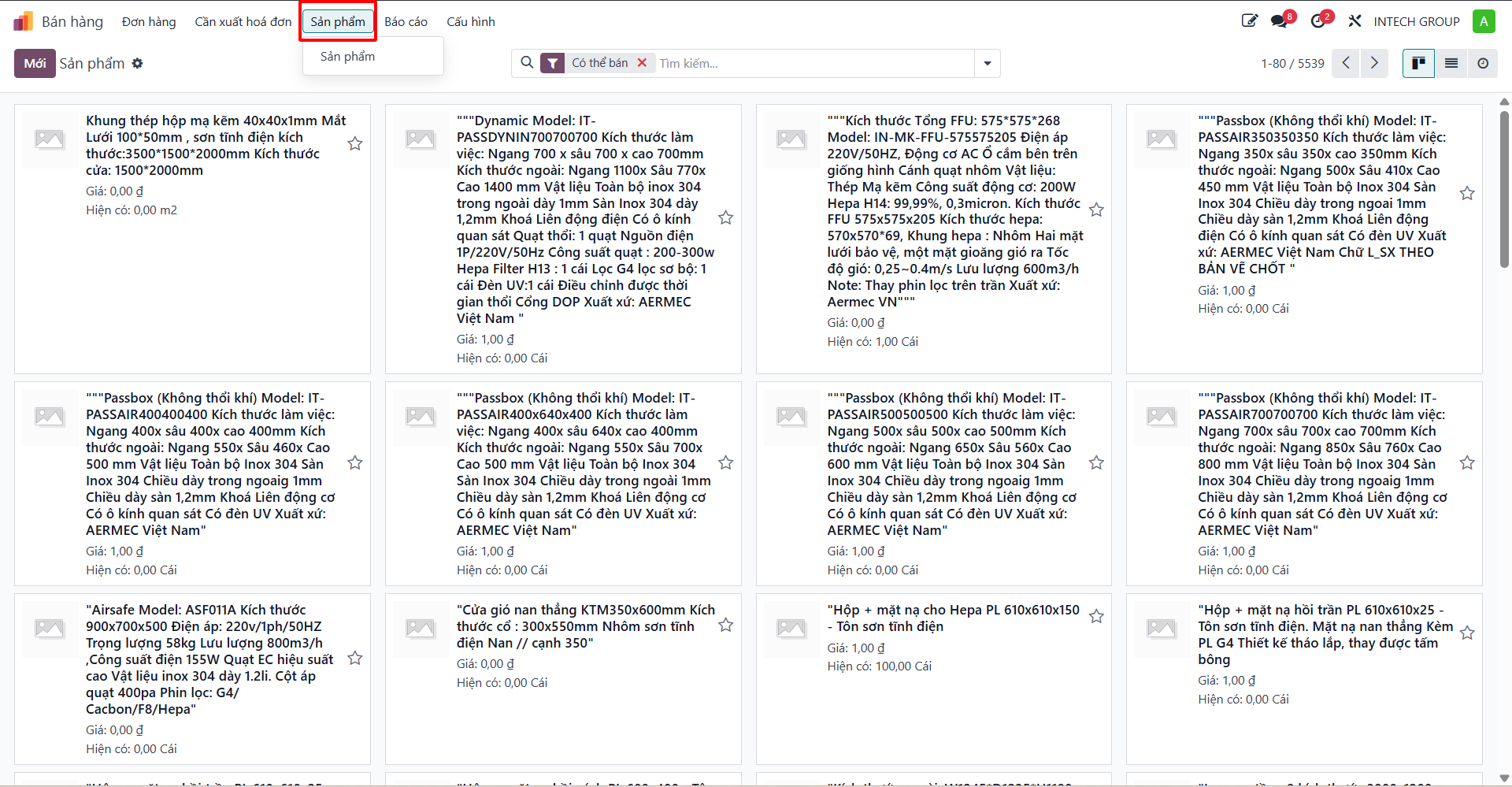
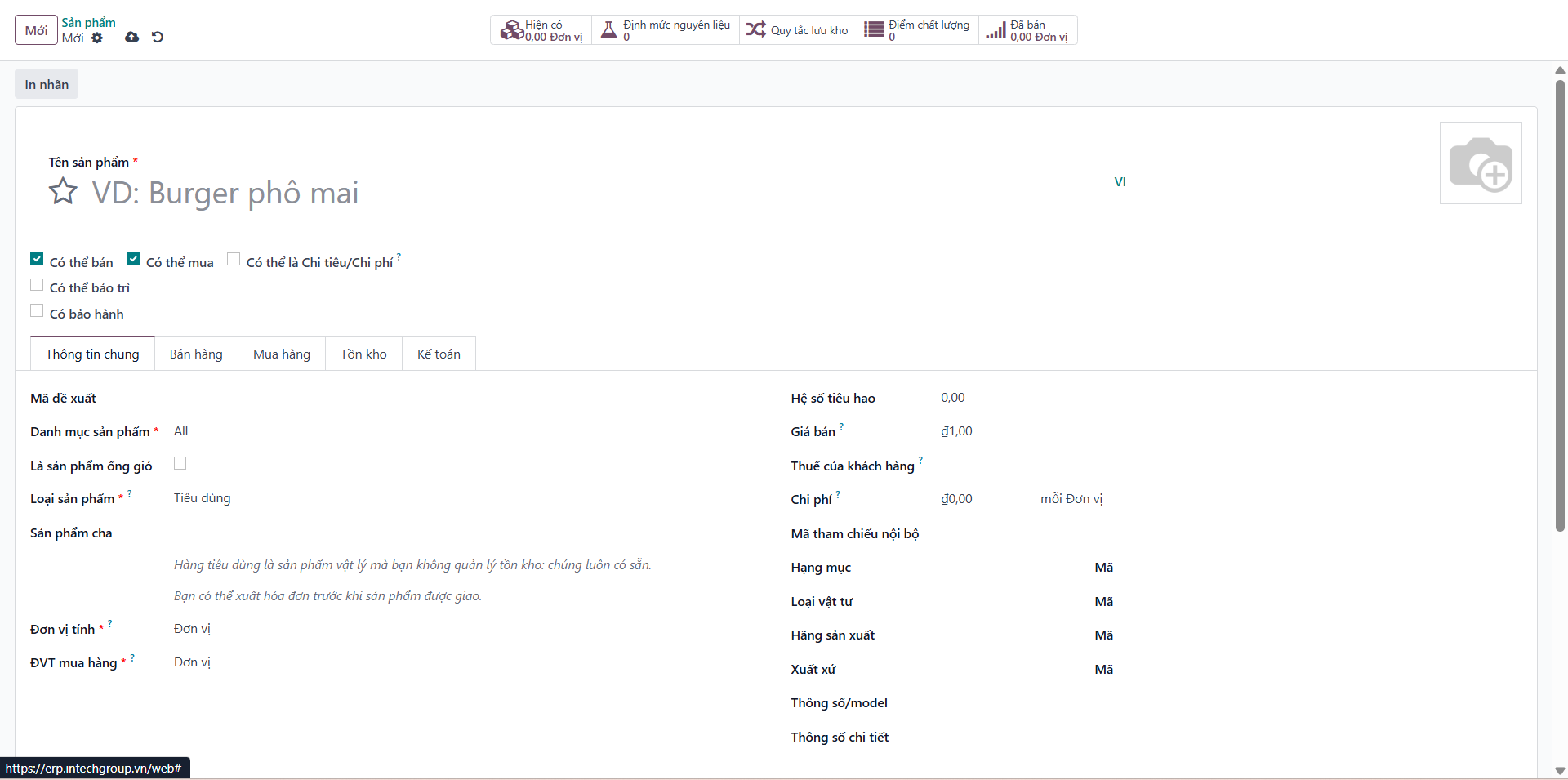
Bước 2: Click New to open the product configuration form.
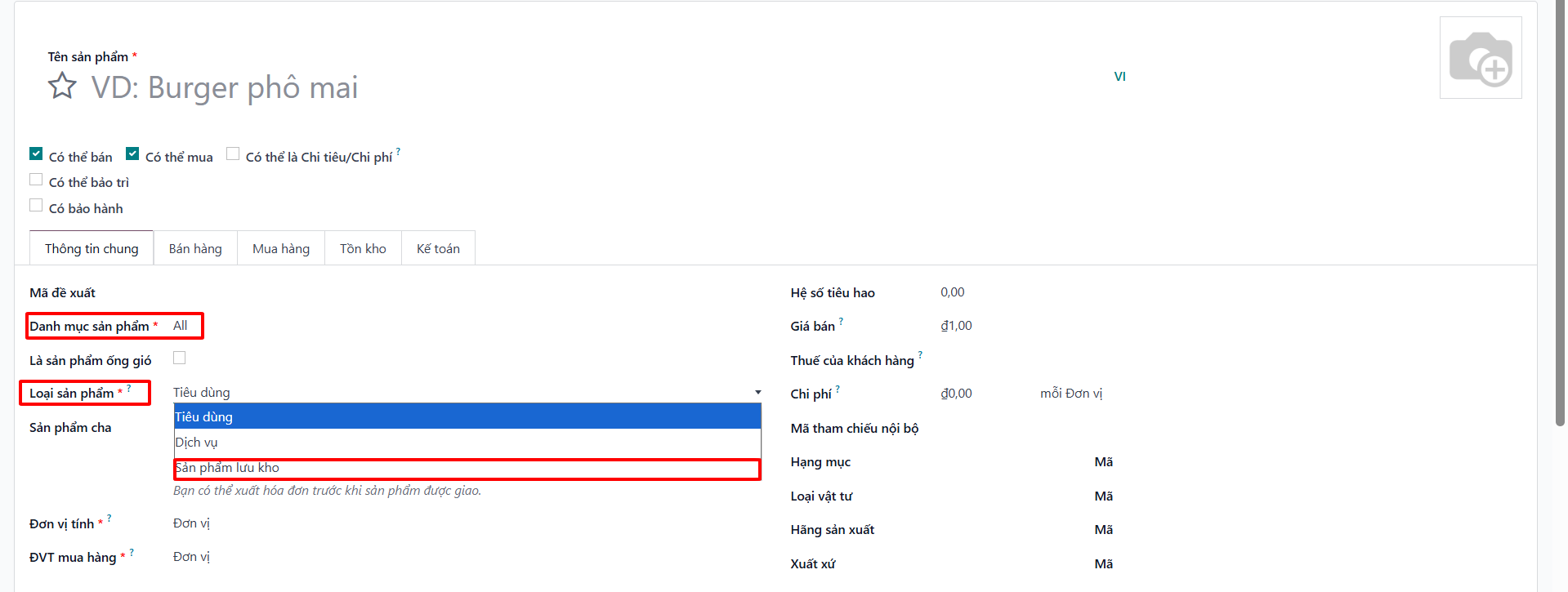
Bước 3: Enter detailed product properties: Product Name, Product Type (Storable Product), Sales Price, Cost Price, Customer Taxes, and Internal Reference code.
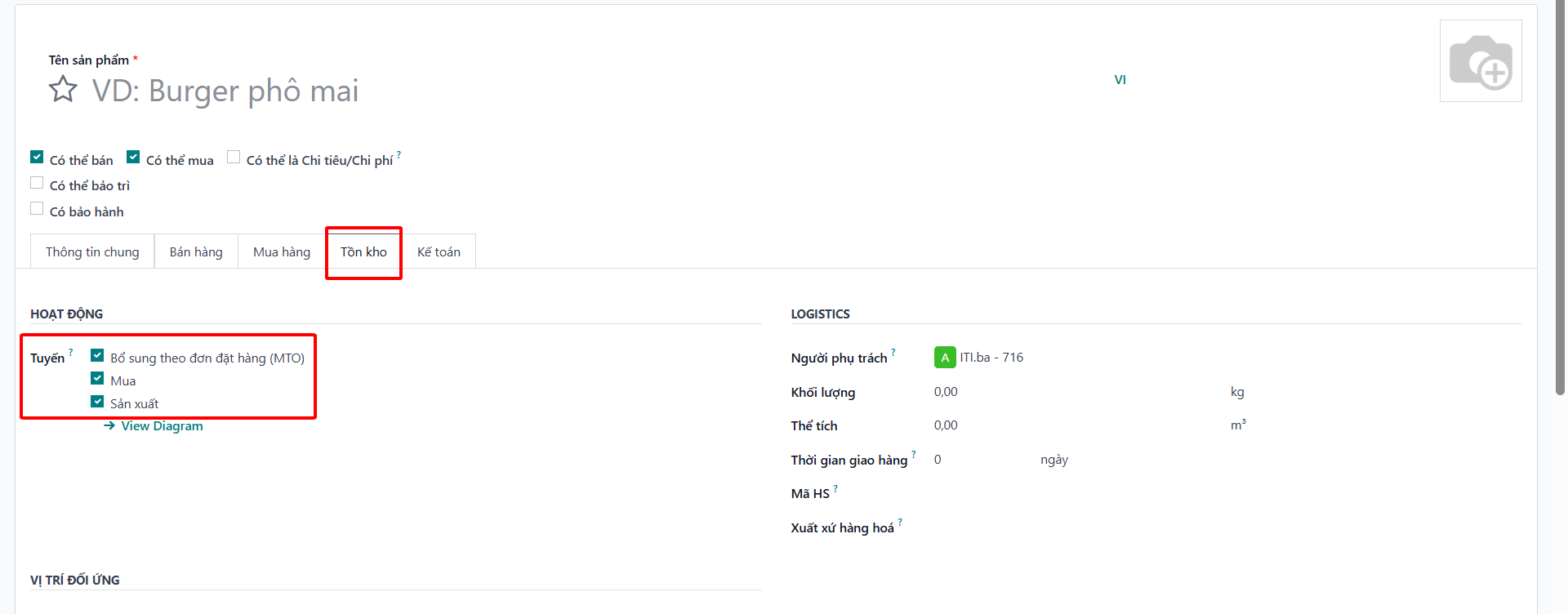
Bước 4: Click Save to store the product in the master catalog.
Bulk Product Import from Excel
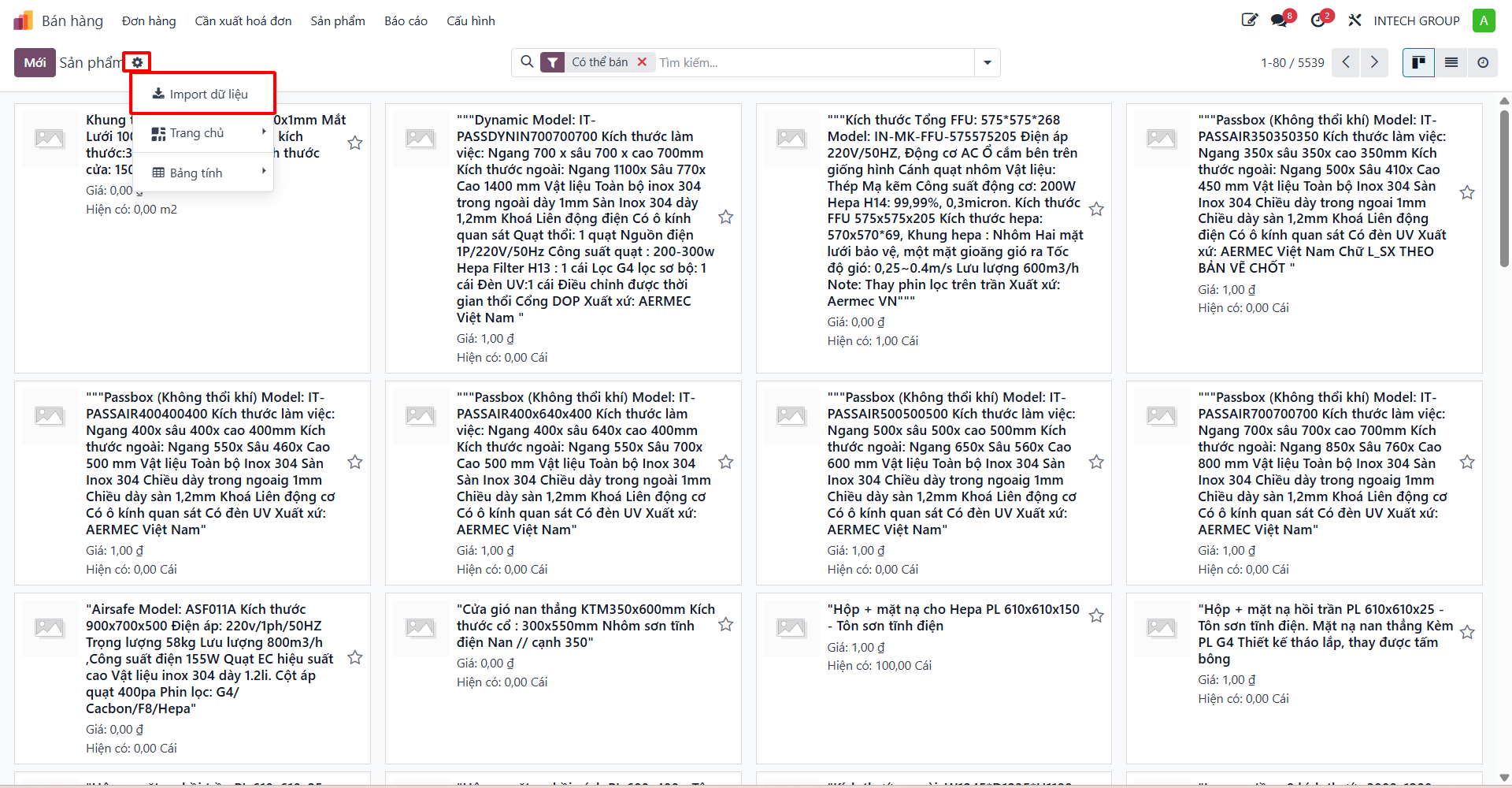
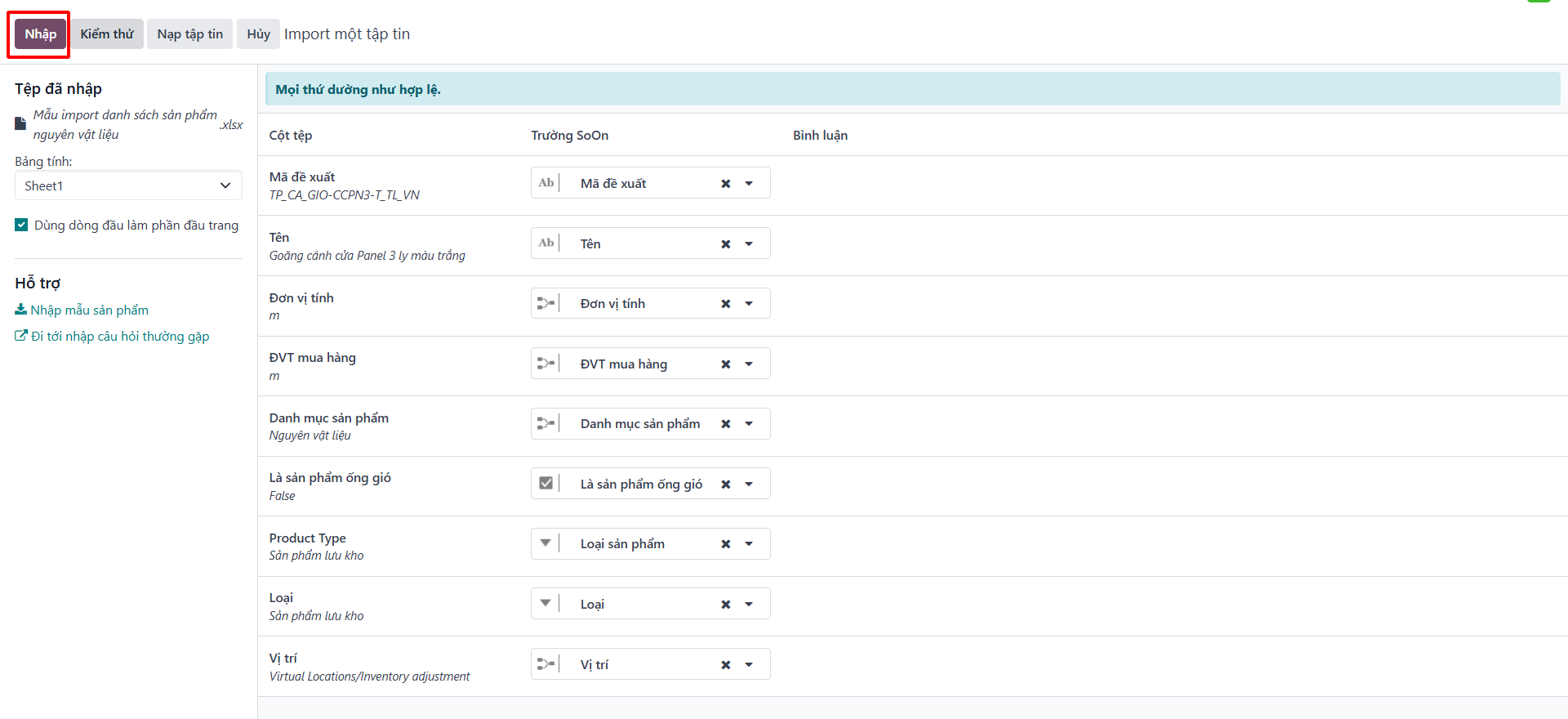
Bước 1: On the Products list view, click the gear icon and select Import records.
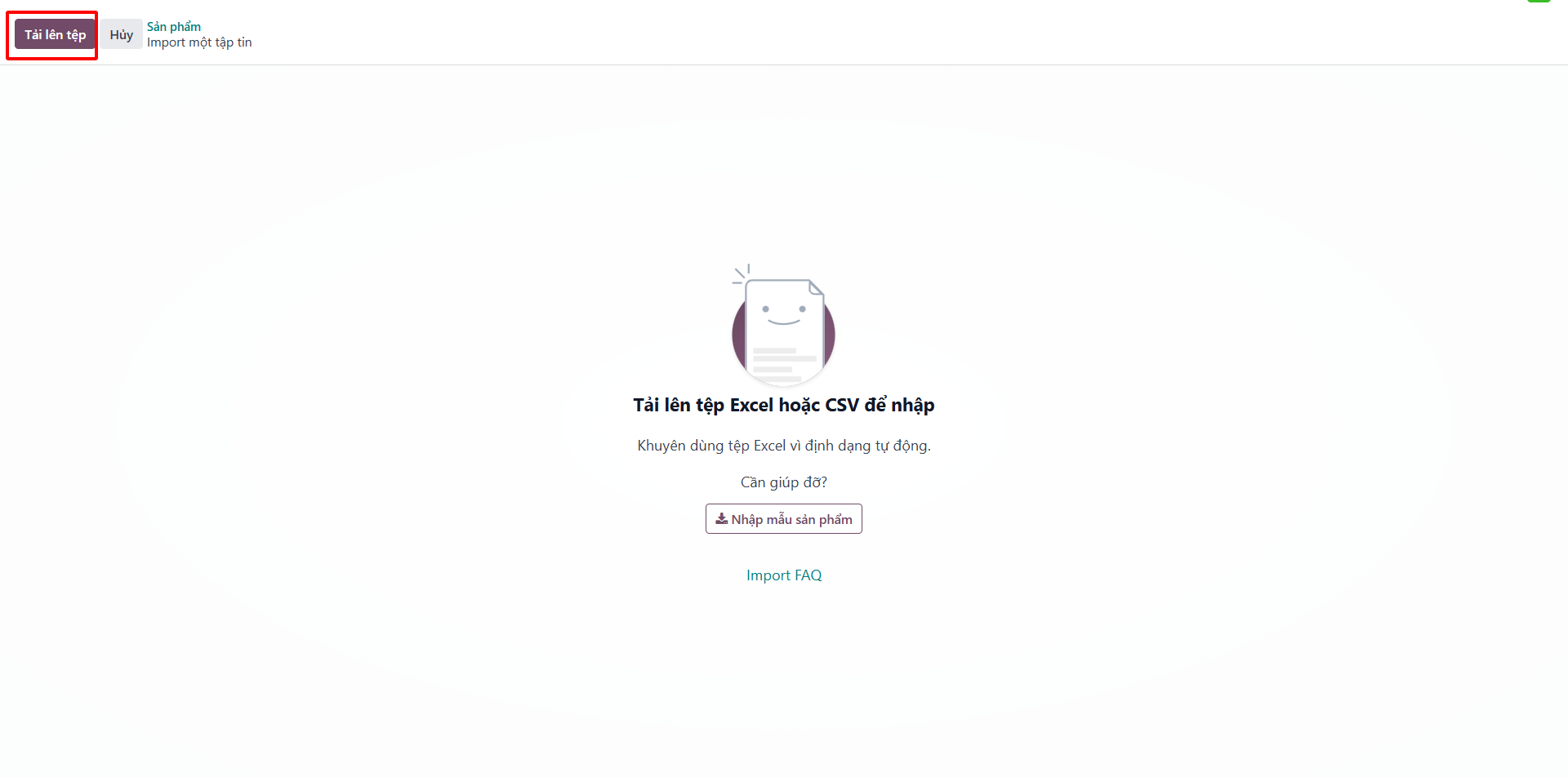
Bước 2: Click Upload File and select your prepared Excel file matching the standard import template.
Bước 3: Click Test to validate column mappings and data integrity.
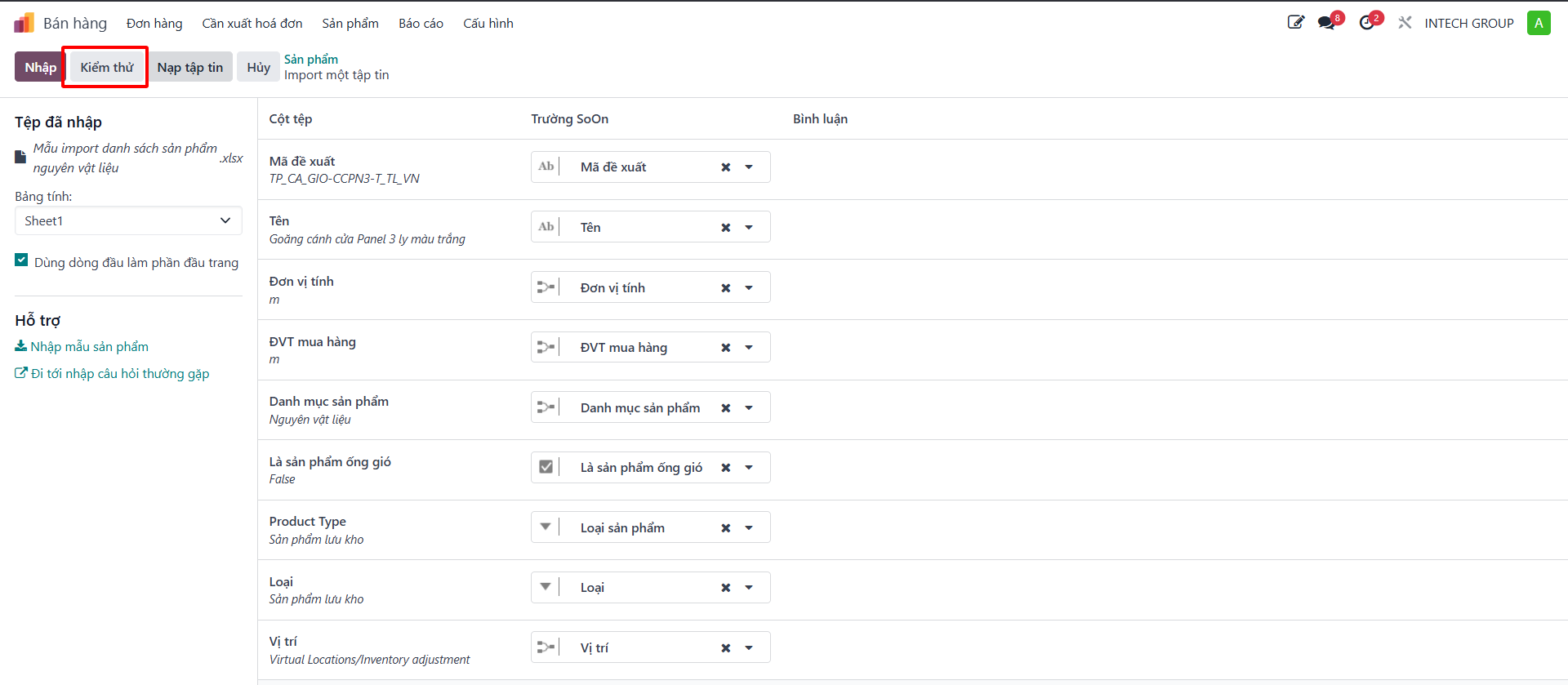
Bước 4: When validation confirms “Everything seems valid”, click Import to ingest products into the system.
Customer Management: Export & Import
Export Customer Directory
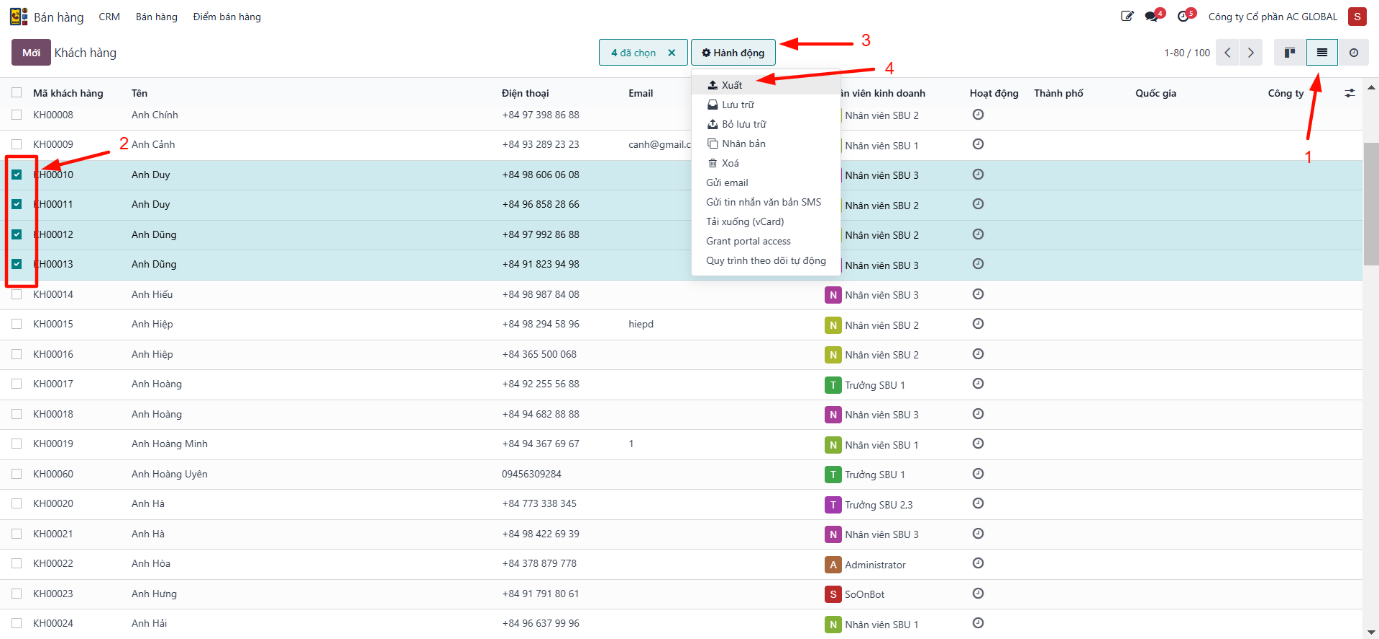
Bước 1: Navigate to .
Bước 2: Switch to the list view format.
Bước 3: Select the customer records to export.
Bước 4: Click Action and select Export.
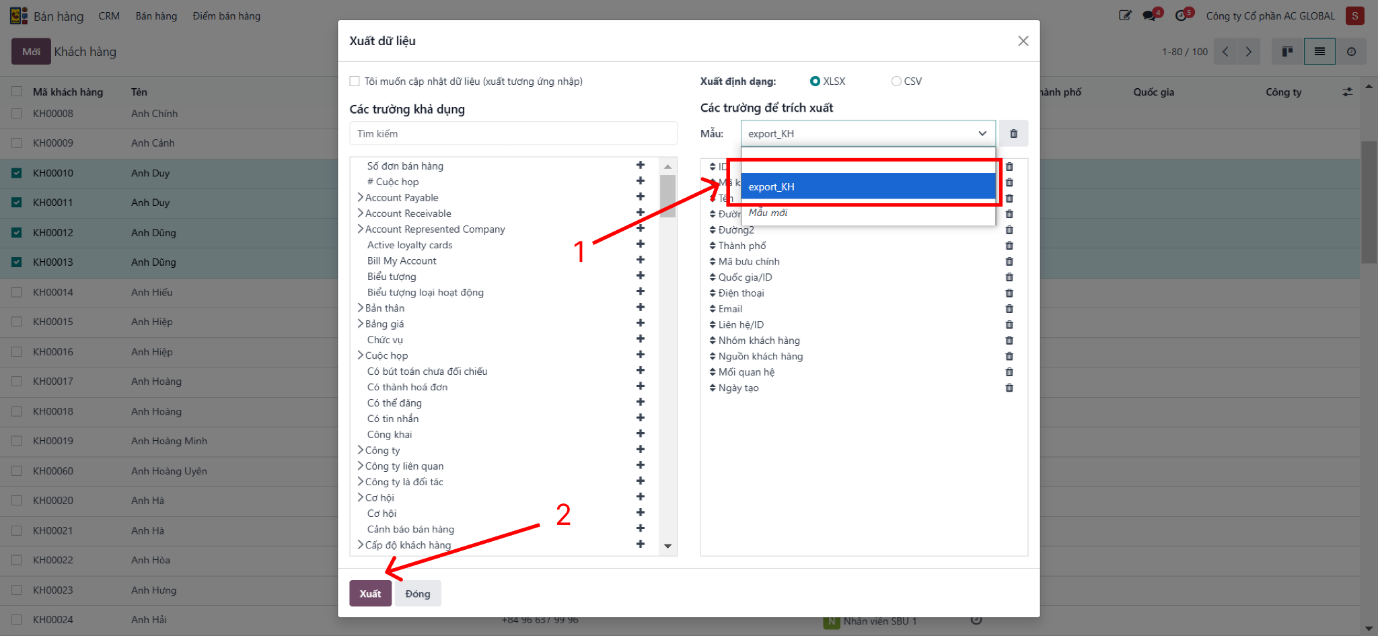
Bước 5: In the export dialog, select the export template export_KH and click Export. The system downloads an Excel file containing customer data.
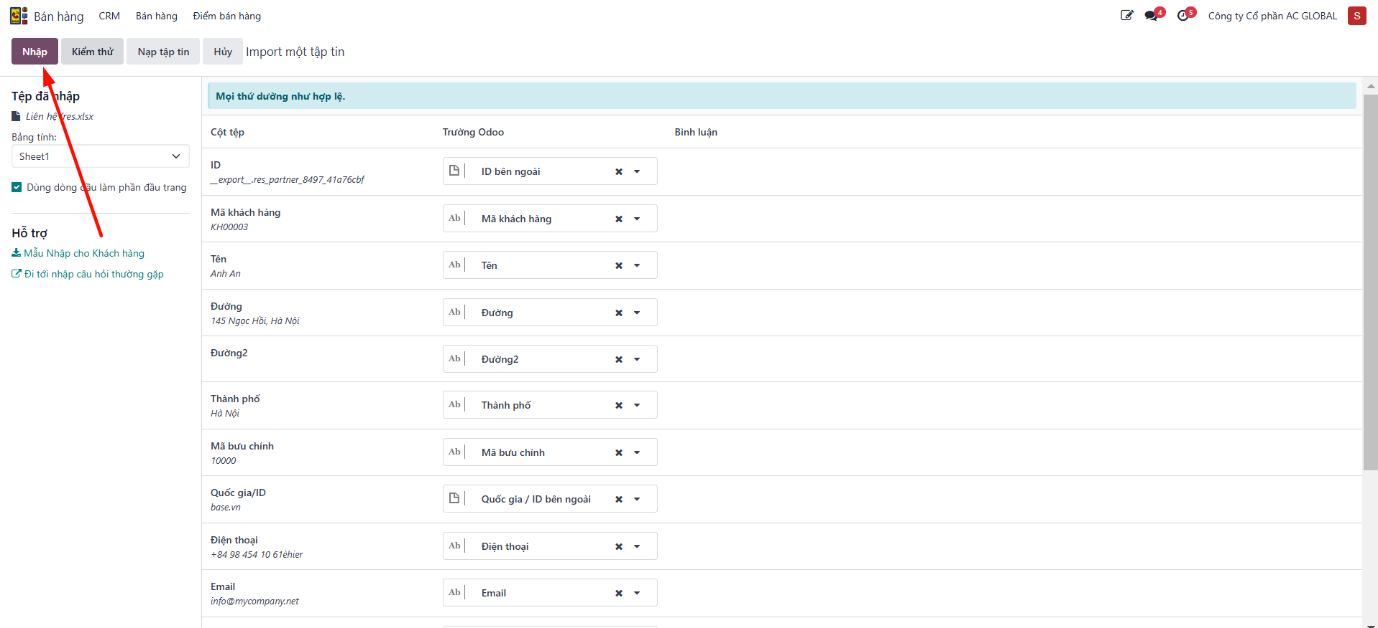
Import Customer Directory
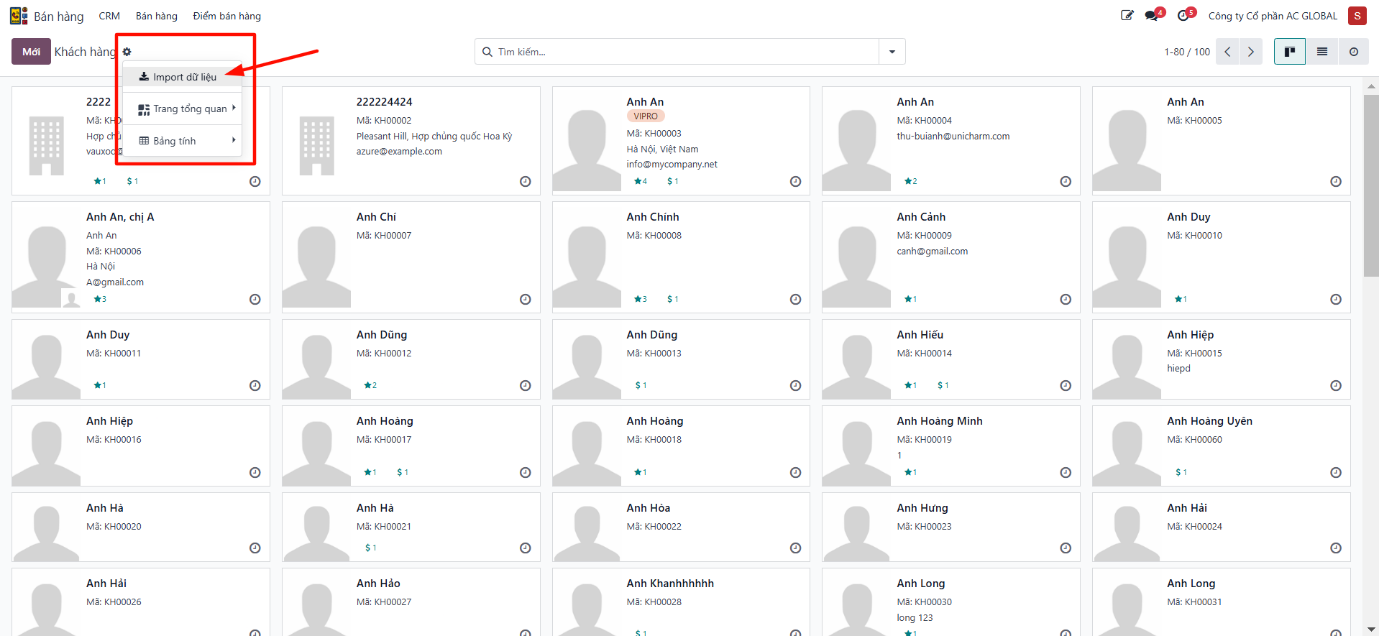
Bước 1: Navigate to .
Bước 2: Click the gear icon or Action and select Import records.
Bước 3: Click Upload File and select your Excel customer workbook.
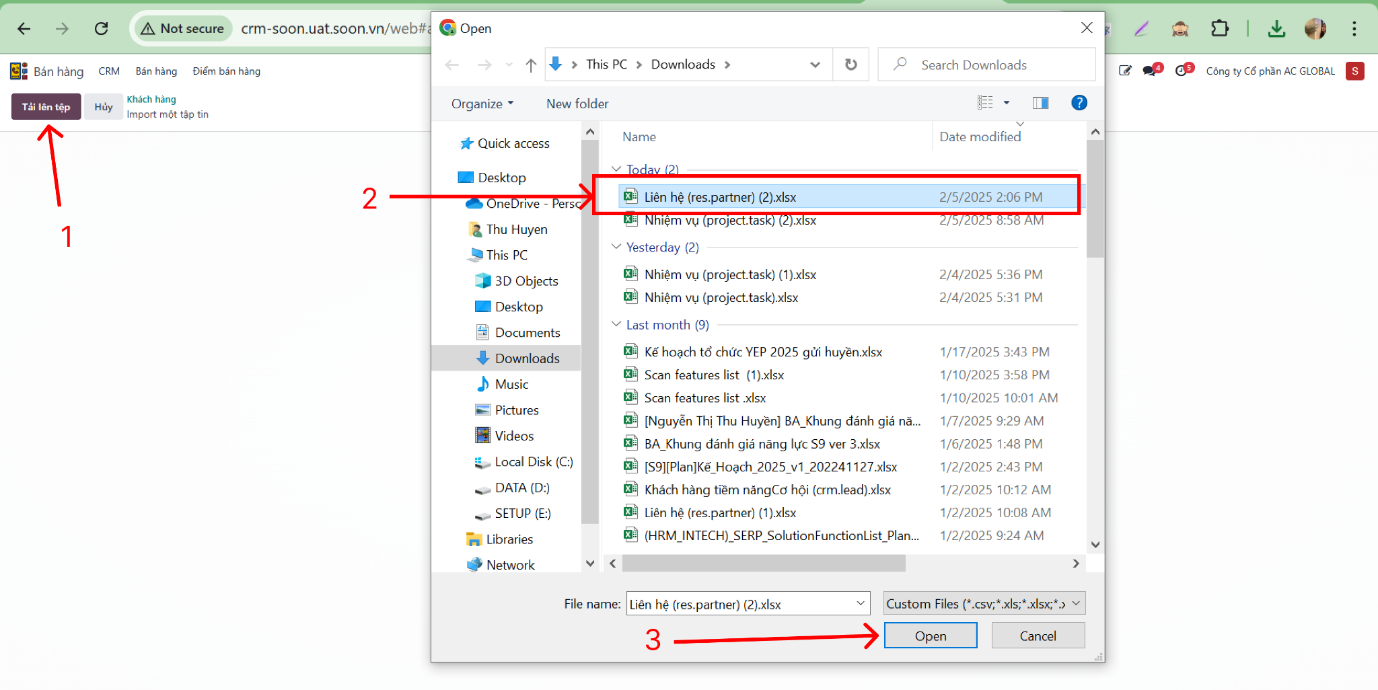
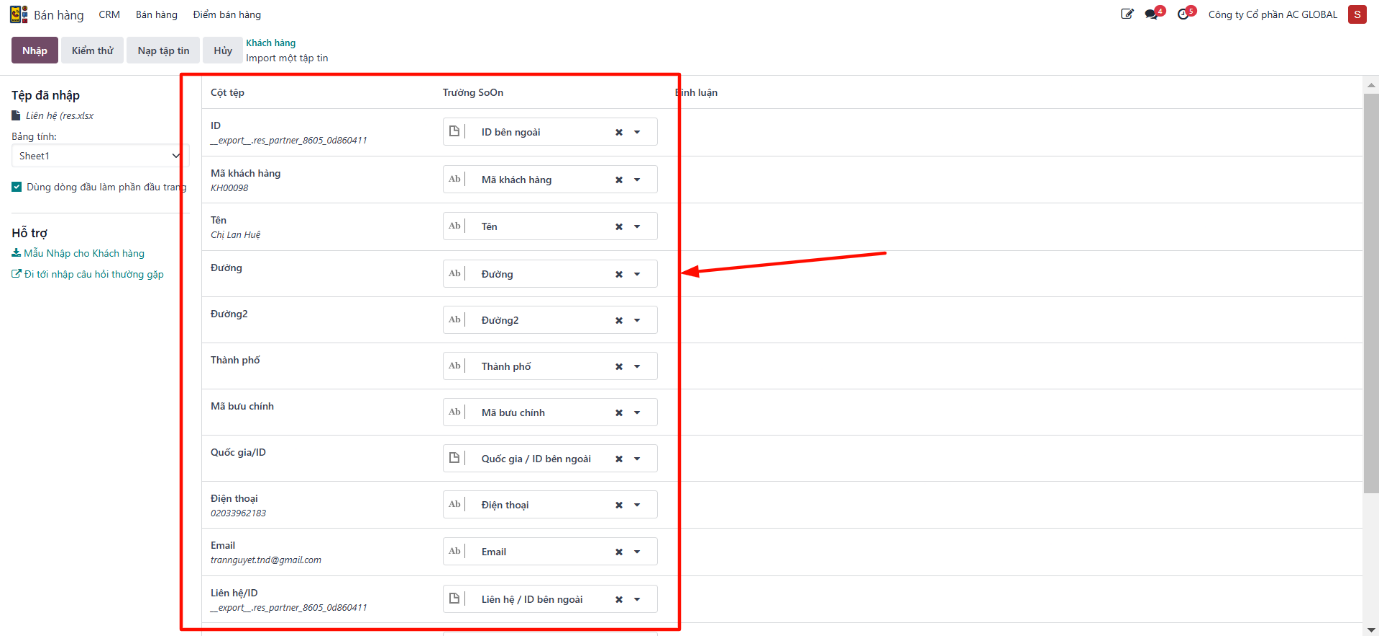
Bước 4: Verify field mappings between file columns and ERP database fields.
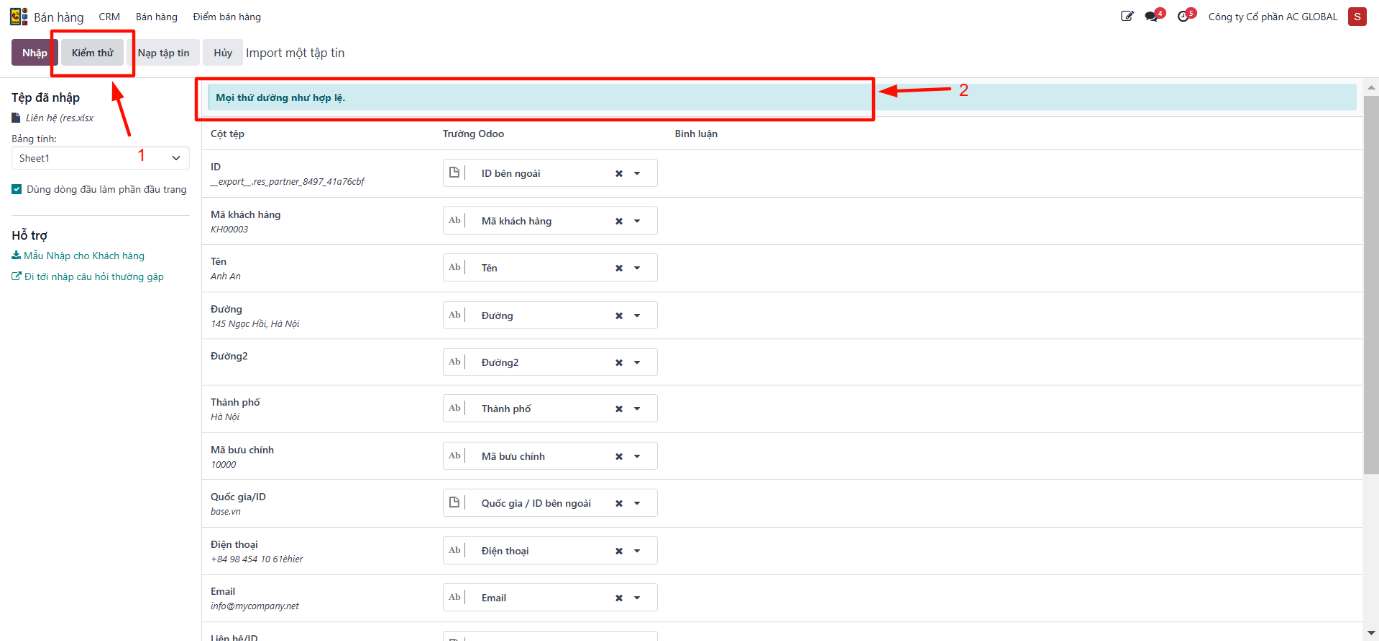
Bước 5: Click Test. If error-free, the system confirms “Everything seems valid”. If validation flags errors, adjust the Excel file and reload.
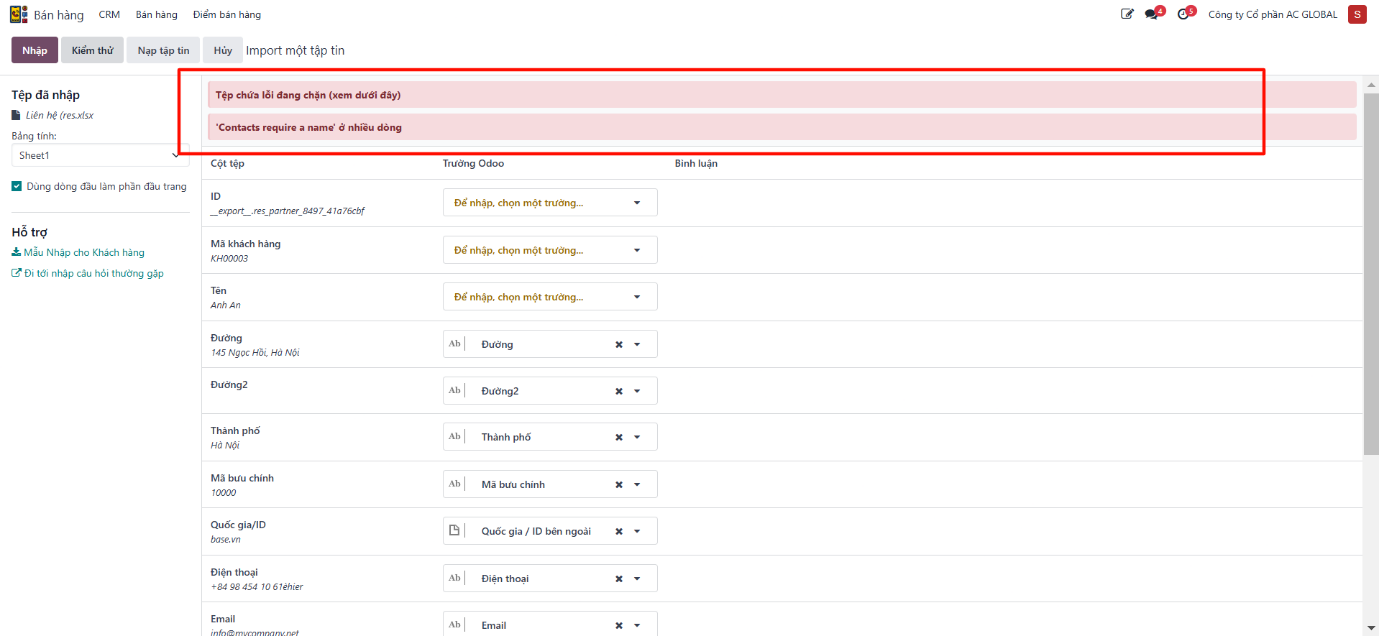
Bước 6: When valid, click Import to ingest customers into the system catalog.