Payment Requests & Tracking
The Payment Request (Đề nghị thanh toán - ĐNTT) workflow enables project and procurement personnel to request contract advances, milestone disbursements, or final supplier settlements linked directly to Purchase Orders.
Create Payment Request
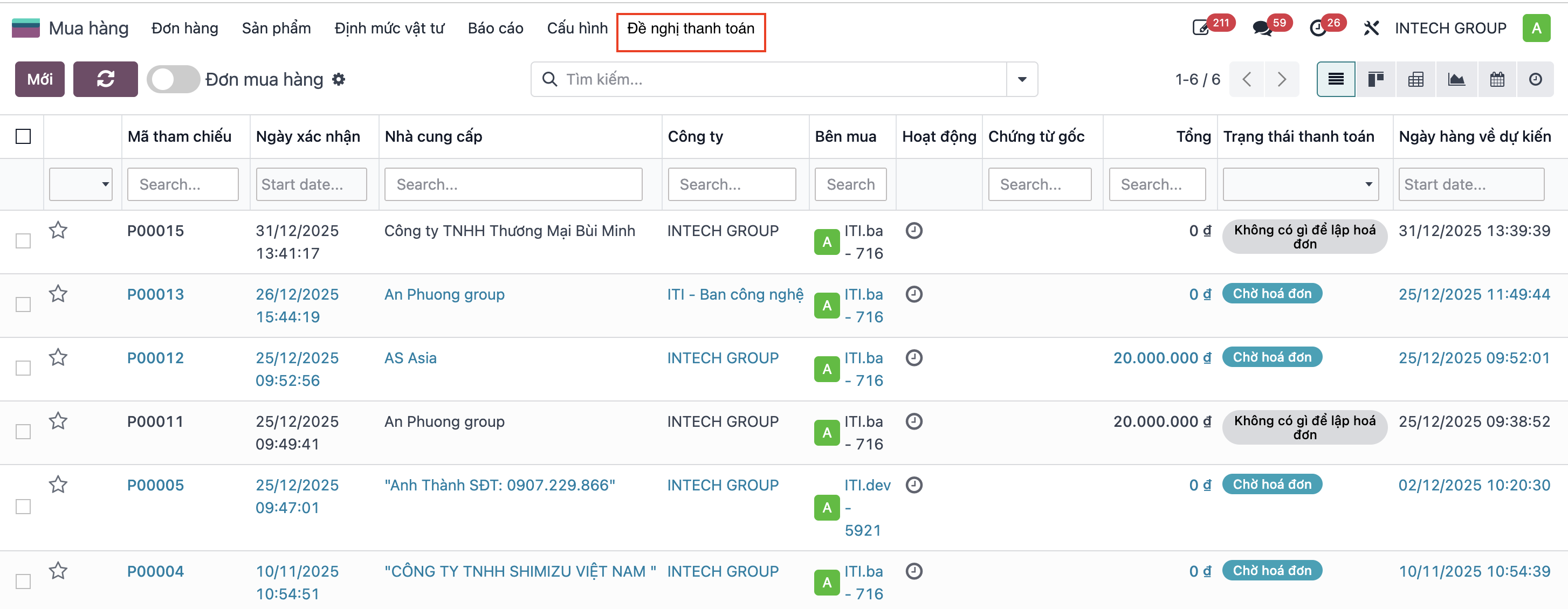
Step 1: Navigate to .
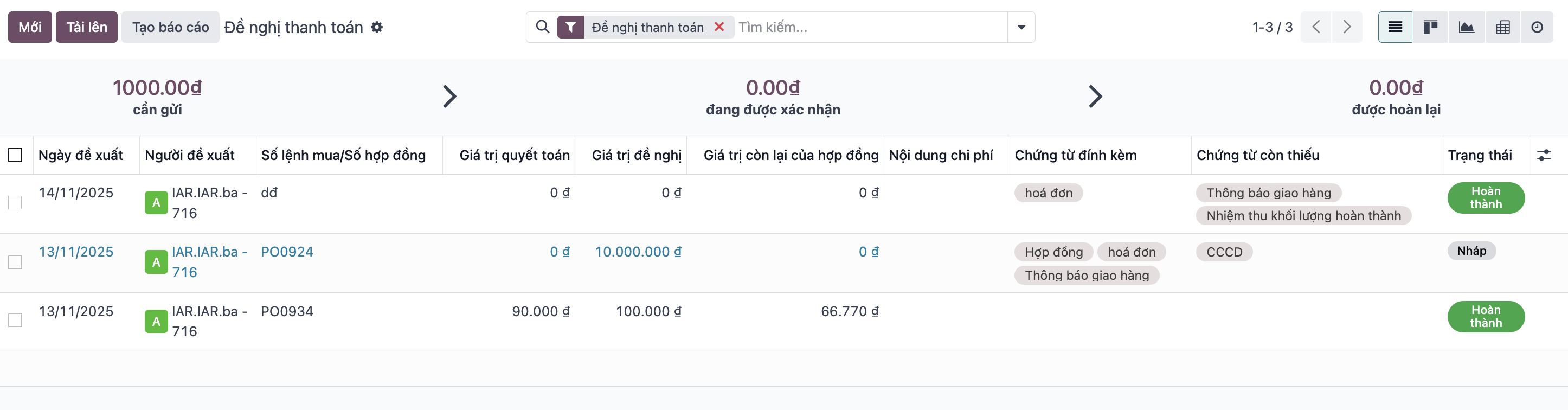
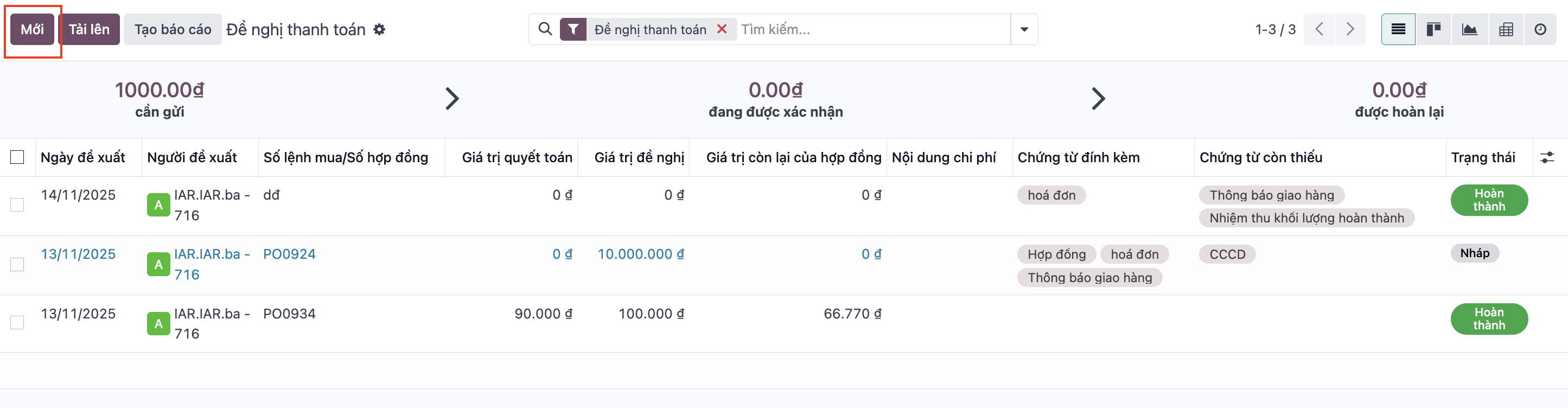
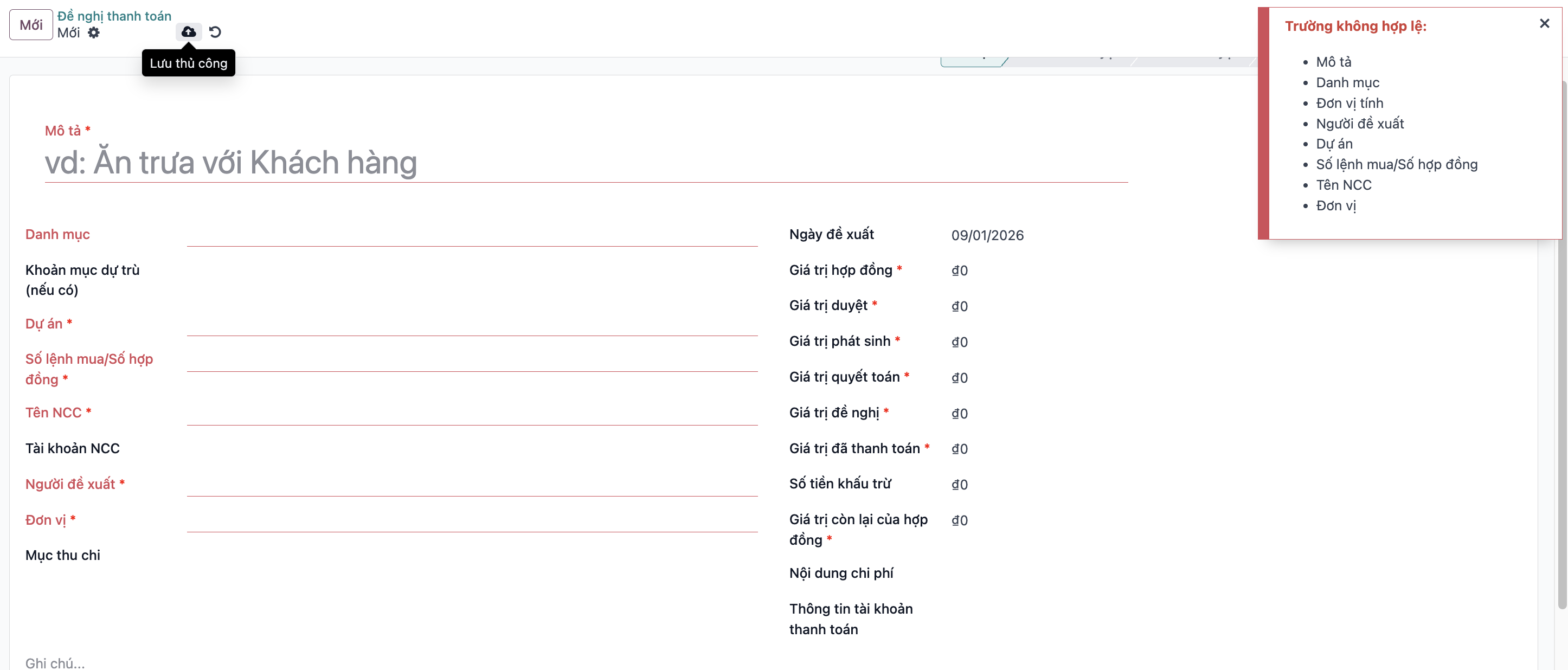
Step 2: Click New to create a new payment request form.
Step 3: Fill in payment request details according to the purchase order and supplier (Description, Project, Purchase Order/Contract No., Requester, Department, and attached receipts).
The system automatically retrieves Contract Total Value, Total Amount Previously Paid, and Remaining Balance upon selecting the Purchase Order. When entering the Requested Amount, the Approved Amount defaults identically upon save.
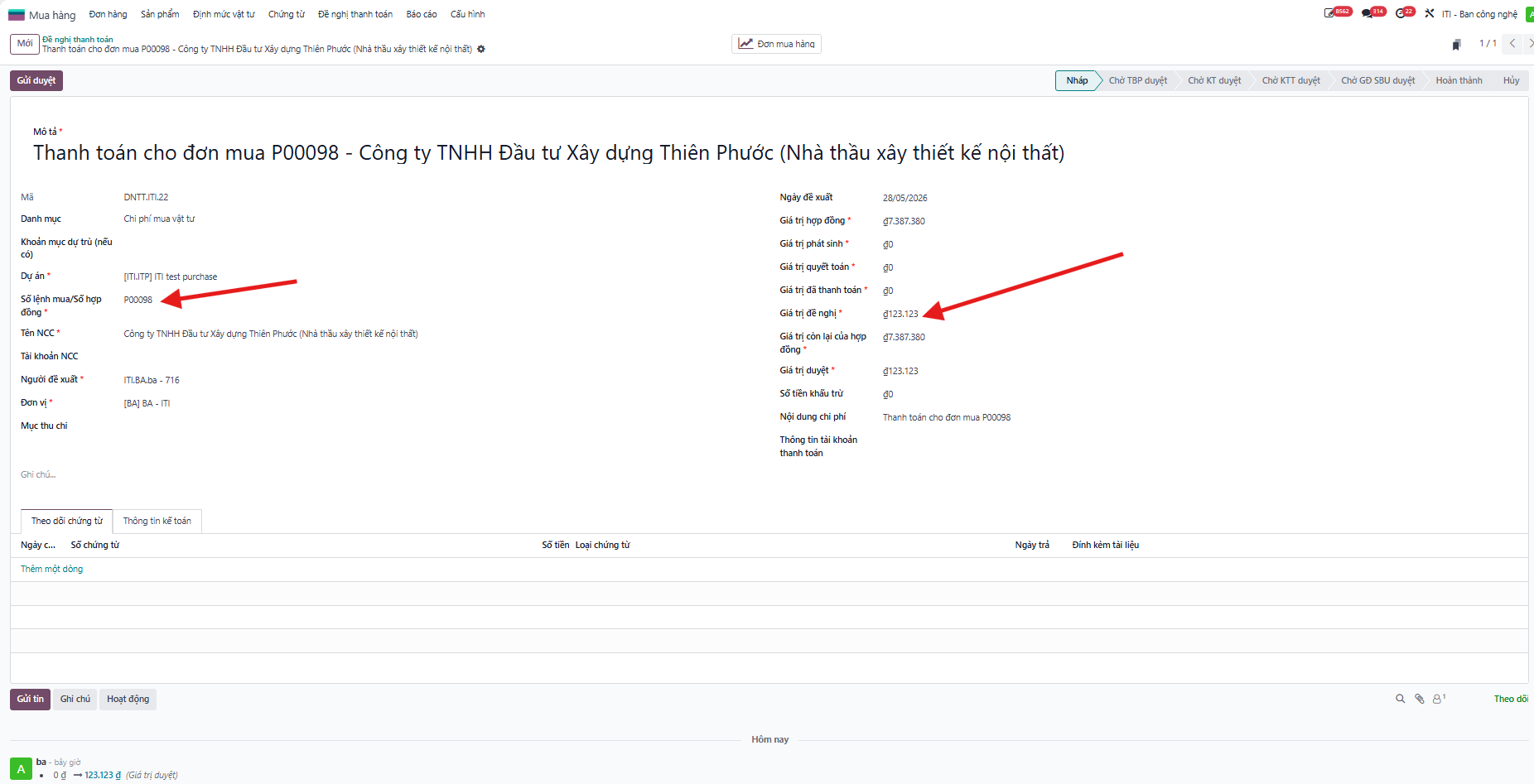
Step 4: Verify data completeness and accuracy, then click Save.
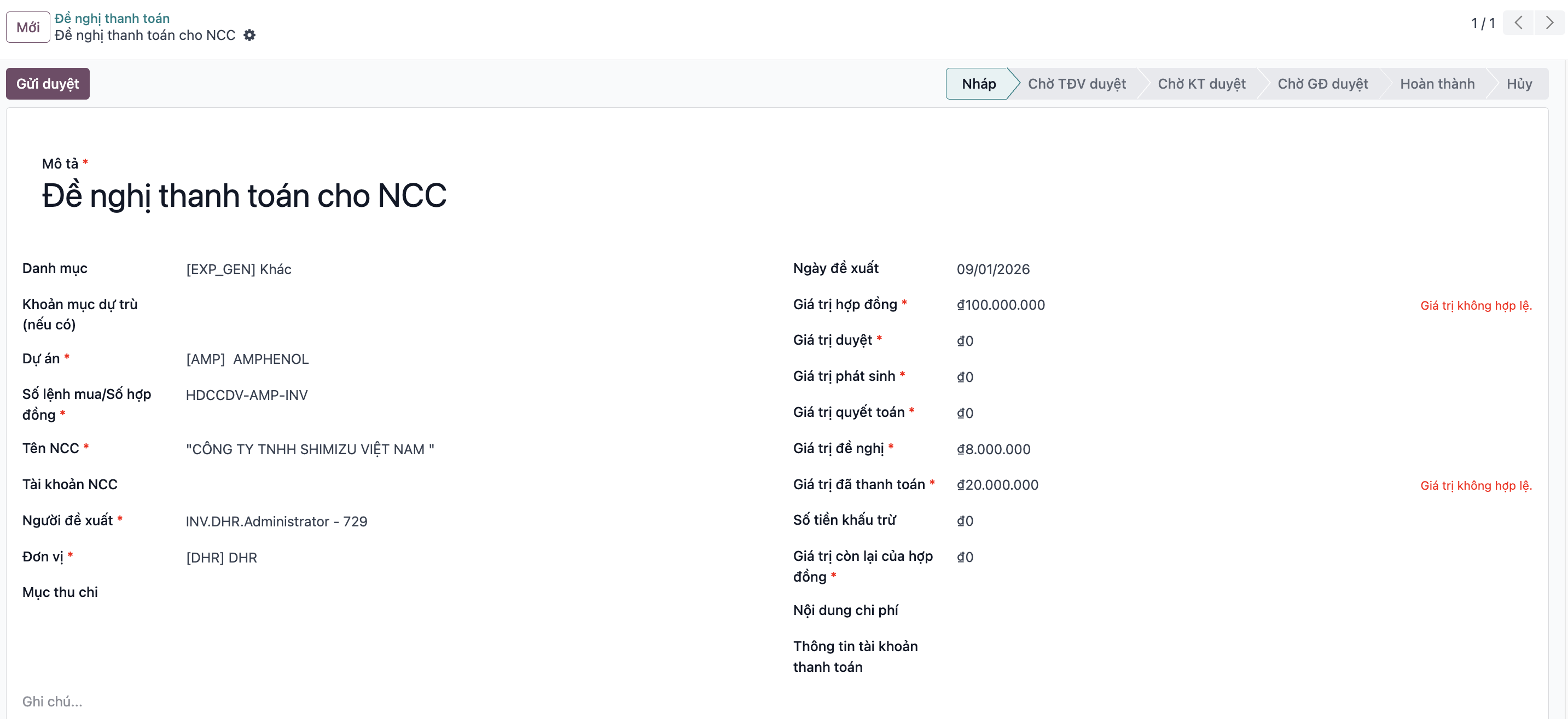
Submit and Route to Accounting
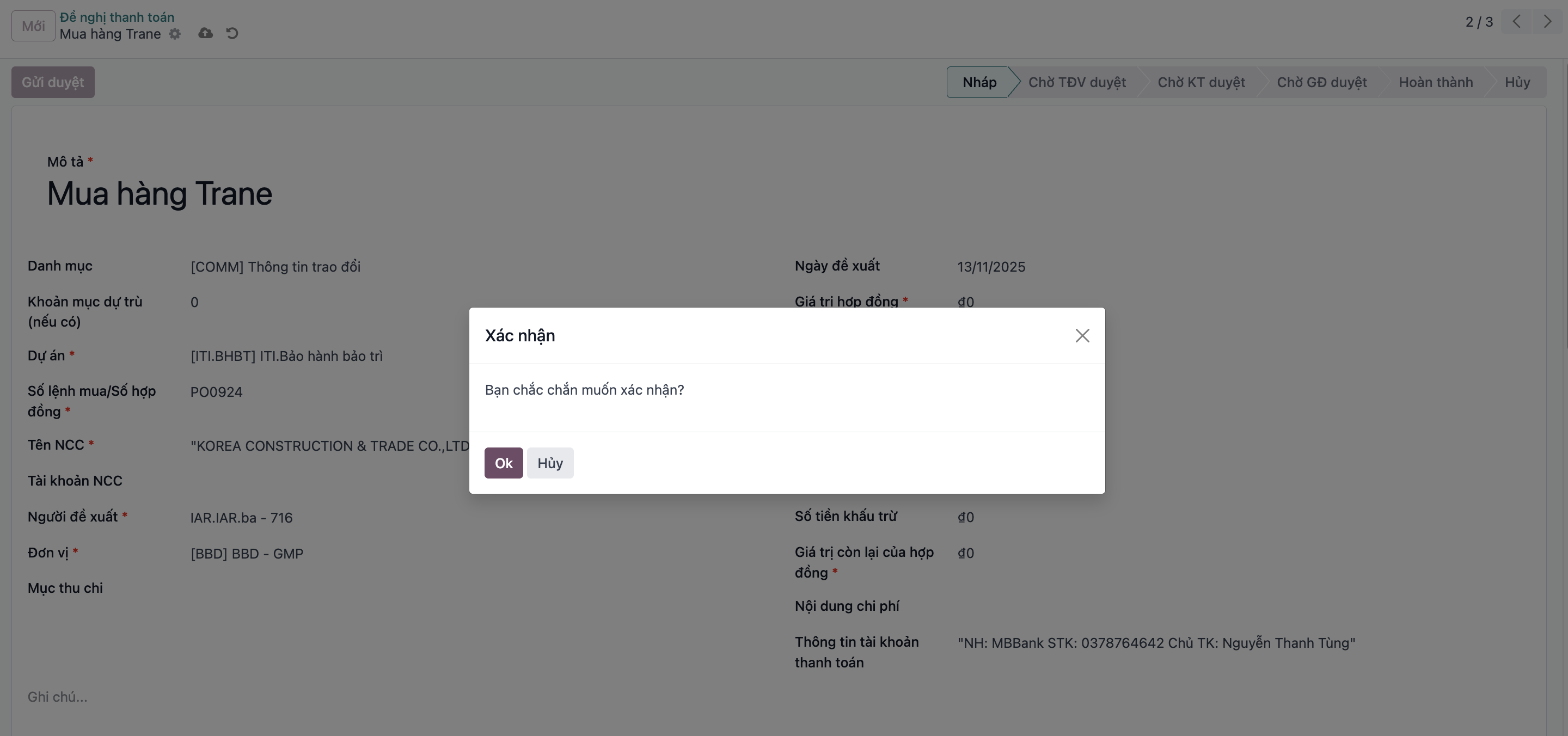
Step 1: On the successfully created draft payment request, click Submit for Approval and confirm.
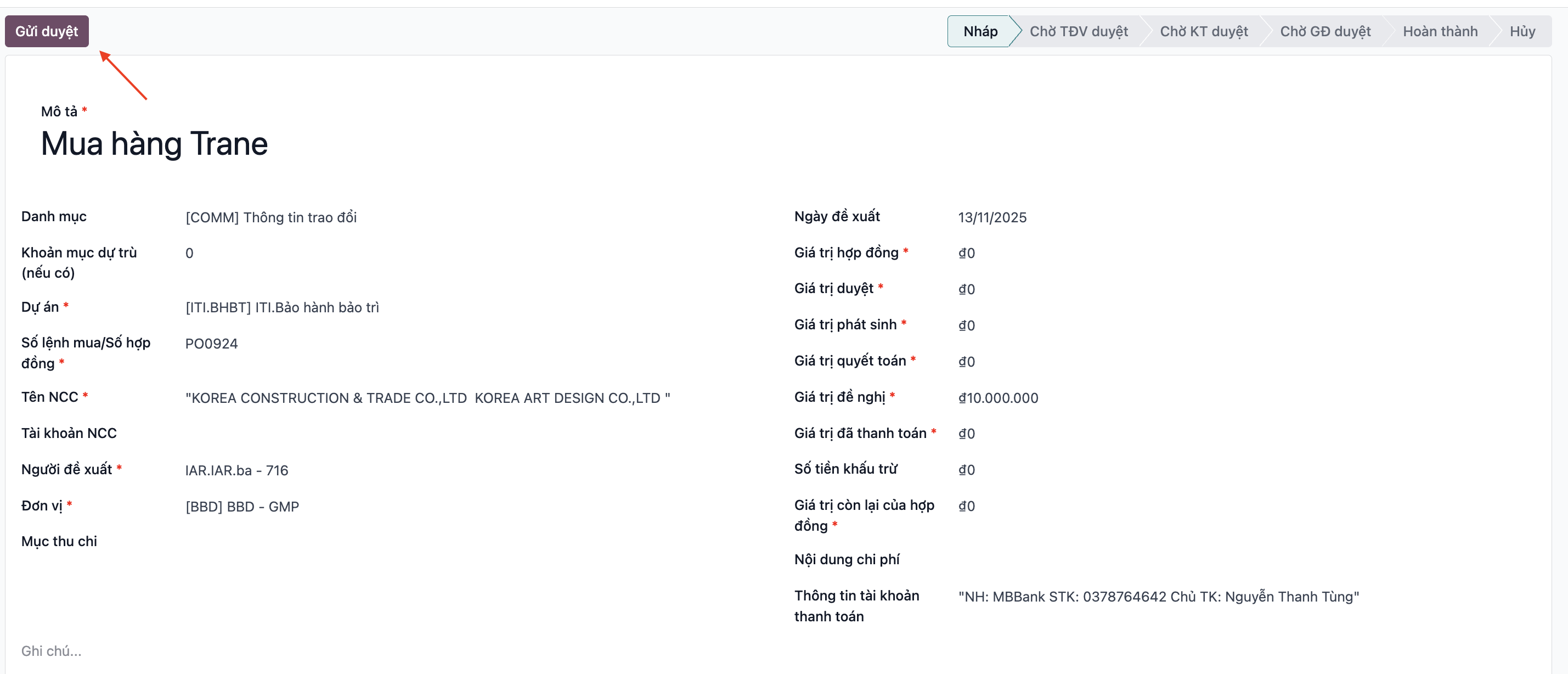
Step 2: The status transitions to pending approval, and the payment request is routed with an automated notification to Corporate Accounting.
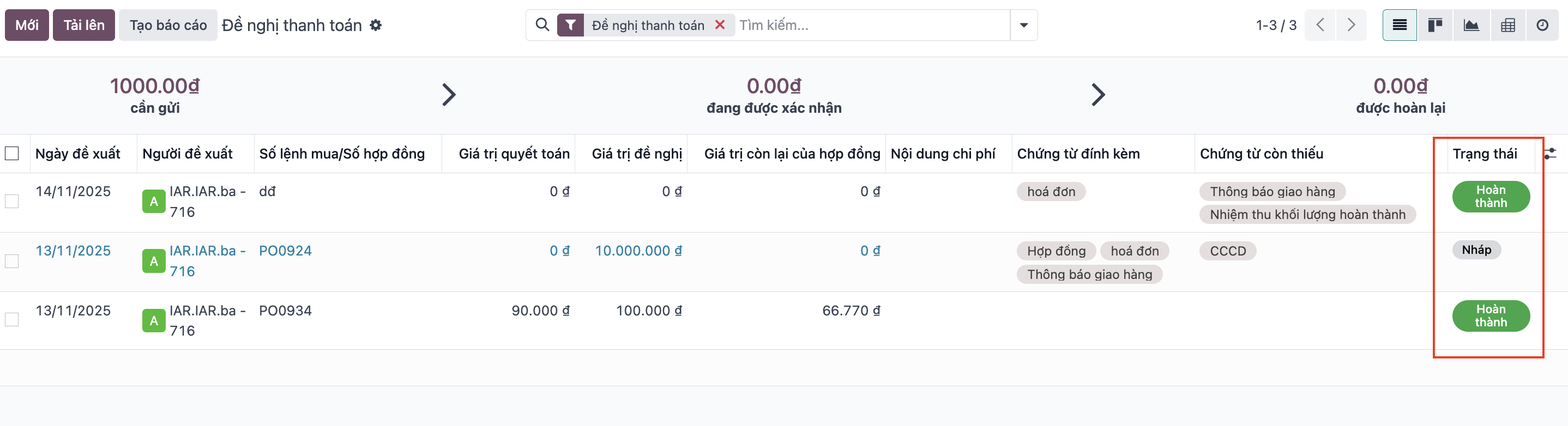
Track Supplier Payment Status
To monitor payment status for suppliers, navigate to and check the status column:
Draft: Request being compiled.
Pending Approval: Under review by management/accounting.
Approved: Payment voucher authorized.
Paid: Funds transferred to supplier bank account.