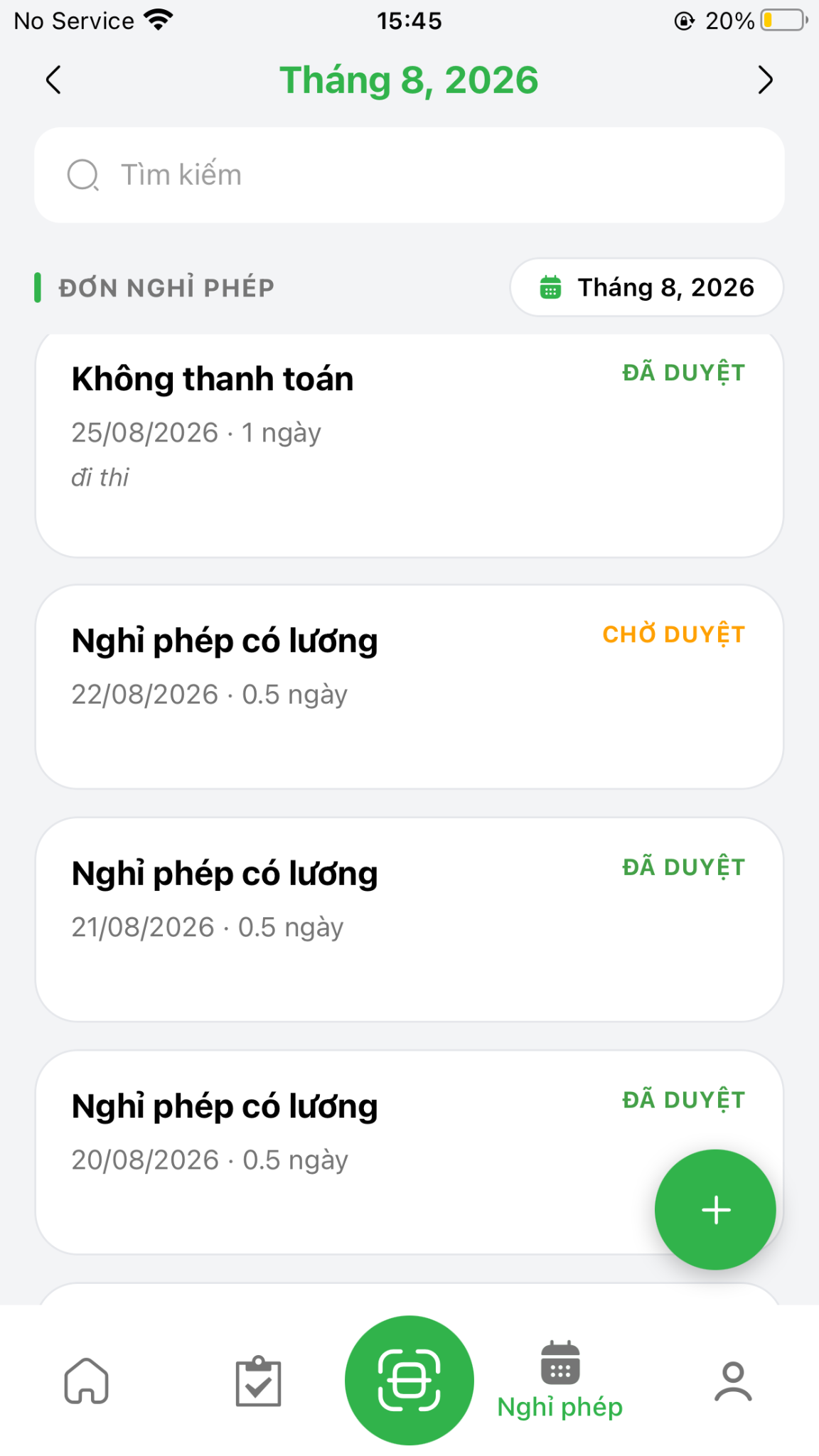
Claims & Leave
Employees can submit attendance adjustments and leave applications directly through the S-Attendance mobile application.
See also
For overtime requests and deliverable reporting, see Overtime Requests.
Submit Attendance Claims
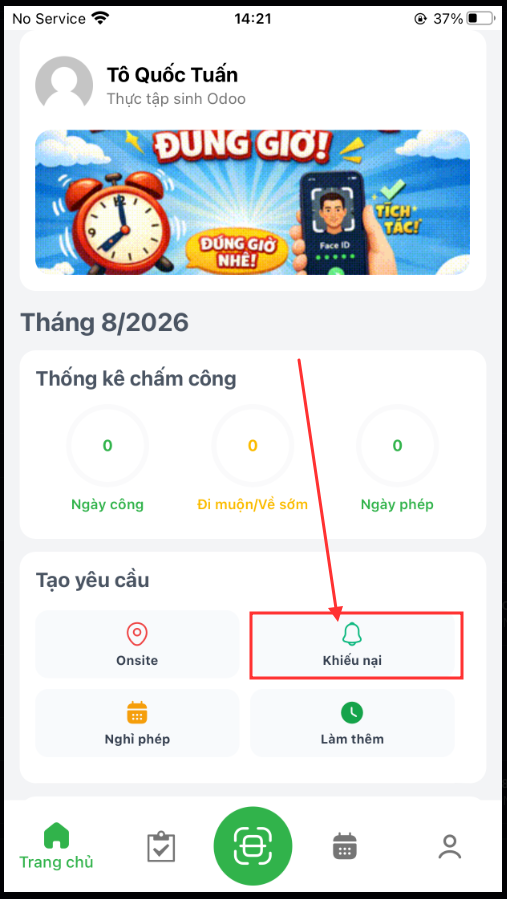
If you forget to check in/out or encounter missing attendance records:
Open the S-Attendance app, navigate to Home, and tap Create Claim Request.
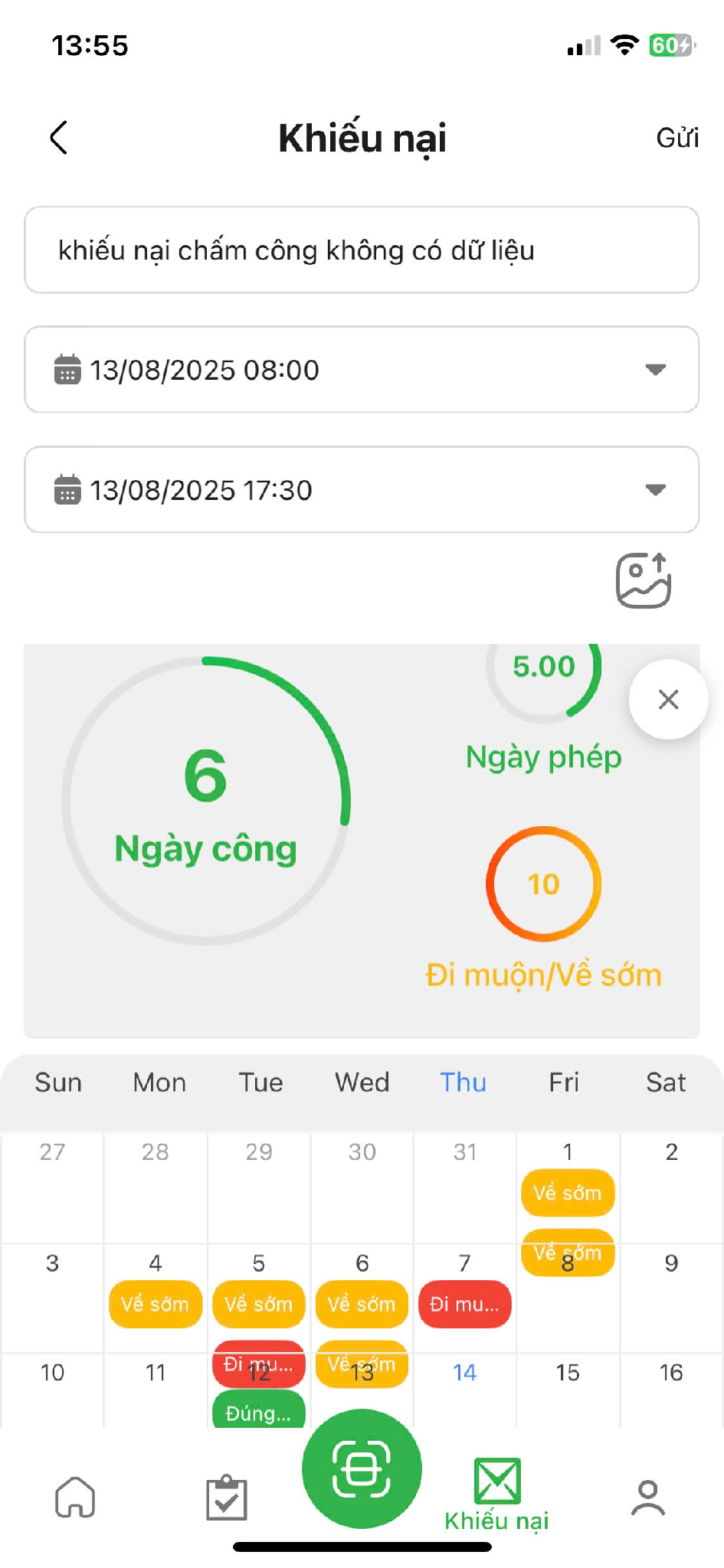
Fill in the explanation details, date, missing check-in/out time, and attach photographic proof.
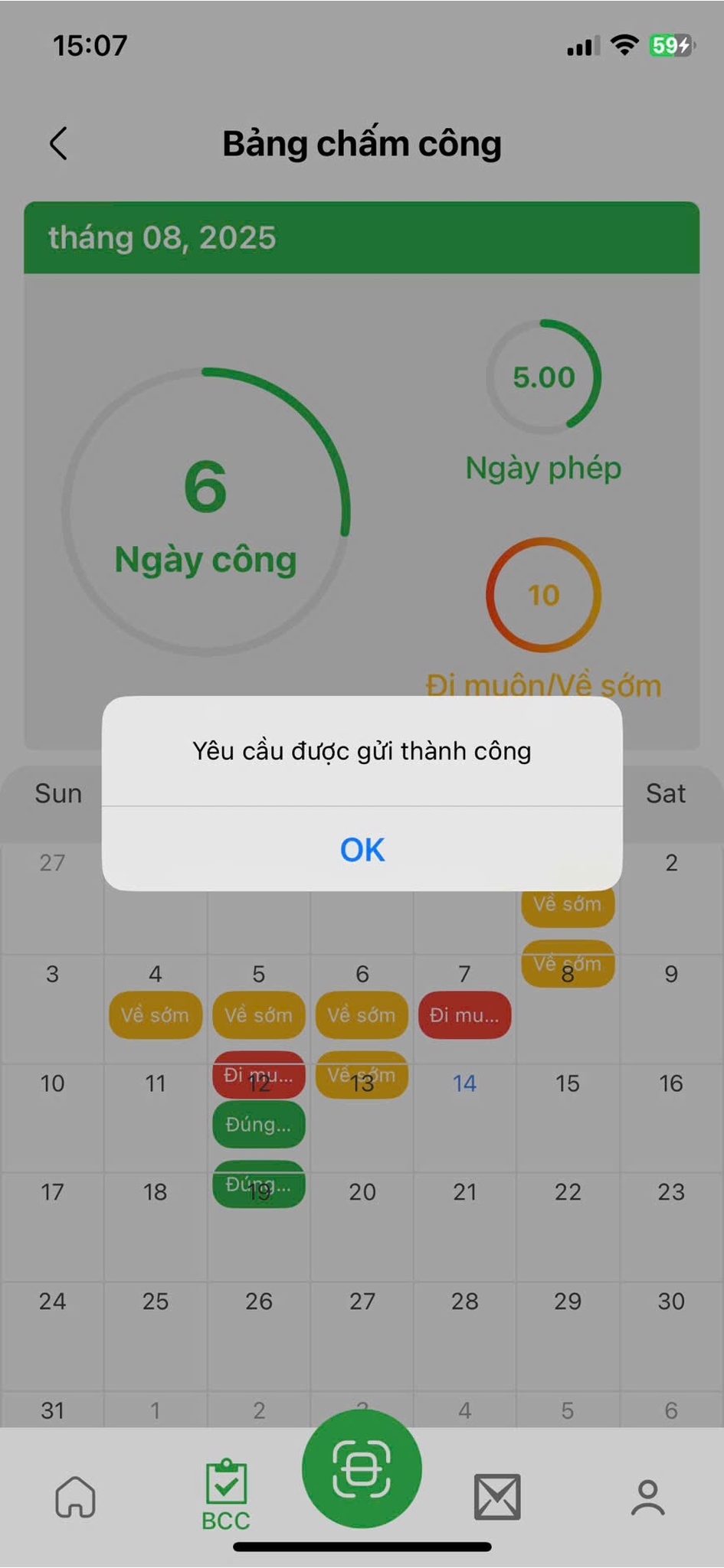
Tap Submit. Upon successful validation, the app displays a confirmation alert.
Note
You can track the status of your claim in S-ERP under as it routes to management for verification.
Leave Request & Approval Tracking
To request scheduled time off:
In the Create Request section, tap Time Off / Leave.
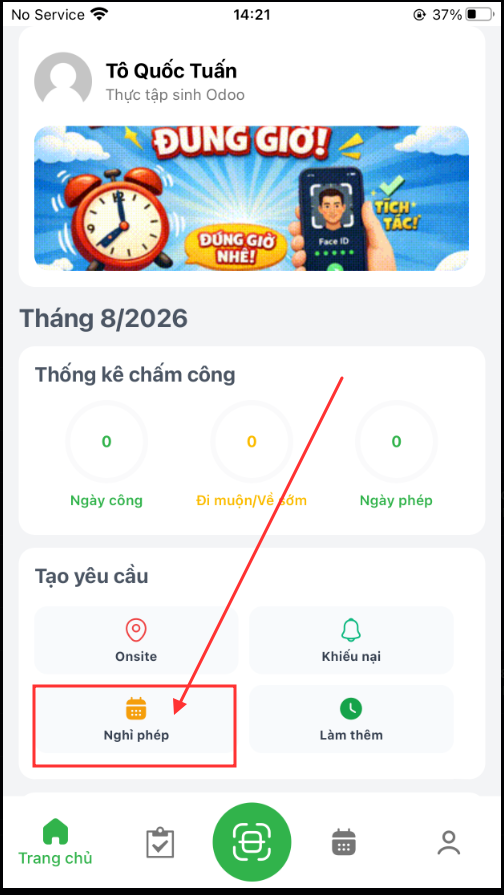
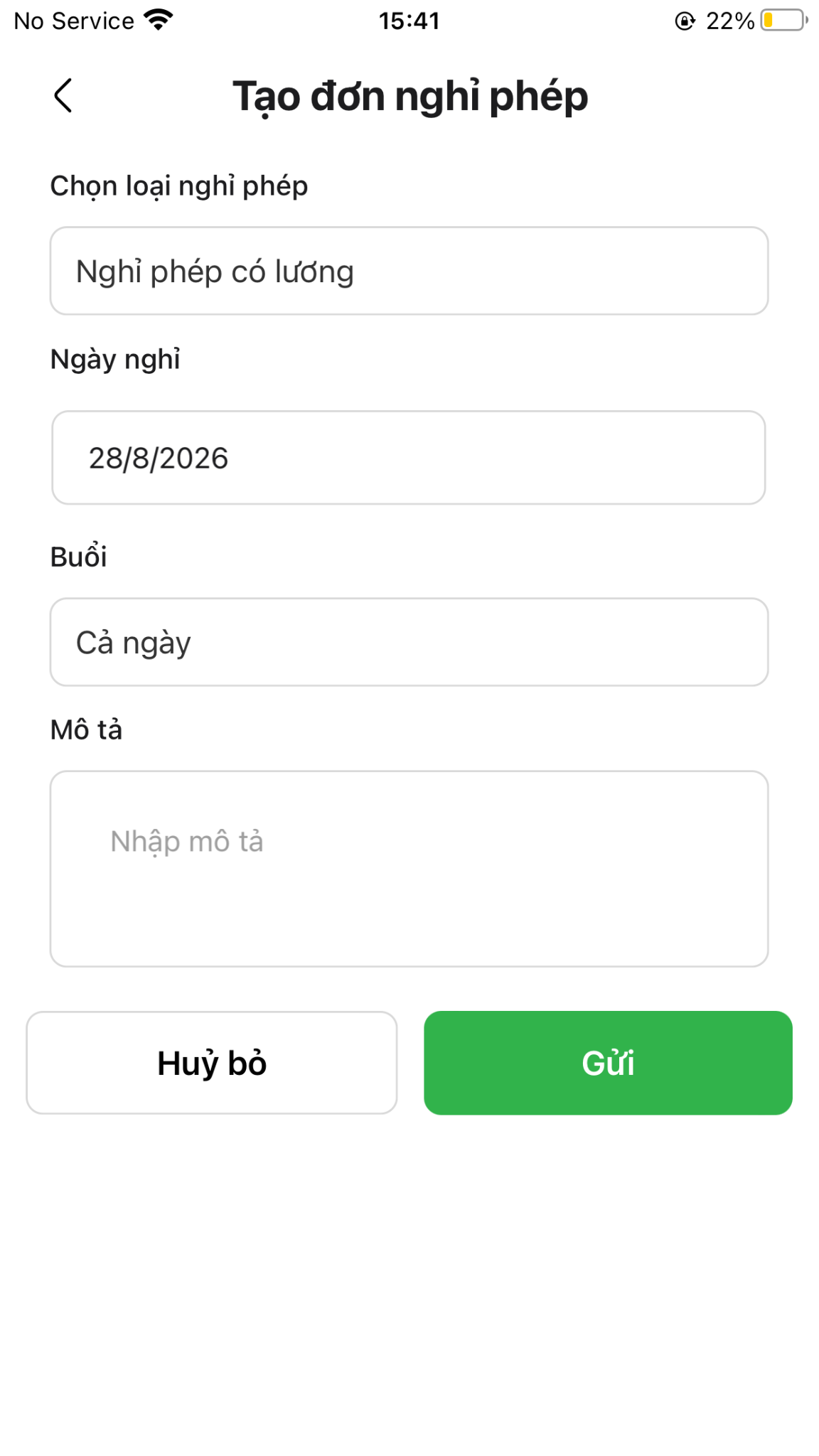
Complete the leave parameters: - Leave Type: Select appropriate policy (Annual Leave, Unpaid Leave, Sick Leave). - Leave Date and Session (Morning, Afternoon, Full Day). - Description: Purpose and handover notes.
Tap Submit.
Track the status of your leave applications in the Leave tab, monitoring pending reviews and approved leaves in real time.