ERP Attendance Setup & Configuration
System administrators and HR managers configure company-wide working schedules, operational locations, employee FaceID profiles, and recognition accuracy thresholds in S-ERP.
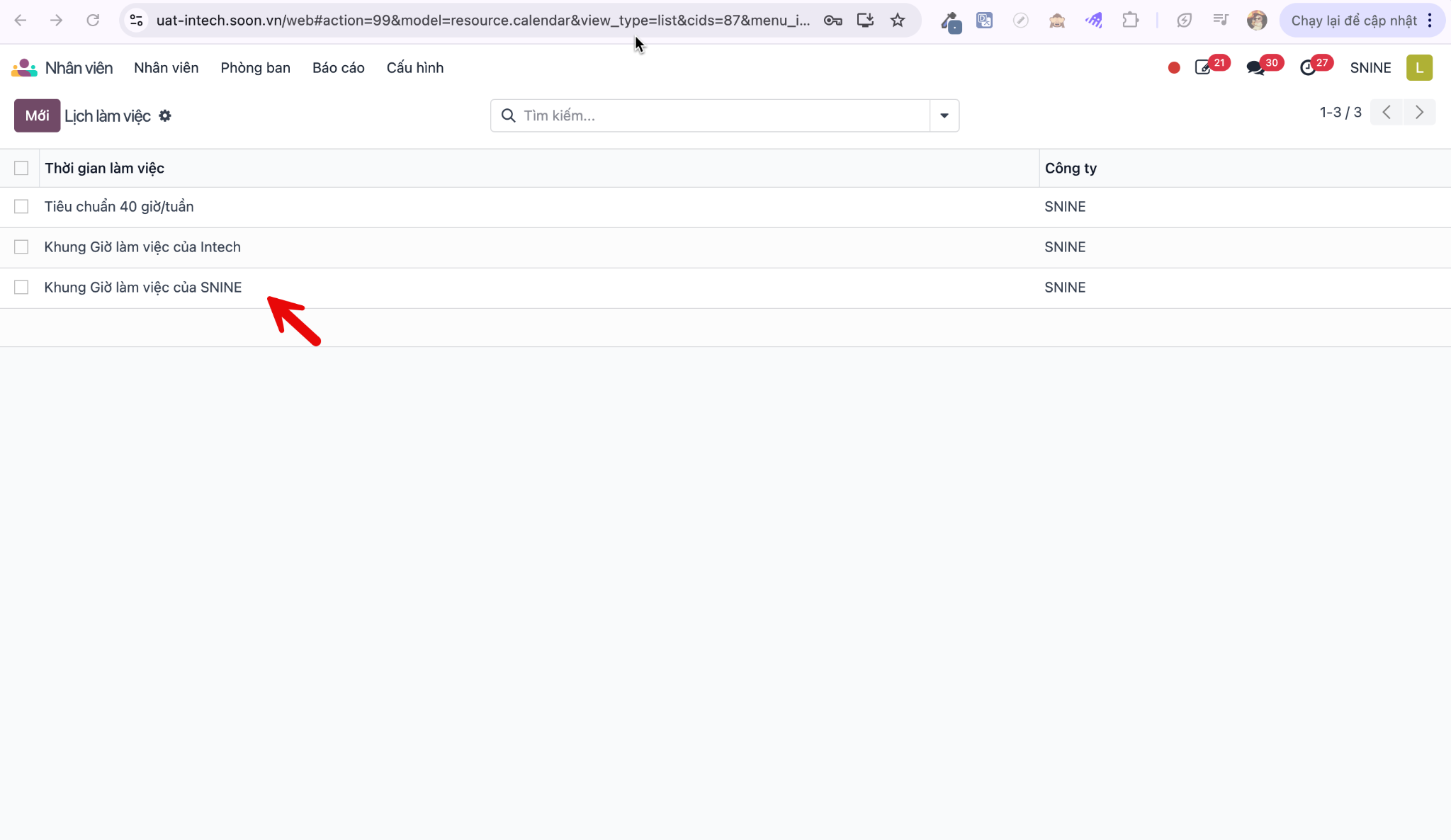
Configure Company Working Schedules
Log in to the S-ERP system using administrative credentials.
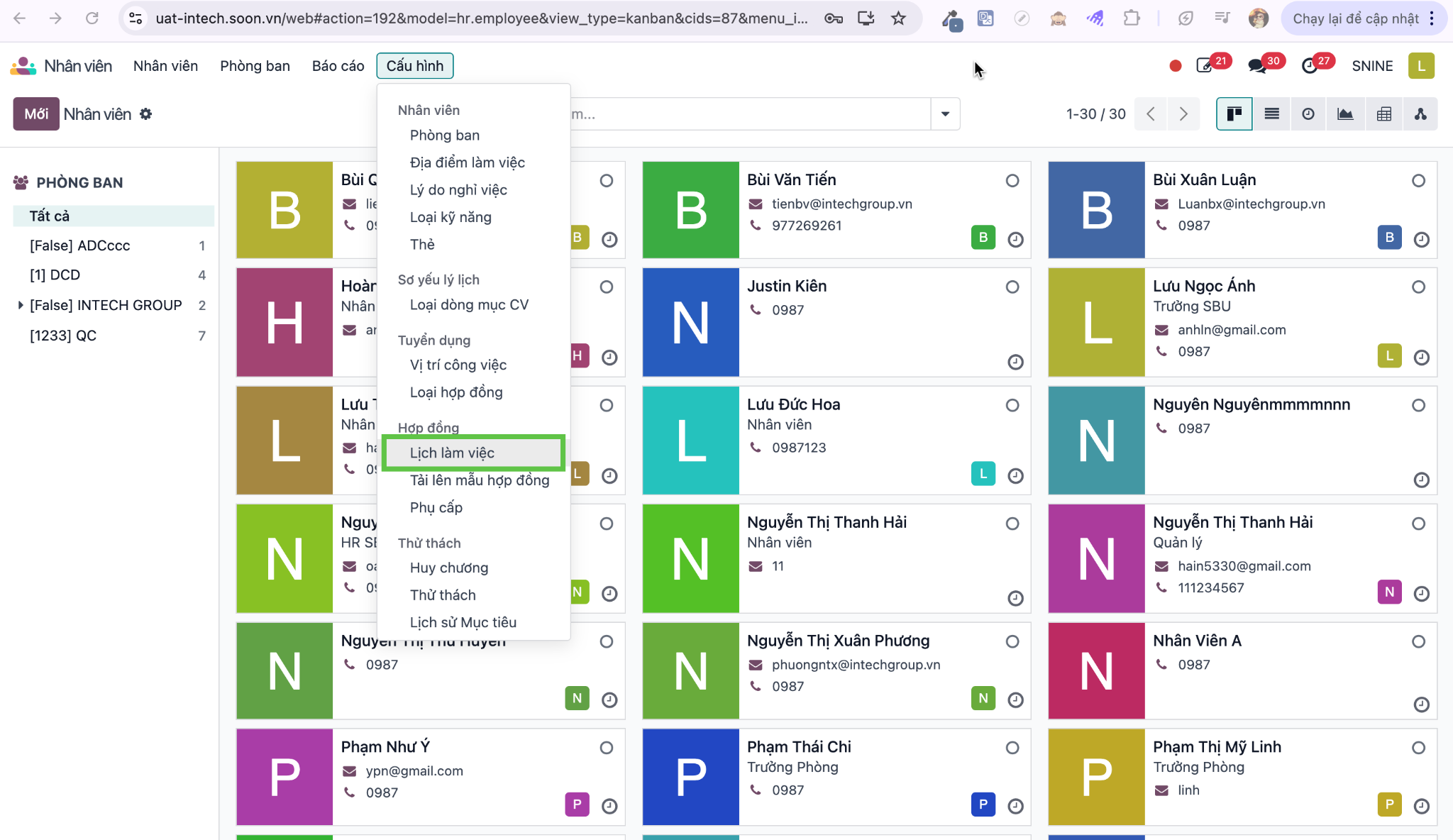
Navigate to .
Click New to create or modify working schedules. Define daily working hours and shift intervals for each facility.
Note
By default, the system creates standard working schedules from Monday to Friday (Morning: 08:00–12:00, Afternoon: 13:00–17:00). If branches have distinct hours, configure separate schedules for each branch.
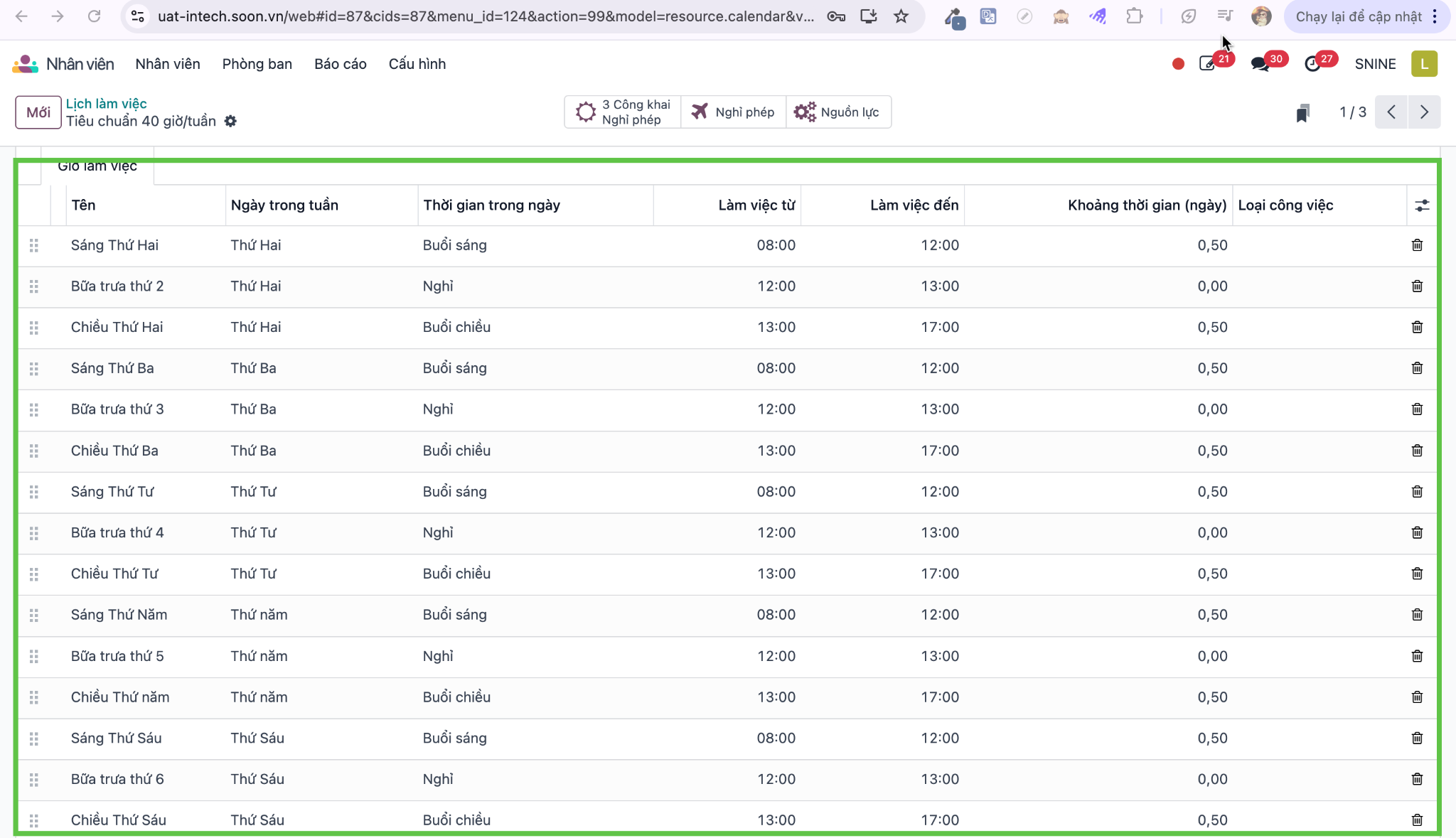
Click Save to store the working schedule.
Configure Work Locations & Branches
Navigate to .
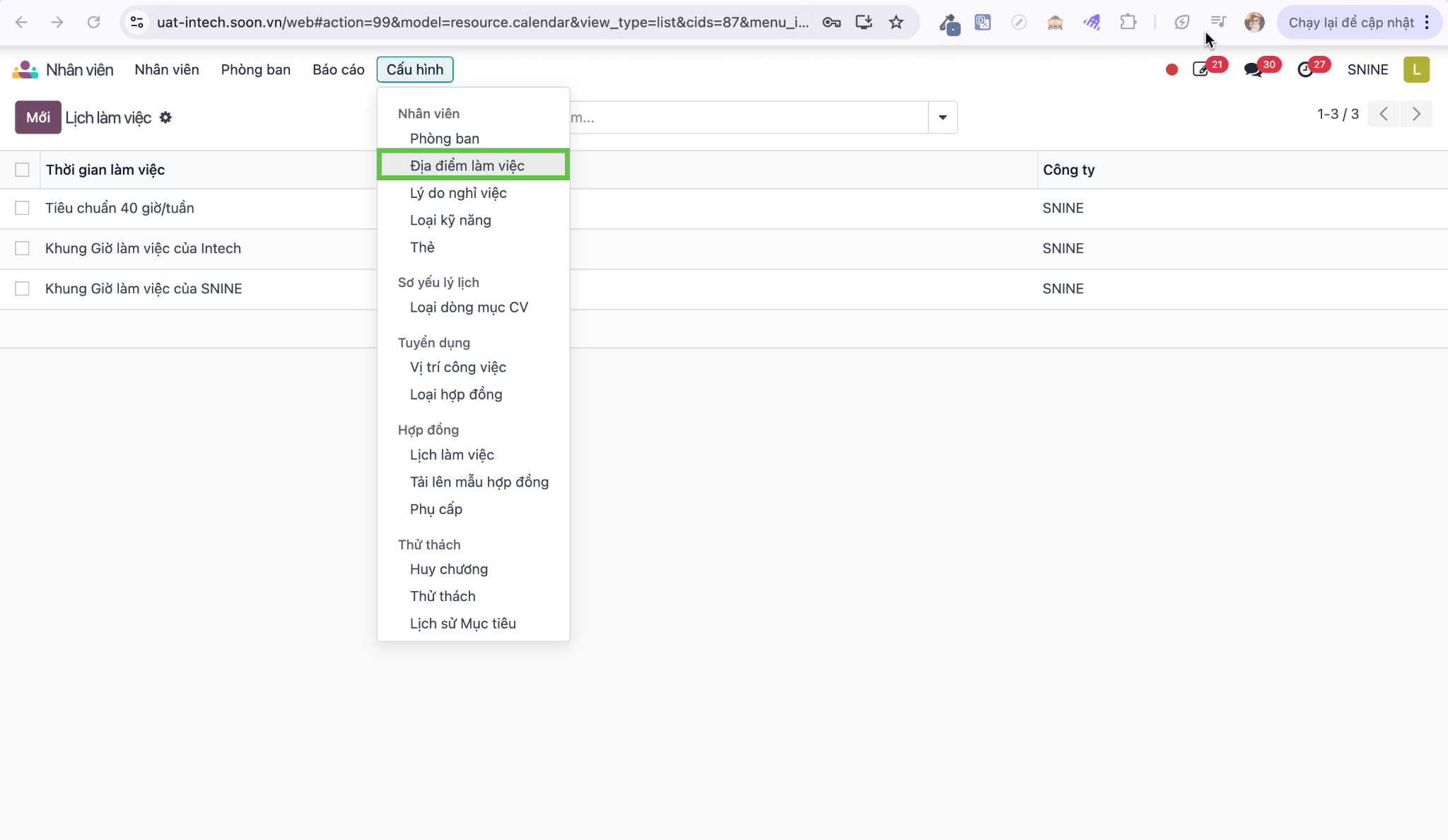
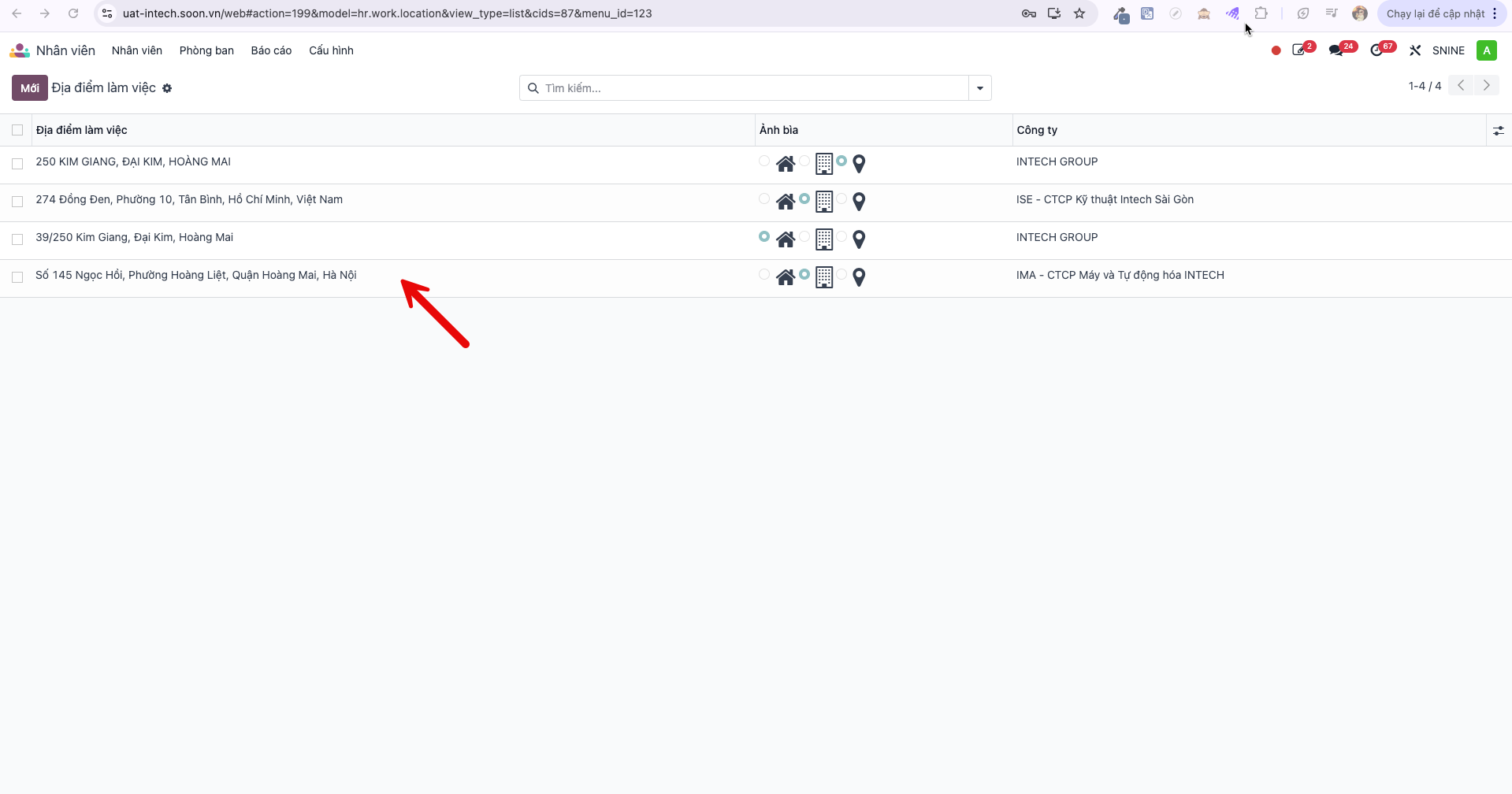
Click New to define branch locations (e.g., Facility 1, Facility 2).
Enter the detailed street address in Work Location and assign the company branch in Working Address.
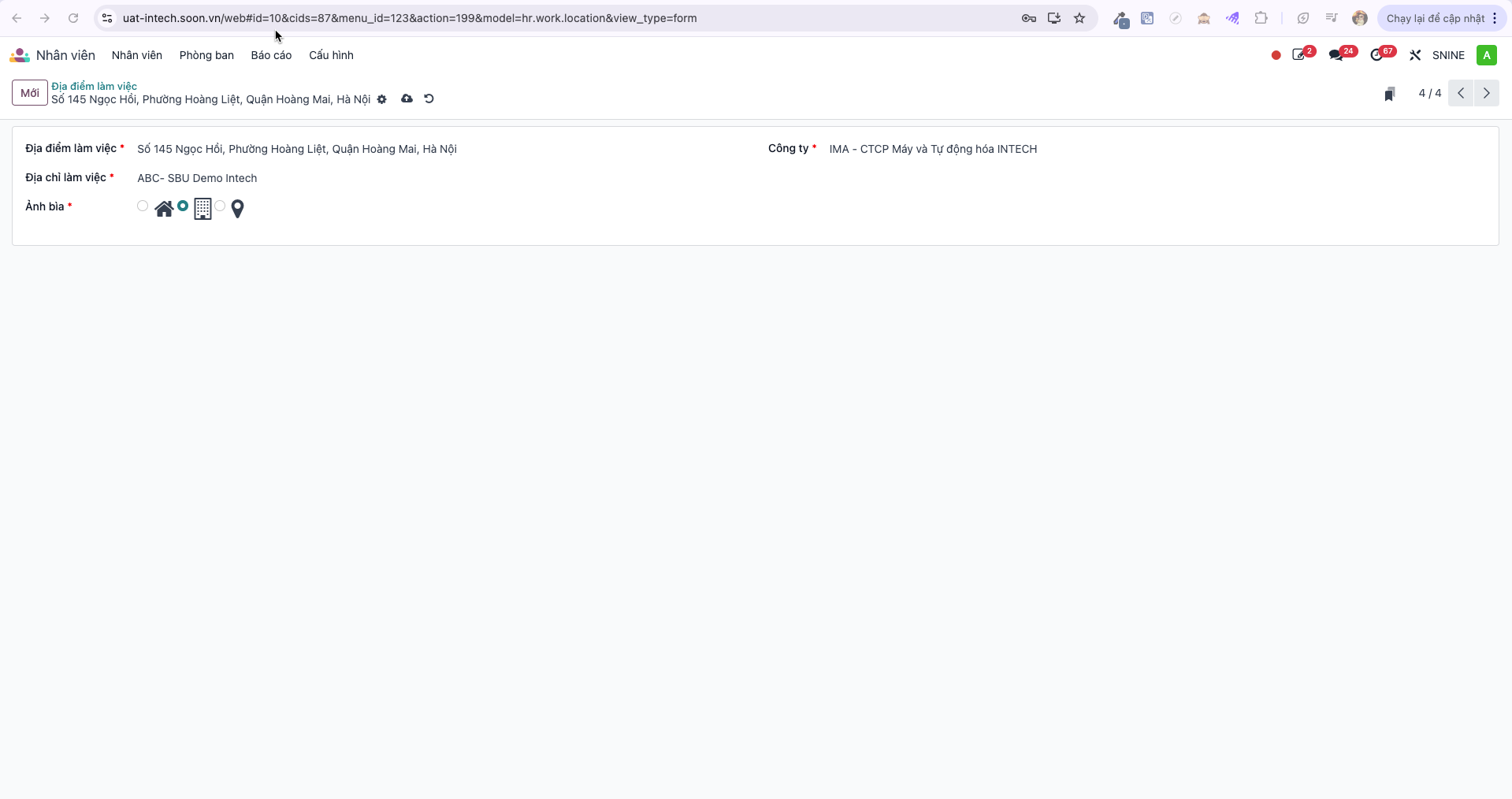
Click Save.
Configure Employee Attendance Profile & FaceID Data
Each employee using mobile timekeeping requires profile configuration including assigned branch, schedule, and reference portrait:
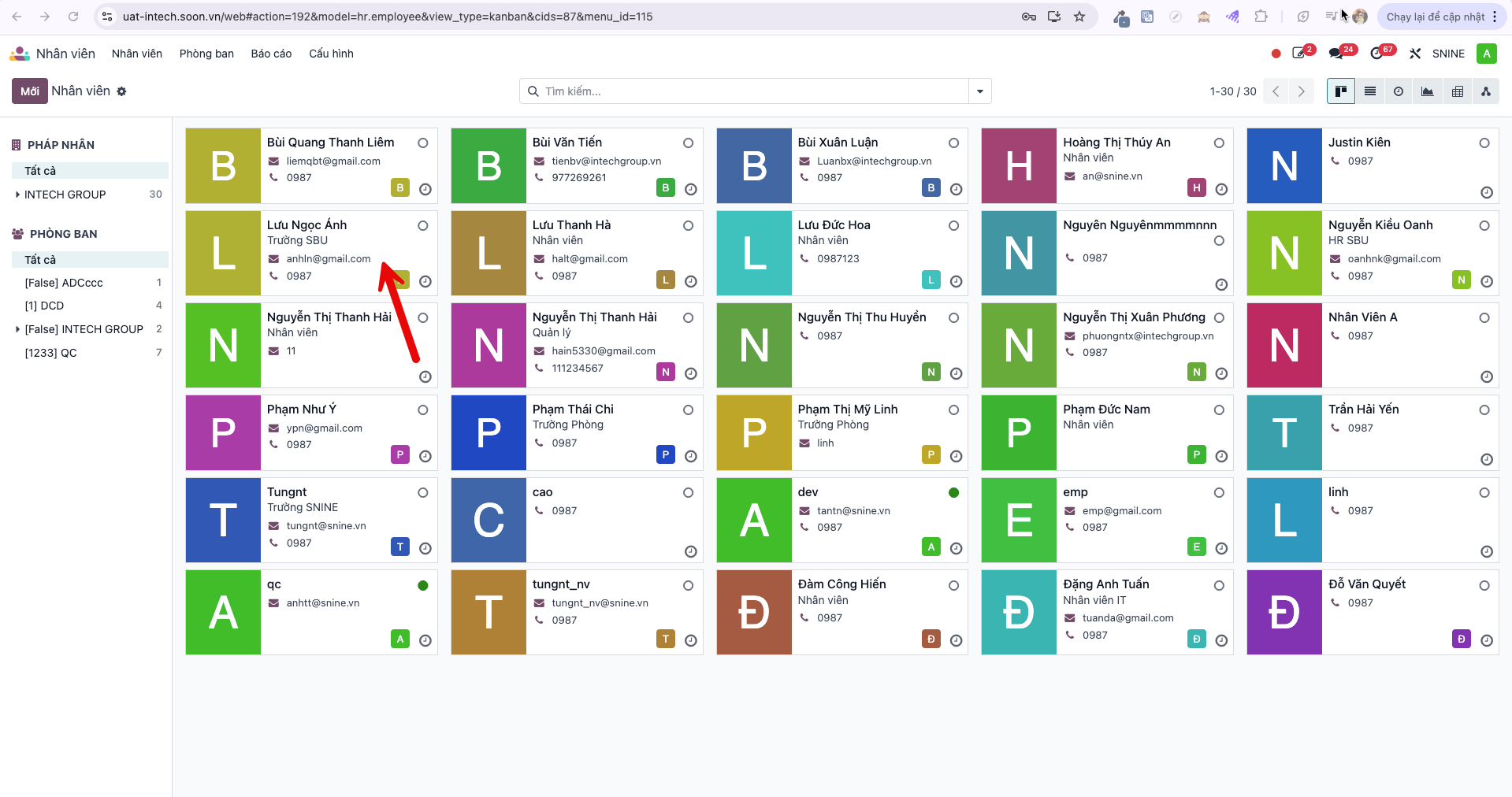
Navigate to and select the target employee.
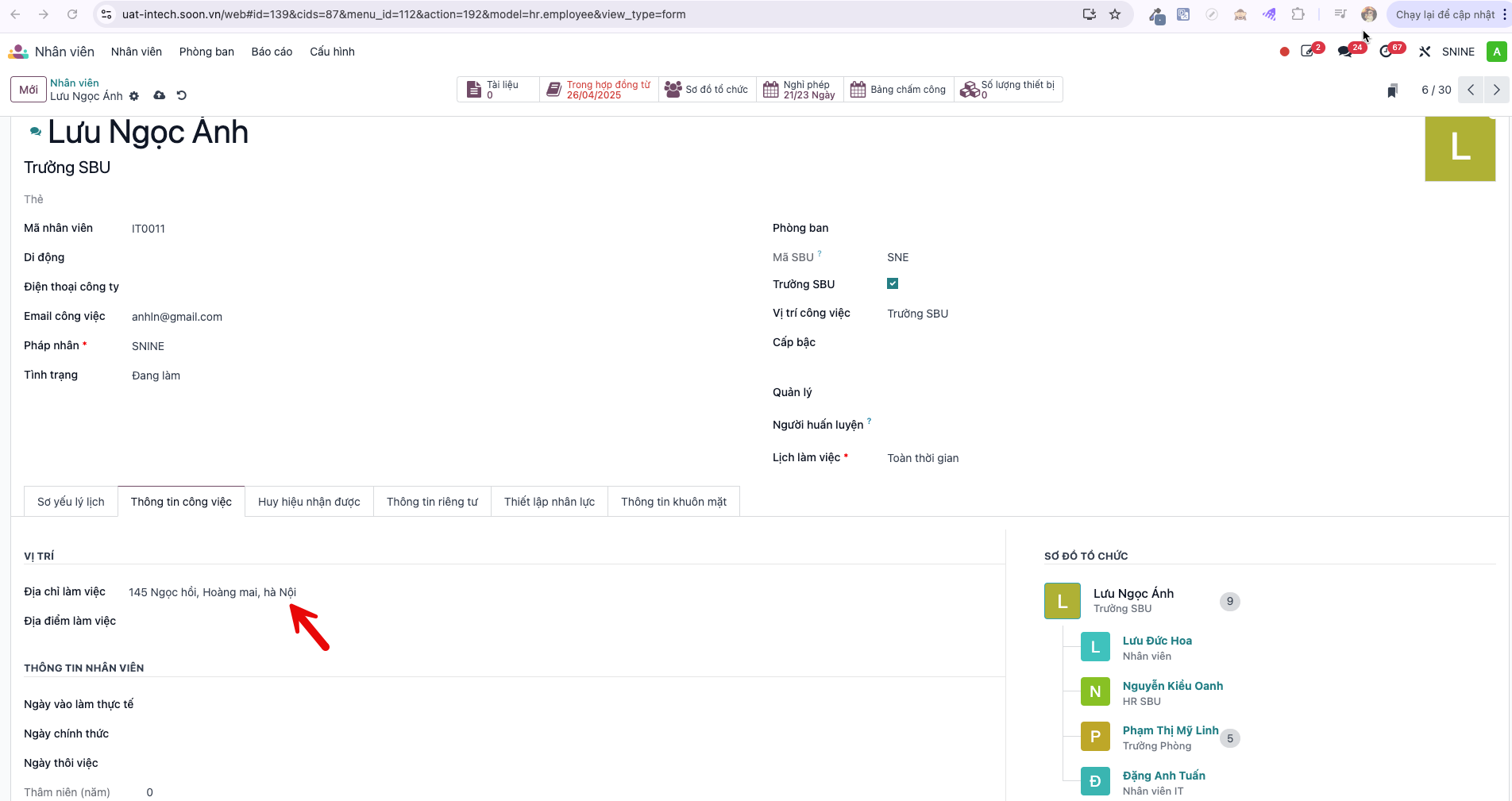
On the Work Information tab under the Location section: - In Working Address, select the assigned operating branch. - In Work Location, select the specific location configured in previous steps.
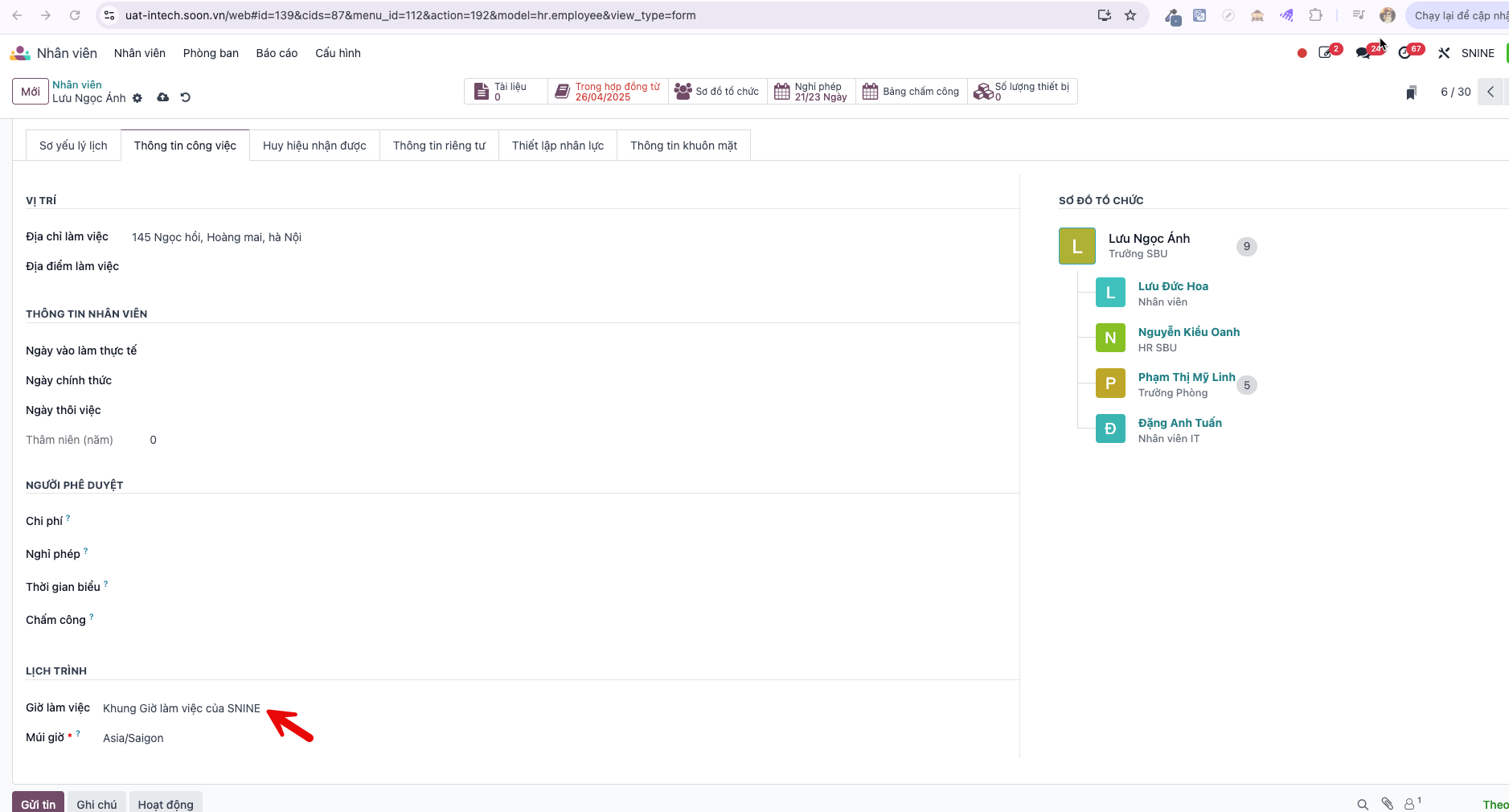
Under the Schedule section, select the employee’s assigned Working Schedule.
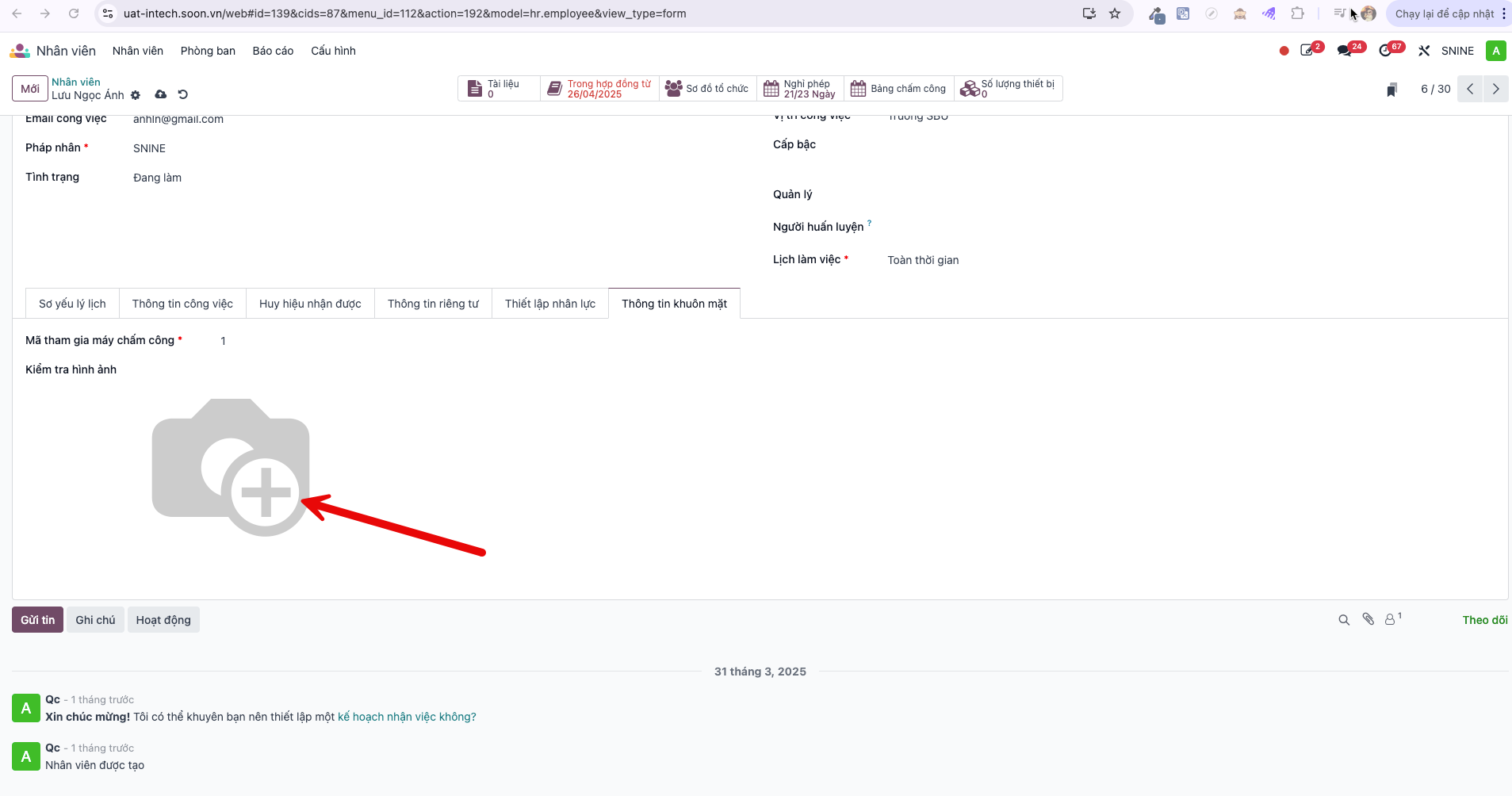
Switch to the Face Information tab and upload a clear, front-facing portrait photograph of the employee.
Click Save. The employee is now enabled for mobile FaceID timekeeping.
Set Facial Recognition Accuracy & GPS Geofencing Radius
To adjust recognition strictness and location tolerance:
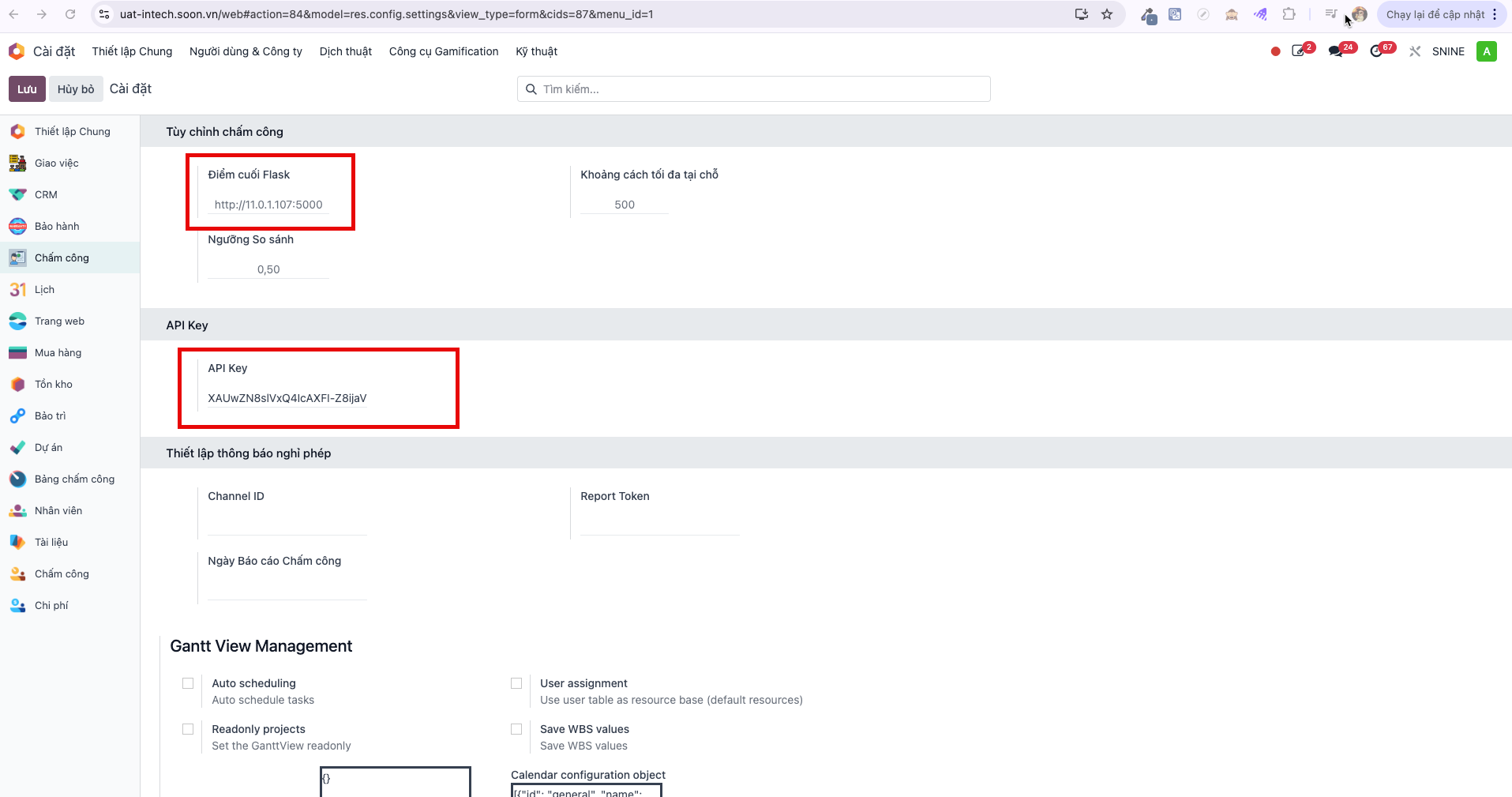
Navigate to .
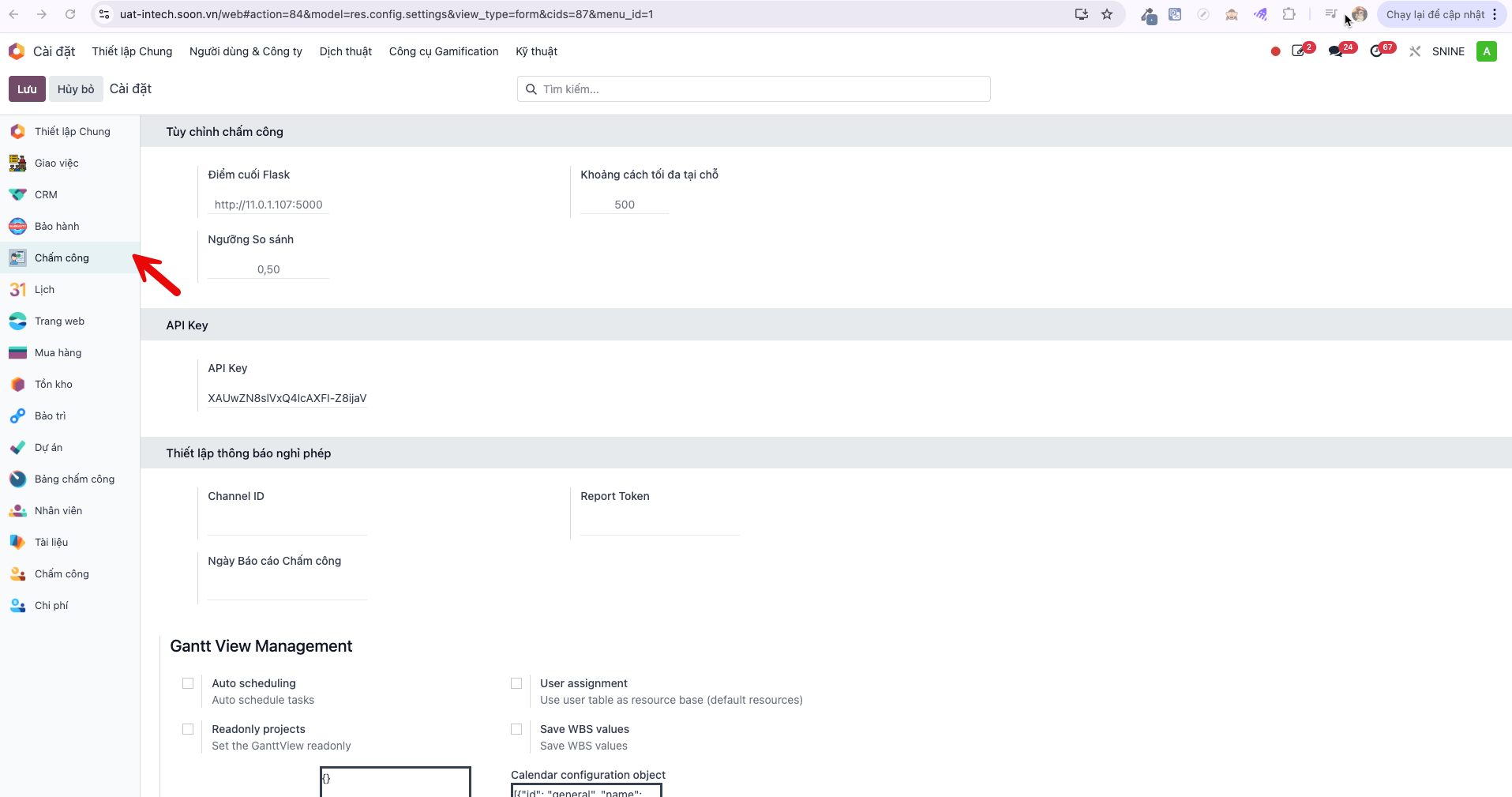
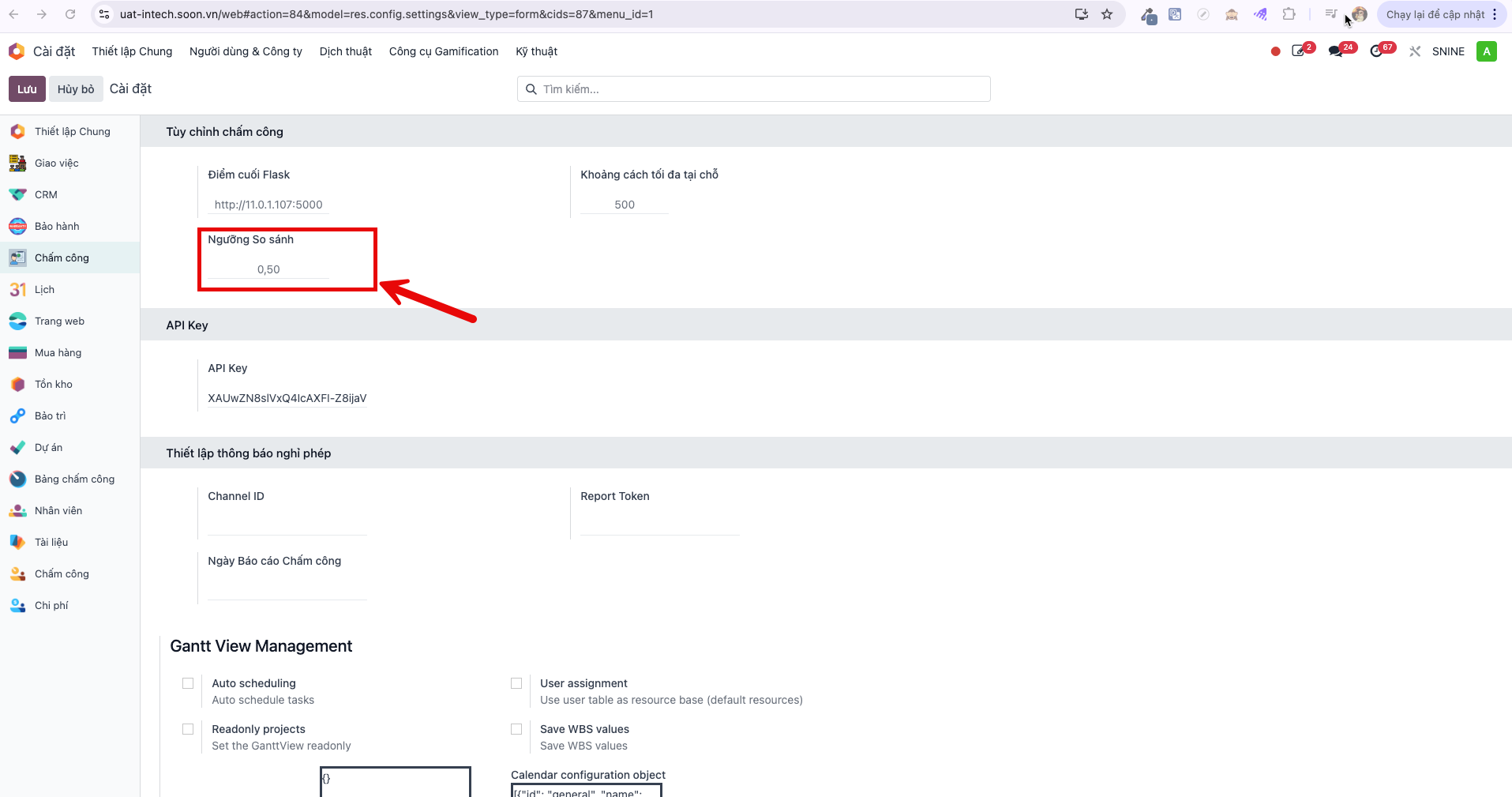
Under Comparison Threshold, set a value between 0 and 1. A lower value requires closer facial similarity (recommended default: 0.5).
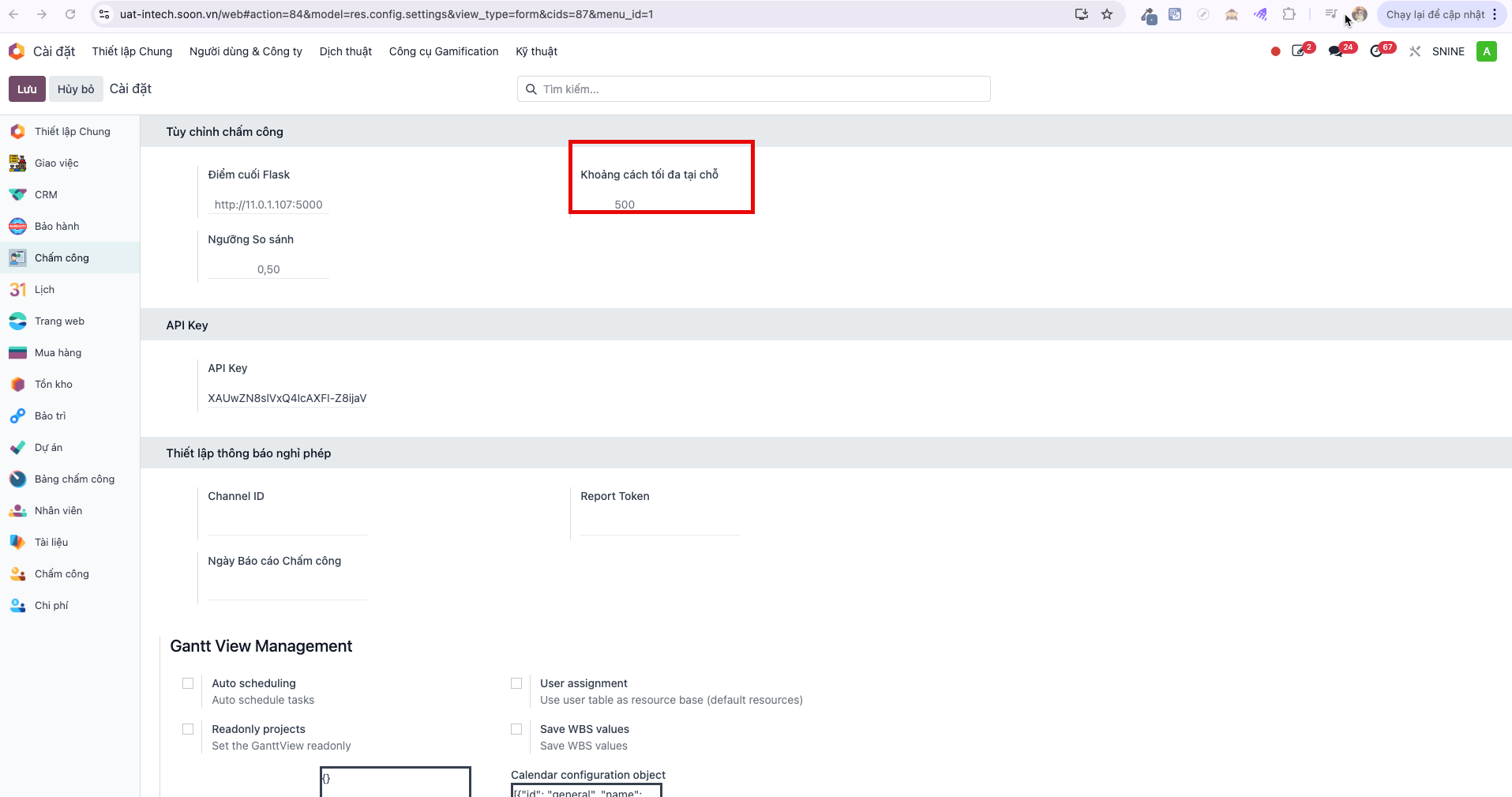
Under Maximum On-Site Distance, set the allowable geofencing radius in meters (recommended: 300–500m to accommodate GPS margin of error).
Warning
Do not modify backend technical connection settings unless instructed by technical support. If restored, maintain default parameters (Flask Endpoint: http://11.0.1.107:5000 and designated API Key).