
S-Attendance Mobile App Guide
The S-Attendance Mobile App provides employees with a fast and intuitive tool for daily biometric check-in, shift tracking, and onsite work verification.
Application Installation & Login
Installation
Download and install the S-Attendance application for your mobile operating system:
iOS (Apple App Store): Intech Chấm công on App Store
Android (Google Play Store): S-Attendance on Google Play
Note
Ensure you grant Location Permissions (GPS) when prompted by the application to allow geolocation check-in verification.
Login
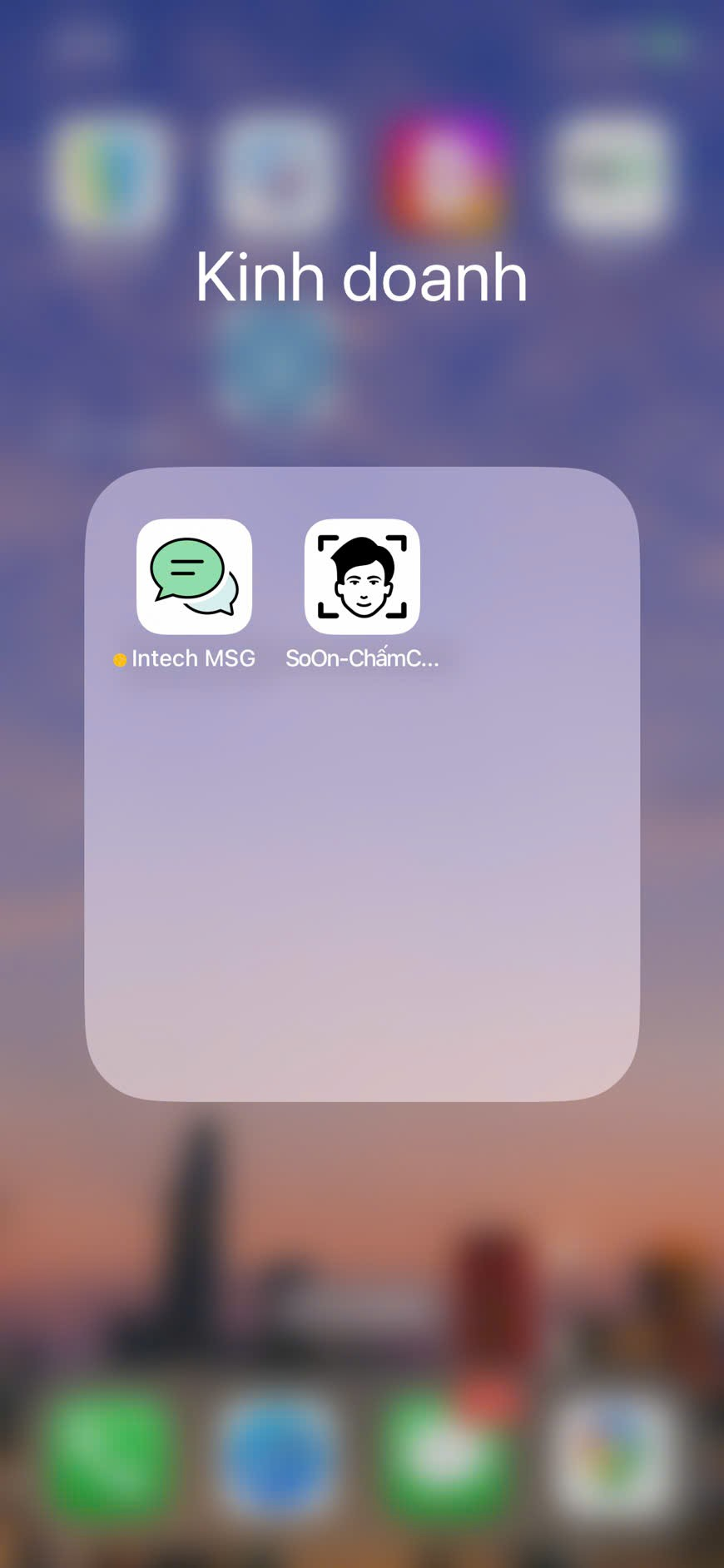
Launch the S-Attendance app on your smartphone.
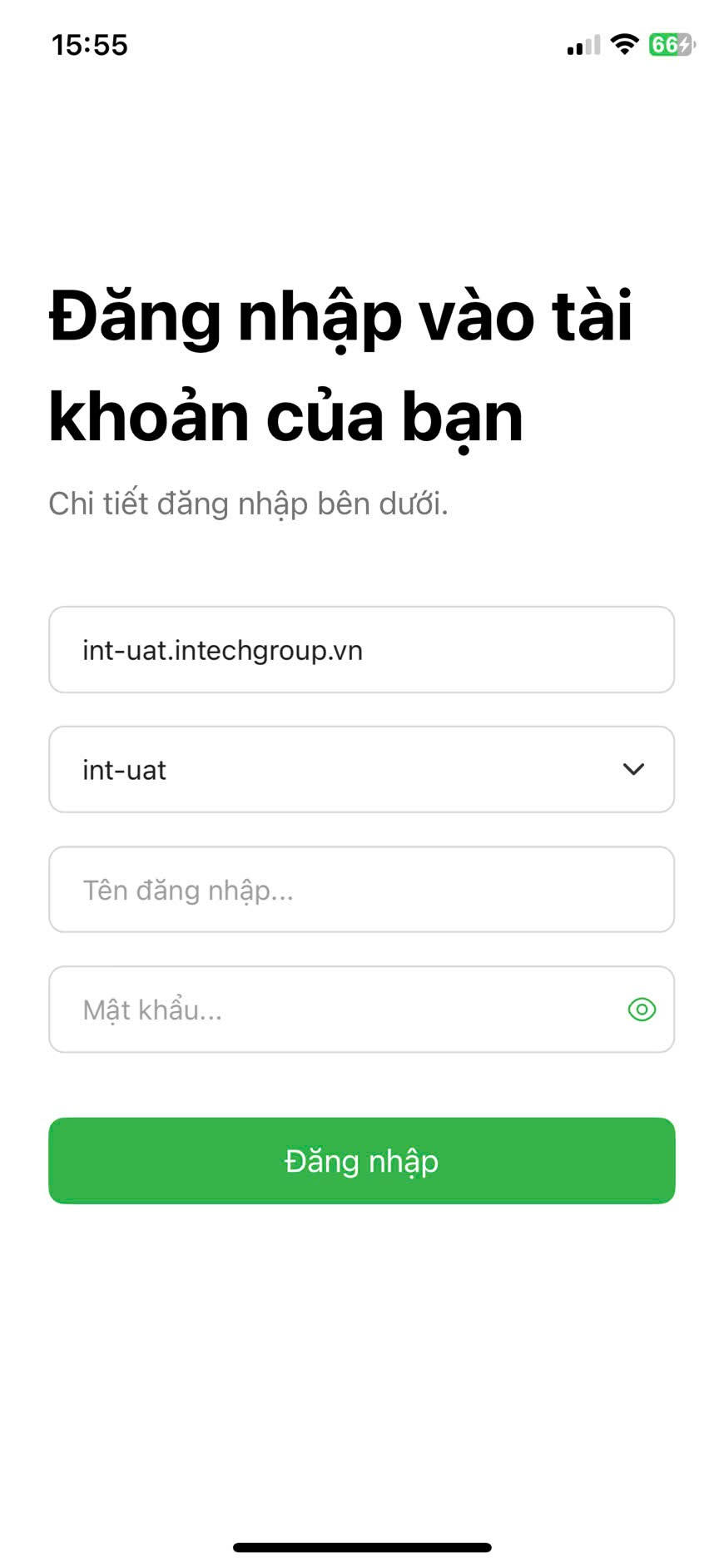
Enter your username and password assigned on the S-ERP system.
Tap Login.
|
|
FaceID Check-In & Check-Out at Primary Work Location
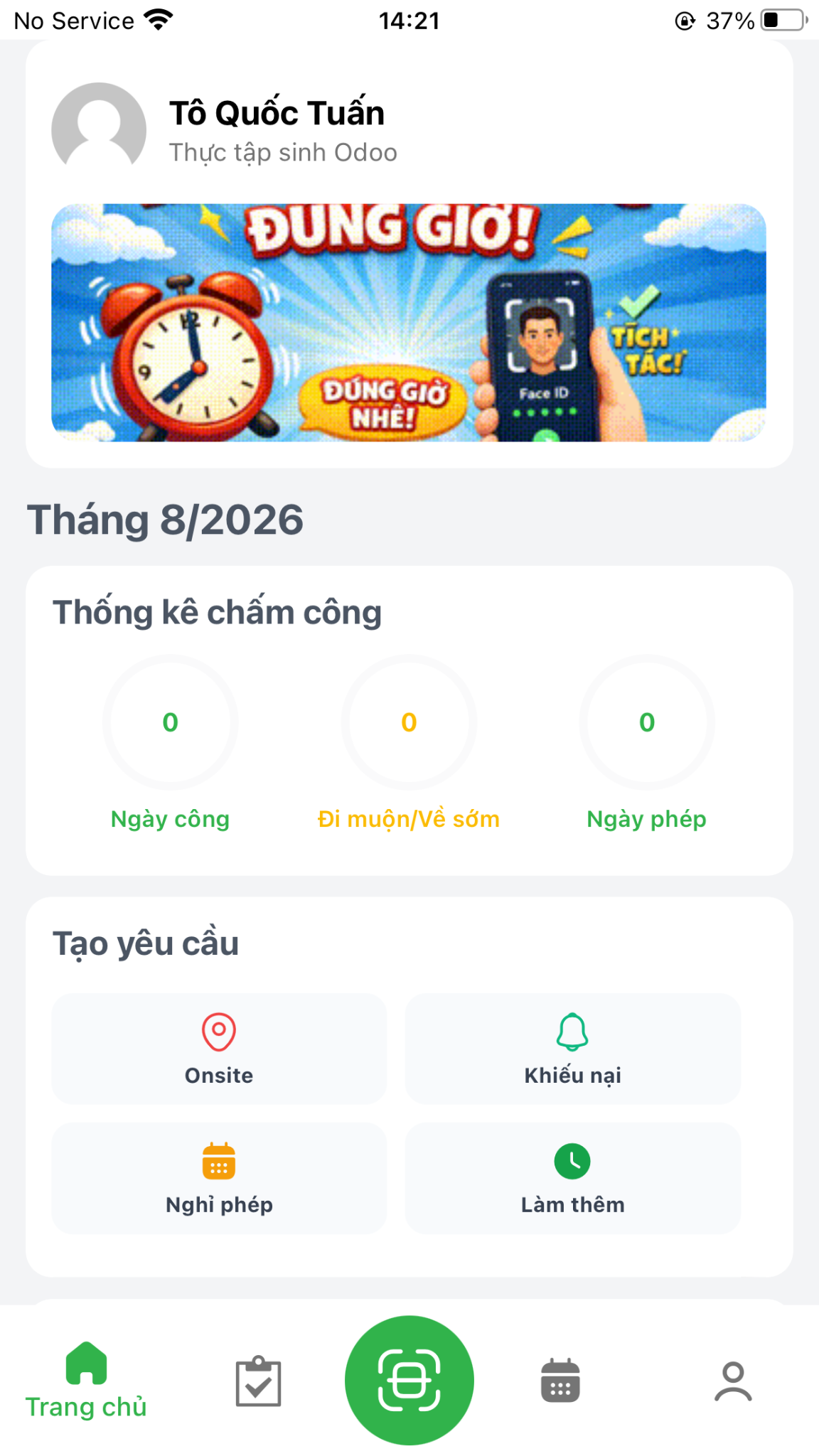
Tap the FaceID scanning icon on the main navigation screen. The system automatically creates a daily attendance ticket matching your pre-configured working schedule and primary facility.
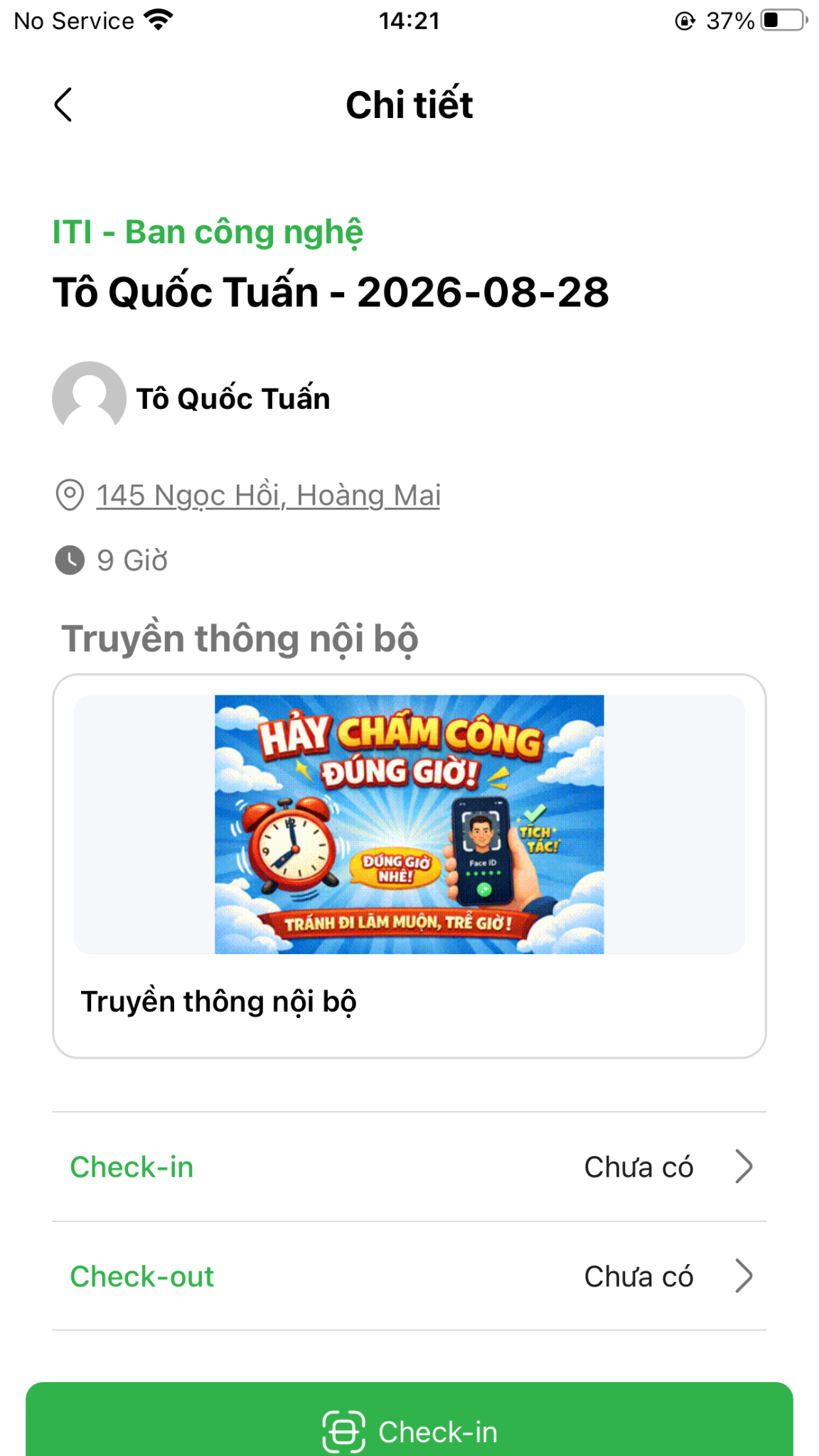
Tap the central Check-in button.
|
|
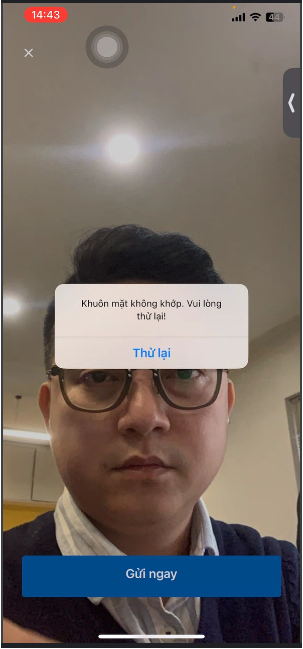
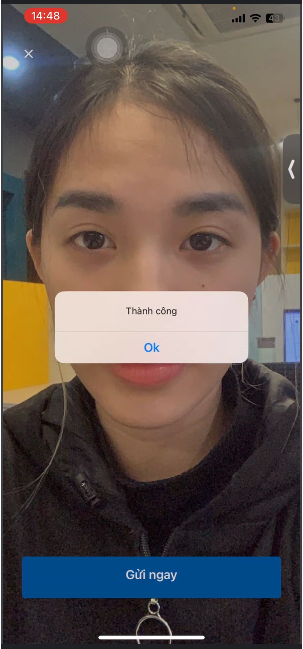
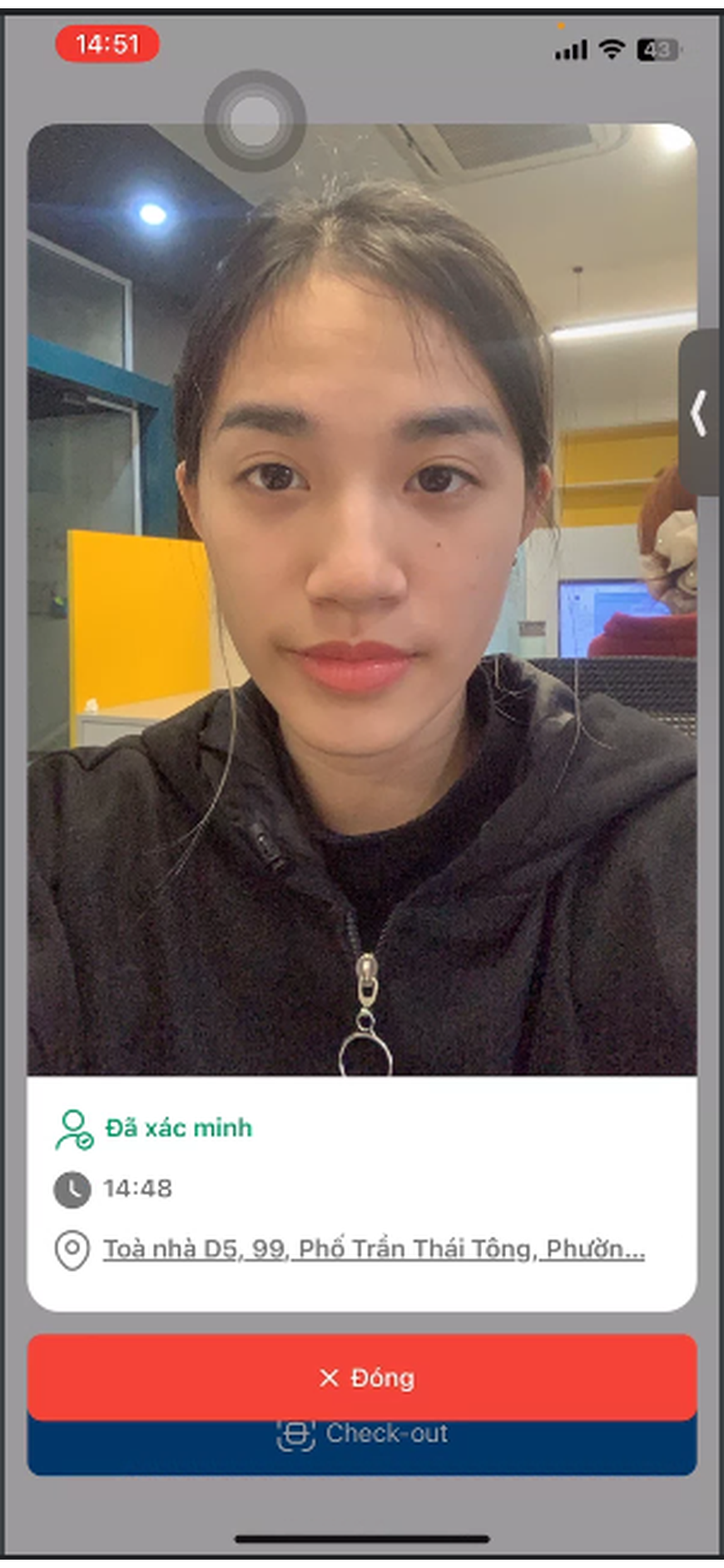
Align your face in the camera frame and tap the capture button: - If facial recognition matches and your device is within the authorized GPS geofence radius, the system confirms successful check-in. - If the face does not match or you are outside the allowable radius, the app displays an error message prompting you to retry.

|
|
|
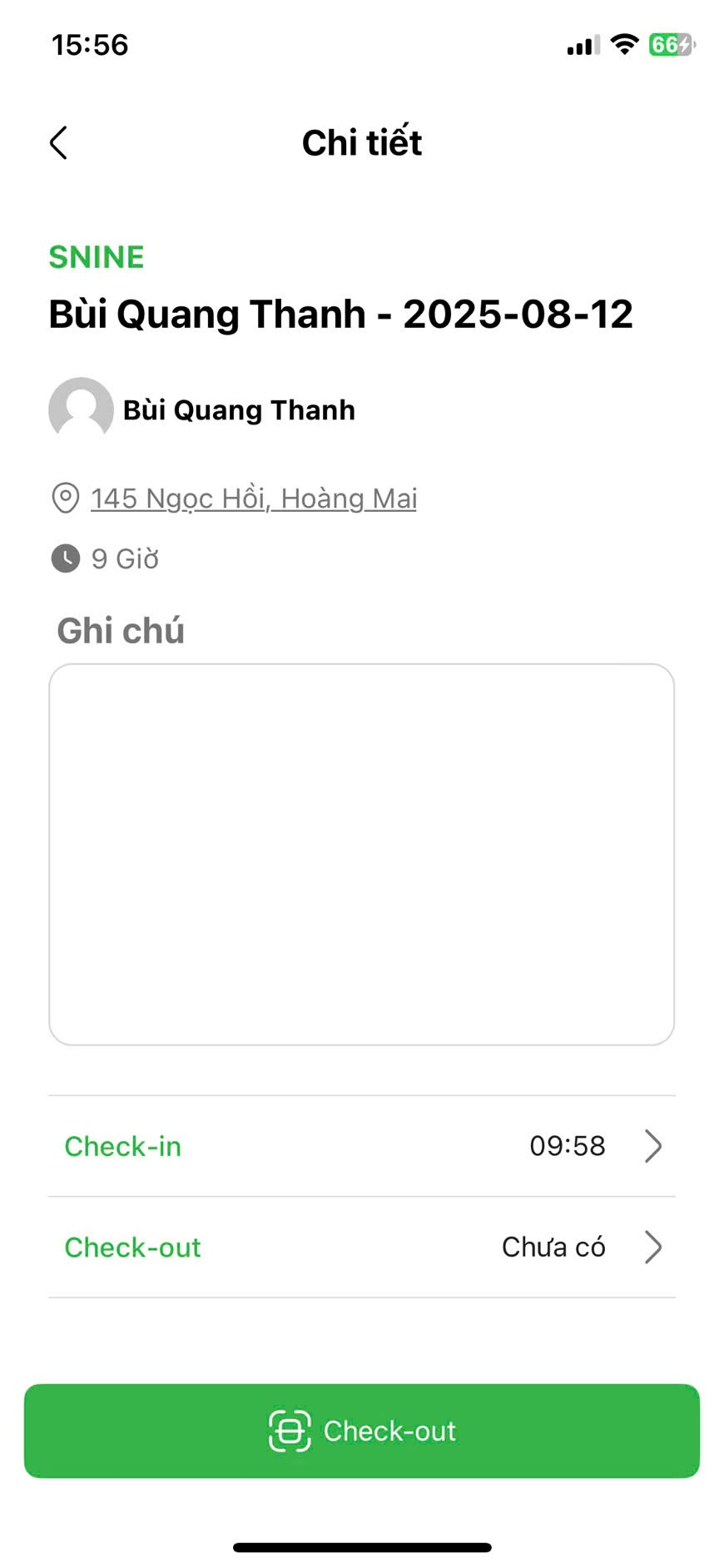
Review your recorded check-in timestamp by tapping on the check-in time record.
|
|
At the end of the working shift, perform Check-out following the same biometric capture procedure.
Attendance at Temporary Work Location (Onsite Transfer)
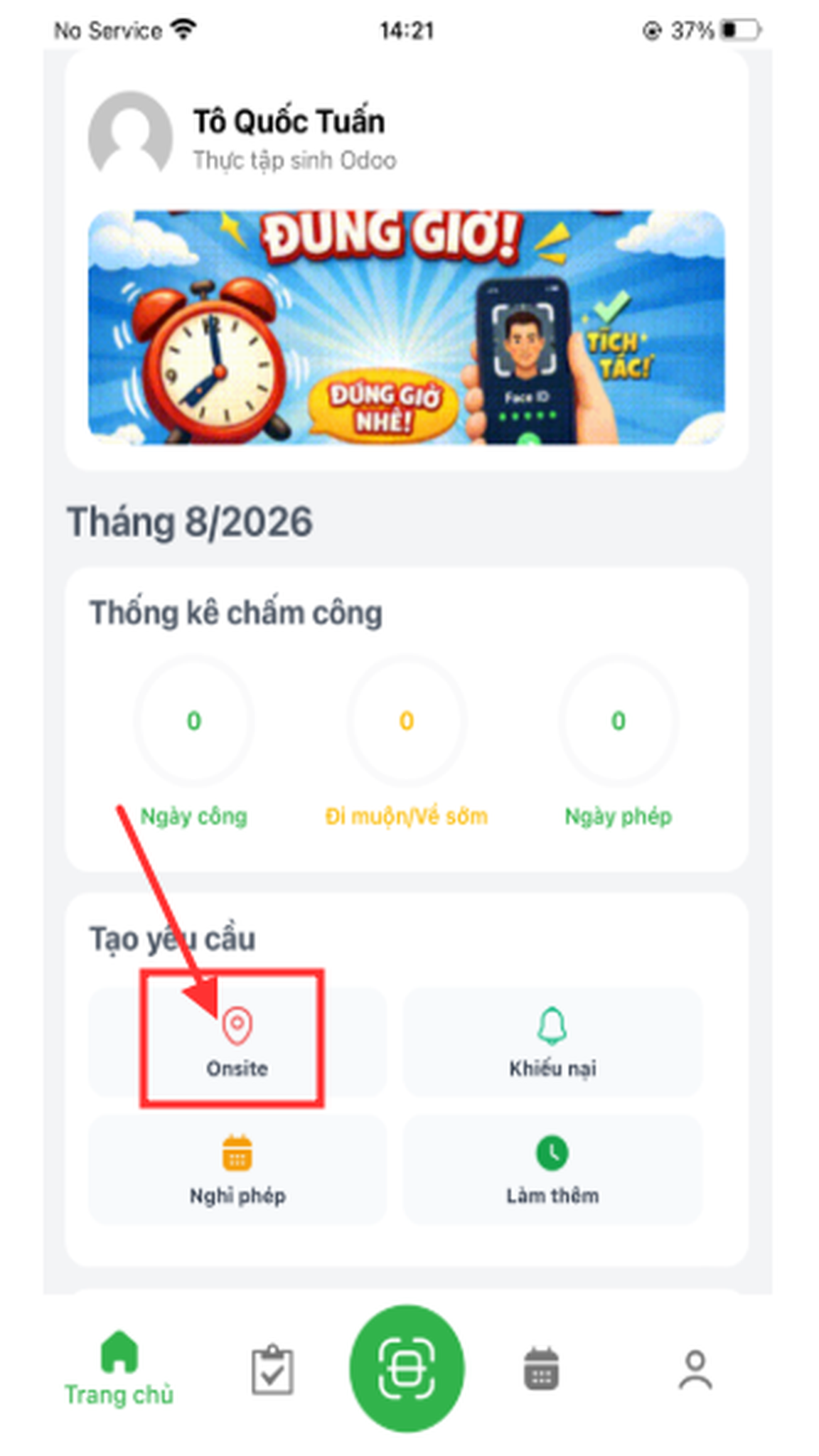
When assigned to work temporarily at another company facility or client site, submit a temporary onsite request prior to checking in:
In the Create Request section, select Onsite Request.
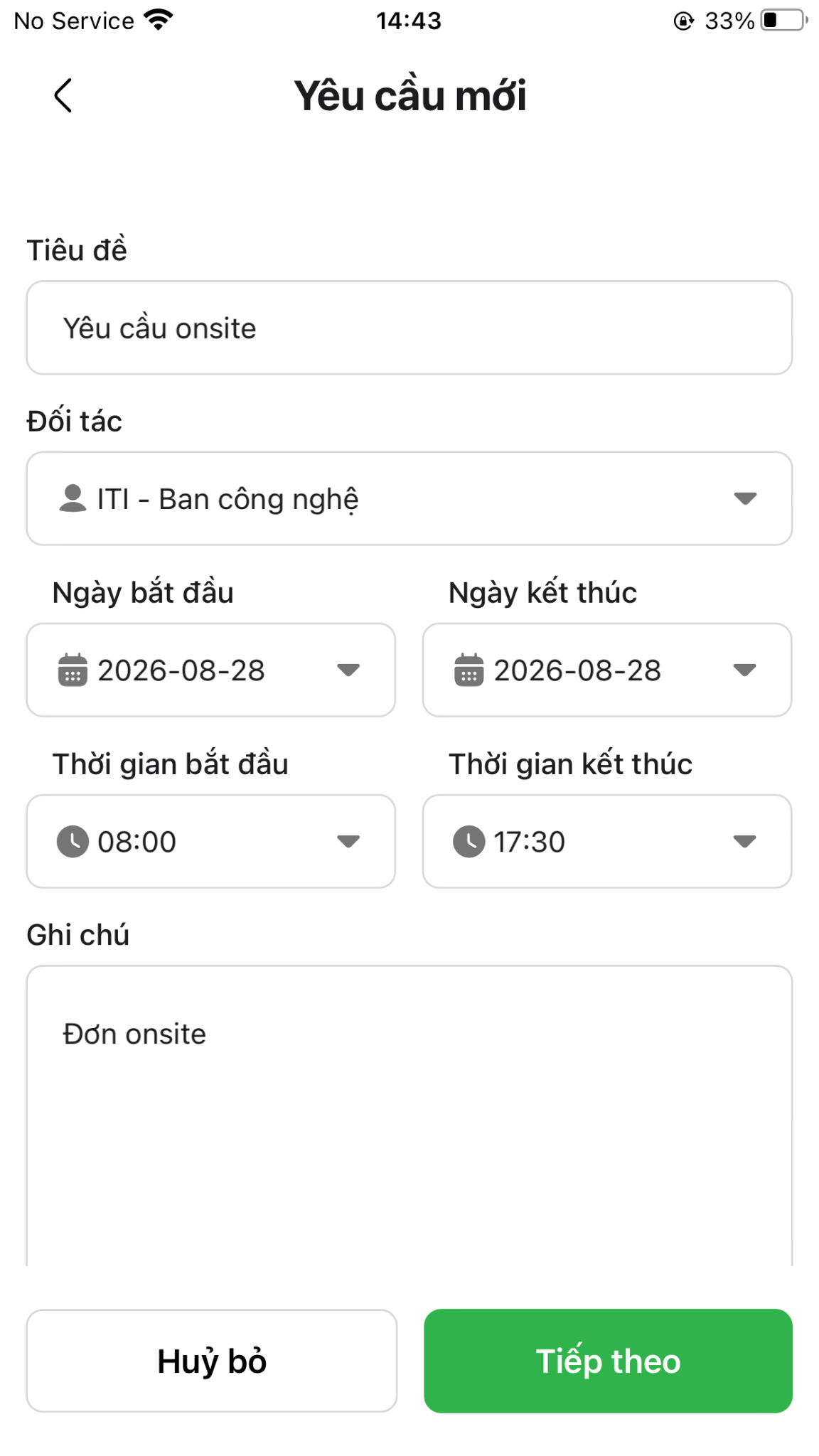
Enter the request title, description, and working scope.
|
|
Tap Next.
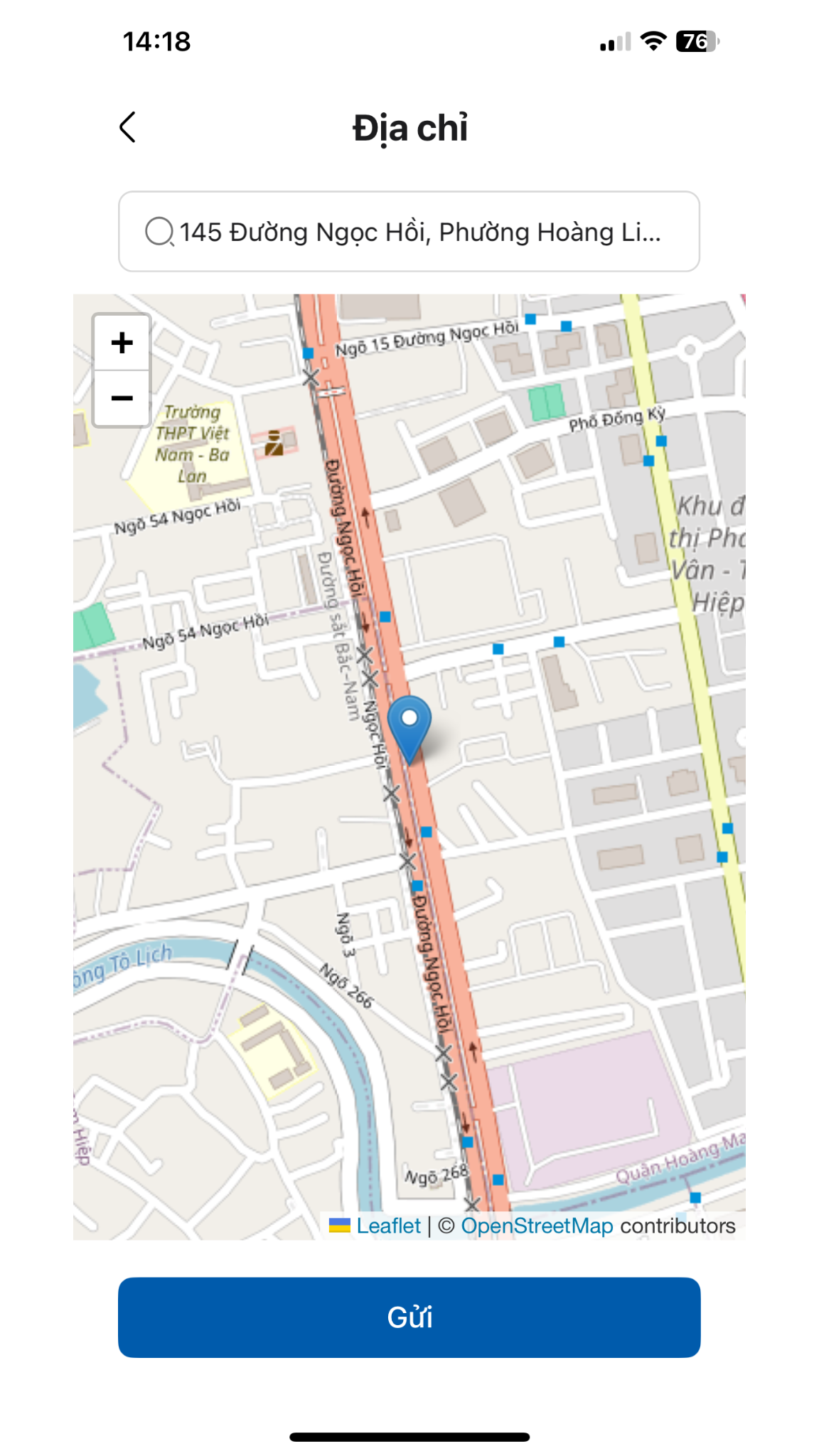
Select the destination temporary work location (e.g., Facility 2 or secondary branch).
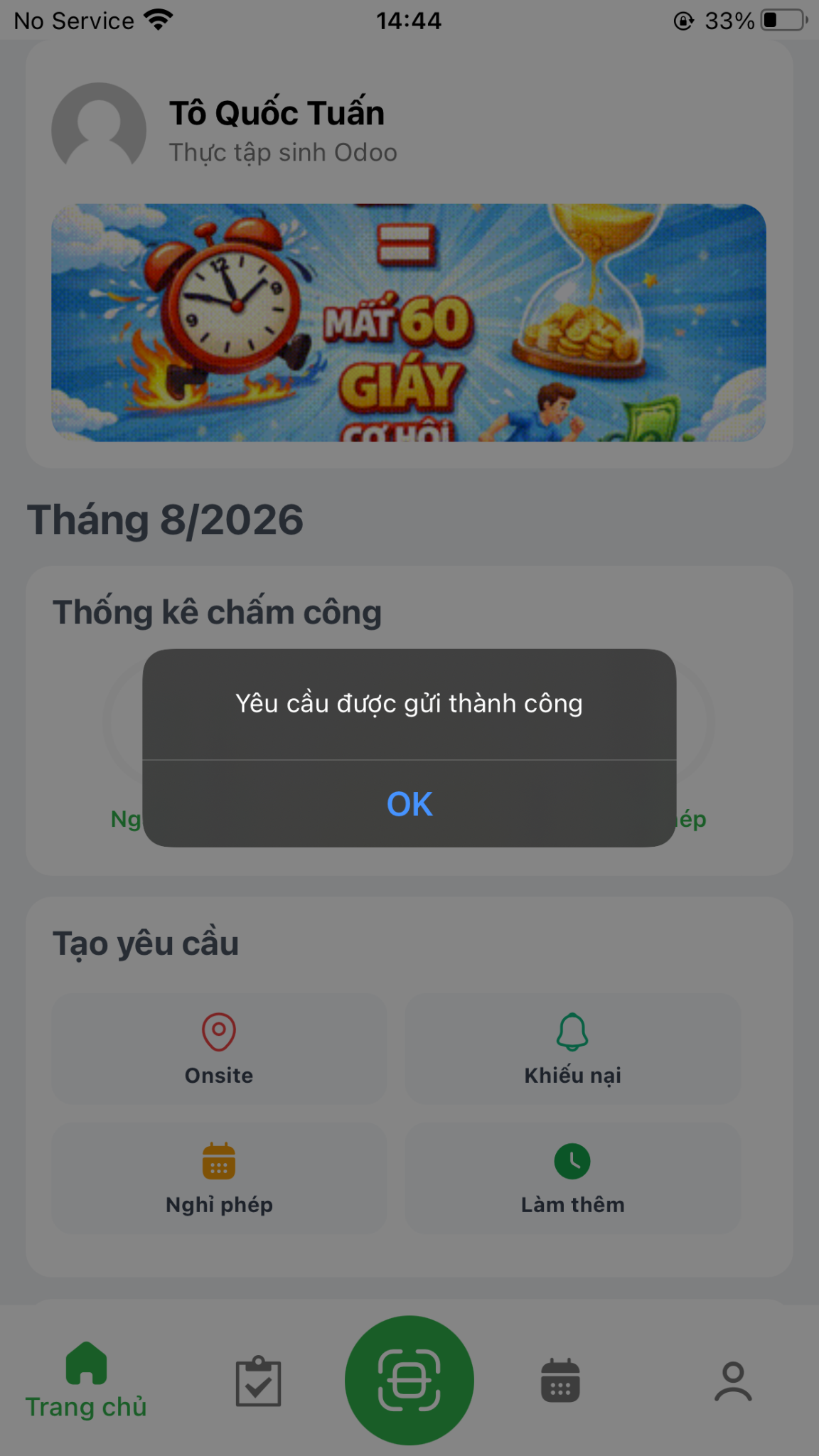
Tap Submit. The system generates a valid attendance ticket authorized for the selected location and timeframe.
|
|
Home Screen & Personal Attendance Calendar
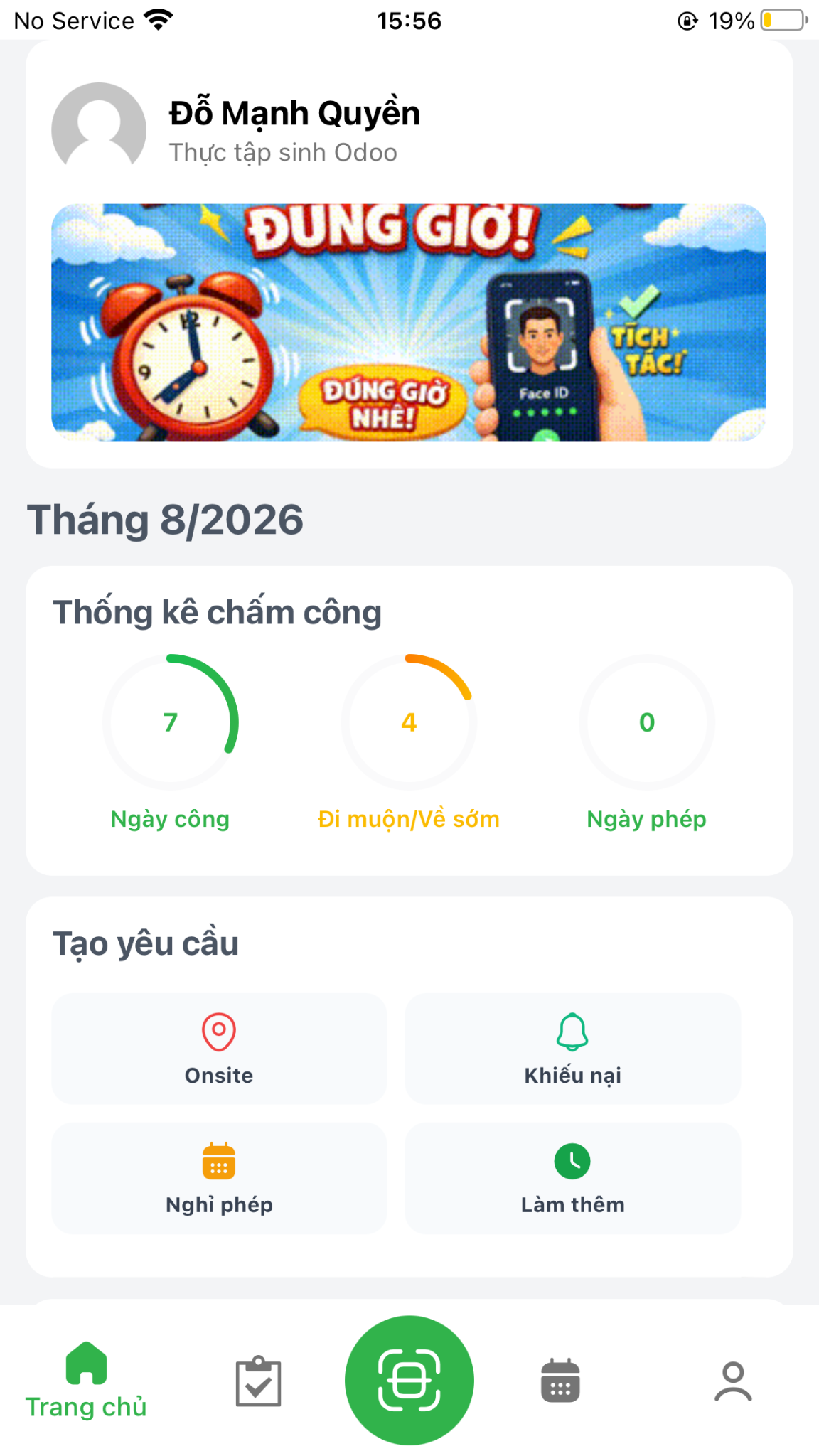
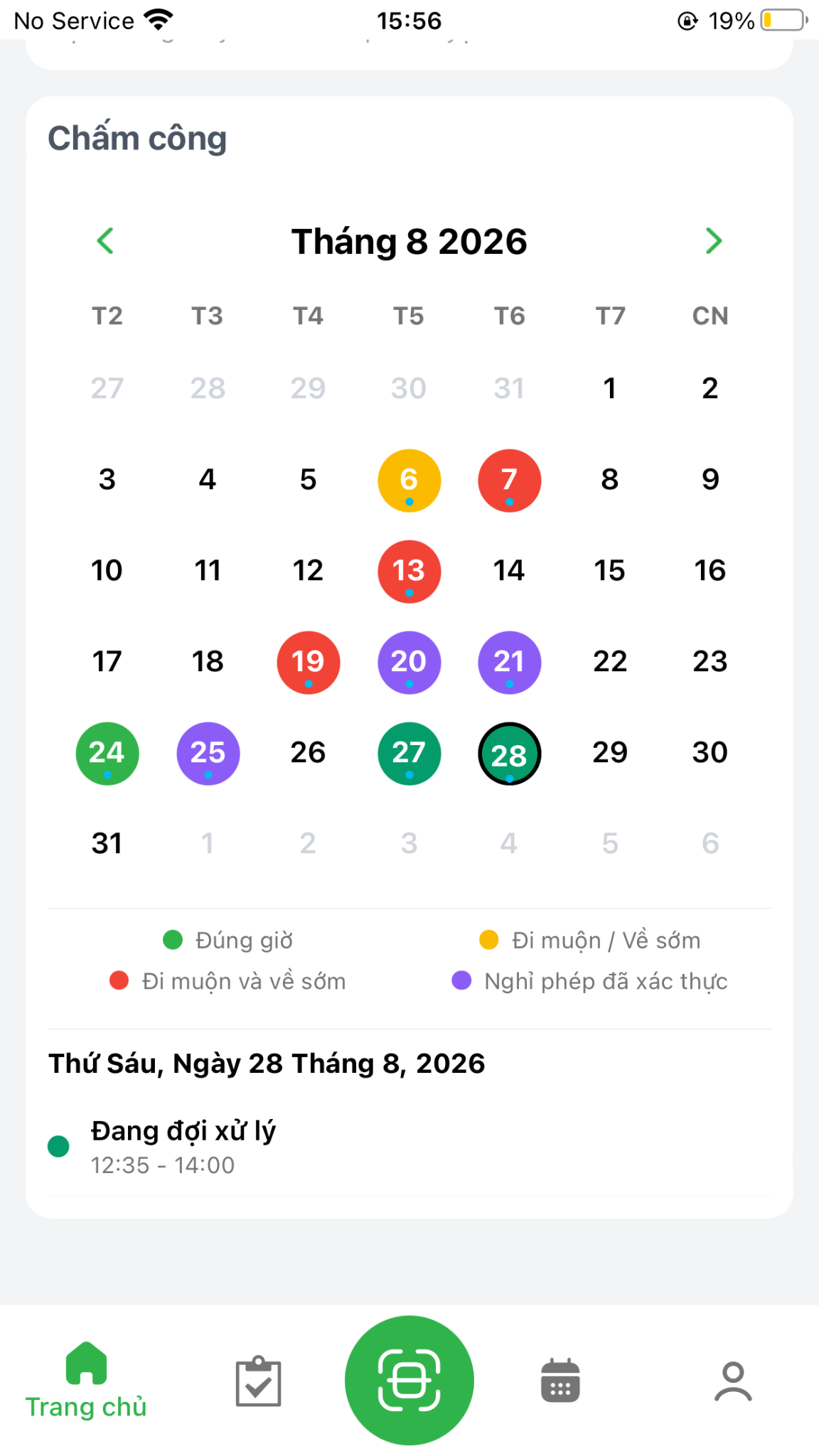
The Home Screen provides an interactive dashboard containing monthly attendance statistics, request shortcuts, and a personal attendance calendar:
Attendance Statistics: Aggregated totals of working days, standard hours, and overtime.
Color-Coded Calendar: Displays daily statuses including approved leave, punctual attendance, and late arrival / early departure alerts.
|
|