Payment Requisitions & Disbursement
Corporate payment requisitions ensure all supplier payables undergo rigorous financial verification against contractual terms, supporting documents, and expenditure budgets before bank disbursement.
Tutorial video
Video topic |
Direct watch link |
|---|---|
Create payment request |
Create payment request
Creating and Routing Payment Requests
Bước 1: From the main menu, navigate to Payment Requests (Đề nghị thanh toán) ‣ Payment Requests (Đề nghị thanh toán).
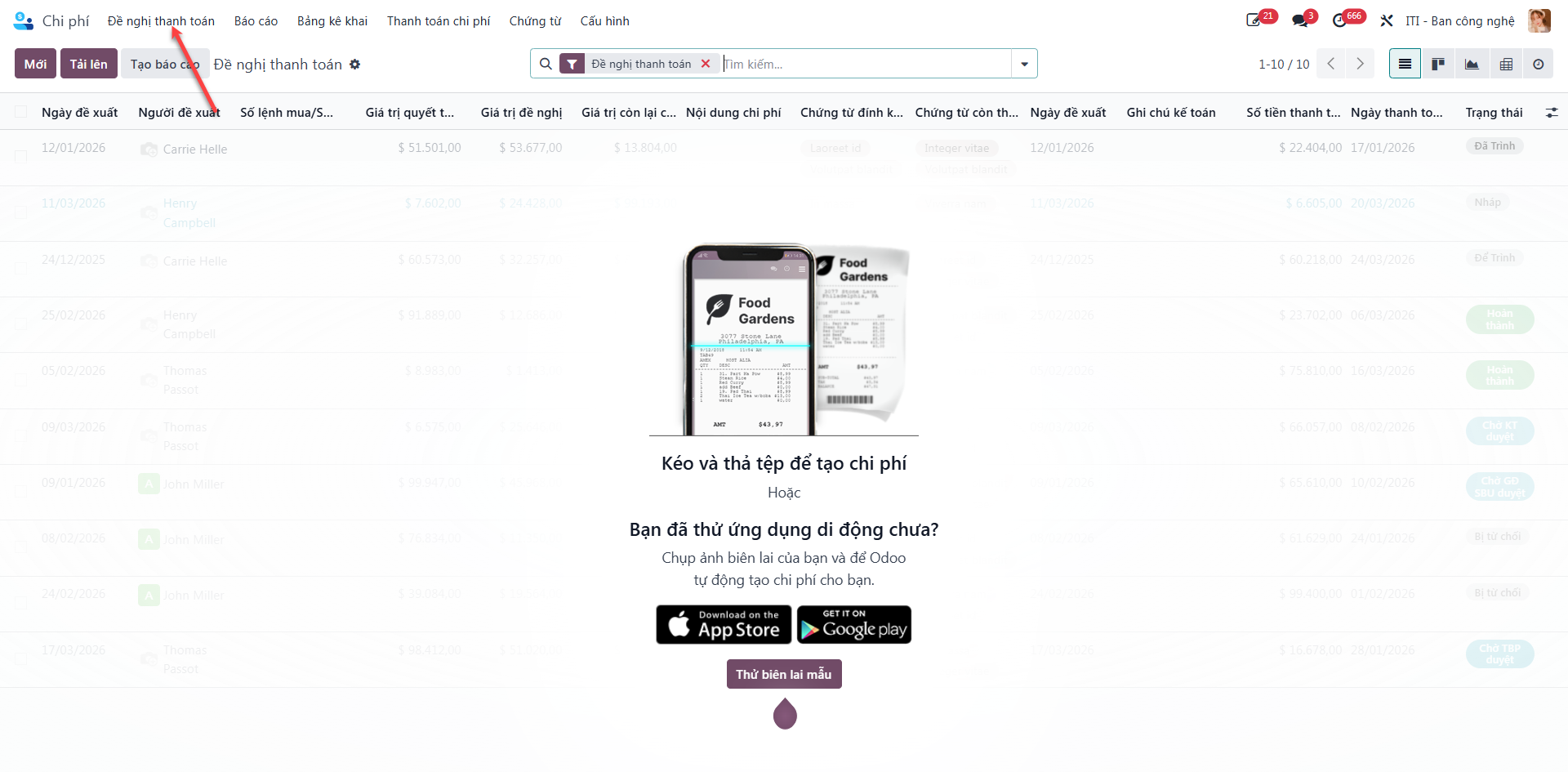
The master list displays all requisitions with columns: Status (Trạng thái), Payment Approval Status (Trạng thái duyệt thanh toán), Proposal Date (Ngày đề xuất), Submitter (Người đề xuất), Vendor Name (Tên NCC), Purchase Order No. (Số lệnh mua), Contract Value (Giá trị hợp đồng), Incurred Value (Giá trị phát sinh), Paid Value (Giá trị đã thanh toán), Requested Value (Giá trị đề nghị), Remaining Balance (Giá trị còn lại), Deduction Amount (Số tiền khấu trừ), Approved Value (Giá trị duyệt), and Attached Documents (Chứng từ đính kèm).
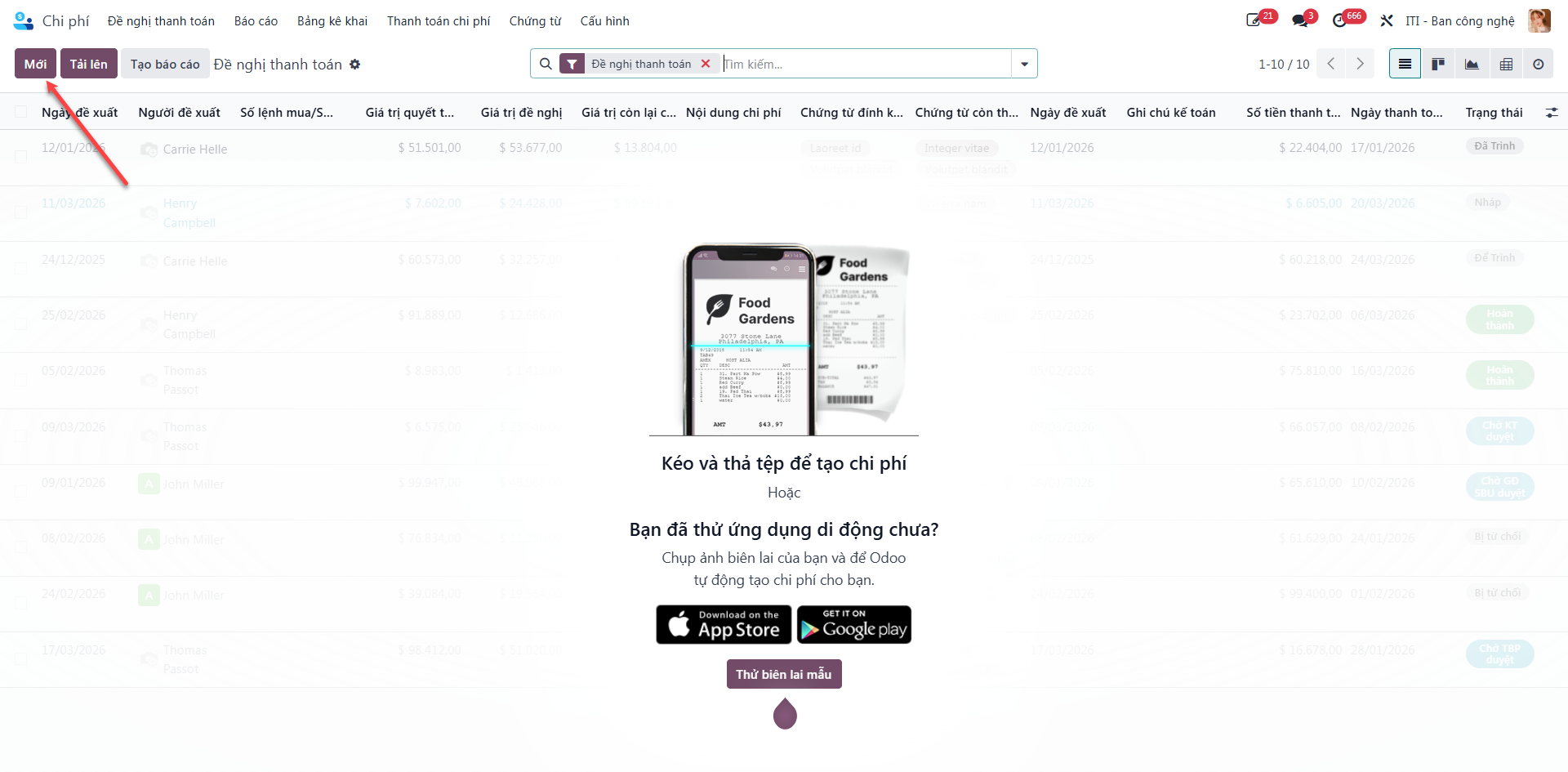
Bước 2: Click the New (Mới) button to launch the payment requisition form.
Bước 3: Enter payment details:
Description (Mô tả): Purpose of payment.
Project (Dự án): Target project code.
Purchase Order / Contract No. (Số lệnh mua/Số hợp đồng).
Vendor (Tên NCC) and Submitter (Người đề xuất).
Contract Value (Giá trị hợp đồng) and Requested Payment Value (Giá trị đề nghị).
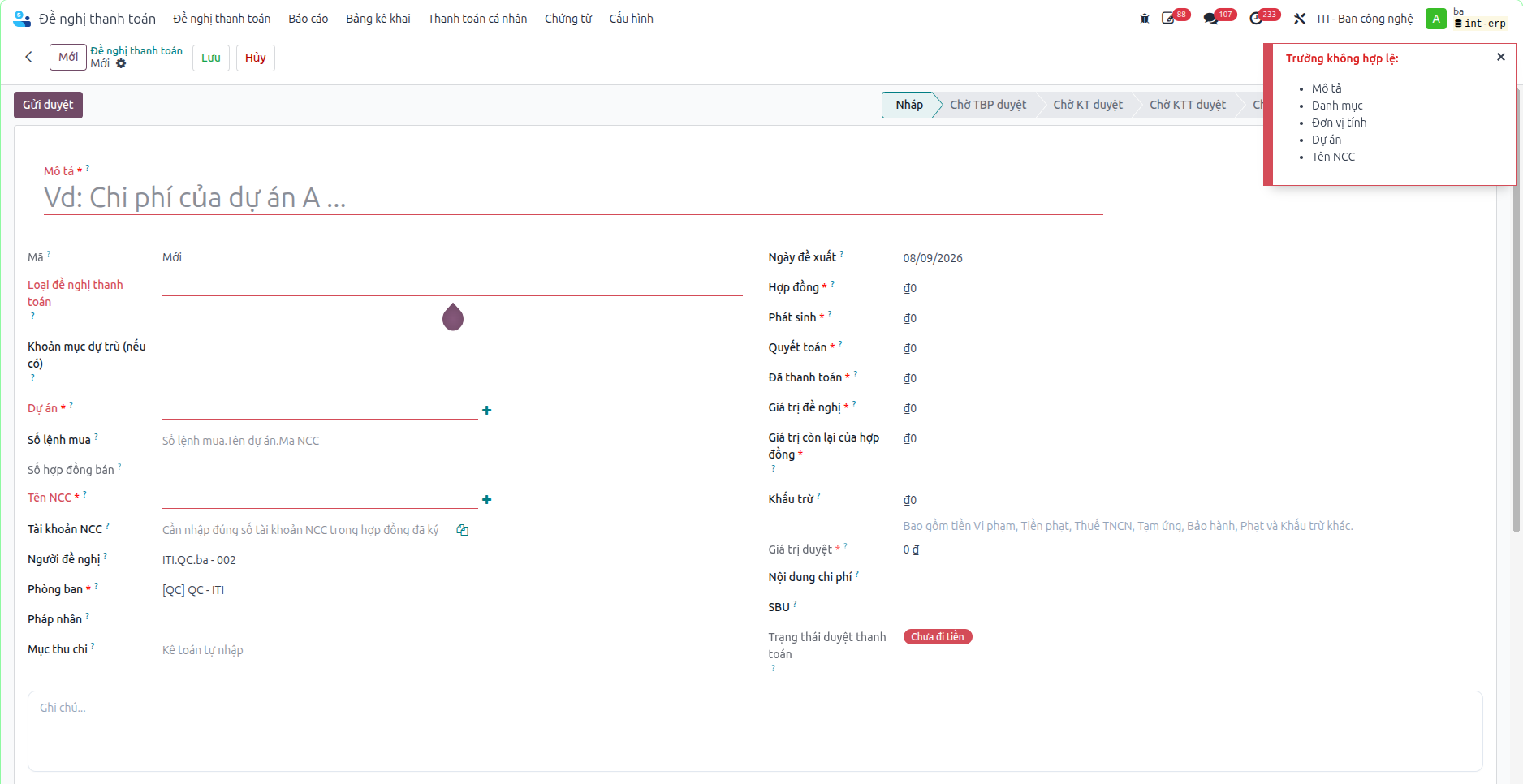
Bước 4: Click Save (Lưu). The request is created in Draft (Nháp) status. Once documents are attached, click Submit for Approval (Gửi duyệt).
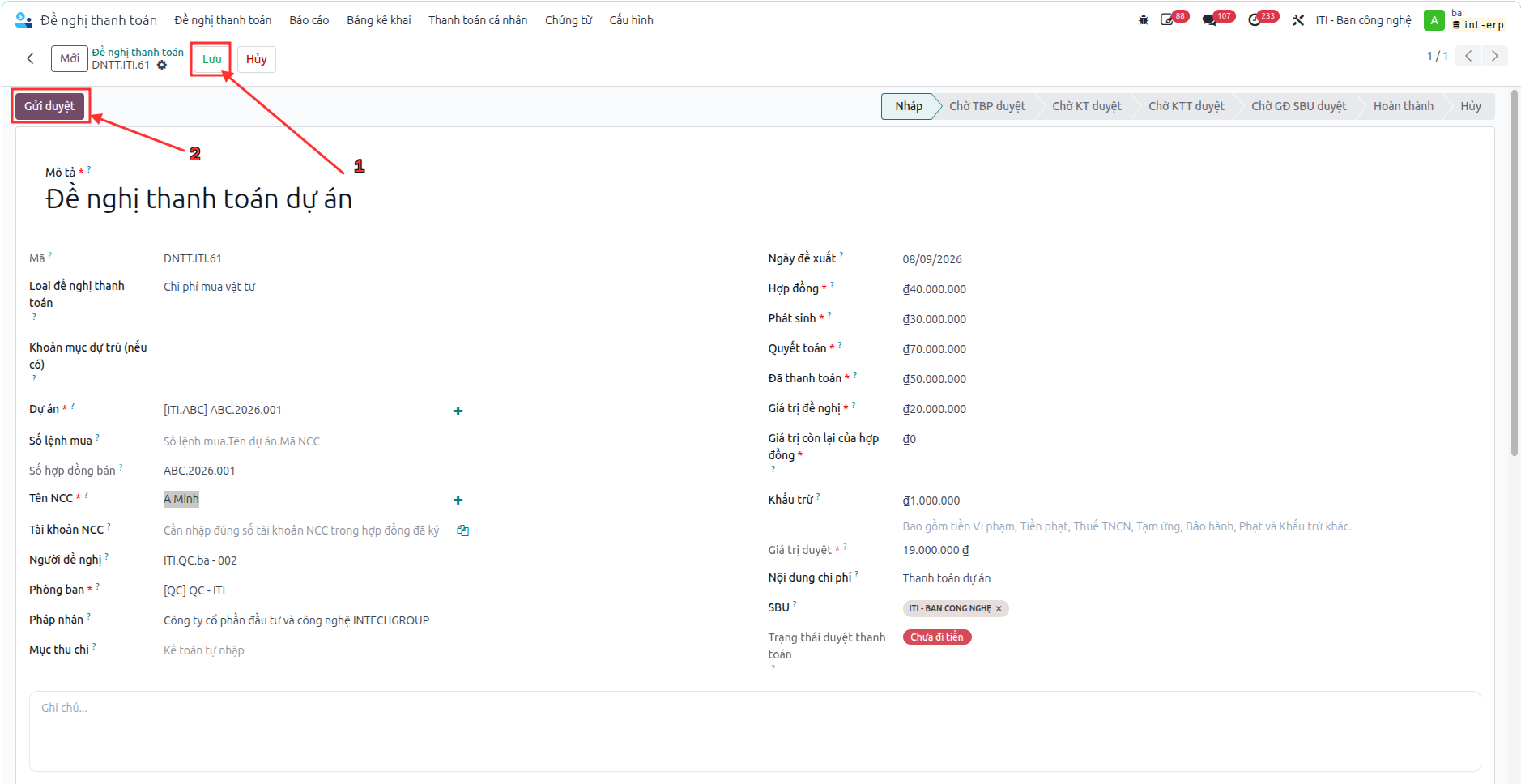
Bước 5: The Department Head (TBP) examines operational justification and confirms the request, moving status to Waiting for Accountant Approval (Chờ KT duyệt).
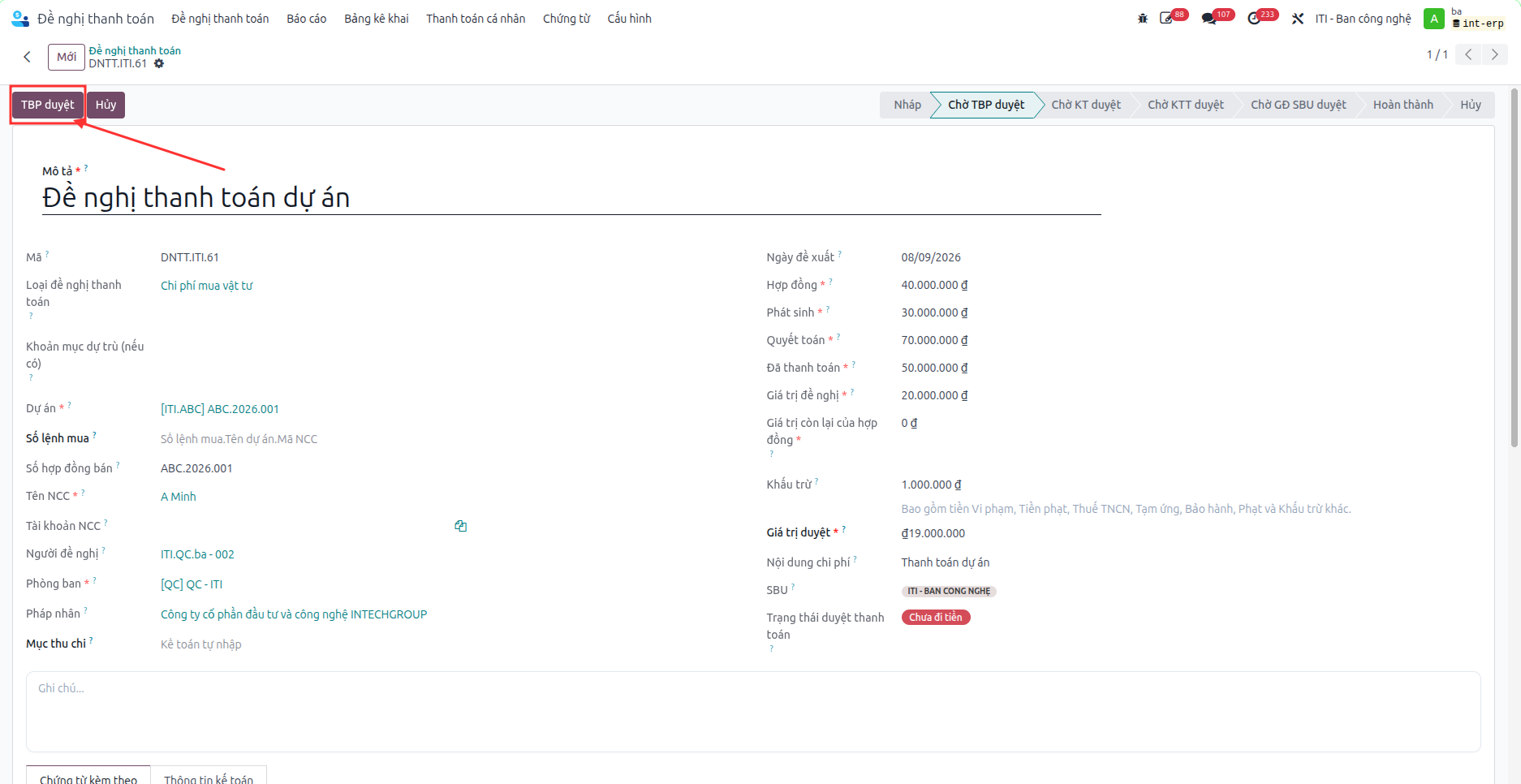
Bước 6: The Accountant (KT) inspects invoices, tax certificates, and budget ceilings, approving the proposal to Waiting for Chief Accountant Approval (Chờ KTT duyệt).
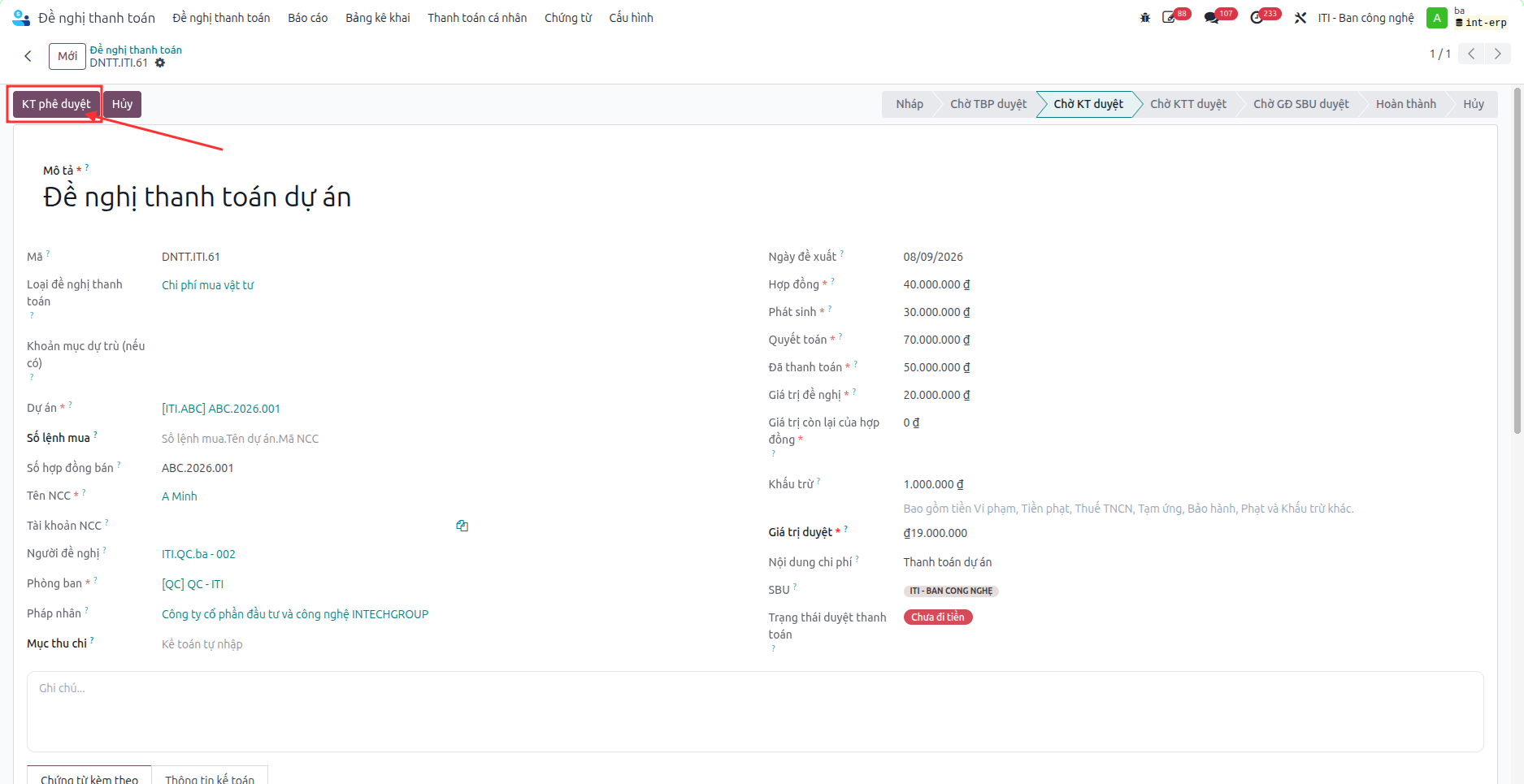
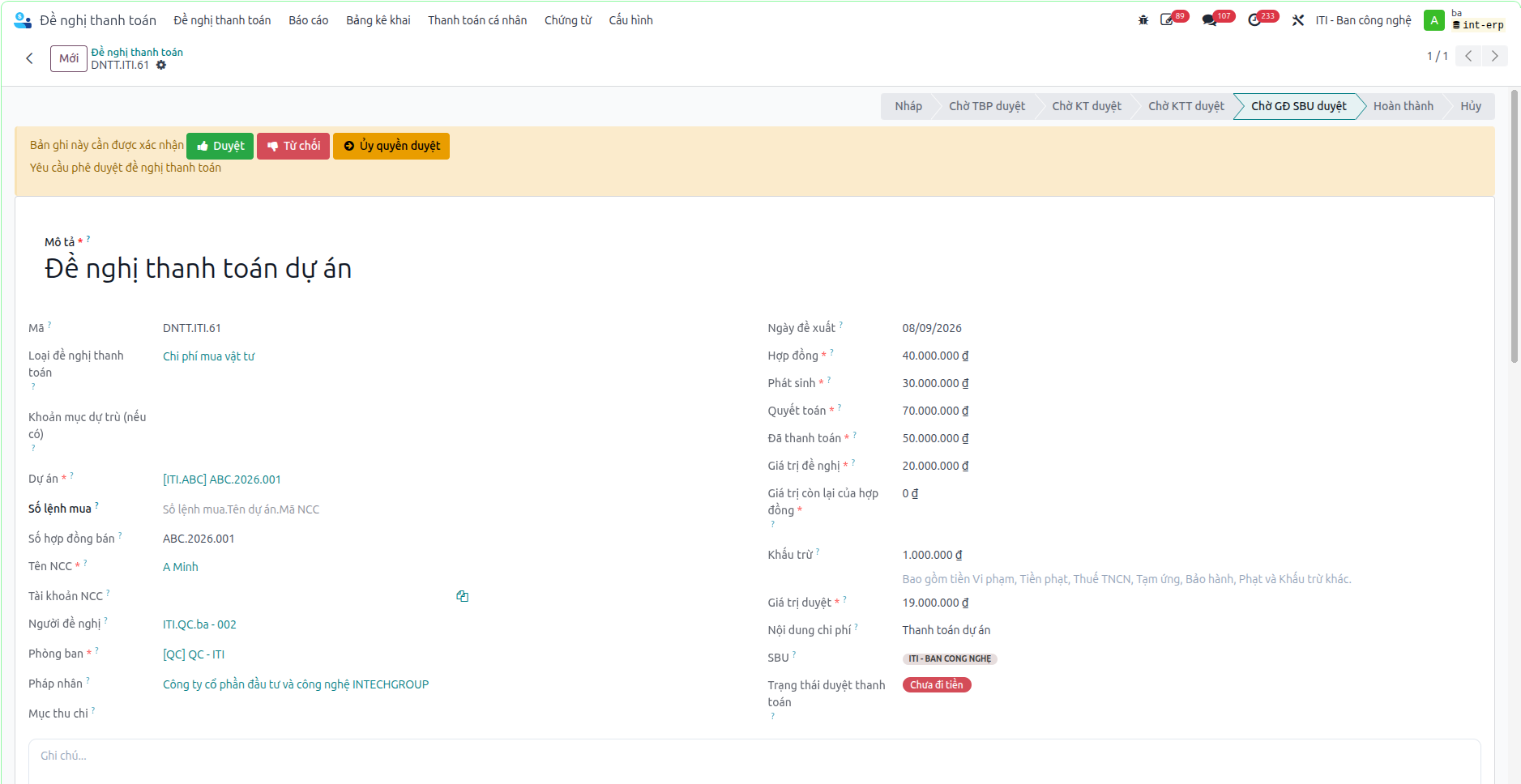
Bước 7: The Chief Accountant (KTT) validates financial compliance and approves, shifting status to Waiting for SBU Director Approval (Chờ GĐ SBU duyệt).
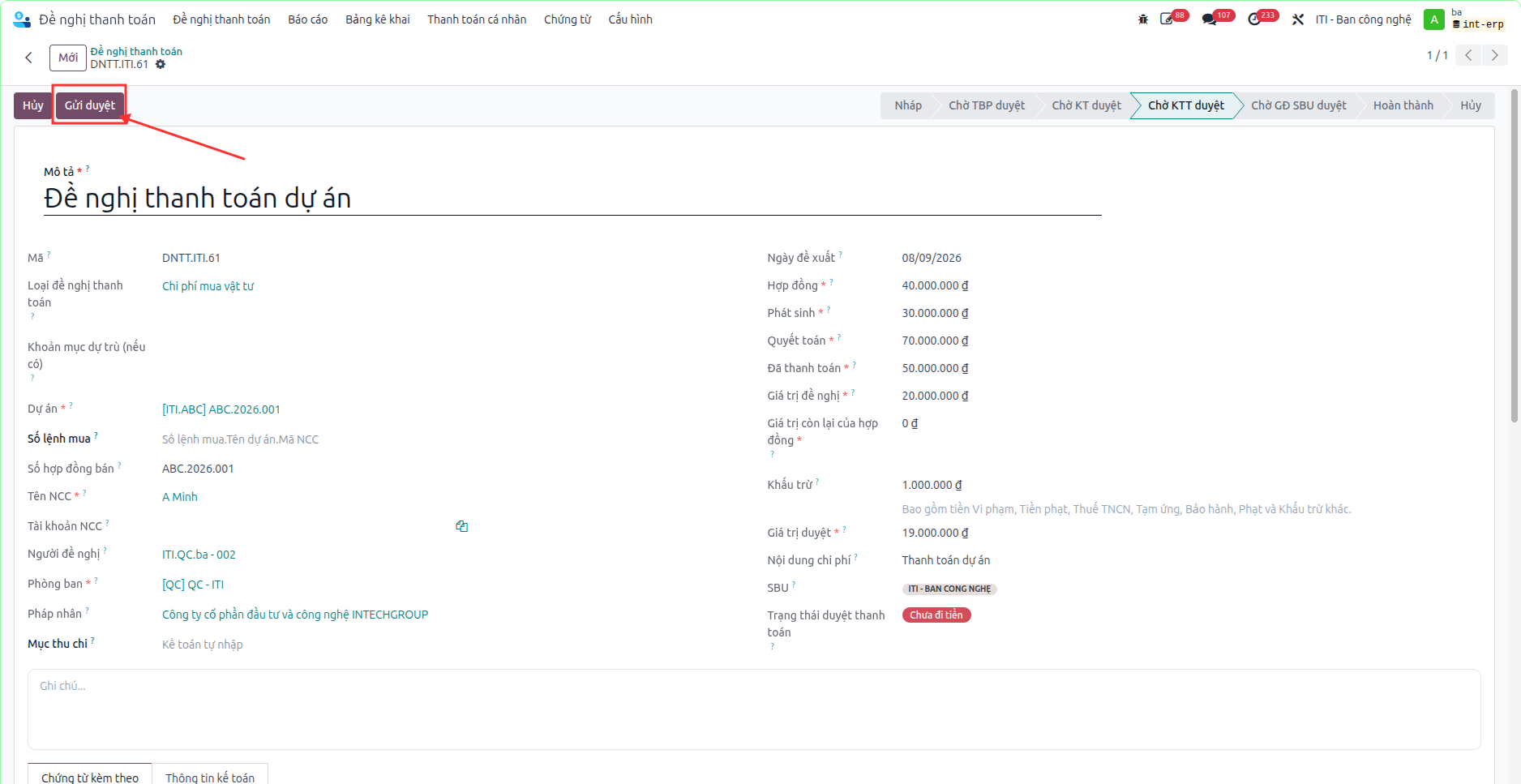
Bước 8: The SBU Director grants final executive authorization. The requisition transitions to Completed (Hoàn thành).
Recording Cash Disbursement (Đi tiền)
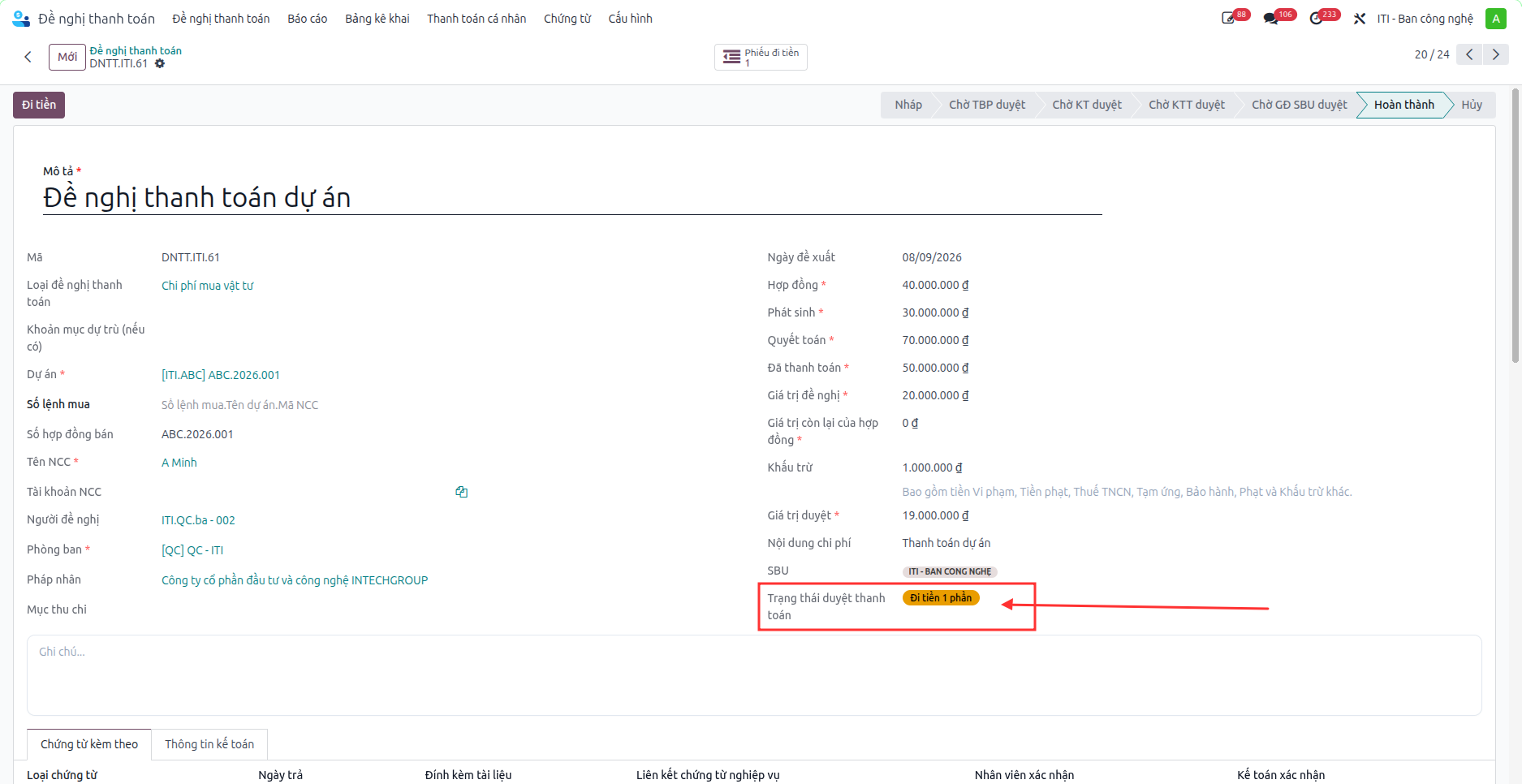
Bước 9: Following bank execution, financial officers click the Disburse Payment (Đi tiền) action button to enter the disbursed monetary amount.
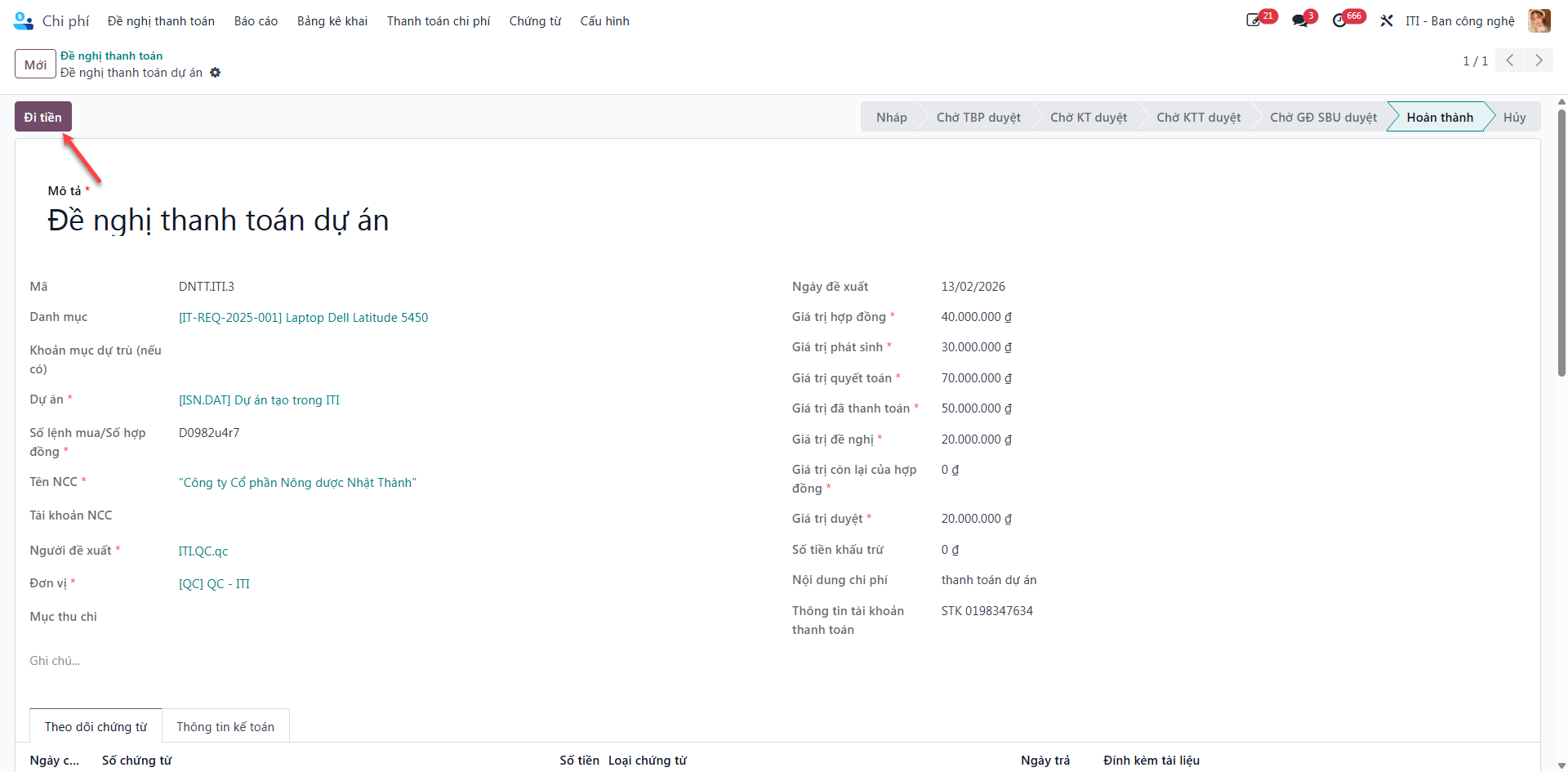
The system logs disbursement history under the Disbursement Tracking smart button and automatically updates the Payment Approval Status (Unpaid / Partially Disbursed / Fully Disbursed).