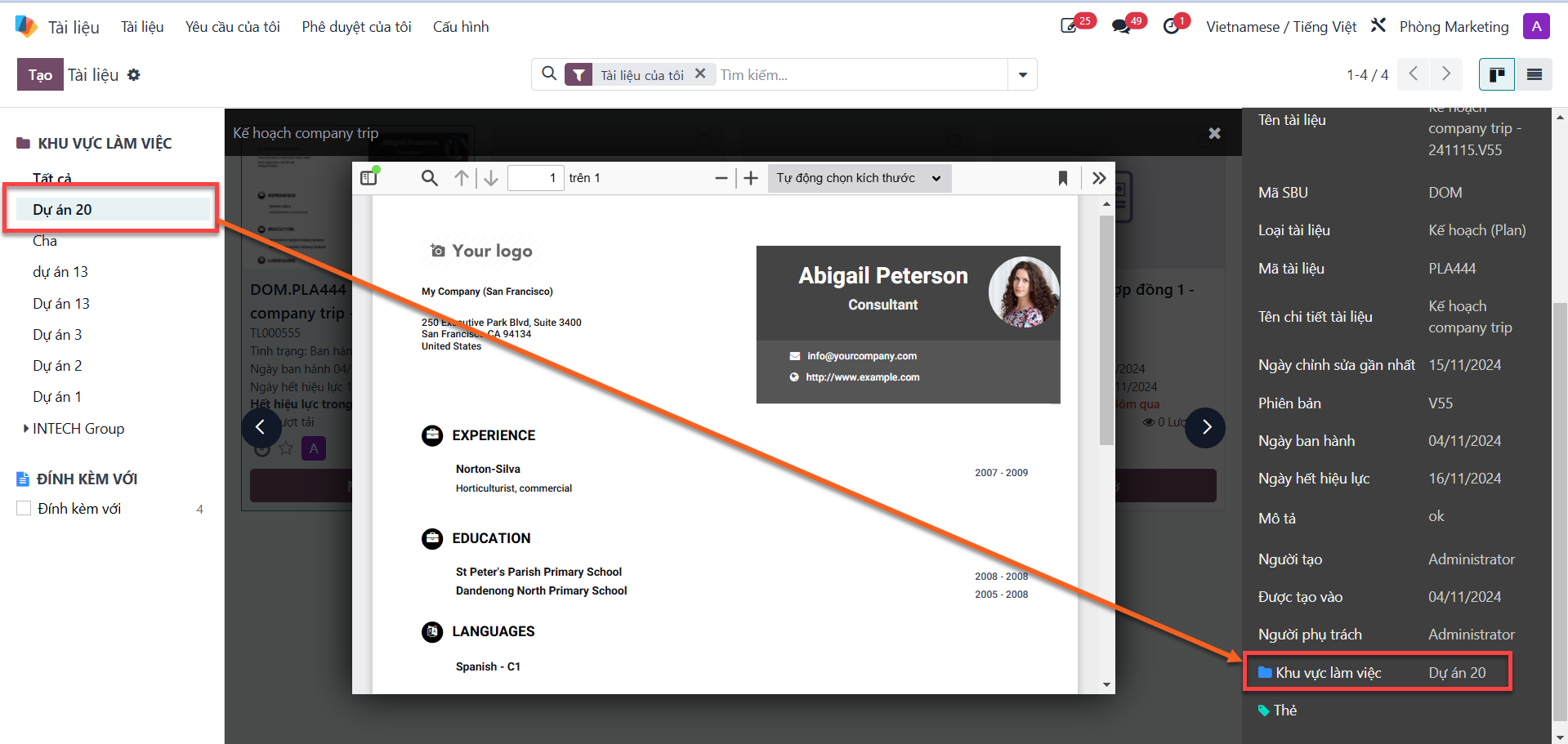
Document In-Browser Preview
Users can rapidly review PDF and PNG documents directly inside the S-ERP interface without opening the full edit form or downloading files locally.
Preview PDF & PNG Documents
Bước 1: In the central document list view, locate the document you wish to inspect and tick the selection checkbox.
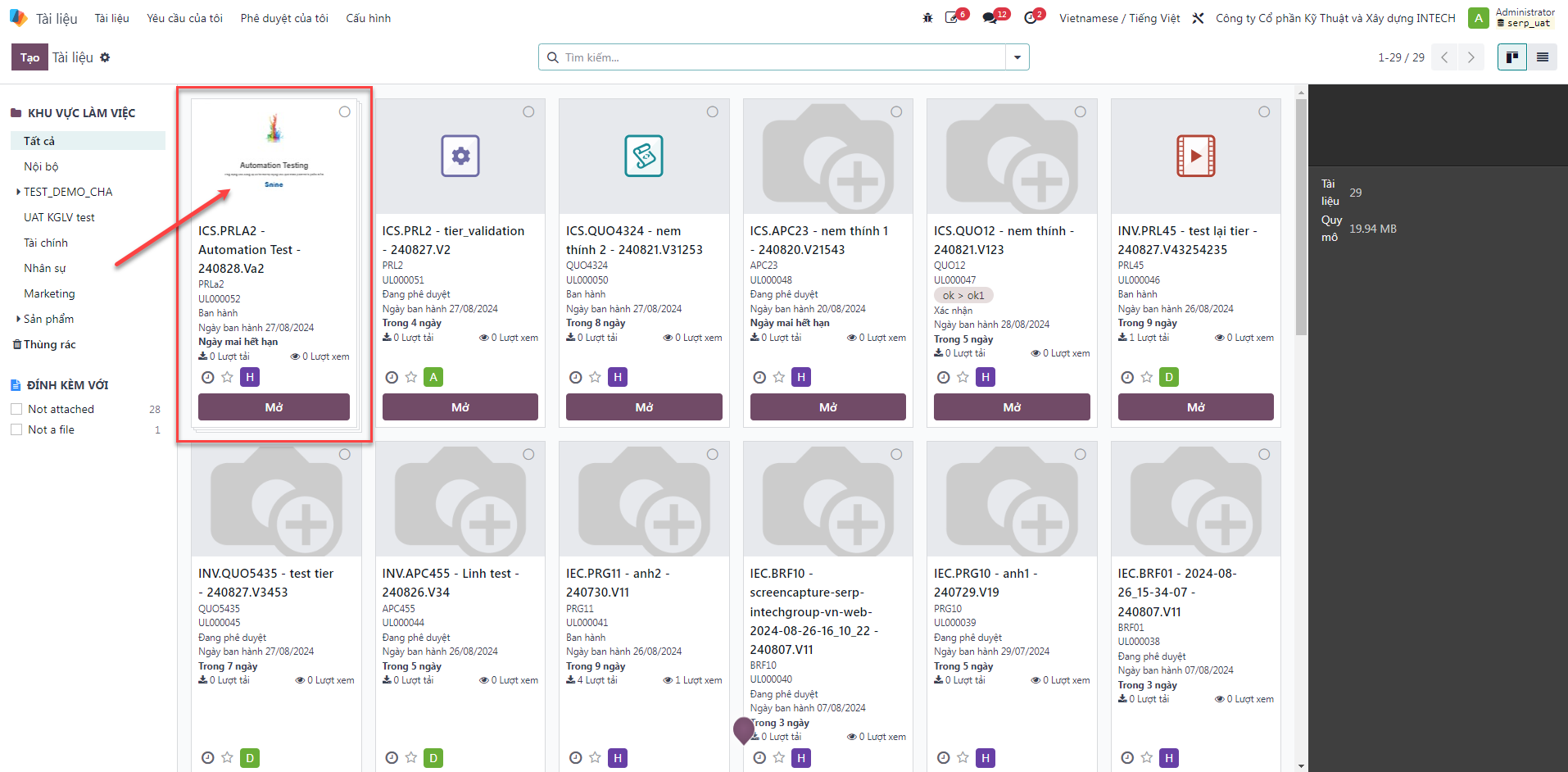
Bước 2: The system launches the in-browser preview modal, organized into four primary functional zones:
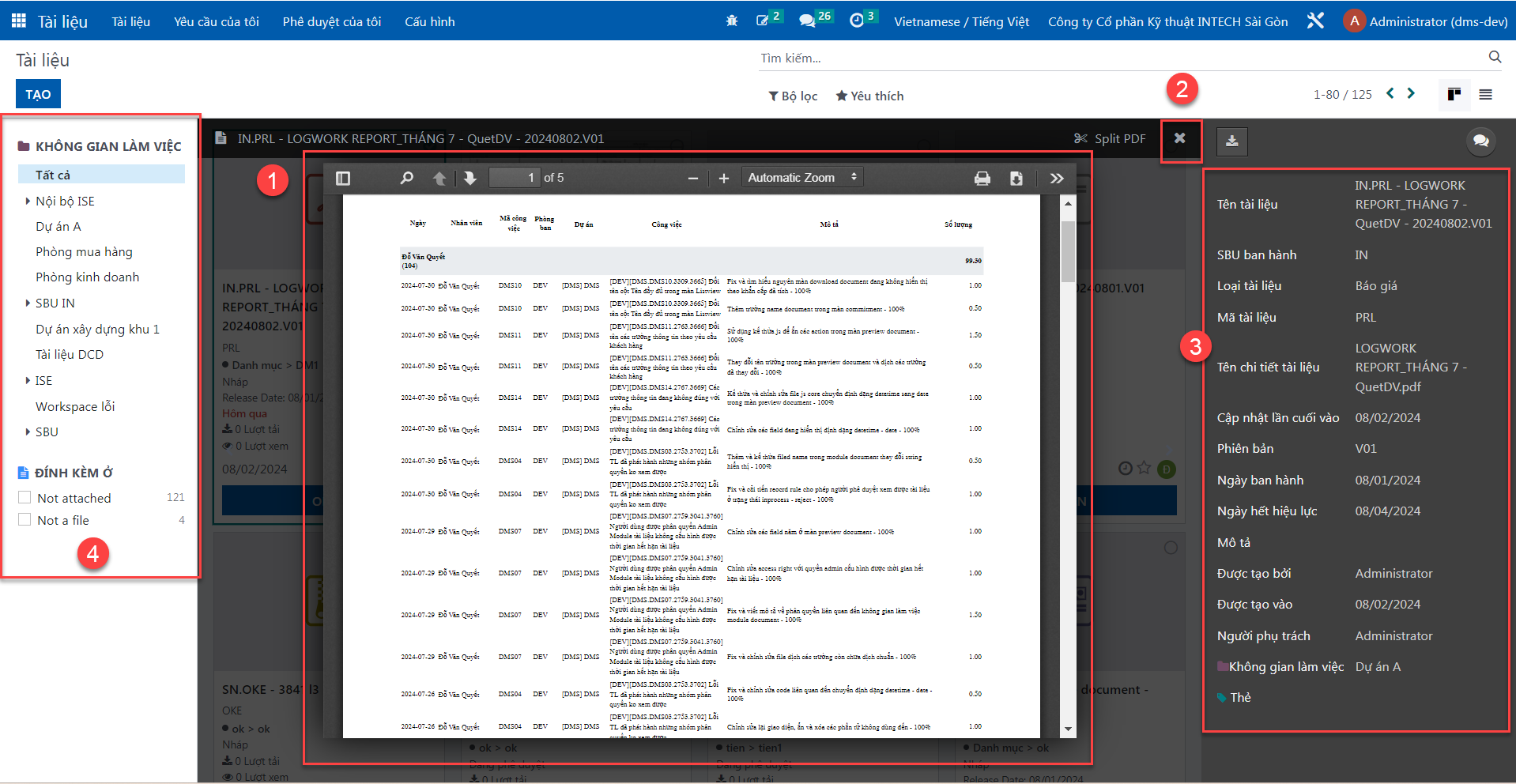
Vùng 1: Document content viewing canvas (renders high-resolution PDF pages and image files).
Vùng 2: Close button (exits preview mode and returns to the document list).
Vùng 3: Document requisition metadata panel (displays file title, SBU, and associated tags).
Vùng 4: Workspace selection pane.
Important
Quy tắc hiển thị Thẻ Tags tại màn hình Preview:
Để hiển thị chính xác thông tin Tags tại Vùng 3, người dùng cần chọn đúng Workspace tại Vùng 4 tương ứng với SBU của tài liệu:
Chọn Workspace tại Vùng 4 phù hợp với thông tin SBU hiển thị ở Vùng 3.
Sau khi chọn đúng Workspace, trường Tags tại Vùng 3 sẽ tự động được cập nhật đầy đủ các nhãn phân loại.