Advanced IBC Form Features & Logic
IBC registration forms utilize specialized visual identifiers, standardized industry codes, and conditional parent-child display logic to guide visitors seamlessly through tailored registration pathways.
Step-by-Step IBC Form Creation Procedure
Bước 1: Navigate to (Khảo sát –> Mới) to initiate a form template.
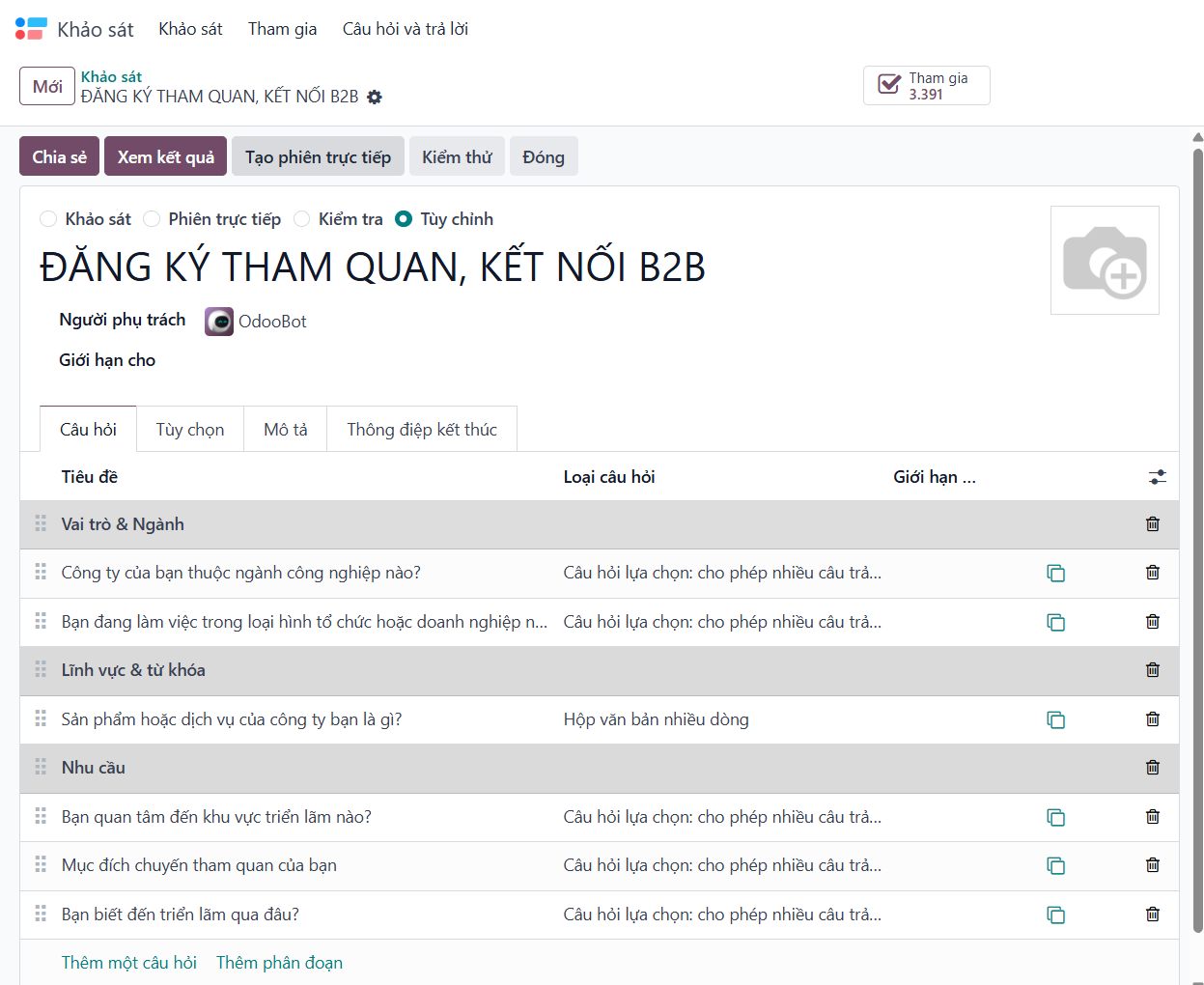
Bước 2: Set the Survey Type to Custom (Tùy chỉnh), enter the official campaign title, and supply explanatory introductory remarks.
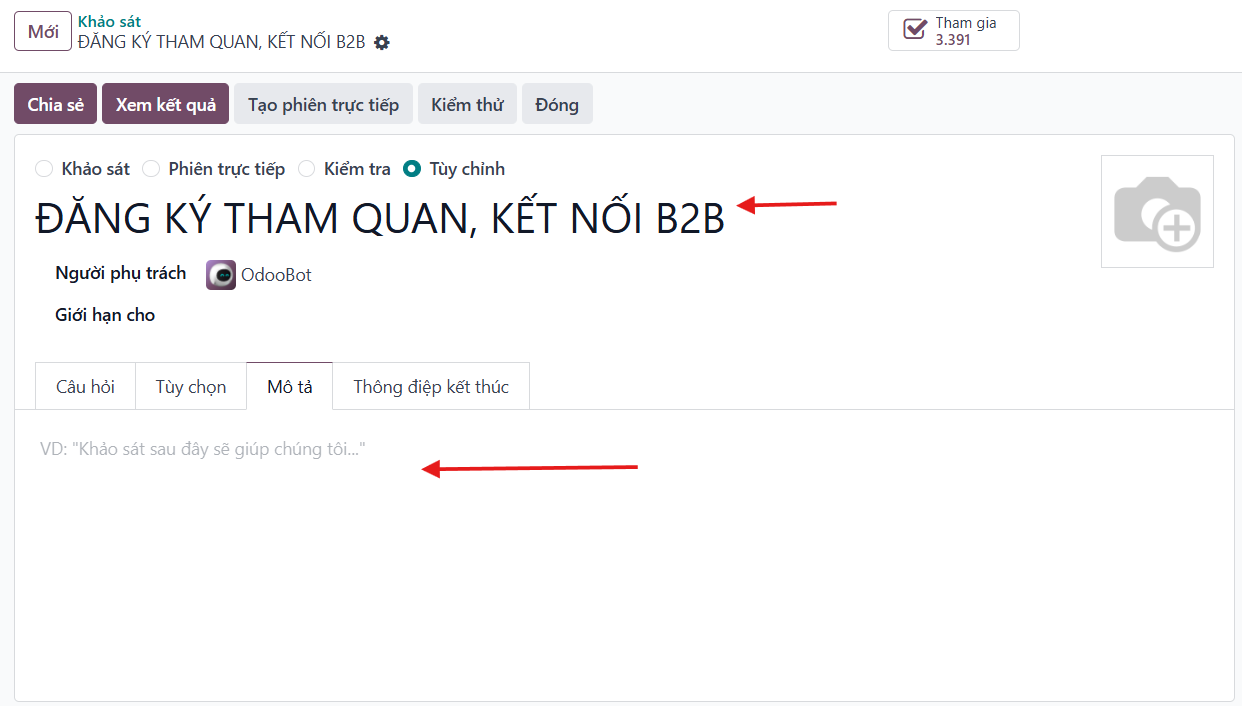
The public portal renders this title and narrative on the landing splash screen.

Bước 3: Construct sections corresponding directly to sequential form pages.
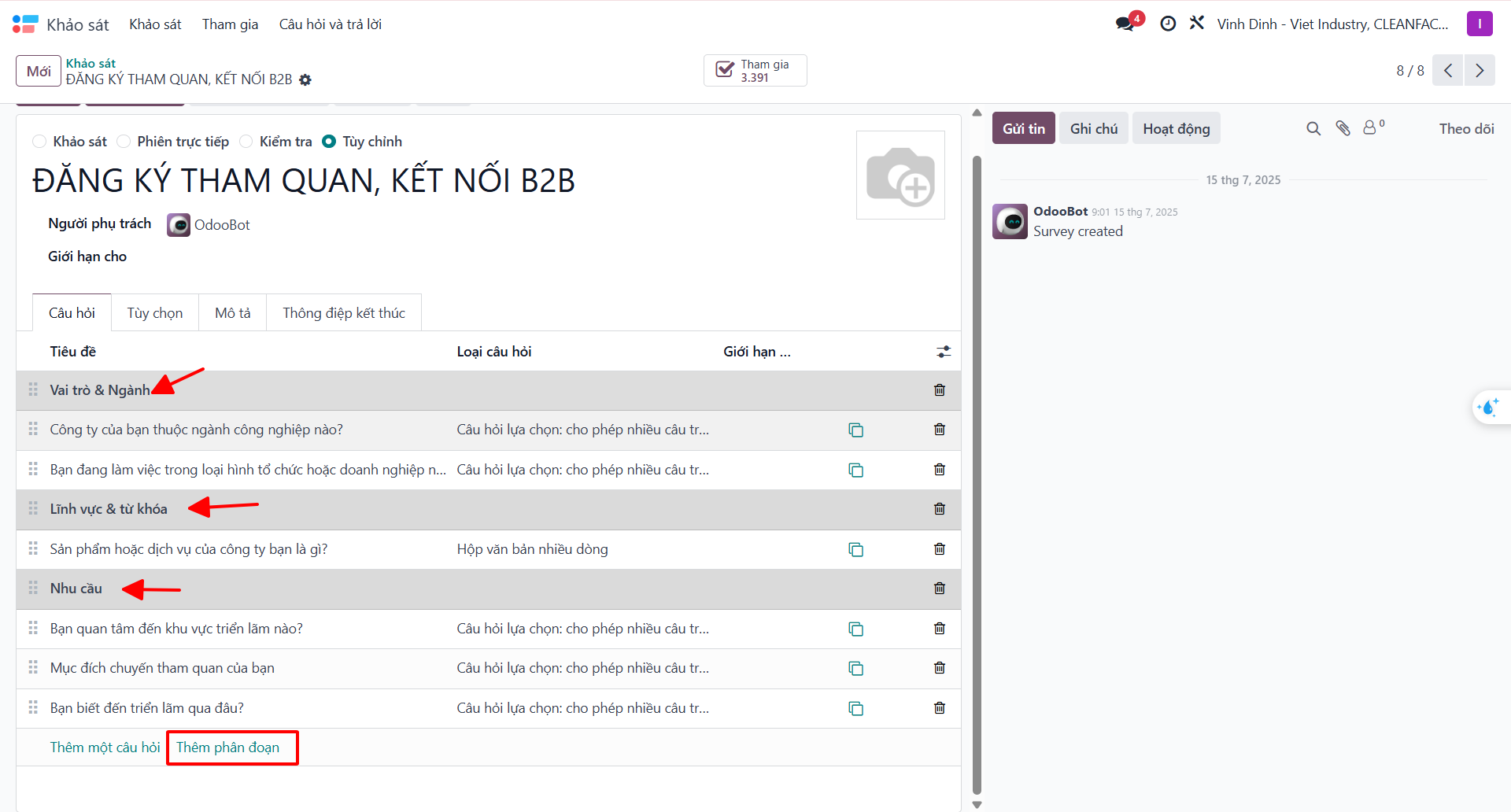

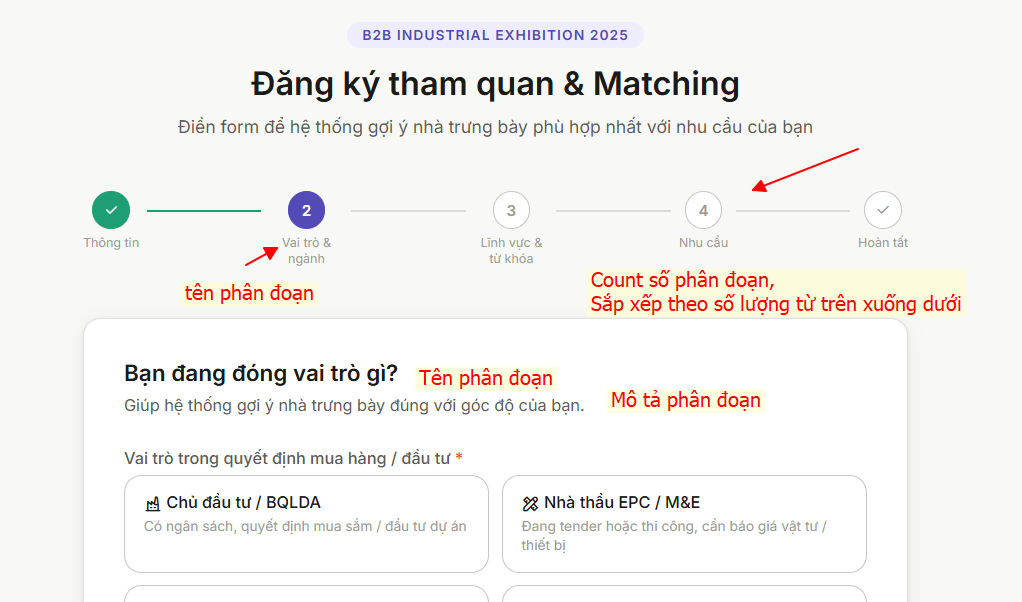
Bước 4: Create individual survey questions and attach optional instructional descriptions.
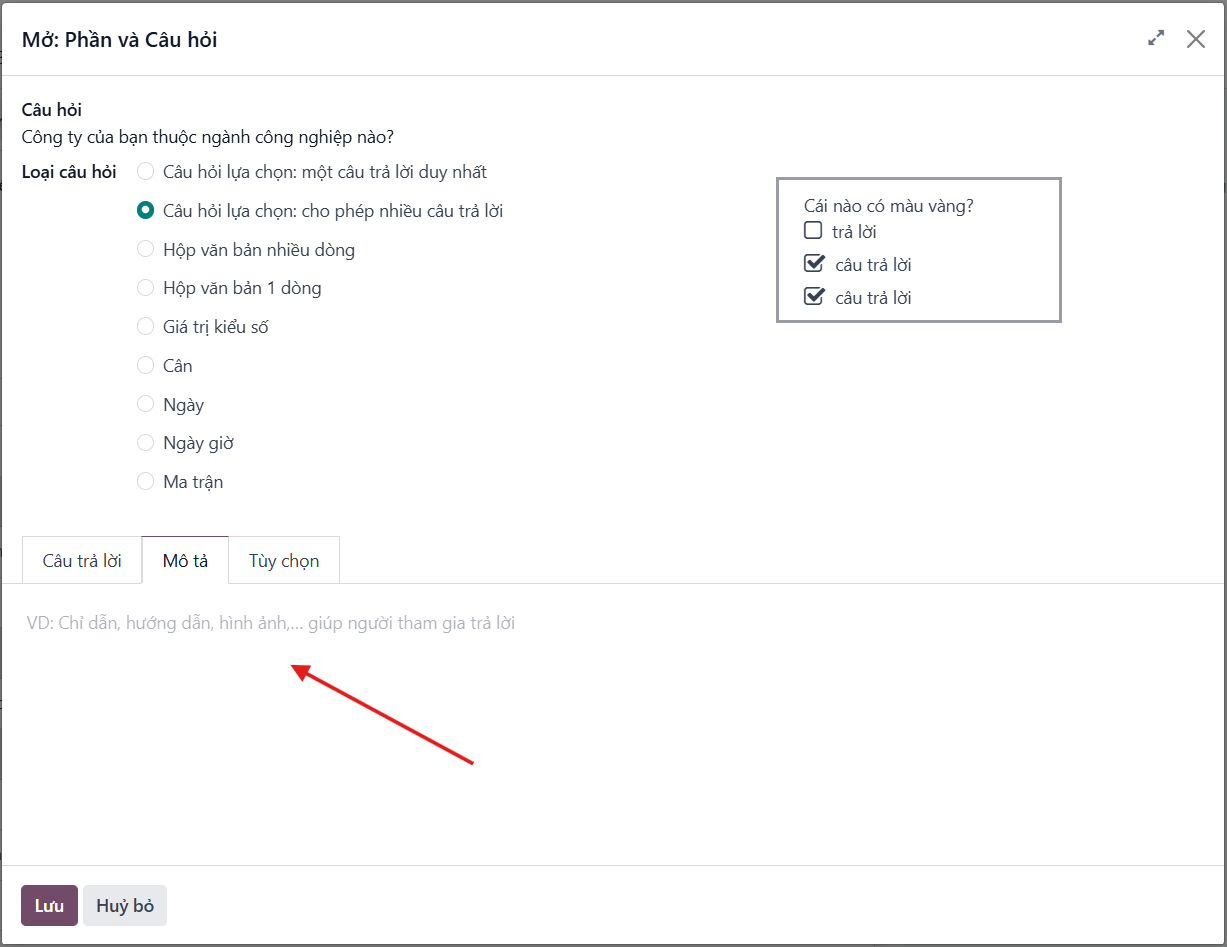
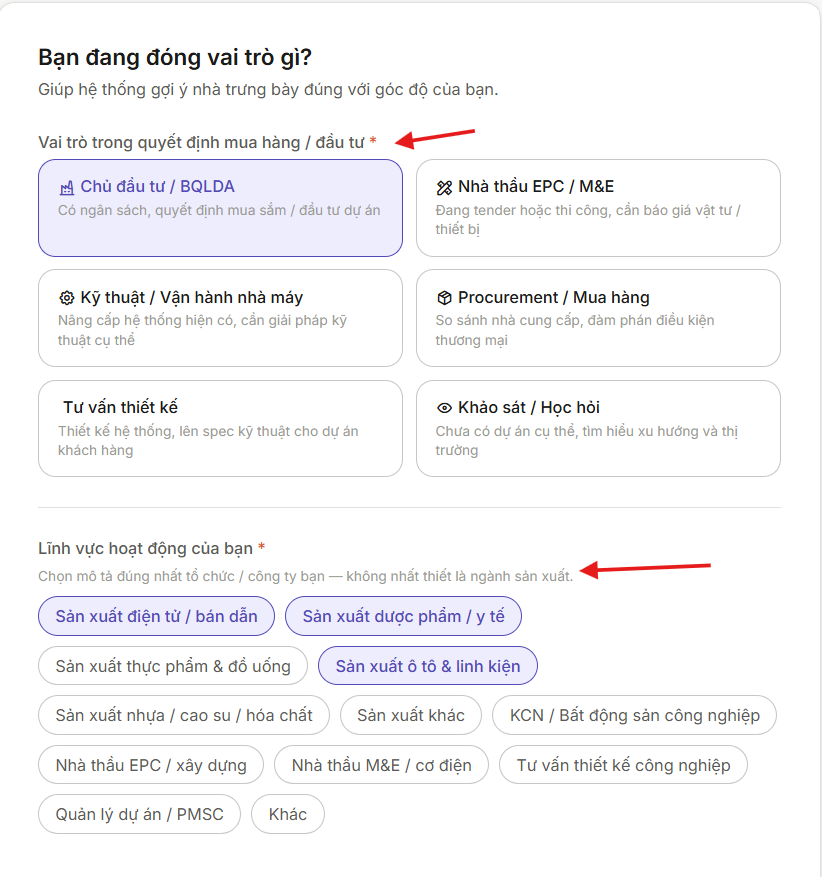
Configuring Single & Multiple Choice Questions
Single Choice Configuration with Custom Icons
For single choice questions, specify answer values, assign distinct iconography, and enforce validation rules.
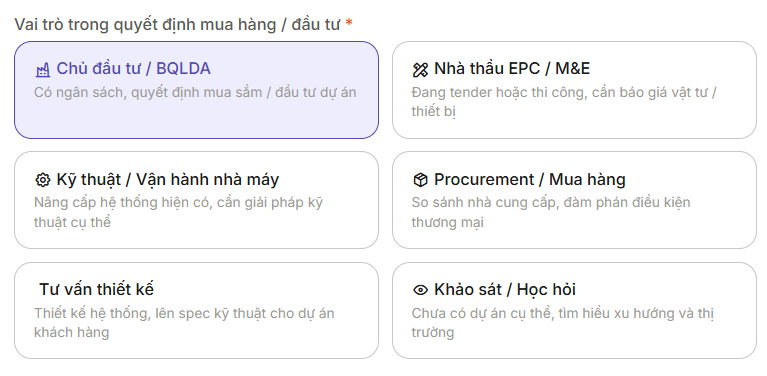
You can include visual icons alongside each choice or maintain standard text-only options.


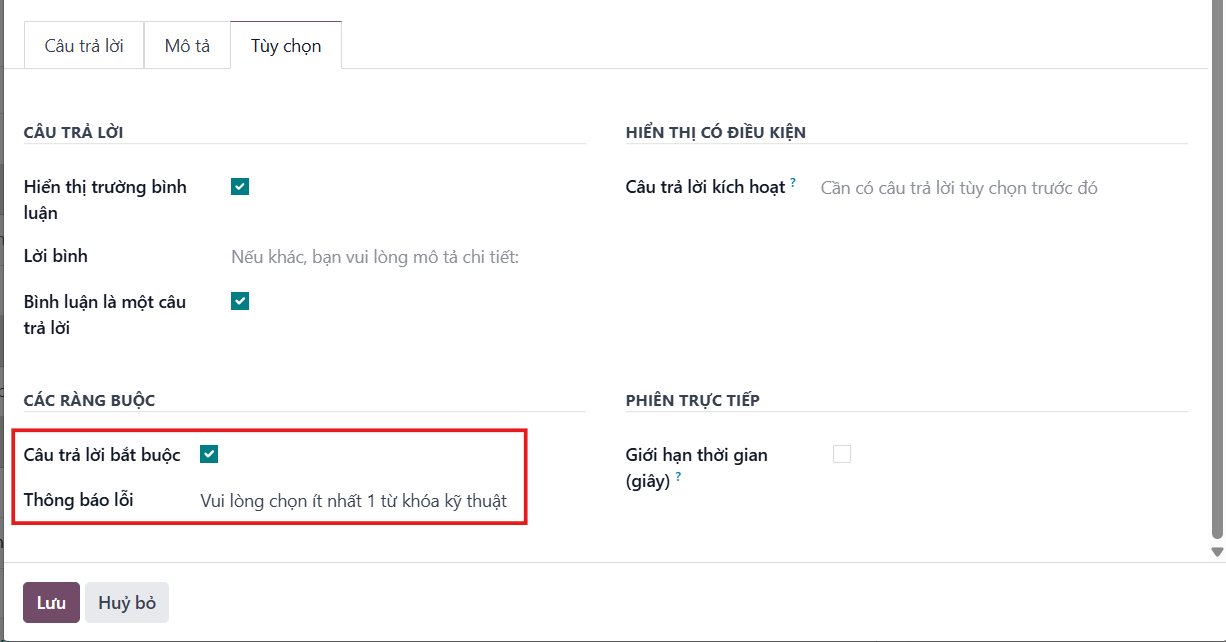
Multiple Choice Configuration with Bounds
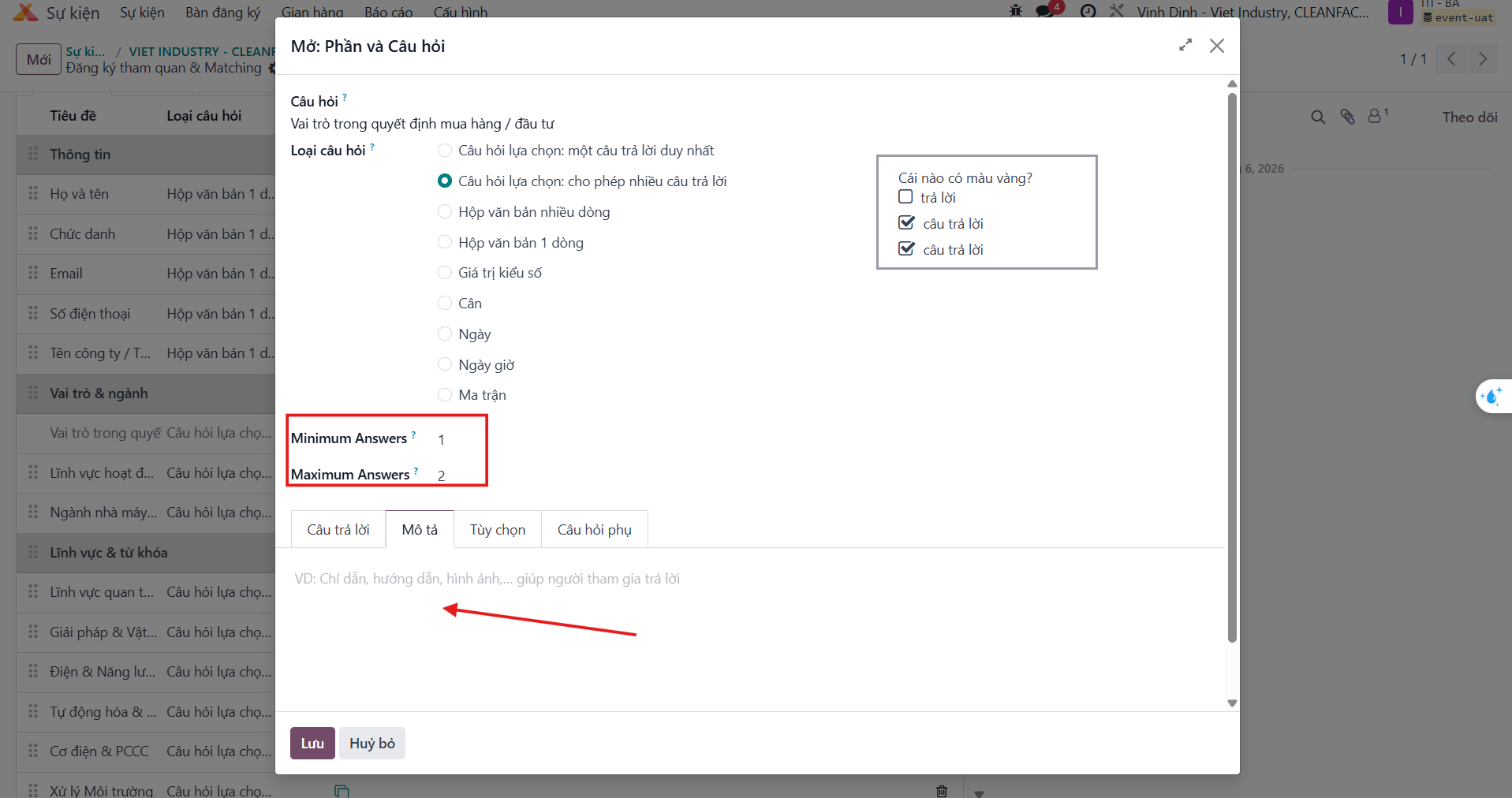
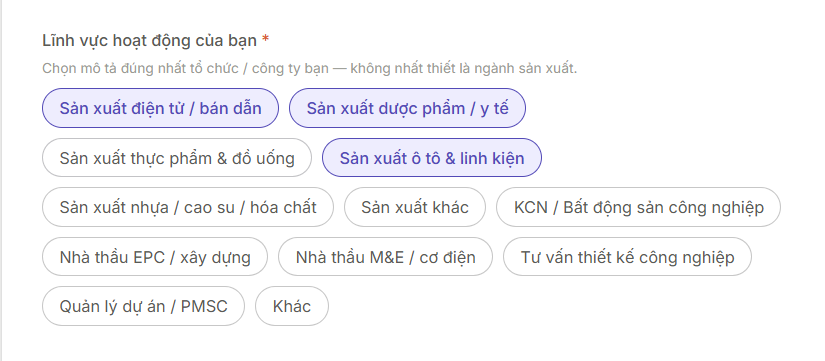
Define multiple-selection inquiries, set minimum and maximum response thresholds, and configure error prompts.
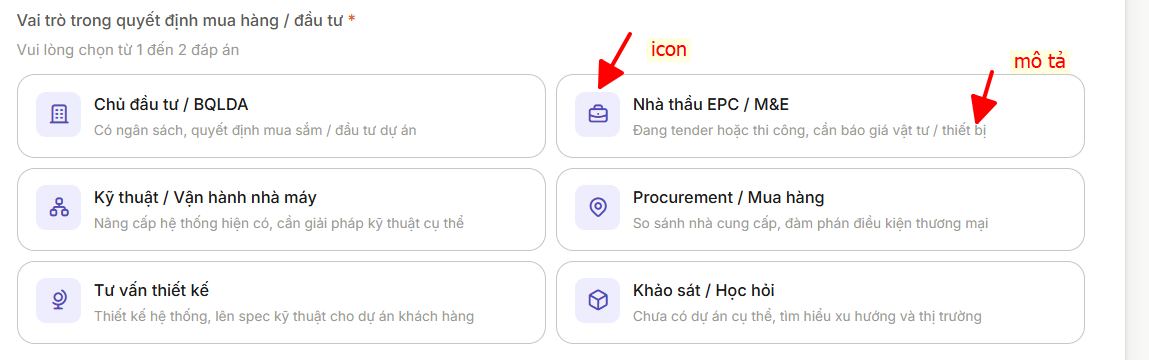
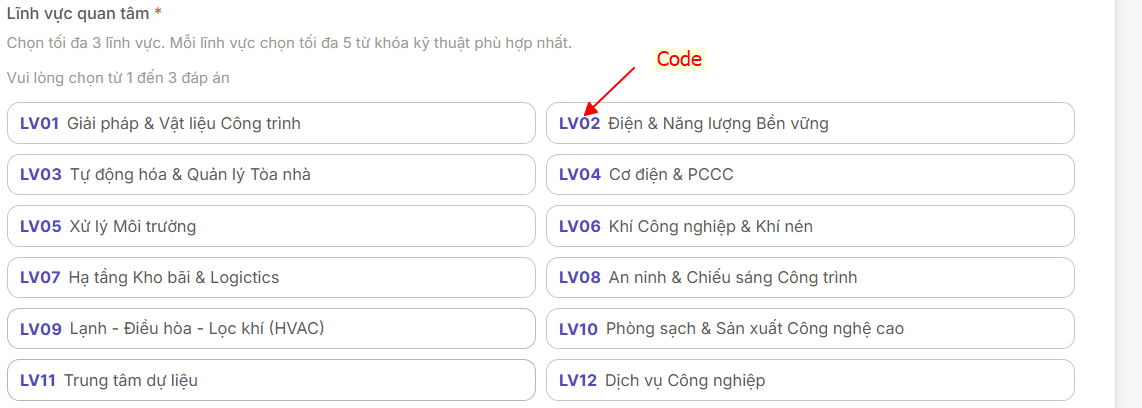
Configuring Answer Icons, Codes & Descriptions
In the question detail dialog under the Answers (Câu trả lời) tab, enable visibility for the Icon, Code, and Description columns.
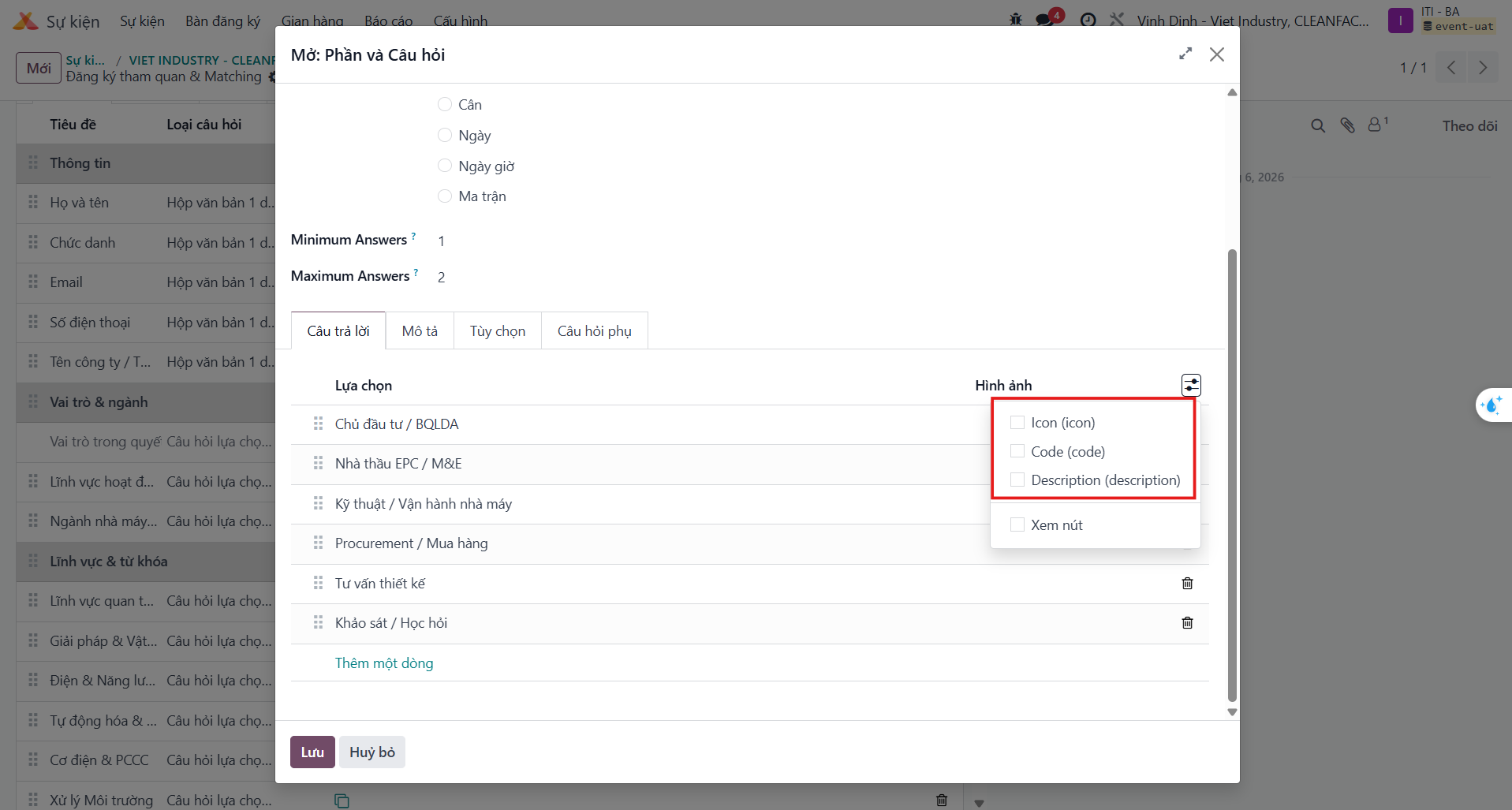
Icon: Graphic symbol representing the category or industry sector.
Code: Short alphanumeric identifier mapped to backend integration schemas.
Description: Secondary explanation guiding attendee selection.
Conditional Parent-Child Question Logic
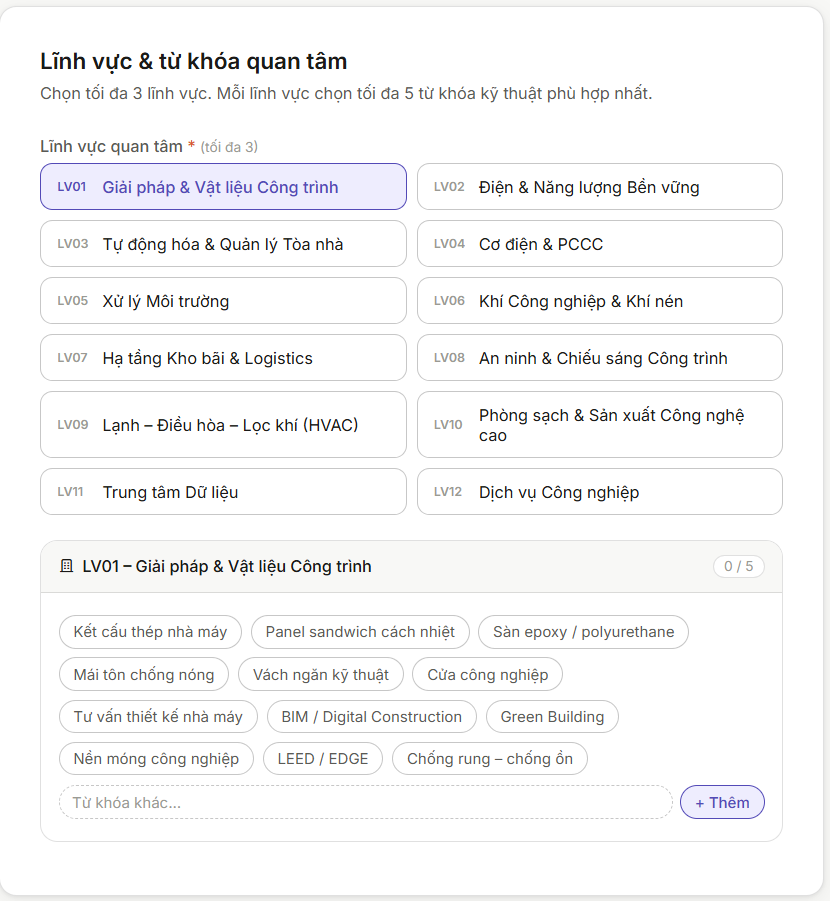
Parent-child dependencies display specialized follow-up questions only when specific trigger options are chosen in antecedent questions.
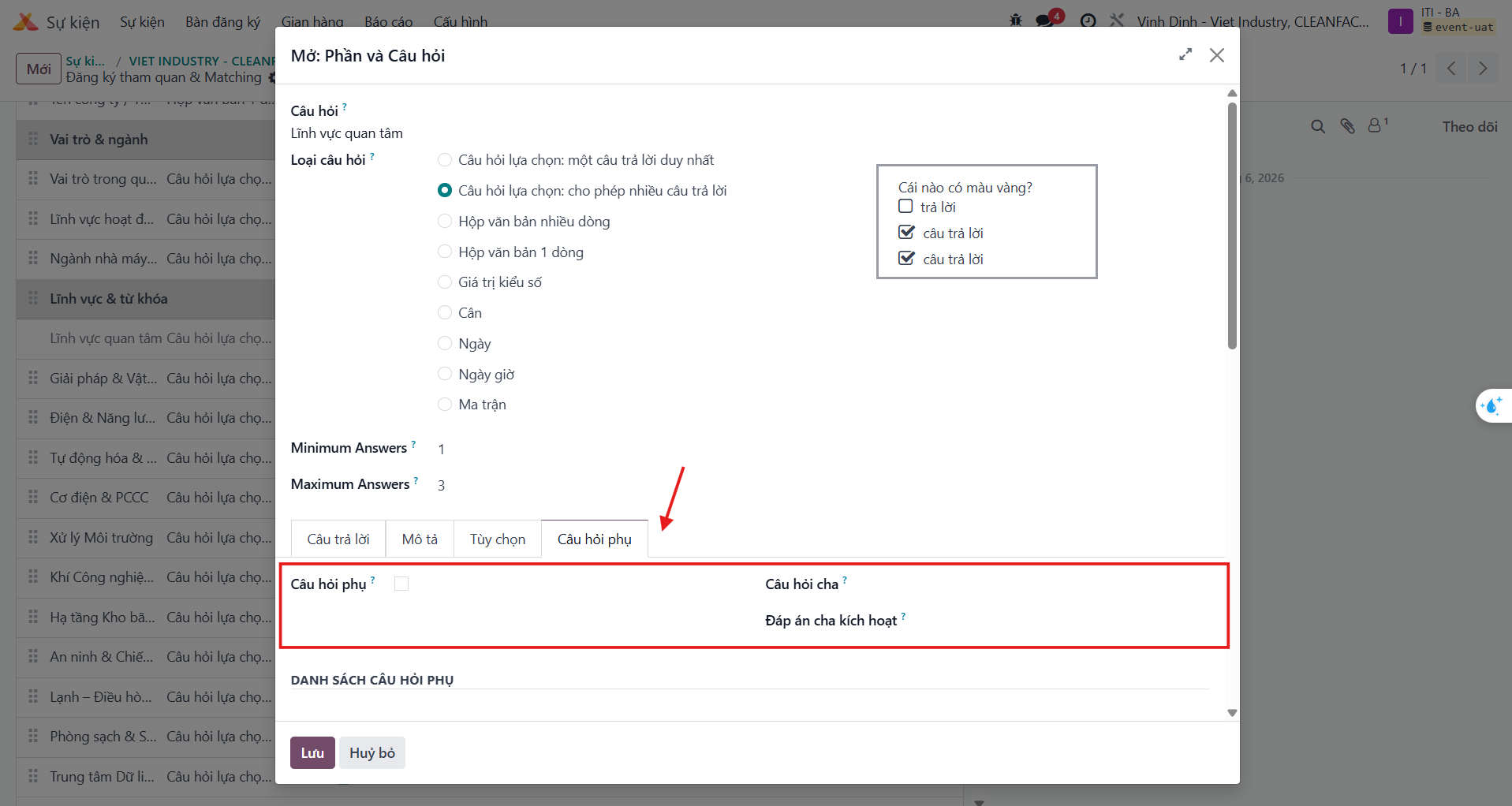
Bước 1: Open the dependent question form and navigate to the Sub-questions (Câu hỏi phụ) tab.
Bước 2: Tick Sub-question (Câu hỏi phụ) to classify the inquiry as conditional.
Bước 3: In Parent Question (Câu hỏi cha), select the controlling question (e.g., Areas of Interest / Lĩnh vực quan tâm).
Bước 4: In Trigger Answer (Đáp án cha kích hoạt), specify the precise choice that reveals this dependent question.
Note
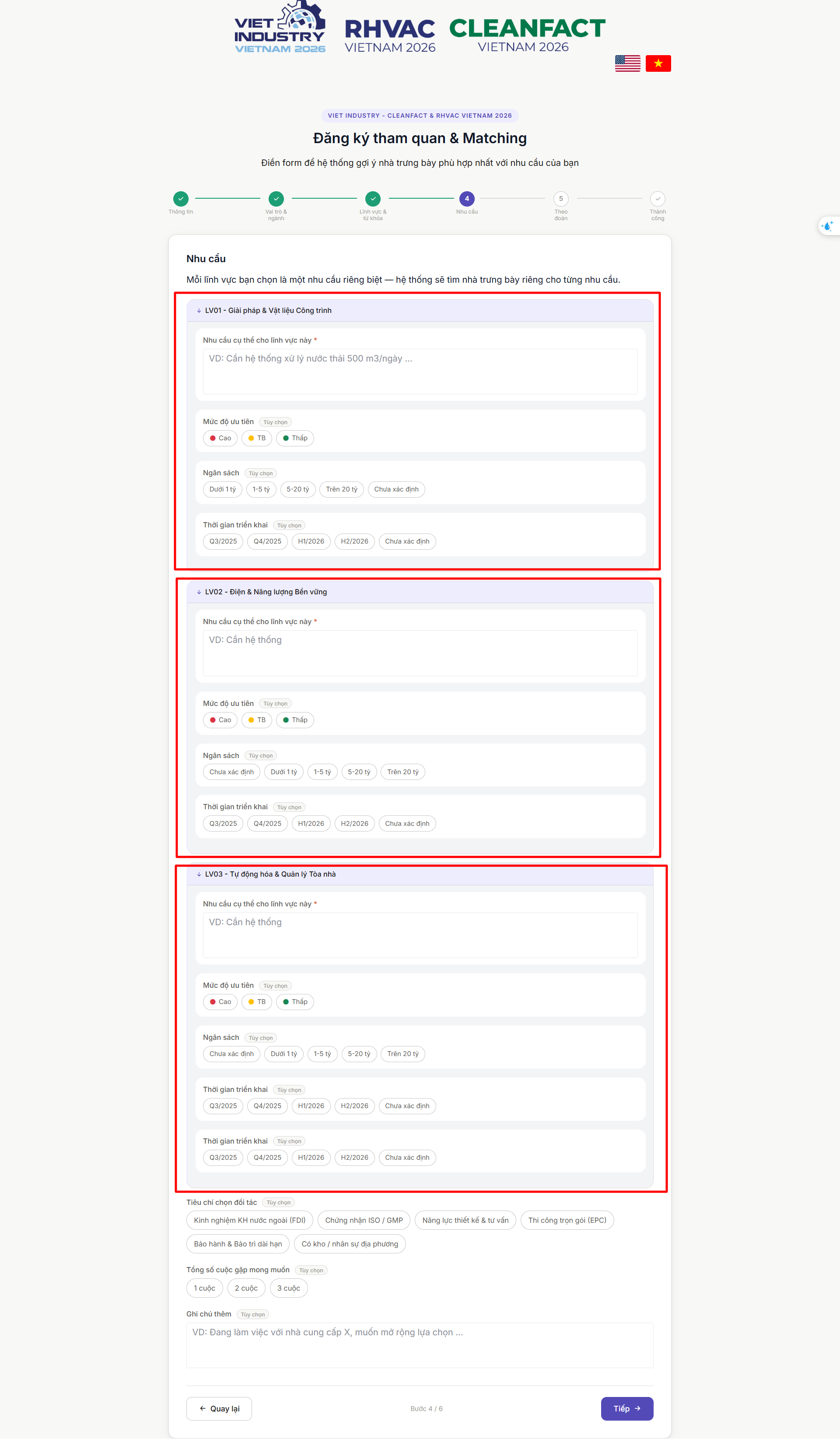
For the Business Needs (Nhu cầu) page, requirement inquiry cards corresponding to particular industry sectors must be linked conditionally to their counterpart choices on the upstream sector selection page.
Dynamic “Other” Answer Configuration
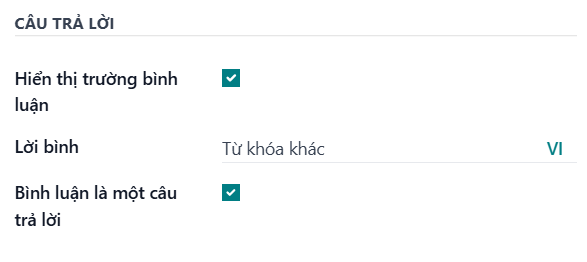
Navigate to the Options tab of a question and enable Show Comments Field. Tick Comment is an answer (Bình luận là một câu trả lời) and label the field.