Onsite on ERP
The Onsite on ERP (Yêu cầu Onsite trên ERP) module allows employees to submit client-site work schedules, verify geographic coordinates, and obtain management authorization within Intech ERP.
Create onsite request for employees
To create and submit an onsite work request:
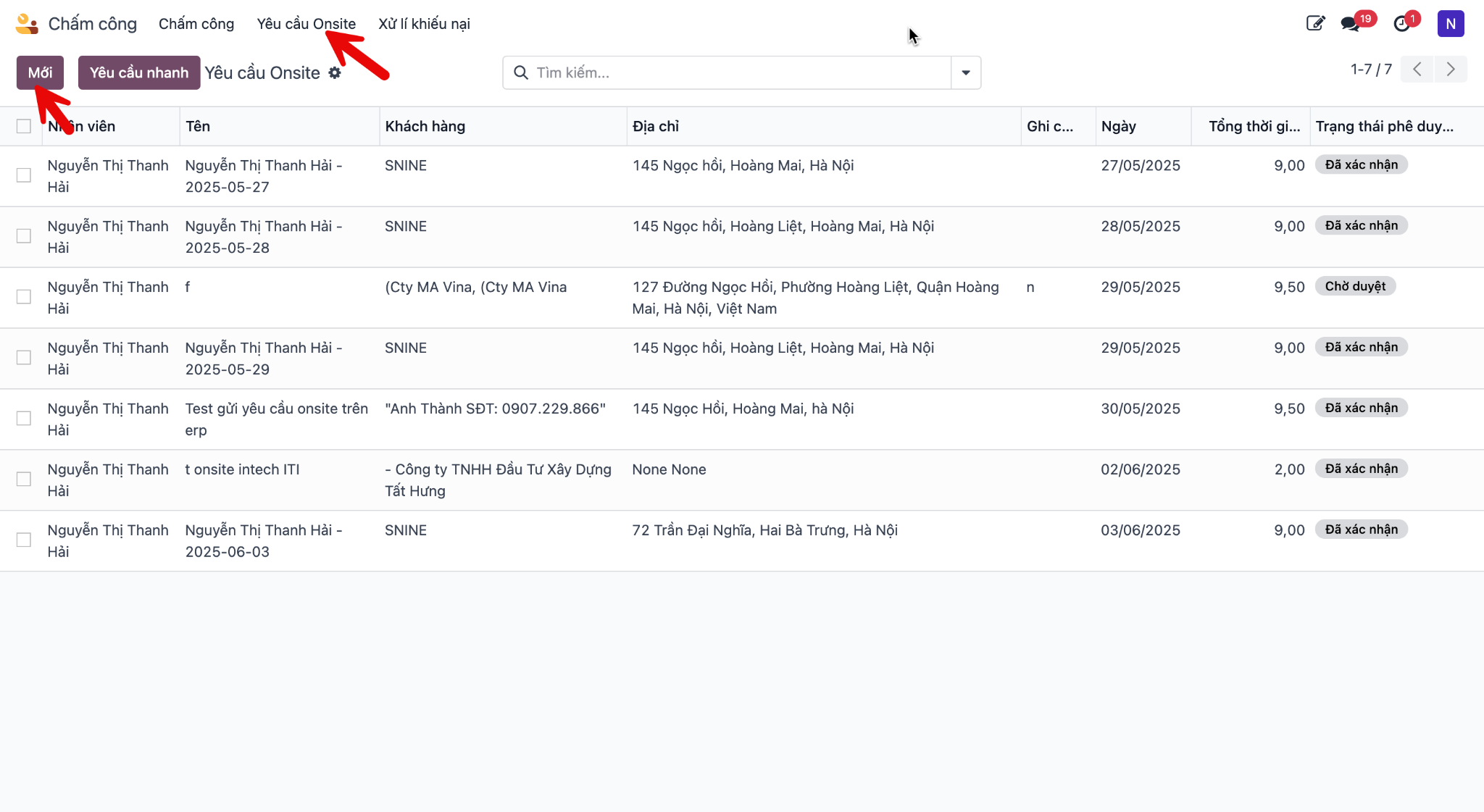
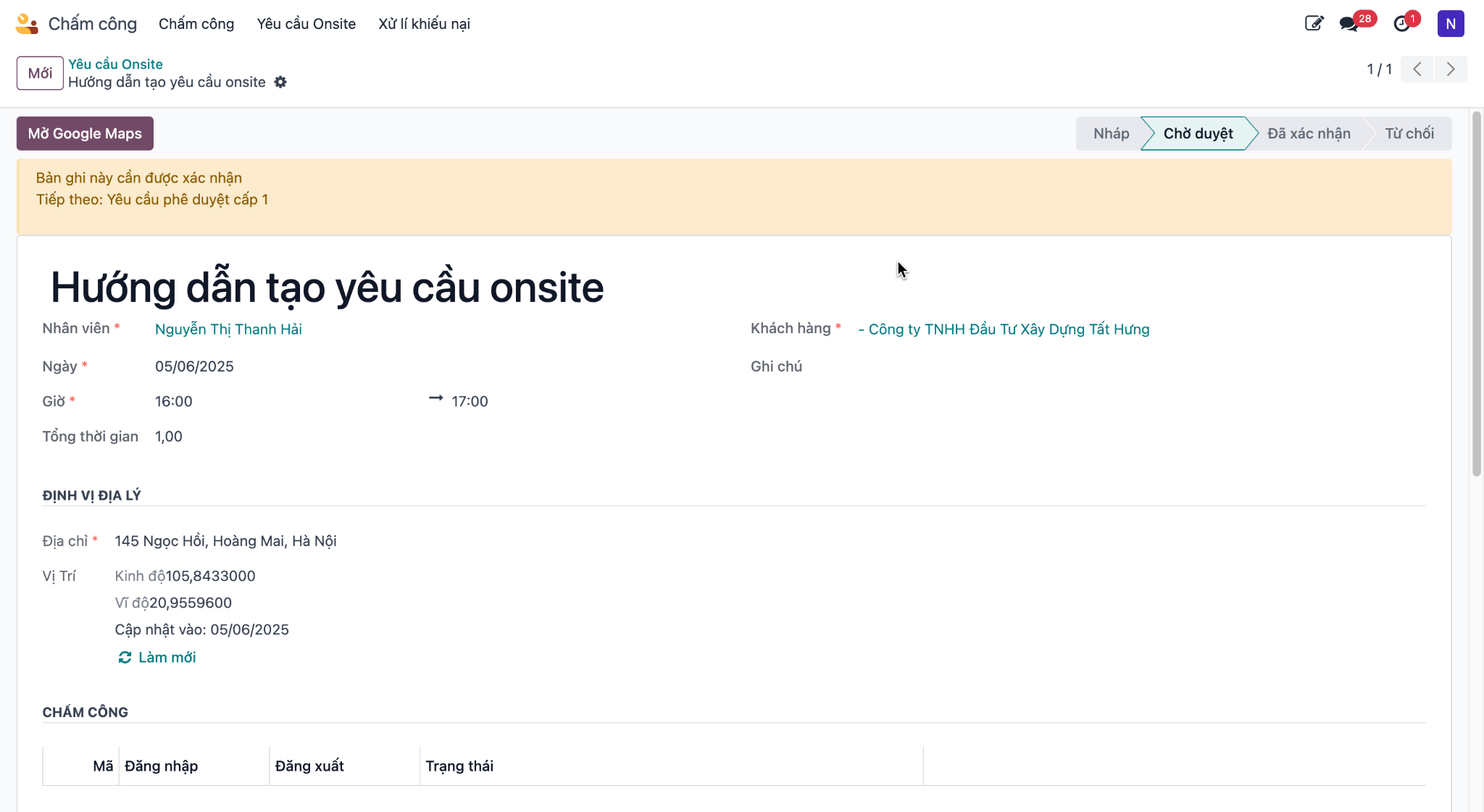
Step 1: Navigate to , then click the New button.
Step 2: Fill in the core requisition fields:
Employee: Name of the employee requesting onsite work.
Date: Date of the planned onsite assignment.
Time: Start and end working hours.
Total Duration: Total scheduled working hours.
Customer: Client or partner destination.
Notes: Specific tasks and work scope to be executed.
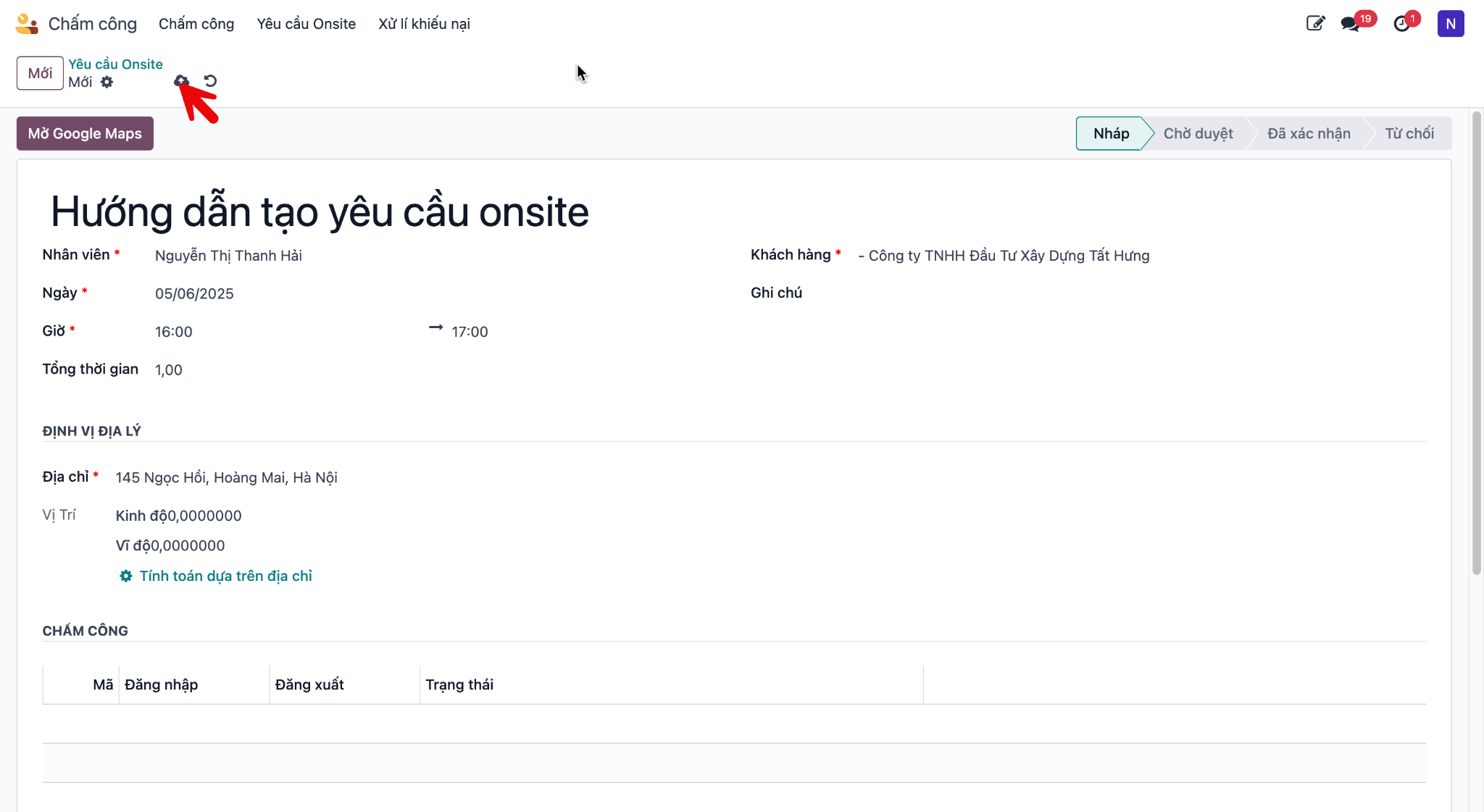
Step 3: Complete the geographic destination details:
Address: Exact destination address.
Longitude and Latitude: Geographic location coordinates.
Open Google Maps: Clickable link to preview and verify the physical location on Google Maps.
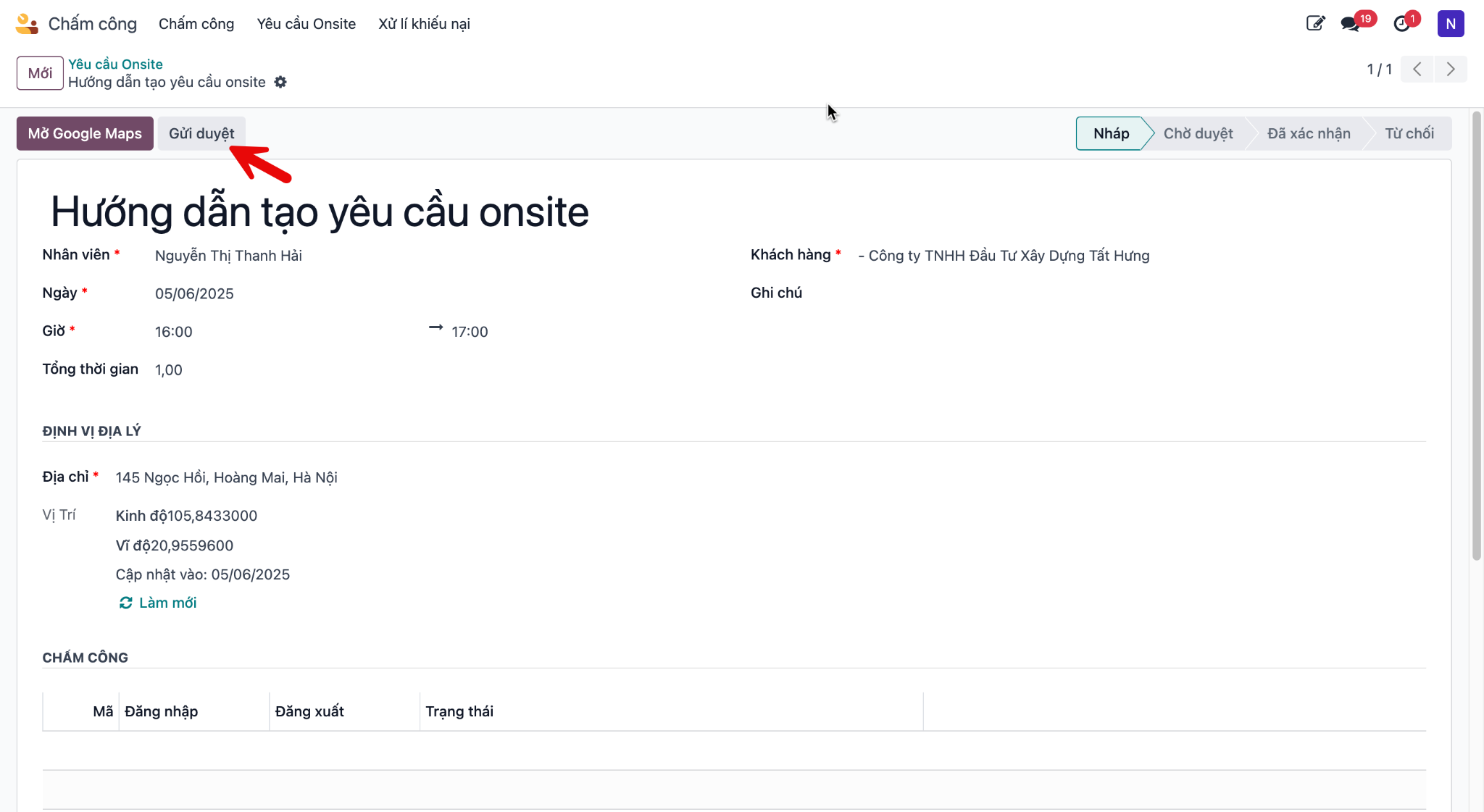
Step 4: Click Save to preserve the draft record, then click Submit for Approval to initiate the review cycle.
Track onsite approval progress
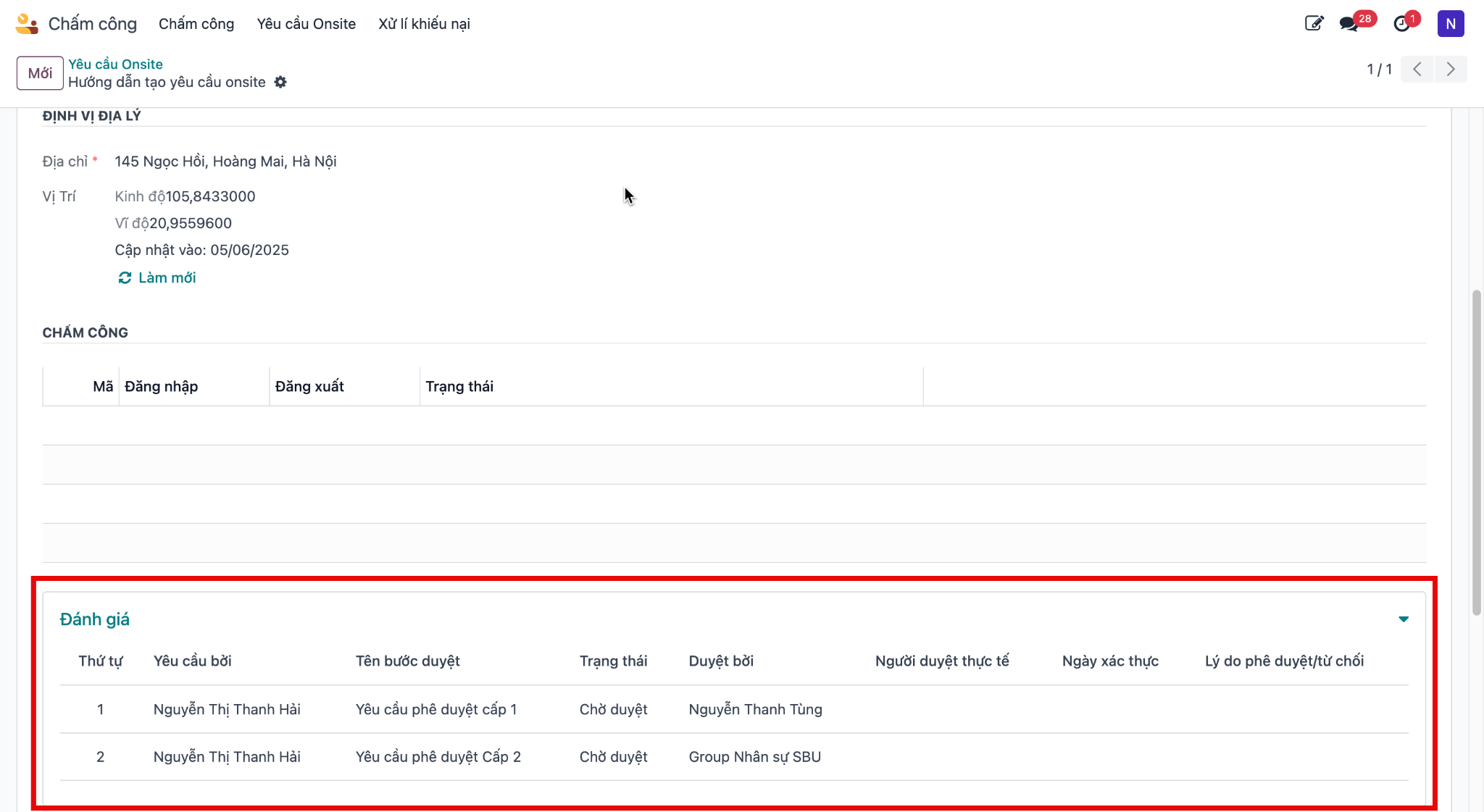
Employees can track the progress of their submission under the Evaluation tab. The verification workflow comprises two distinct tiers:
Level 1: Direct Manager review.
Level 2: HR SBU Group review.
Approve onsite request for managers
Direct managers review, authorize, or delegate submitted onsite assignments:
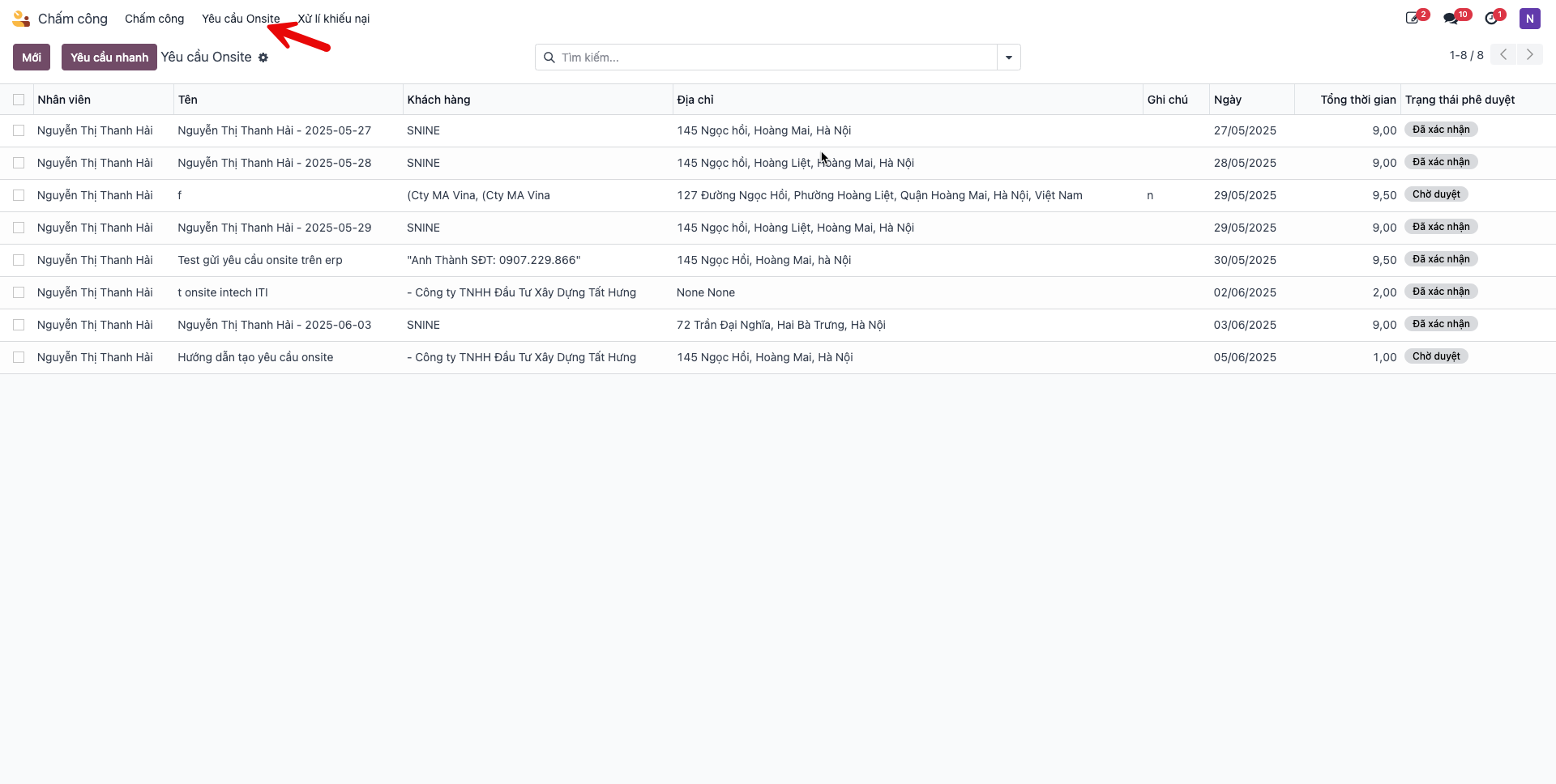
Step 1: Navigate to and filter for records in Waiting for Approval status.
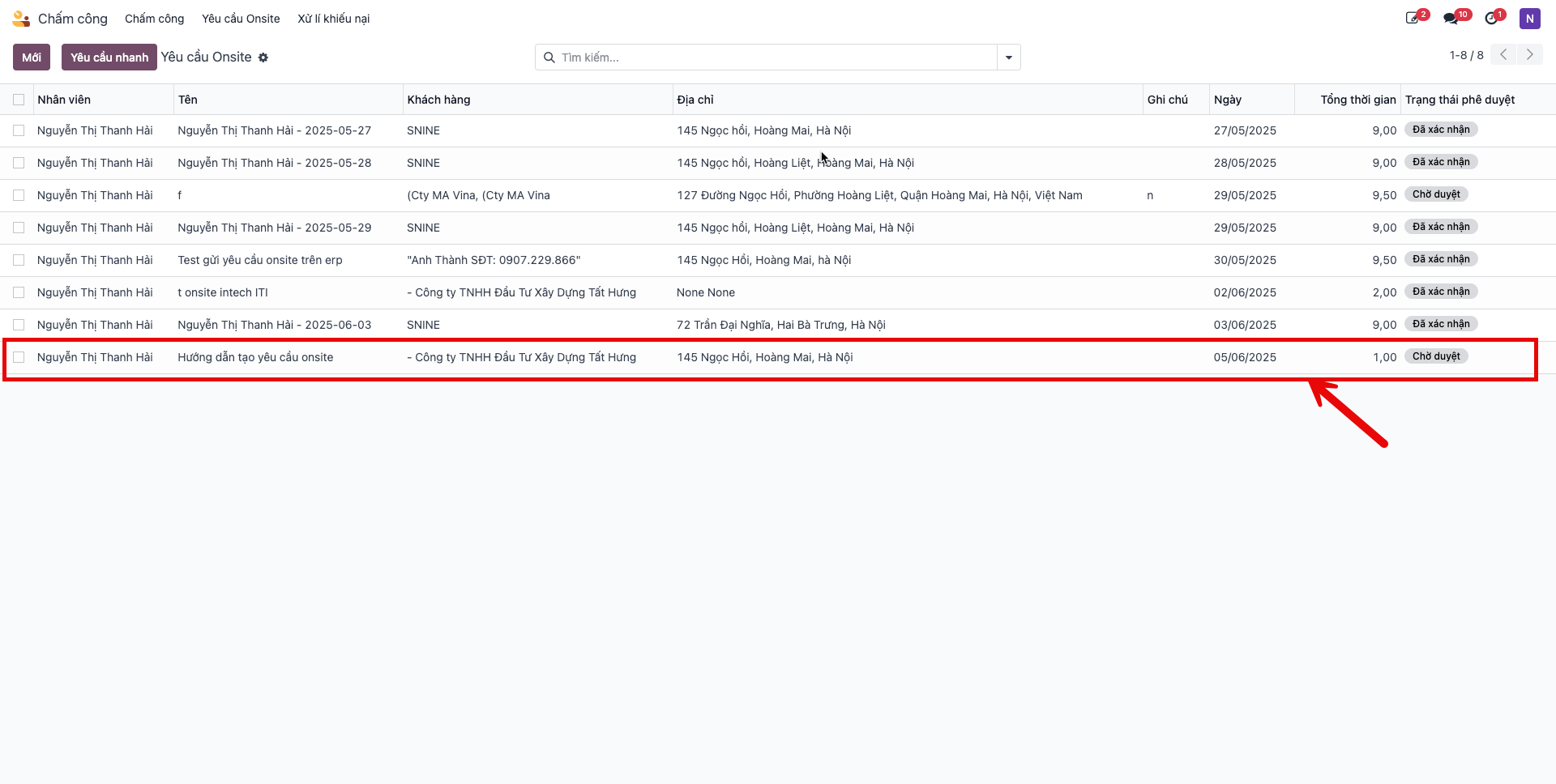
Step 2: Open the pending request. Three operational choices are available:
Approve: Authorize the onsite assignment.
Refuse: Reject the assignment with feedback.
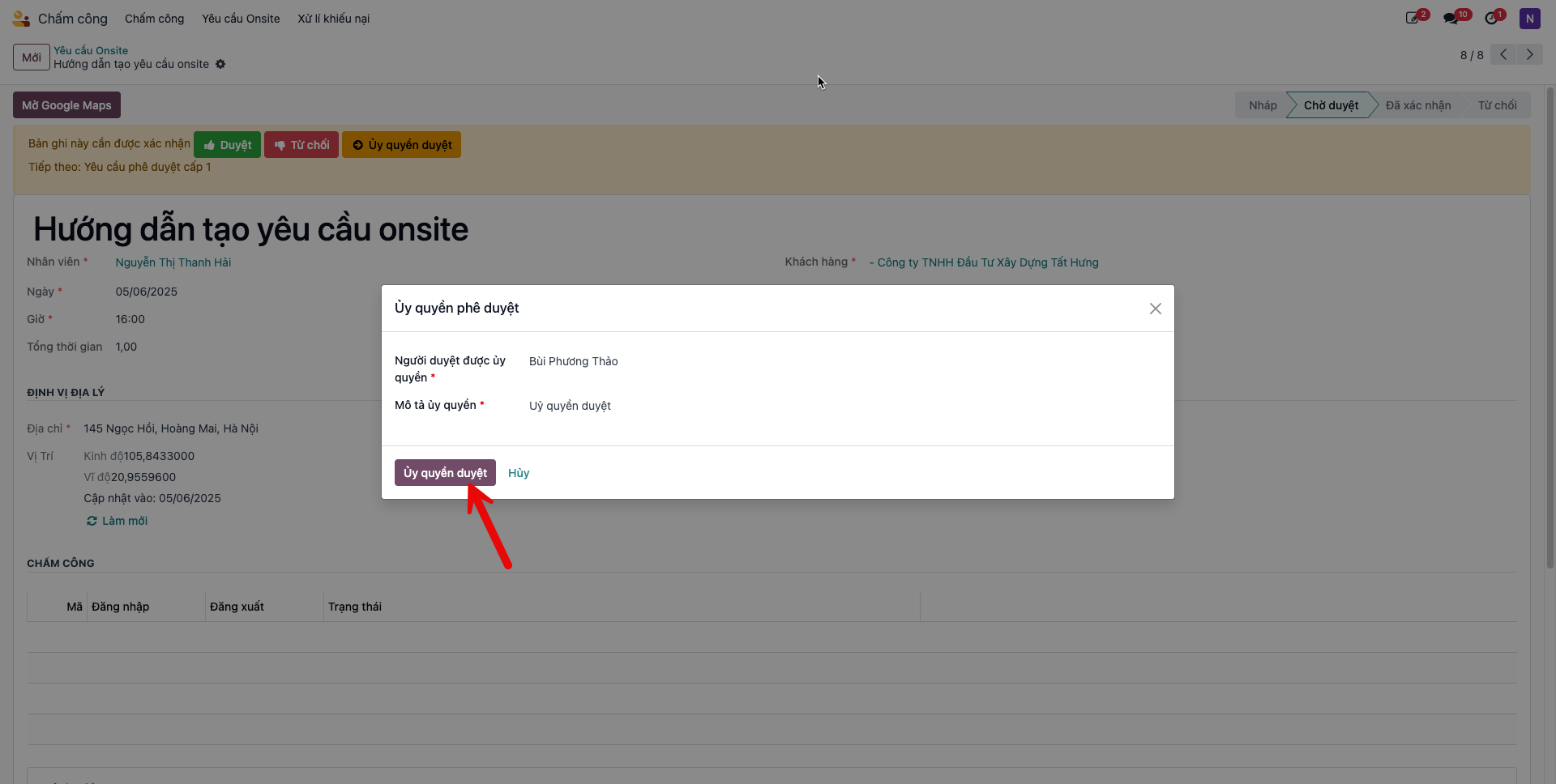
Delegate Approval: Assign decision authority to another supervisor.
Delegate onsite approval authority
When selecting Delegate Approval, a modal dialog appears:
Select the designated replacement in Delegated Approver.
Enter justification in the Description field.
Click Confirm.

Upon manager validation, the onsite request transitions to the Confirmed status.