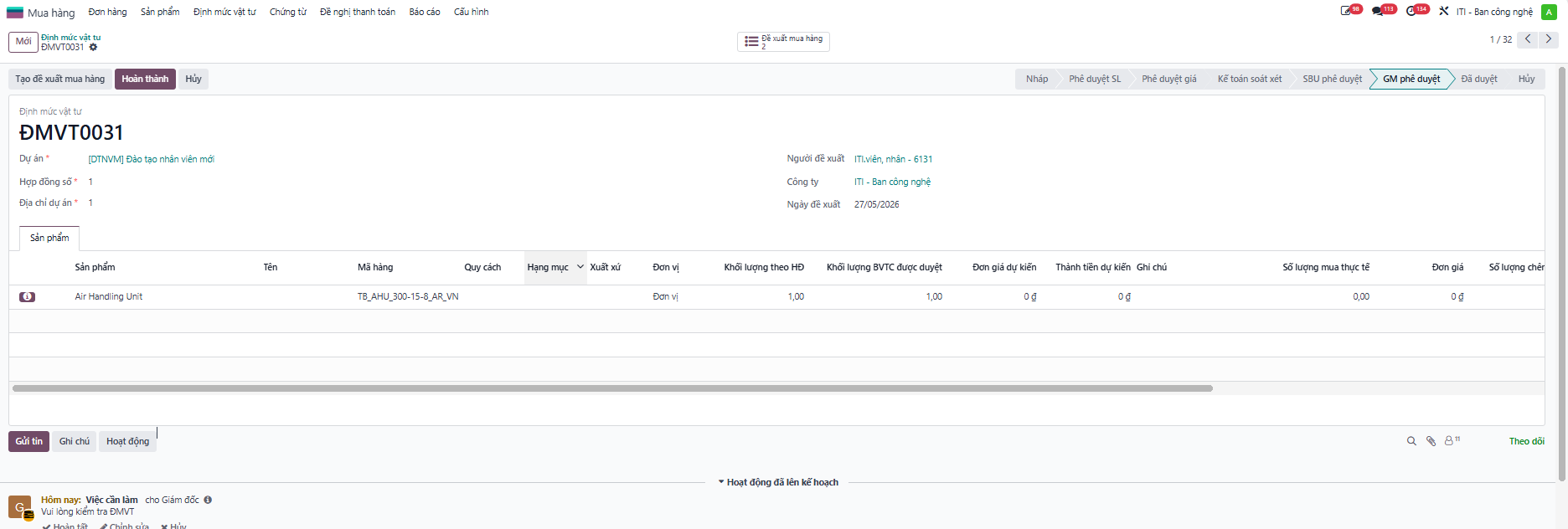
Project Material Quota
The Project Material Quota establishes the baseline bill of materials, quantities, and estimated costs required for a specific engineering project or contract.
Create Project Material Quota
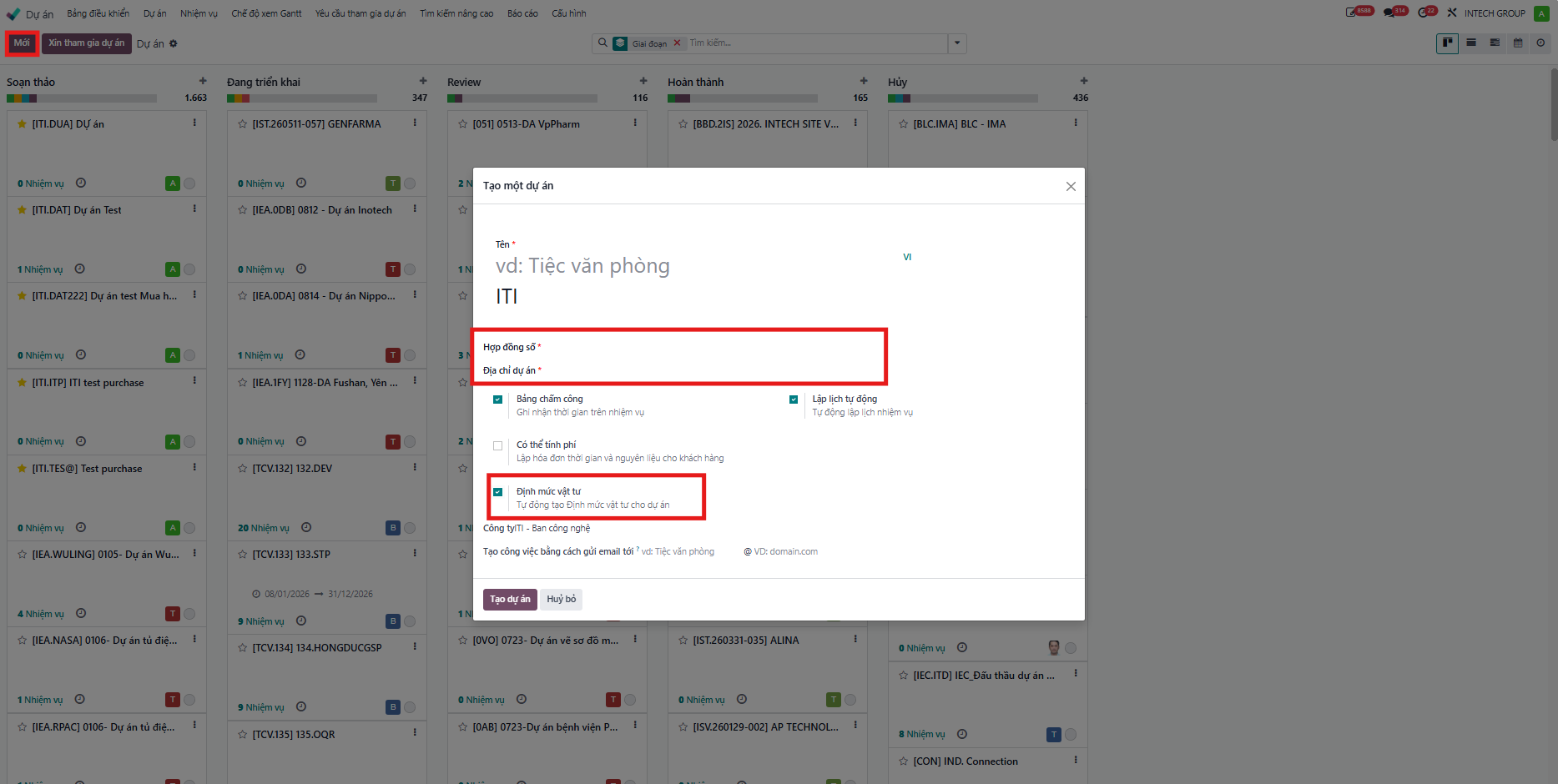
Step 1: When creating a project, check the Material Quota checkbox. The system automatically creates a material quota for that project (each project has only one material quota).
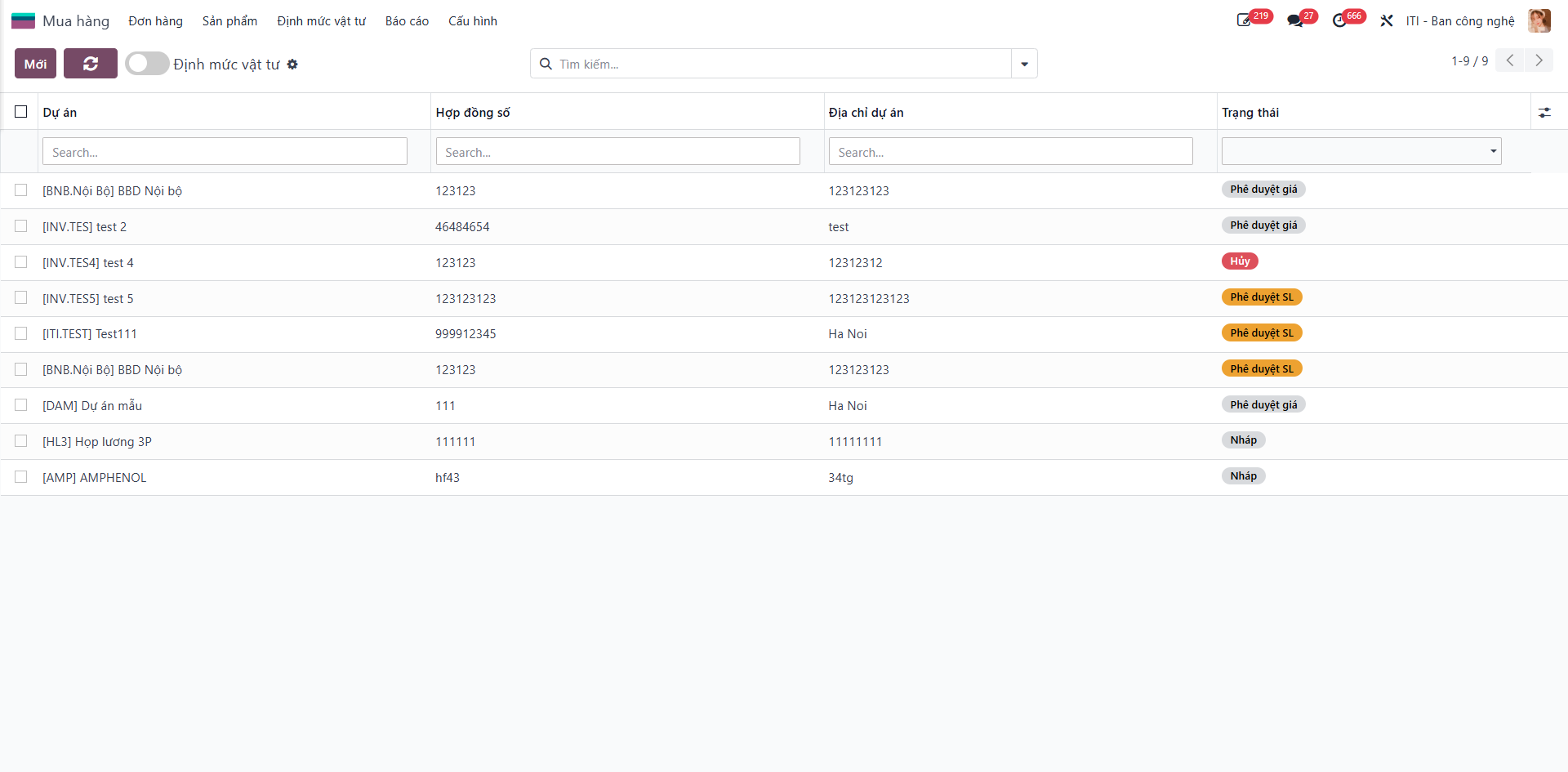
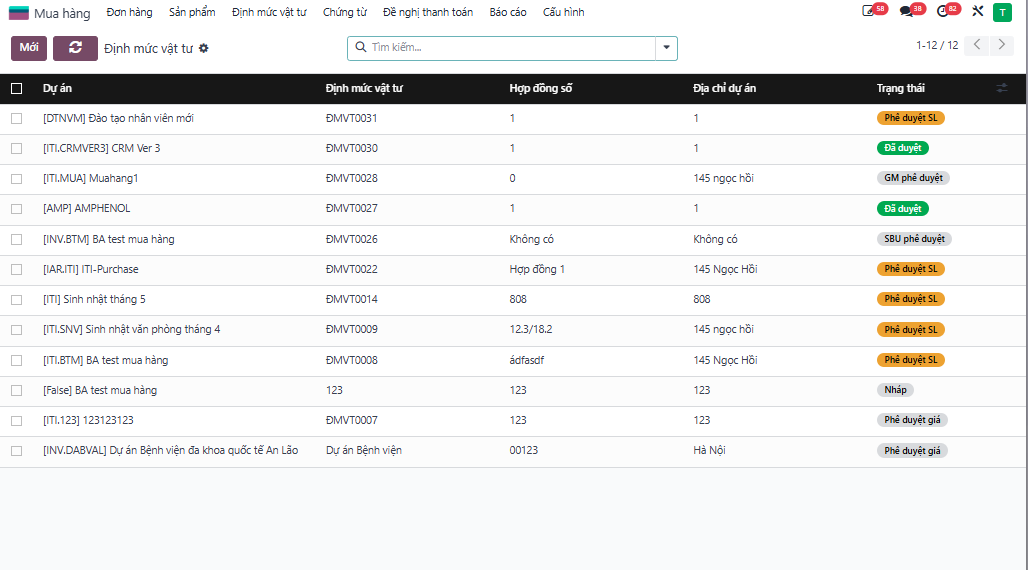
Step 2: Navigate to . In the Material Quota list, open the quota in Draft status to edit.
Step 3: Enter quota general parameters (Project, Contract No., Project Address, Requester, Company, Submission Date).
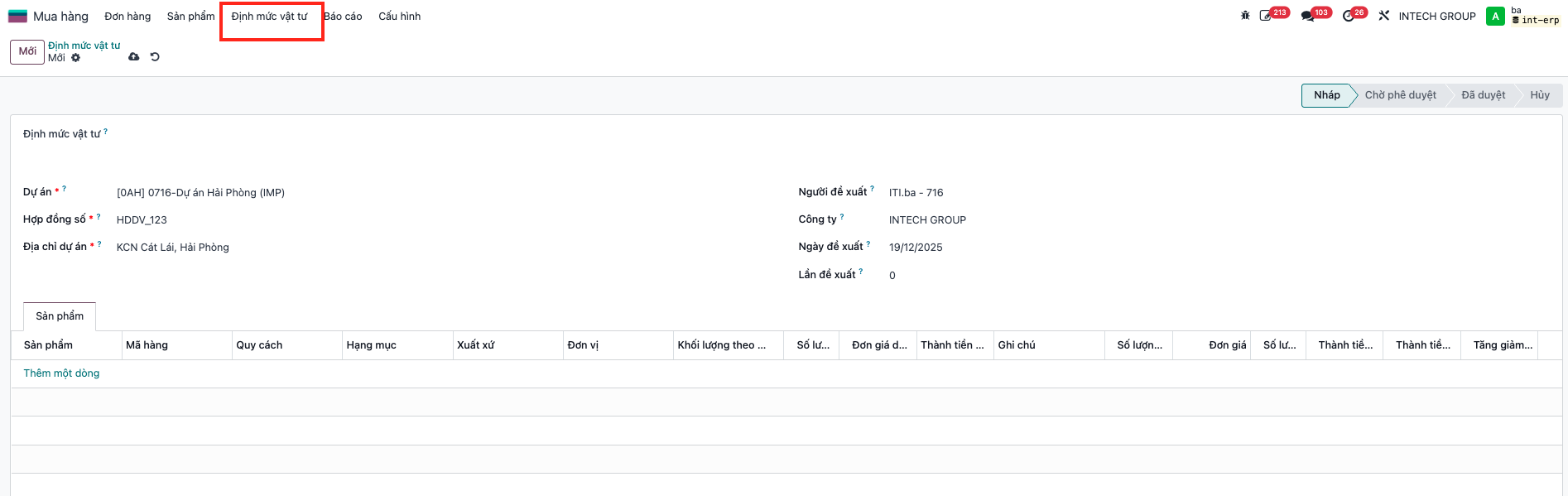
Step 4: Add product items to the quota under the Products tab: click Add a line or import from Excel, enter required quantities and technical specifications.
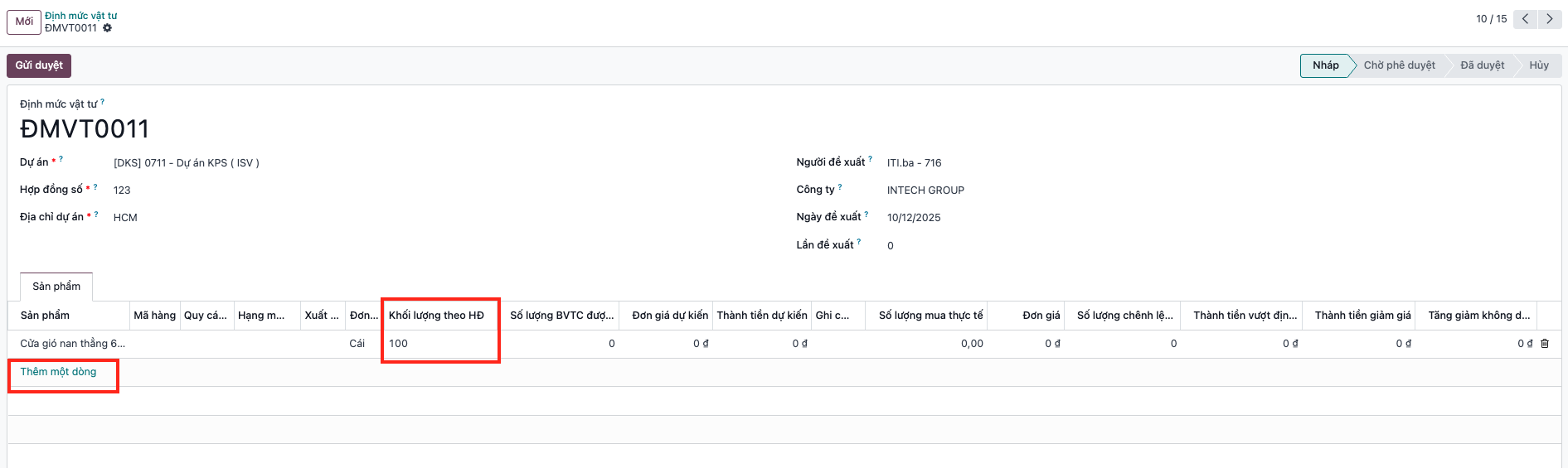
Step 5: Click Save and then click Submit for Approval. The material quota transitions to Quantity Approval (Phê duyệt SL) status.
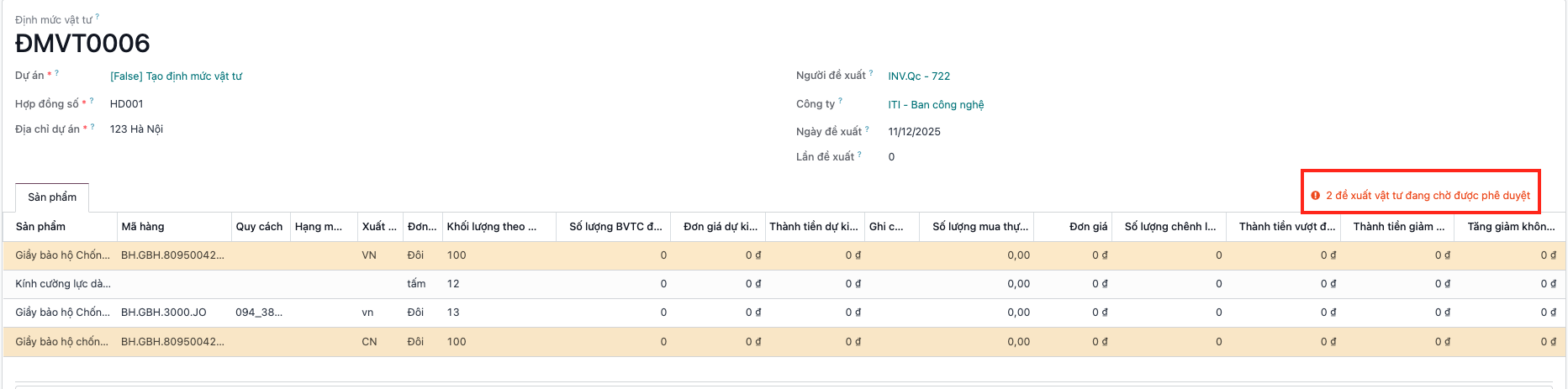
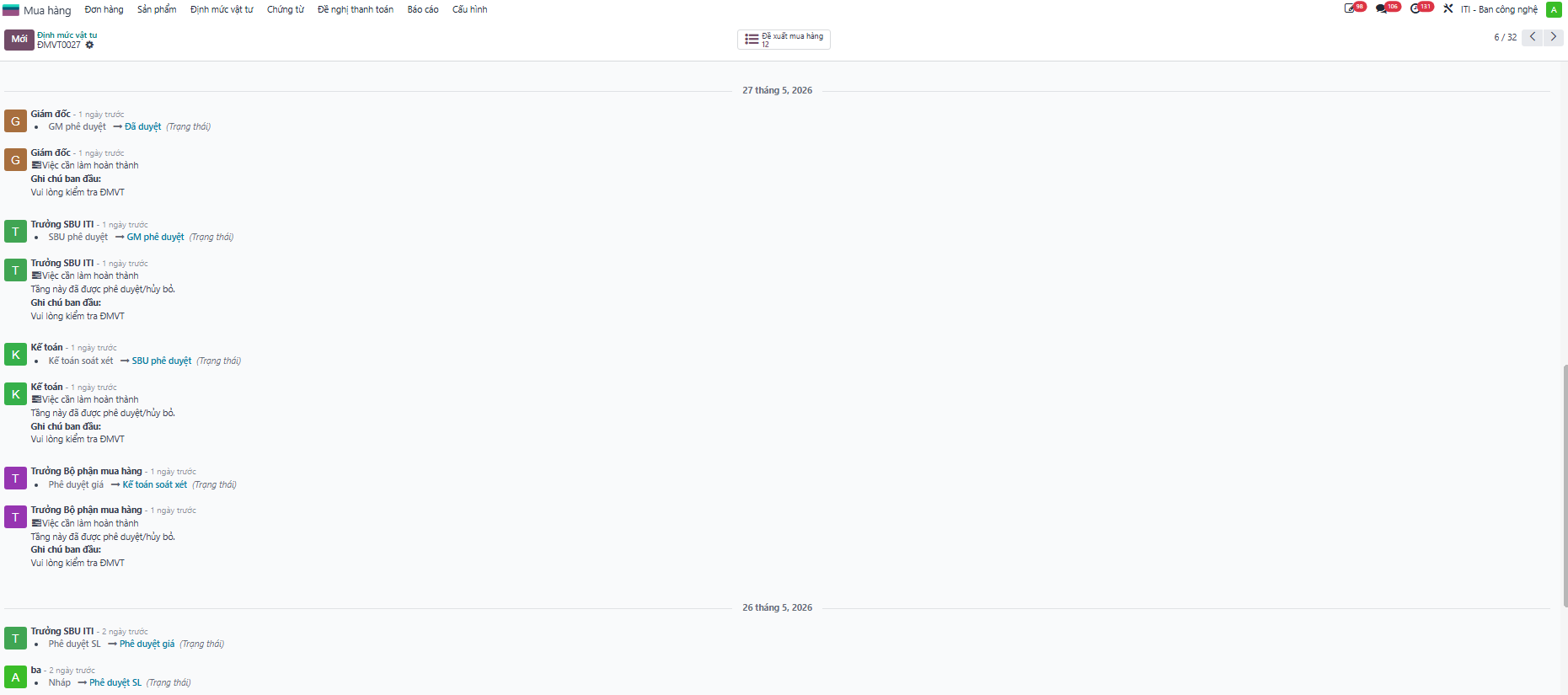
Multi-Level Quota Approval Workflow
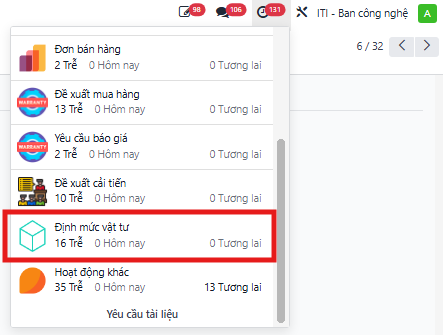
Step 1: The approver receives a notification on the system regarding the material quota requiring review, or navigates to to open the record.
Step 2: The SBU Head receives notification, audits product items, specifications, and quantities, then clicks Approve Price (Phê duyệt giá).
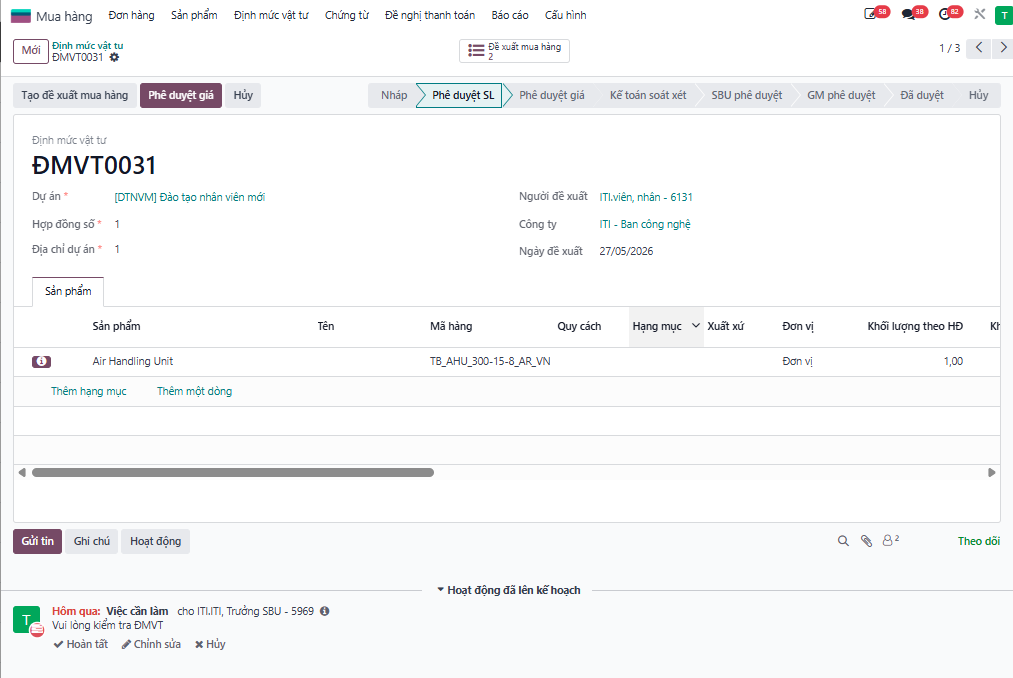
Step 3: The Procurement Head receives notification to review pricing, enters/adjusts estimated unit prices for each material item, and clicks Approve Price (Phê duyệt giá).
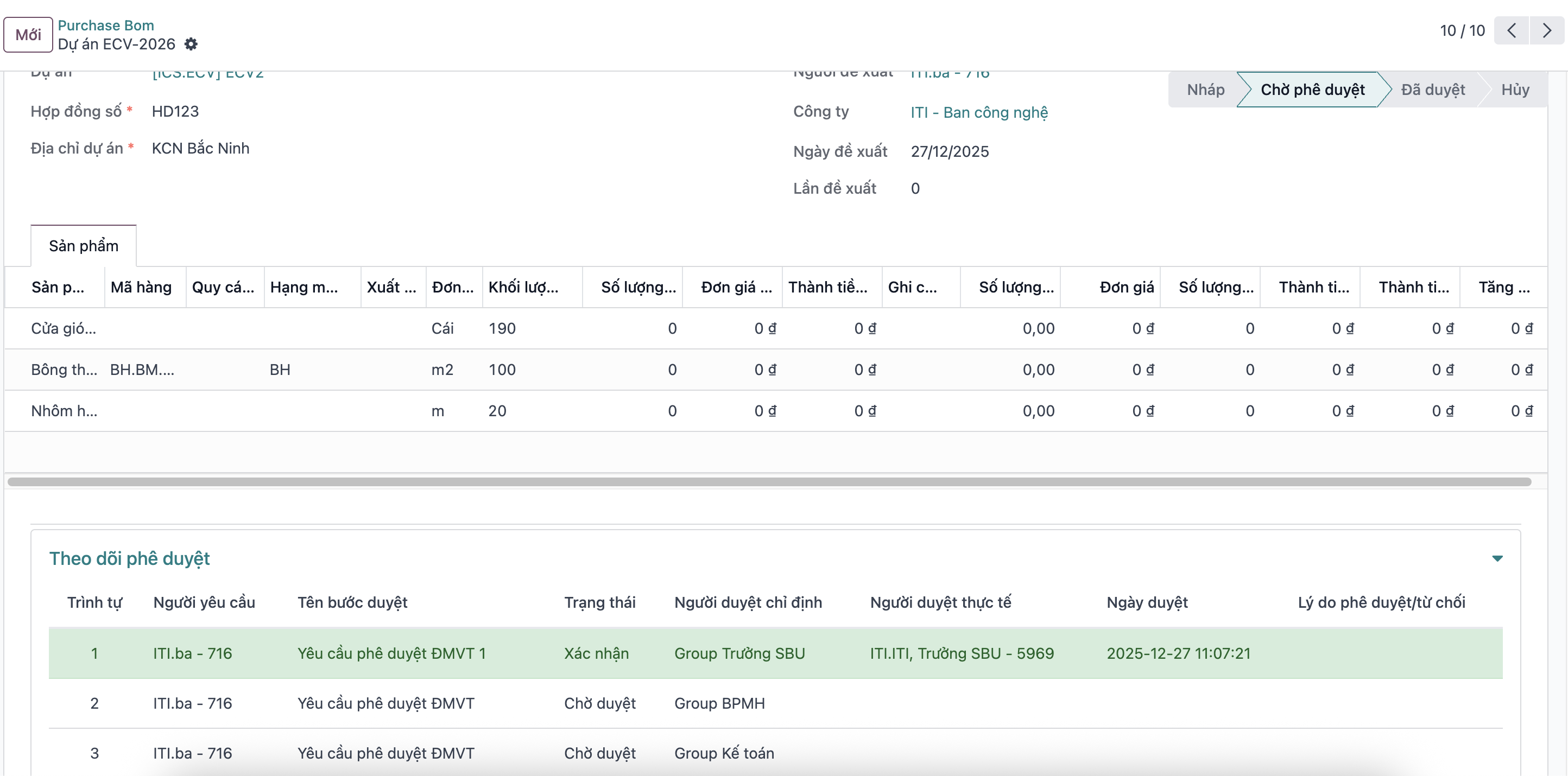
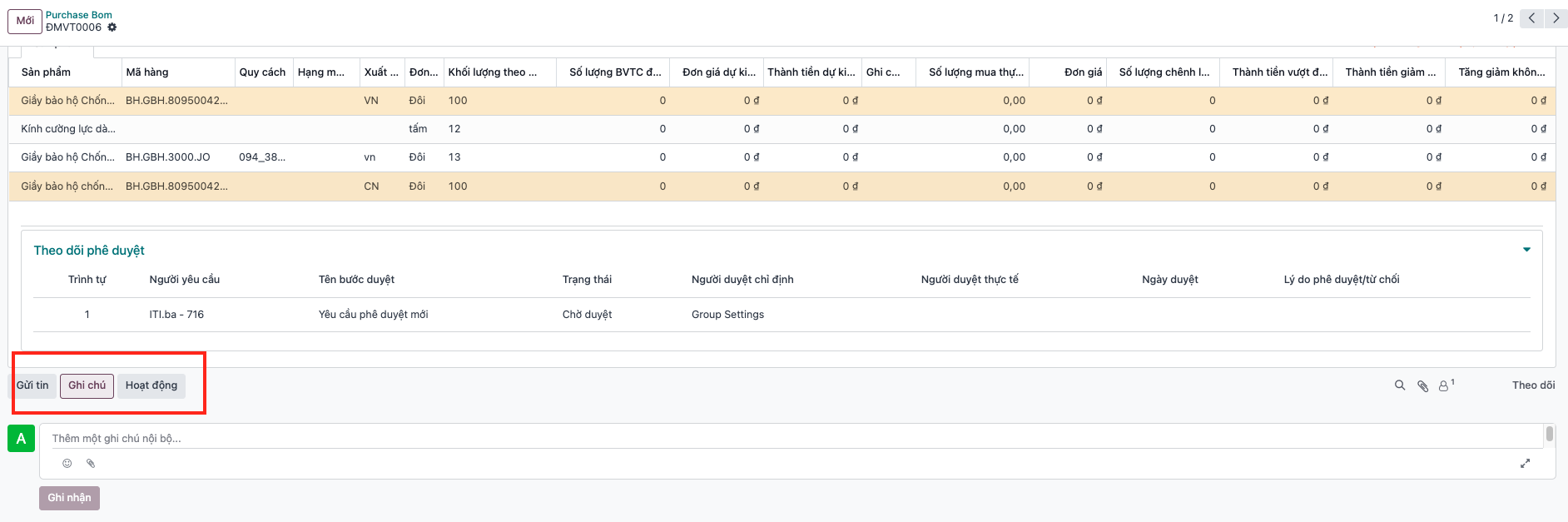
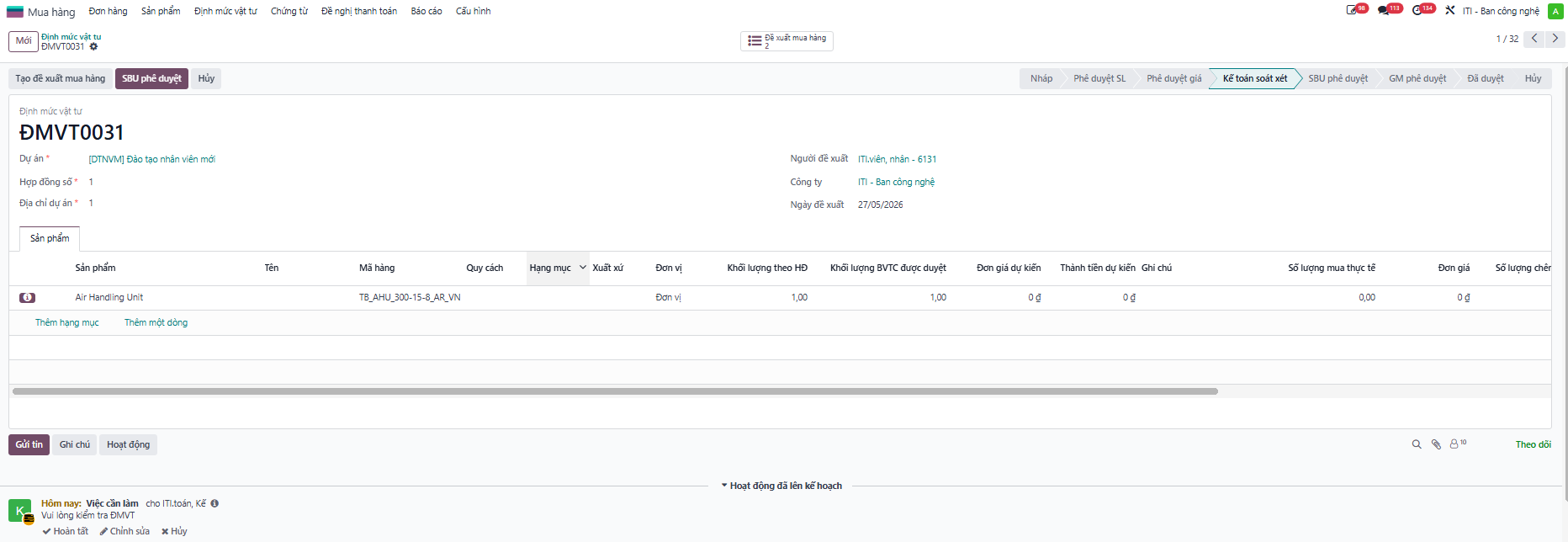
Step 4: The Accountant audits the material quota without modifying product codes. If revisions are required, notes are logged in the chatter log, then the Accountant clicks SBU Approval (SBU phê duyệt).
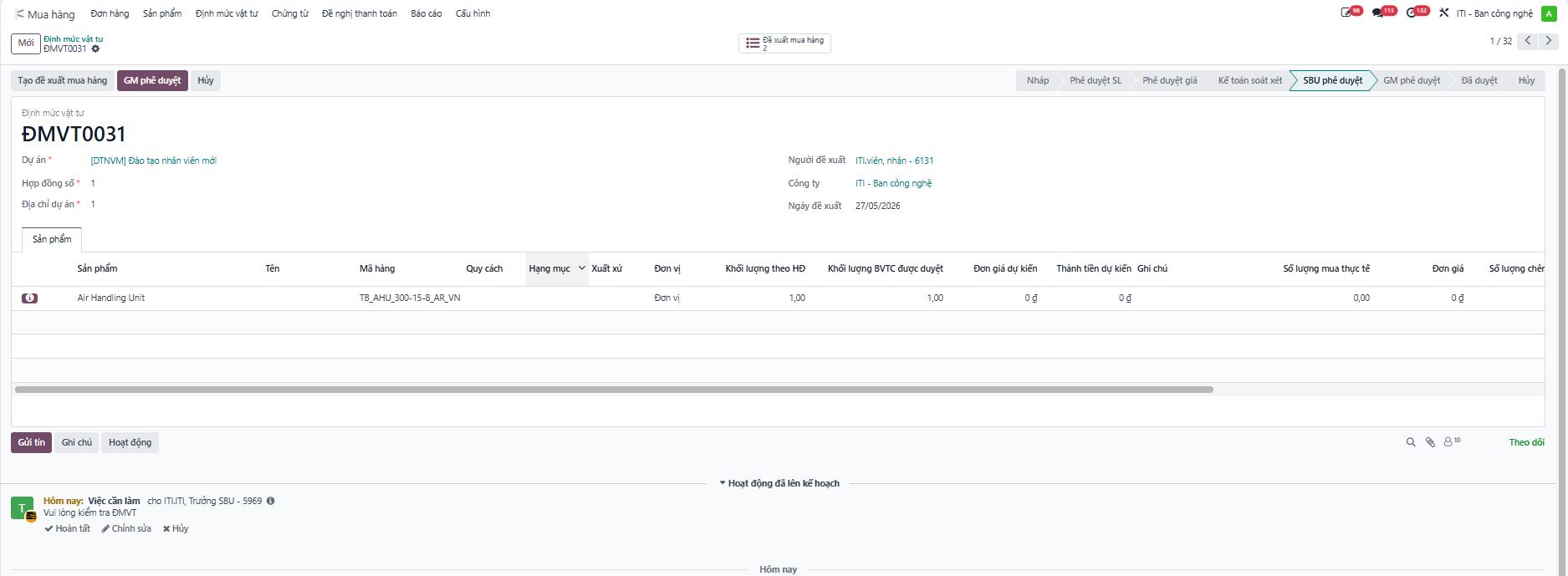
Step 5: The SBU Head opens the quota now containing complete items and pricing information, then clicks GM Approval (GM phê duyệt).
Step 6: The General Manager (GM) receives notification and grants final approval for the project material quota after both items and price levels are validated. The system logs the entire audit history.