
Initial Setup, Installation
The initial setup connects Claude Desktop to the corporate Intech ERP environment via a secure personal API Key and the dedicated connector service.
Note
This setup process only needs to be completed once per personal computer.
Reference Installation Guide: How to install Claude AI on computer
Bước 1: Install Claude Desktop Application
Download and install the Claude Desktop application onto your workstation.
Open the application and log in using your authorized Claude account credentials.
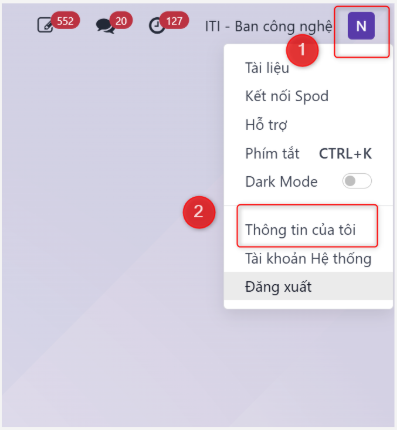
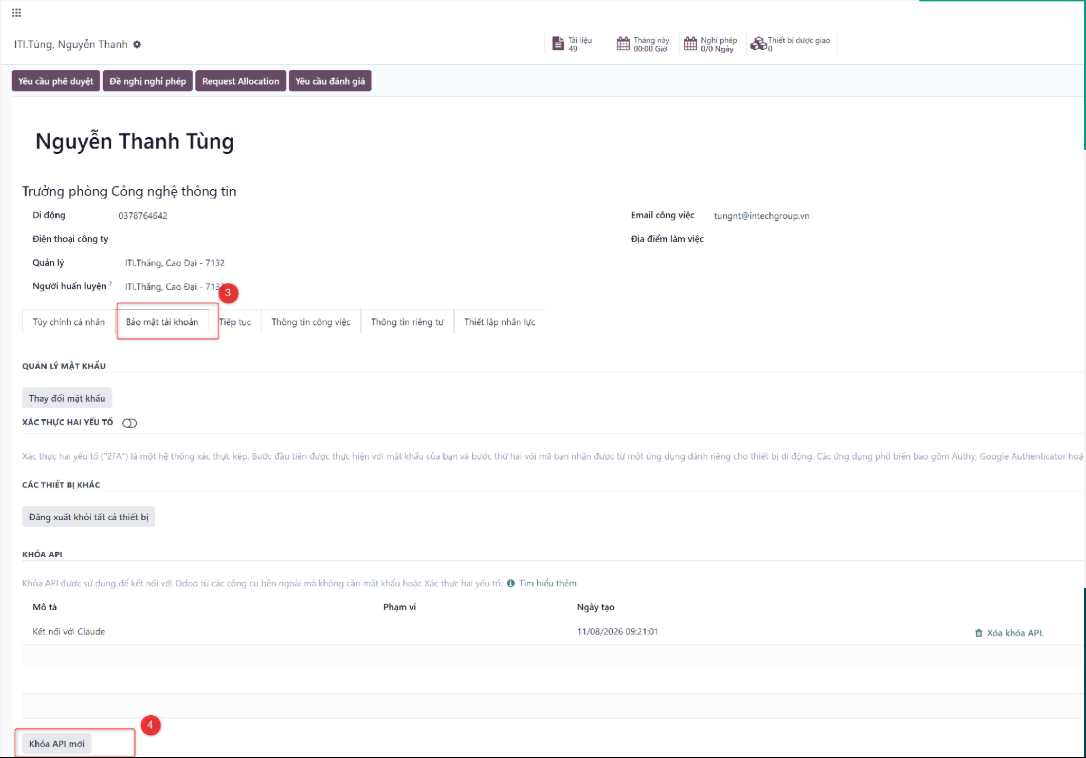
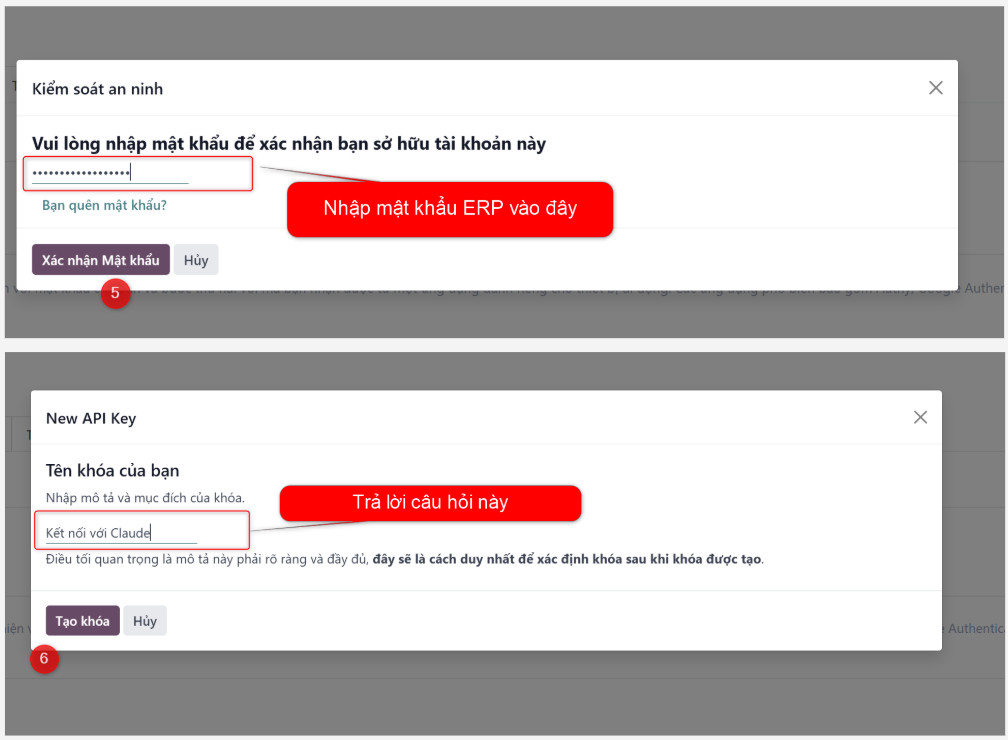
Bước 2: Retrieve Personal ERP API Key
Log in to your personal account on the corporate Intech ERP system.
Navigate to personal account settings and user preferences to retrieve your personal API Key.
Warning
Critical Security Notice: Each employee is assigned a unique API Key representing their personal identity. Strictly refrain from sharing this key with anyone to prevent security breaches and unauthorized access to corporate records.
Bước 3: Install Intech ERP Claude Connector
After installing Claude Desktop and obtaining your API Key, download the Connector tool from the company shared folder:
Run the tool installation file following the instructional video:
Paste your personal API Key obtained in Bước 2 into the connector tool when prompted.
Complete installation and restart the Claude Desktop application.