
Project Gantt view
The Gantt view in Odoo Project provides an intuitive timeline perspective of your entire project schedule and task progress. It is an indispensable tool for project managers to monitor deadlines, detect scheduling conflicts early, and allocate resources efficiently.
Tutorial video
Video topic |
Direct watch link |
|---|---|
Project Gantt view guide |
Access Gantt view
To view the Gantt chart for tasks belonging to a project:
Step 1: Access the desired project and open the task list you want to track.
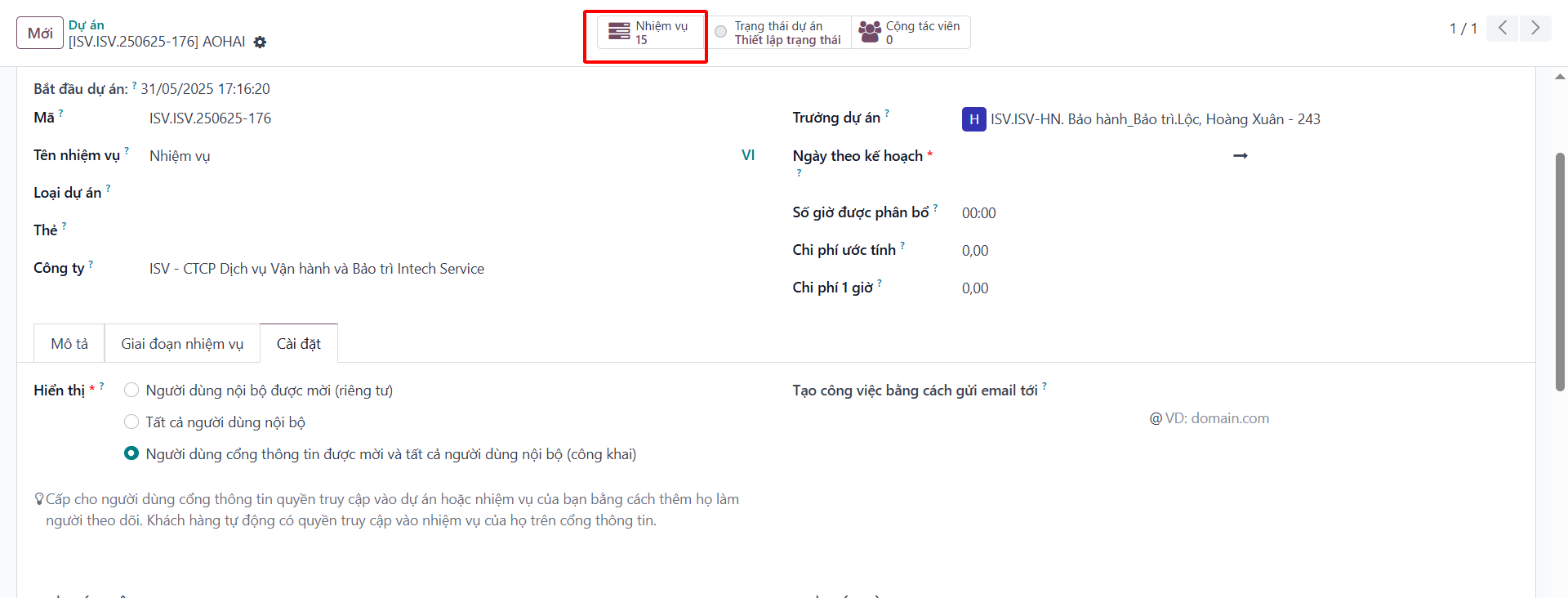
Step 2: On the upper right toolbar, click the Gantt view icon (horizontal progress bars icon).
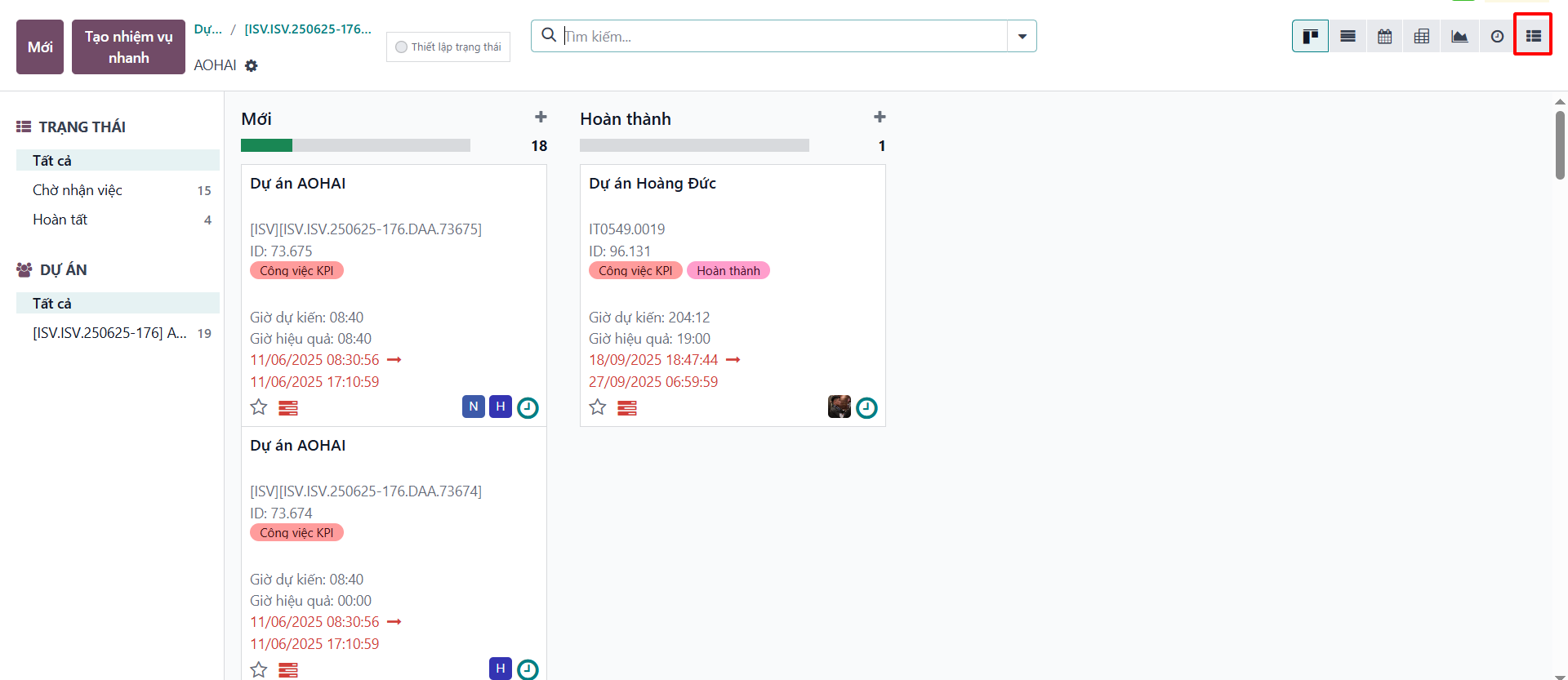
Schedule operations on Gantt view
On the interactive Gantt chart, users can adjust project schedules directly using the mouse:
Resize duration: Hover over the left edge (start date) or right edge (end date) of a task bar, then click and drag to extend or shorten the task duration;
Drag and drop scheduling: Click and hold the center of a task bar and drag it to a new date to update both start date and deadline simultaneously;
Track completion percentage: Task bars display a visual progress fill (%) based on timesheet entries or completed sub-tasks;
View task details: Double-click any task bar on the chart to open a pop-up window for editing full task information.
Task dependencies on Gantt view
The Gantt view supports establishing task dependencies directly between project tasks:
To link two tasks, drag from the connector dot on the predecessor task to the successor task;
An arrow line connecting the two bars clearly reflects the required operational sequence;
When a predecessor task is delayed or rescheduled, the system highlights conflict lines so managers can promptly adjust dependent tasks.
Time scales, filtering
The Gantt chart offers flexible controls to suit different management scopes:
Flexible time scales: Switch between views by Day, Week, Month, or Year to inspect hourly schedules or quarterly roadmaps;
Filters and grouping:
Group by Assignees: Monitor team workloads and avoid overallocation;
Group by Stage: Identify bottlenecks in each workflow phase;
Filter by status, tags, or project milestones.