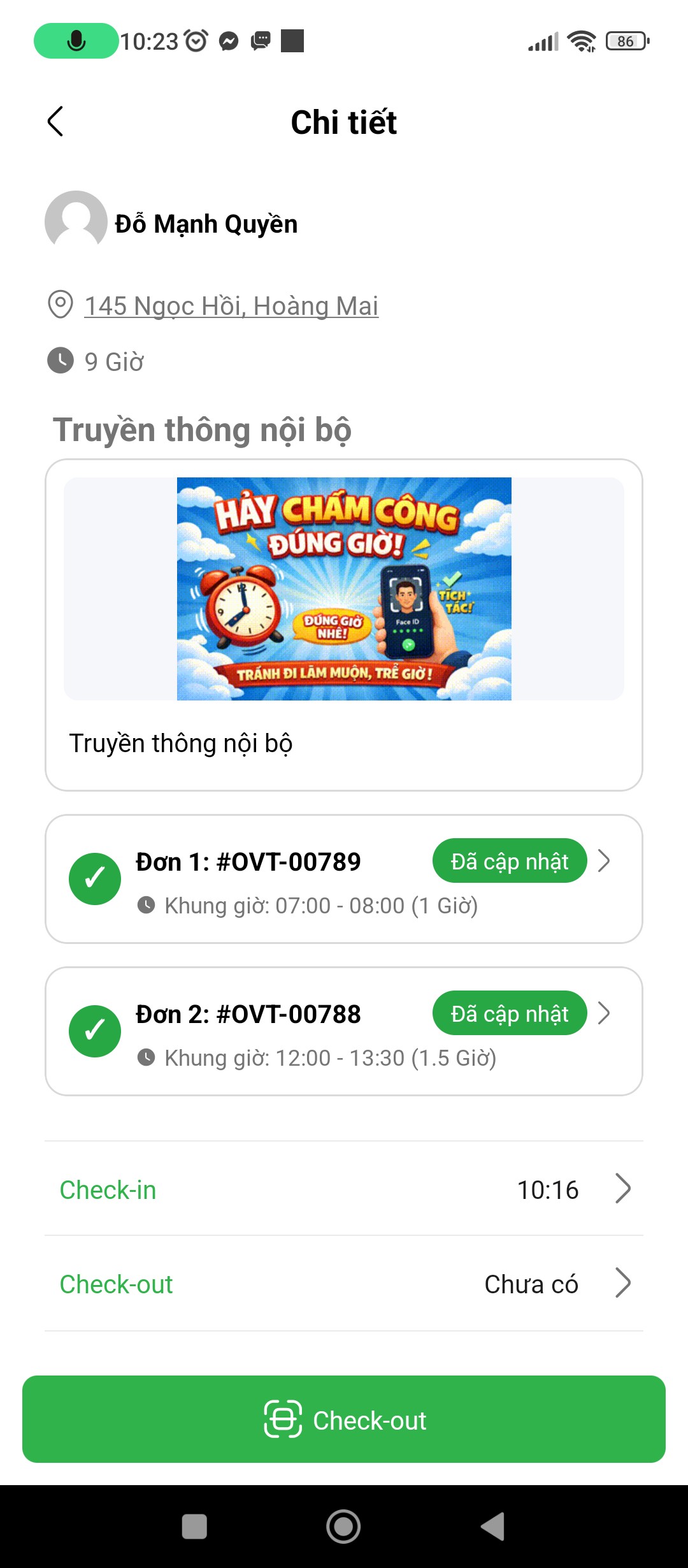
Overtime on Mobile App
Employees utilize the S-Attendance Mobile Application to register overtime shifts on the go and report mandatory deliverable proof directly before mobile check-out.
Register Overtime on Mobile App
To register overtime hours directly on the S-Attendance Mobile App:
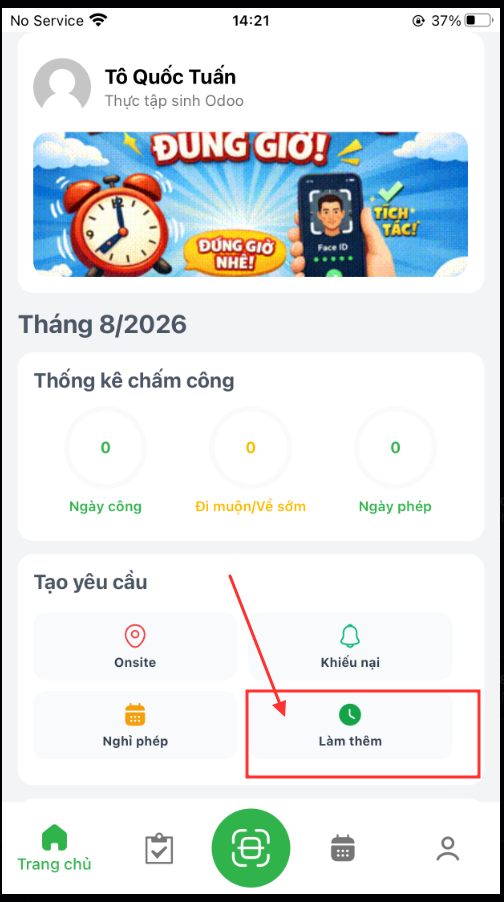
Bước 1: In the Create Request section on the mobile home screen, tap Overtime.
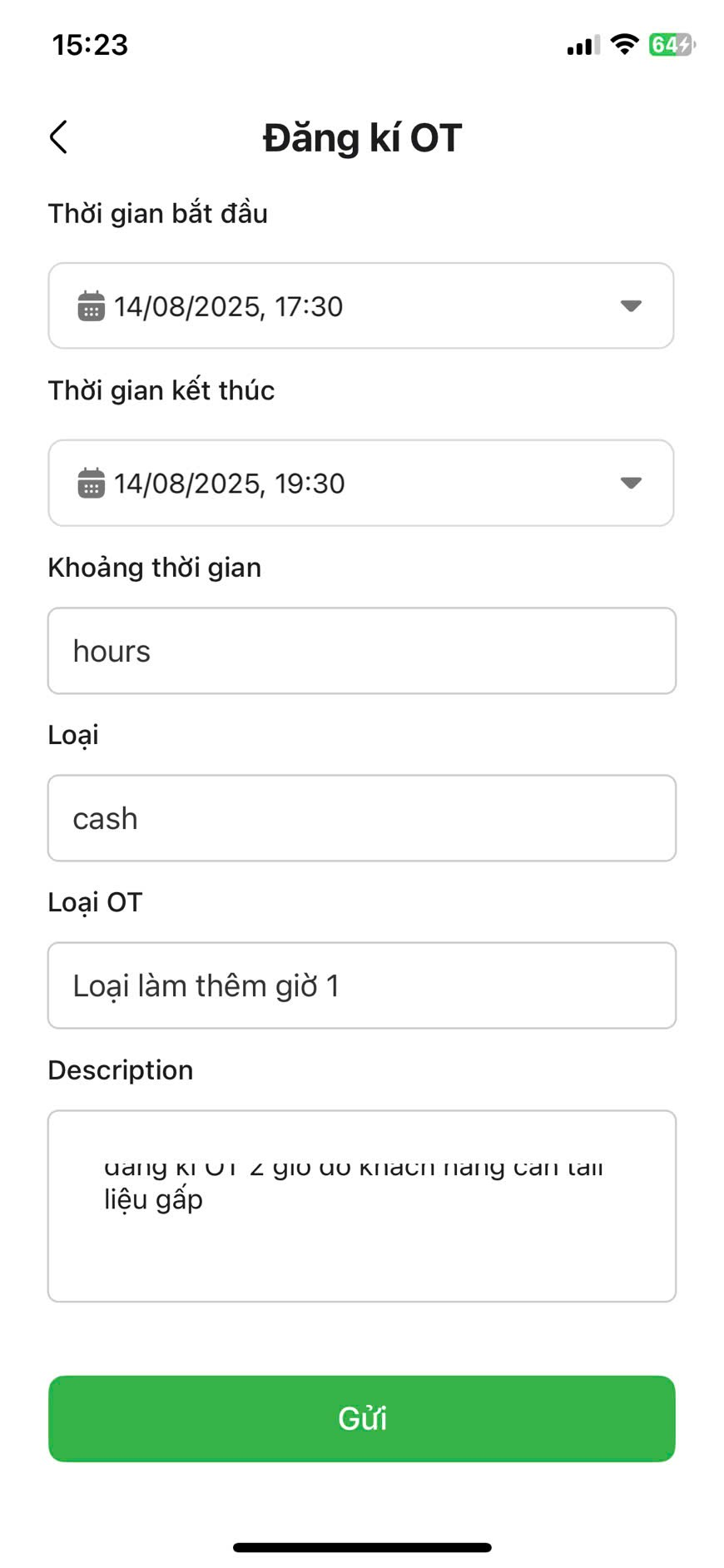
Bước 2: Complete the overtime requisition parameters: - Overtime Date - Start Time and End Time - OT Category (Weekday, Weekend, Holiday) - Task Description: Detailed description of overtime work and justification.
Bước 3: Tap Submit. The application confirms successful overtime registration.
Update Overtime Results (Mobile App)
Employees using the S-Attendance Mobile App report overtime results directly from their smartphone during or immediately following their shift:
Bước 1: On the mobile app, access the target overtime request using one of two methods:
Check-out Button (Today only): Tap the Check-out button directly on the home screen at the end of the shift to open the overtime result reporting form for today.
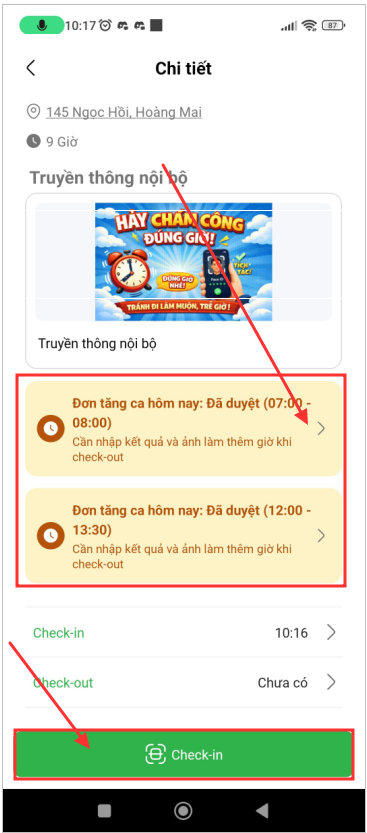
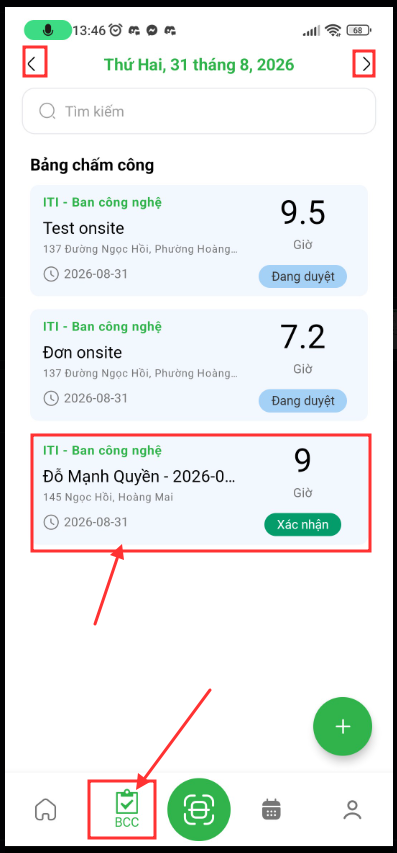
Attendance Board Tab (Remaining dates): Navigate to the Attendance Board (BCC) tab, switch to the date of the overtime shift, and select the approved overtime request in Confirmed status to submit results.
Bước 2: Enter overtime task accomplishment details and upload photographic proof of completion. If two overtime requests exist in a single day, employees can update quickly via the check-out prompt or directly within the respective OT request.
Note
Lưu ý: Người dùng bắt buộc phải nhập kết quả tăng ca (cần nhập đầy đủ nội dung công việc và ảnh chụp kết quả) trước khi thực hiện check-out.
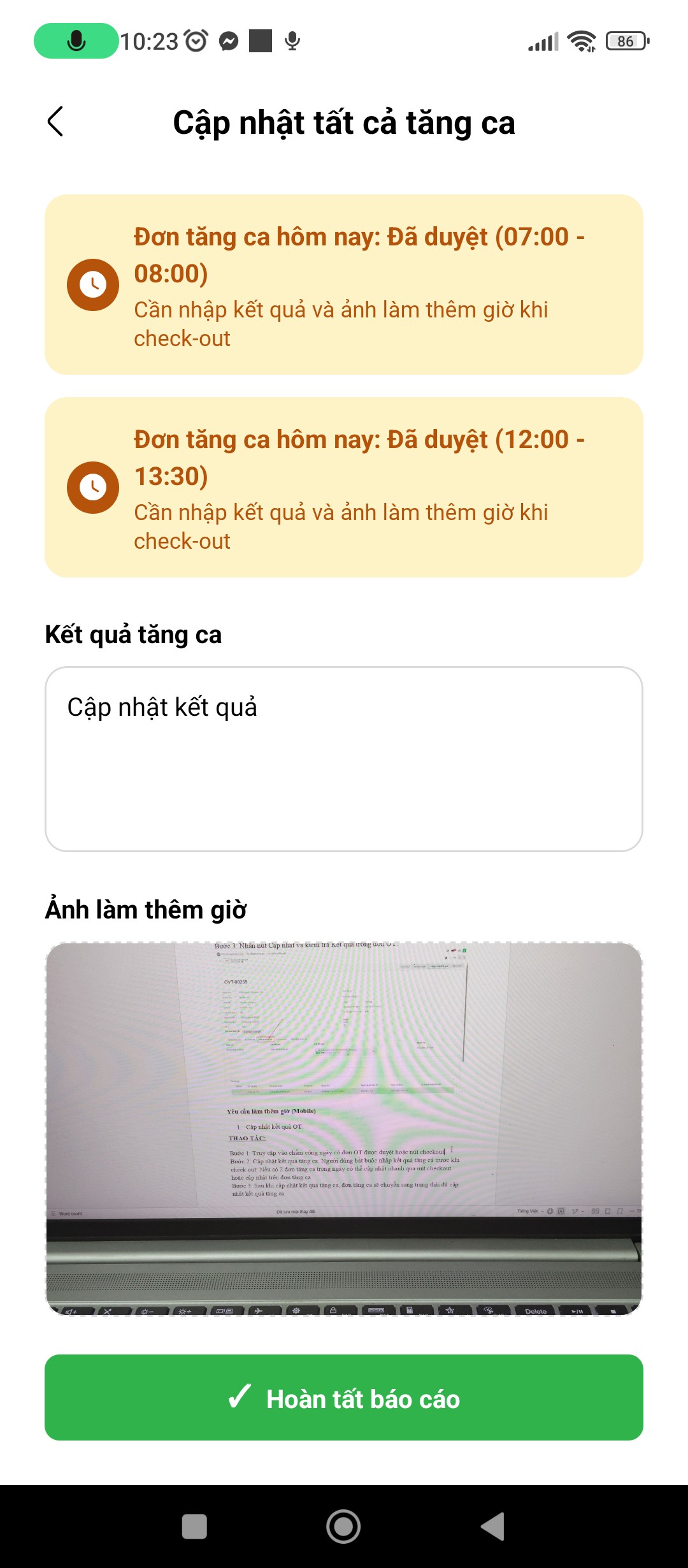
Bước 3: Tap Complete Report (Hoàn tất báo cáo). Upon submission, the overtime request updates to OT Result Updated (Đã cập nhật kết quả tăng ca) and check-out is finalized.