Requests for Quotation & Purchase Orders
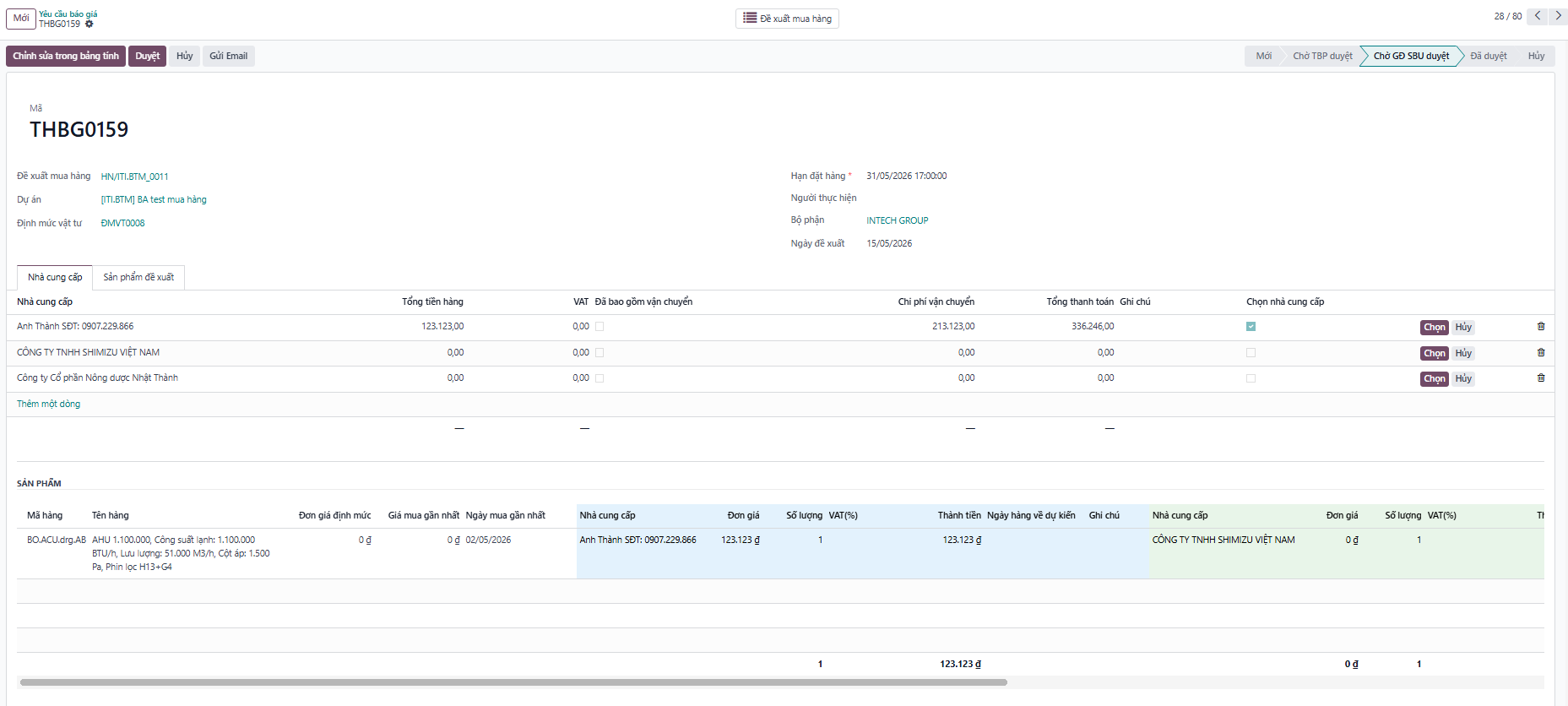
The Request for Quotation (RFQ) and Purchase Order (PO) workflow enables purchasing officers to solicit bids from multiple vendors, compare quotations on an interactive spreadsheet, and issue binding purchase orders.
Generate Request for Quotation (RFQ)
Step 1: Open an approved Purchase Request and click Request for Quotation.
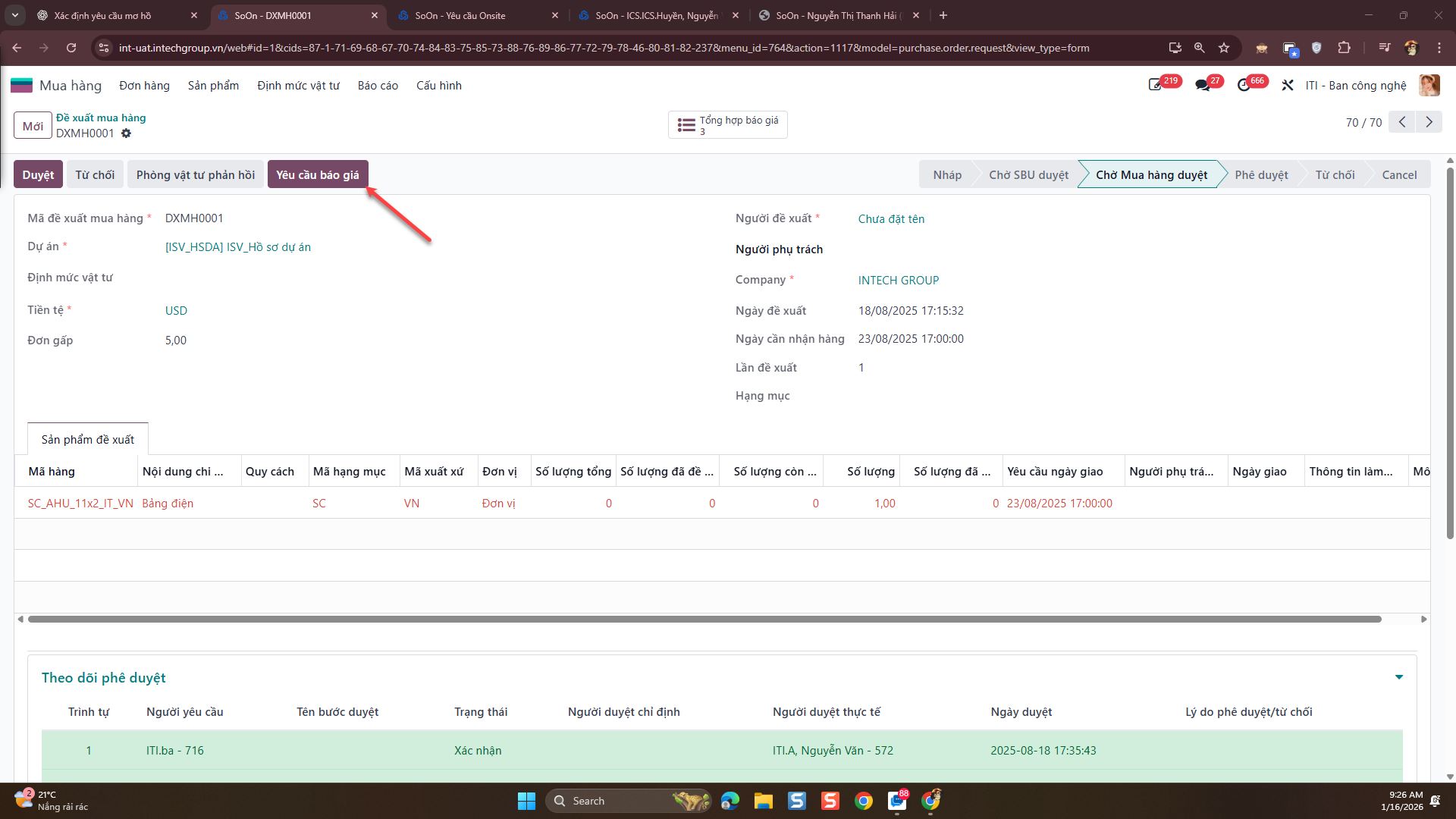
Step 2: Select products and candidate vendors to receive quotation requests from the requisition list.
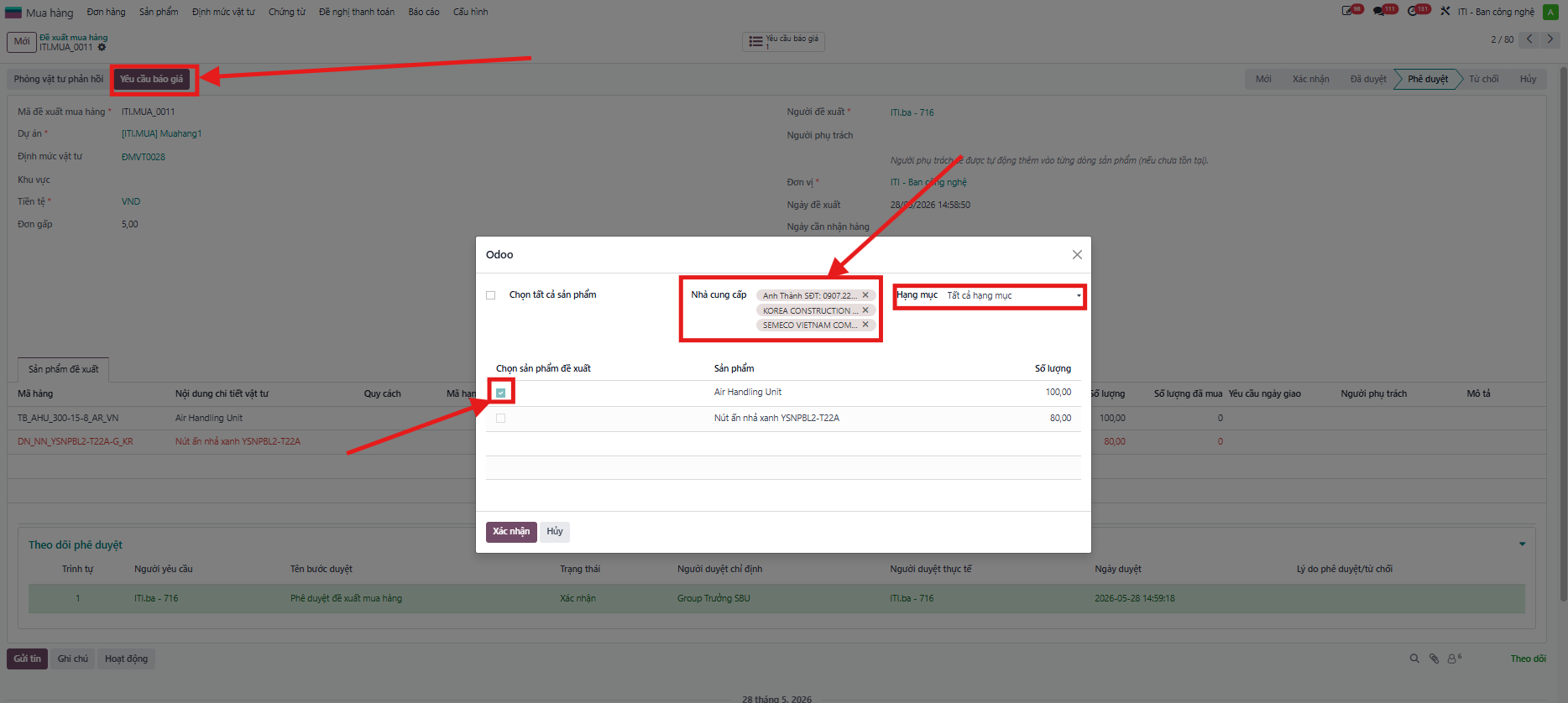
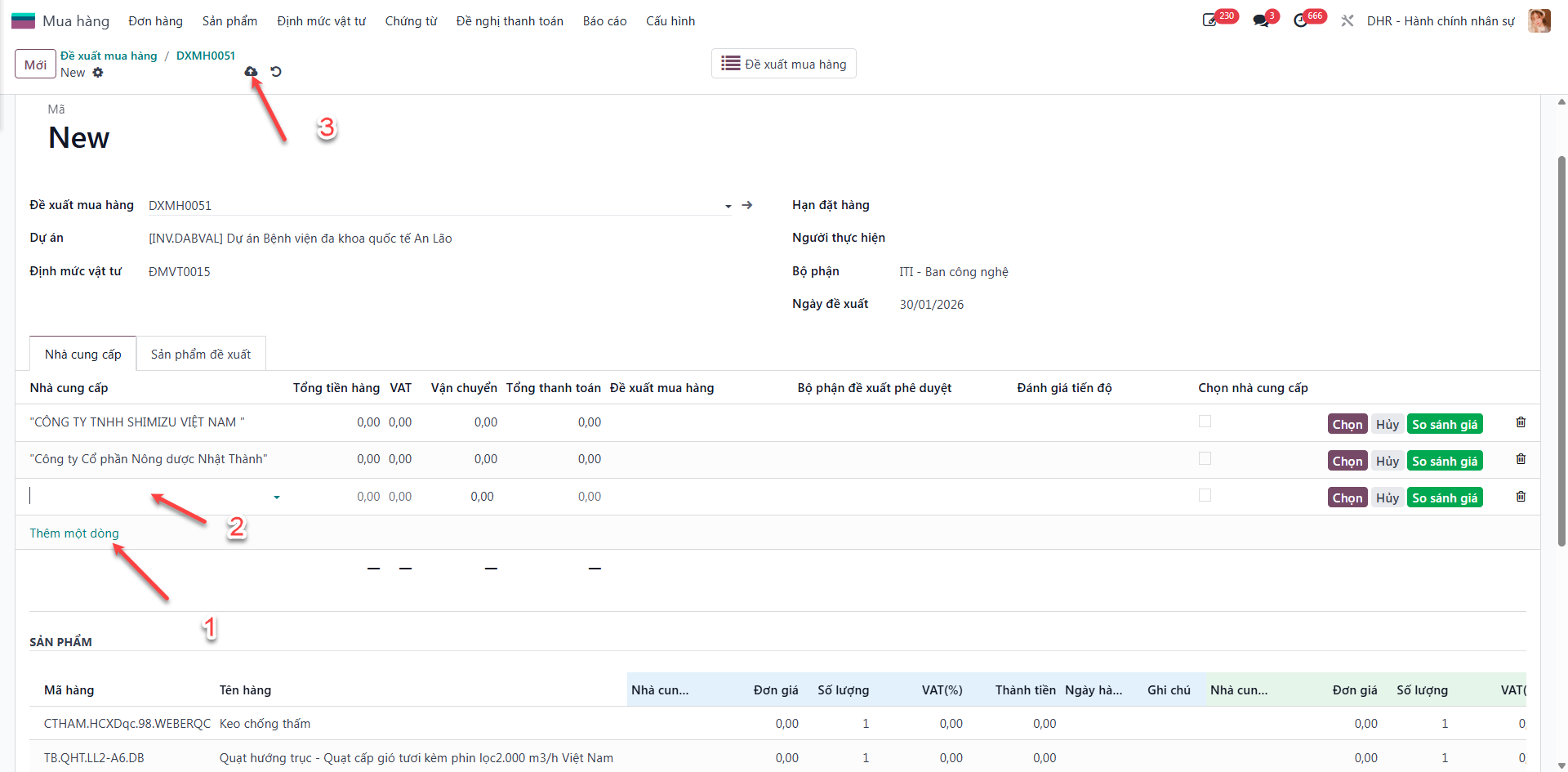
Step 3: Simultaneously select additional vendors to compare within the Request for Quotation.
Send RFQ via Email
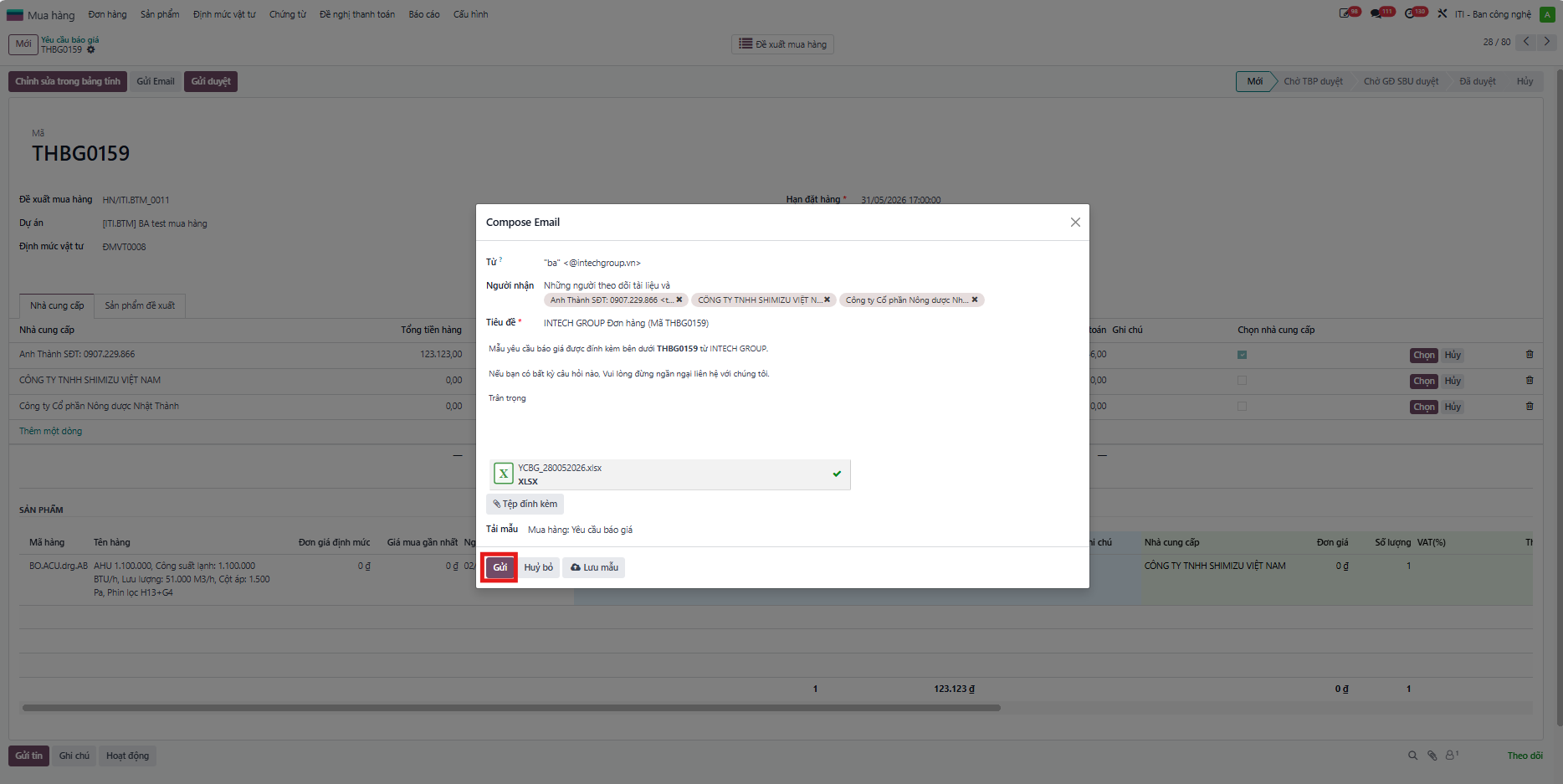
Step 1: Navigate to the RFQ menu and open the detailed RFQ containing products and target suppliers.
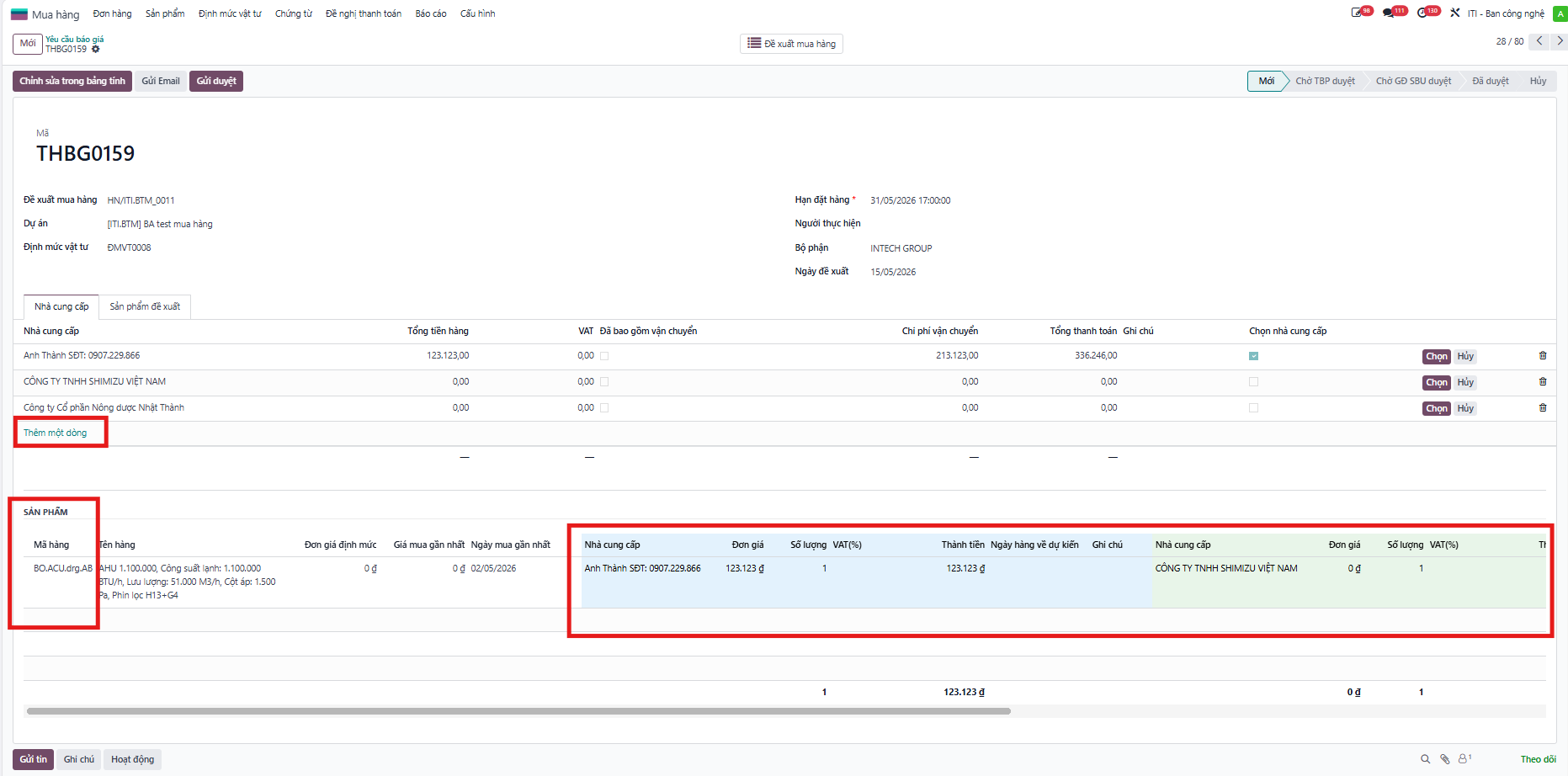
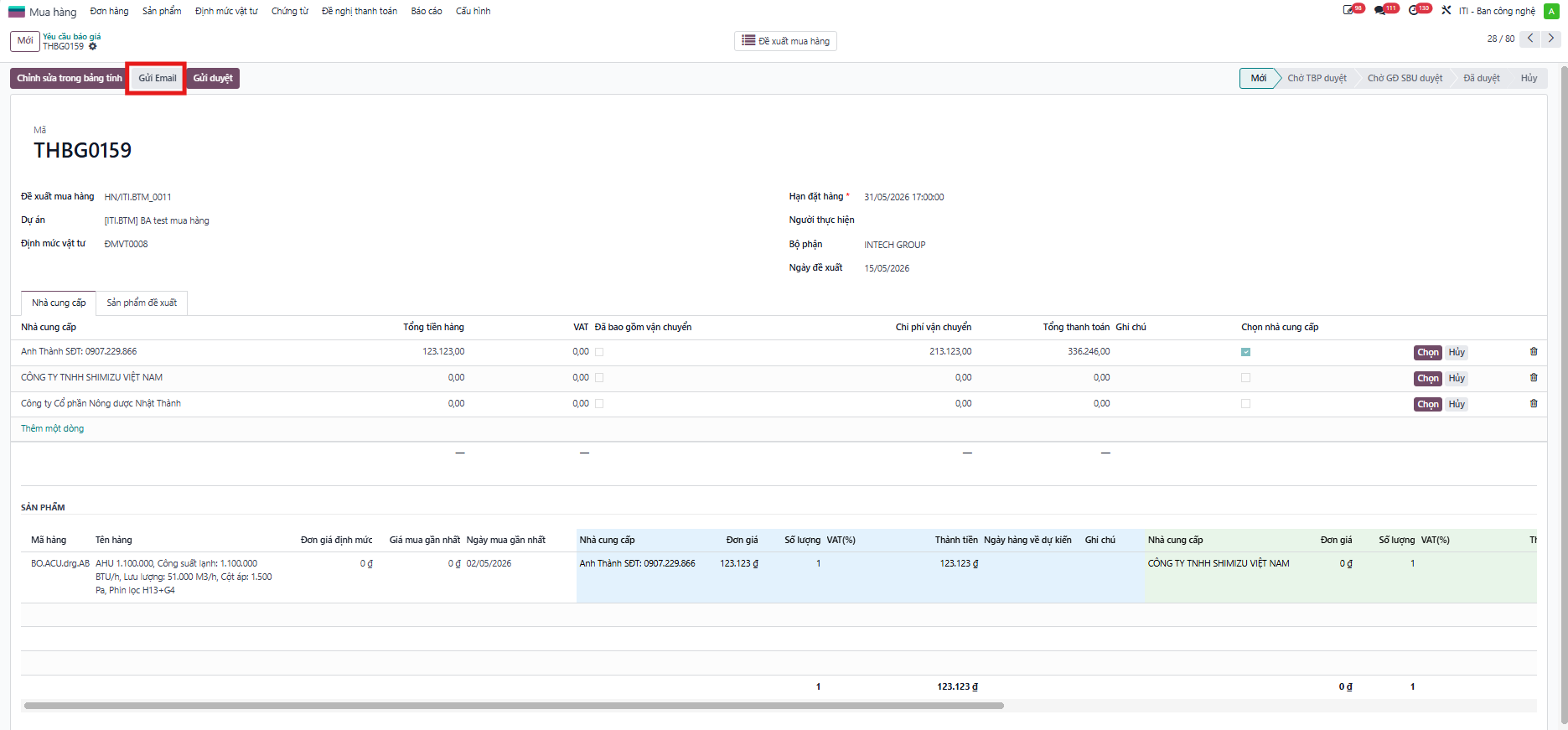
Step 2: Click Send by Email.
Step 3: Verify vendor recipient information, inspect requested product items, and attach additional files if needed.
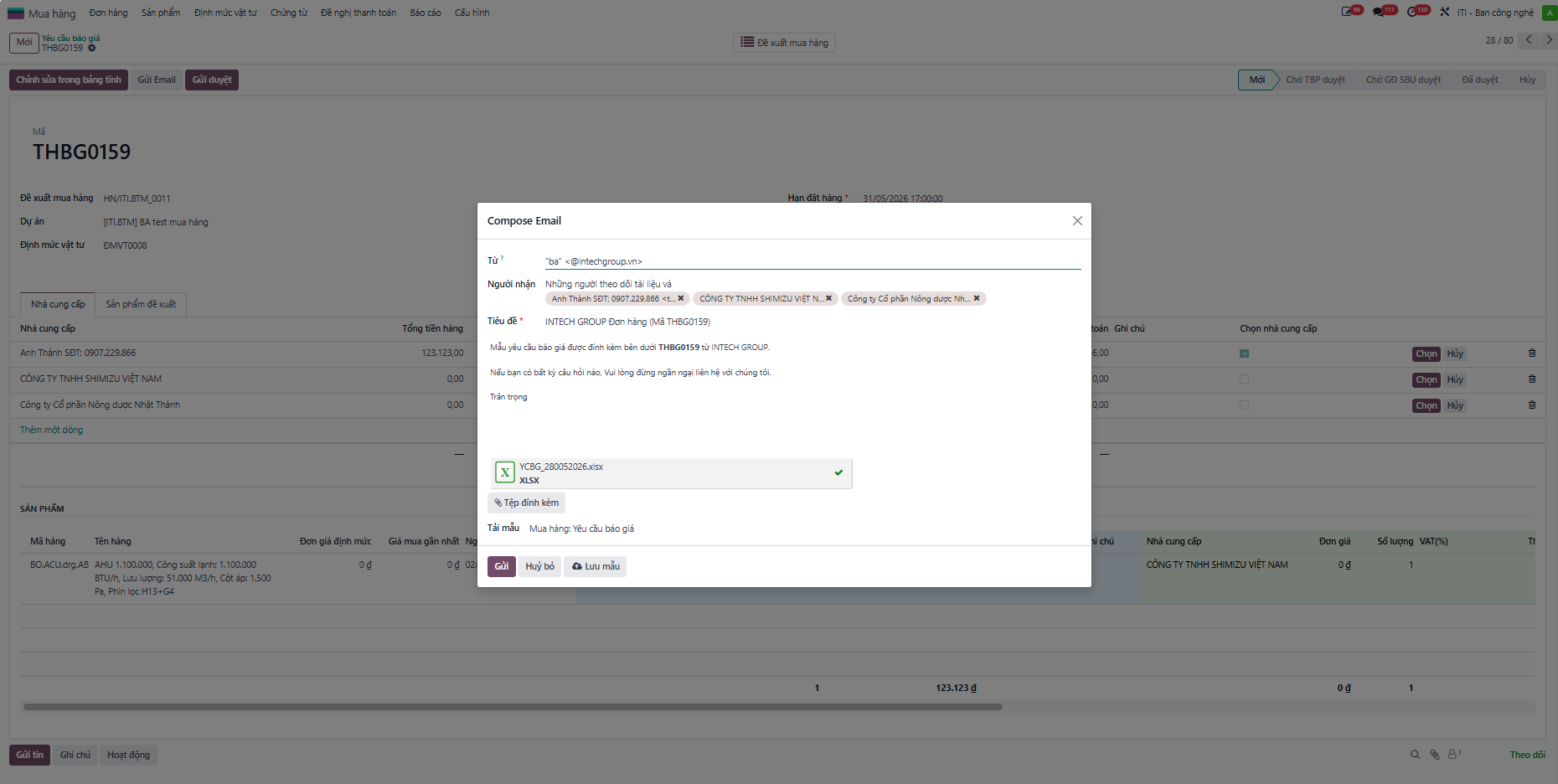
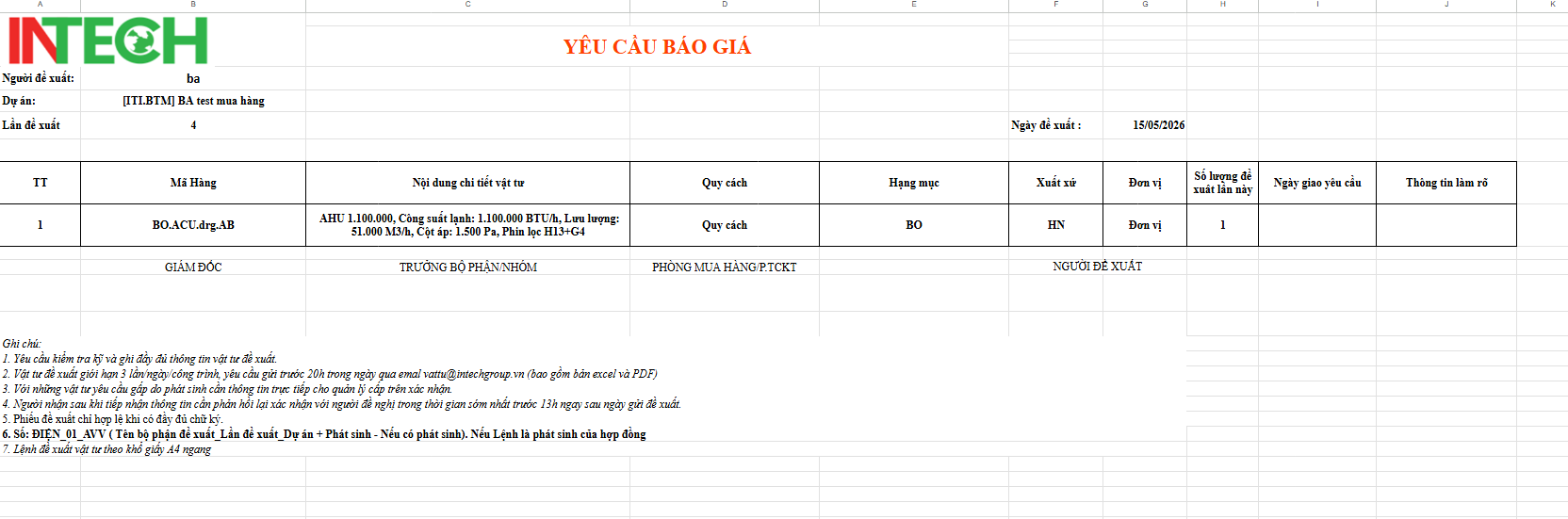
Step 4: Click Send to dispatch the request.
Quotation Comparison & Order Confirmation
Once quotation details are collected from suppliers:
Step 1: Navigate to the RFQ menu and open the RFQ comparison workspace.
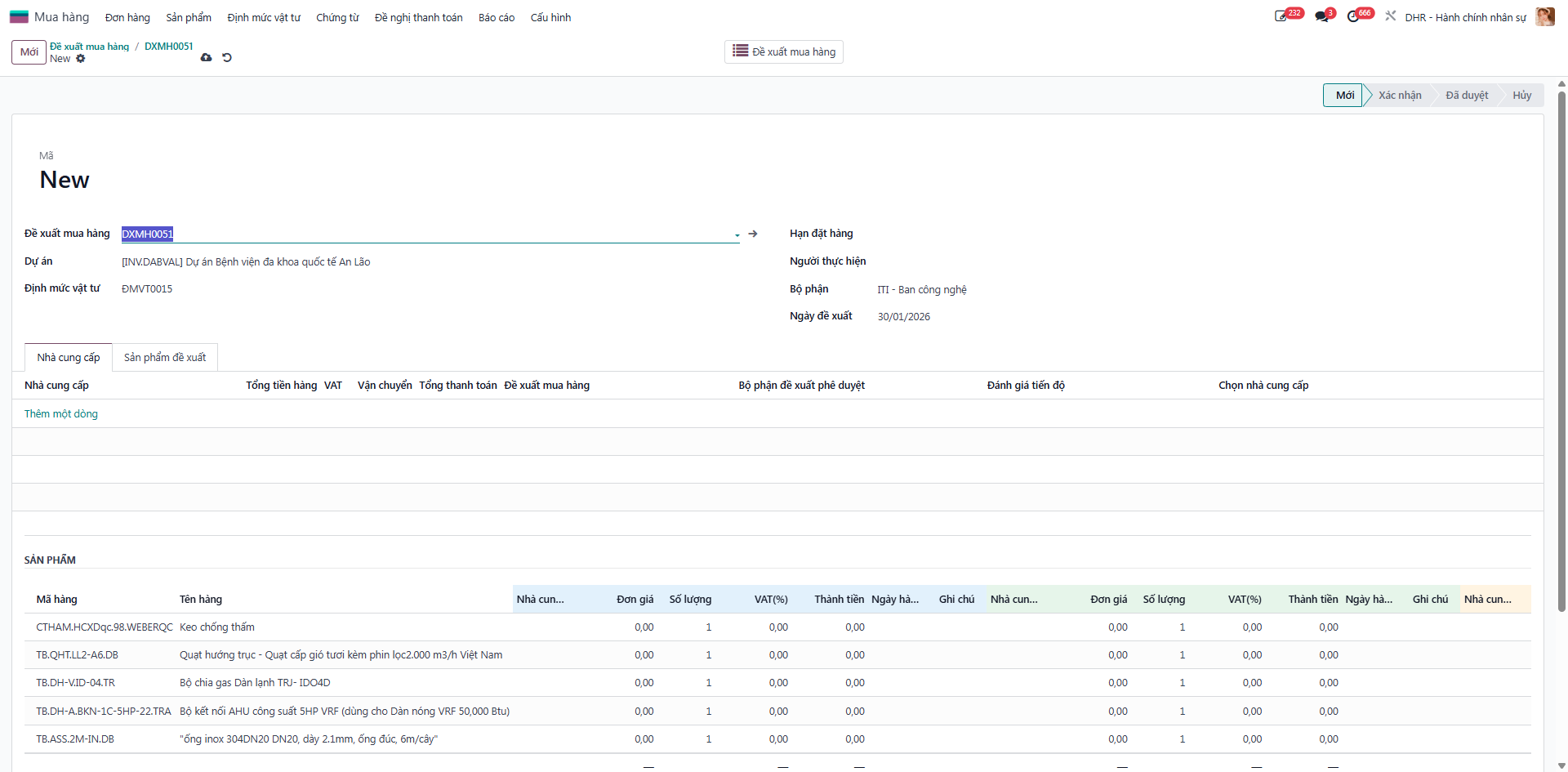
Step 2: Open the spreadsheet to enter itemized unit prices, payment terms, and delivery schedules.
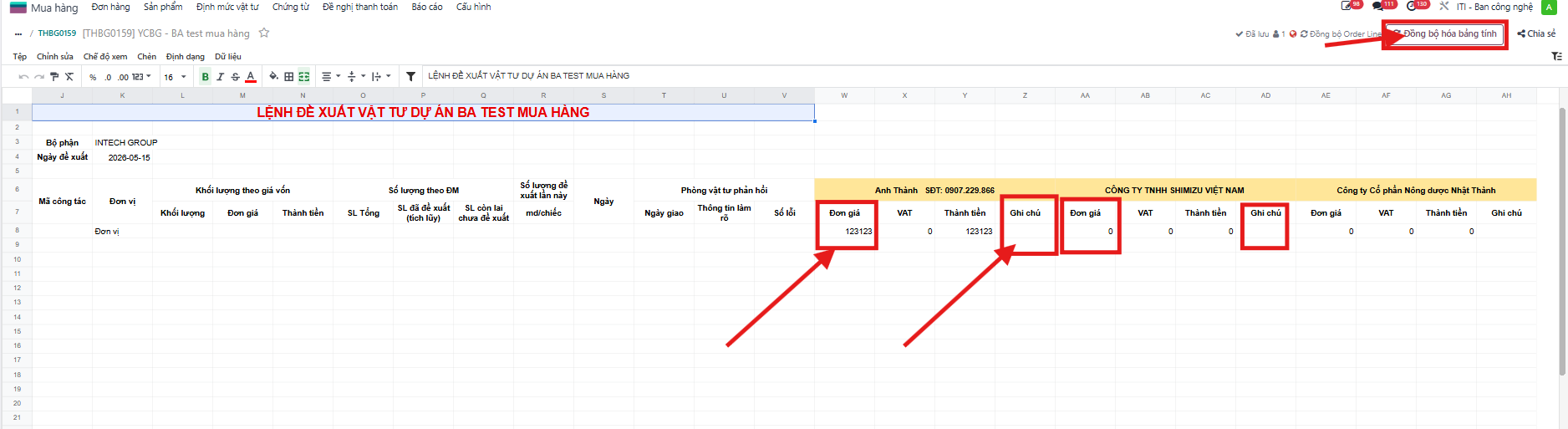
Step 3: Refresh the page: the system summarizes vendor prices and comparative metrics.
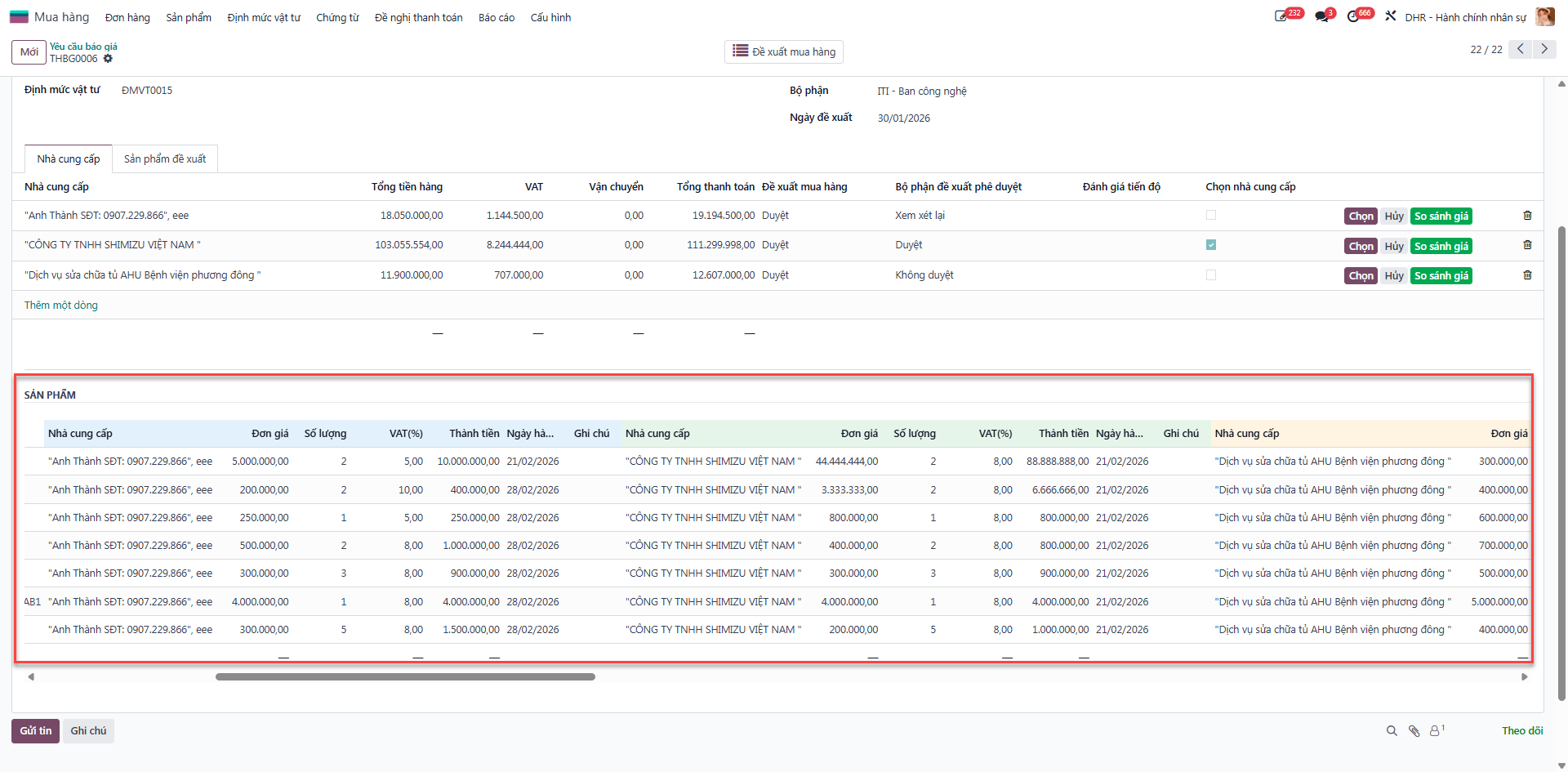
Step 4: The Procurement Department selects the optimal vendor and clicks Approve Vendor.
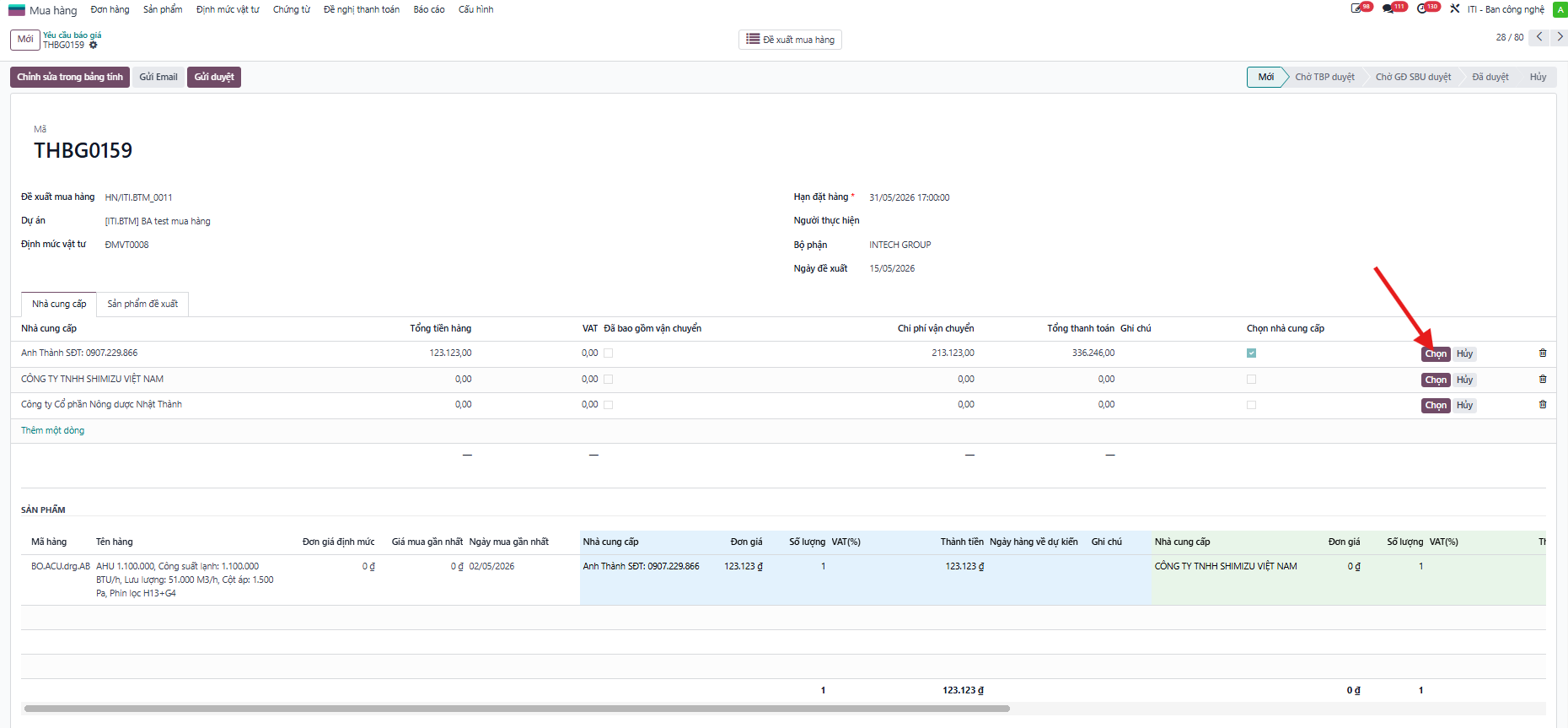
Step 5: The Department Head confirms the quotation and submits for SBU Head approval with the chosen supplier and products to issue the Purchase Order (PO).