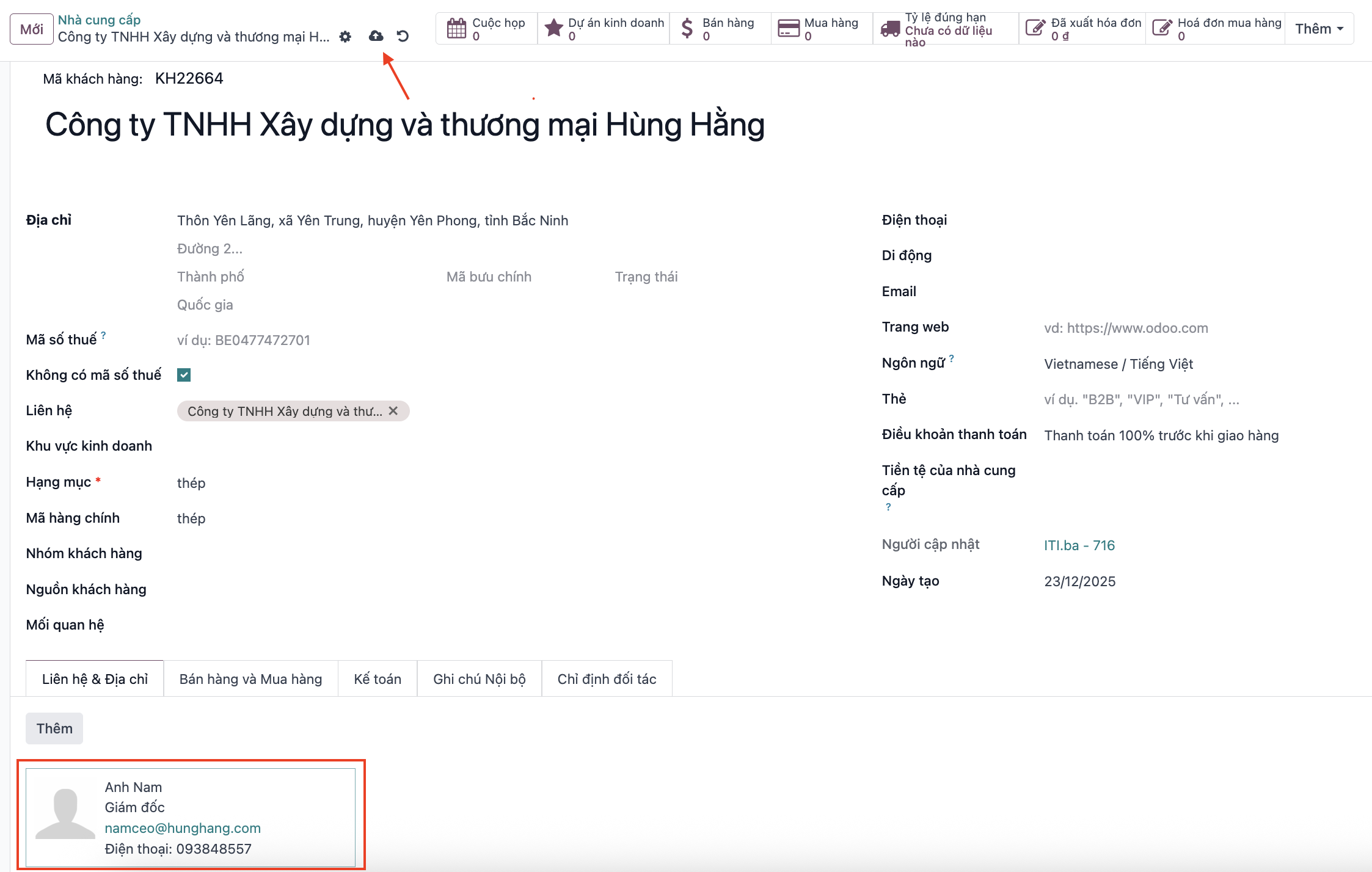
Vendor Management
Vendor Management maintains centralized supplier profiles, tax credentials, performance analytics, and multi-contact structures across all company subsidiaries.
Search and Vendor Overview
Step 1: Navigate to .
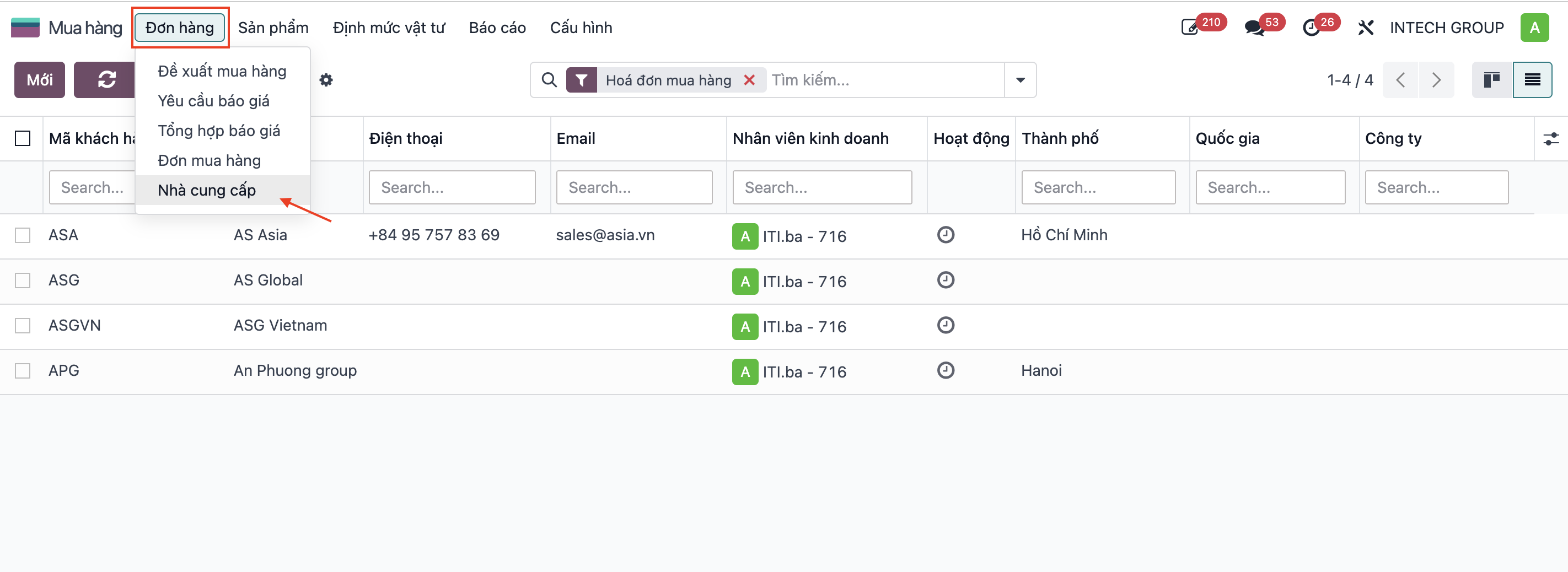
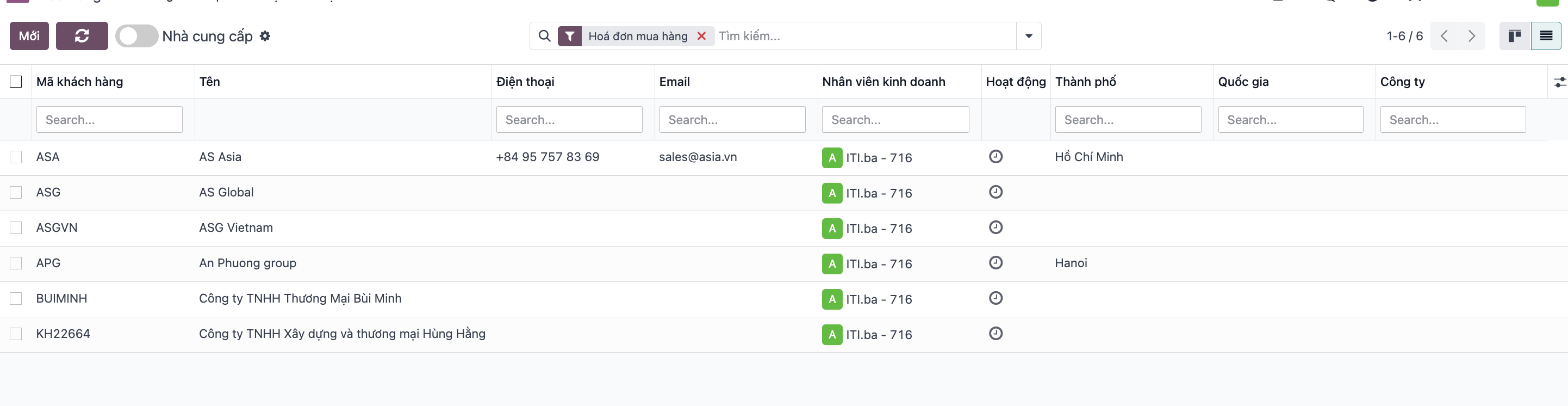
Step 2: View existing vendors: filter and search by Name, vendor code, email, address, or Tax ID.
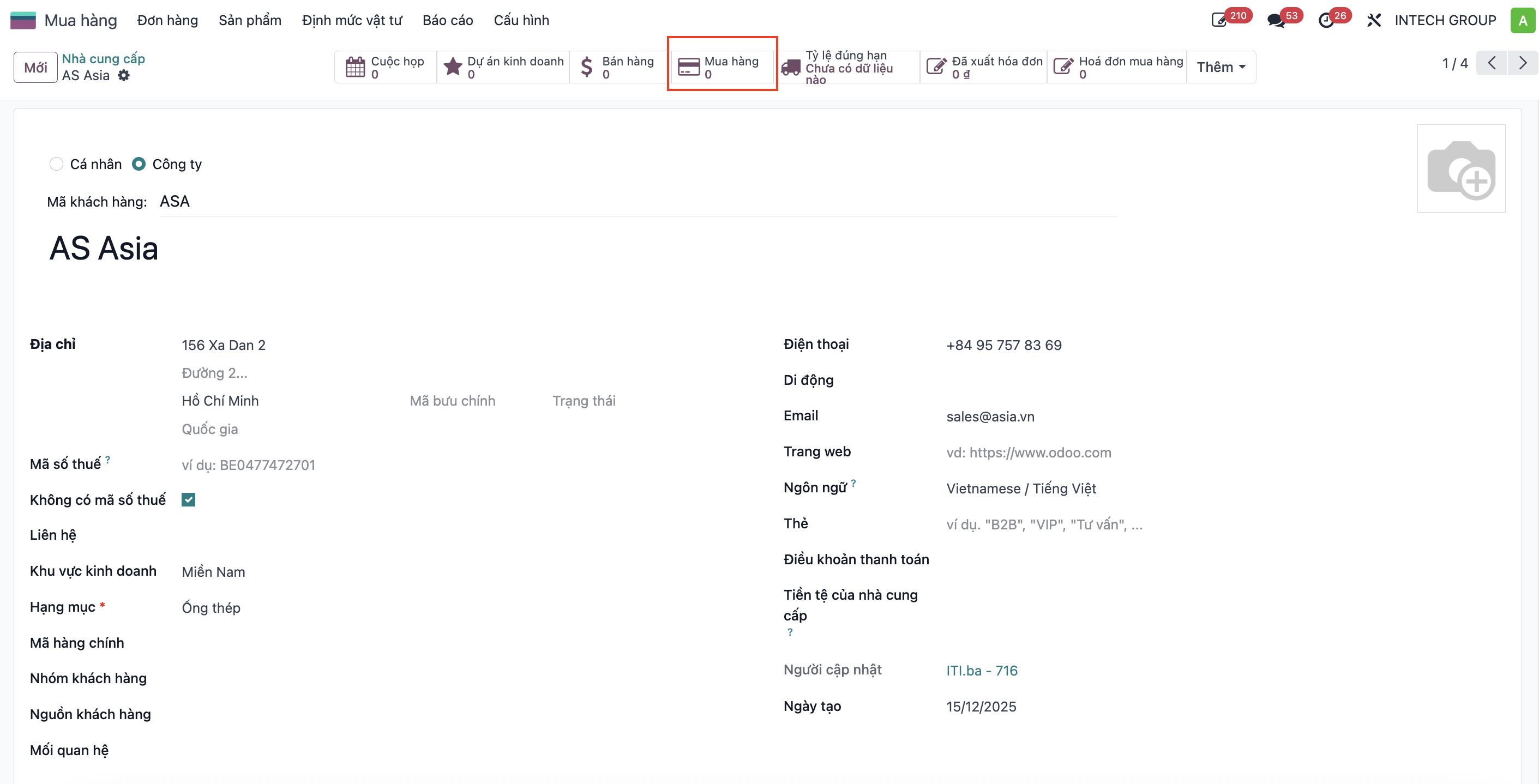
Step 3: Open a vendor record. Interactive Smart Buttons display real-time purchasing statistics (number of purchase orders, on-time delivery rate).
Create New Vendor Profile
Step 1: In the vendor list view, click New.
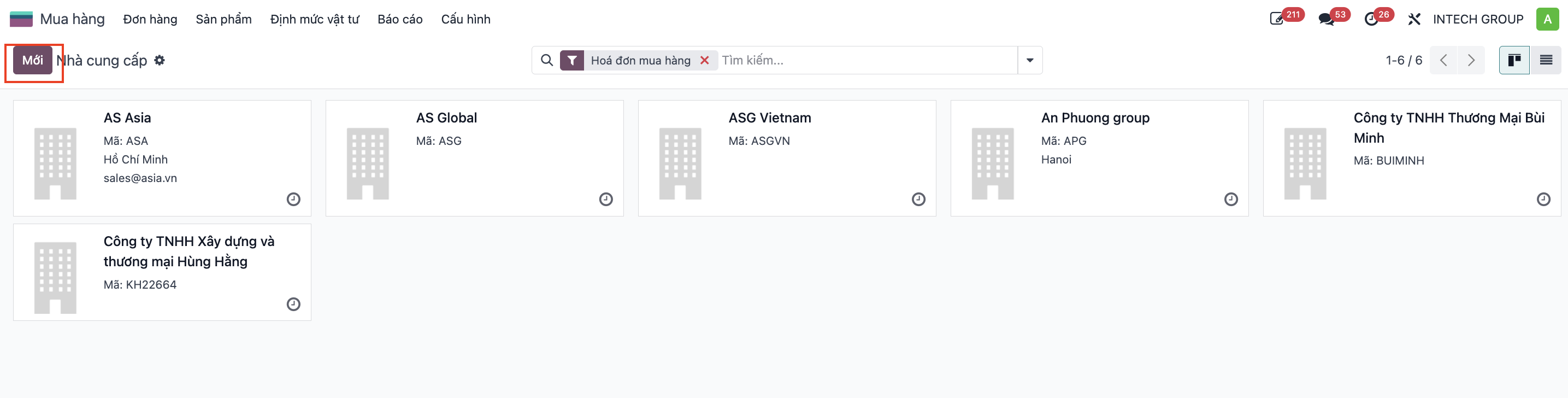
Step 2: Enter Company Name, Vendor Code, Tax ID, Address, Supply Category, Business Region, Main Product Codes, Contacts, and Bank Account Details.
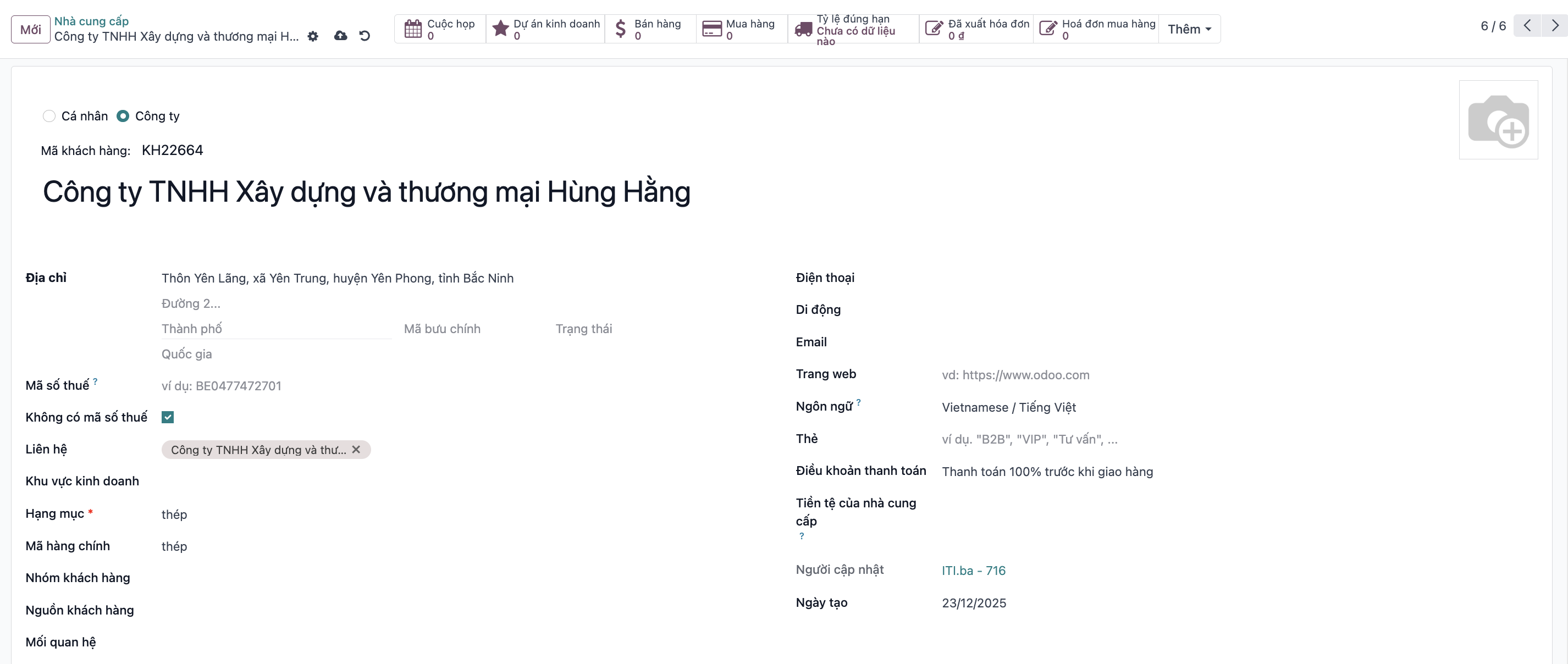
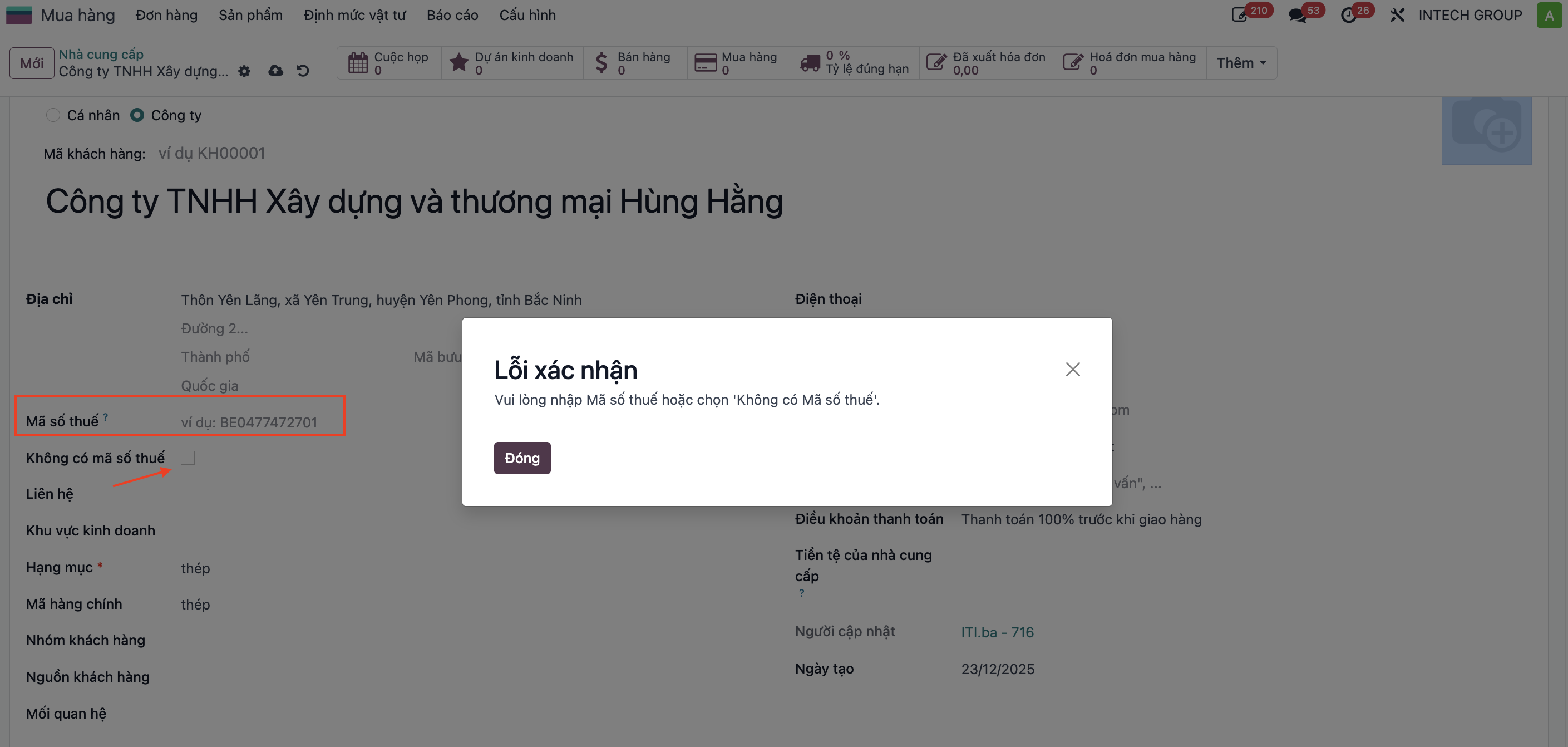
Step 3: If a vendor is a household business or exempt partner without a Tax ID, check No Tax ID to enable record saving.
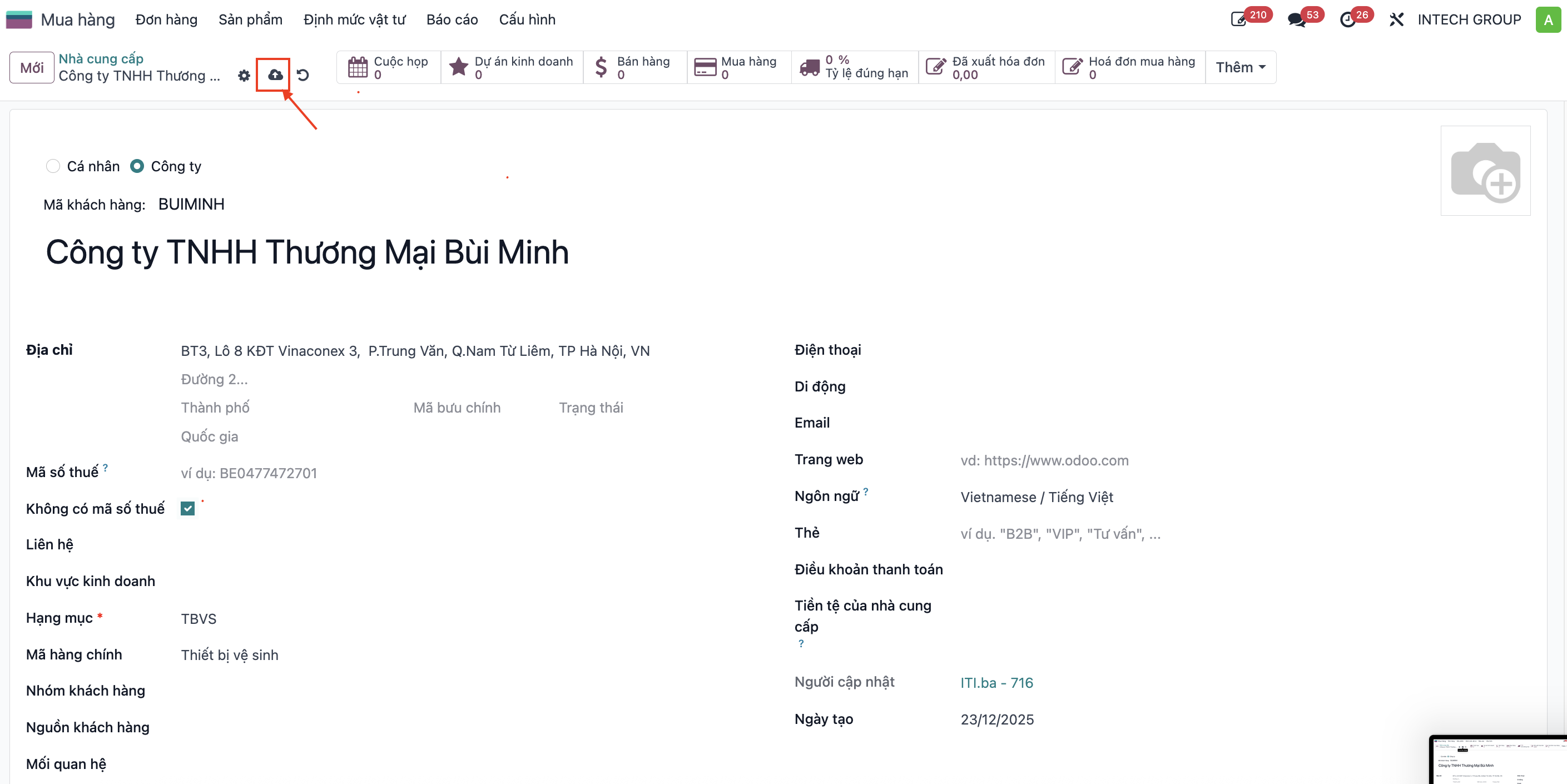
Step 4: Click Save. The vendor is stored for future procurement orders.
Manage Secondary Contacts and Branch Addresses
When a supplier maintains multiple department representatives or regional offices:
Step 1: Open the vendor profile and click Add under the Contacts & Addresses tab.
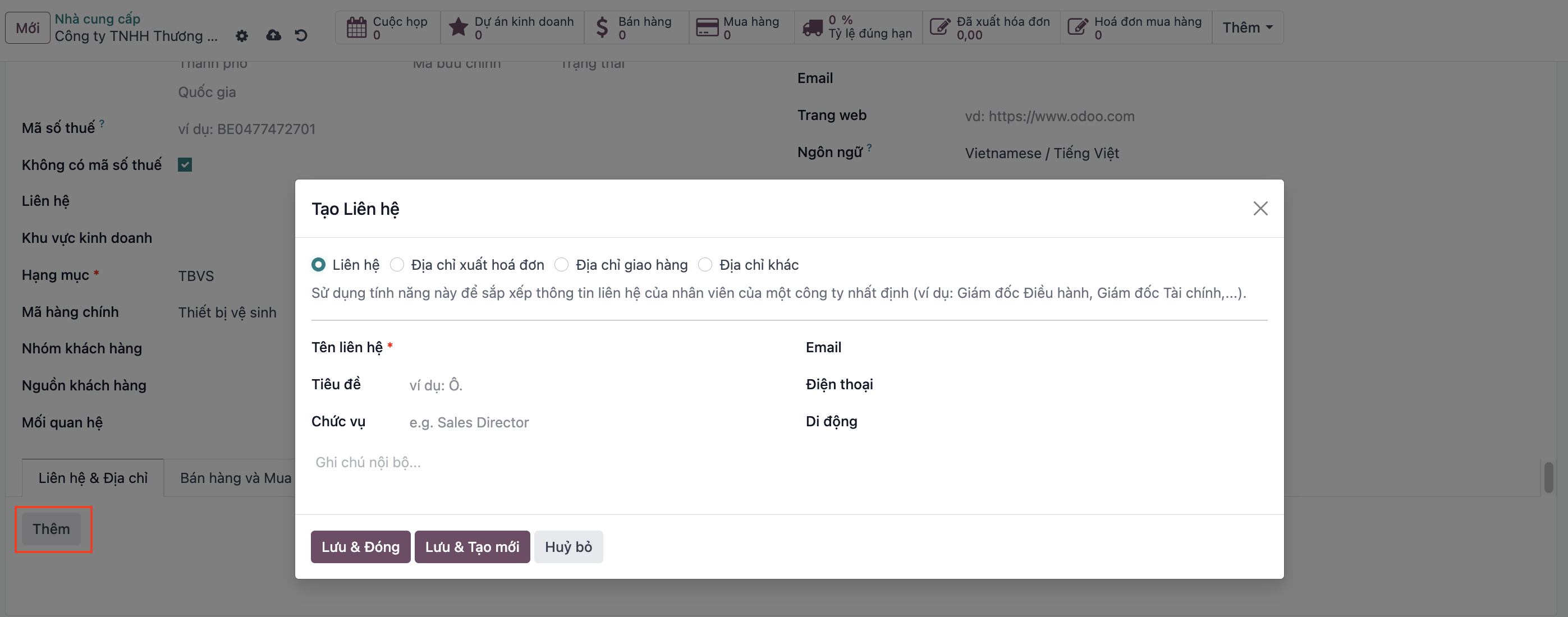
Step 2: Configure contact information for hotline, sales manager, or director.
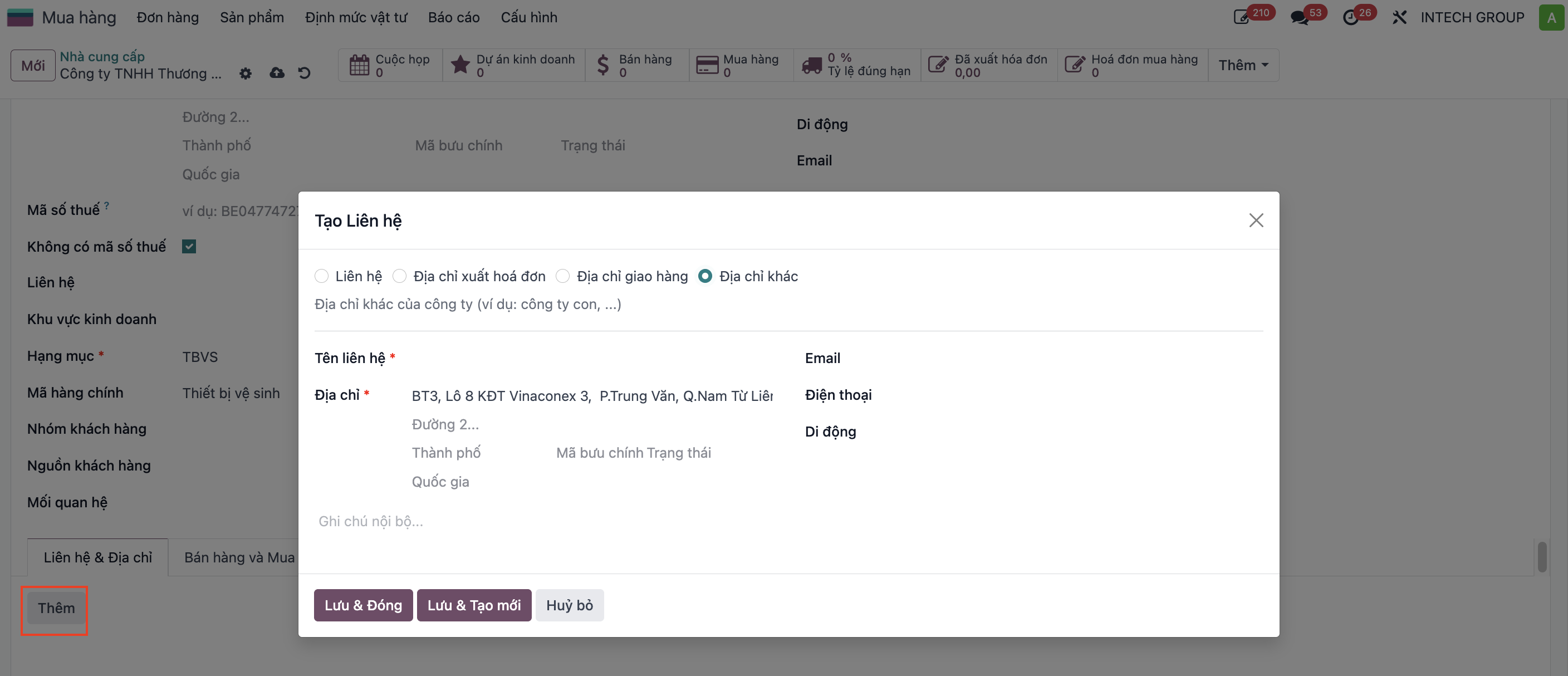
Step 3: Create subsidiary branch addresses or representative offices, then click Save.