Contracts & Payments
The Contracts module bridges Sales and Finance, handling post-deal contract finalization, billing milestone registrations, and accounting payment approvals.
Finalize Contract Details (Sales)
When an opportunity is won, a corresponding contract is automatically drafted:
Navigate to (or click the smart button on the Won Opportunity).
Verify auto-populated data: Customer, Contract Value, Salesperson.
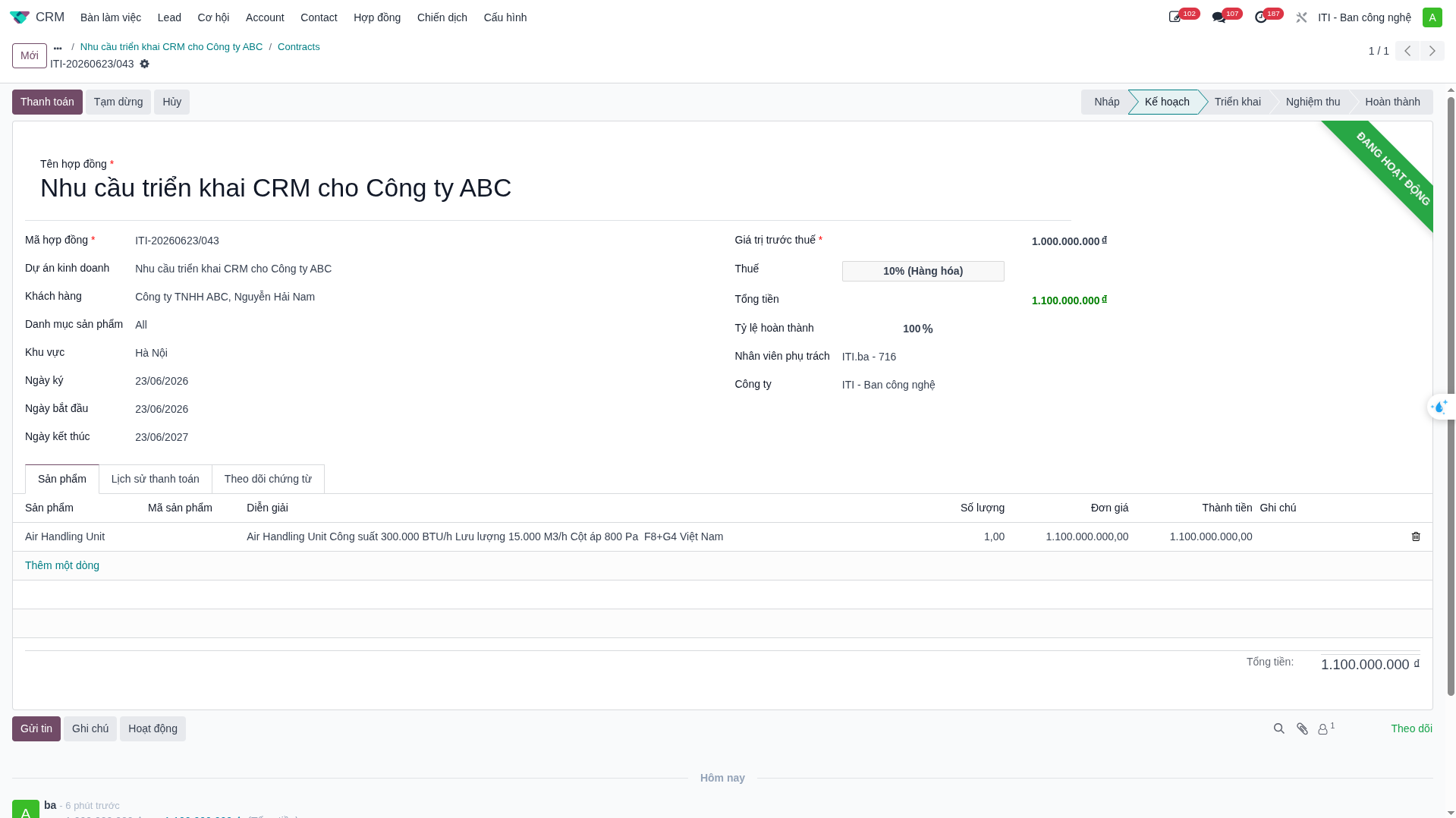
Complete contract parameters: - Signing Date, Effective Date, and Expiration Date. - Tax Rate (%): The system automatically computes total value after tax. - Completion Progress (%): Updated in accordance with real project execution. - Product Lines: Itemized product breakdowns feeding the Product Revenue dashboard.
Register Customer Payment (Sales)
When the customer makes a payment milestone:
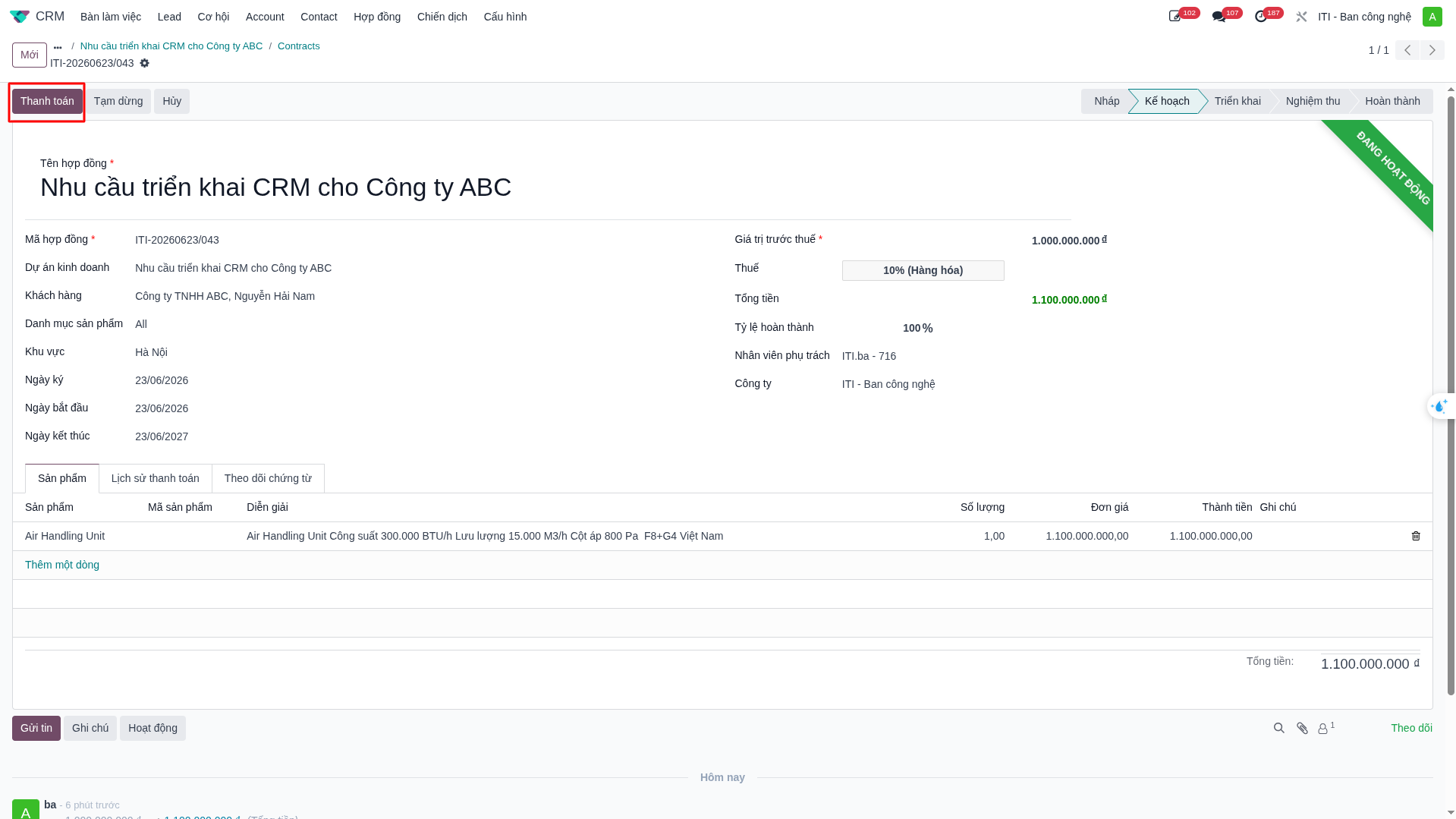
On the contract form, click Register Payment.
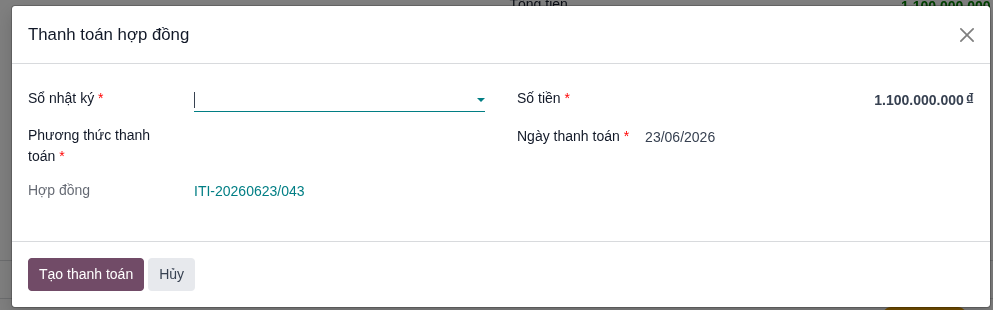
In the modal dialog, enter Payment Amount, Payment Method (Bank Transfer, Cash), and Payment Date. Attach payment proofs/bank vouchers.
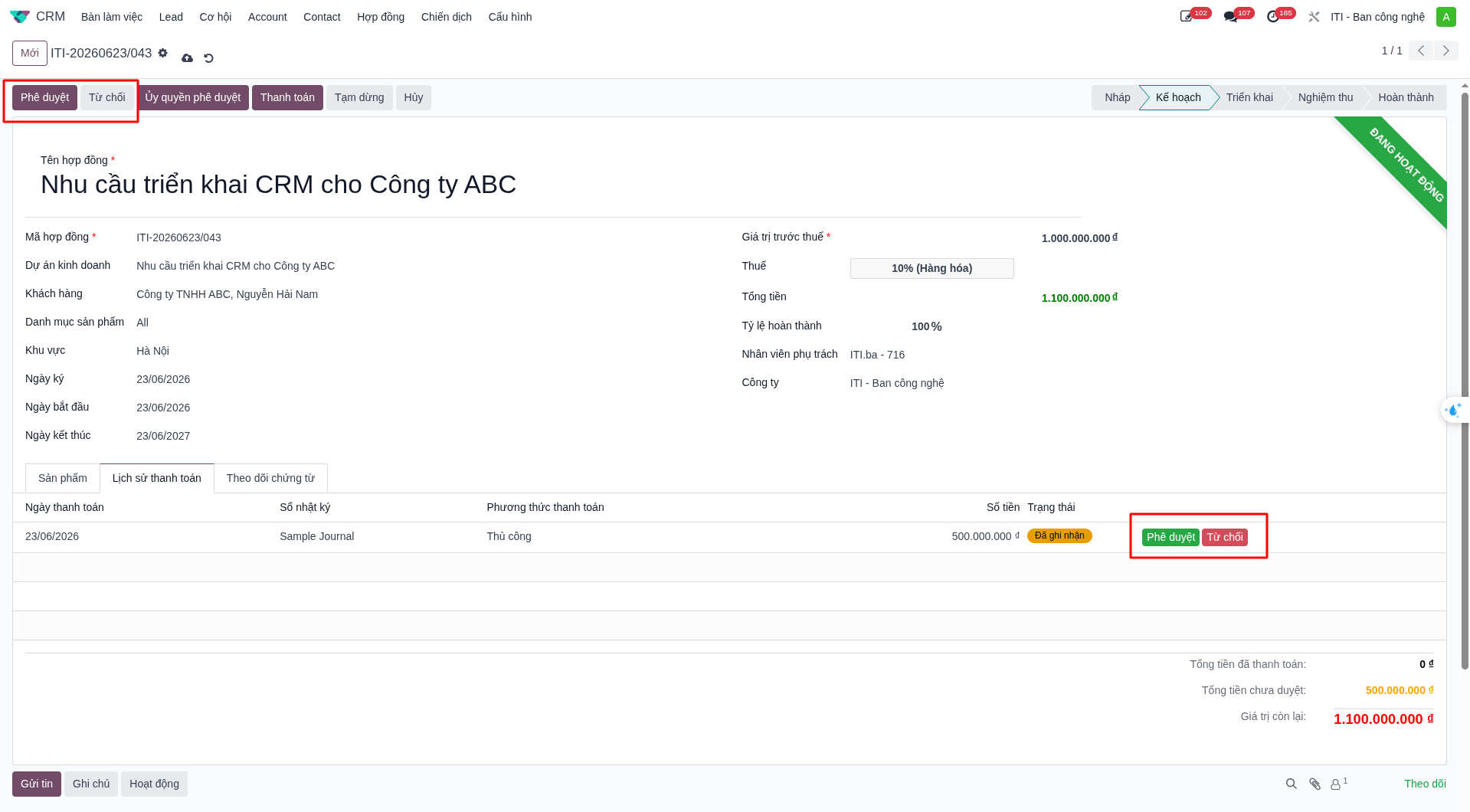
Click Submit. The transaction appears in the Payment History tab under Registered status.
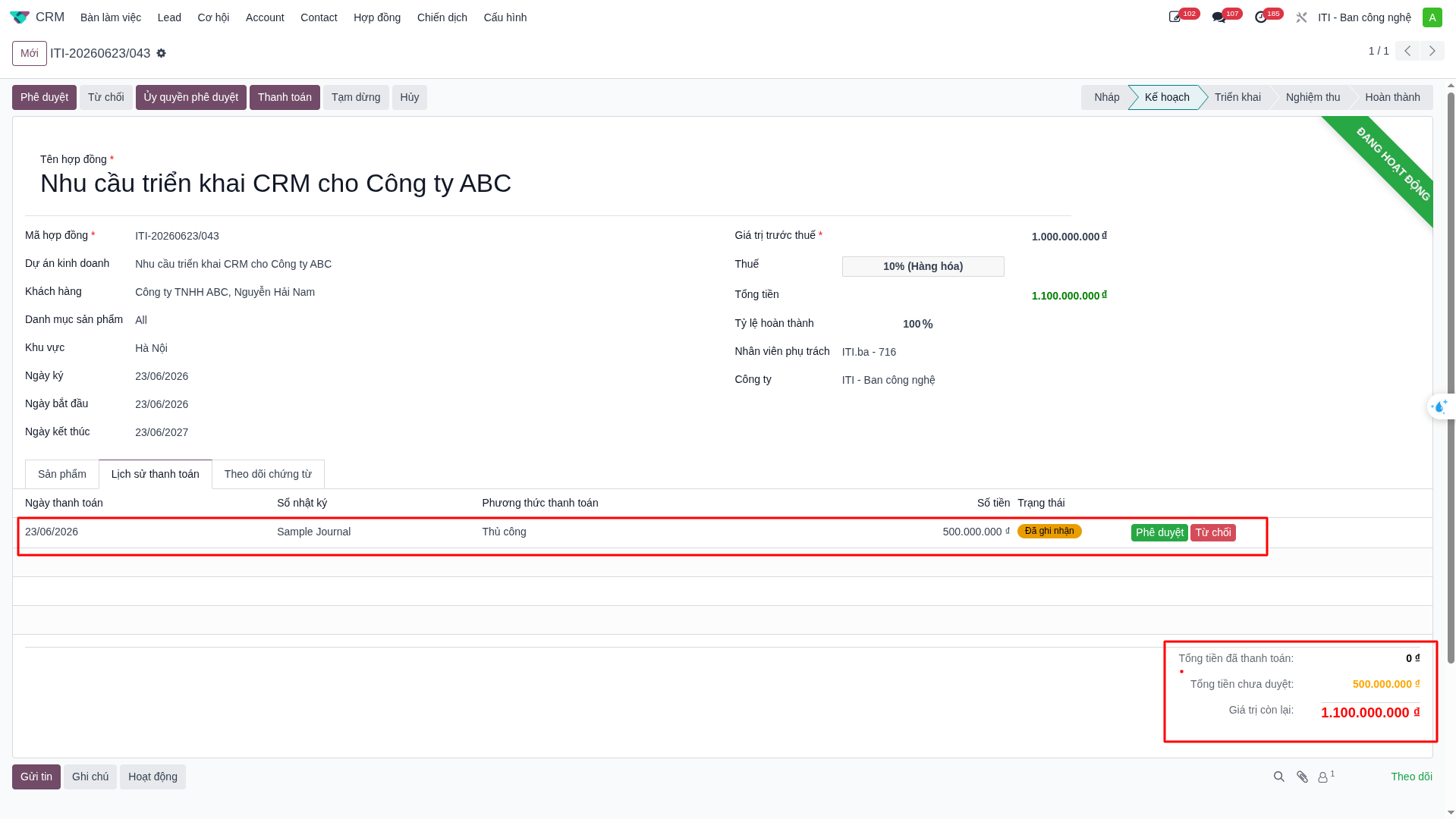
Approve Payment (Accounting)
The Accounting department verifies and approves transactions:
The Accountant accesses .
Inspects payment vouchers and bank statements.
Clicks Approve Payment (single contract or batch approval from list view).
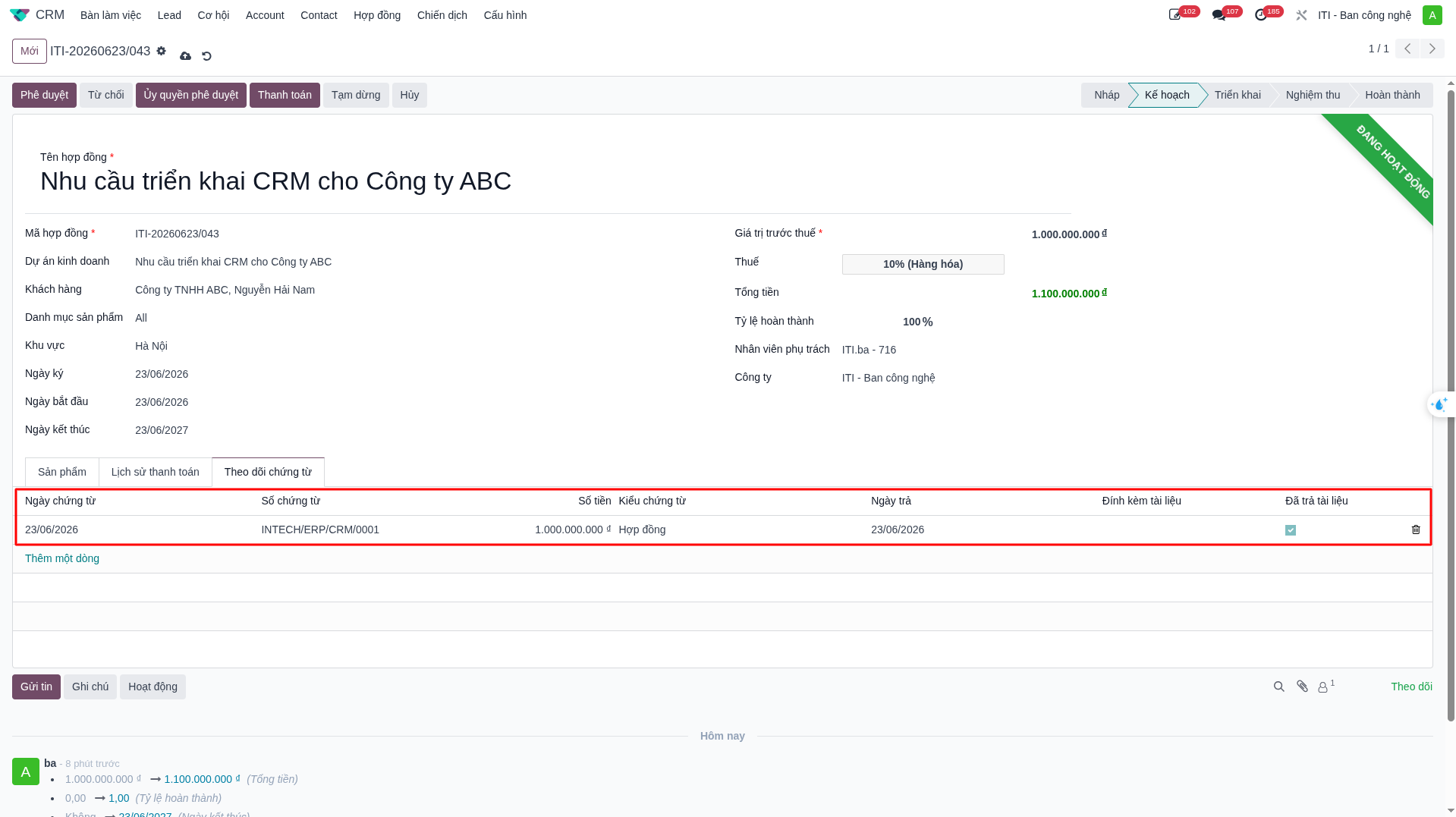
Upon approval, the payment transitions to Approved. The amount is added to Total Paid and subtracted from Remaining Debt. Realized revenue figures update instantly on executive dashboards.