
Recruitment on ERP
This guide describes the recruitment workflow in Intech ERP: configuring skills, job positions, stages, job descriptions (JD), managing tests, applicant records, CV uploads, interviews, offers, employee creation, recruitment reports, and access rights.
Log in to ERP
After receiving the account and password, log in to the system.
Step 1: Access the portal: https://erp.intechgroup.vn/web
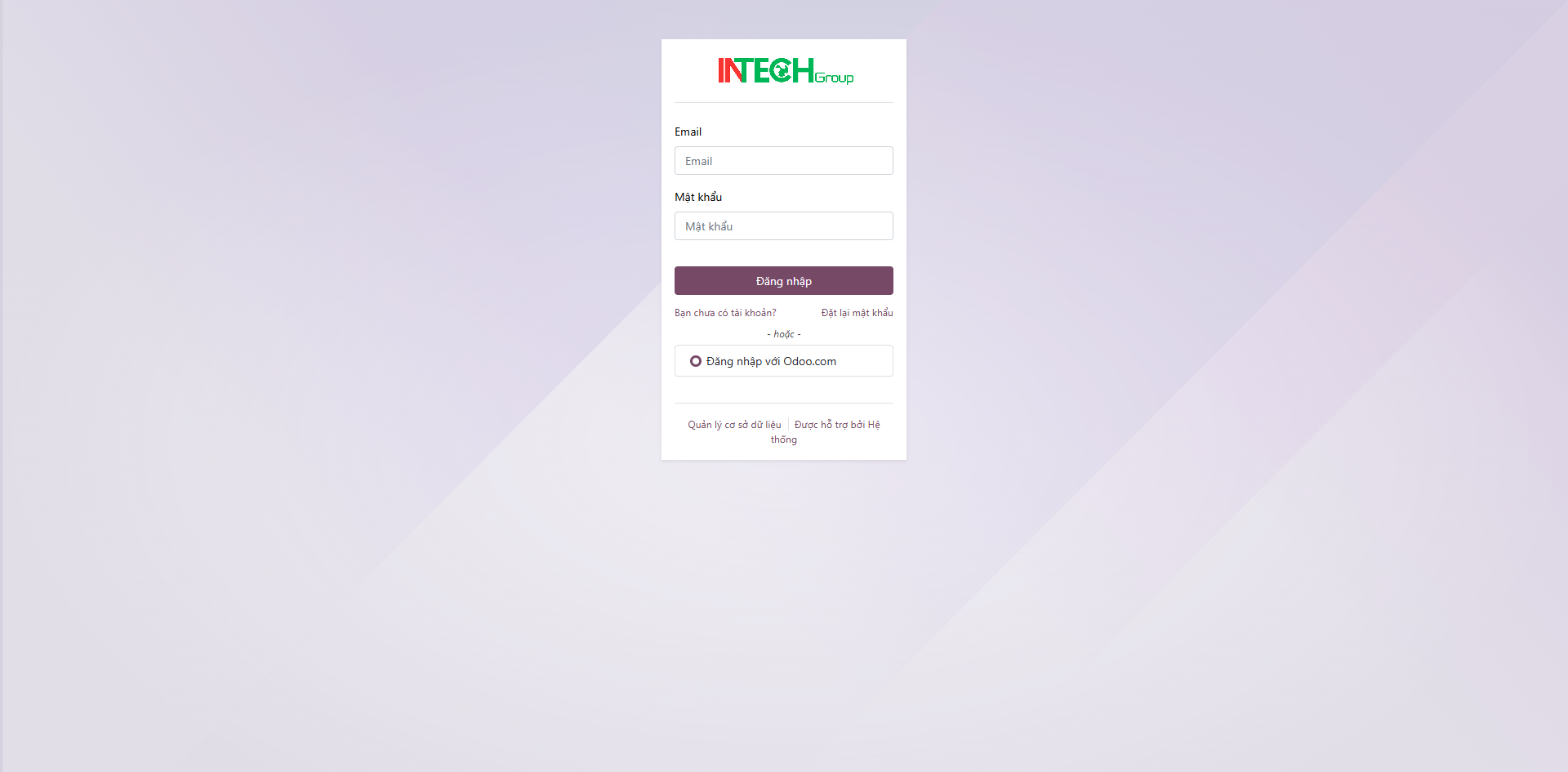
Step 2: The login screen appears. Enter the provided account and password, then click Log in.
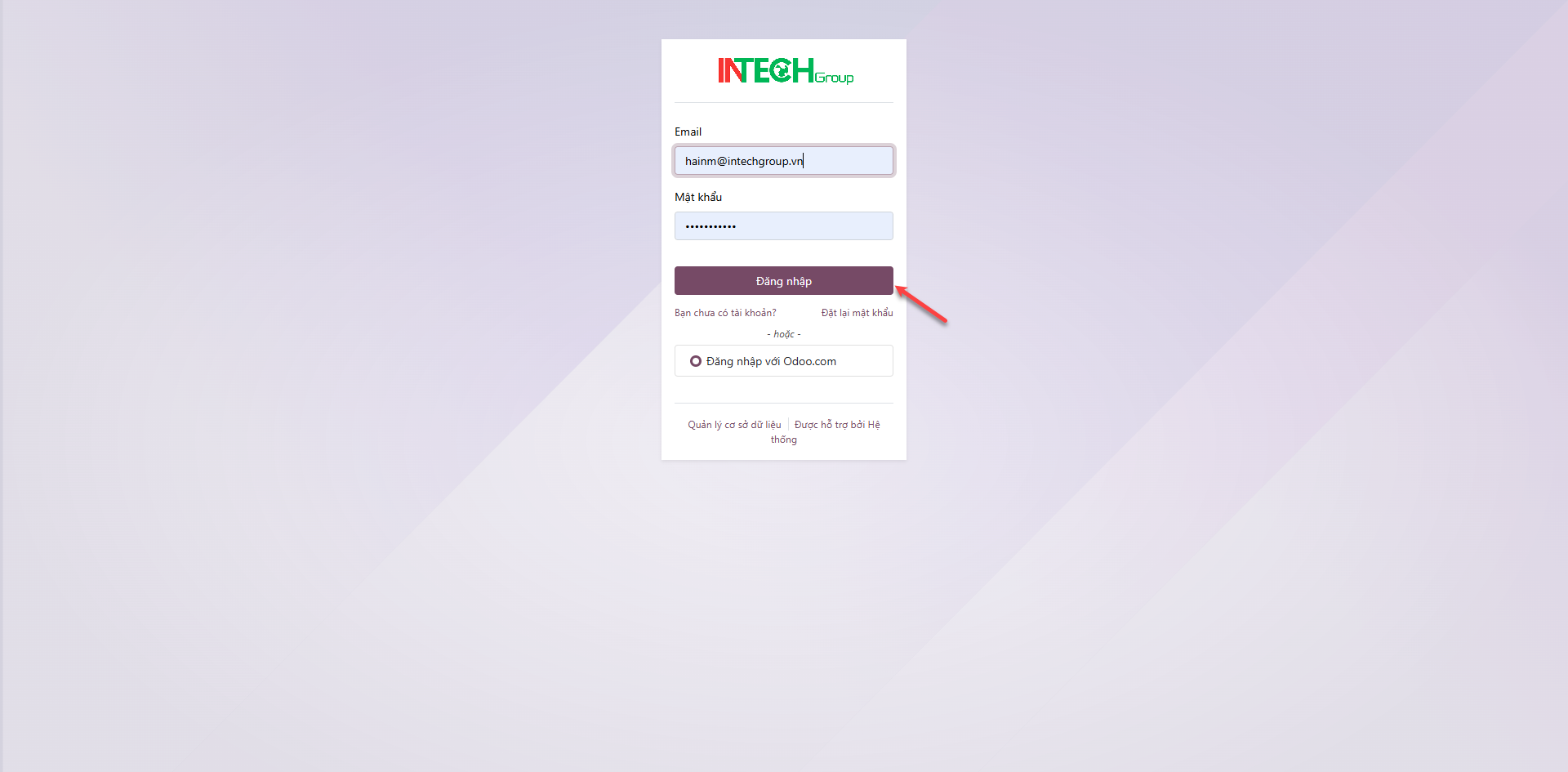
Step 3: After a successful login, the system displays the main screen with the applications granted to the user.
Create skill types
HR configures the skill types of each industry or job position so that AI can summarize the skills of each applicant.
Step 1: In the Recruitment application, navigate to .
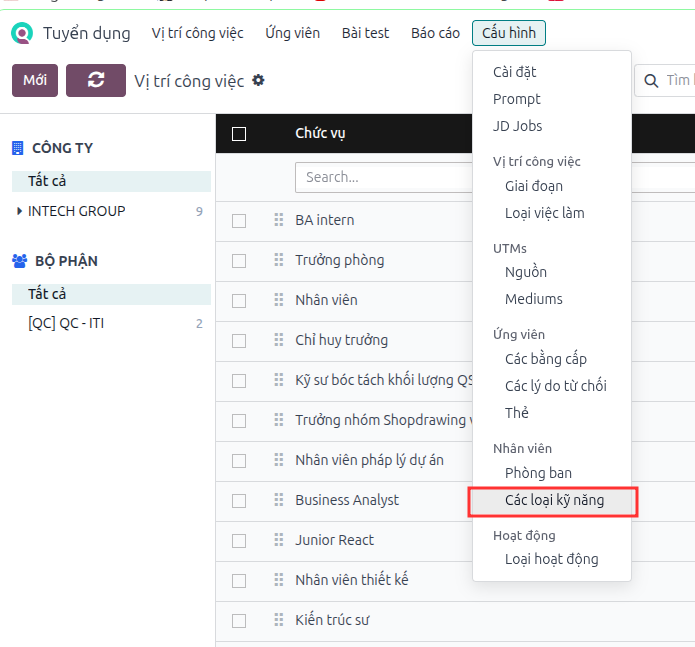
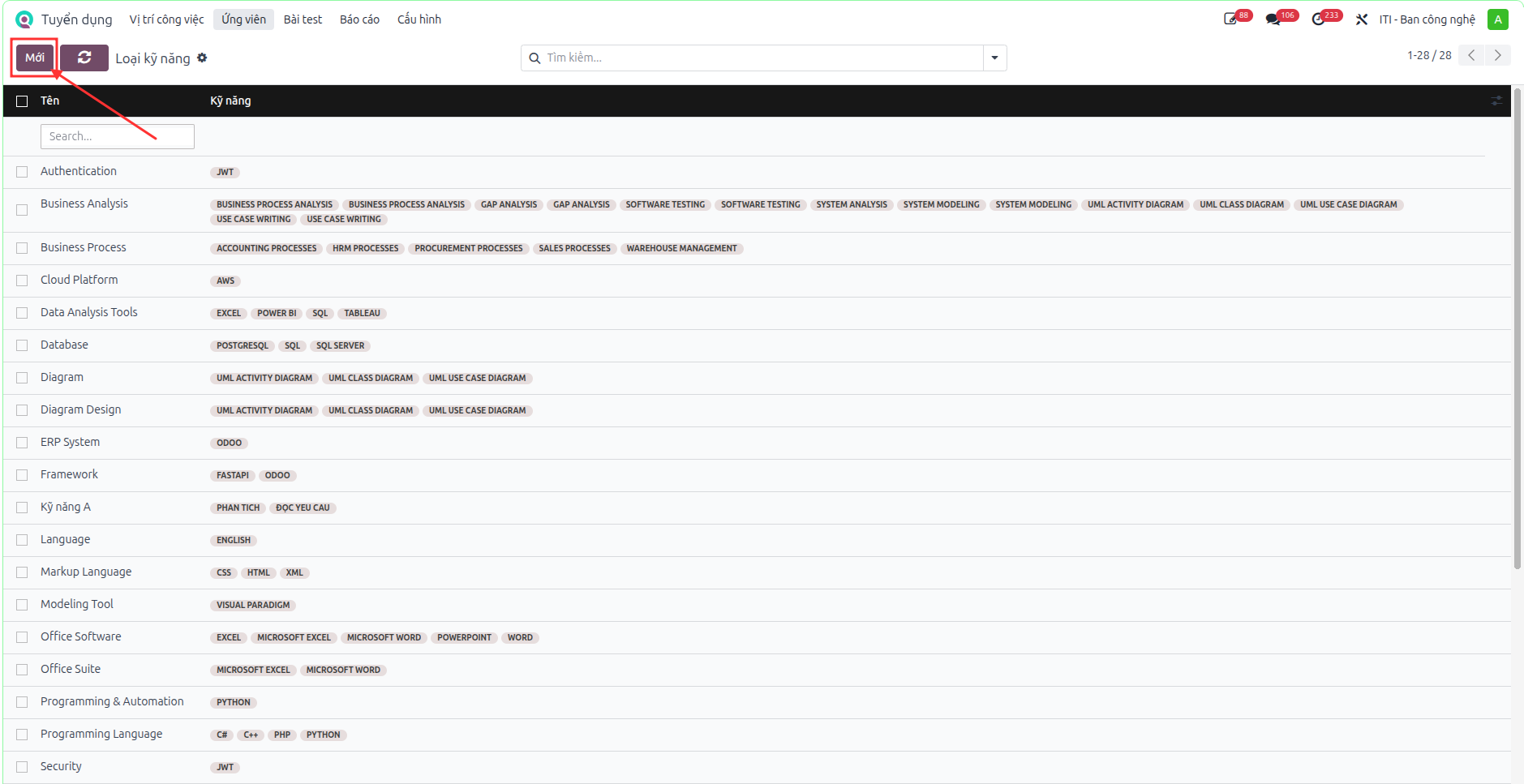
Step 2: Click New to add a skill that does not exist yet.
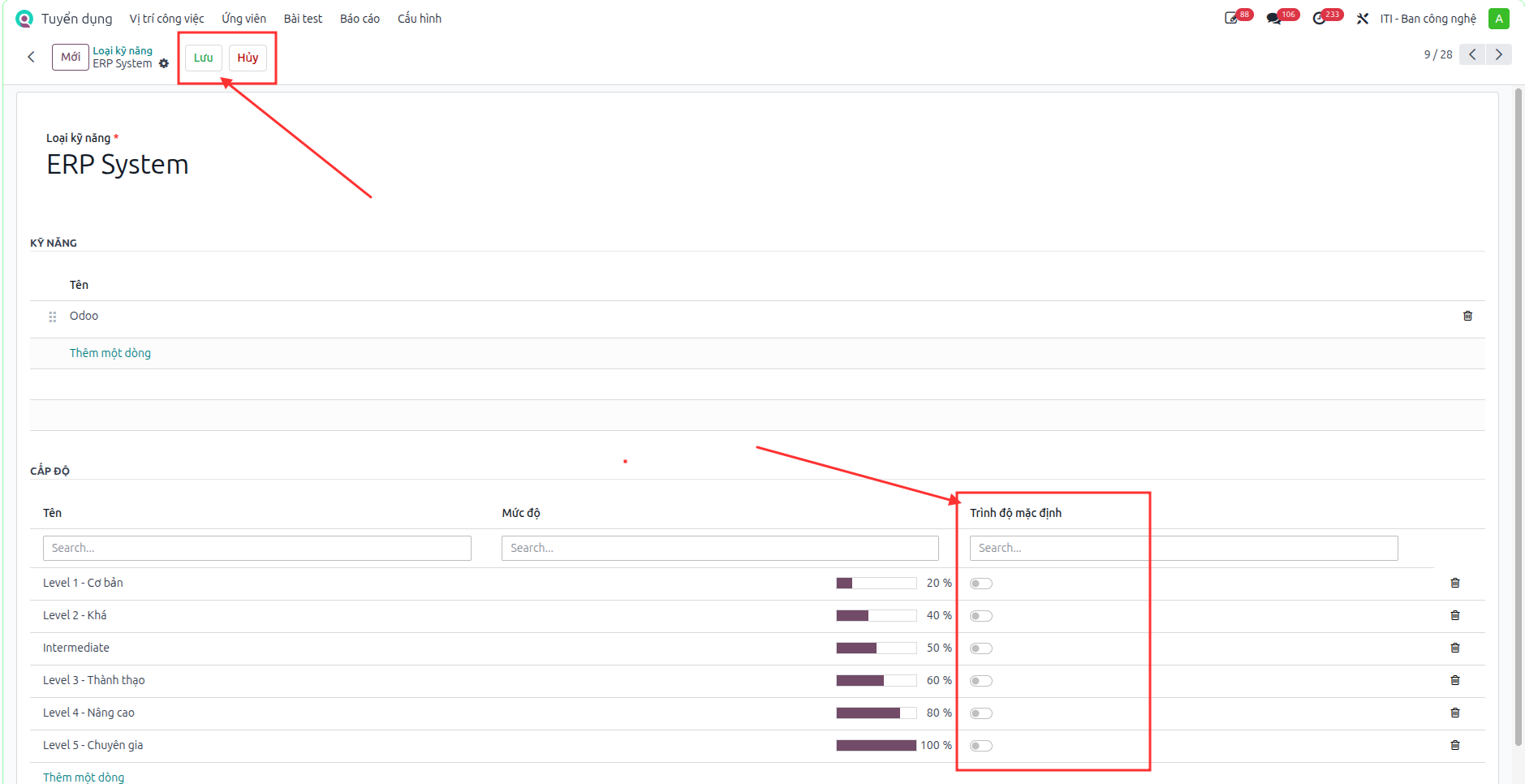
Step 3: Enter the Skill Type, add a skill line, then set the Default Level of the skill.
Note
Click Save before setting the Default Level.
Create job positions
HR adds the job positions that do not exist yet in the system, either to recruit for them or to assign them to employees.
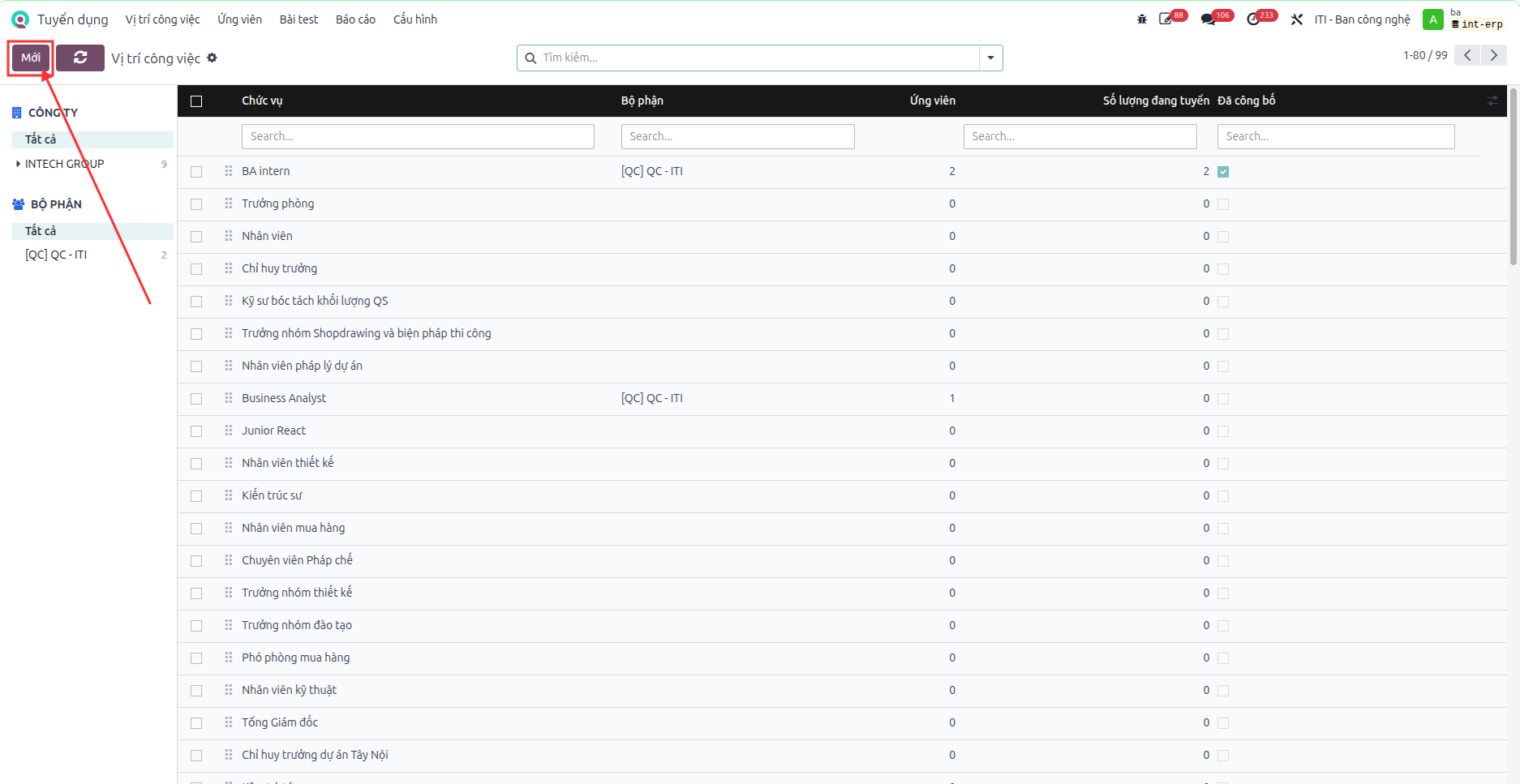
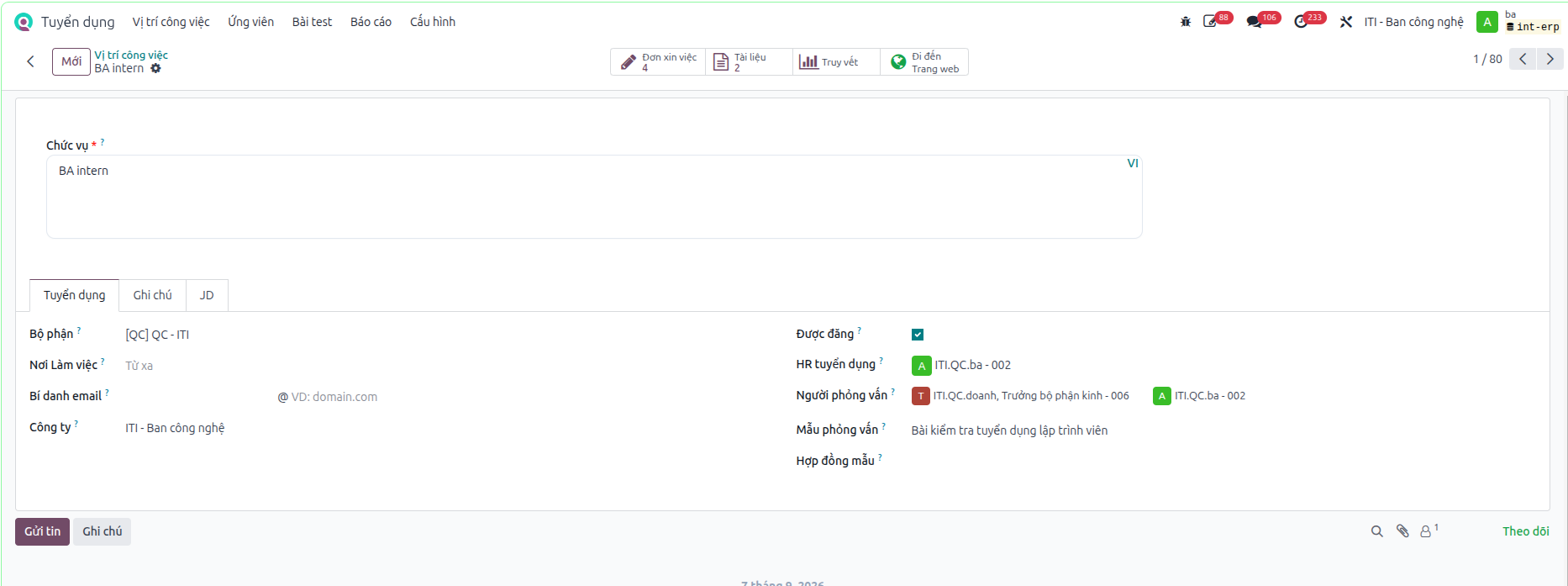
Step 1: In the Recruitment application, click New to add a job position.
Step 2: Enter the job title, the department to recruit for, the recruiter, the interviewers, the interview form (test), and other information.
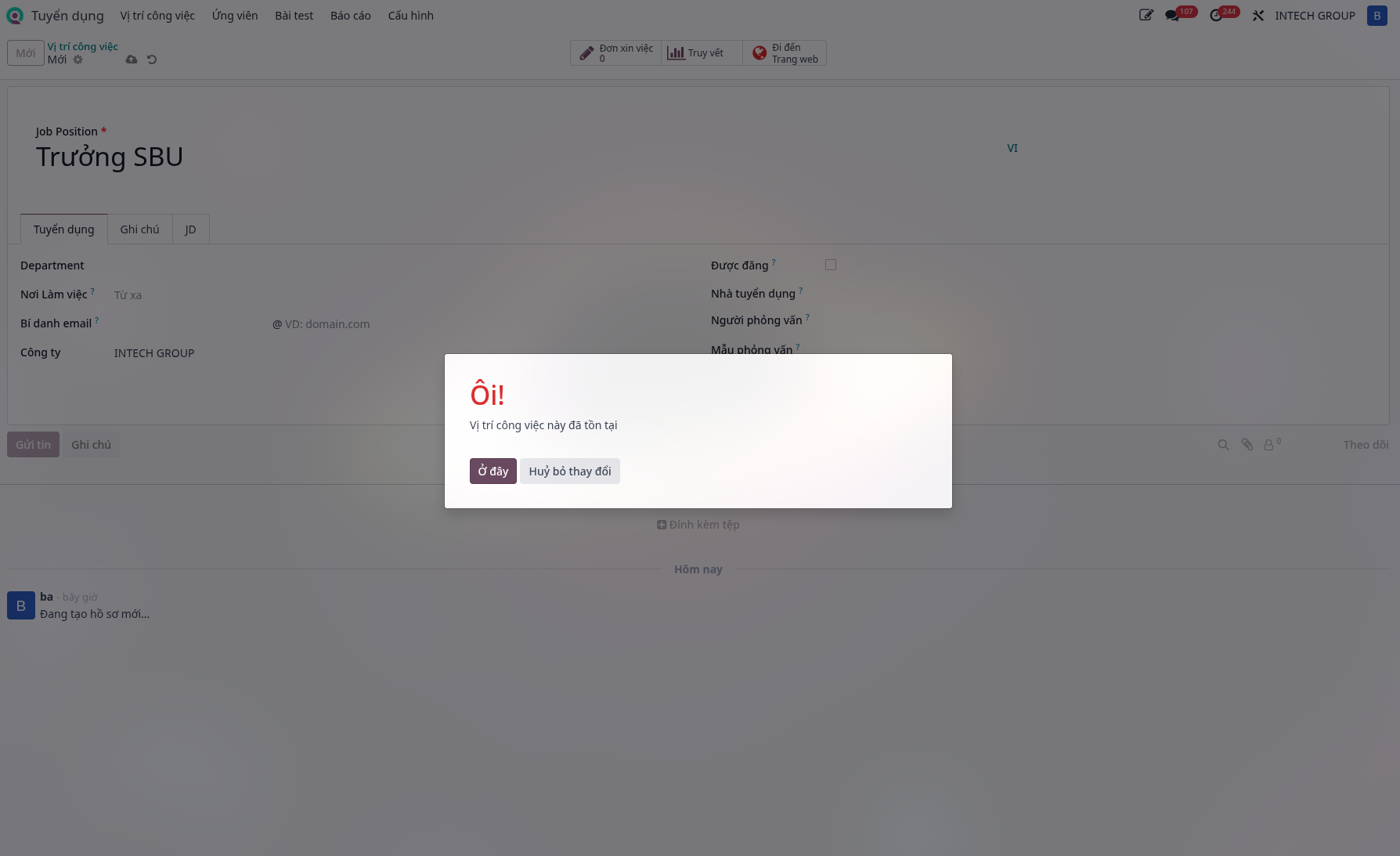
Note
A new job position cannot have the same title as another job position. Otherwise, the system displays the error “This job position already exists”.
Configure recruitment stages
HR configures the stages (steps) of the recruitment process: the stage name, the order, the stage considered as hired, and the action buttons displayed on the applicant form at each stage. This configuration applies to all job positions, unless it is limited to specific positions in the Job Specific field.
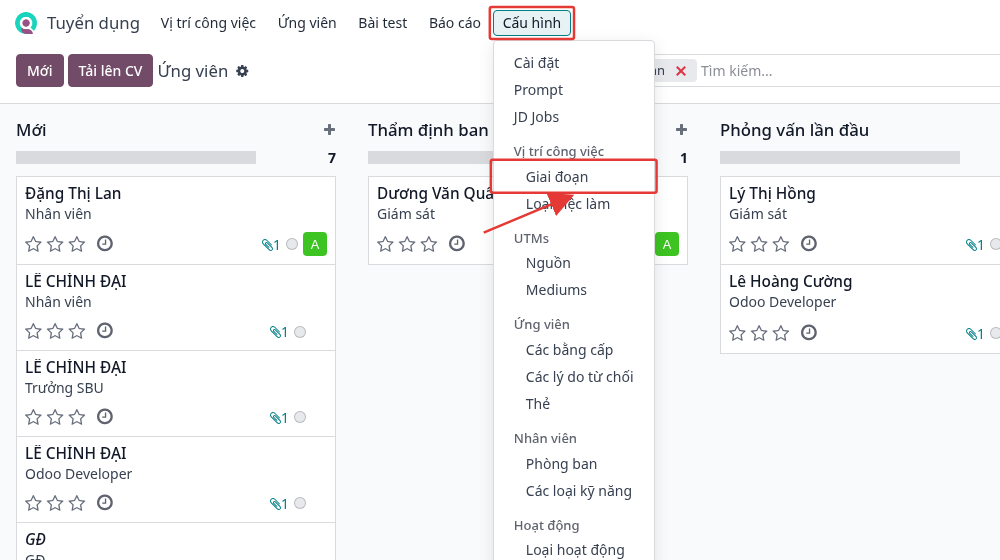
Step 1: Navigate to .
Step 2: The stages list follows the order of the process. This screen shows which stages are folded in the Kanban view, which stage is the hired stage (recruitment completed), and the applied buttons. Drag the ⠿ icon at the beginning of a line to change the order.
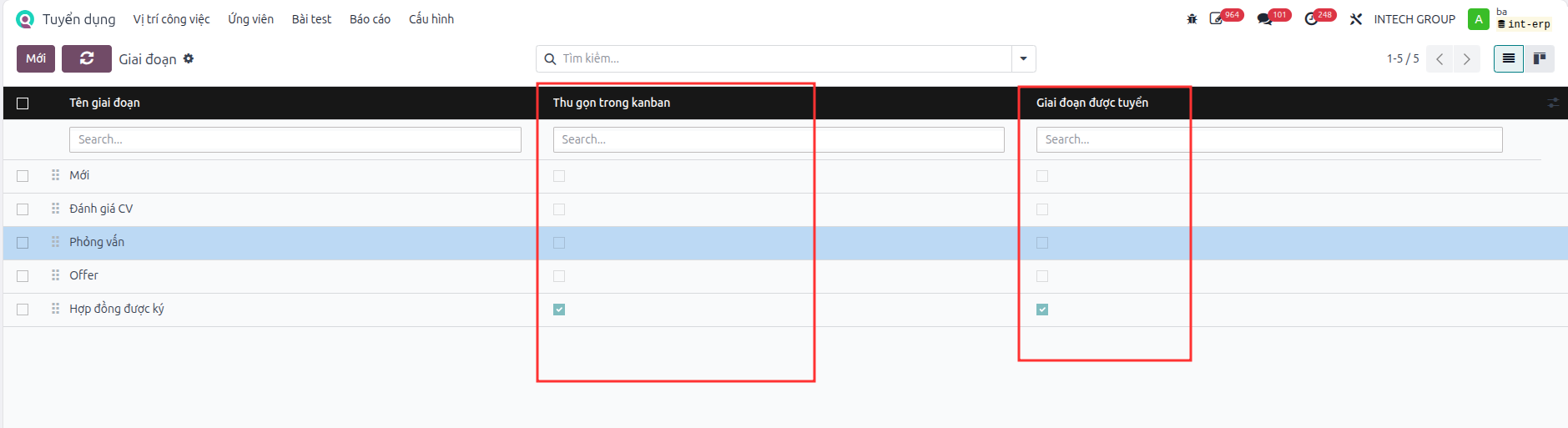
Stages currently used in the system, with the recommended action buttons:
No. |
Stage |
Business meaning / Recommended buttons |
|---|---|---|
1 |
New |
The record has just been created or the CV has just been uploaded. Buttons: Extract CV, Refuse. |
2 |
Initial Qualification |
HR screens the CV, AI scores the match with the JD. Buttons: Send Test, Refuse, Send Interview. |
3 |
First Interview |
The applicant takes the test, first interview round. Buttons: Send Test, Send Interview, Evaluate Applicant, Refuse, AI Evaluation. |
4 |
Second Interview |
Second interview round with the direct manager. Buttons: Send Test, Send Interview, Evaluate Applicant, Refuse, AI Evaluation. |
5 |
Contract Proposal |
Send the job offer to the applicant. Buttons: Generate Offer, Refuse. |
6 |
Contract Signed |
The applicant accepts the job. This is the hired stage. Buttons: Create Employee. |
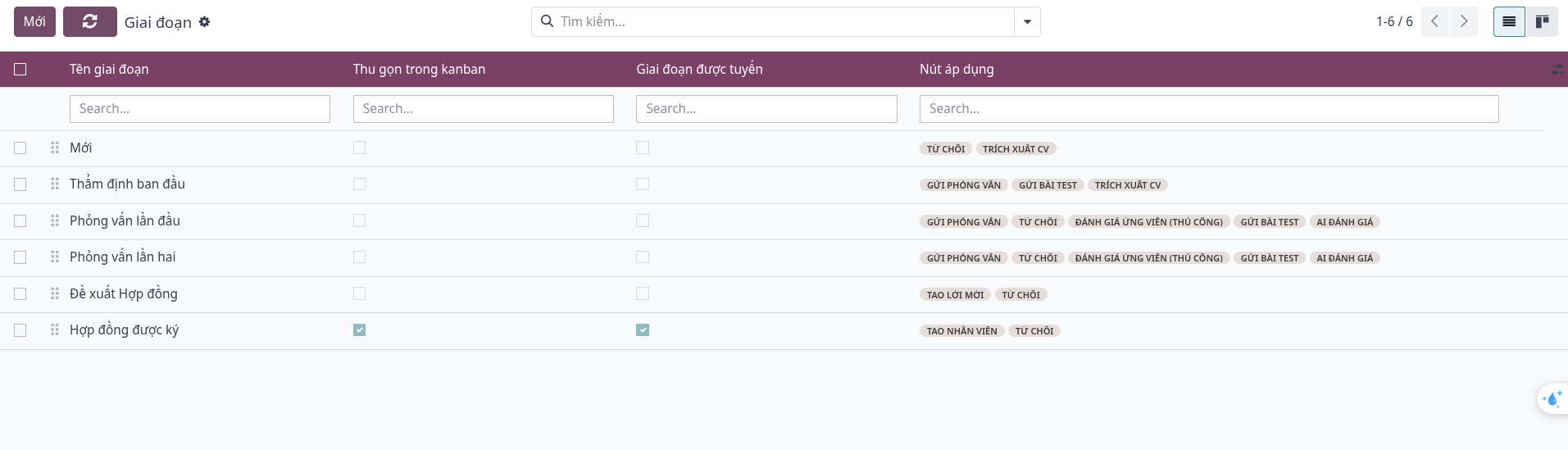
Step 3: Click a stage to open its configuration form. The fields on the form are described below.
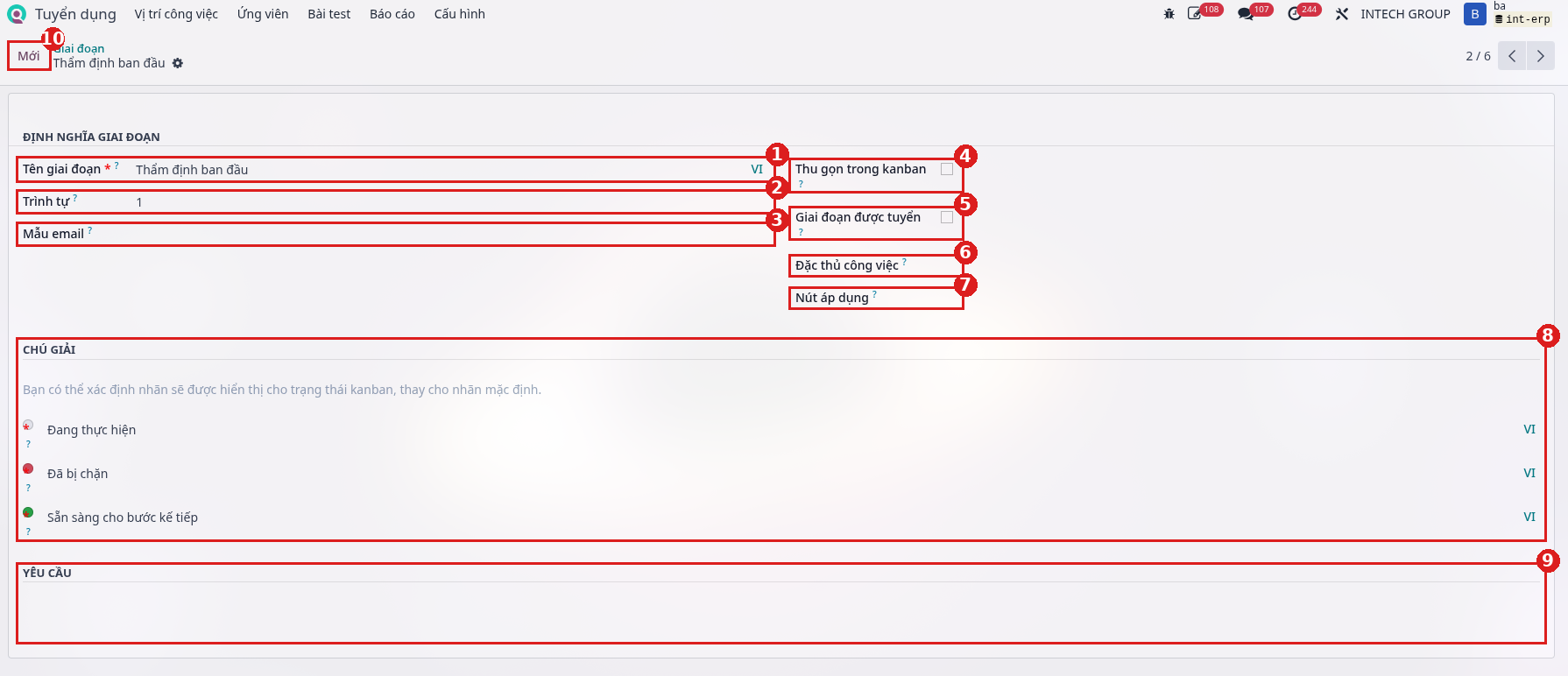
No. |
Field |
Meaning |
|---|---|---|
1 |
Stage Name (required) |
Name of the stage, displayed as the column title in the applicants Kanban view and on the status bar of the applicant form. Click VI to enter the name in each language. |
2 |
Sequence |
Order of the stages. A smaller number comes first. This field is only visible in developer mode. |
3 |
Email Template |
If set, when an applicant moves to this stage, the system automatically sends an email or posts a message on the applicant record using the selected template. Leave empty if not needed. |
4 |
Folded in Kanban |
When checked, the column of this stage is folded in the Kanban view if no applicant is in that stage. |
5 |
Hired Stage |
Marks this stage as the hired stage. When an applicant moves to this stage, the system records the hire date of the applicant. If this option is unchecked while applicants are still in this stage, all those records lose their hire date and hired status (the system displays a red warning). |
6 |
Job Specific |
Select the job positions using this stage. Empty: the stage applies to all positions. Otherwise, only the selected positions see this stage. |
7 |
Applied Buttons |
Select the buttons displayed on the applicant form while the applicant is in this stage. Unselected buttons are hidden. Empty: no action button is displayed. |
8 |
Tooltips |
Labels of the 3 Kanban statuses of the applicant in the stage: grey dot (default “In Progress”), red dot (“Blocked”), green dot (“Ready for Next Stage”). The label appears when hovering over the status dot on the applicant card. Click VI to enter it in each language. |
9 |
Requirements |
Free notes describing the requirements or conditions of the stage (for example, the criteria for the applicant to move to the next step), used as reference for recruiters. |
10 |
New button, navigation bar |
The New button creates a new stage. The gear icon next to the stage name contains the Duplicate, Archive, Delete actions. The “2 / 6” counter with the arrows on the right switches between stages. |
Step 4: Configure the Applied Buttons: click the Applied Buttons field, then select the buttons to display on the applicant form while the applicant is in this stage. Click the × sign on a button to remove it.
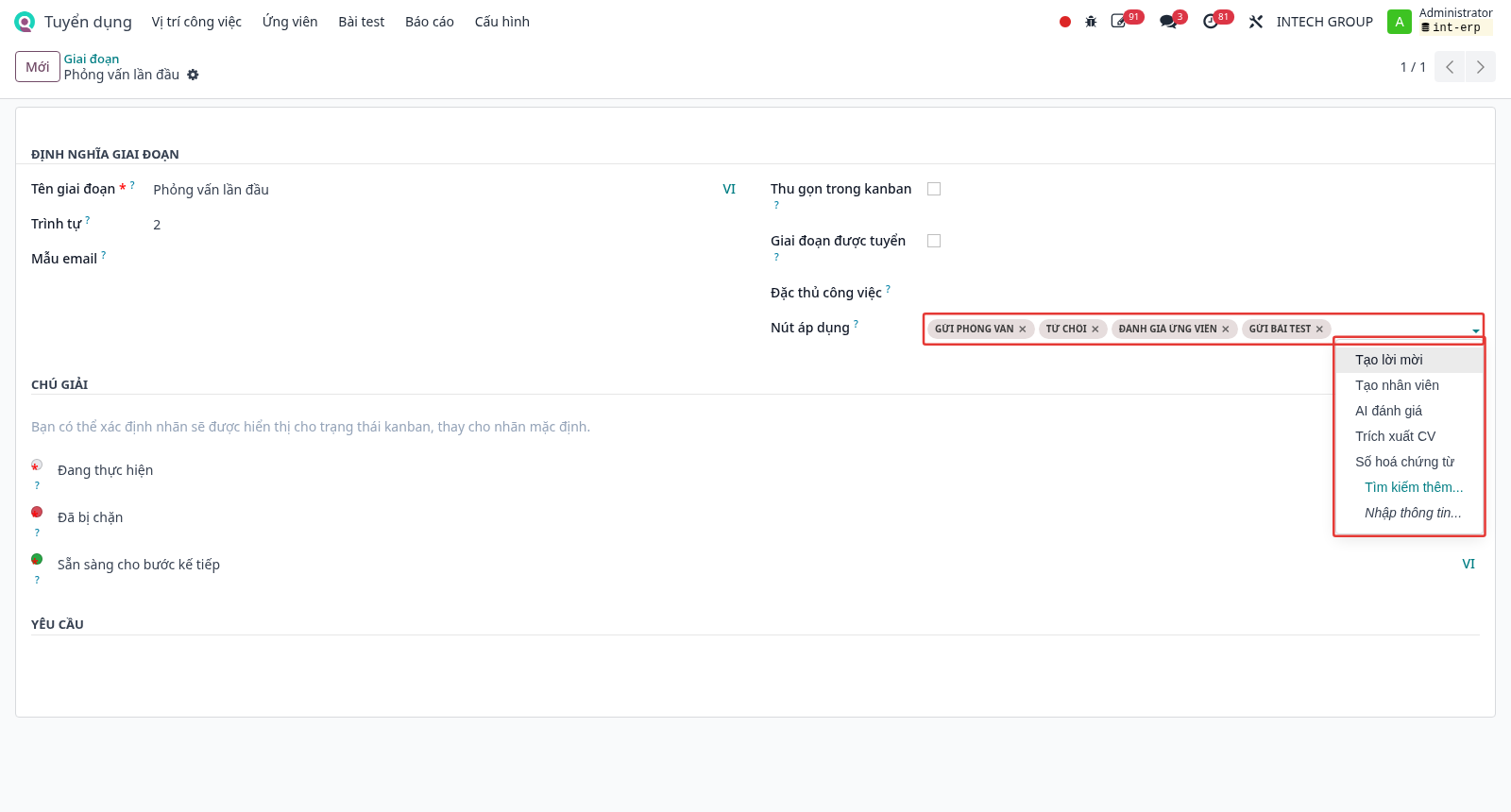
No. |
Button |
Function on the applicant record |
|---|---|---|
1 |
Extract CV |
AI reads the CV file and fills in the applicant information automatically (email, phone number, date of birth, skills…). |
2 |
AI Evaluation |
AI scores the match between the CV and the JD. The result is displayed in the Evaluation tab. |
3 |
Send Test |
Creates a personal test (survey) link for the applicant, to copy and send to the applicant. |
4 |
Send Interview |
Sends the interview form or survey to the applicant by email. |
5 |
Evaluate Applicant |
The interviewer scores the match against the criteria, adds comments, and selects a conclusion. |
6 |
Generate Offer |
Creates a job offer to send to the applicant. |
7 |
Create Employee |
Creates an employee record from the applicant record (see the Create employee section). |
8 |
Digitize Document |
Sends the CV for digitization (automatic data reading). |
9 |
Refuse |
Refuses the applicant with a refuse reason. |
Note
If no button is selected for a stage, the applicant form in that stage does not display any action button (including the Refuse button).
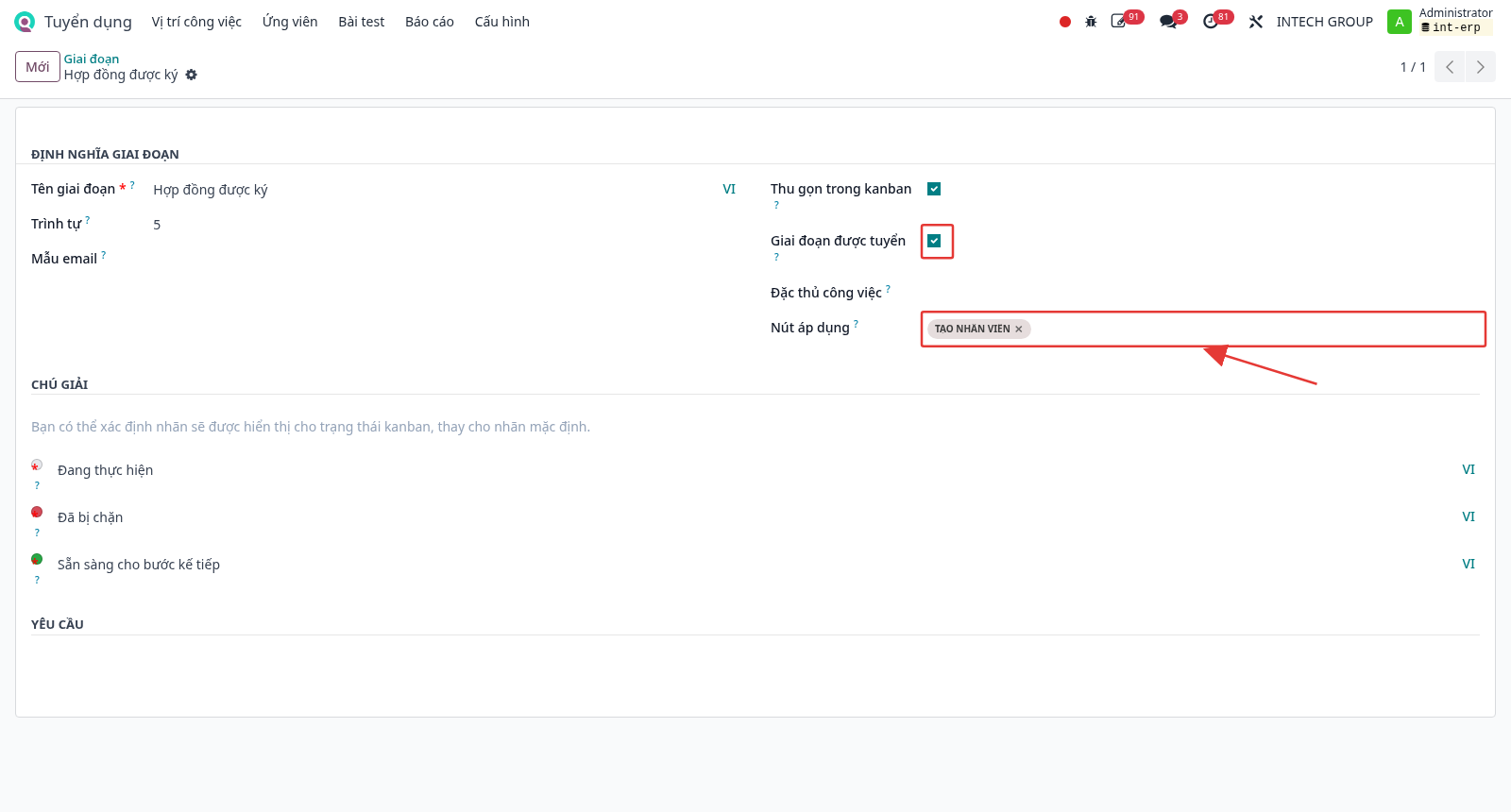
Step 5: Configure the last stage Contract Signed: check Hired Stage and select the Create Employee button so that HR can create the employee when the applicant accepts the job.
Upload JD for AI analysis
Enter the JD on the job position so that AI can analyze it.
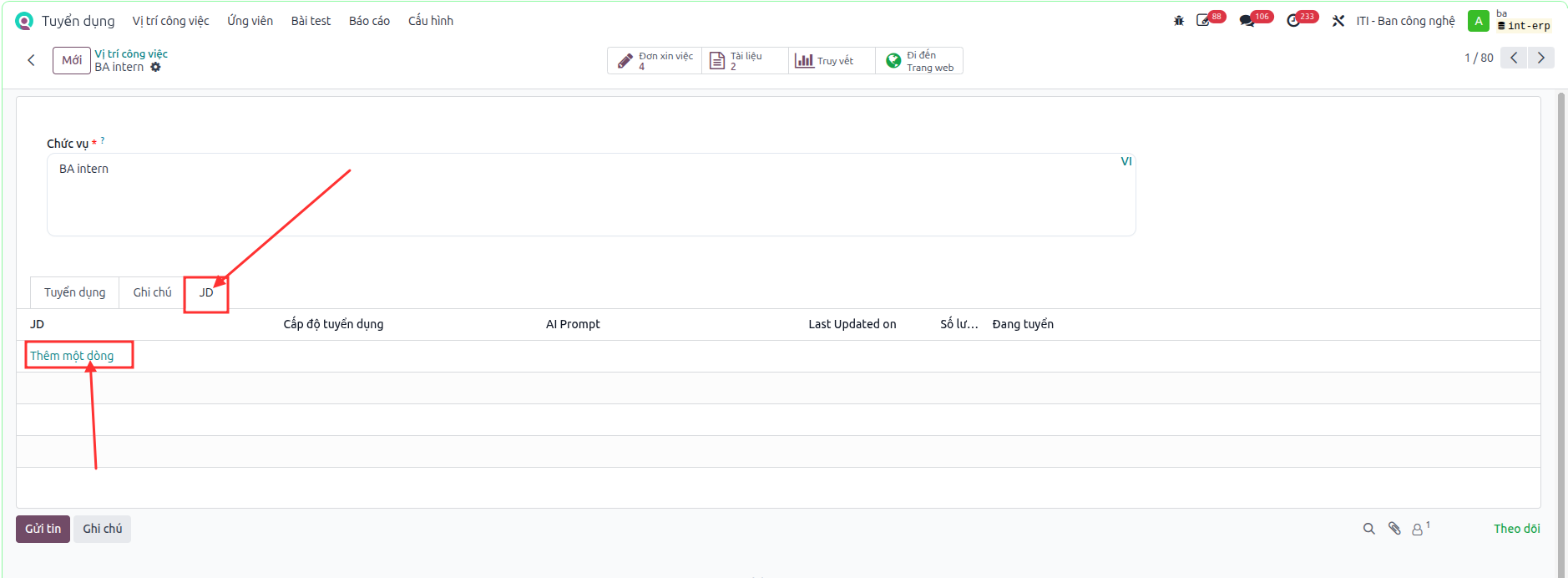
Step 1: In , open the job position, go to the JD tab, then click Add a line.
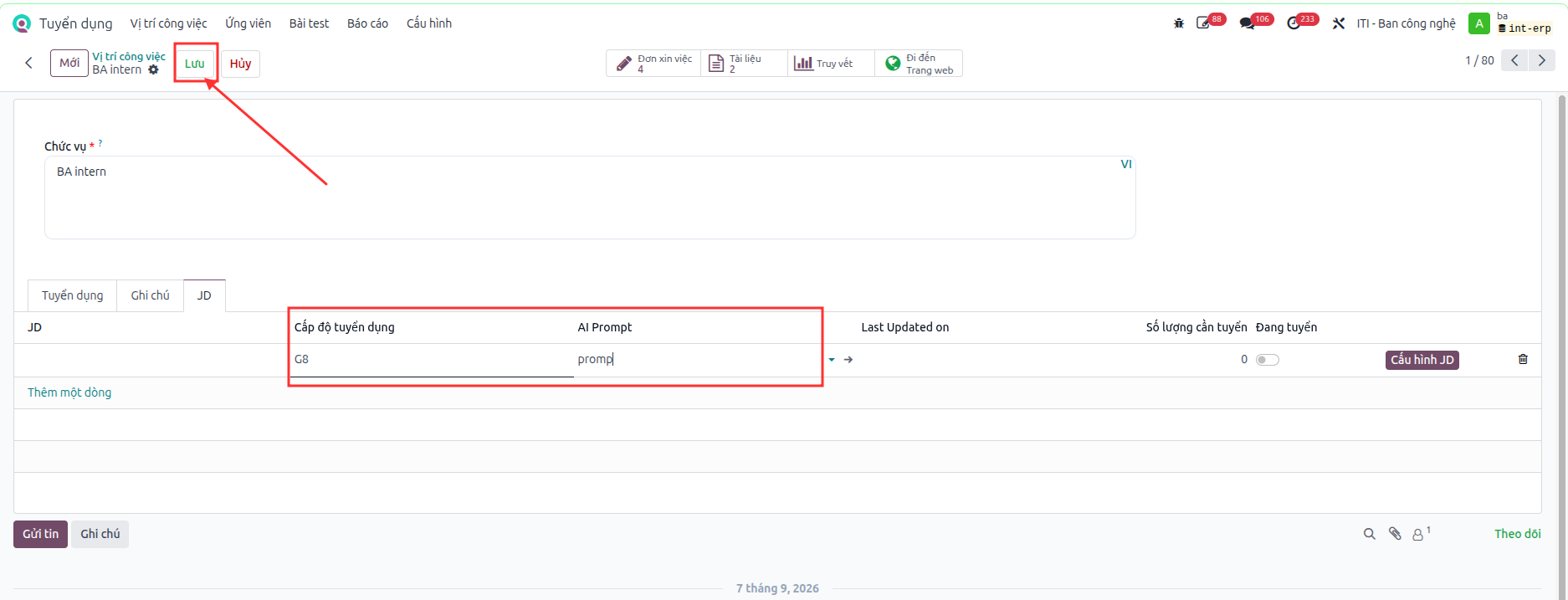
Step 2: Enter the Recruitment Level, select the AI prompt used to analyze the JD, then click Save.
Step 3: Select Recruiting, then enter the number of people to recruit for the job position.
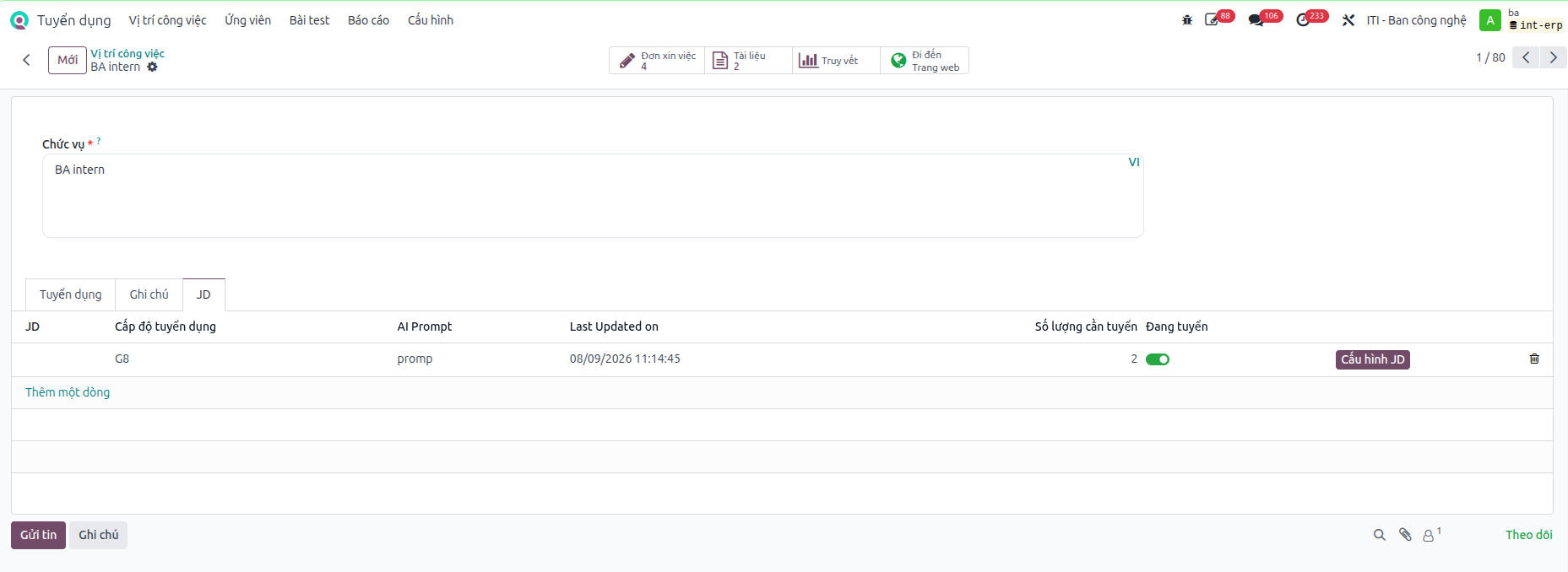
Step 4: Click the Configure JD button in the JD tab.
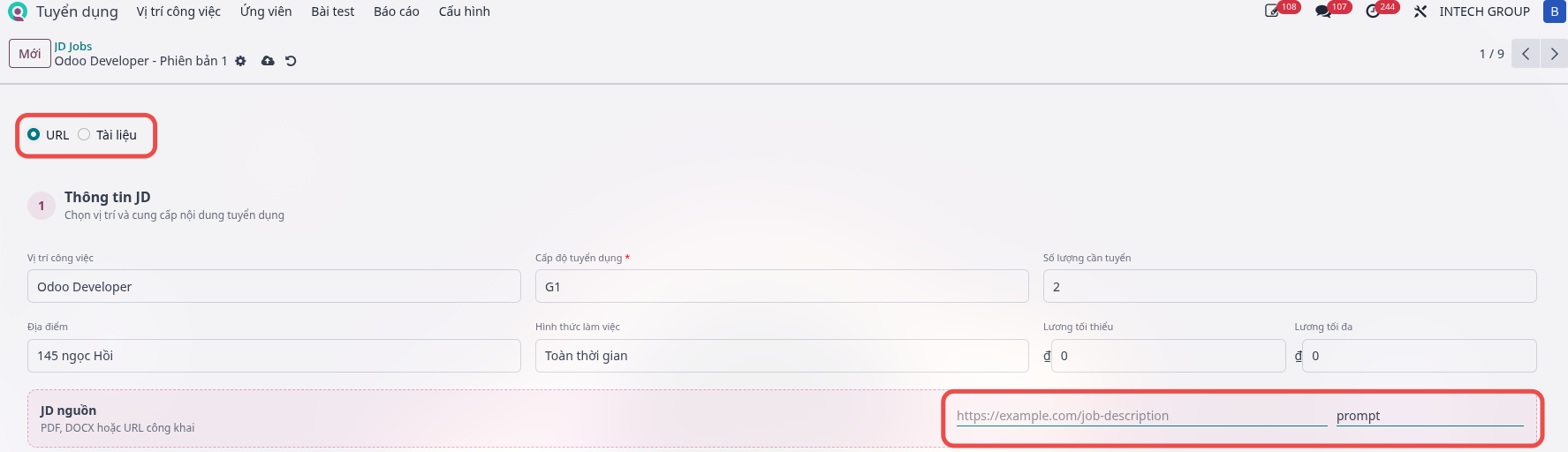
Step 5: Upload the source JD: paste the JD link or attach the JD file.
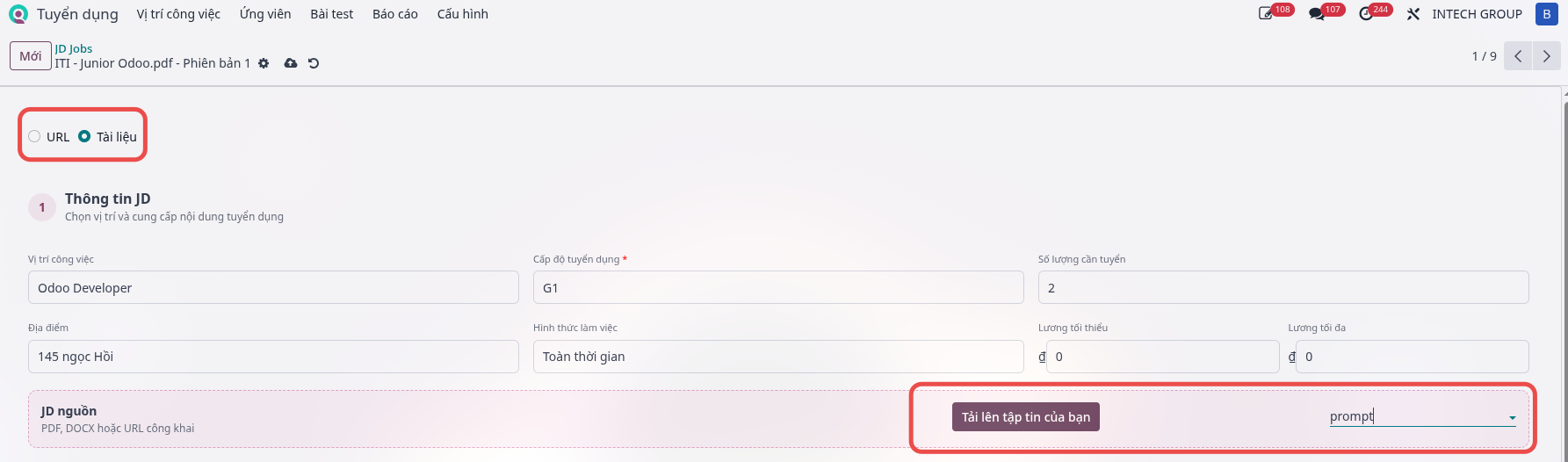
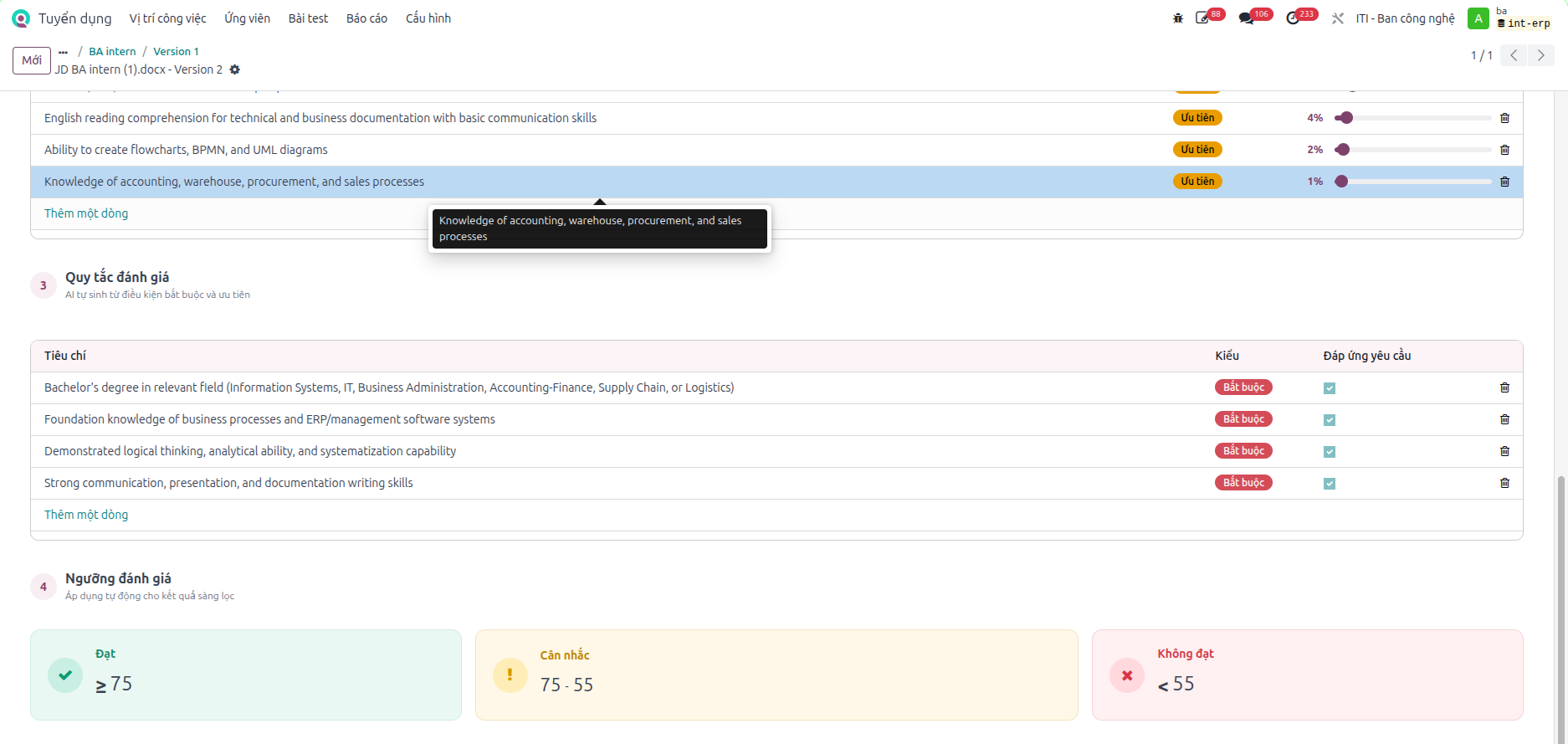
Step 6: Check the analysis, then edit or add the criteria, evaluation rules, and evaluation thresholds.
Create question banks
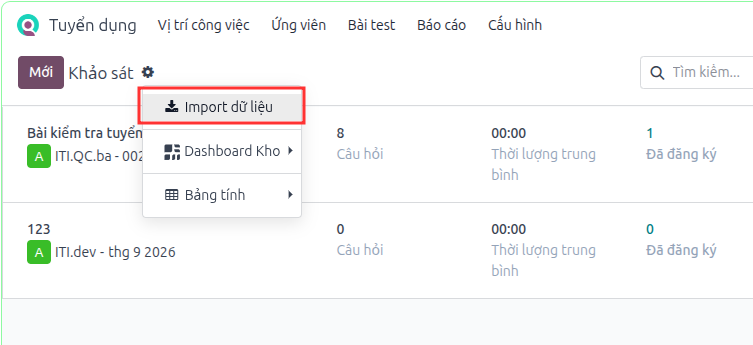
Step 1: Navigate to , select Import question bank, then download the template.
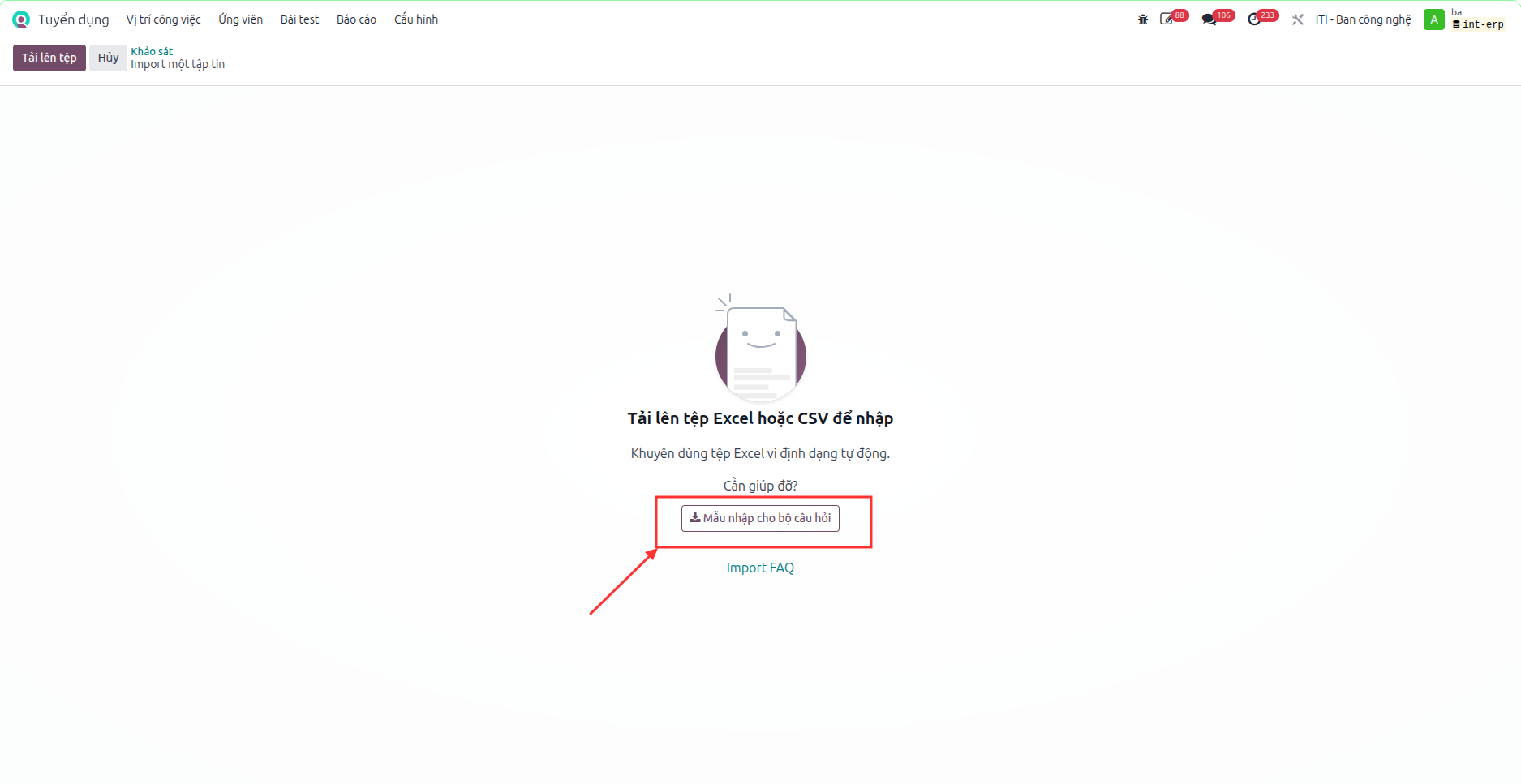
Step 2: Configure the questions in the downloaded template.
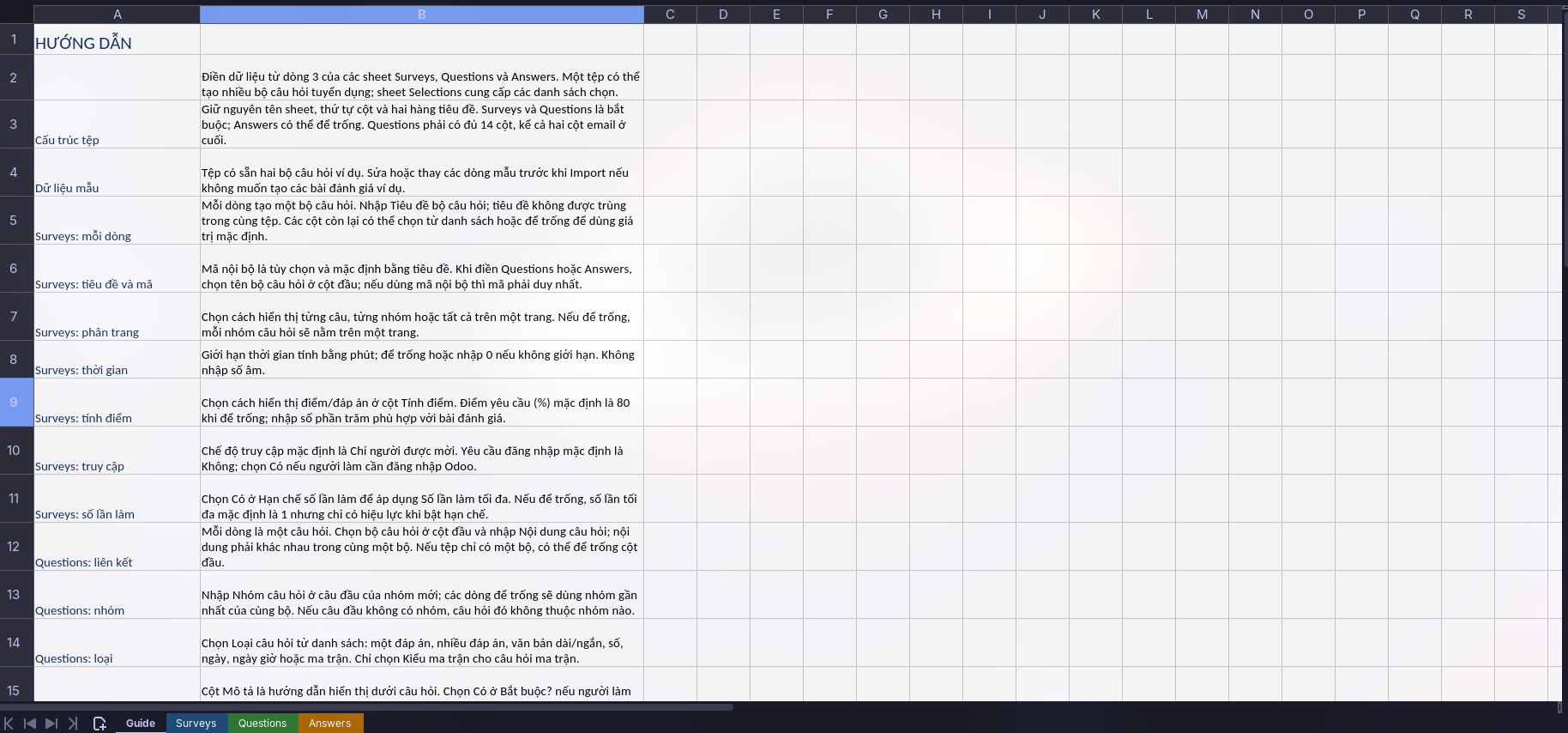
The template file contains detailed instructions and 2 sample surveys with questions and answers that illustrate how to use it.
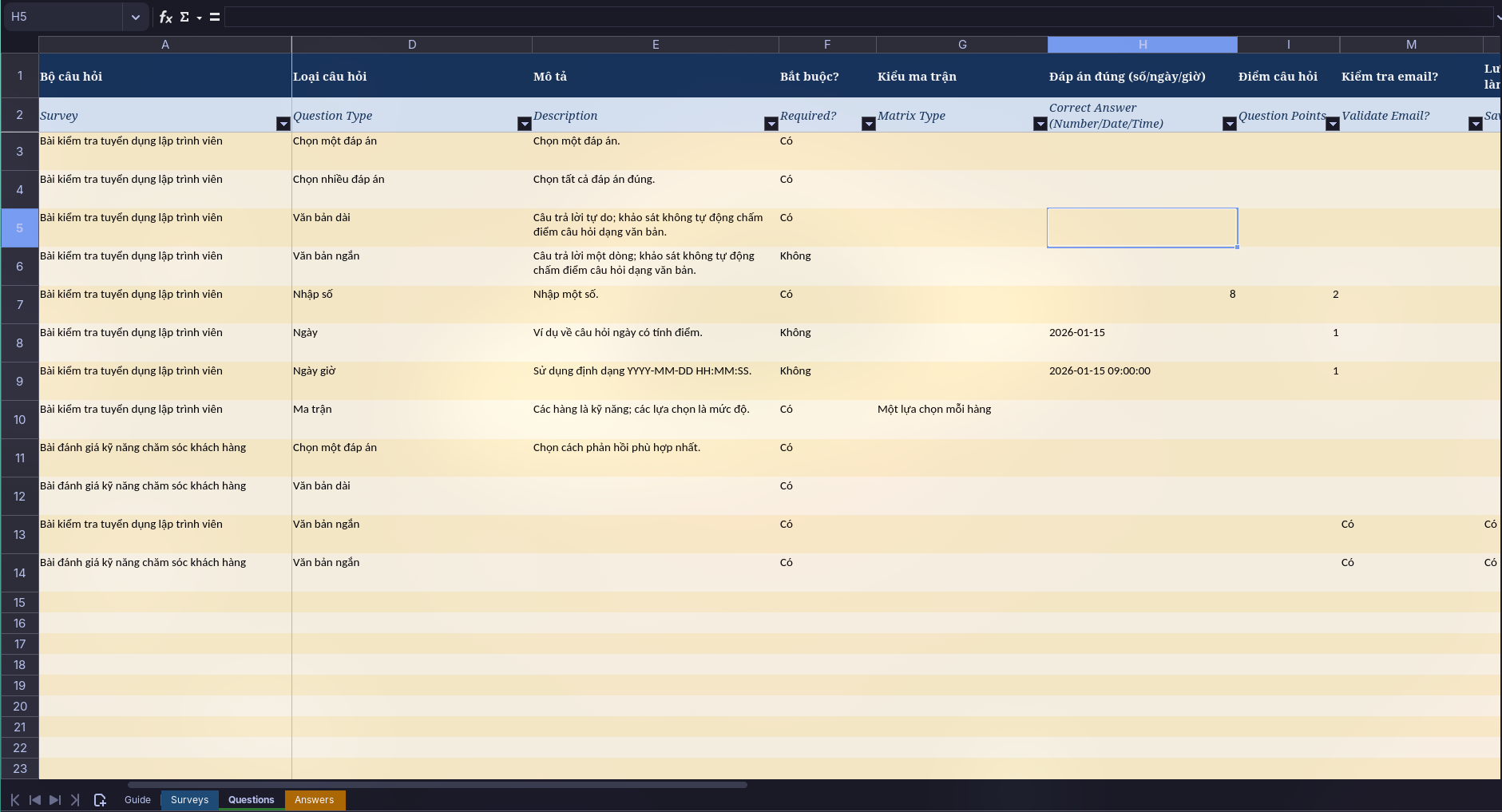
Manage question banks
Step 1: In the menu, select .
The screen displays the created question banks. Edit a question bank in its form.
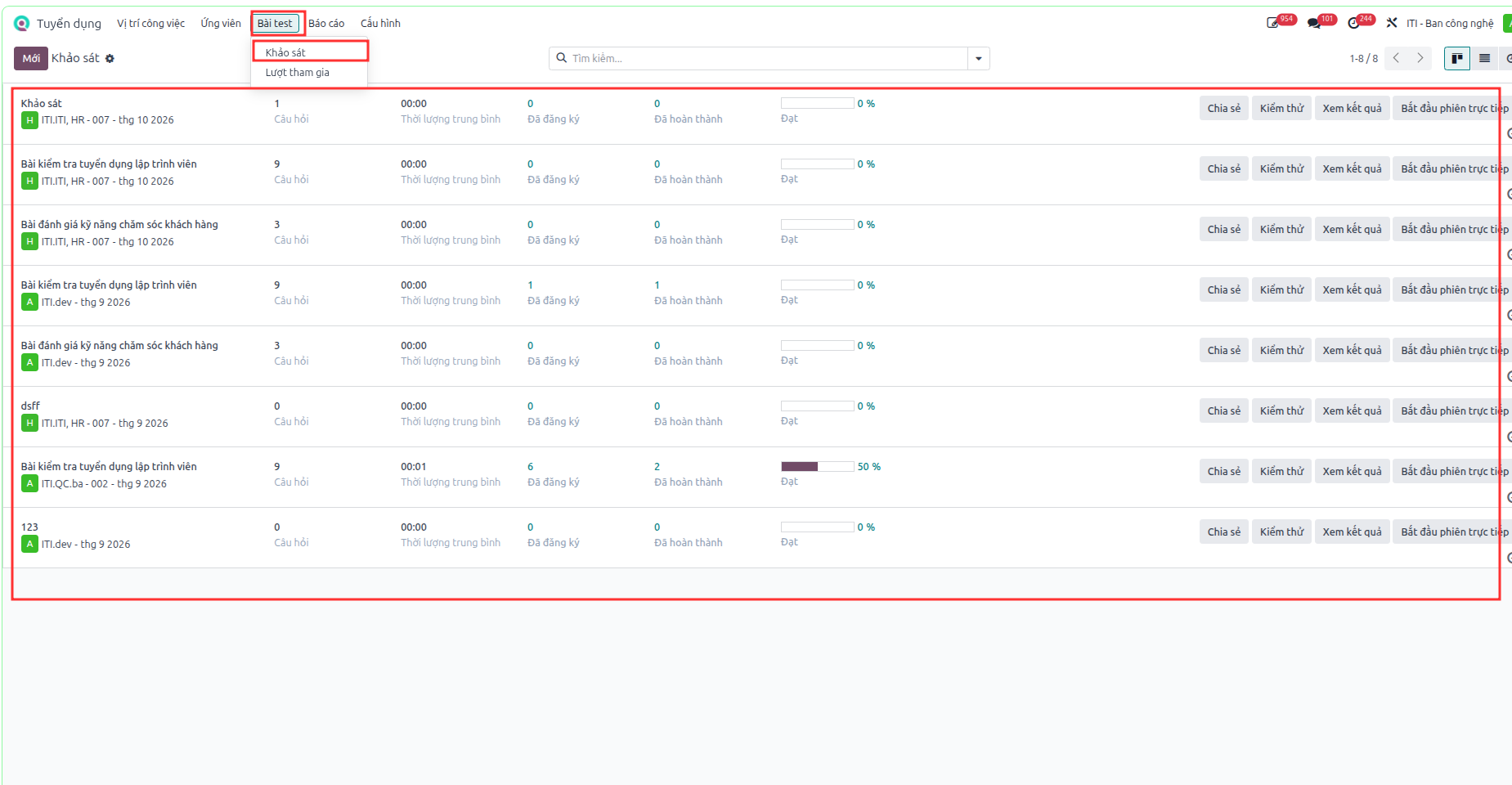
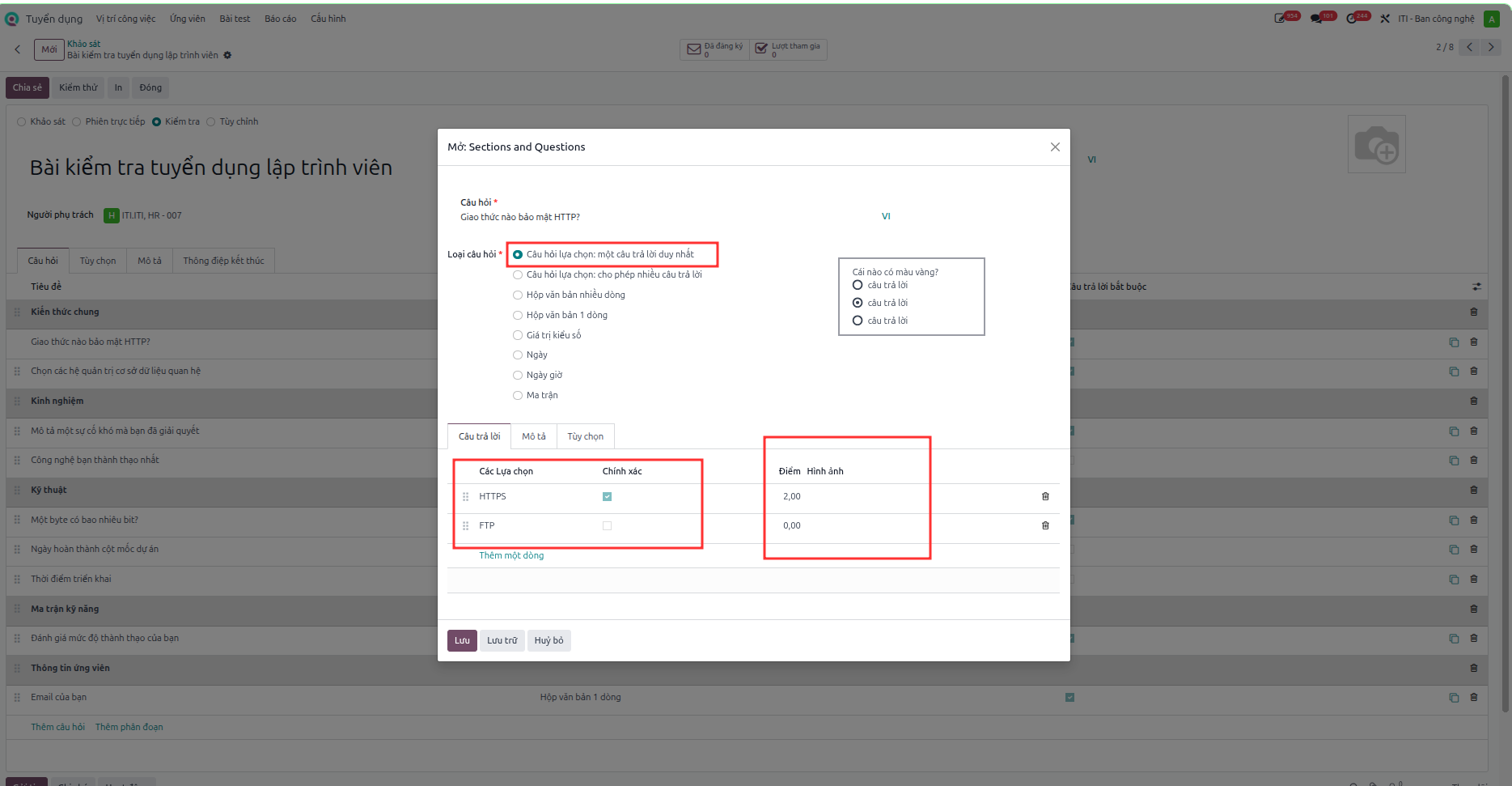
Edit or update the question lines. Each question type has different settings.
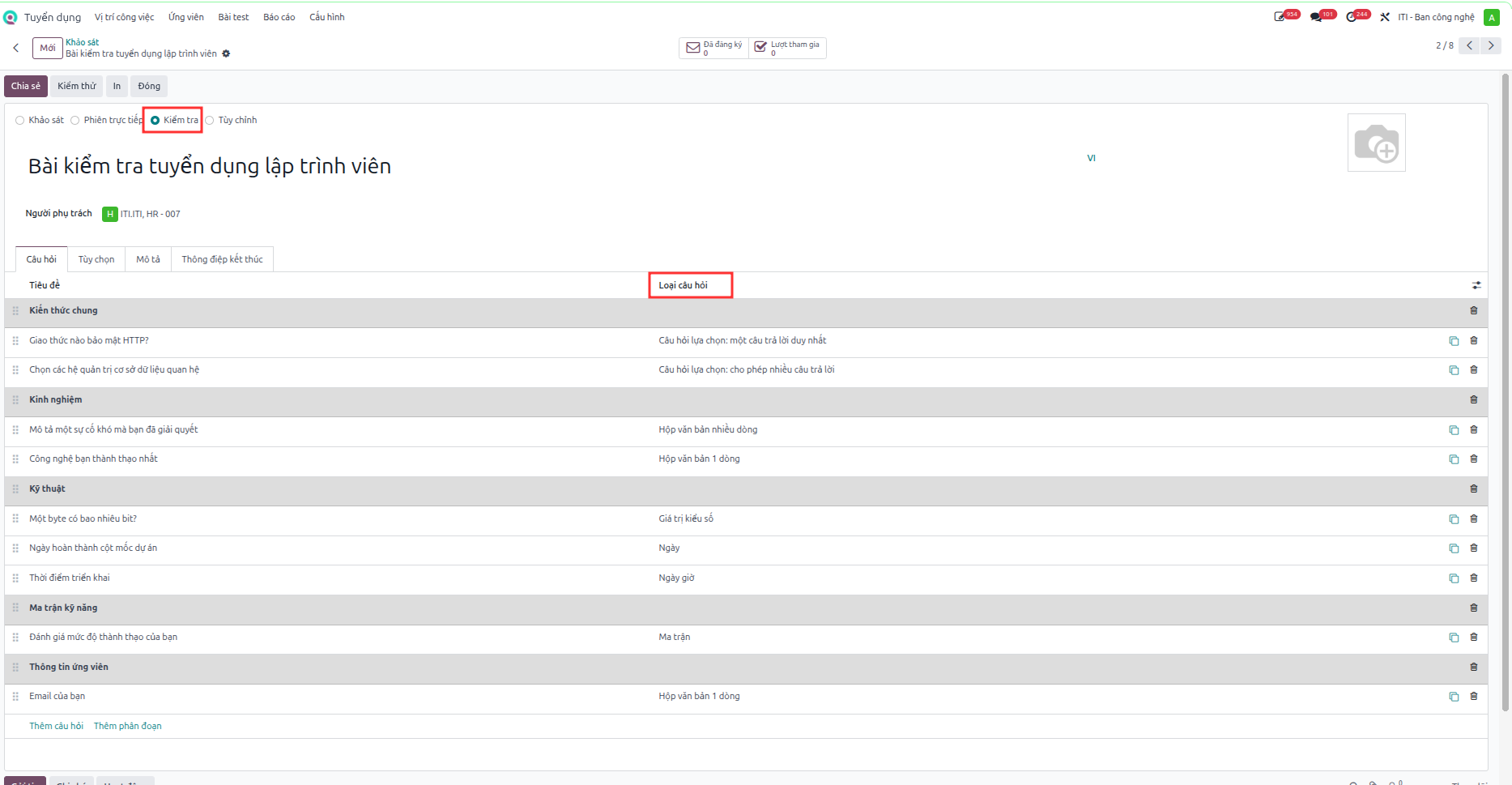
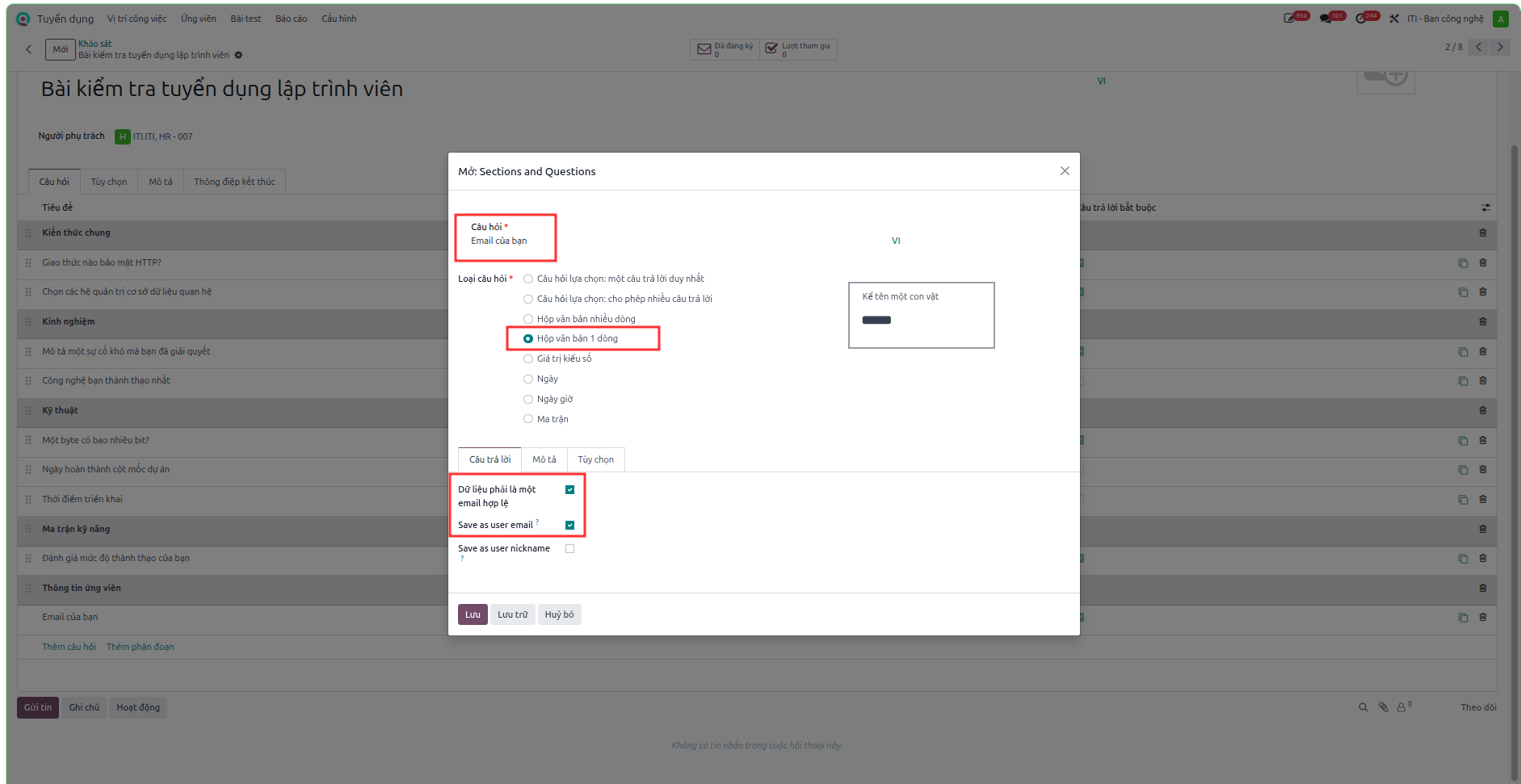
For users who are not logged in, their answers can be saved with their email by using a question of the Single Line Text Box type.
Take online tests, view test results
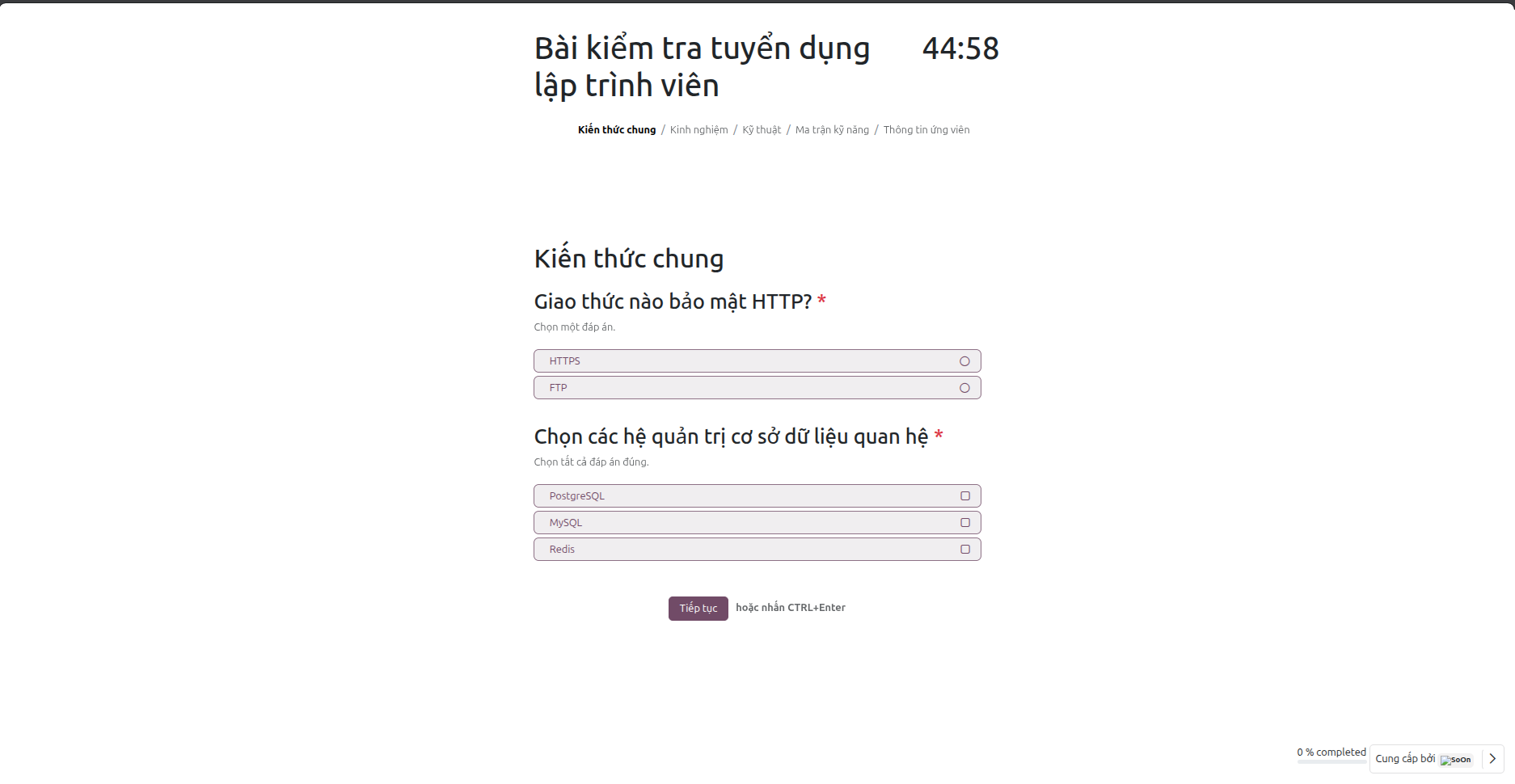
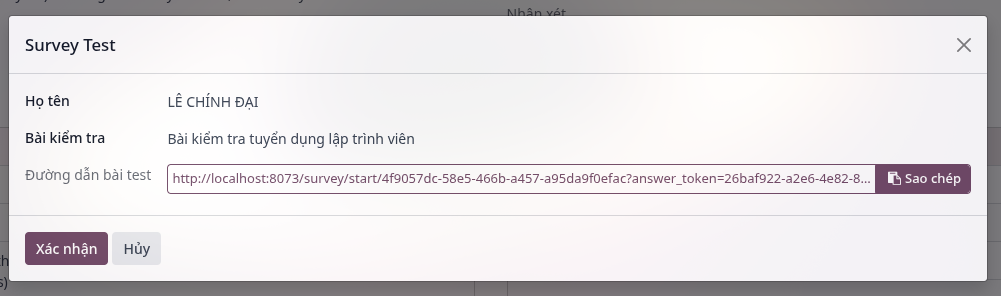
Step 1: Send the test to the applicant, or copy the link and send it to the applicant.
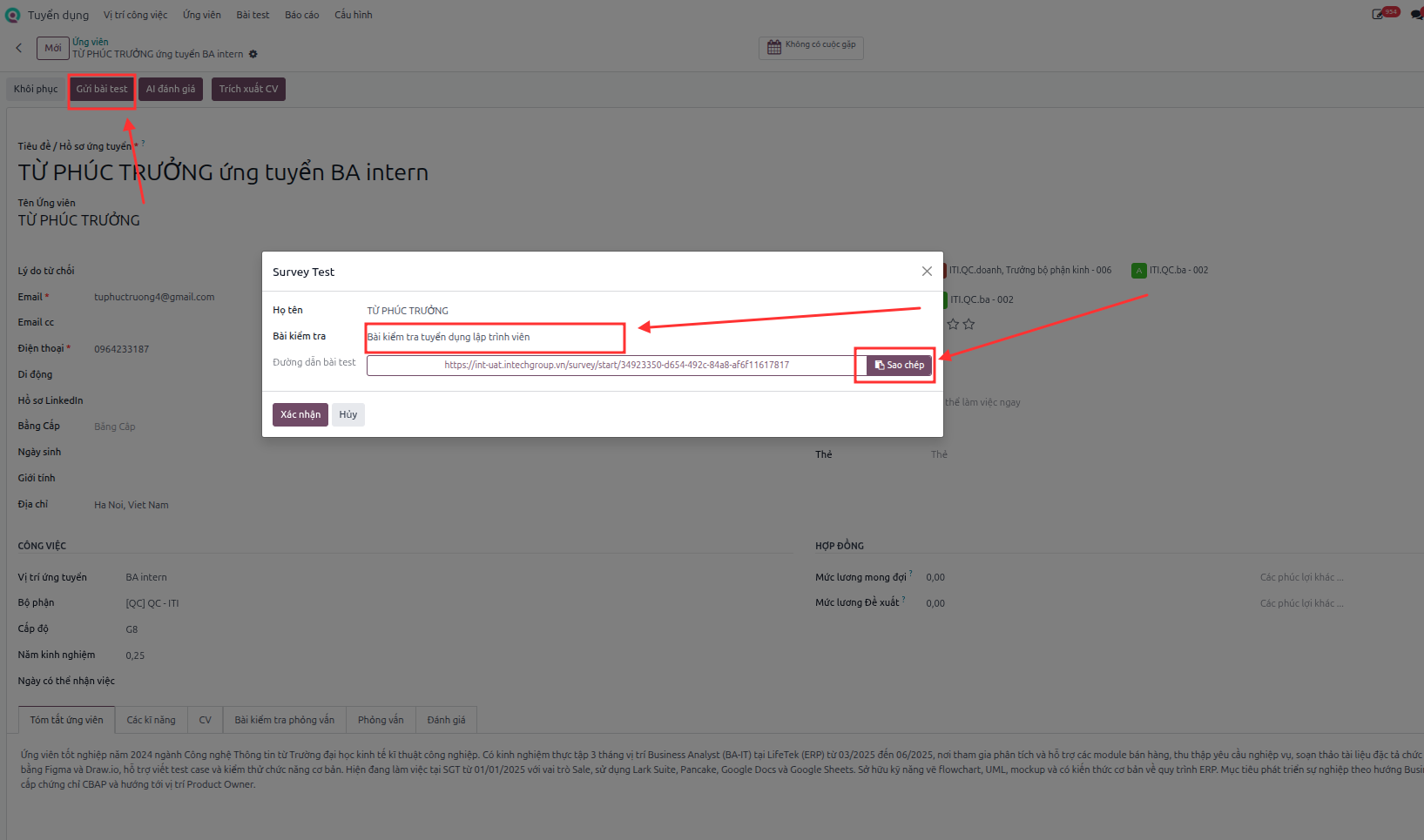
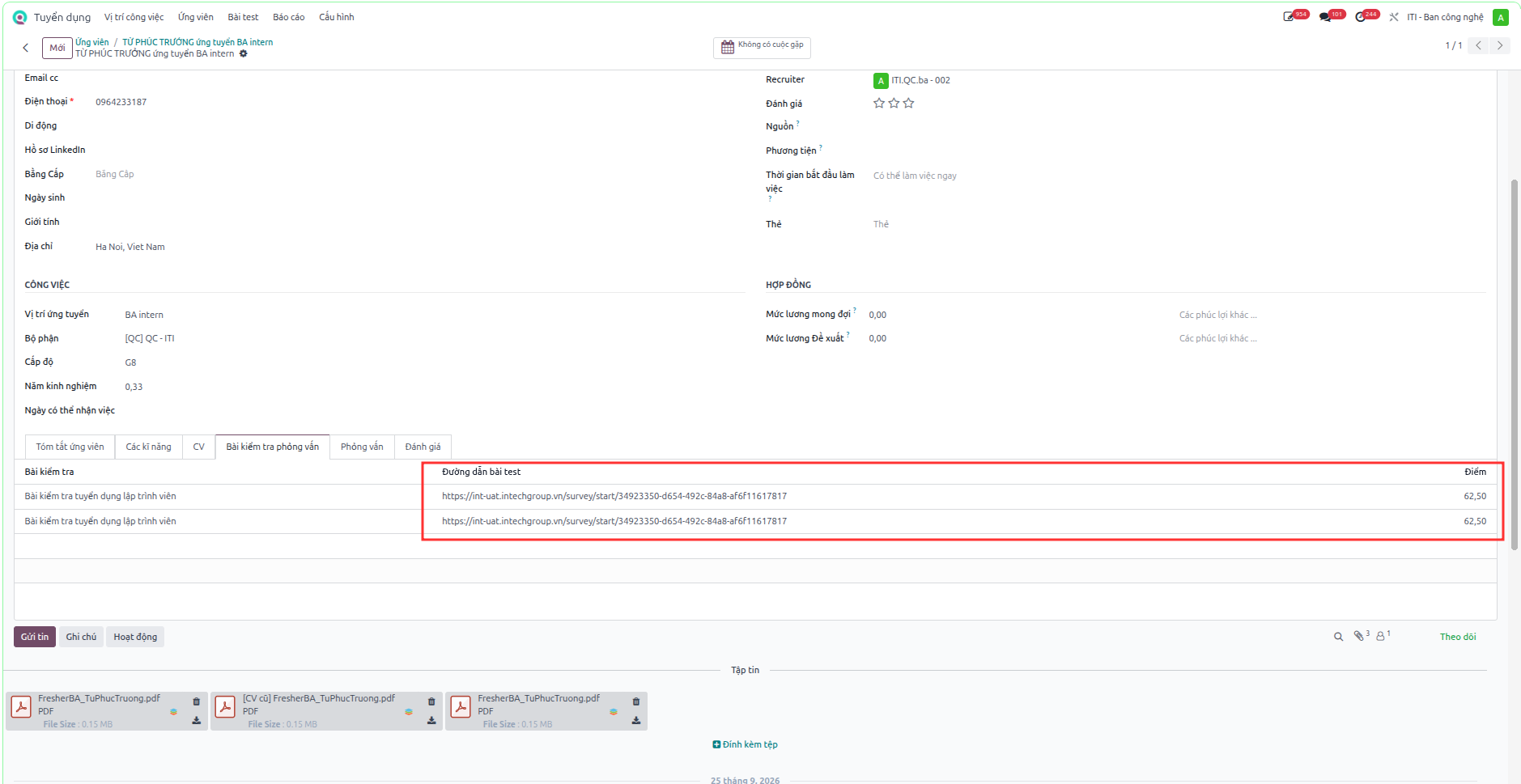
The applicant takes the test:
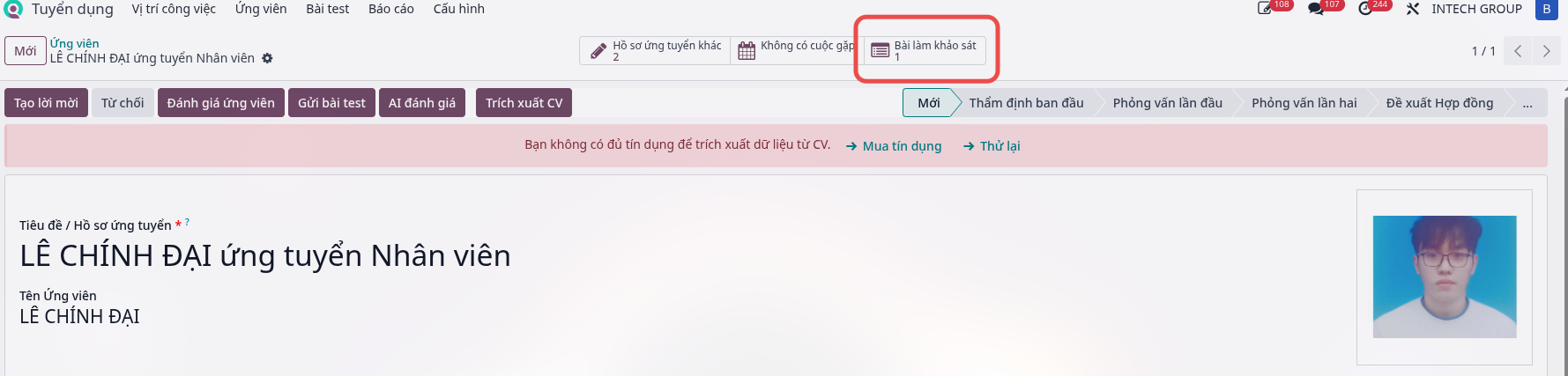
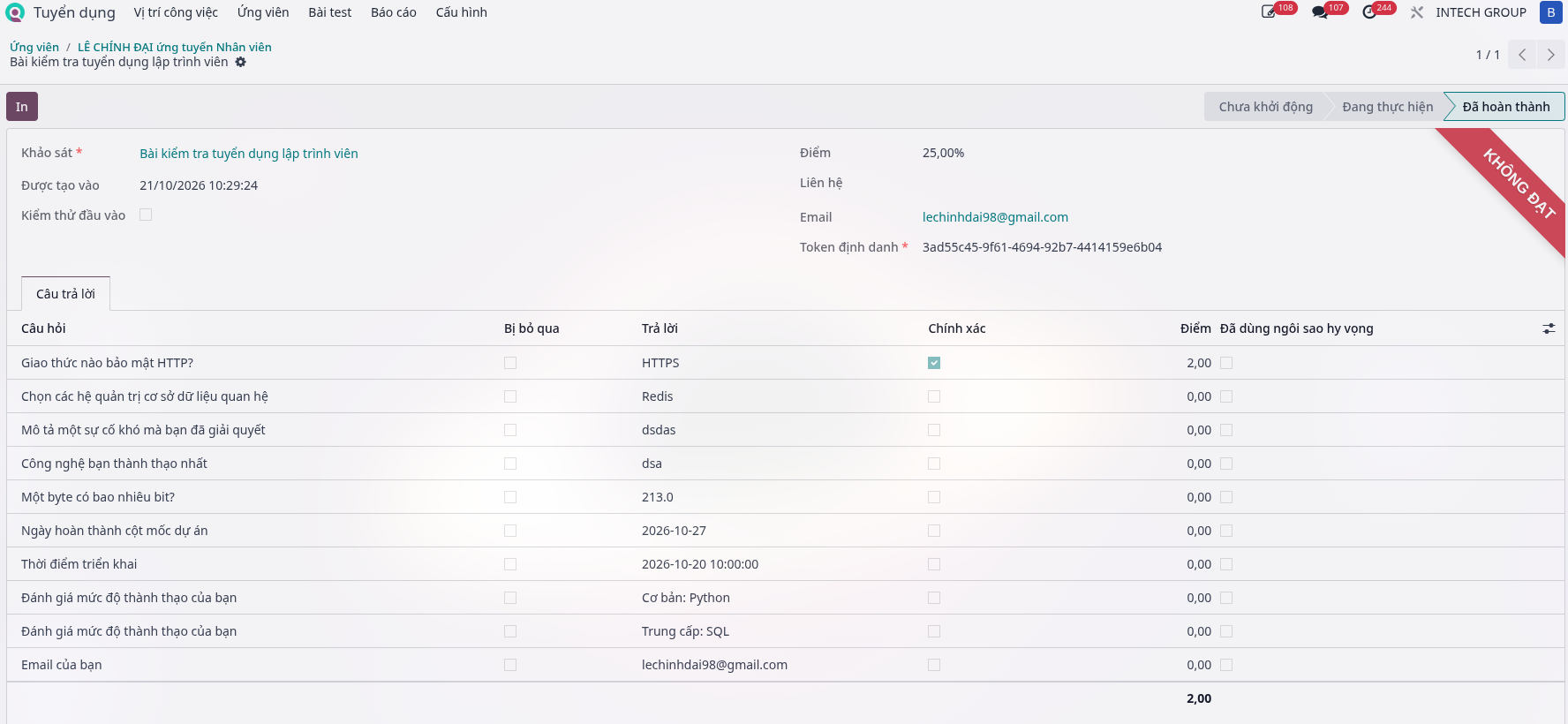
The test results are stored in the Survey Answers tab:
Manage applicants, upload CV, evaluate applicants
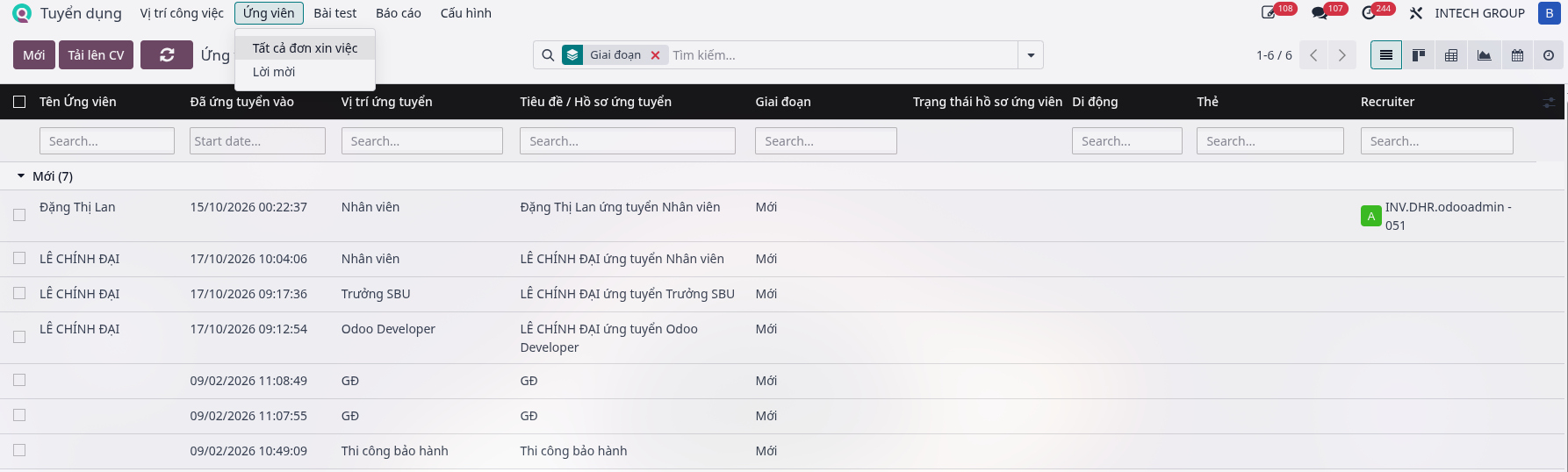
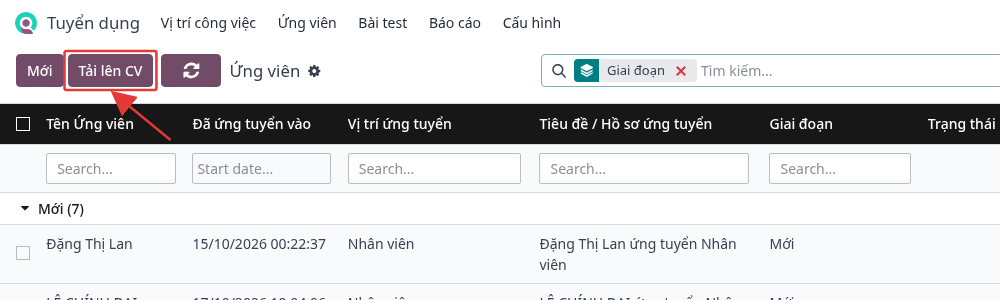
Step 1: In , select Upload CV.
Upload the PDF CV file, then select the job position and the level.
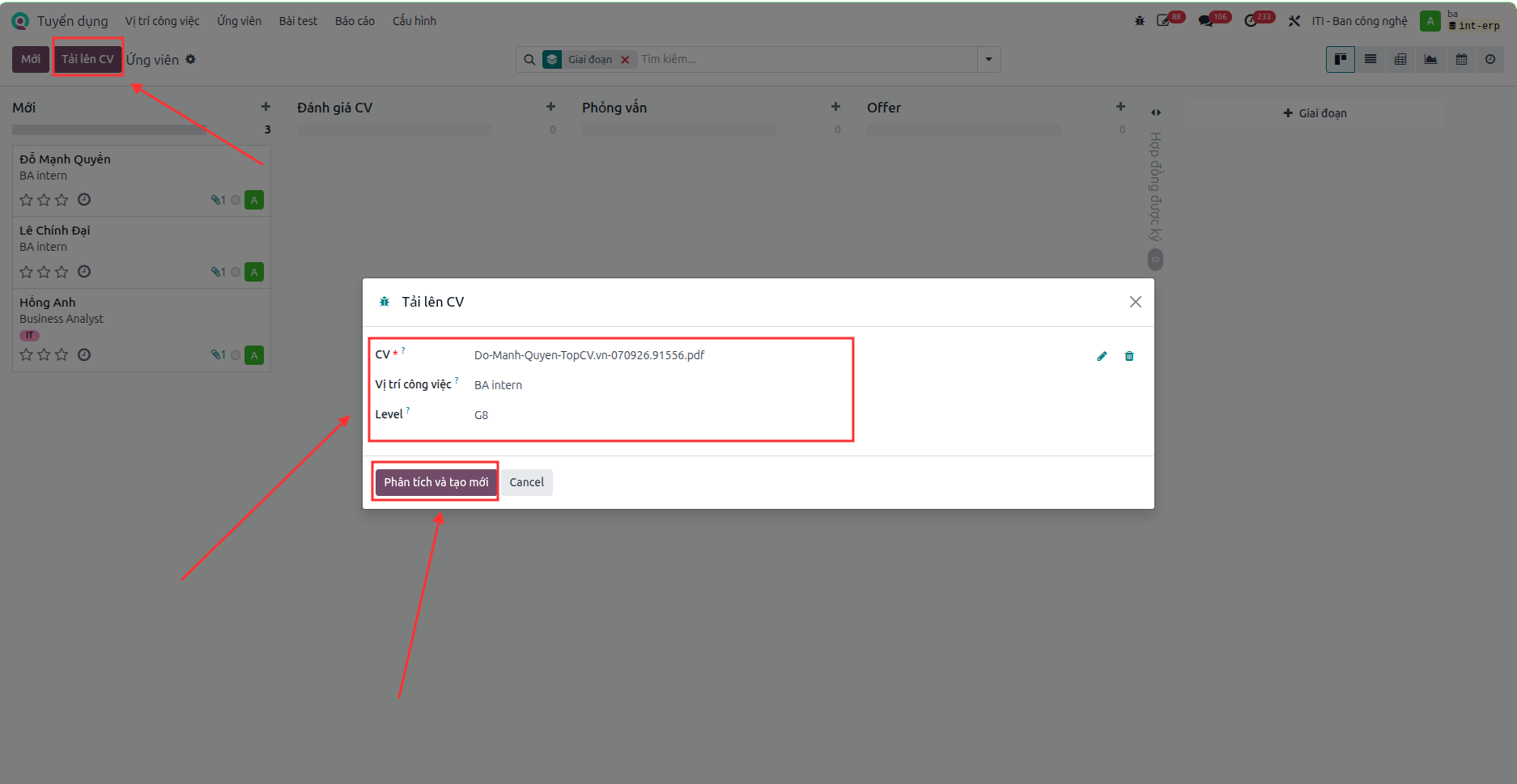
Step 2: Click Analyze. The screen switches to the applicant details with the information filled from the CV: email, phone number, address, date of birth, and the skills written in the CV.
Step 3: After the CV analysis, open the applicant details, check the information and the CV tab to see the AI evaluation of the CV.
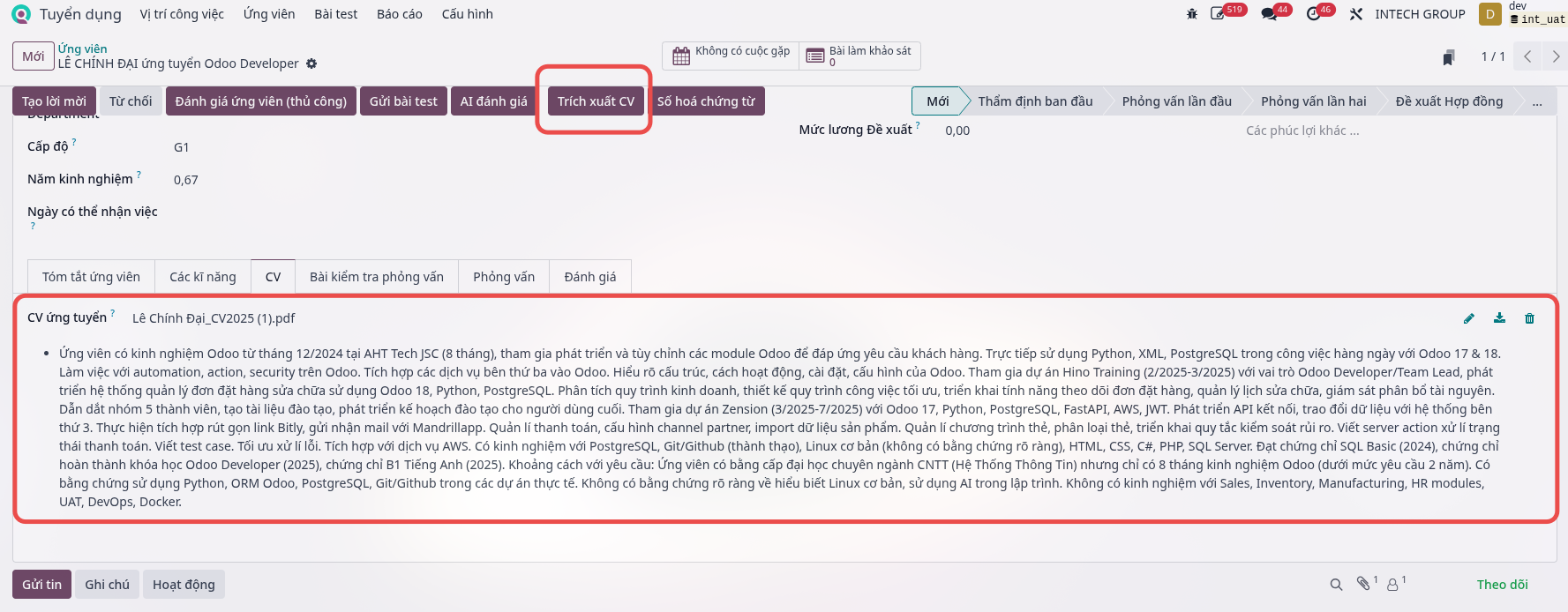
On the first CV import, the Extract CV action runs once to fill the CV tab. Later, if the applicant CV is updated manually, click Extract CV again so that AI analyzes it again and updates the result.
Step 4: Consider the applicant and send the test. After the test and the interview, the interviewer evaluates the applicant.
Move the applicant to the First Interview stage.
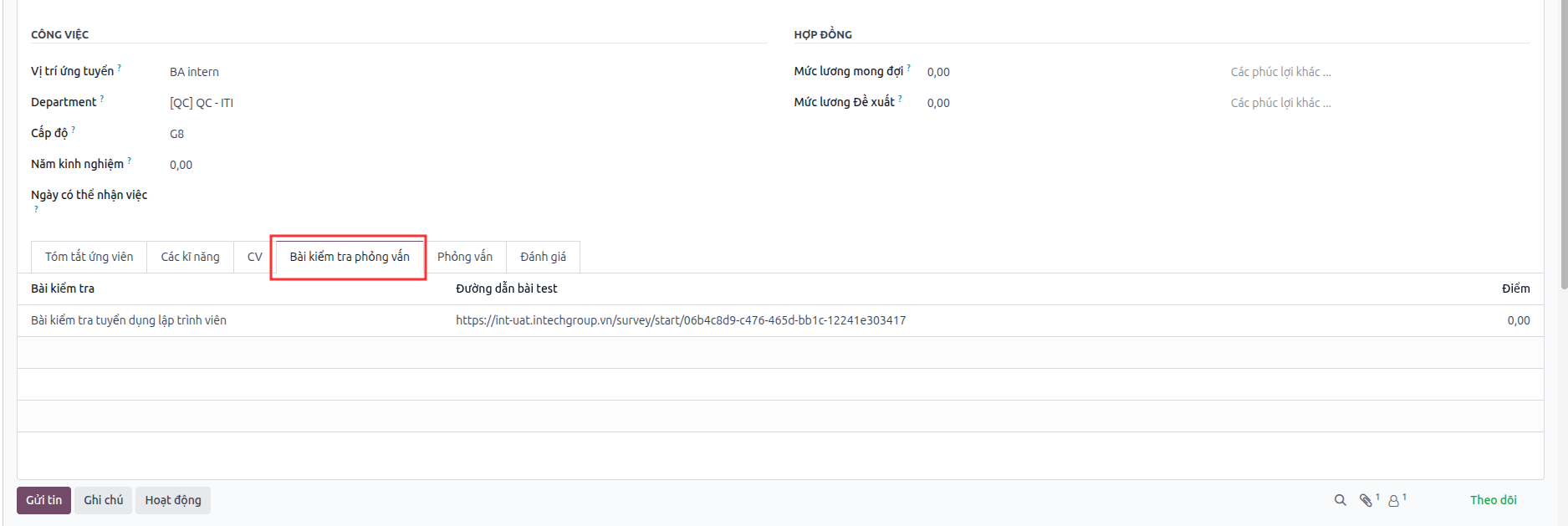
Copy the link and send it to the applicant. Follow the test score in the Interview Test tab.

Step 5: Evaluate the applicant after the interview:
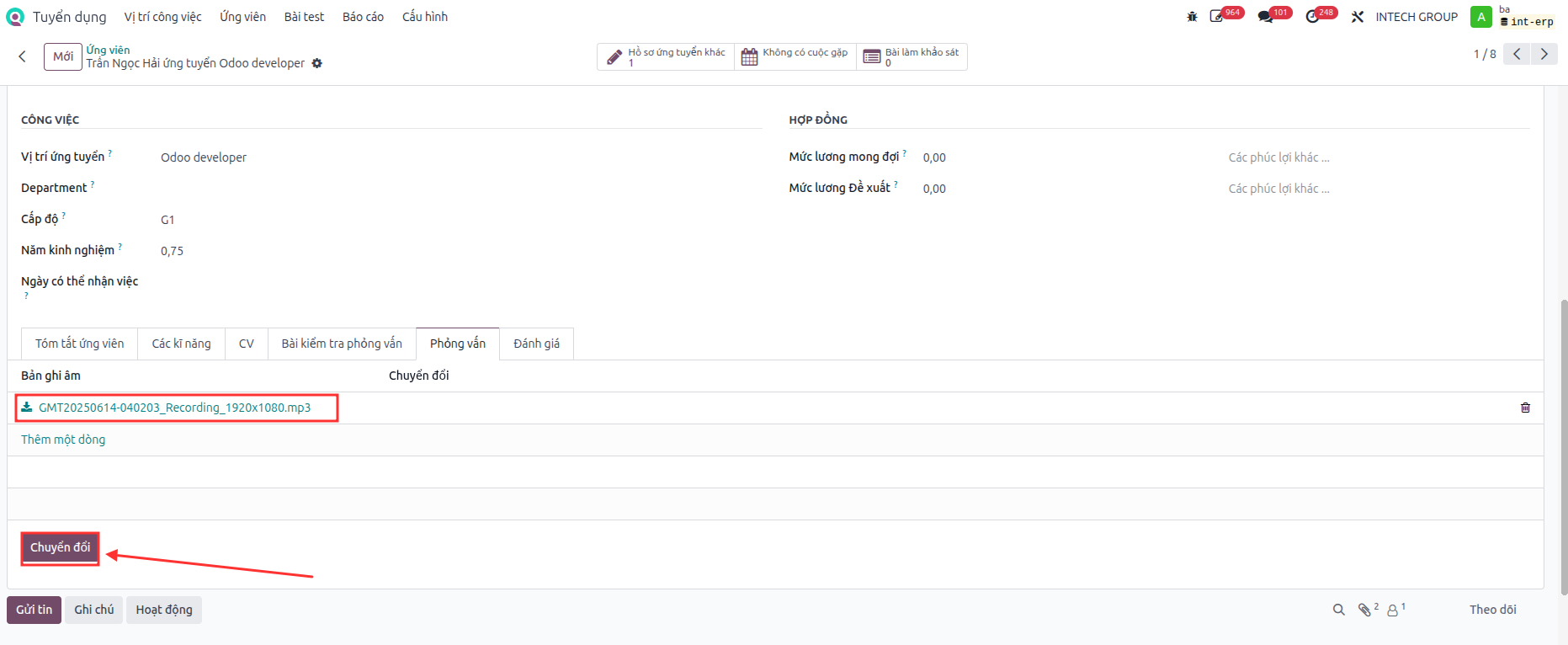
HR uploads the interview audio file and converts the data.
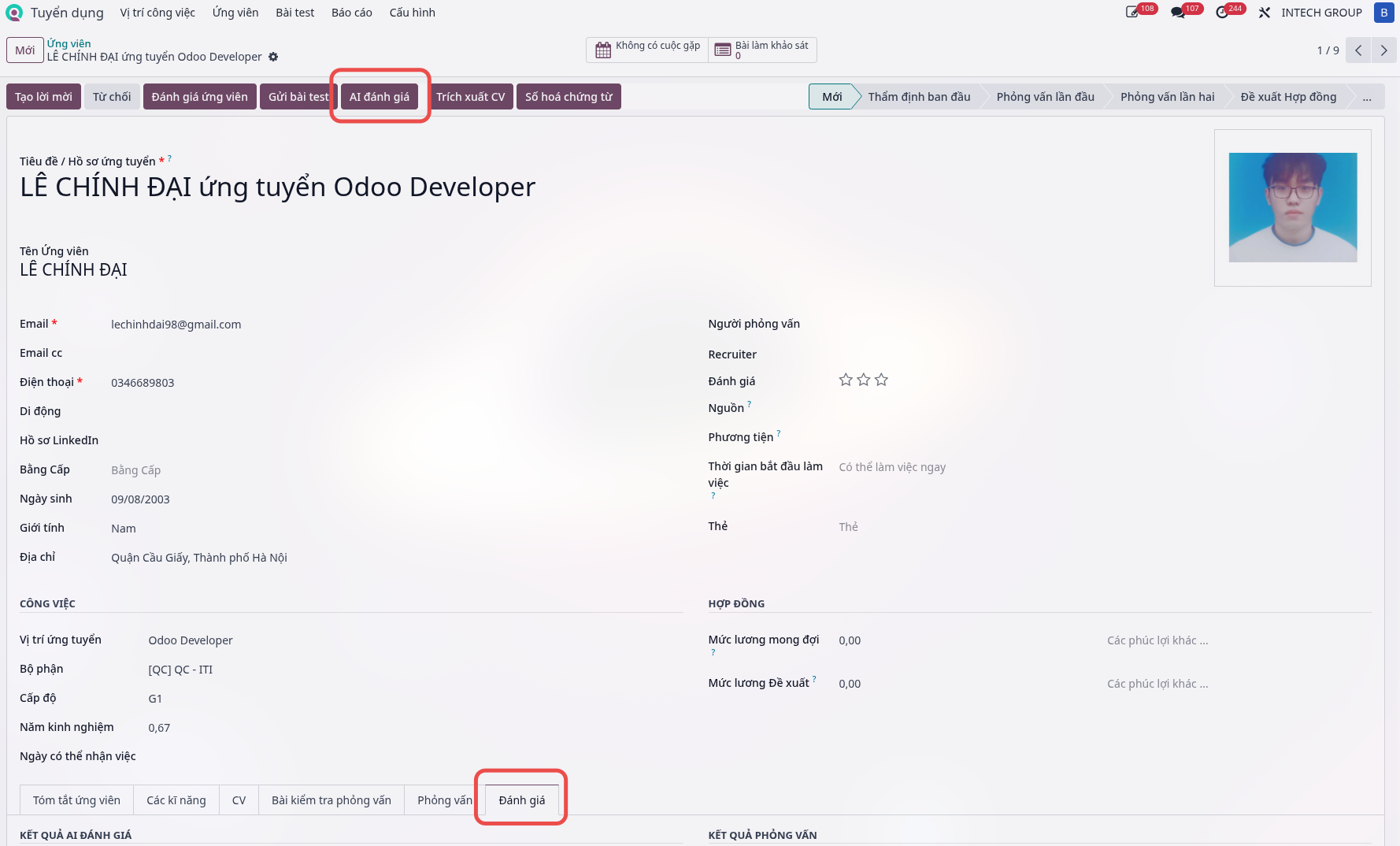
Click the AI Analysis button, then open the Evaluation tab. AI analyzes and evaluates the applicant CV to score the match with the configured JD.
Move the applicant to the CV Evaluation stage.
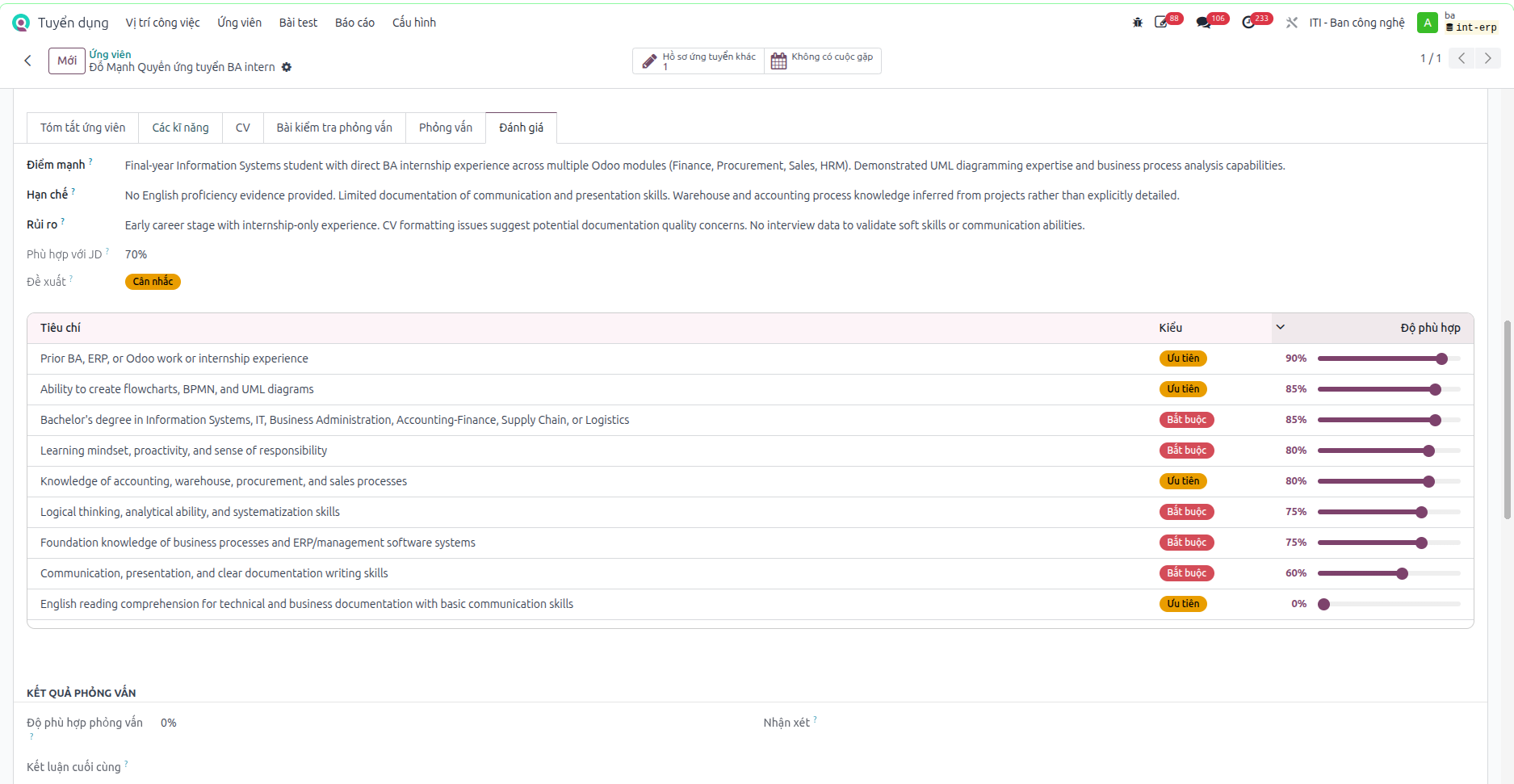
The interviewer evaluates the applicant: drags the match bar, adds comments, and selects a conclusion.
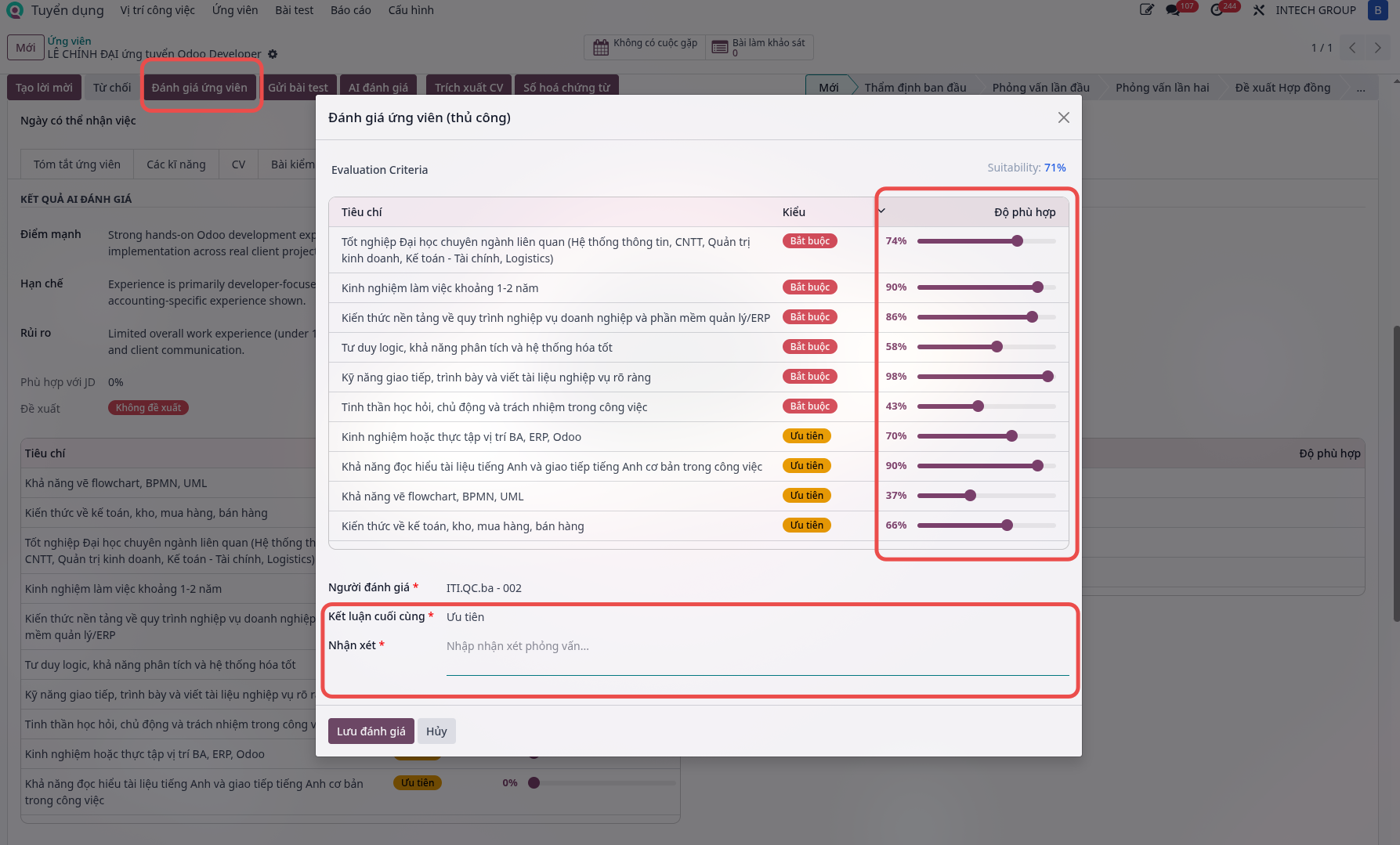
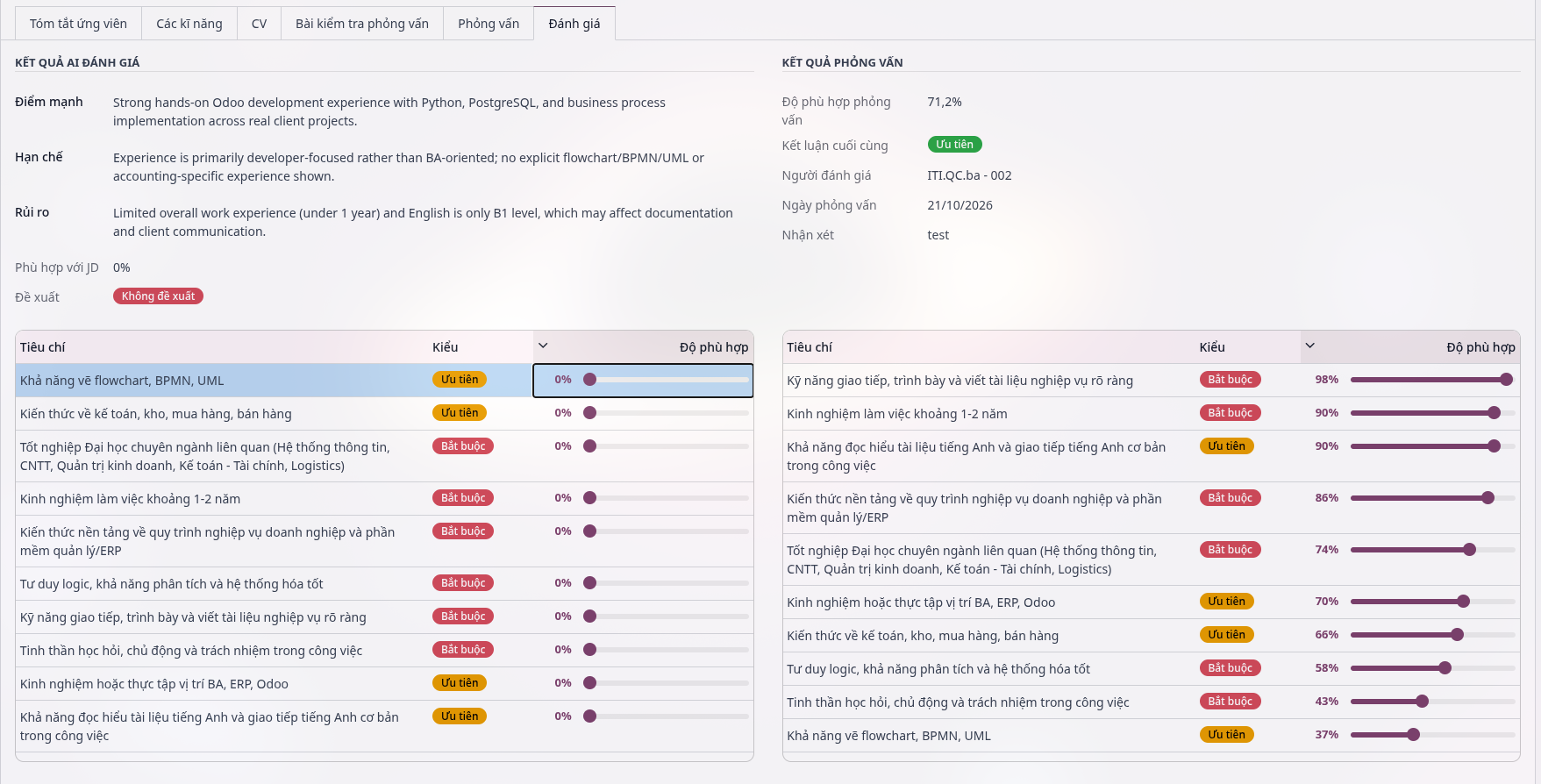
The evaluation is saved in the Evaluation tab and displayed in the Interview Results section.
Duplicate CV check on upload
When a CV is uploaded, the system checks whether the applicant already has a record, to avoid creating duplicate records.
Duplicate detection rule: the same full name (case and spaces are ignored) with the same email or the same phone number. Phone numbers are normalized before comparison, for example 0912345600 and +84912345600 are considered the same number.
Step 1: Navigate to , then click Upload CV.
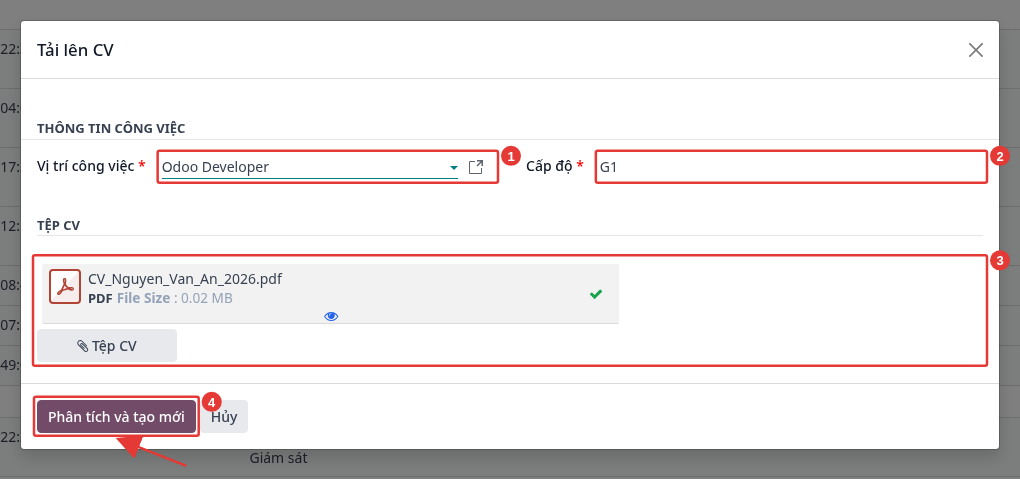
Step 2: Select the Job Position (1) and the Level (2), click CV Files to select one or more CV files (3), then click Analyze and create (4).
Step 3: If the CV is not a duplicate, the system creates a new applicant record as described in the applicant management section. If a duplicate CV is detected, the Duplicate CV Check window appears:
Notice (1): select how to handle each duplicate CV. The existing record stays unchanged until the confirmation.
Duplicate notice (2): name of the existing record in the system and its creation date.
Handling method (3), existing record (4): selected in the next step.
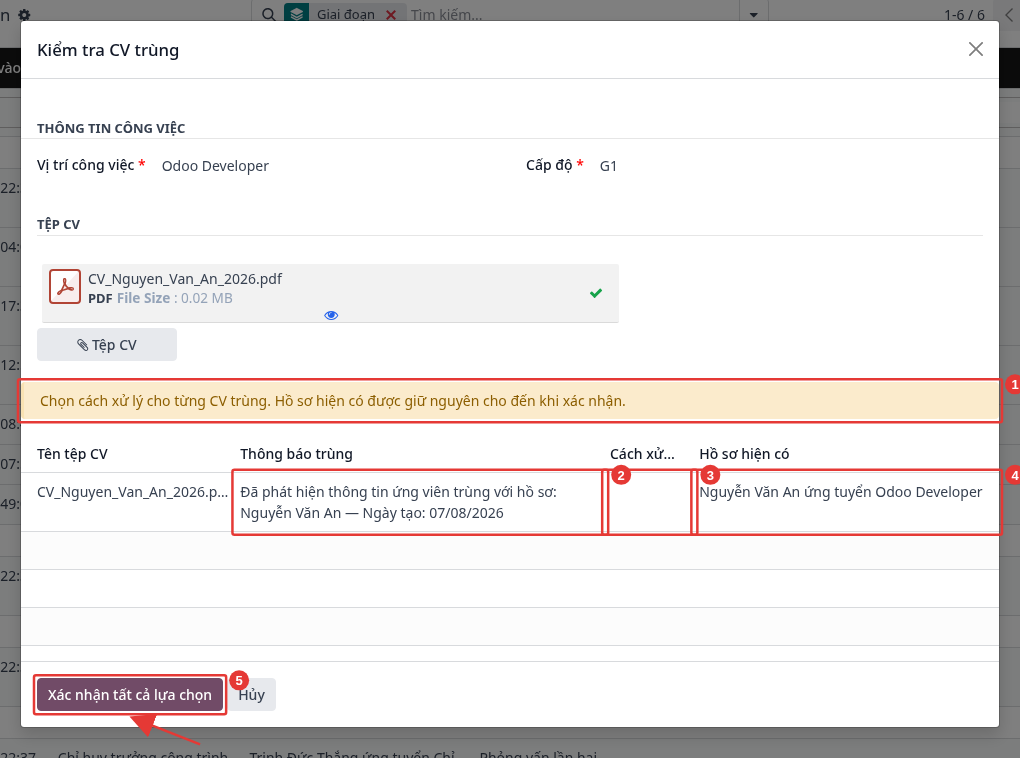
Step 4: Select the Handling Method for each duplicate CV line:
Handling method |
Meaning |
|---|---|
Replace |
Updates the existing record (selected in the Existing Record column) with the information of the new CV. The history, stage, and evaluations of the old record are kept; the old CV is saved in the chatter. |
Create new record |
Creates another applicant record, independent from the old one (for example, the applicant applies to another position). |
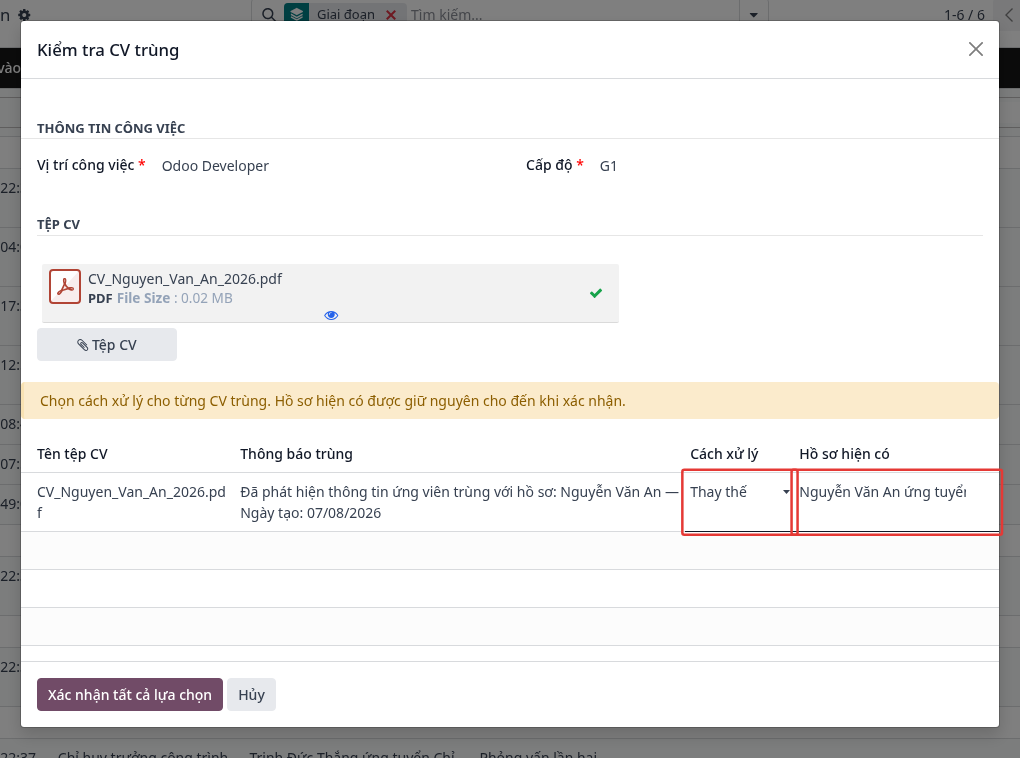
Step 5: Click Confirm all selections to complete. Click Cancel to skip the duplicate CVs (the old records stay unchanged).
Result of Replace: the chatter of the record logs “Information updated from the CV uploaded on … by …”, with both the old CV (prefix [Old CV]) and the new CV attached.

Note
When several CVs are uploaded at once, the CVs that are not duplicates are created normally; only the duplicate CVs need a handling method. A handling method must be selected for all lines before confirming.
Organize records by SBU, job position
Each applicant record is linked to a company or unit (SBU, division, member company) and a job position. When a CV is uploaded, the unit of the record follows the unit of the selected job position.
HR can therefore search, filter, and analyze records by SBU and position. CVs are automatically stored in the Documents application following the folder tree Recruitment → SBU → Position.
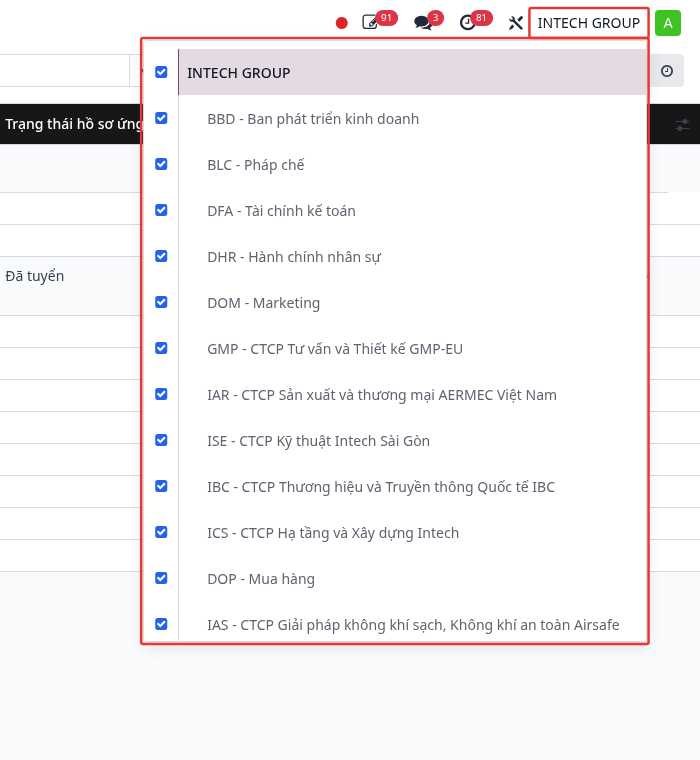
Step 1: Select the active SBUs: click the company name in the top-right corner, then check the SBUs to view. The system only displays the positions, applicant records, and CVs of the checked SBUs.
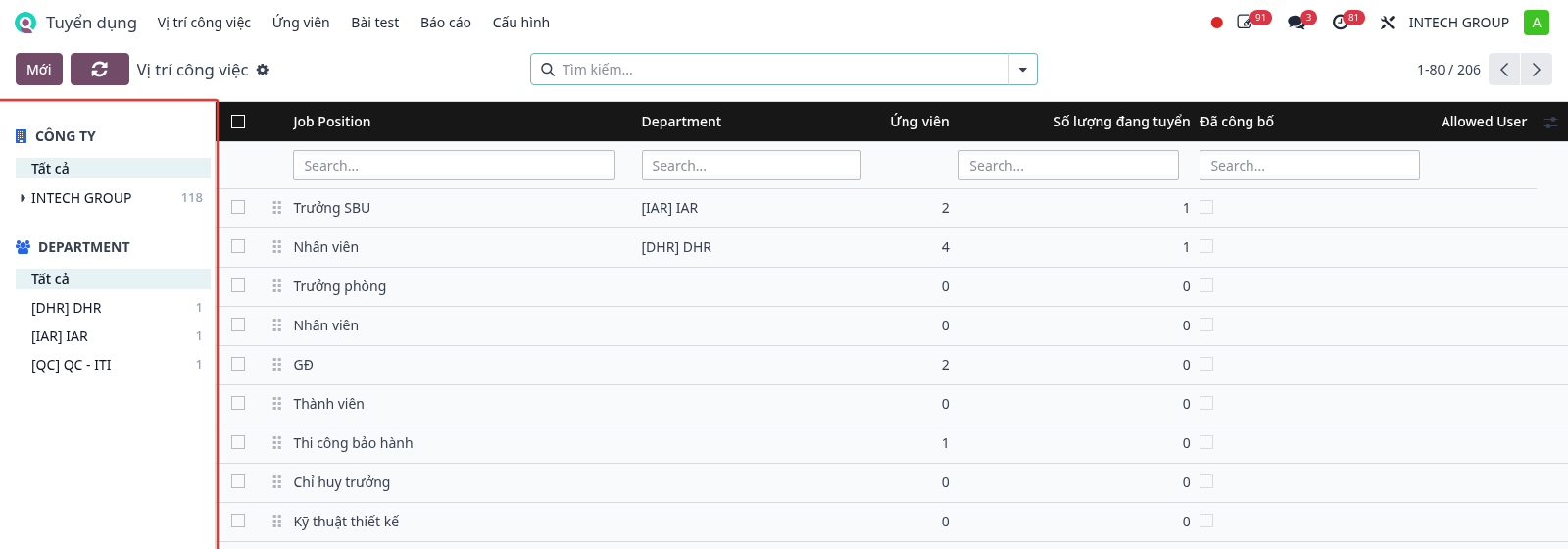
Step 2: View job positions by SBU or department: navigate to , then use the COMPANY / DEPARTMENT panel on the left to filter quickly.
Note
When creating a job position, select the correct company (unit) and department so that applicant records and CVs are classified in the right SBU. For a position without a company, the CV folder is located directly under the Recruitment folder.
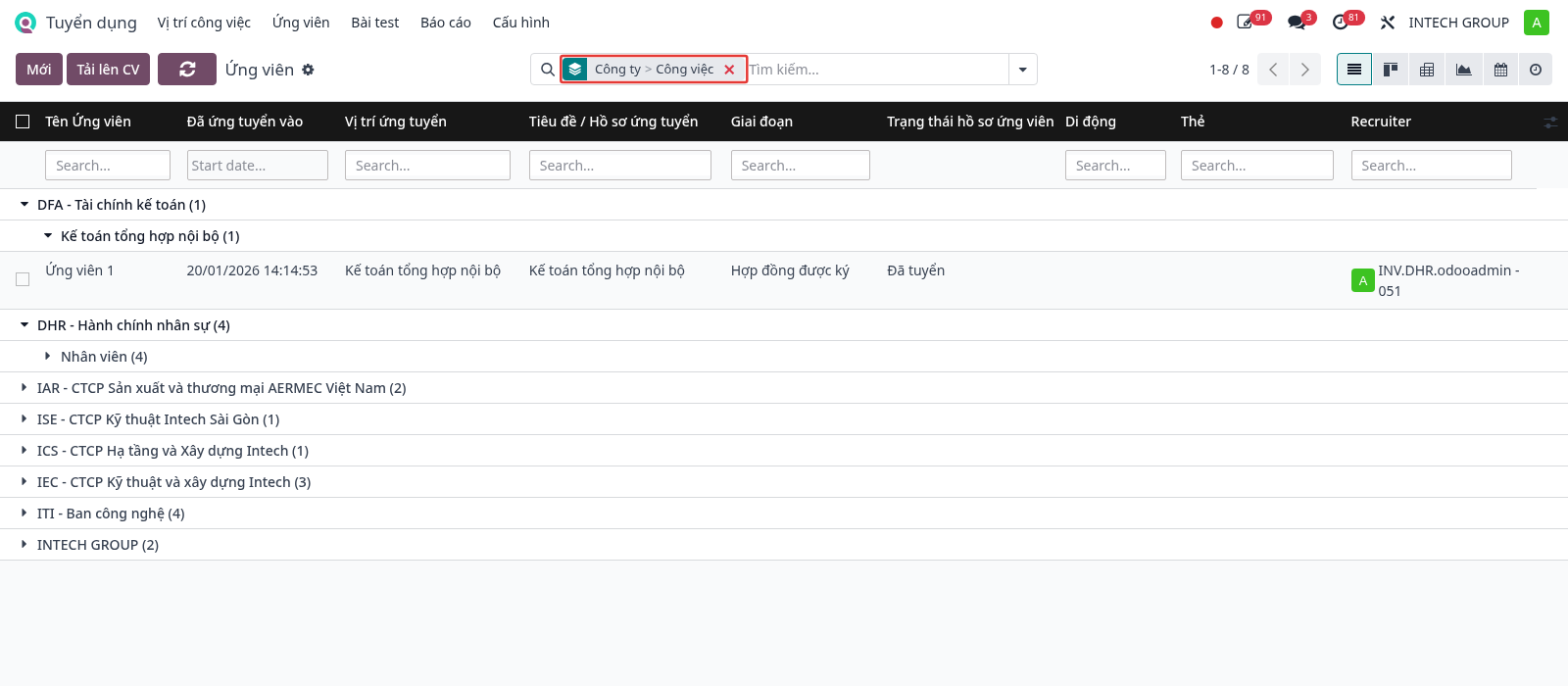
Step 3: Group applicant records by SBU and position: navigate to , click the ▾ arrow in the search bar, select Group By, choose Company (1), then Job (2).
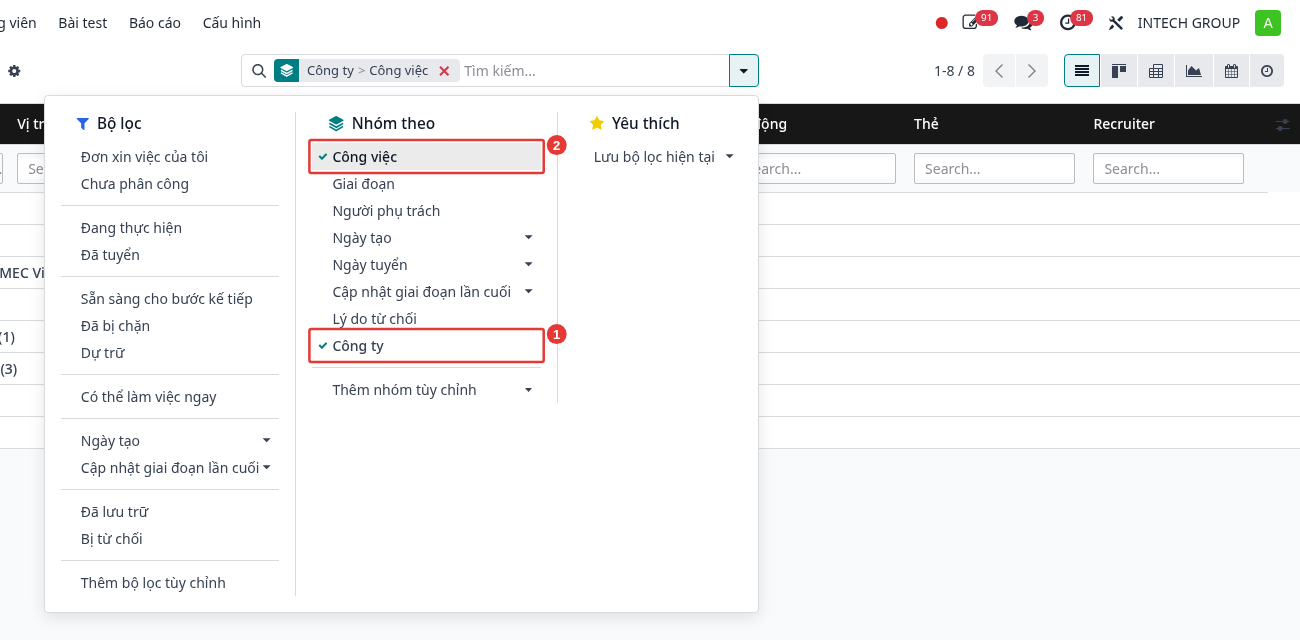
Result: the list is split by SBU, then by position within each SBU. Click a group name to expand or collapse it. This view can be saved in Favorites for reuse.
Step 4: Look up CVs in the Documents application: in the left panel, select Recruitment (1) → SBU (2) → Position (3) to view all CVs of that position.
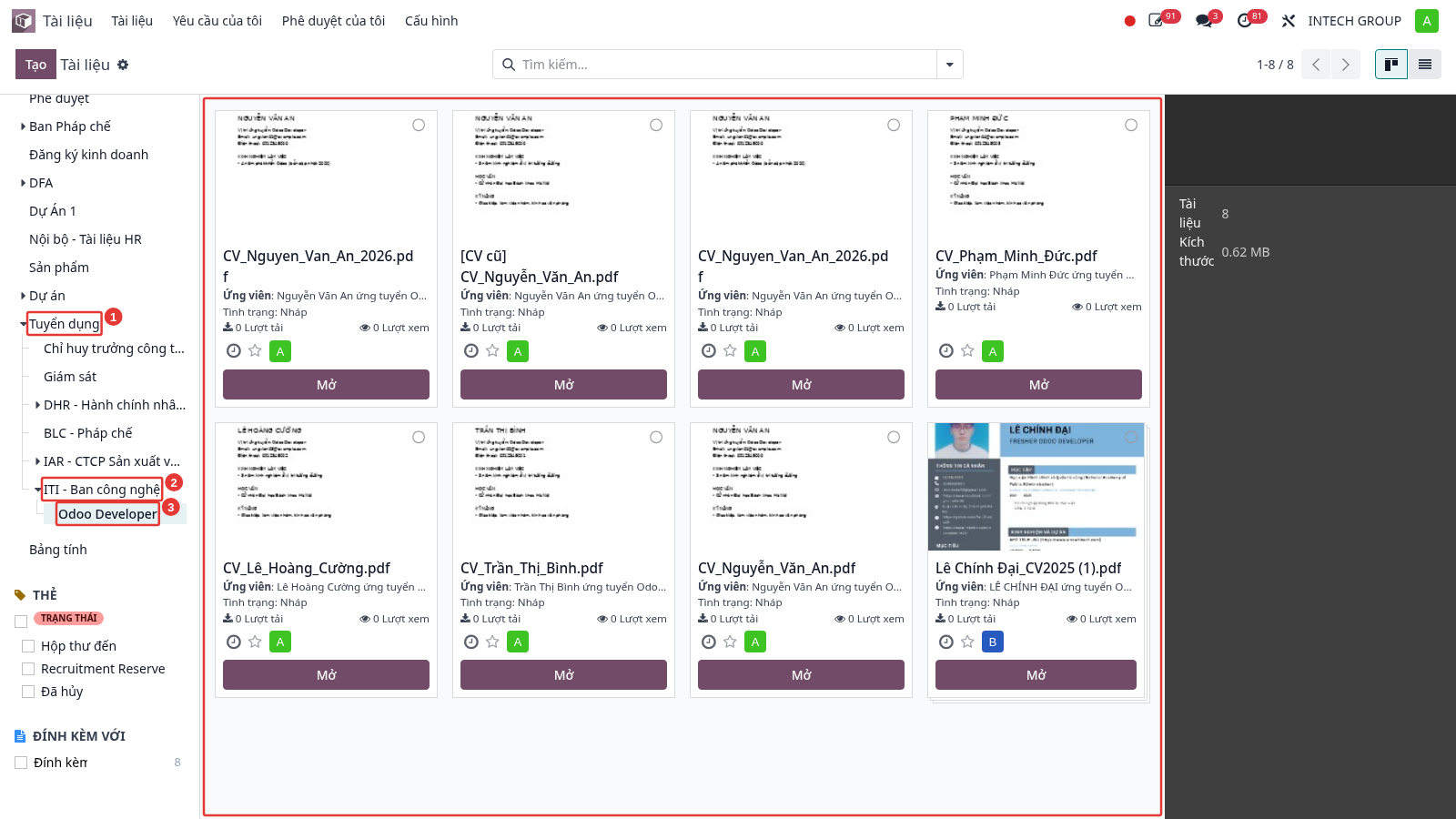
Rules for storing CVs in the Documents application:
When a JD is uploaded for a position, the system creates the SBU → Position folders.
All CV files and attachments of applicants with a position (CV upload, chatter attachments, email, website) are automatically stored in the folder of the position.
When an applicant changes the applied position, the CV moves to the folder of the new position. When a position is renamed or changes SBU, its folder is updated accordingly.
Access to CVs in the Documents application depends on the role, see the System access rights section.
Update interview status
HR or the interviewer updates the interview status of the applicant by changing the stage. Each change is logged in the history and provides data for the recruitment time report.
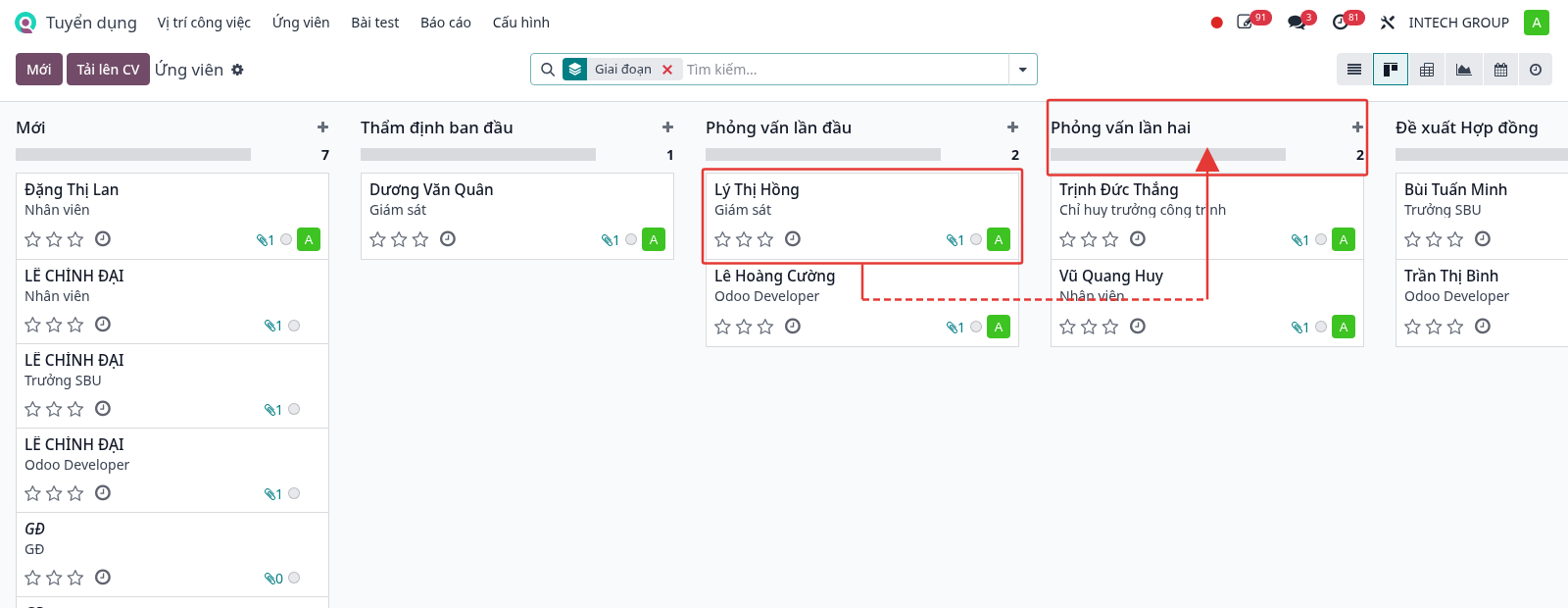
Method 1: drag cards in the Kanban view
Step 1: Navigate to , then select the Kanban view (column icon in the top-right corner).
Step 2: Drag the applicant card and drop it in the new stage column (for example, from First Interview to Second Interview).
Method 2: change the stage on the applicant record
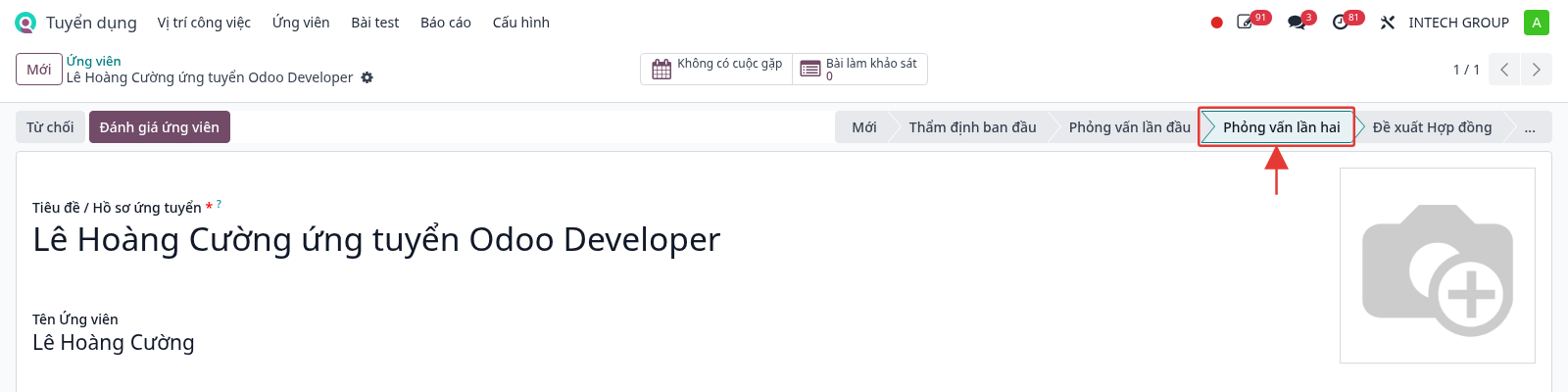
Step 1: Open the applicant record. The status bar (1) displays the current stage; the action buttons (2) change with the stage (configured in the Configure recruitment stages section).
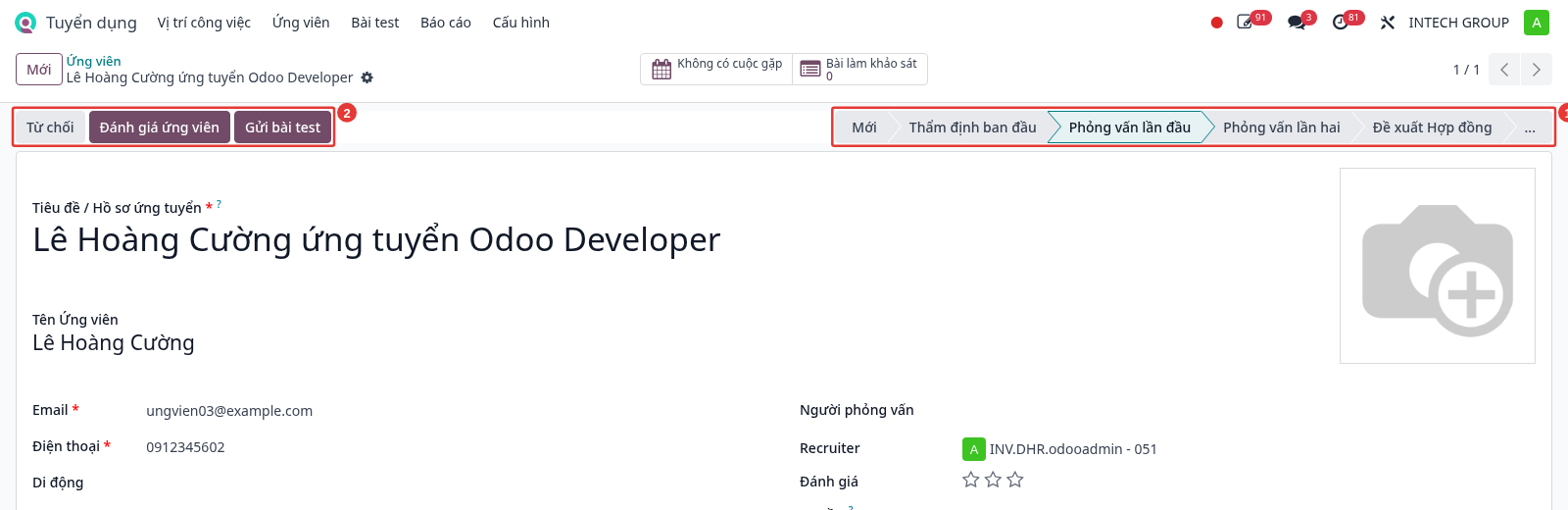
Step 2: Click the name of the new stage in the status bar. The system saves immediately, and the action buttons change according to the new stage.
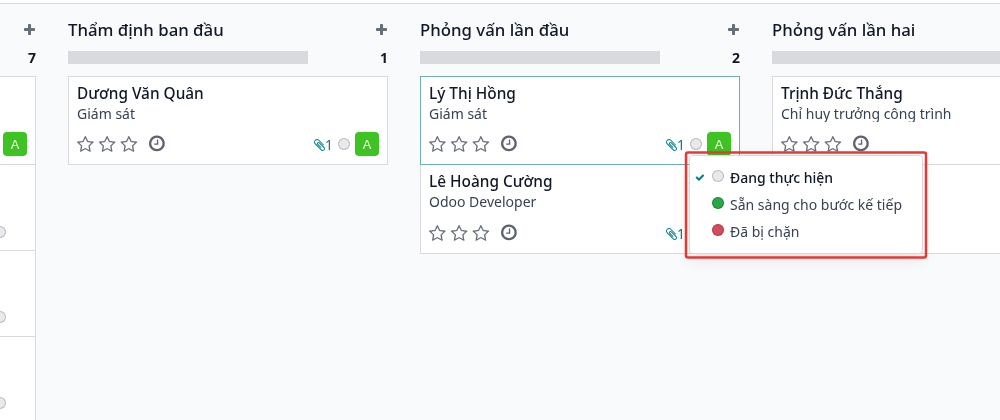
Status within the stage
Within each stage, click the dot on the applicant card to mark it: In Progress (grey), Ready for Next Stage (green), Blocked (red). When the applicant moves to a new stage, the status returns to In Progress.
Stage change history
Each stage change is logged in the chatter at the bottom of the applicant record: the user, the time, the old stage → the new stage.

Refuse applicants
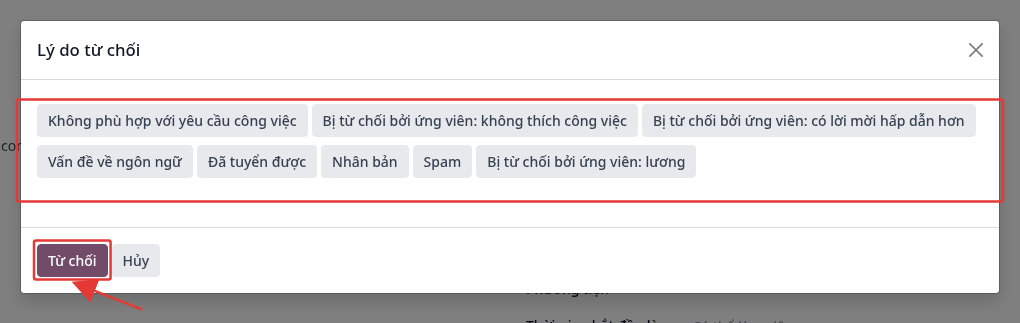
Click the Refuse button on the record, select the Refuse Reason, then click Refuse to confirm. Refused records are hidden from the list; use the Refused filter to view them again, and click Restore to bring the applicant back to the process.
Generate job offers
When the applicant passes the interview, HR uses the Generate Offer button to create a job offer including the position, department, start date, and salary, then sends the link to the applicant to view it, fill in personal information, and sign the contract online. The button is only displayed in stages where Generate Offer is selected in the Applied Buttons (see the Configure recruitment stages section).
Prerequisites: at least one contract template exists. The applicant must have an applicant name, otherwise the system displays an error when generating the offer.
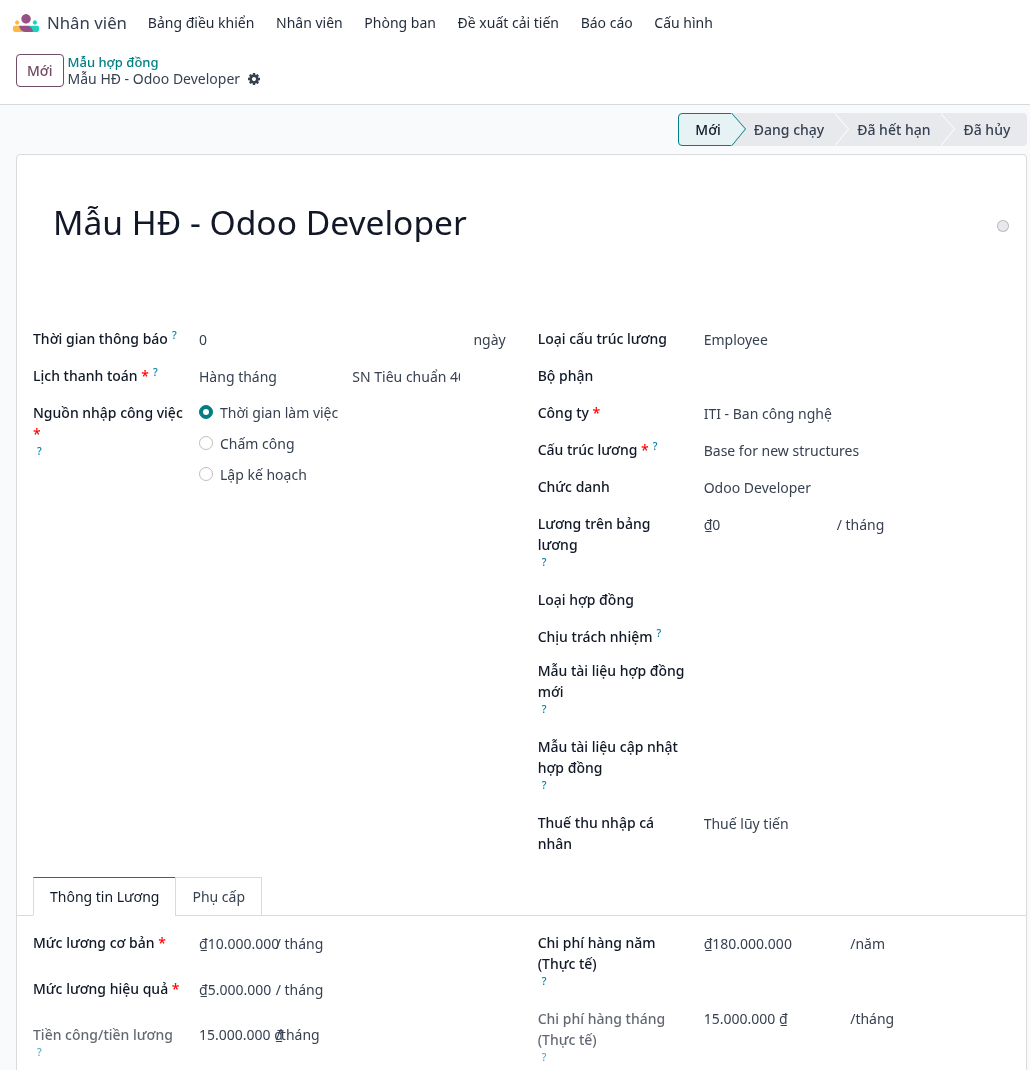
Step 1: Create a contract template (once, reused for many applicants): navigate to , then click New. Enter the template name (Contract Reference field), the Job Title, the Salary Structure, the base salary, and the performance salary; the system computes the Yearly Cost automatically. For the applicant to sign the contract online, select a New Contract Document Template (signature template created in the Sign application). Click Save. This menu is only visible to users with the HR administrator right.
Step 2: Open the applicant record, then click the Generate Offer button.
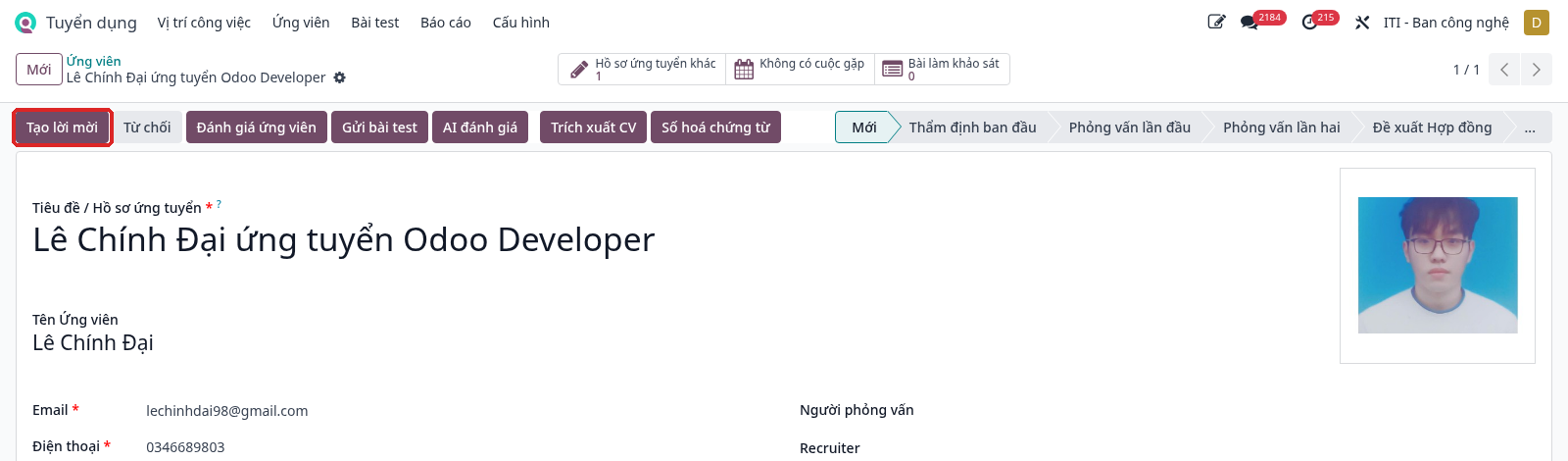
Step 3: The Generate Simulation Link window appears. Select the contract template; the job position, job title, and department are taken from the applicant record, and the yearly cost is taken from the contract template. Check and edit if needed: the contract start date, the yearly cost (proposed salary budget), and the link expiration date (30 days by default).
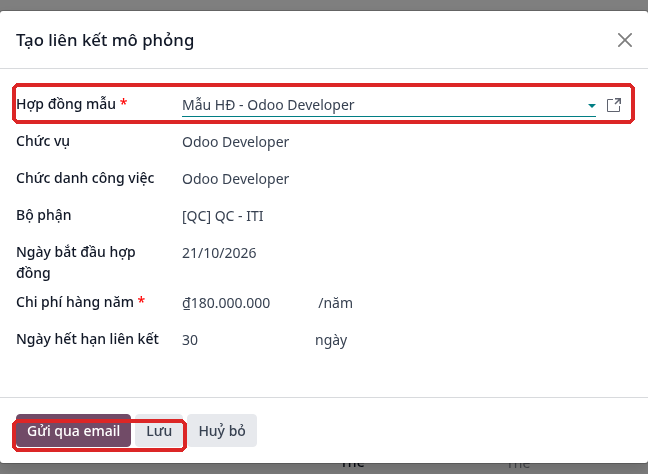
Step 4: Select one of the two options:
Send By Email: generates the offer and opens an email composer with the offer link addressed to the applicant email. Check the content, then click Send.
Save: only generates the offer, without sending an email. HR copies the link in step 5 to send it to the applicant through another channel (Zalo, personal email…).
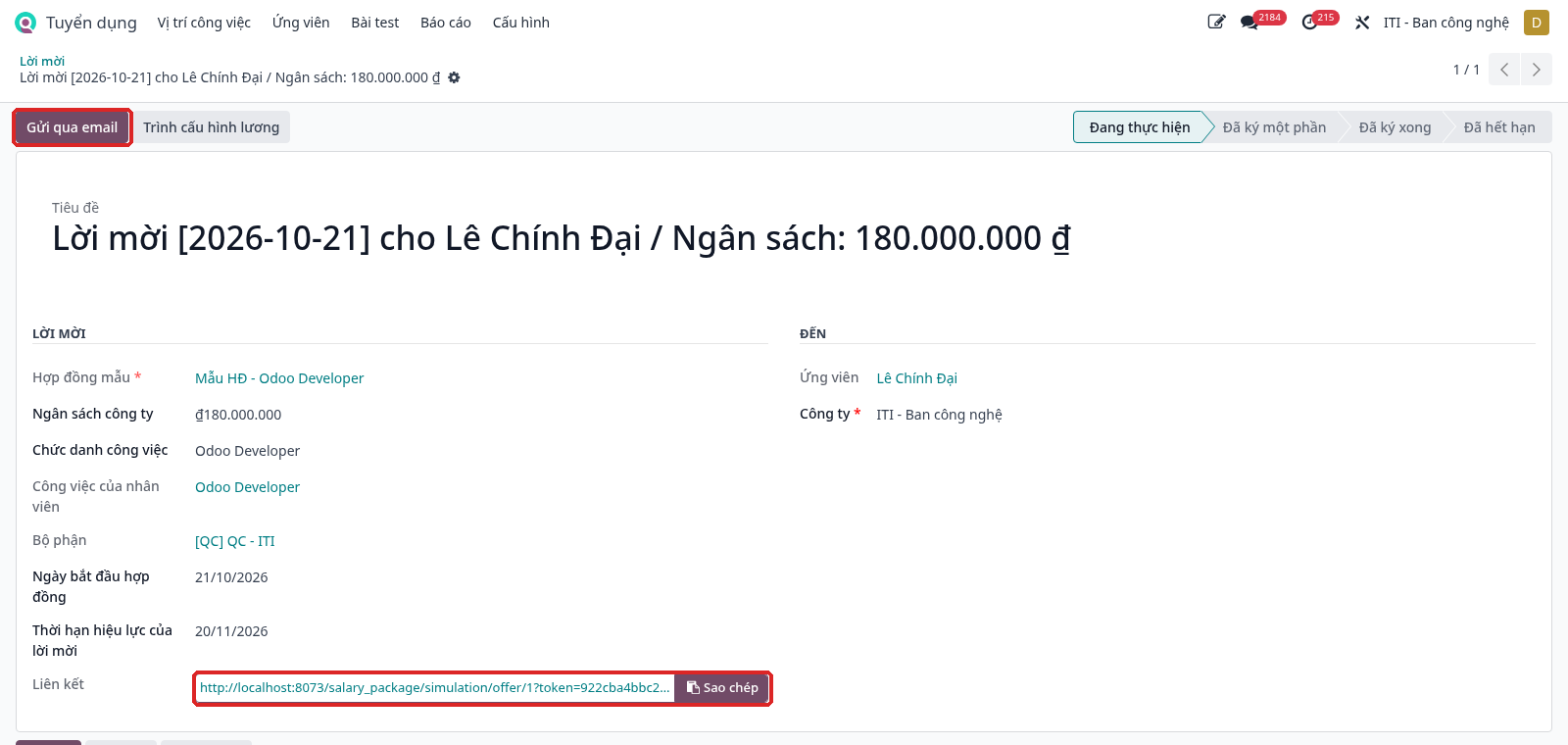
Step 5: The system opens the generated offer form. The Link field contains the personal link of the applicant; click Copy to get it. The Send By Email button sends (or resends) the offer. The chatter of the applicant record logs the generated offer.
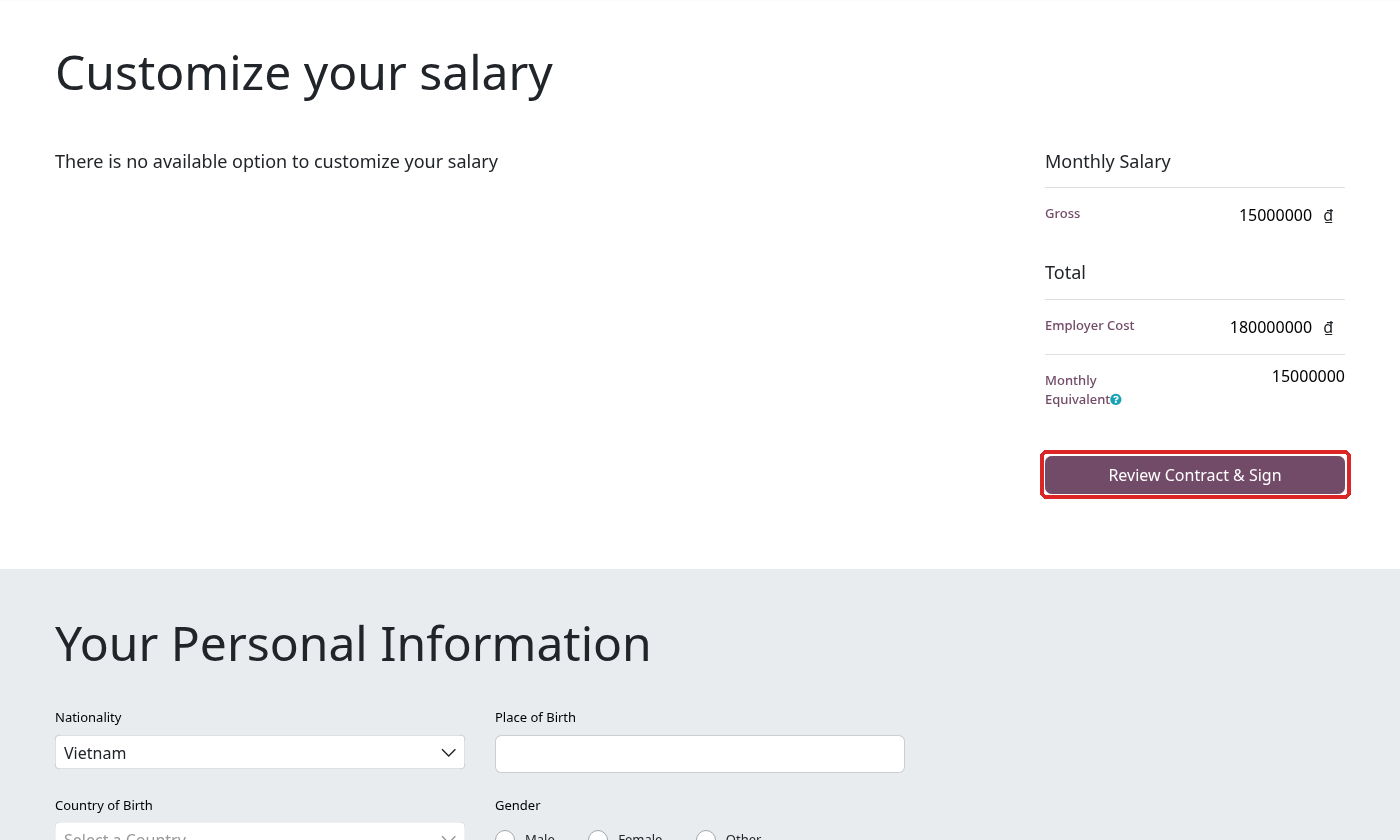
Step 6: The applicant opens the link, views the proposed salary, fills in personal information (nationality, date of birth, address, bank account, emergency contact…), then clicks Review Contract & Sign to view and sign the contract.
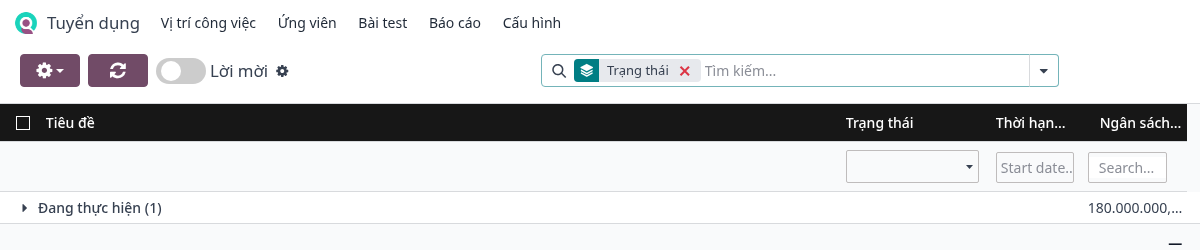
Follow offers: navigate to . The list is grouped by status:
In Progress: generated or sent, not signed by the applicant yet.
Partially Signed: signed by the applicant, waiting for the HR responsible to sign.
Fully Signed: signed by both parties; the applicant record moves automatically to the hired stage.
Expired: the link expiration date has passed without the applicant signing; a new offer must be generated.
Note
If the contract template has no New Contract Document Template, the applicant can still view the offer but cannot sign the contract online. Each click on Send By Email or Save generates a new offer, so avoid clicking several times for the same applicant.
Note
If a stage has an Email Template, the system automatically sends an email to the applicant when the applicant moves to that stage. Change the stage at the actual time so that the recruitment time report is accurate.
Create employees at the Contract Signed stage
When the applicant accepts the job, HR creates the employee record directly from the applicant record, without entering the information again.
Prerequisites: the Contract Signed stage has Hired Stage checked and the Create Employee button in the Applied Buttons (see the Configure recruitment stages section); the applicant record has an applicant name; the user has at least the Recruitment / Officer right.
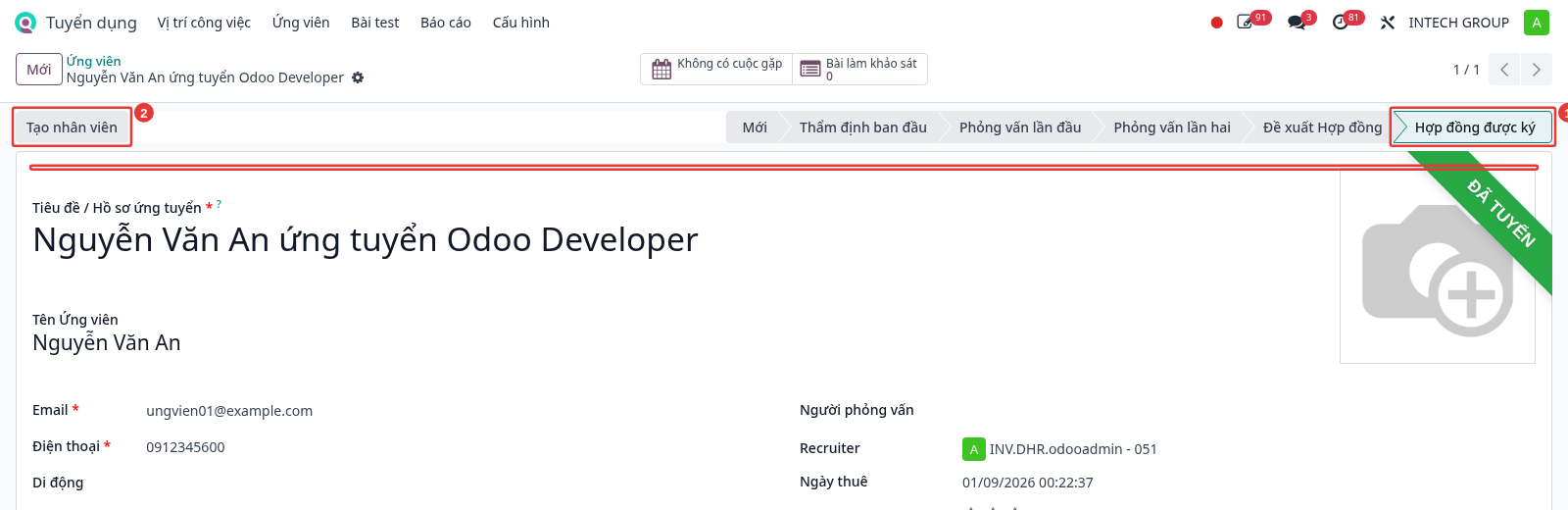
Step 1: Move the applicant to the Contract Signed stage (1). The record displays the HIRED ribbon and records the Hire Date. Click the Create Employee button (2).
Step 2: The system creates the employee record and opens the employee form immediately. The information transferred from the applicant record: name, job position, department, phone number, contact email, skills. The employee ID and display name are generated automatically according to the employee ID rule.
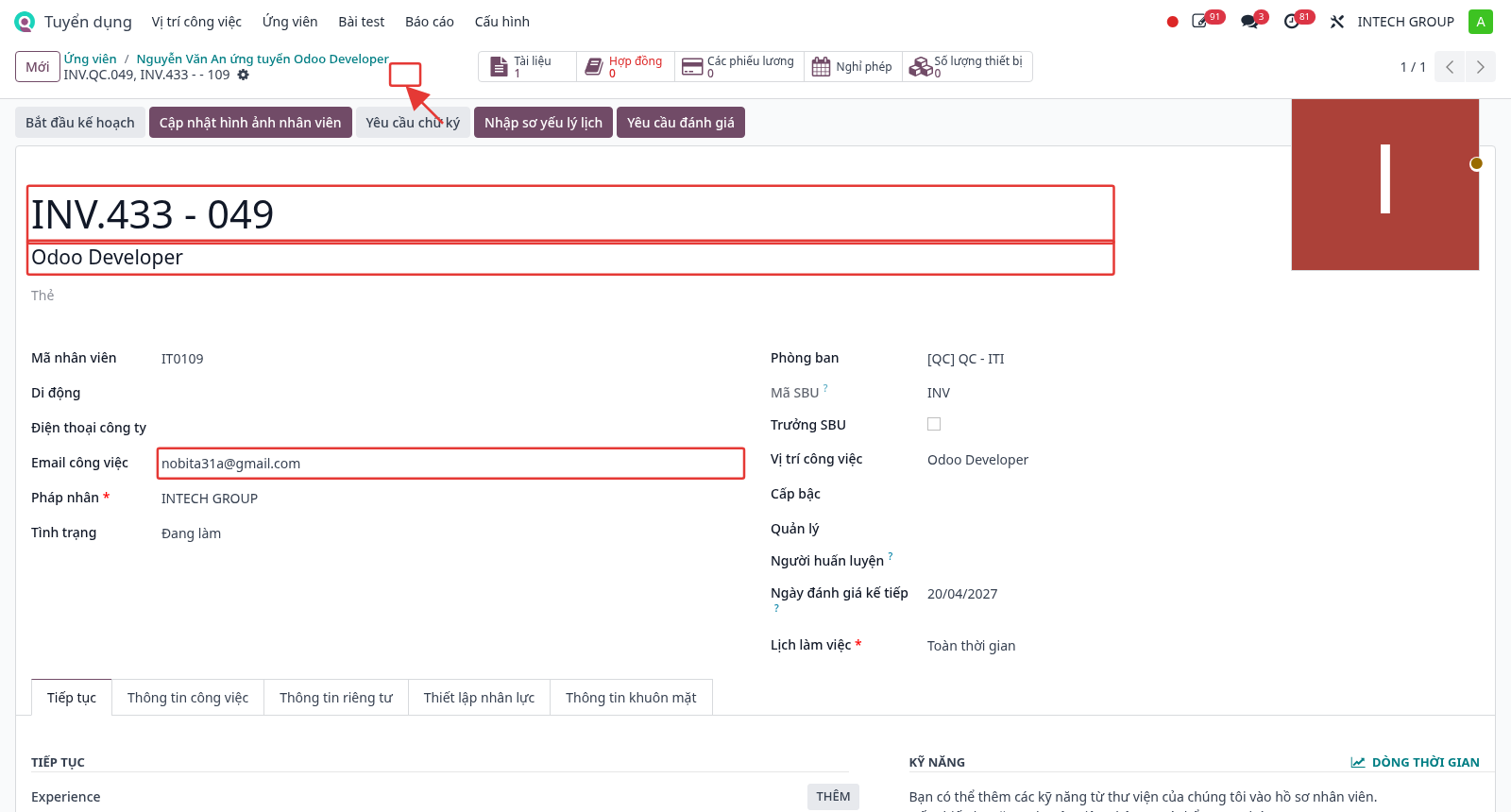
HR checks and completes the missing information (work email, legal entity, manager, working schedule, personal information…), then clicks the save icon.
Note
The work email defaults to the email of the company or department; HR needs to update it with the actual work email of the employee.
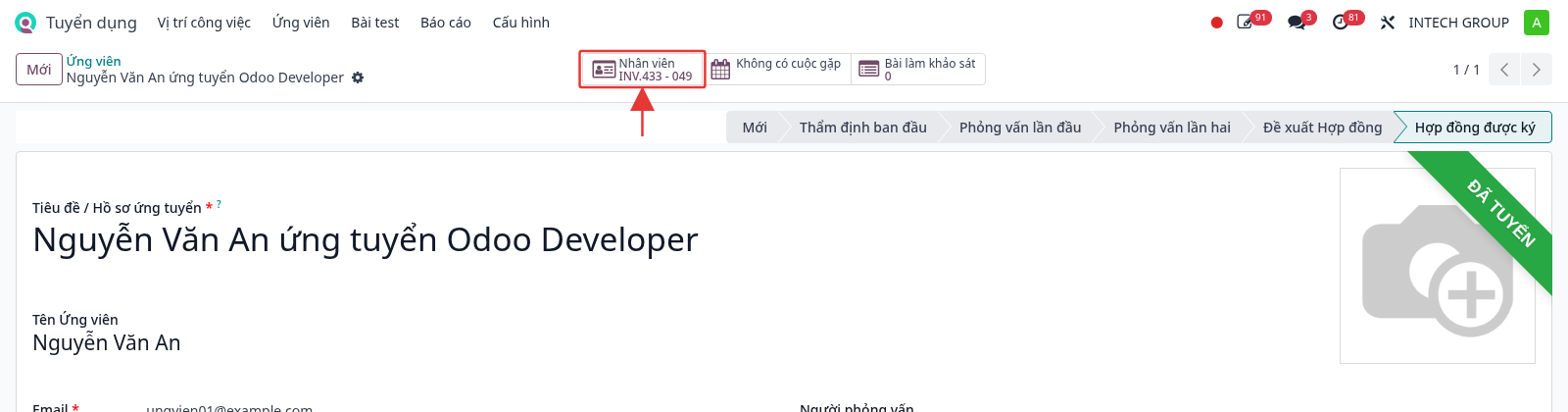
Step 3: Back on the applicant record, the Employee button at the top of the form quickly opens the created employee record.
Note
Each applicant can only create one employee. After creation, the Create Employee button is hidden. The button is only displayed when the record is in the hired stage (with a hire date) and is not refused.
Recruitment analysis report
Purpose: follow the recruitment progress against the target (number to recruit in the JD), the efficiency of each round (CV screening, test, interview, offer), and the accuracy of AI screening compared to the actual interview results.
When to use: weekly or monthly recruitment meetings; checking which positions are not filled yet or overdue; evaluating the reliability of AI in CV screening.
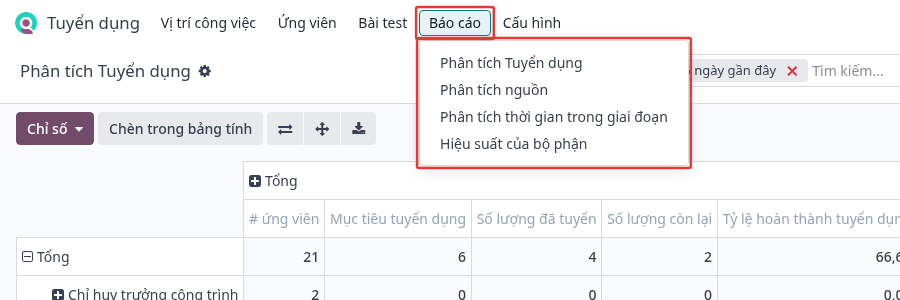
Step 1: Navigate to .
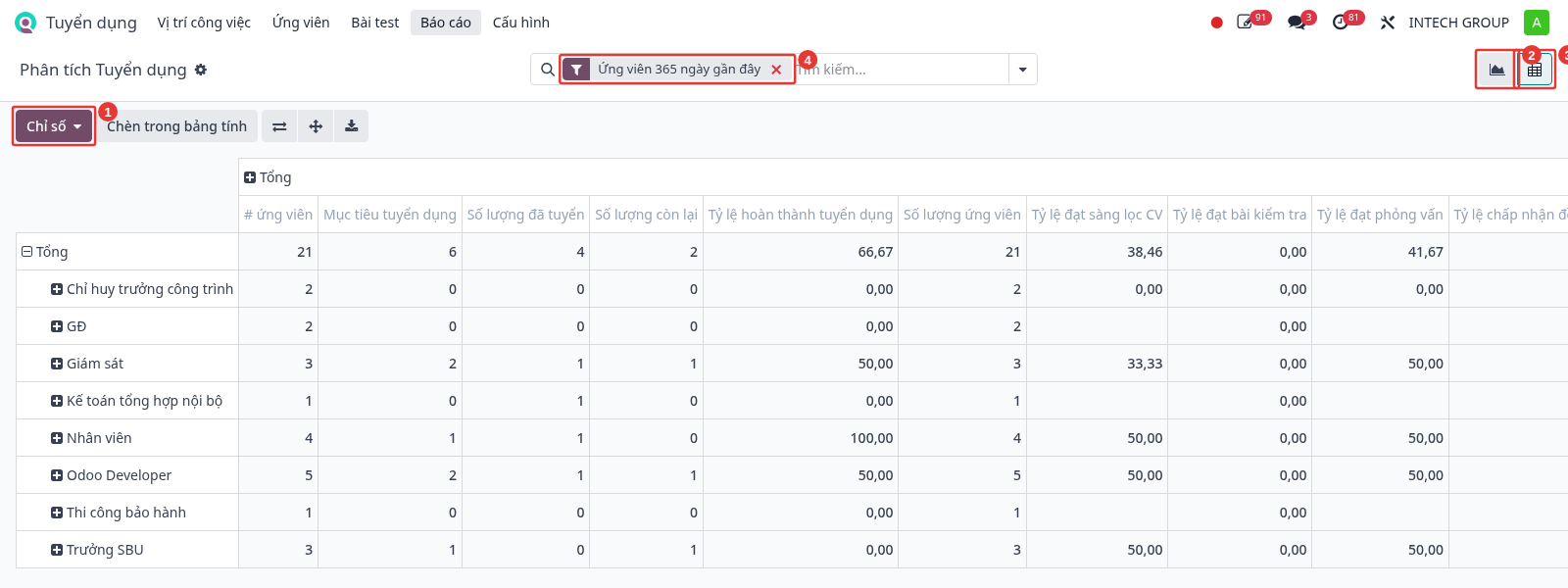
Step 2: Get familiar with the report screen: (1) Measures button to select the data columns; (2) graph view; (3) pivot view; (4) active filter, by default Last 365 Days Applicant (click × to remove the filter).
Step 3: Select the measures: click Measures, then check or uncheck each measure. Measures with a ✓ are displayed as columns in the table.
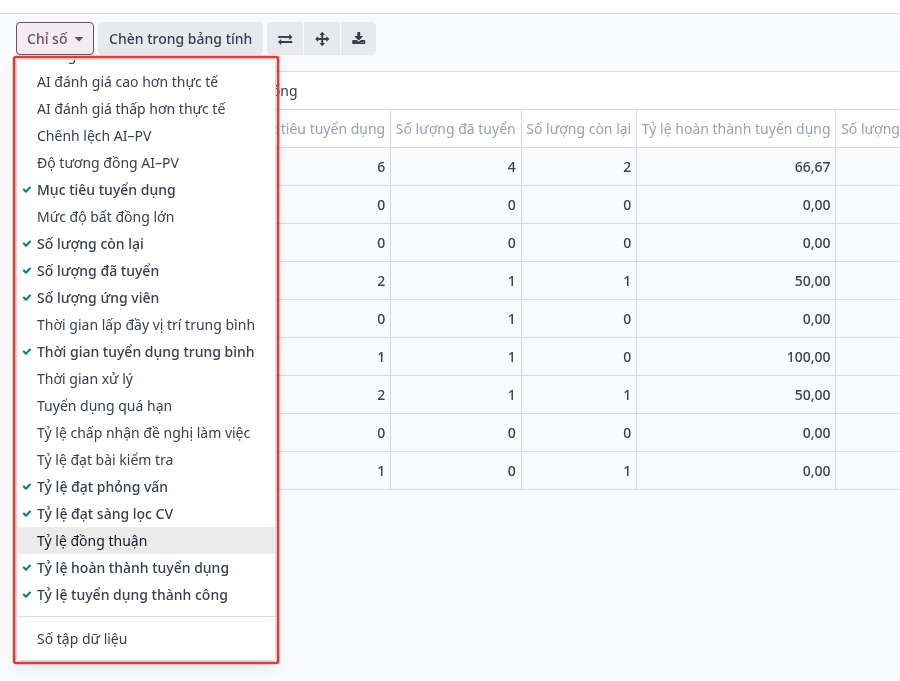
Meaning of the main progress and efficiency measures:
Measure |
Meaning / Computation |
|---|---|
Recruitment target |
Total number to recruit of the JDs in the Recruiting status (the latest JD of each position and level). |
Number hired |
Number of applicants in the hired stage (Contract Signed). |
Number remaining |
Recruitment target − Number hired (not lower than 0). |
Recruitment completion rate (%) |
Number hired / Recruitment target × 100. |
Number of applicants |
Total number of applicant records in the group. |
CV screening pass rate (%) |
Records evaluated as Pass by AI / Records evaluated by AI. AI gives Pass when the JD match is ≥ 85%, Consider from 50% to below 85%, Fail below 50%. |
Test pass rate (%) |
Applicants who passed the test / Applicants who took the test. |
Interview pass rate (%) |
Applicants with the Priority interview conclusion / Applicants with an interview conclusion. |
Offer acceptance rate (%) |
Offers accepted by applicants / Offers with a response. |
Recruitment success rate (%) |
Hired applicants / Applicants with a final result. |
Average time to hire |
Average number of days from the record creation to the hire date (hired applicants only). |
Average time to fill |
Number of days from the position creation until the target number is hired. |
Overdue recruitment (%) |
Rate of JDs past the recruitment deadline without reaching the target. |
Step 4: View the data by SBU: click the ▾ arrow in the search bar, select Group By, then Unit. Each line of the table is an SBU.
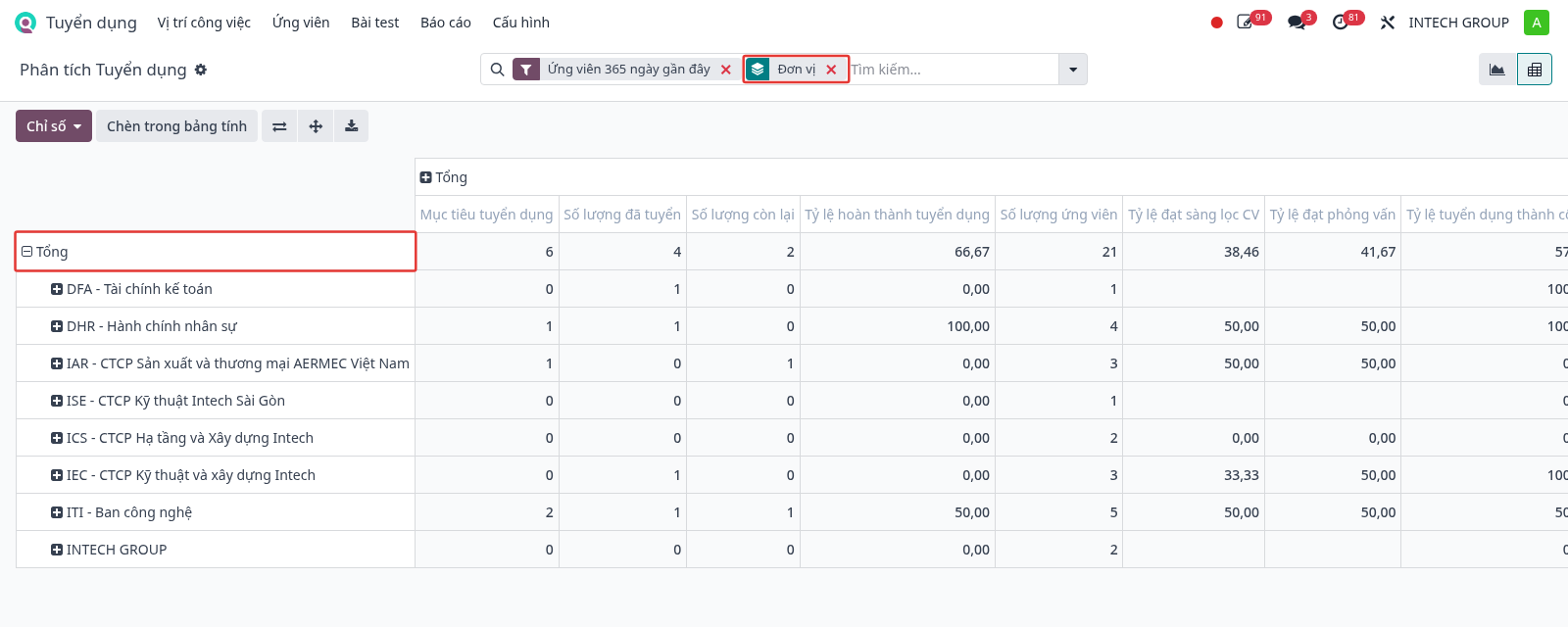
To break down a line further, click its name (for example, an SBU) and select a criterion: Job Position, Department, Level, Recruiter…
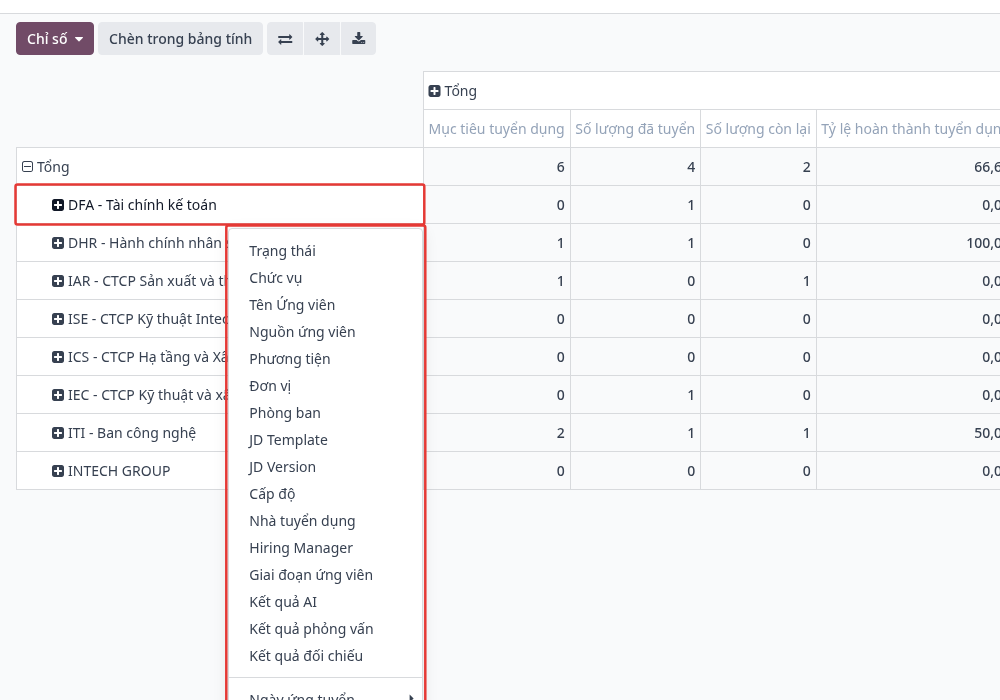
Step 5: View over time: Group By → Applied On → Month (or Quarter / Year) to view the trend of each month.
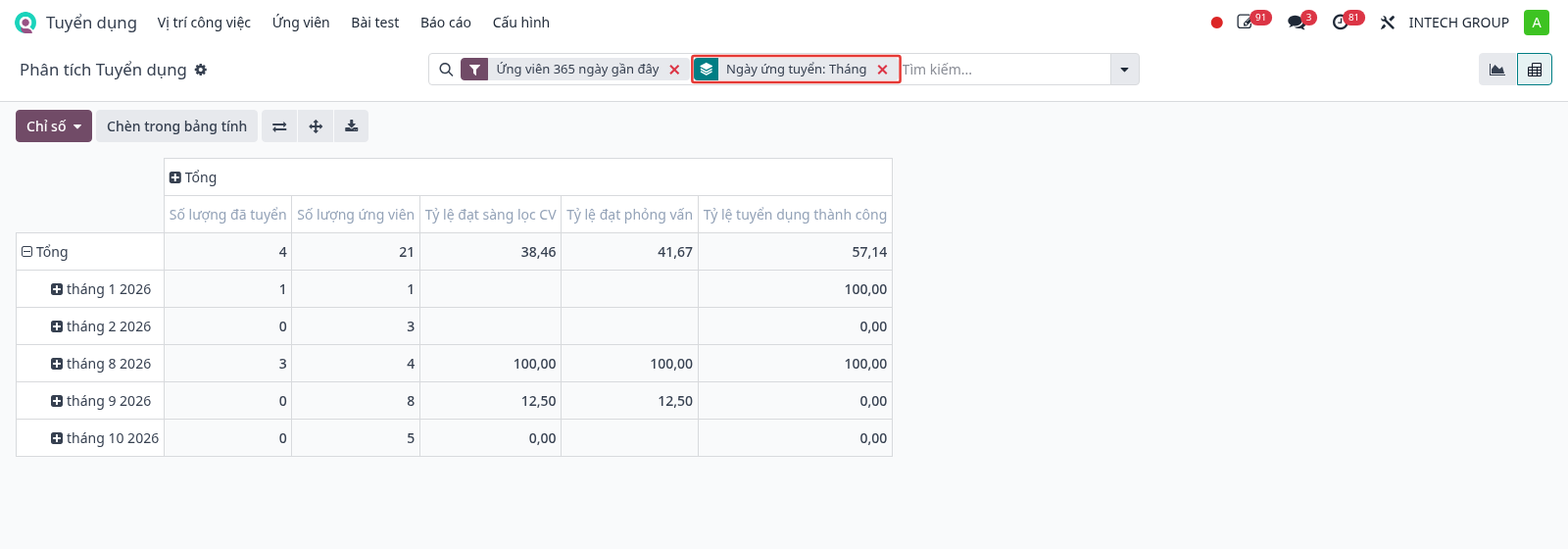
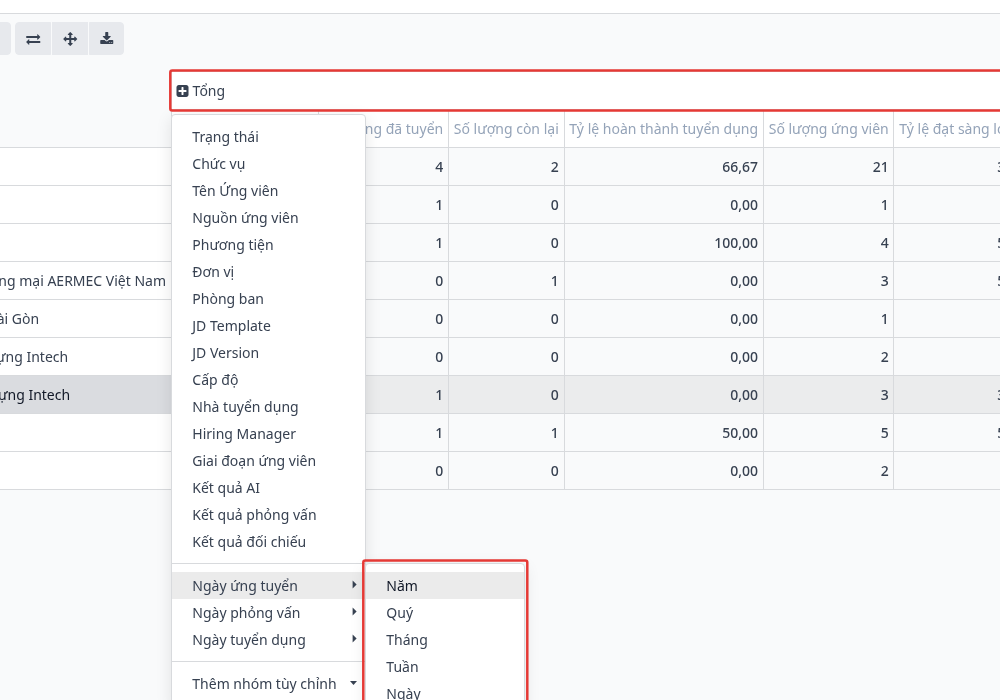
Alternatively, click Total in the column header → Applied On → select Year / Quarter / Month / Week / Day to display the periods as columns.
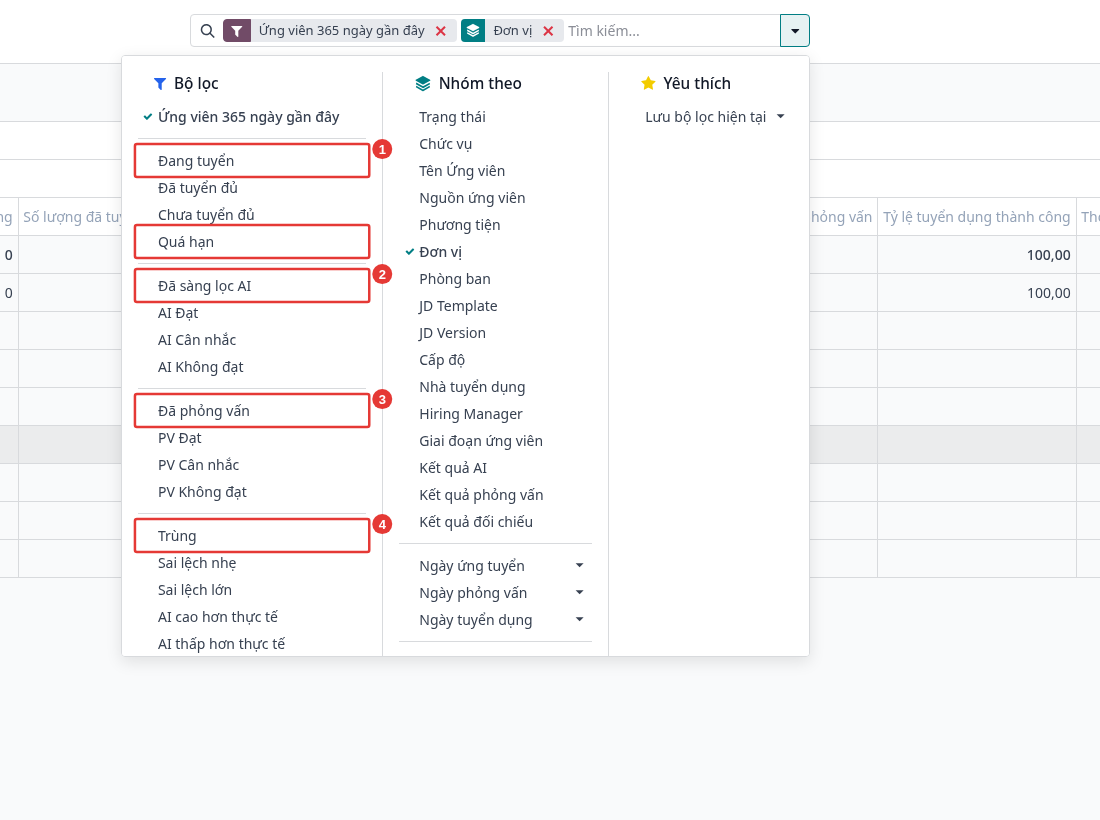
Step 6: Filter the data: click the ▾ arrow, select Filters, then choose filters by group:
Filter group |
Filters and meaning |
|---|---|
Recruitment progress (1) |
Recruiting (JD being recruited), Target reached, Target not reached, Overdue (past the recruitment deadline without reaching the target). |
AI screening (2) |
AI screened, AI Pass, AI Consider, AI Fail. |
Interview (3) |
Interviewed, Interview Pass (Priority), Interview Consider (Consider / Needs further evaluation), Interview Fail (Not priority / Not recommended). |
AI – interview comparison (4) |
Match, Minor deviation, Major deviation, AI higher than actual, AI lower than actual. |
Time |
Applied On, Interview Date, Hire Date: select the month, quarter, or year to view. |
Step 7: Evaluate the AI accuracy: select the AI measures, then Group By → Comparison Result.
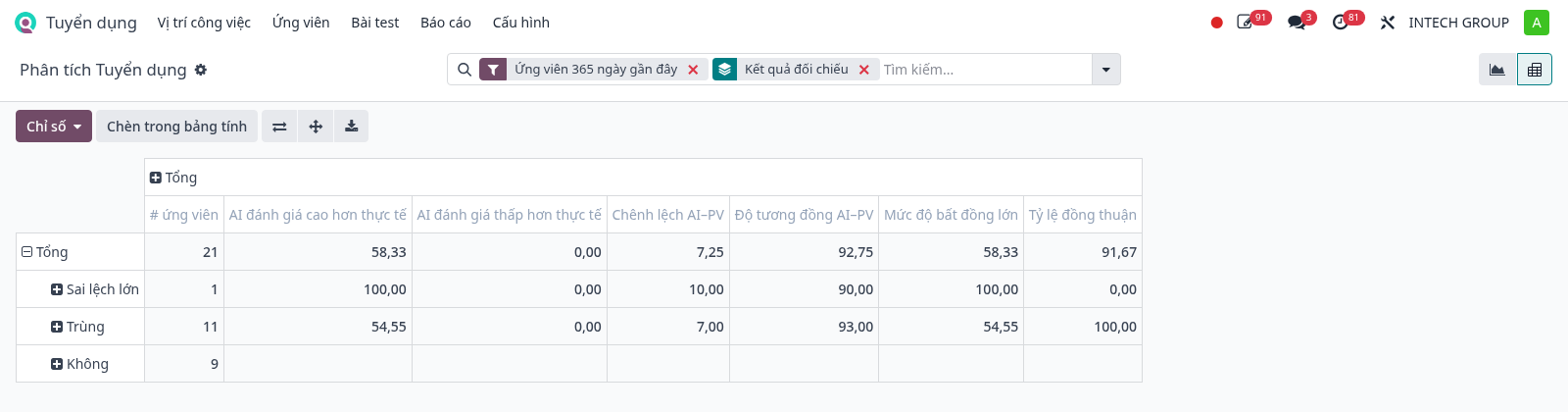
Measure / Result |
Meaning |
|---|---|
Match |
The AI conclusion (Pass / Consider / Fail) is the same as the interview conclusion. |
Minor deviation / Major deviation |
The conclusions differ; a gap below 5 percentage points between the AI match and the interview match is a minor deviation, 5 percentage points or more is a major deviation. |
AI–interview gap |
Average gap in percentage points between the match scored by AI and by the interviewer. The smaller, the better. |
AI–interview similarity (%) |
100 − AI–interview gap. The closer to 100, the better. |
Agreement rate (%) |
Rate of records with the Match result. |
Major disagreement rate (%) |
Rate of records with a gap of 5 percentage points or more. |
AI higher / lower than actual (%) |
Rate of records where AI scores higher (or lower) than the interviewer by more than 5 percentage points. Used to adjust the AI prompt or the JD. |
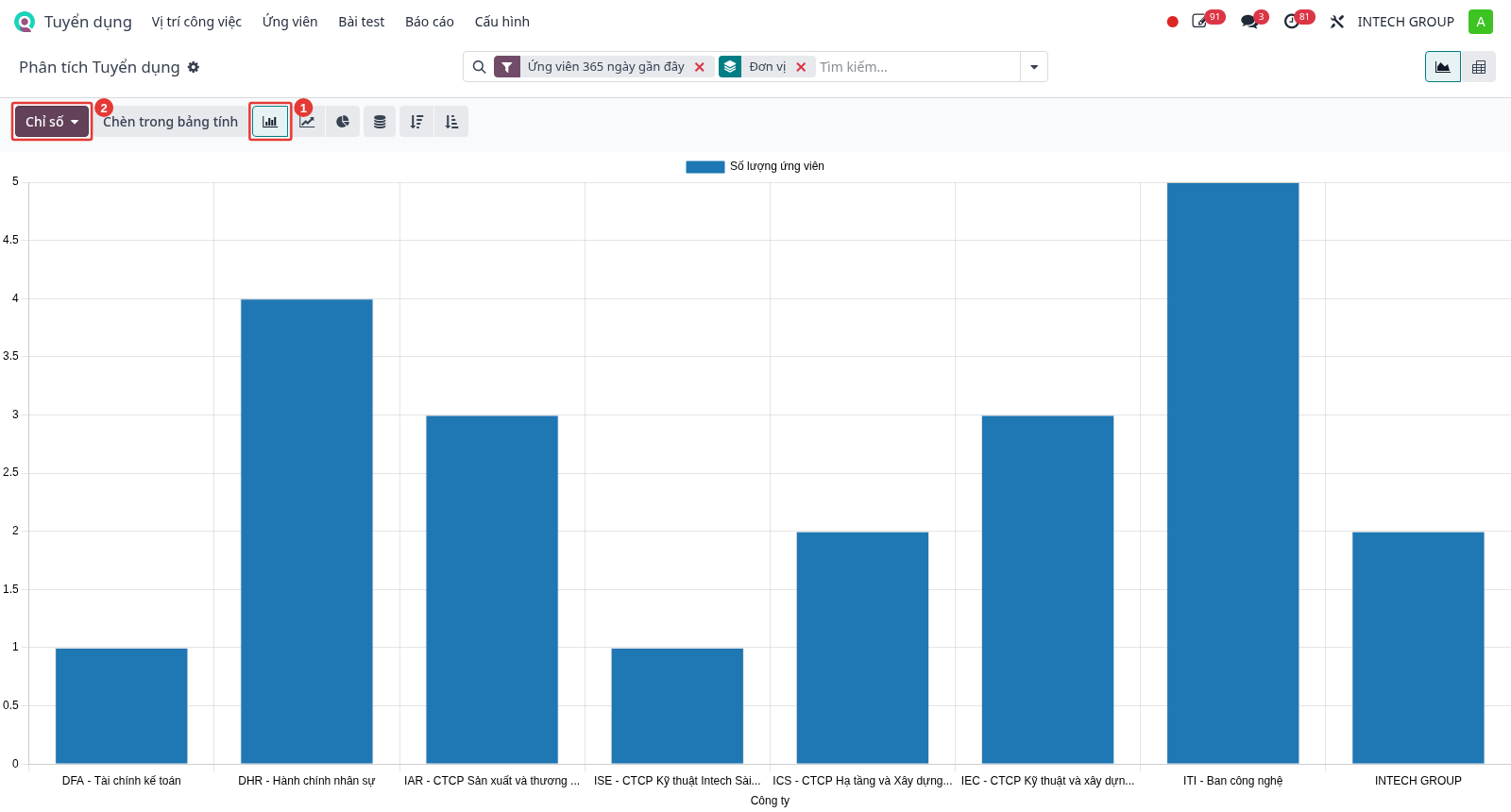
Step 8: View as a graph: click the graph icon, select the bar chart (1), then select the measure to draw in Measures (2). The graph only draws one measure at a time.
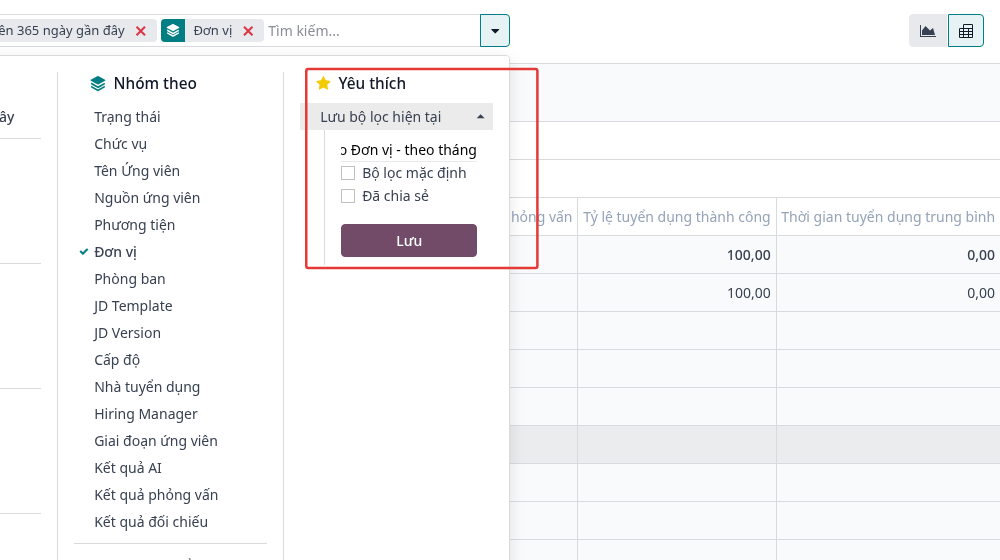
Step 9: Save the report configuration: click the ▾ arrow → Favorites → Save current search, enter a name, then click Save. Check Default filter to open the report with this configuration; check Shared to share it with other users.
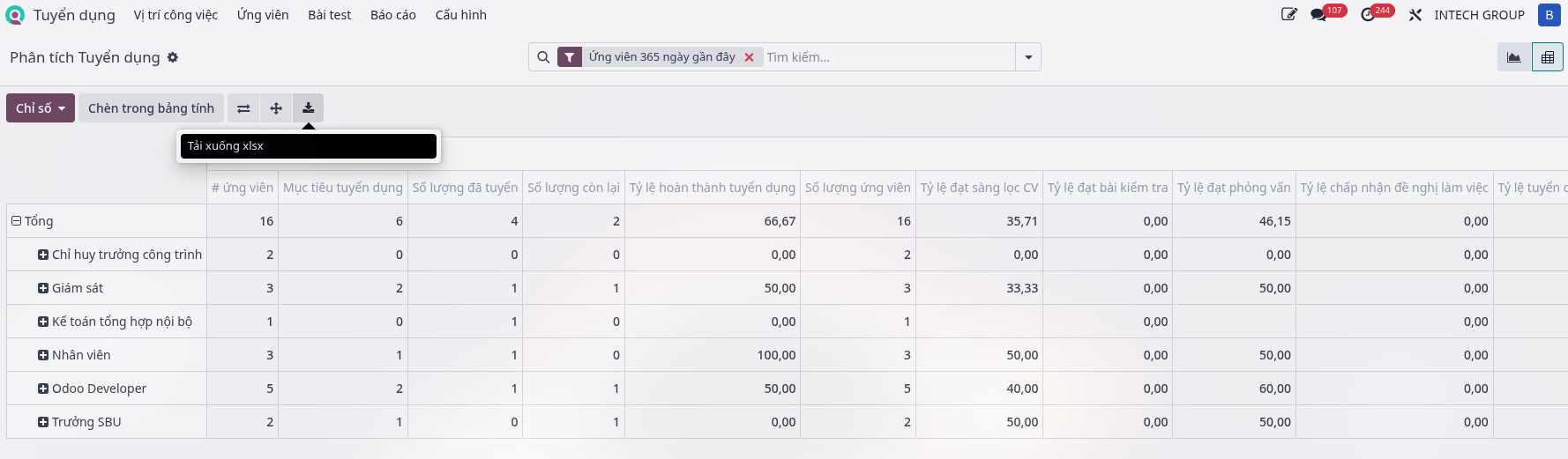
Step 10: Export to Excel: in the pivot view, click the download icon (↓) next to the Measures button.
Recruitment source report
Purpose: compare the recruitment channels (TopCV, LinkedIn, Facebook, company website, internal referral…) to identify which channel brings the most applicants, the most hires, and the best records, then decide which channel to invest in.
Step 1: Navigate to .
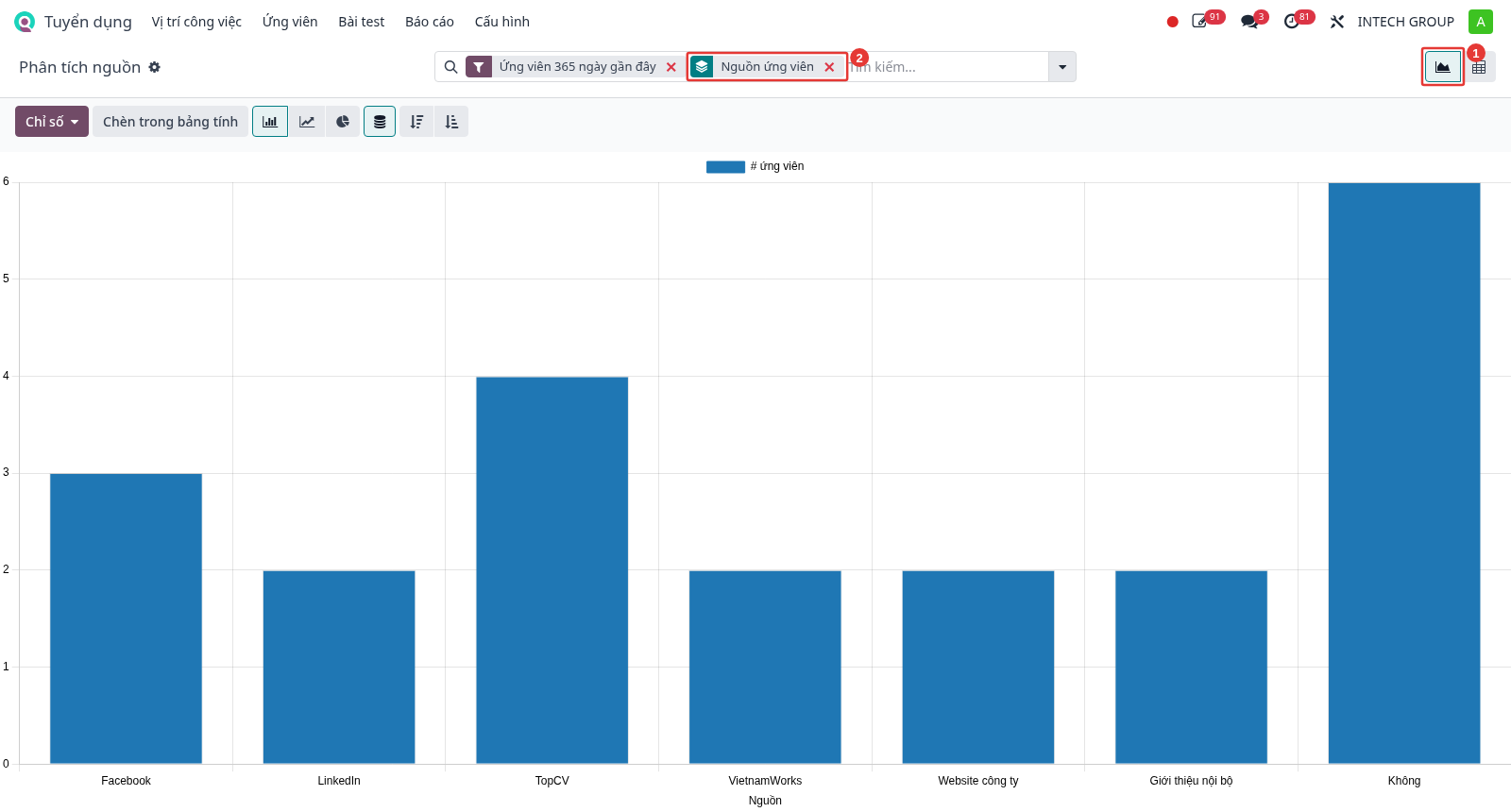
Step 2: Select the graph view (1), click the ▾ arrow → Group By → Source (2). Each bar is the number of applicants from one channel; the None bar contains the records without a source.
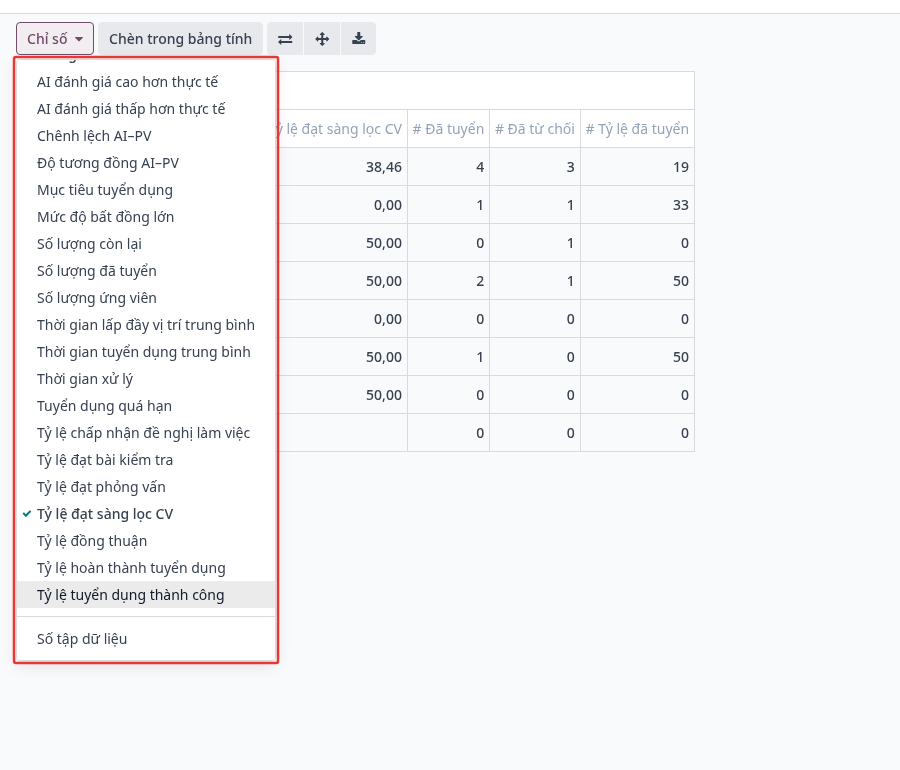
Step 3: Switch to the pivot view, click Measures, then check the measures: # Applicants, # Hired, # Refused, # Hired Ratio, CV screening pass rate.
Step 4: Group by Source, then click the # Hired Ratio column header to sort (click again to reverse the order). The top channel has the highest hiring success rate.
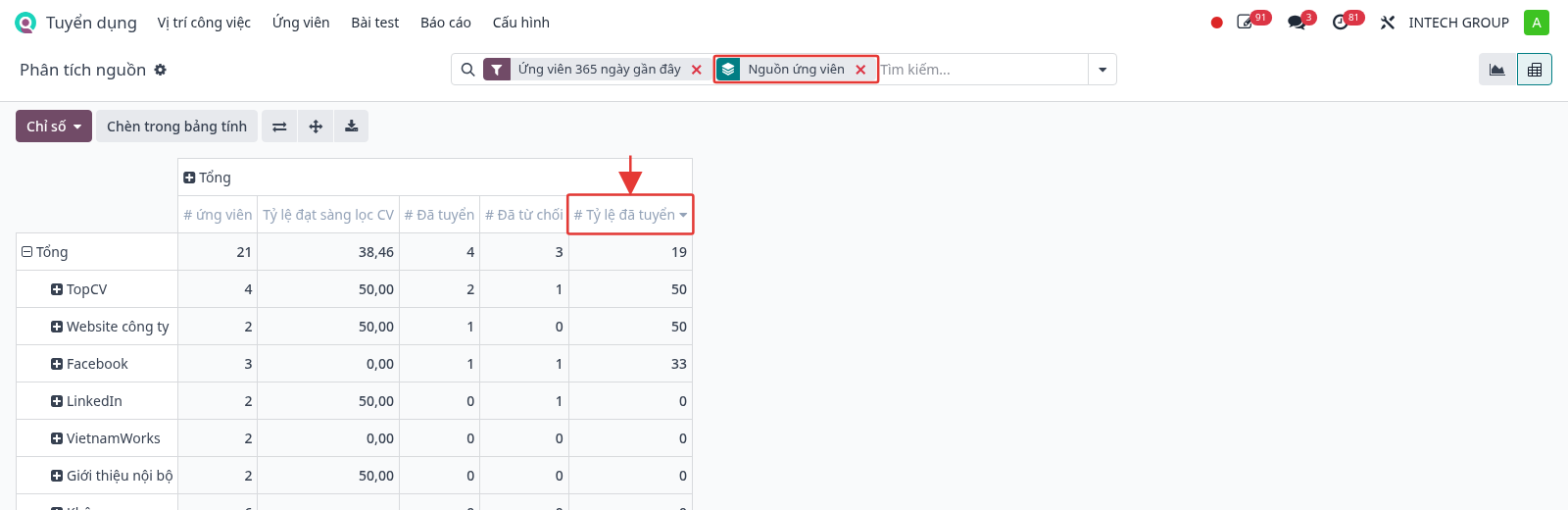
Meaning and reading:
Measure |
Meaning / Reading |
|---|---|
# Applicants |
Number of records from the channel. Shows the reach of the channel. |
# Hired |
Number of applicants from the channel who were hired (with a hire date). |
# Refused |
Number of records from the channel that were refused. |
# Hired Ratio (%) |
# Hired / # Applicants × 100. Shows the efficiency of the channel. |
CV screening pass rate (%) |
Rate of records evaluated as Pass by AI. Shows the record quality of the channel. |
A channel with many applicants but a low hired ratio and CV screening pass rate: the records are not suitable, review the job posting content on that channel.
A channel with few applicants but a high hired ratio: a quality channel, increase the investment.
Add Group By → Job Position or Unit to view the efficient channels for each position or SBU.
Note
The source comes from the Source field of the applicant record; HR needs to select the source when creating the record or uploading the CV. Sources are added in (developer mode).
Recruitment time report
Purpose: view the average number of days applicants spend in each stage, to detect slow or blocked steps and handle them.
Step 1: Navigate to .
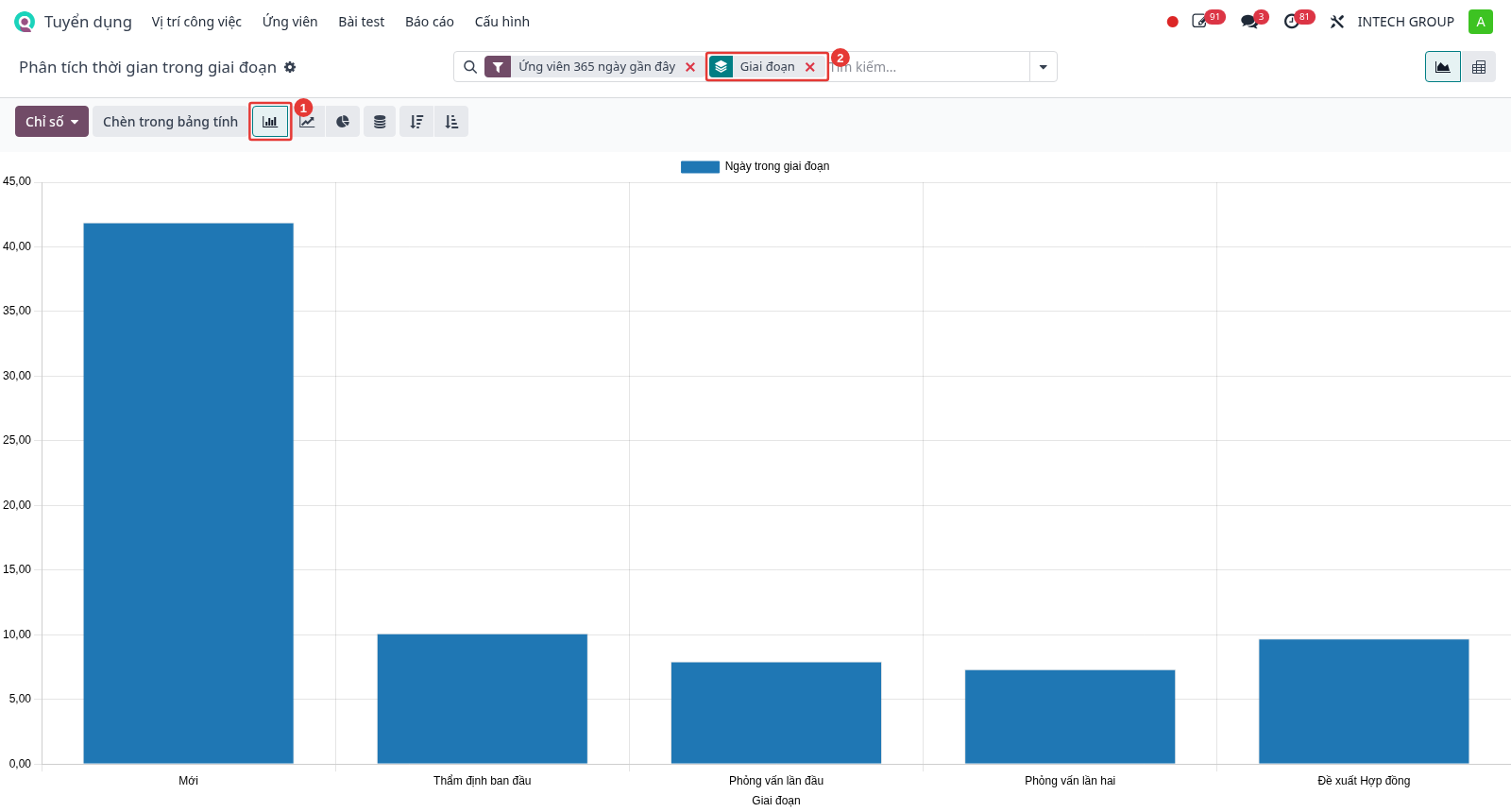
Step 2: In the graph view, select the bar chart (1) and Group By → Stage (2). The height of each bar is the average number of days applicants spend in that stage.
Step 3: Switch to the pivot view, Group By → Stage (1). Click the Days In Stage column header (2) to sort in descending order: the top stage is the step taking the most time.
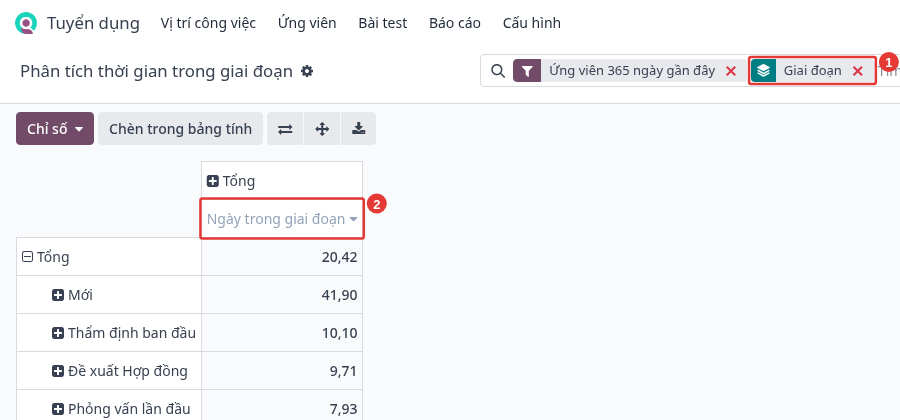
Step 4: Find the cause: click the slow stage line and break it down by Job Position, Company, or Applicant Name to identify the position, SBU, or applicant taking too long. Filter by status (Hired, In Progress, Refused) if needed.
Computation and reading:
Days in stage = time the applicant moves to the next stage − time the applicant enters the stage. For the current stage of the applicant, the time is counted until today.
Example in the picture: the New stage takes almost 42 days on average, much longer than the other stages → new records are screened slowly, HR needs to handle the pending records in the New stage soon.
Note
The report is only accurate when HR changes the stage at the actual time (see the Update interview status section).
Recruitment performance report
Purpose: compare the recruitment results between SBUs or departments, so that managers know which units recruit well and which ones need support.
Step 1: Navigate to , then select the pivot view.
Step 2: Click Measures, then check: # Applicants, Recruitment target, Recruitment completion rate, # Hired, # Hired Ratio, Processing time.
Step 3: Click the ▾ arrow → Group By → Unit, so that each line is an SBU.
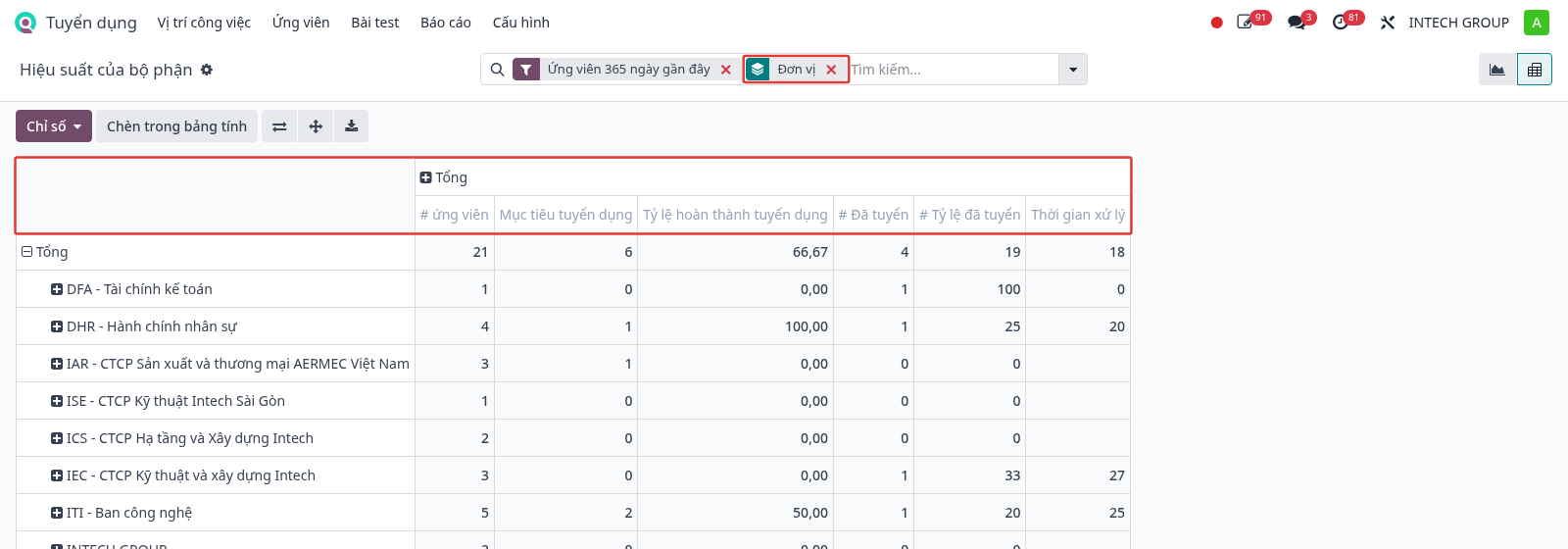
Step 4: Add Group By → Department to break down each SBU by department.
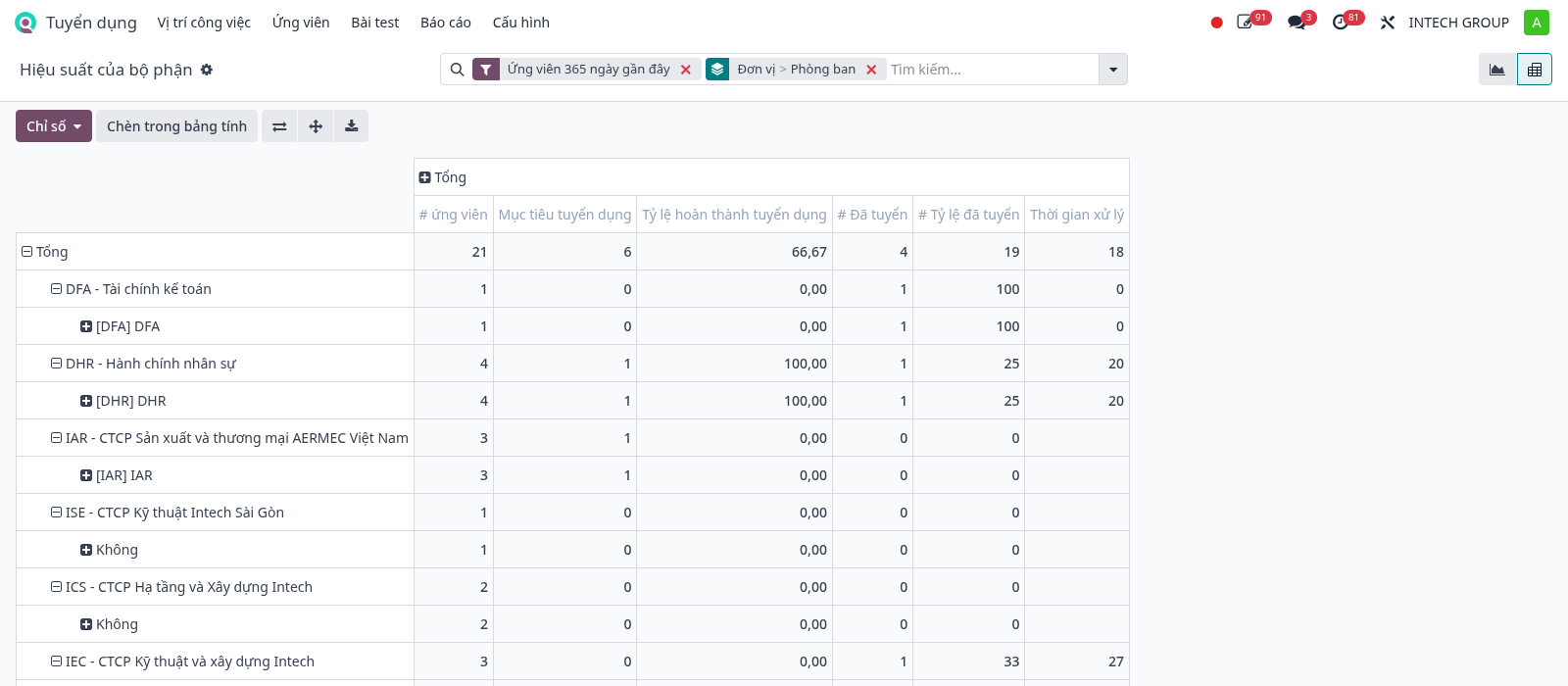
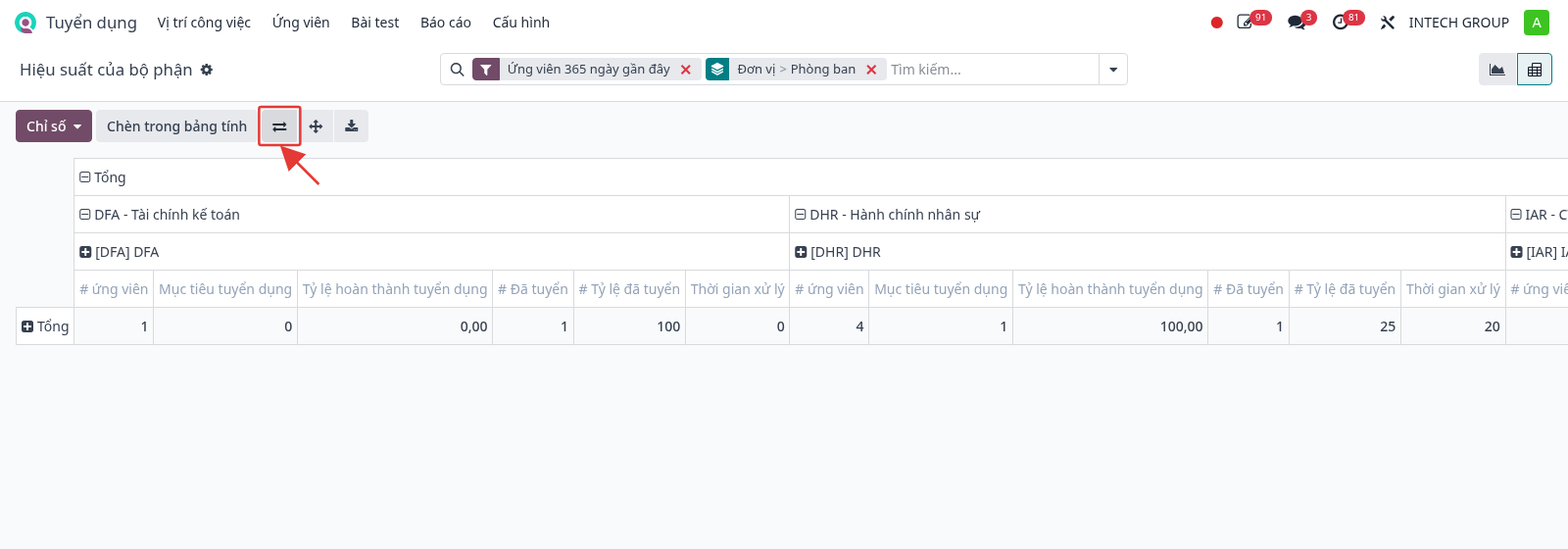
Step 5: To compare SBUs horizontally, click the Flip axis button (⇄). Add Group By → Applied On → Month / Quarter to view the trend over time.
Meaning and reading:
Measure |
Meaning / Reading |
|---|---|
# Applicants |
Number of records applying to the SBU or department. |
Recruitment target |
Total number to recruit of the JDs being recruited in the SBU or department. |
Recruitment completion rate (%) |
Hired / Target. Below 100% means the target is not reached yet. |
# Hired |
Number of hired applicants. |
# Hired Ratio (%) |
# Hired / # Applicants. A low ratio means many records but few pass; review the JD or the recruitment source. |
Processing time |
Average number of days from the record creation to the hire (hired applicants only). The smaller, the faster the unit recruits. |
An SBU with a low completion rate and a long processing time needs support (more applicant sources, faster interview schedule).
Note
To view all SBUs, check the corresponding SBUs in the company switcher (top-right corner).
System access rights
Access rights are granted to users through roles. Each role includes one or more groups (for example, Recruitment / Interviewer). The system administrator assigns the rights.
The data scope also depends on the allowed companies (the SBUs the user can view) and on whether the user is selected as recruiter or interviewer of the position.
Access rights matrix of the Recruitment application:
Role |
Required groups |
Allowed |
|---|---|---|
HR Admin (Recruitment administrator) |
Recruitment / Administrator, or Employees / Hr Group (roles HRM/ HR Group, HRM/ Admin) |
Full access: Configuration menu (stages, prompts, JD, skills…), Reporting menu, all positions and applicants of the allowed SBUs, all CVs in the recruitment documents. |
Recruiter (Officer) |
Recruitment / Officer: Manage all applicants |
Create and edit positions, JDs, applicant records; upload CVs; send tests; change stages; refuse; create employees. View the CVs in the documents of the positions where the user is the recruiter. No Configuration or Reporting menu. |
Interviewer |
Recruitment / Interviewer |
Only view the positions, JDs, and applicant records where the user is an interviewer; evaluate applicants after the interview; view the CVs of the assigned positions. |
Recruitment manager |
Recruitment / Recruitment: Management |
View the recruitment Reporting menu. |
Board of directors |
Recruitment / Board of Directors |
View all CVs in the recruitment documents (read only). |
SBU manager (Department Manager) |
Employees / SBU Manager (role HRM/ SBU Manager) |
Only view the positions, JDs, applicant records, and CVs of the SBUs selected in the company switcher. |
Assign roles to users
Step 1: Navigate to , open the user, then select the Roles tab (1).
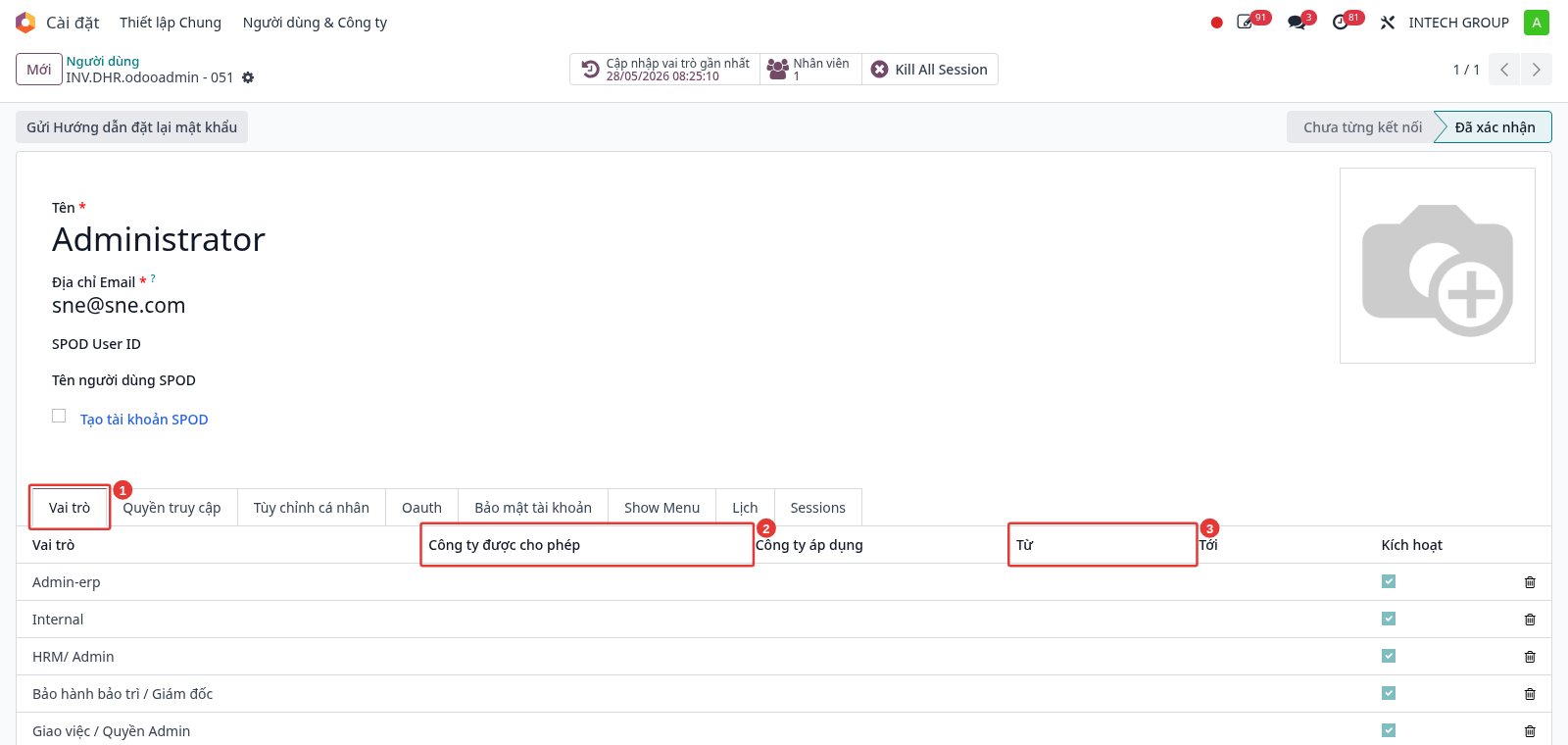
Step 2: Click Add a line (4), then select the role to assign. The Allowed Companies column (2) limits the role to specific SBUs; the From – To columns (3) grant the right for a limited period (leave empty for no limit). Click save.
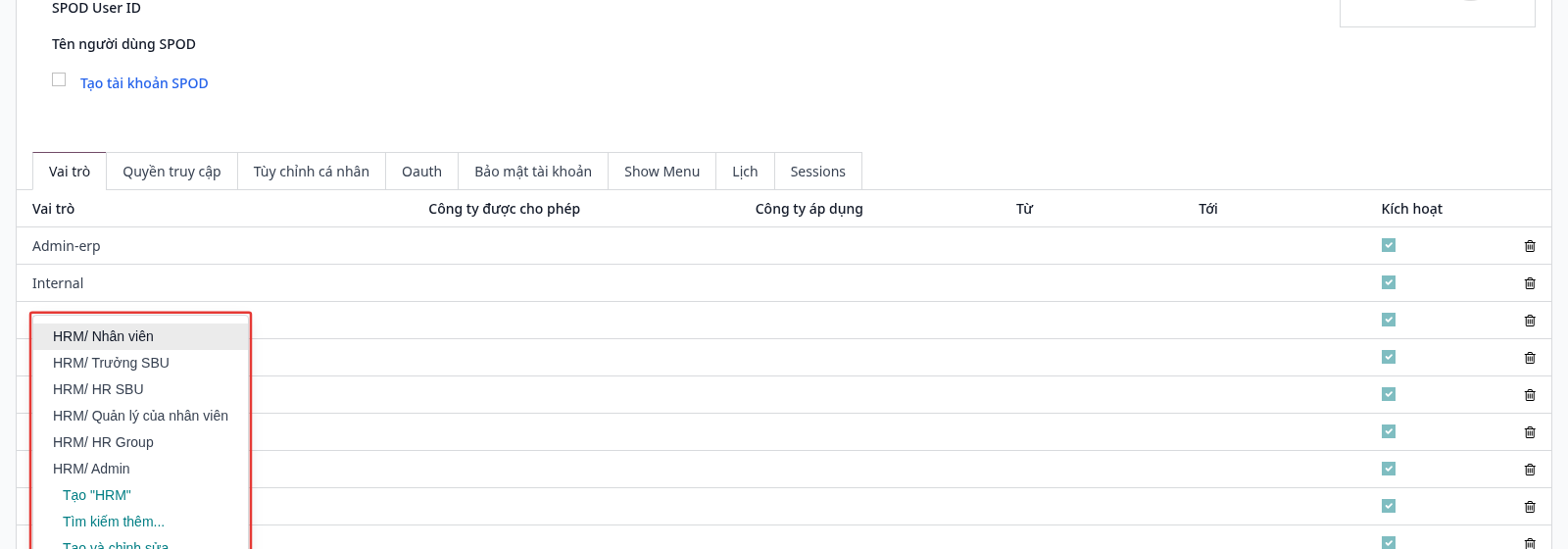
Create recruitment roles
Create a new role for the Recruitment application if it does not exist yet.
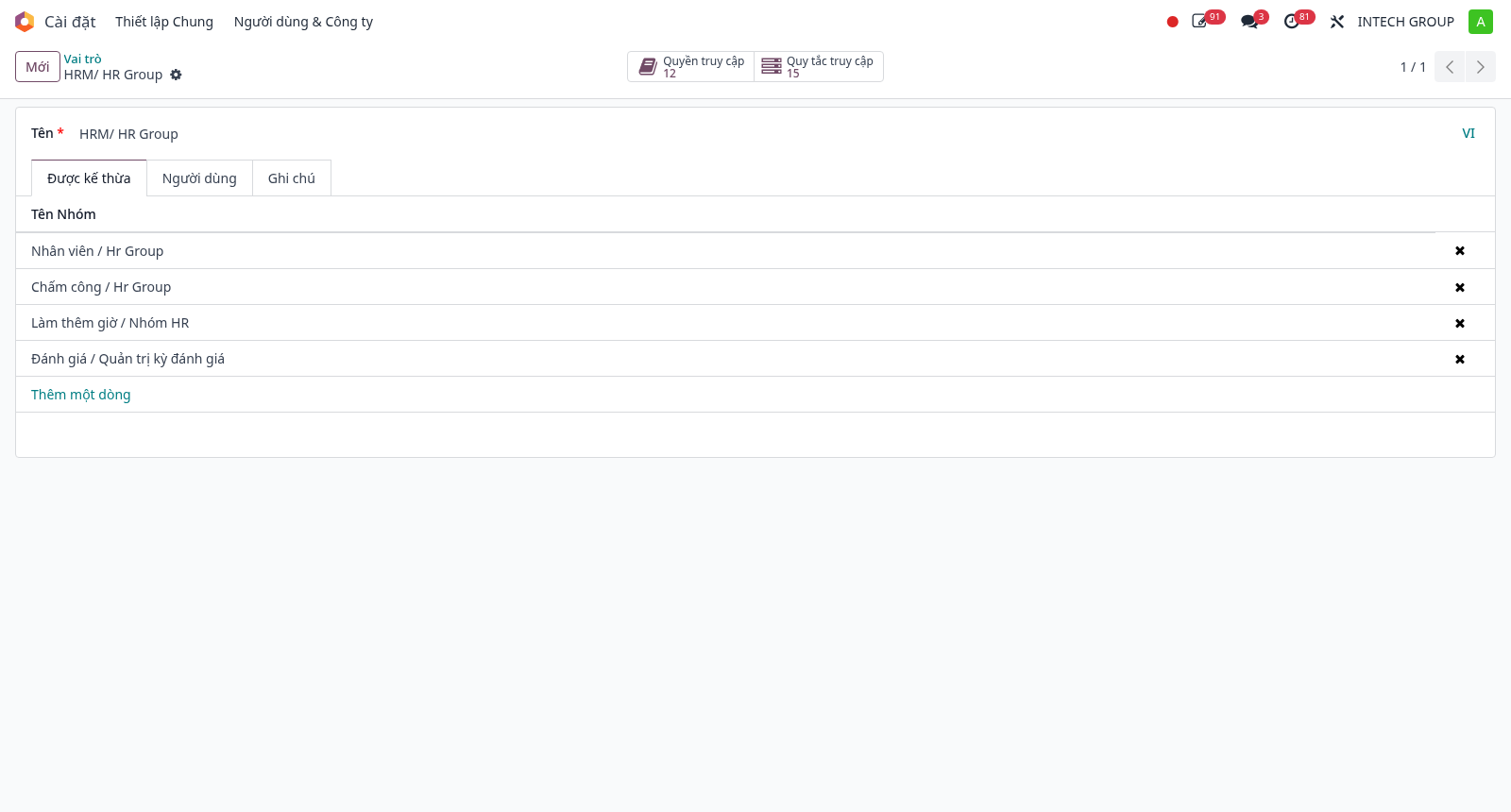
Step 1: Navigate to , then click New. An existing role can be opened for reference, for example HRM/ HR Group:
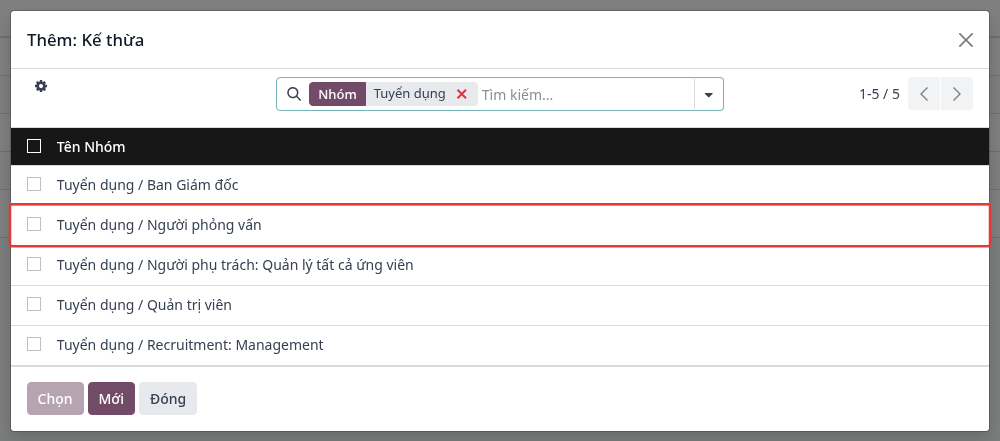
Step 2: Enter the role name (for example “Recruitment / Interviewer”). In the Inherited tab, click Add a line, search for “Recruitment”, check the group matching the matrix above, click Select, then save the role.
Assign positions to recruiters, interviewers
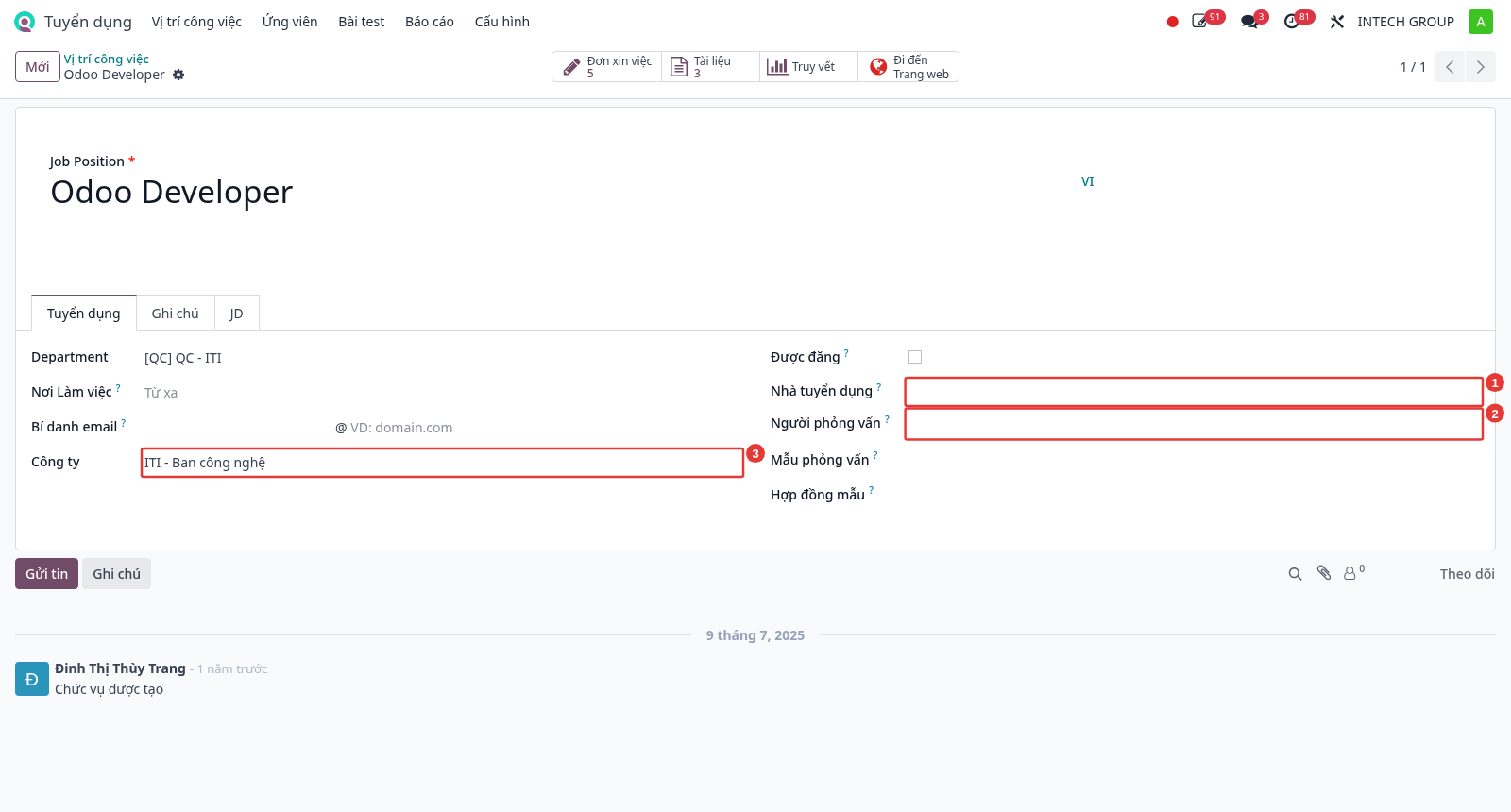
Step 1: Navigate to , open the position, then in the Recruitment tab: select the Recruiter (1), the Interviewers (2), and check the Company (3) of the position.
Note
Each role only sees the data of the SBUs checked in the company switcher. Users need the Documents / User right to open the Documents application. After changing the rights, users need to reload the page (F5) to apply them.