Manufacturing Orders & BOM
The Manufacturing Orders (MO) application organizes multi-level production structures through Master Manufacturing Orders (Lệnh sản xuất tổng) and Child Manufacturing Orders (Lệnh sản xuất con), linked directly to engineering Bills of Materials (BOM) and technical blueprints.
Master and Child Manufacturing Orders
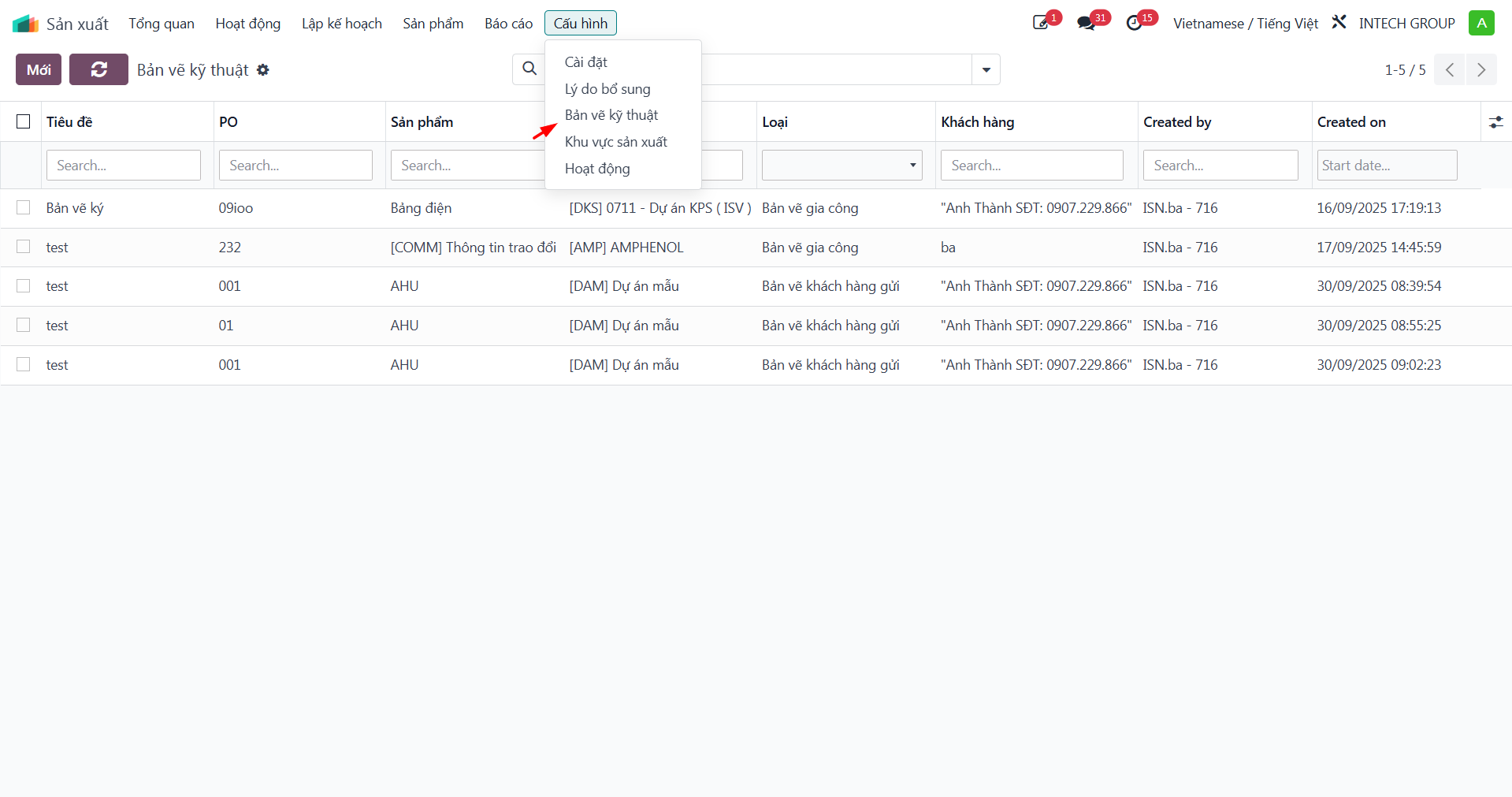
Bước 1: Navigate to .
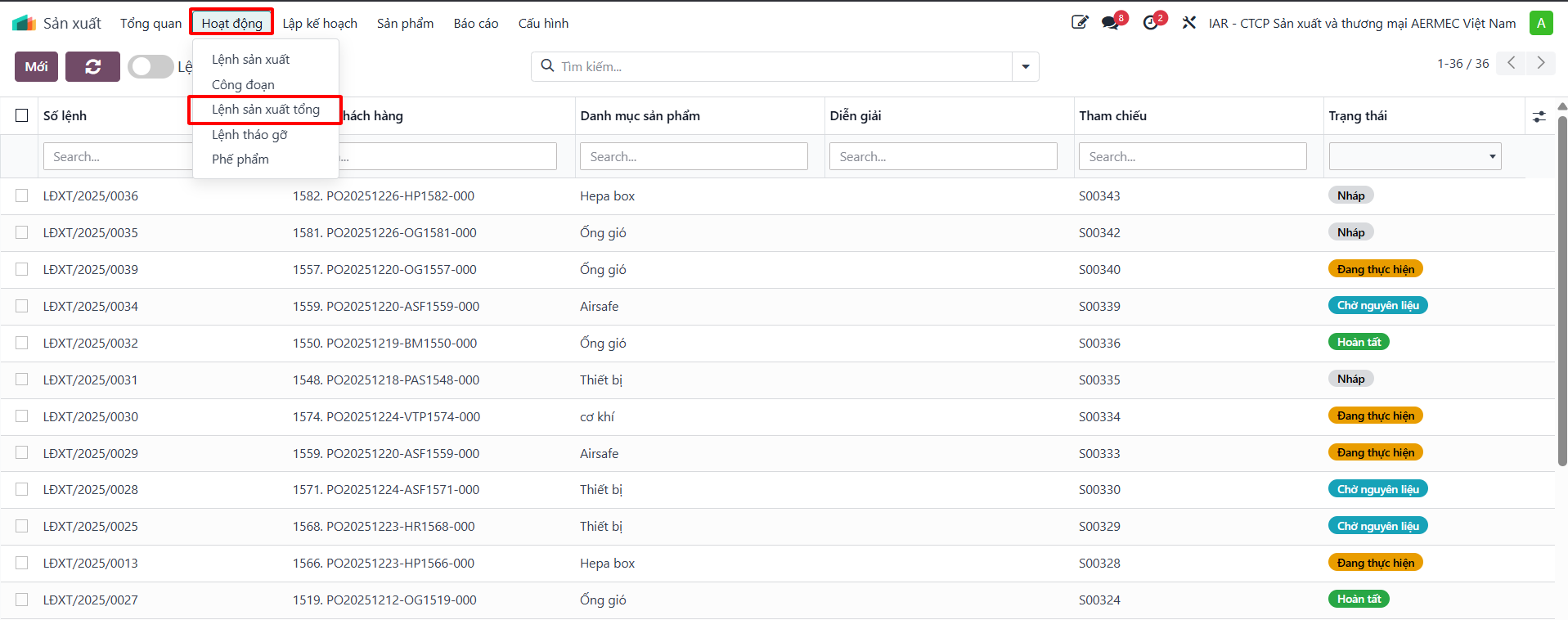
The master MO displays aggregated progress, customer sales order references, and lifecycle states:
Draft: Initial order creation.
Confirmed: Bill of Materials validated, ready for production.
In Progress: Sub-assemblies and operations actively running.
Done: Production completed and finished goods accepted into inventory.
Cancelled: Order terminated.
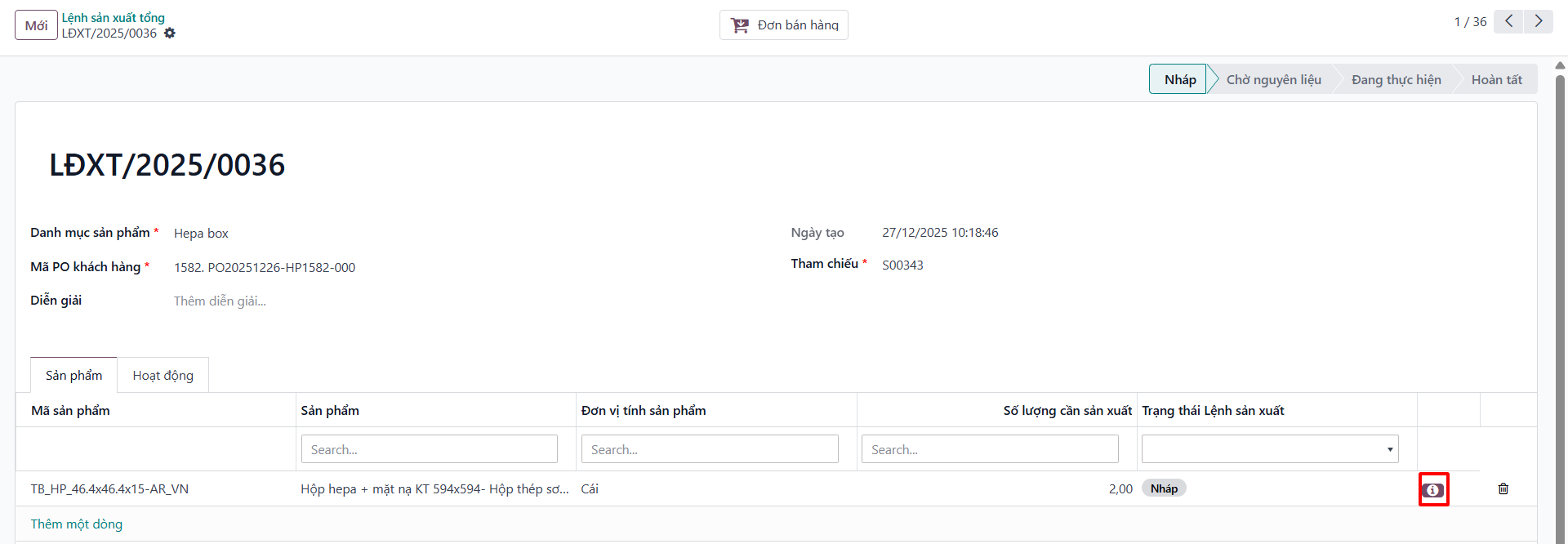
Bước 2: Click into individual Child Manufacturing Orders (Lệnh sản xuất con) representing sub-assemblies or component parts to configure specific Bills of Materials (BOM).
Configure Bill of Materials (BOM)
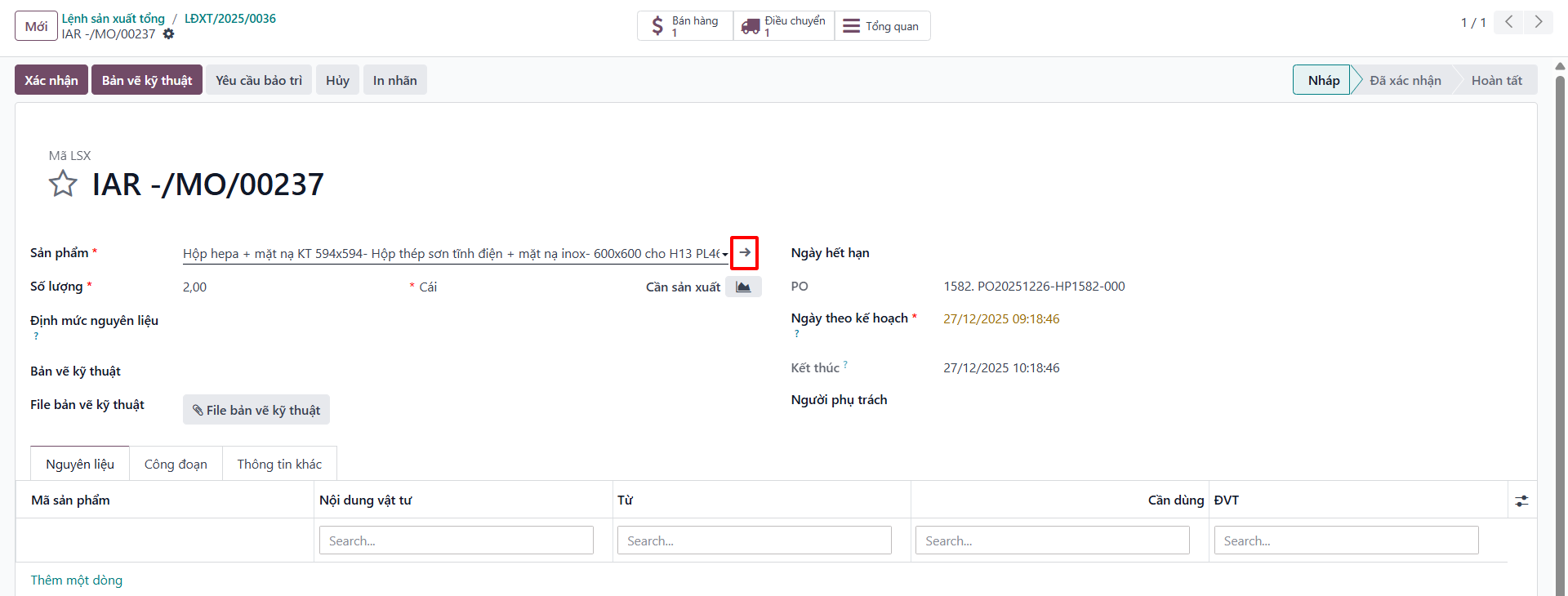
Bước 3: On the child MO form, click the product name to open the Master Product record.
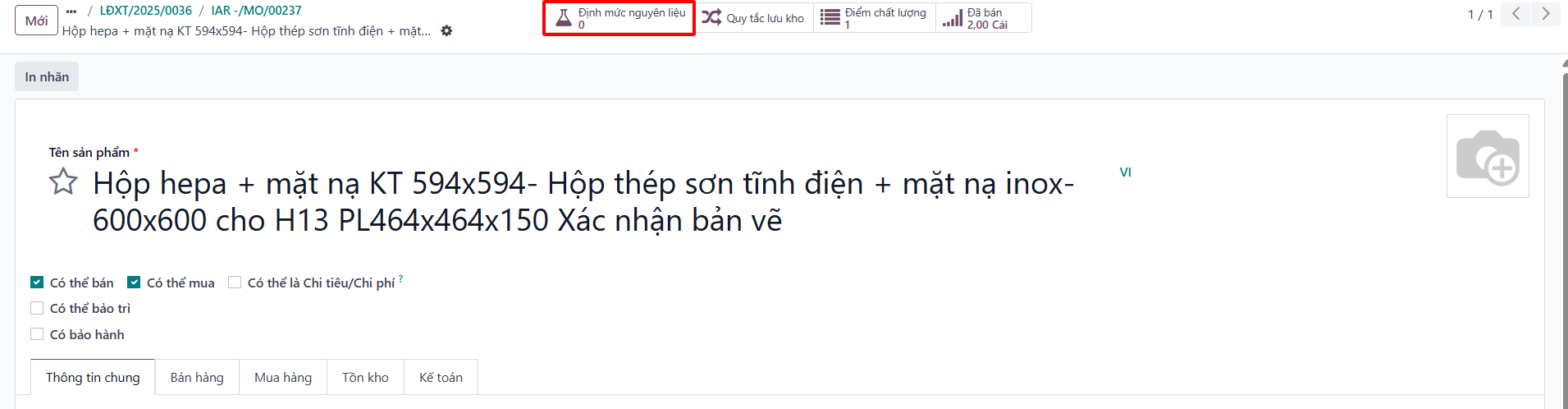
Bước 4: On the product form, click the Bill of Materials (Định mức nguyên liệu) smart button.
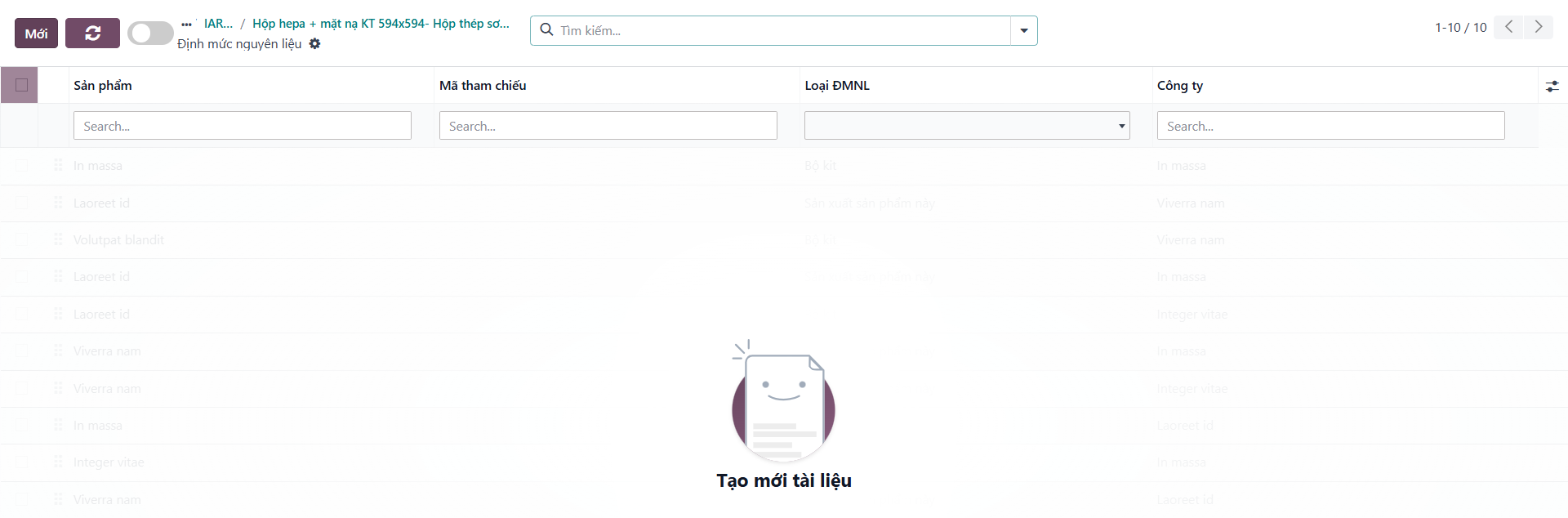
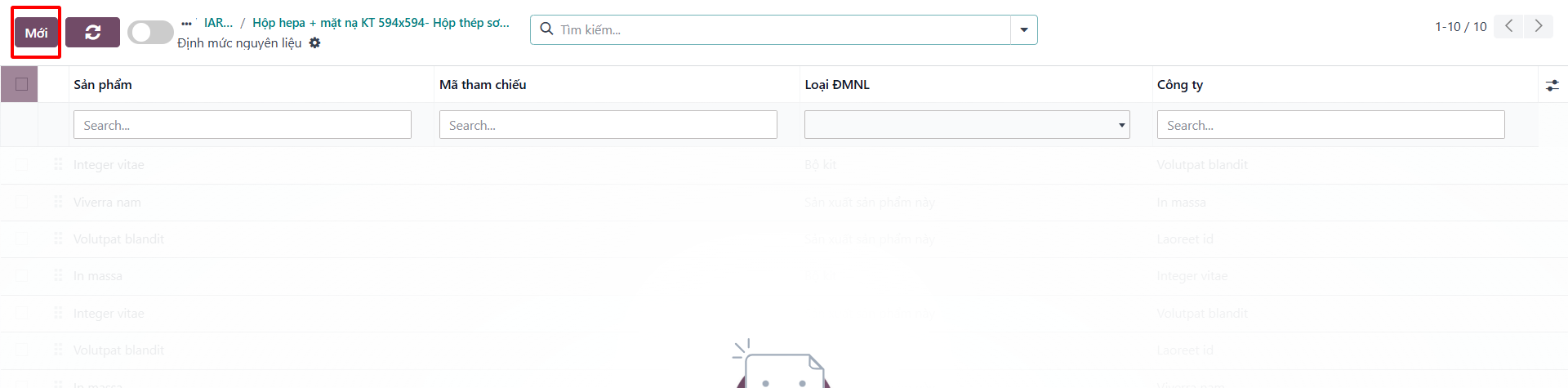
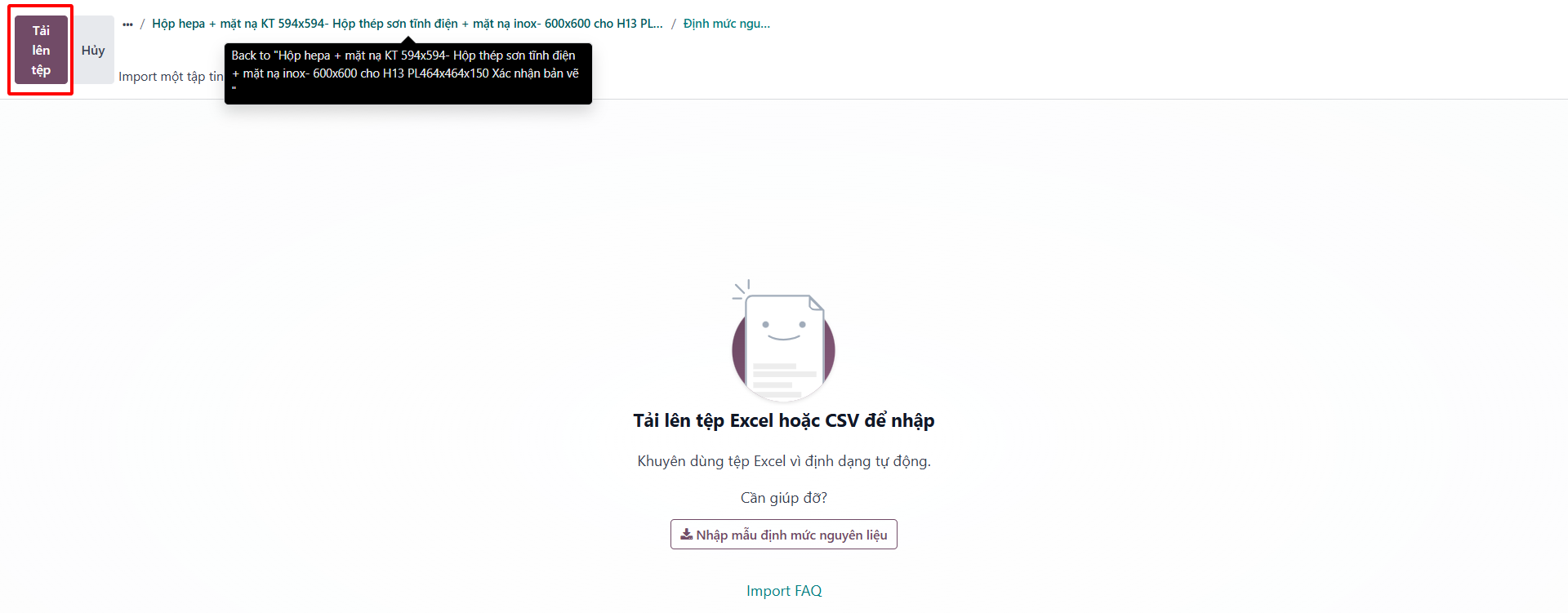
Bước 5: Users can configure BOM lines manually or import components from an engineering Excel file.
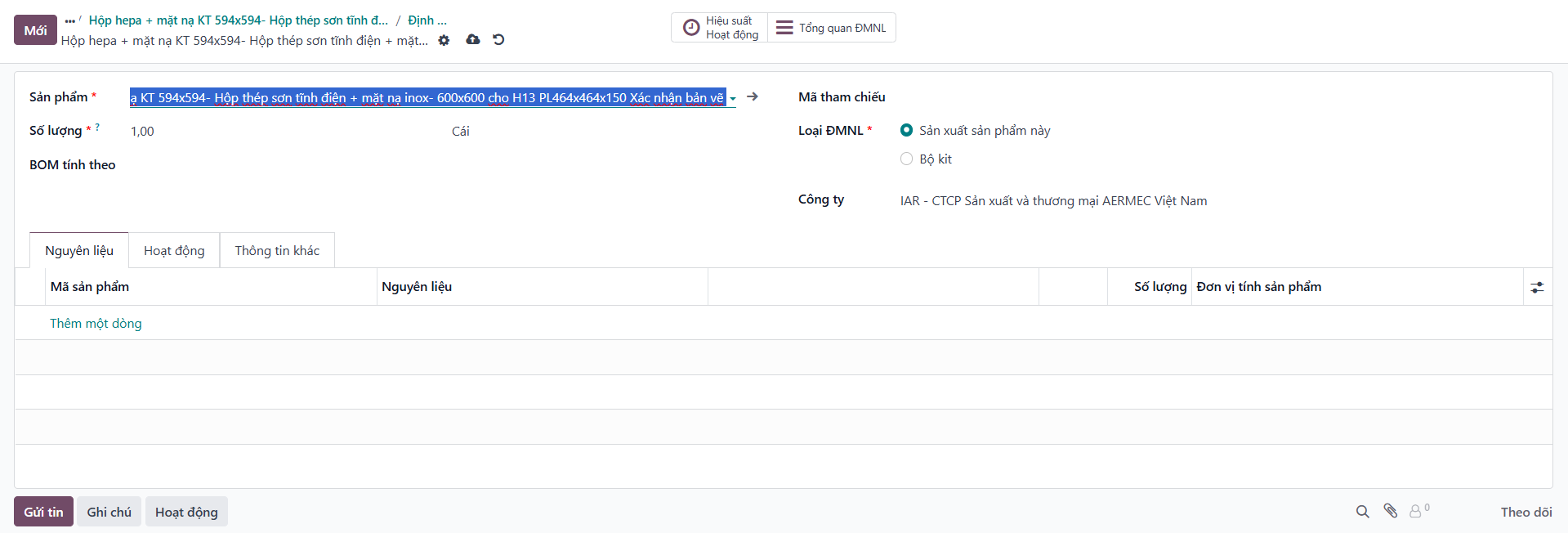
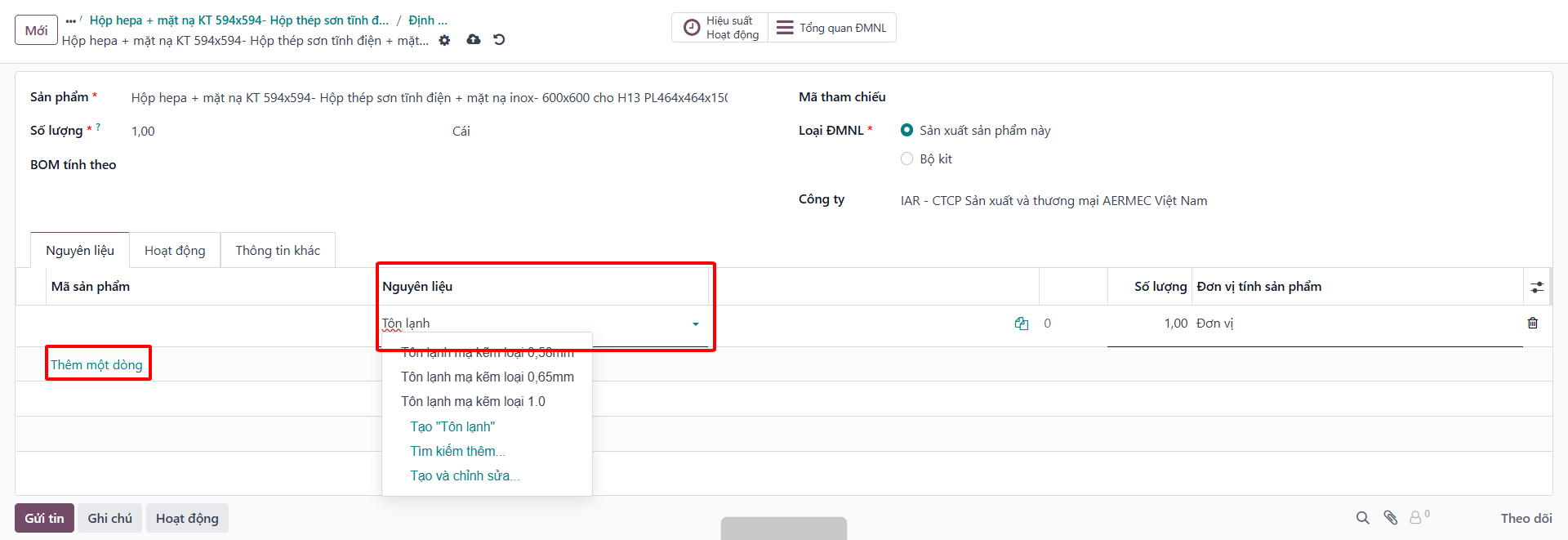

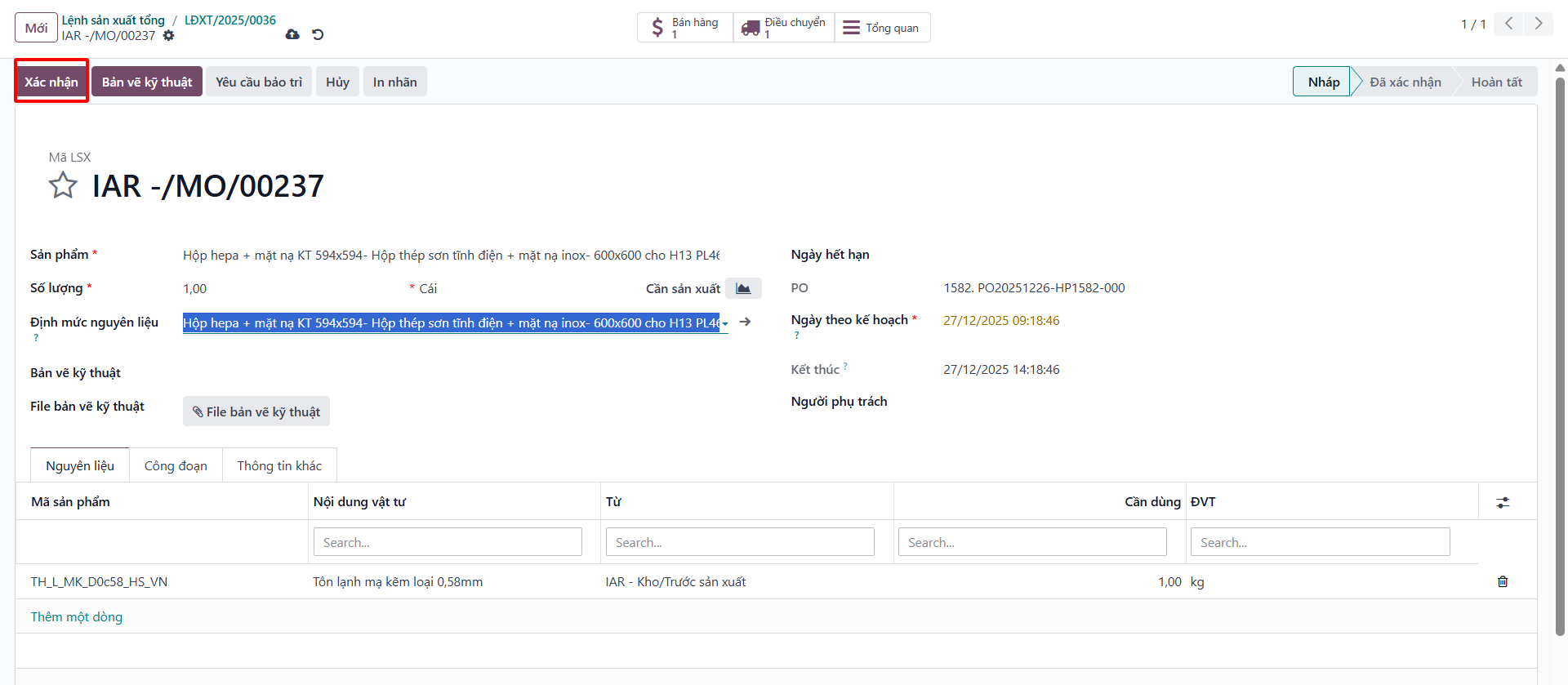
Bước 6: Return to the child manufacturing order. The system links the designated BOM, displaying required components and planned quantities.
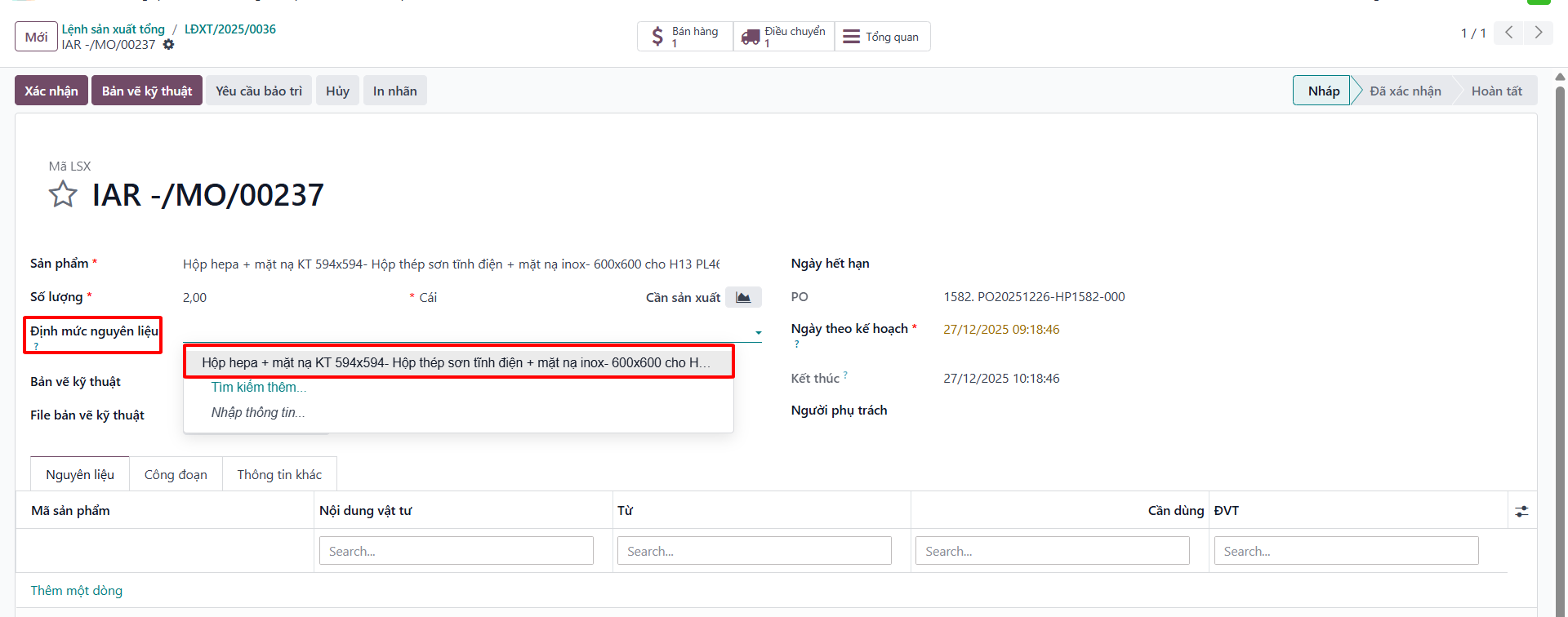
Bước 7: Click Confirm. The system automatically generates work order operations according to the BOM routing.
Attach Technical Drawings to MO
Bước 1: Open the child MO and click Technical Drawings (Bản vẽ kỹ thuật).
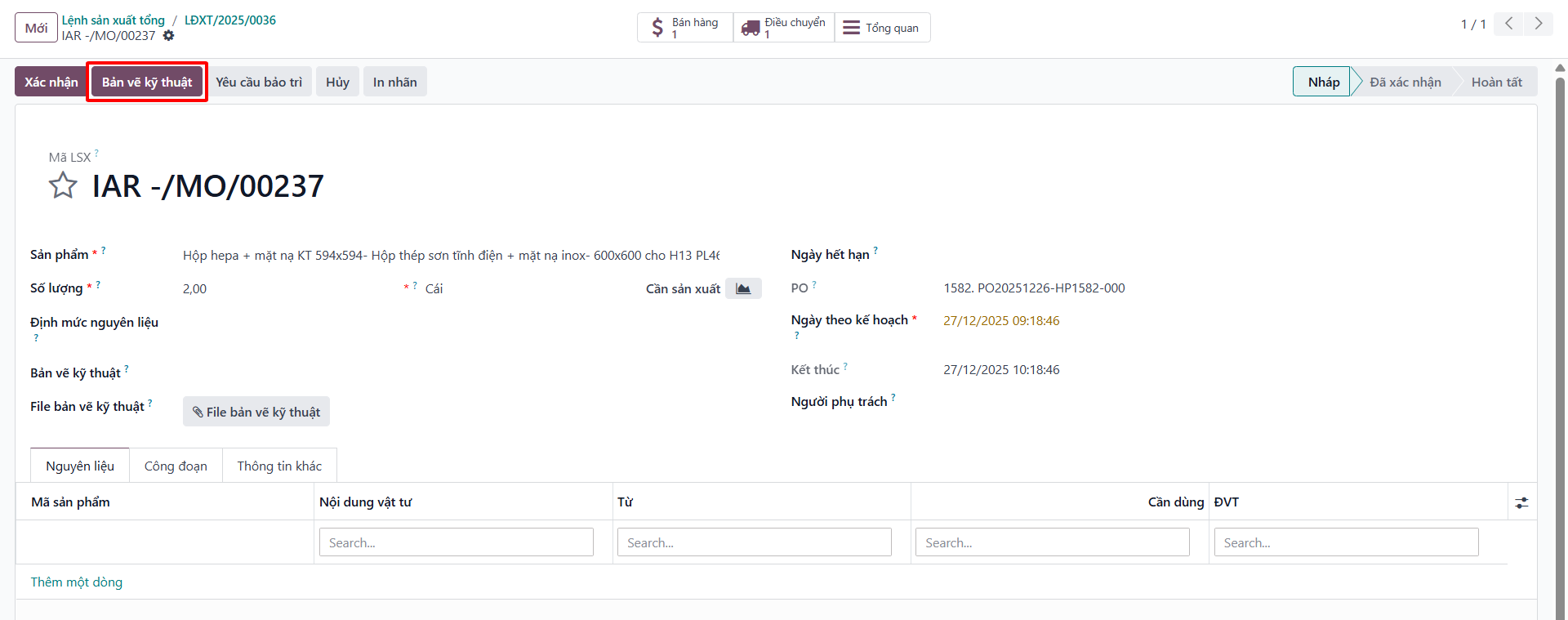
Bước 2: In the popup dialog, specify drawing code, drawing name, revision version, and upload the technical PDF blueprint.
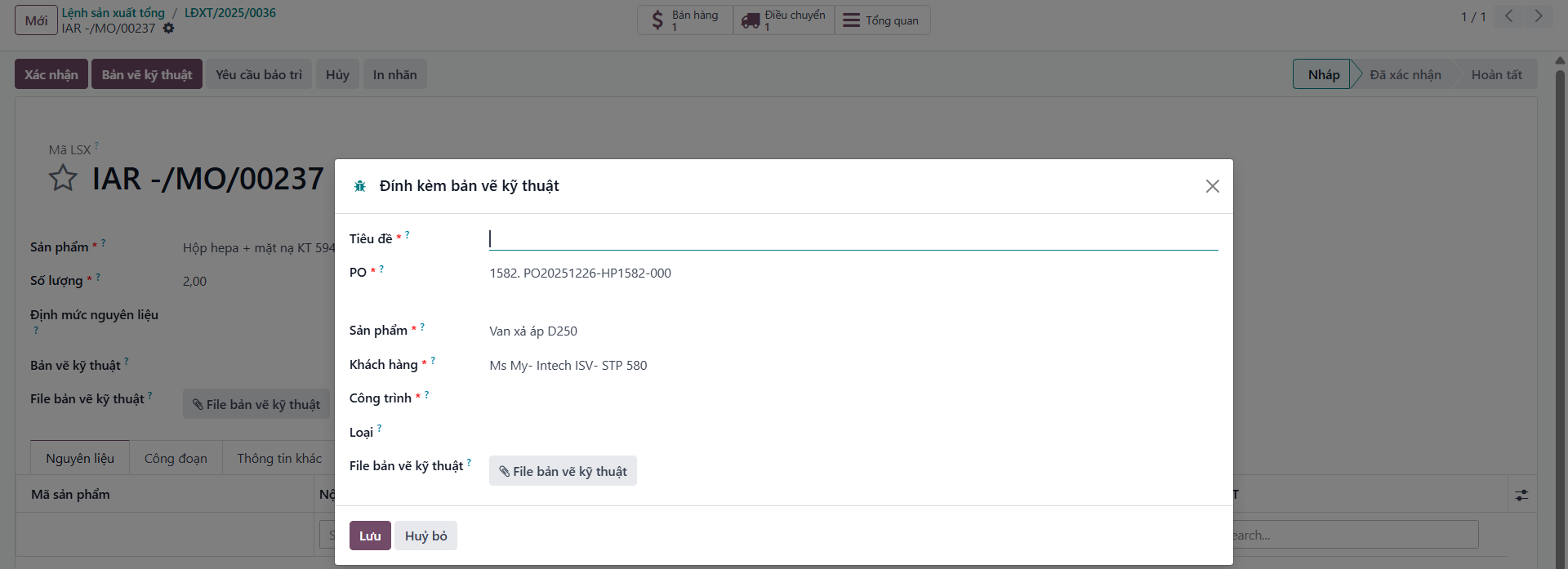
Bước 3: Click Save. The drawing is permanently archived and accessible to shop floor operators on their work center terminals.
Bước 4: To search and audit all engineering drawings across projects, navigate to .