Phê duyệt
Thông báo tự động cho các bên liên quan và người quản lý bằng cách chỉ định người phê duyệt cho các giai đoạn của lệnh thay đổi kỹ thuật (ECO) đang được xem xét. Các thay đổi chỉ có thể được áp dụng sau khi người phê duyệt được chỉ định chấp nhận chúng. Sự phê duyệt đảm bảo việc xem xét bởi các thành viên trong nhóm, ngăn ngừa sai sót và hành động vội vàng.
Xem thêm
Add approver
To add an approver, first go to the , and click on the project card of an ECO type to open the Gantt view of the ECOs.
On the Engineering Change Orders page, hover over the intended stage, and select the ⚙️ (gear) icon. Then, click Edit to open a pop-up window.
Ghi chú
Approvers can be added to any stage, but it's strongly recommended to assign them to the verification stage, which comes before the closing stage, where ECOs are applied, and the BoM version is updated.
Xem tài liệu về loại giai đoạn để biết thêm thông tin.
In the Edit stage pop-up window, click the Add a line button, located under
Approvals. Then, type in the approver's position (or title) under Role (e.g.
Engineering Manager, Quality Team, etc.), and select the relevant User from the
drop-down menu.
Tiếp theo, đặt Loại Phê duyệt thành Bắt buộc phê duyệt, Phê duyệt, nhưng không bắt buộc, hoặc Chỉ nhận xét.
Example
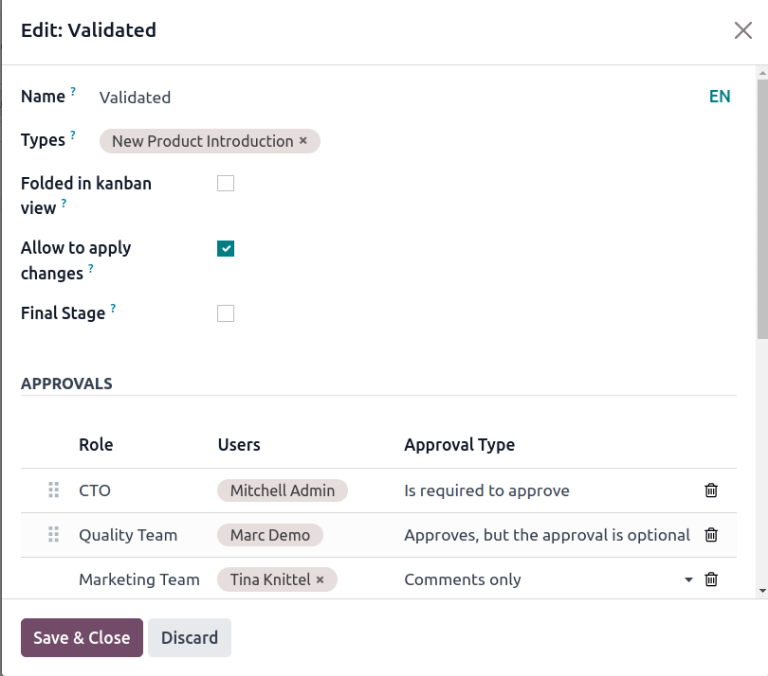
Assign the CTO, "Mitchell Admin," as a required approver for ECOs in the Validated stage in
the New Product Introduction ECO type.
Không bắt buộc phải có sự phê duyệt từ đội ngũ chất lượng và marketing để áp dụng thay đổi cho ECO vì Loại Phê duyệt của họ được đặt thành Phê duyệt, nhưng không bắt buộc và Chỉ nhận xét.
Quản lý phê duyệt
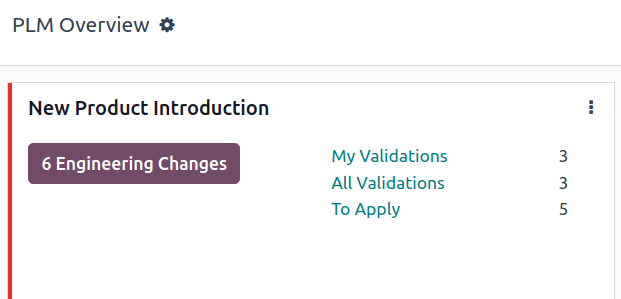
Approvers can easily track their to-do approvals by navigating to the , and looking at the card for an ECO type, which shows the count of open tasks assigned to them.
Here's what each button on an ECO project card does:
Nút # Thay đổi Kỹ thuật hiển thị số lượng ECOs đang tiến hành của loại ECO này. Nhấp vào nút sẽ mở chế độ xem Gantt của trang Đơn Thay đổi Kỹ thuật.
Xác nhận của Tôi hiển thị số lượng ECOs mà người phê duyệt phải chấp nhận hoặc từ chối. Nhấp vào nút này sẽ hiển thị ECOs đang chờ phê duyệt hoặc bị từ chối (được đánh dấu bằng trạng thái Bị chặn màu đỏ).
Nút Tất cả Xác nhận hiển thị số lượng ECOs đang chờ phê duyệt hoặc bị từ chối bởi bất kỳ người phê duyệt nào. Nhấp vào nút sẽ hiển thị các ECOs đang chờ xử lý này.
Cần Áp dụng hiển thị số lượng ECOs mà người dùng cần áp dụng thay đổi. Nhấp vào nút sẽ hiển thị tất cả ECOs cần phê duyệt và áp dụng thay đổi ở giai đoạn xác minh.
ECOs marked with the green Done stage have already been approved, and the user just needs to click on the ECO to enter the form view, and click the Apply Changes button.
Phê duyệt ECO
Điều hướng đến ECO ở giai đoạn xác minh khi đăng nhập với tư cách người phê duyệt được chỉ định để xem các nút Phê duyệt, Từ chối và Áp dụng Thay đổi.
Để phê duyệt ECO và áp dụng thay đổi vào BoM sản xuất, nhấp Phê duyệt, sau đó nhấp Áp dụng Thay đổi.
Lưu ý rằng nút Áp dụng Thay đổi sẽ không hoạt động trừ khi nút Phê duyệt đã được nhấp trước. Ngoài ra, phần trò chuyện ghi lại lịch sử các nút đã được nhấp.
Cảnh báo
When the Approval Type is not set to Is required to approve, approval from the associated user is not needed before applying changes with the Apply Changes button. Thus, the Apply Changes button will work without requiring the Approve button to be clicked first.
Hoạt động tự động
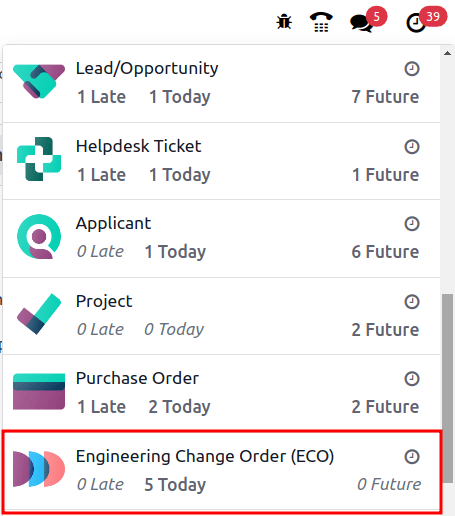
When an ECO is moved to a verification stage, a planned activity is automatically created for assigned approvers to review the ECO. Approvers receive a notification in their activities inbox, accessible through the 🕘 (clock) icon at the top of the page.
In the to-do task list, the Engineering Change Order (ECO) notification displays the number of activities marked Late, Today, and Future. Clicking on each of these buttons shows a filtered Gantt view of the respective ECOs.
Example
Scheduled activities are shown as a number on the 🕘 (clock) icon, with 5 ECOs
pending approval Today. Currently, there are 0 Late or
Future ECOs.
By clicking a pending ECO, a planned activity for ECO Approval is recorded in the chatter. Click on the i (Info) icon to view additional information, including the approval's Created date, the approver Assigned to it, and the due date.
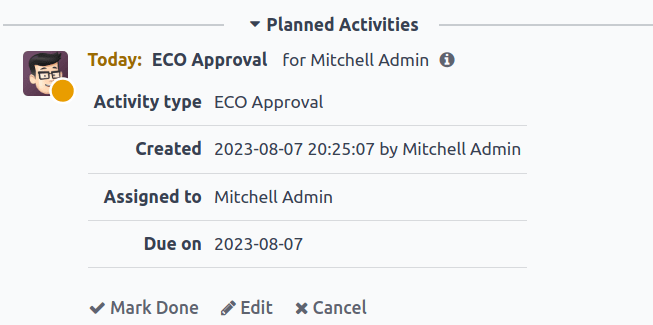
Hoạt động follow-up
When ECOs are rejected, tasks need to be assigned to project members for required modifications before ECO approval. To create tasks with deadlines, navigate to the rejected ECO form, and go to the chatter.
Select the Mark Done button in the Planned Activities section of the chatter to close the activity, and open a pop-up window for creating tasks.
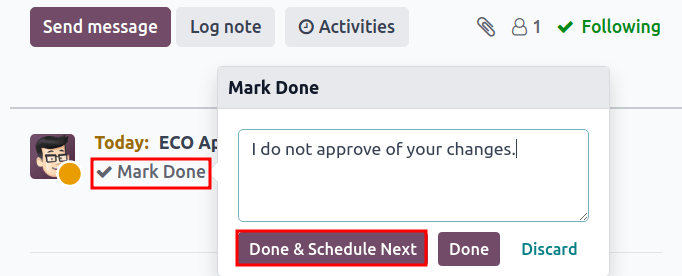
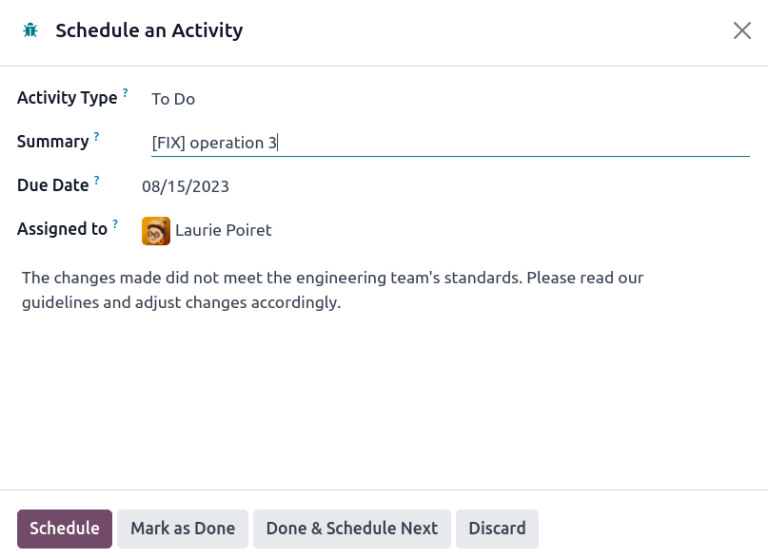
In the Mark Done window, click Done & Schedule Next to open a new Schedule an Activity window. Next, set the Assigned to team member and the Due Date for completing the changes. Provide task details in the Summary field and the text box. Click the Schedule button to close the window.
After closing the window, on the ECO form, move the ECO back one stage. Doing so ensures that when the team member completes the changes, and returns the ECO to the verification stage, a new ECO Approval task is created for the approver.
Example
The approver creates an activity for the Responsible of the ECO, Laurie Poiret,
that details the changes required for the approver to Accept the ECO. Clicking the
Schedule button creates a planned activity for Laurie due on 08/15/2023.