
Quản lý nhiều nhân viên
Odoo Point of Sale (POS) offers a Multi Employees per Session feature, allowing multiple users to log into a POS session. Activating this feature enables the following actions:
Chọn các người dùng cụ thể có thể đăng nhập vào POS.
Assign basic or advanced permissions to these users.
Theo dõi nhân viên tham gia vào từng đơn hàng để phân tích tốt hơn.
Cấu hình
Access the multi-employee setting from the PoS Interface section of the POS settings. Then,
Activate the Multi Employees per Session feature.
Thêm nhân viên có quyền truy cập chức năng POS cơ bản vào trường Quyền cơ bản.
Thêm nhân viên có chức năng POS mở rộng vào trường Quyền nâng cao.
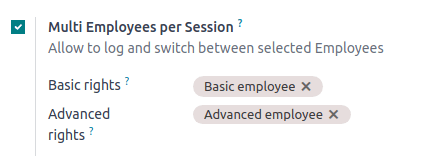
Ghi chú
Leaving the Basic rights field empty allows all employees to log in.
Để trống trường Quyền nâng cao sẽ cấp quyền mở rộng chỉ cho người dùng Odoo.
Mẹo
Nhấp vào nút (dấu ba chấm dọc) ở góc trên bên phải của thẻ POS và Chỉnh sửa để truy cập cài đặt từ Bảng điều khiển POS chính.
Xem thêm
Employees with basic rights can perform the following actions within the POS:
Session management:
Lock the current POS session.
Toggle the visibility of product and category images.
Giao dịch bán hàng:
Access past and current order history.
Định giá và chiết khấu:
Manually select another pricelist.
Enter promotional codes.
Manually change a product's price.
In addition to the basic rights, employees with advanced rights can also:
Truy cập giao diện backend của Odoo.
Hướng dẫn sử dụng
Đăng nhập
Once the Multi Employees per Session feature is enabled, employees must log in to open a POS session and access the POS interface. They can scan their employee badge or click Select Cashier to select their name from the list of authorized users.
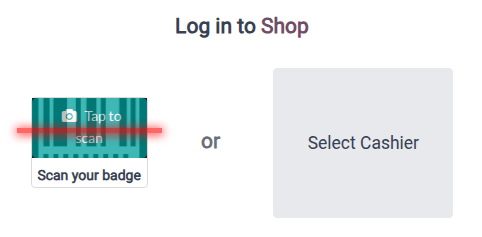
To switch between users during an active session, click on the currently logged-in employee's name at the top right of the POS screen and select the user to switch to.
Đăng nhập bằng thẻ
Nhân viên có thể đăng nhập bằng thẻ của họ. Để cấu hình đăng nhập bằng thẻ, gán ID thẻ duy nhất cho hồ sơ nhân viên trong mô-đun Nhân viên:
Điều hướng đến mô-đun Nhân viên.
Mở chế độ xem biểu mẫu của nhân viên cụ thể.
Go to the HR Settings tab.
The Attendance/Point of Sale category offers two options:
Nhập thủ công bất kỳ ID thẻ nào vào trường ID thẻ.
Nhấp Tạo để tạo ID thẻ duy nhất tự động.
Nhấp In thẻ để tạo biểu diễn mã vạch của ID thẻ đã gán.
To switch users within an open POS session using a badge, you must first lock the session. To do so, click the icon (hamburger menu) and Lock to return to the login screen. Then, the new employee can scan their badge to log in.
Thêm mã PIN
For enhanced security, employees may be forced to enter a PIN code each time they log into a POS session. To set up a PIN code for an employee:
Điều hướng đến mô-đun Nhân viên.
Mở chế độ xem biểu mẫu của nhân viên liên quan.
Go to the HR Settings tab.
Enter a desired numerical code in the PIN Code field of the Attendance/Point of Sale category.
Ghi chú
Mã PIN chỉ được bao gồm một chuỗi các chữ số.