
Chứng chỉ tự ký cho máy in ePOS
Để làm việc với Odoo, một số mẫu máy in có thể hoạt động mà không cần hệ thống IoT, nhưng có thể yêu cầu giao thức HTTPS để thiết lập kết nối an toàn giữa trình duyệt và máy in. Tuy nhiên, khi truy cập địa chỉ IP của máy in qua HTTPS, hầu hết các trình duyệt sẽ hiển thị trang cảnh báo. Trong trường hợp này, bạn có thể tạm thời bắt buộc kết nối, cho phép truy cập trang qua HTTPS và sử dụng máy in ePOS trong Odoo miễn là cửa sổ trình duyệt vẫn mở.
Cảnh báo
The connection is lost after closing the browser window. Therefore, this method should only be used as a workaround or as a pre-requisite for the following instructions.
Generate, export, and import self-signed certificates
For a long-term solution, you must generate a self-signed certificate. Then, export and import it into your browser.
Quan trọng
Generating an SSL certificate should only be done once. If you create another certificate, devices using the previous one will lose HTTPS access.
Navigate to the ePOS' IP address (e.g., https://192.168.1.25) and force the
connection by clicking Advanced and Proceed to [IP address]
(unsafe).
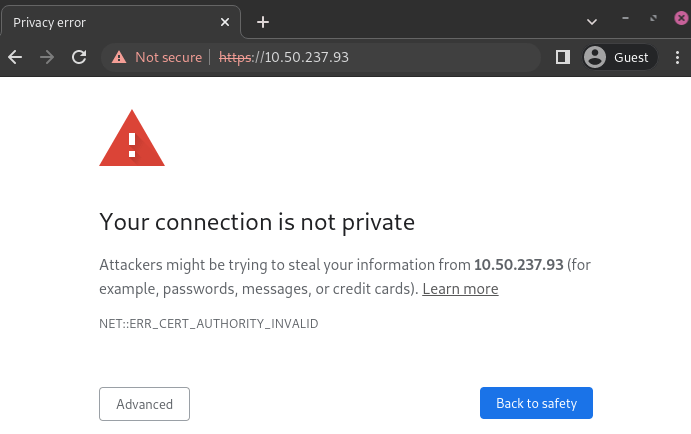
Warning page on Google Chrome, Windows 10
Then, sign in using your printer credentials to access the ePOS printer settings. To
sign in, enter epson in the ID field and your printer serial number in the
Password field.
Nhấp Danh sách chứng chỉ trong phần Xác thực, sau đó nhấp tạo để tạo Chứng chỉ tự ký mới. Trường Tên chung sẽ tự động được điền. Nếu không, hãy nhập địa chỉ IP của máy in. Chọn số năm hiệu lực của chứng chỉ trong trường Thời hạn hiệu lực, nhấp Tạo, sau đó Đặt lại hoặc khởi động lại máy in thủ công.
The self-signed certificate is generated. Reload the page and click SSL/TLS in the Security section to ensure Selfsigned Certificate is correctly selected in the Server Certificate section.
The export process is heavily dependent on the OS and the
browser. Start by accessing your ePOS printer settings on your web browser by navigating
to its IP address (e.g., https://192.168.1.25). Then, force the connection as
explained in the Generate a self-signed certificate tab.
If you are using Google Chrome,
click Not secure next to the search bar, and Certificate is not valid;
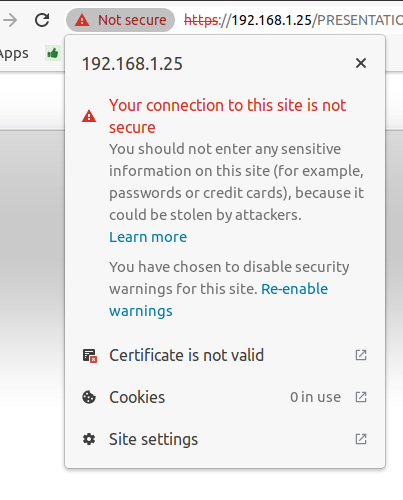
go to the Details tab and click Export;
add
.crtat the end of the file name to ensure it has the correct extension;select Base64-encoded ASCII, single certificate, at the bottom of the pop-up window;
save, and the certificate is exported.
Cảnh báo
Make sure that the certificate ends with the extension .crt. Otherwise, some
browsers might not see the file during the import process.
If you are using Mozilla Firefox,
click the lock-shaped icon on the left of the address bar;
go to ;
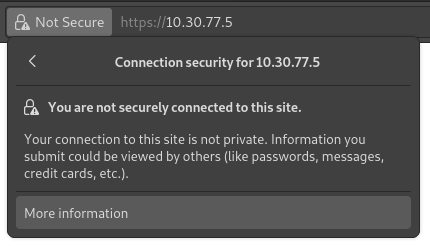
scroll down to the Miscellaneous section;
click PEM (cert) in the Download section;
save, and the certificate is exported.
The import process is heavily dependent on the OS and the browser.
Windows 10 manages certificates, which means that self-signed certificates must be imported from the certification file rather than the browser. To do so,
open the Windows File Explorer and locate the downloaded certification file;
right-click on the certification file and click Install Certificate;
select where to install the certificate and for whom - either for the Current User or all users (Local Machine). Then, click Next;
on the
Certificate Storescreen, tick Place all certificates in the following store, click Browse..., and select Trusted Root Certification Authorities;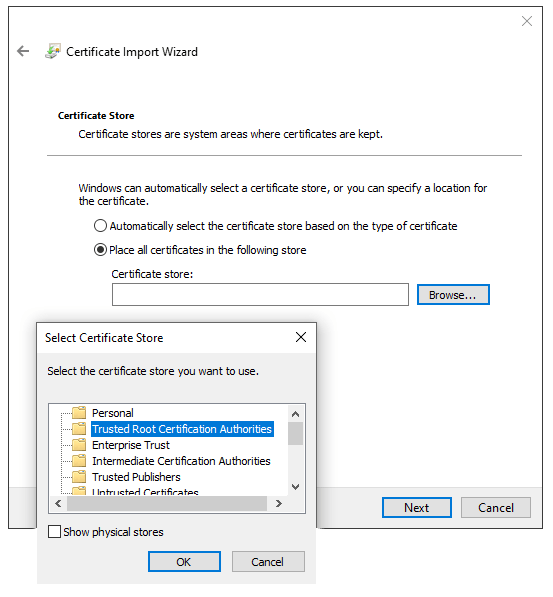
click Finish, accept the pop-up security window;
restart the computer to make sure that the changes are applied.
If you are using Google Chrome,
mở Chrome;
go to ;
on the Local certificates tab, click Installed by you under the Custom section;
click Import next to Trusted Certificates, and select the exported certification file from your local drive;
accept all warnings;
nhấp ok;
restart your browser.
If you are using Mozilla Firefox,
mở Firefox;
go to ;
in the pop-up window, open the Servers tab;
click Add Exception...;
enter the printer's IP address in the Location field, then click Get Certificate;
tick the Permanently store this exception checkbox and confirm;
restart your browser.
On Mac OS, you can secure the connection for all browsers by following these steps:
open Safari and navigate to your printer's IP address. Doing so leads to a warning page;
on the warning page, go to , validate;
reboot the printer so you can use it with any other browser.
To generate and export an SSL certificate and send it to IOS devices, open Google Chrome or Mozilla Firefox. Then,
Navigate to the ePOS' IP address (e.g., https://192.168.1.25) and force the
connection by clicking Advanced and Proceed to [IP address]
(unsafe).
Warning page on Google Chrome, Windows 10
Then, sign in using your printer credentials to access the ePOS printer settings. To
sign in, enter epson in the ID field and your printer serial number in the
Password field.
Nhấp Danh sách chứng chỉ trong phần Xác thực, sau đó nhấp tạo để tạo Chứng chỉ tự ký mới. Trường Tên chung sẽ tự động được điền. Nếu không, hãy nhập địa chỉ IP của máy in. Chọn số năm hiệu lực của chứng chỉ trong trường Thời hạn hiệu lực, nhấp Tạo, sau đó Đặt lại hoặc khởi động lại máy in thủ công.
The self-signed certificate is generated. Reload the page and click SSL/TLS in the Security section to ensure Selfsigned Certificate is correctly selected in the Server Certificate section.
The export process is heavily dependent on the OS and the
browser. Start by accessing your ePOS printer settings on your web browser by navigating
to its IP address (e.g., https://192.168.1.25). Then, force the connection as
explained in the Generate a self-signed certificate tab.
If you are using Google Chrome,
click Not secure next to the search bar, and Certificate is not valid;
go to the Details tab and click Export;
add
.crtat the end of the file name to ensure it has the correct extension;select Base64-encoded ASCII, single certificate, at the bottom of the pop-up window;
save, and the certificate is exported.
Cảnh báo
Make sure that the certificate ends with the extension .crt. Otherwise, some
browsers might not find the file during the import process.
If you are using Mozilla Firefox,
click the lock-shaped icon on the left of the address bar;
go to ;
scroll down to the Miscellaneous section;
click PEM (cert) in the Download section;
save, and the certificate is exported.
To import an SSL certificate into an Android device, first create and export it from a
computer. Next, transfer the .crt file to the device using email, Bluetooth, or USB. Once
the file is on the device,
open the settings and search for
certificate;click Certificate AC (Install from device storage);
select the certificate file to install it on the device.
Ghi chú
The specific steps for installing a certificate may vary depending on the version of Android and the device manufacturer.
To import an SSL certificate into an iOS device, first create and export it from a computer.
Then, transfer the .crt file to the device using email, Bluetooth, or any file-sharing
service.
Downloading this file triggers a warning pop-up window. Click Allow to download the configuration profile, and close the second pop-up window. Then,
go to the Settings App on the iOS device;
click Profile Downloaded under the user's details box;
locate the downloaded
.crtfile and select it;click Install on the top right of the screen;
if a passcode is set on the device, enter the passcode;
click Install on the top right of the certificate warning screen and the pop-up window;
nhấp Hoàn tất.
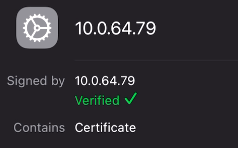
The certificate is installed, but it still needs to be authenticated. To do so,
go to ;
enable the installed certificate using the slide button;
click Continue on the pop-up window.
Quan trọng
If you need to export SSL certificates from an operating system or web browser that has not been mentioned, search for
export SSL certificate+the name of your browser or operating systemin your preferred search engine.Similarly, to import SSL certificates from an unmentioned OS or browser, search for
import SSL certificate root authority+the name of your browser or operating systemin your preferred search engine.
Check if the certificate was imported correctly
To confirm your printer's connection is secure, connect to its IP address using HTTPS. For example,
navigate to https://192.168.1.25 in your browser. If the SSL certificate has been applied
correctly, you should no longer see a warning page, and the address bar should display a padlock
icon, indicating that the connection is secure.