
Vận chuyển Starshipit
Starshipit is a shipping service operator that facilitates the integration of Australasian shipping couriers with Odoo. Once integrated, users can create shipping methods that will automatically calculate rates from specific couriers (such as Australia Post, NZ Post, DHL, etc.) based on predefined conditions.
Starshipit setup
Để bắt đầu, hãy truy cập nền tảng Starshipit để cấu hình tài khoản và tạo thông tin đăng nhập trình kết nối. Đăng nhập bằng tài khoản Starshipit hoặc tạo tài khoản mới nếu cần.
Configure the following in Starshipit:
Pickup address
Couriers
Giá thanh toán
Khóa API Starshipit
Starshipit subscription key
To learn how to configure each of these, see the Starshipit documentation on Integrating with Odoo.
Thiết lập trong Odoo
Cài đặt
After the Starshipit account is set up, integrate it with the Odoo database. To do that, go to
Odoo's module, search for Starshipit Shipping, and click
Activate to install it.
Cấu hình
After the module is installed, create a new shipping method by navigating to and clicking New.
Configure Starshipit in Odoo by filling out the fields on the Shipping Methods form as follows:
Shipping Method: Enter
Starshipitin this field.Provider: Select Starshipit from the drop-down menu.
Delivery Product: Assign or create the delivery product that will appear on the sales order line when the cost of shipping is computed.
Ghi chú
Các trường được thảo luận trong phần này là cụ thể để cấu hình Starshipit. Để biết thêm thông tin về các trường khác, hãy tham khảo Phương thức giao hàng.
In the Starshipit Configuration tab, fill out these fields:
Starshipit API Key: Enter the API key obtained from Starshipit.
Starshipit Subscription Key: Enter the subscription key obtained from the same place as the API key.
Địa chỉ Gốc: Nhập địa chỉ nơi sản phẩm được gửi đi. Trường này rất quan trọng để tính phí vận chuyển và tạo nhãn vận chuyển.
Loại Gói Mặc định: Đặt loại gói mặc định để bao gồm trọng lượng của gói rỗng khi tự động tính phí vận chuyển.
Quan trọng
To set a default package type, the Packages feature must be enabled in .
Manually save the form by clicking the (Save manually) button.
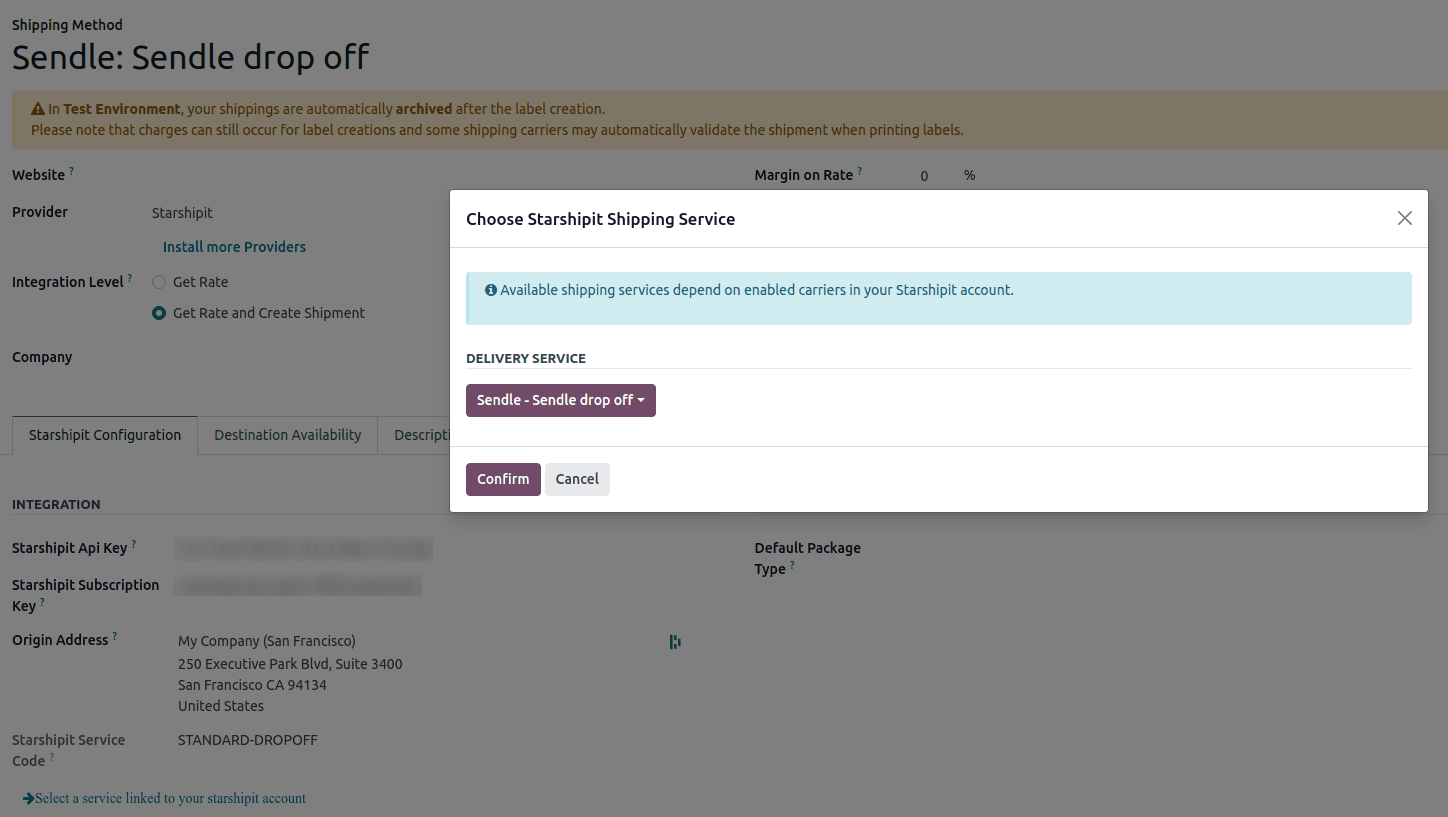
To load the newly configured shipping products, click the Select a service linked to the Starshipit account link at the bottom of the Starshipit Configuration tab.
Doing so opens the Choose Starshipit Shipping Service pop-up window. In the Delivery Service field, choose the desired shipping service for deliveries and returns from the drop-down menu. Finally, click Confirm.
The chosen delivery service will populate the Service Name field.
Example
Mẫu sản phẩm vận chuyển Starshipit được cấu hình trong Odoo:
Sendle: Sendle drop off
Sản phẩm Vận chuyển:
Sendle DeliveryMã Dịch vụ Starshipit:
STANDARD-DROPOFF
Quan trọng
Starshipit không cung cấp khóa thử nghiệm khi công ty kiểm tra việc gửi gói hàng trong Odoo. Điều này có nghĩa là nếu một gói hàng được tạo, tài khoản có thể bị tính phí.
Odoo has a built-in layer of protection against unwanted charges when using test environments. Within a test environment, if a shipping method is used to create labels, then those labels are automatically canceled after creation. Depending on the shipping provider being used, the account might be charged for printing a label, unless the order is canceled manually on the courier's portal.
Switch between the test and production environments by clicking the Environment smart button at the top of the shipping method form.
Tạo nhãn với Starshipit
Khi tạo báo giá trong Odoo, thêm phương thức vận chuyển Starshipit bằng cách nhấp vào nút Thêm vận chuyển.
In the Add a shipping method pop-up window, select Starshipit in the Shipping Method field.
Calculate the shipping rate by clicking Get rate.
Finally, click Add to add the cost of shipping to the sales order line, labeled as the delivery product.
Mẹo
Odoo automatically calculates shipping costs for Starshipit in both the Sales and eCommerce applications.
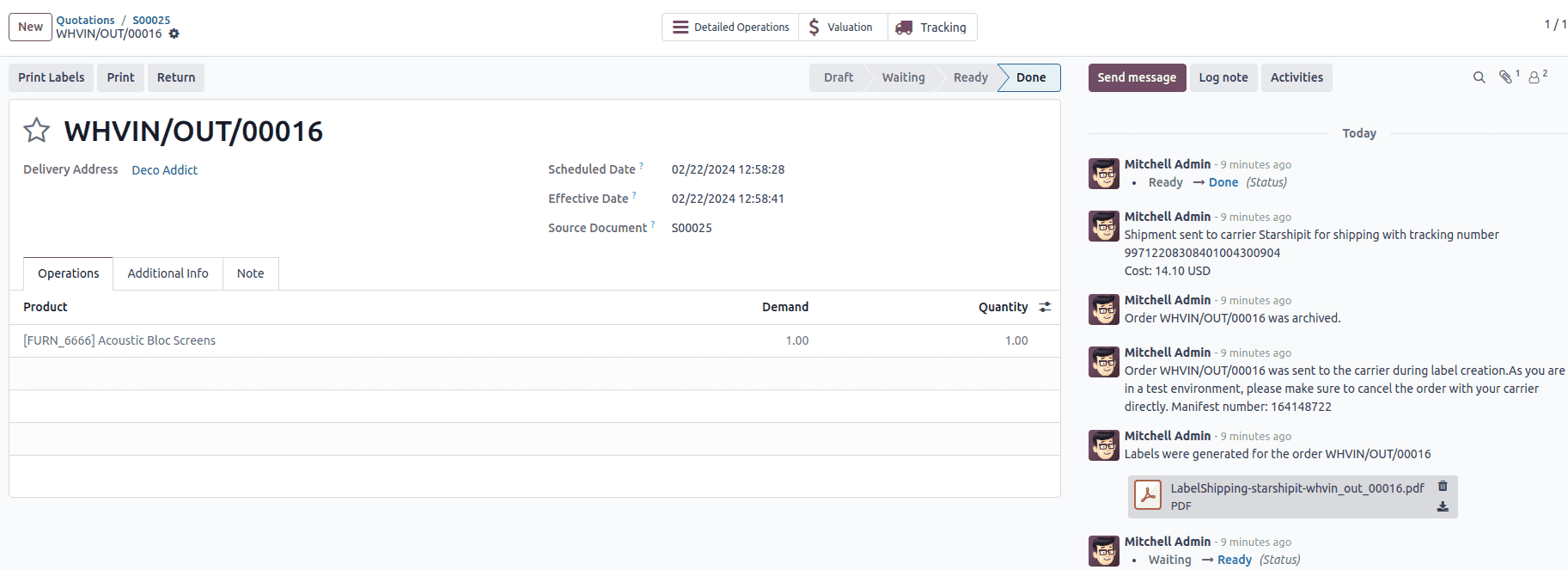
Then, Validate the delivery. Shipping label documents are automatically generated in the chatter, which include the following:
Dopravní štítky v závislosti na počtu balíků
Sledovací čísla, pokud je vybraný dopravce podporuje
Return labels, if the Starshipit connector is configured for returns
Quan trọng
Trọng lượng gói hàng trong Odoo được tính bằng cách cộng trọng lượng của sản phẩm với trọng lượng gói rỗng đã lưu trong cơ sở dữ liệu. Đảm bảo chọn đúng tùy chọn vận chuyển, vì trọng lượng gói hàng không được tự động xác minh.
Xác minh địa chỉ đích, vì Starshipit sẽ kiểm tra nó khi đơn hàng được tạo.
Finally, some couriers may require other information, such as an email address or phone number. Ensure that all necessary information is set upon sending a shipping order.
Trả hàng
Starshipit cho phép trả hàng với các đơn vị vận chuyển sau:
Australia Post eParcel
TNT
Couriers Please
Aramex
StarTrack
DHL Express
NZ Post Domestic
To return products, click the Return smart button on the intended delivery order. If the selected courier supports returns, the Print Return Label button is available.
Huỷ
If a delivery order is canceled in Odoo, it will be automatically archived in Starshipit. However, the cancellation will not be sent to the courier itself, so make sure to log in to the courier's platform to handle the cancellation manually.