
Bán vé sự kiện
Odoo Sự kiện cung cấp cho người dùng khả năng tạo các vé sự kiện tùy chỉnh (và các hạng vé) với nhiều mức giá khác nhau.
Tính năng này cũng cho phép họ bán vé sự kiện theo hai cách khác nhau: qua đơn bán hàng tiêu chuẩn và trực tuyến thông qua trang web tích hợp.
Odoo cũng đơn giản hóa quy trình mua vé bằng cách cung cấp nhiều tùy chọn phương thức thanh toán.
Mẹo
Để tìm hiểu thêm về cách tạo vé tùy chỉnh (và các hạng vé) cho sự kiện, hãy xem tài liệu Tạo sự kiện.
Cấu hình
Để bán vé sự kiện trong Odoo, trước tiên cần bật một số cài đặt.
Đầu tiên, điều hướng đến . Trong phần Đăng ký, có hai cài đặt khác nhau: Vé và Bán vé trực tuyến.
Cài đặt Vé cho phép người dùng bán vé sự kiện bằng các đơn bán hàng tiêu chuẩn.
Cài đặt Bán vé trực tuyến cho phép người dùng bán vé sự kiện trực tuyến thông qua trang web Odoo tích hợp của họ.
Để kích hoạt một cài đặt, hãy tích vào ô kiểm bên cạnh nhãn tính năng mong muốn và nhấp Lưu để hoàn tất việc bật tính năng.
Ghi chú
Nếu các tùy chọn này không được bật, một nút Đăng ký mặc định sẽ hiển thị để khách truy cập tương tác và đăng ký tham gia sự kiện miễn phí.

Khi bật các cài đặt đó, Odoo sẽ tự động tạo một Loại sản phẩm mới có tên là Vé sự kiện, có thể truy cập trên mọi biểu mẫu sản phẩm. Odoo cũng tạo ba sản phẩm đăng ký sự kiện (với Loại sản phẩm được đặt thành Vé sự kiện) có thể được sử dụng hoặc sửa đổi cho vé sự kiện.
Quan trọng
Khi tạo một sản phẩm đăng ký sự kiện mới, Loại sản phẩm phải được đặt thành Vé sự kiện trên biểu mẫu sản phẩm để có thể chọn sản phẩm đó trong cột Sản phẩm dưới tab Vé trên biểu mẫu sự kiện.

Ghi chú
Bất kỳ sự kiện nào có bán vé trả phí đều có nút thông minh Bán hàng ở đầu biểu mẫu sự kiện, nơi hiển thị các đơn bán hàng tương ứng được tạo từ việc bán các vé đó.
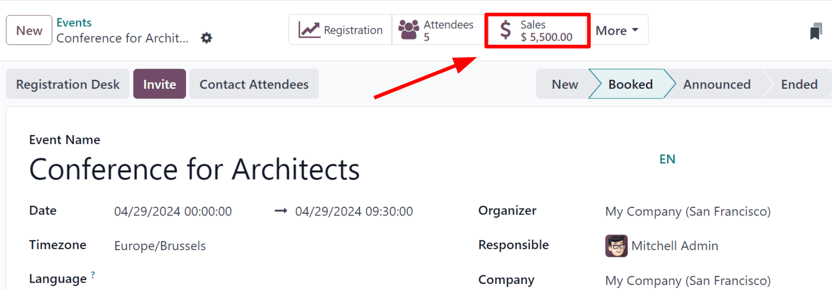
Nhấp vào nút thông minh Bán hàng sẽ hiển thị một trang riêng, bao gồm tất cả các đơn bán hàng (tiêu chuẩn và/hoặc trực tuyến) liên quan đến vé đã bán cho sự kiện cụ thể đó.
Bán vé sự kiện với ứng dụng Bán hàng
Để bán vé sự kiện với đơn bán hàng, bắt đầu bằng cách điều hướng đến ứng dụng . Sau đó, nhấp vào Tạo mới để mở biểu mẫu báo giá mới.
Sau khi điền phần trên cùng của biểu mẫu với thông tin khách hàng phù hợp, hãy nhấp vào Thêm sản phẩm trong tab Chi tiết đơn hàng. Sau đó, trong cột Sản phẩm, hãy chọn (hoặc tạo) một sản phẩm đăng ký sự kiện được cấu hình với Loại sản phẩm được đặt thành Vé sự kiện trên biểu mẫu sản phẩm của nó.
Sau khi một sản phẩm đăng ký sự kiện được chọn, một cửa sổ bật lên Cấu hình sự kiện sẽ xuất hiện.
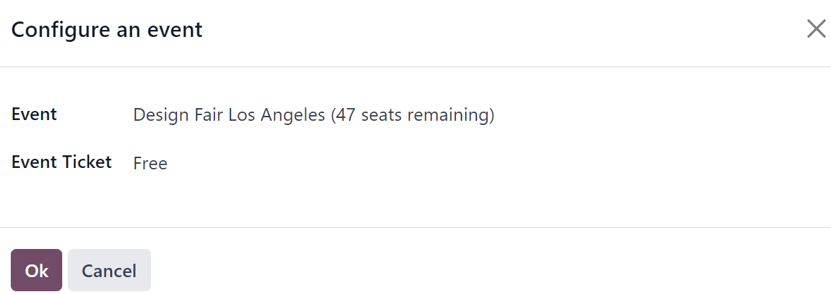
Từ cửa sổ bật lên Cấu hình sự kiện, chọn sự kiện liên quan đến lần mua vé này trong menu thả xuống của trường Sự kiện. Sau đó, trong menu thả xuống Vé sự kiện, hãy chọn hạng vé mà khách hàng muốn mua nếu có nhiều hạng vé được cấu hình cho sự kiện đó.
Khi tất cả các cấu hình mong muốn đã hoàn tất, hãy nhấp vào Ok. Thao tác này sẽ đưa người dùng quay lại đơn bán hàng, với sản phẩm vé đăng ký sự kiện hiện có trong tab Chi tiết đơn hàng. Người dùng có thể tiến hành xác nhận và hoàn tất đơn bán hàng theo quy trình thông thường.
Mẹo
Để mở lại cửa sổ bật lên Cấu hình sự kiện, hãy di chuột qua tên sản phẩm đăng ký sự kiện trong tab Chi tiết đơn hàng và nhấp vào biểu tượng (bút chì).
Bán vé sự kiện qua ứng dụng Website
Khi khách truy cập đến trang đăng ký của trang web sự kiện, họ có thể nhấp vào nút Đăng ký để mua vé tham dự sự kiện.
Ghi chú
Nếu khách truy cập chưa ở trên trang đăng ký của trang web sự kiện, việc nhấp vào Đăng ký trên menu phụ của trang web sự kiện sẽ chuyển hướng họ đến đúng trang đăng ký. Từ đó, họ có thể nhấp vào nút Đăng ký để bắt đầu quy trình mua vé.
Nếu các hạng vé khác nhau được cấu hình cho sự kiện, người truy cập sẽ thấy cửa sổ bật lên Vé.
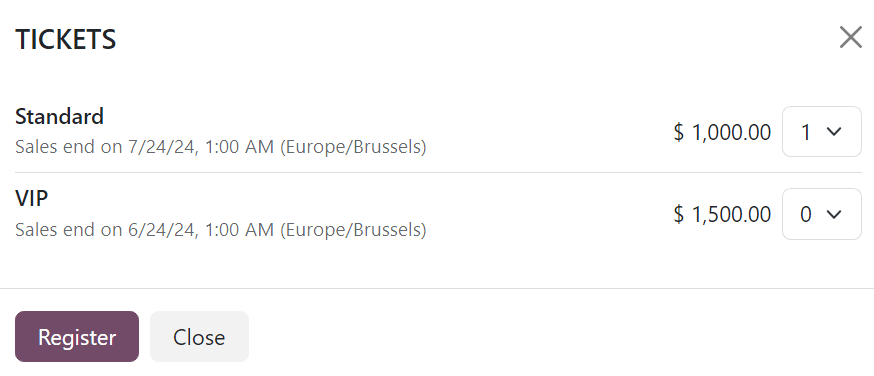
Tại đây, khách truy cập chọn hạng vé mà họ muốn mua cùng với số lượng bằng cách sử dụng menu thả xuống chọn số lượng ở bên phải vé mong muốn. Sau khi đã nhập các lựa chọn mong muốn, khách truy cập nhấp vào nút Đăng ký.
Sau đó, một cửa sổ bật lên Người tham dự xuất hiện, chứa tất cả các câu hỏi đã được cấu hình trong tab Câu hỏi của biểu mẫu sự kiện cho sự kiện cụ thể này.
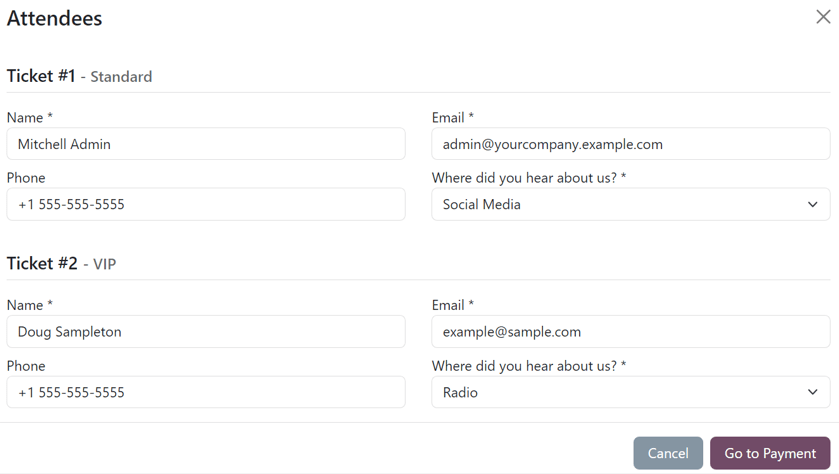
Nếu nhiều vé được mua cùng lúc, sẽ có các mục được đánh số cho từng người đăng ký vé riêng biệt, mỗi mục sẽ chứa các câu hỏi giống nhau. Tuy nhiên, nếu bất kỳ câu hỏi nào được cấu hình với tùy chọn Hỏi một lần cho mỗi đơn hàng, thì câu hỏi đó chỉ được hỏi một lần duy nhất — và không lặp lại cho từng người tham dự trong đơn đặt vé đó.
Với tất cả thông tin cần thiết đã được nhập, người truy cập có thể nhấp vào nút Chuyển đến thanh toán. Việc này sẽ đưa người truy cập đến trang xác nhận Thanh toán, tiếp theo là trang xác nhận Thanh toán, nơi họ có thể sử dụng bất kỳ phương thức thanh toán nào được cấu hình trong cơ sở dữ liệu để hoàn tất đơn hàng.
Sau đó, khi việc mua hàng được hoàn tất trên giao diện người dùng của trang web, đơn bán hàng tiếp theo có thể được truy cập ngay lập tức trong phần quản trị của cơ sở dữ liệu.
Xem thêm