SIX
Kết nối thiết bị đầu cuối thanh toán SIX cho phép bạn cung cấp quy trình thanh toán liền mạch cho khách hàng và giúp công việc của nhân viên thu ngân dễ dàng hơn.
Cảnh báo
Even though Worldline has recently acquired SIX Payment Services and both companies use Yomani payment terminals, the firmware they run is different. Terminals received from Worldline are therefore not compatible with this integration.
Cấu hình
Install the POS IoT Six module
To activate the POS IoT Six module, go to Apps, remove the Apps filter, and search for POS IoT Six. This module adds the necessary driver and interface to your database to detect Six terminals.
Ghi chú
Mô-đun này thay thế mô-đun POS Six.
Kết nối hệ thống IoT
Connecting a Six payment terminal to Odoo is requires using an IoT system.
Configure the terminal ID
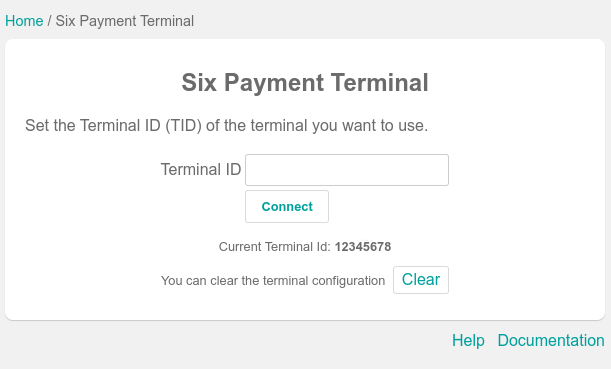
Truy cập trang chủ hệ thống IoT, nơi bạn có thể tìm thấy trường Thiết bị đầu cuối thanh toán SIX sau khi máy chủ cơ sở dữ liệu kết nối với hệ thống IoT. Nhấp Cấu hình, điền trường ID thiết bị đầu cuối với ID nhận được từ Six và nhấp Kết nối. ID thiết bị đầu cuối Six của bạn sẽ xuất hiện trong phần ID thiết bị đầu cuối hiện tại.
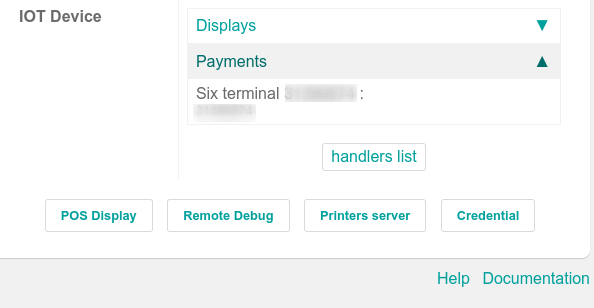
Odoo automatically restarts the IoT system when the Six terminal ID is configured. If your Six terminal is online, it will be automatically detected and connected to the database. Check the IoT system's homepage under the Payments section to confirm the connection.
Cấu hình phương thức thanh toán
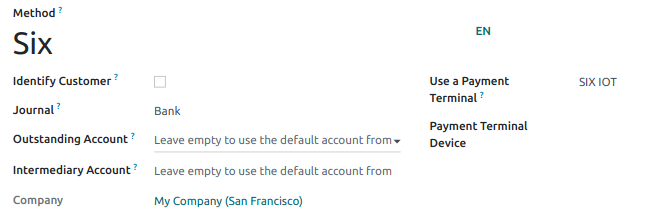
Enable the payment terminal in the application settings and create the related payment method. Set the journal type as Bank and select SIX IOT in the Use a Payment Terminal field. Then, select your terminal device in the Payment Terminal Device field.