
Sản phẩm gốc
Việc sử dụng các sản phẩm tùy chọn là một chiến lược marketing liên quan đến việc bán chéo các sản phẩm hữu ích và liên quan cùng với một sản phẩm cốt lõi mong muốn. Ví dụ, khi một doanh nghiệp cấu hình các sản phẩm tùy chọn trong cơ sở dữ liệu Odoo của họ, một khách hàng Thương mại điện tử hoặc Trang web có thể được đề xuất một con chuột và bàn phím hoặc một bảo hành mở rộng khi họ thêm một máy tính xách tay vào giỏ hàng của họ.
Optional products are automatically suggested during the quotation process whenever an associated core product is added to a quote. They are also suggested in e-commerce interactions when a customer adds an associated core product to their shopping cart.
Ghi chú
Optional products differ from accessory and alternative products in terms of where they are displayed during customers' online shopping journeys.
Cấu hình sản phẩm tùy chọn
With the Odoo Sales app, it is possible to add optional products directly to product forms. To add an optional product, navigate to and click on a product Kanban card.
Ensure the Can be Sold option is checked, then click the Sales tab. Under the Upsell & Cross-sell heading, the Optional Products drop-down menu allows for optional products to be set, and are displayed in alphabetical order.
To delete an optional product from the product form, click the (Delete) icon.
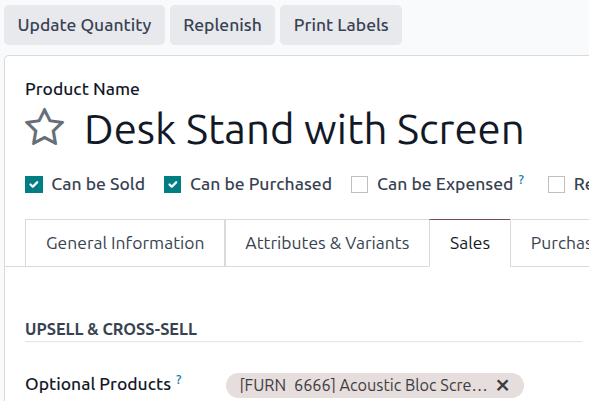
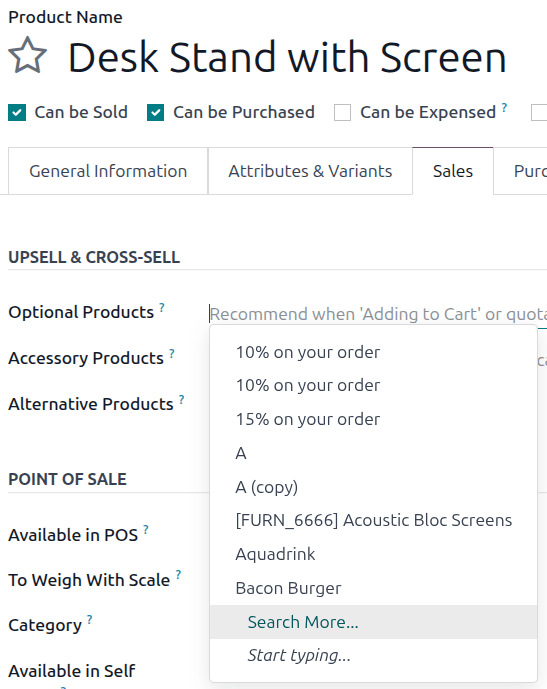
Select the optional products using the drop-down menu. There is no limit to the number of optional products that can be added.
Mẹo
Multiple products can be selected by clicking Search more... and Search: Optional Products pop-up window loads. Click the checkbox next to each desired product being added. When all optional products are selected, click Select, and all optional products appear in the field. If needed, new products can be created and added.
Optional products on quotation templates and quotations
Optional products can be added to quotation templates, allowing sales staff to offer related products without needing to manually add them to each quote. Additional optional products can also be added to individual quotations when needed.
Mẫu báo giá
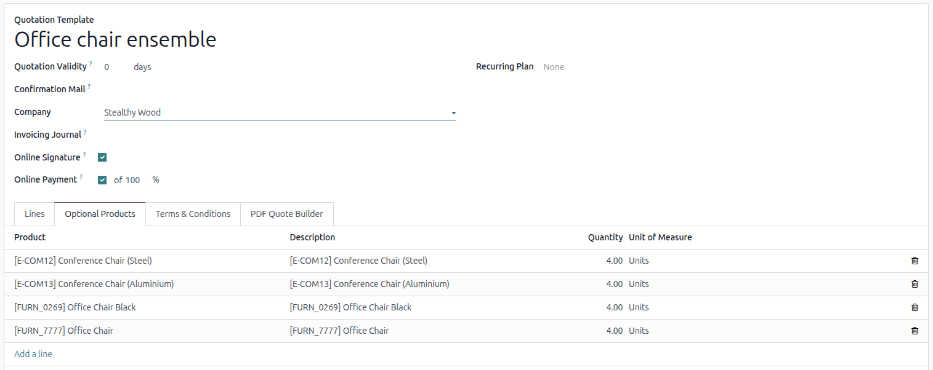
Quotation templates also have an Optional Products tab, where related products or services can be added. To add optional products to a quotation template, navigate to . Then, either select an existing quotation template to edit or create a new one.
On the quotation template form, click the Optional Products tab. Then, click Add a line and select the desired product to add as an optional product to the quotation template.
When the configured quotation template is used, the products added in the Optional Products tab will appear in the corresponding tab in the quotation. These products can be removed and additional products can be added before the quotation is sent to a customer.
Ghi chú
There is no limit to how many optional products can be added to a quotation template.
Báo giá
To add additional products on an individual quote, navigate to and select an existing quote or create a new quote. Then open the Optional Products. Doing so reveals a blank field in the Product column. Click Add a product. When clicked, a drop-down menu with products from the database appear. Select the desired product from the drop-down menu to add it as an optional product. Type the name of the desired product or click Search More... to find additional products.
To delete any line item from the Optional Products tab, click the (delete) icon.
Ghi chú
When a product is added, the default Quantity is 1, but can be updated.
Previewing optional products
Click the Preview button, located in the upper-left corner of the quotation, to reveal a preview of the quotation email customers would receive. Optional products are located in the Options section of the preview.
Customers are able to add different optional products to an order by clicking the (Add to cart) icon, located to the right of the optional product line.
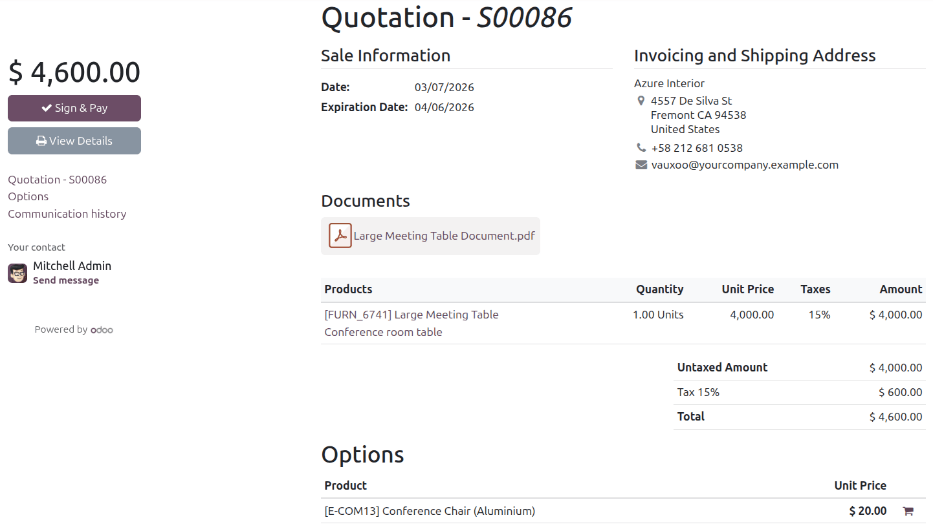
If a customer selects optional products, they are automatically added to the quotation managed by the salesperson.
When a customer adds optional products to an order, the salesperson is instantly notified about the change, along with any other change the customer makes to an order. This allows salespeople to stay up-to-date with everything related to an order in the backend of the Sales application. Added products appear in green in the Optional Products tab when the quote is viewed.
Xem thêm