
Cấu hình quy tắc đặt hàng lại
For certain products, it is necessary to ensure that there is always a minimum amount available on hand at any given time. By adding a reordering rule to a product, it is possible to automate the reordering process so that a purchase order is automatically created whenever the amount on hand falls below a set threshold.
Quan trọng
The Inventory module must be installed to use reordering rules.
Cấu hình sản phẩm để đặt hàng lại
Sản phẩm phải được cấu hình theo cách cụ thể trước khi có thể thêm quy tắc đặt hàng lại vào chúng.
Starting from the , , , or module, navigate to and then click Create to make a new product. Alternatively, find a product that already exists in the database and click into it's product form.
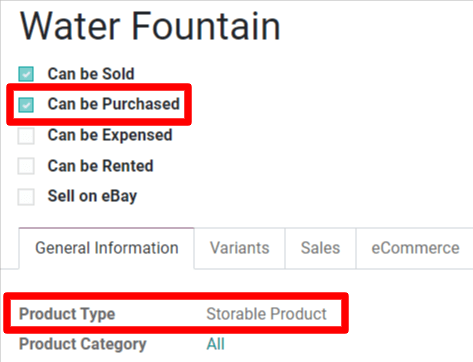
Next, on the product form, enable reordering by checking the Can be Purchased option
underneathe the Product Name field. Finally, set the Product Type to
Storable Product under the General Information tab.
Thêm quy tắc đặt hàng lại vào sản phẩm
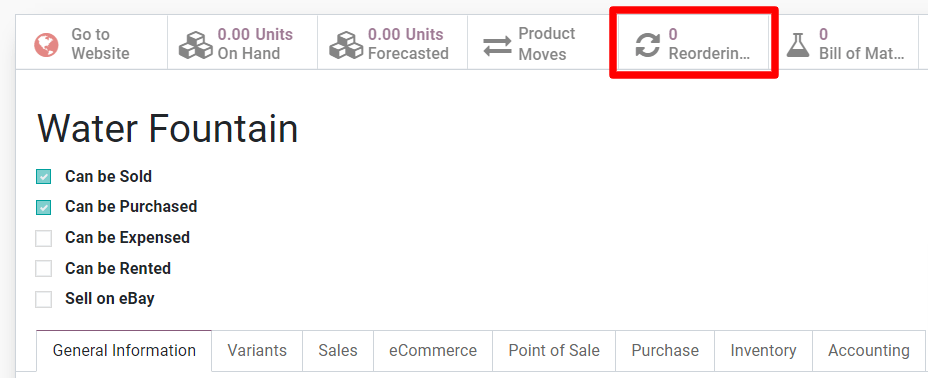
After properly configuring a product, a reordering rule can be added to it by selecting the now visible Reordering Rules tab at the top of that product's form, and then clicking Create on the Reordering Rules dashboard.
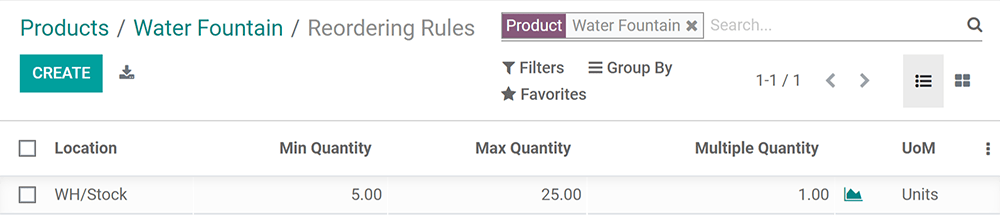
Sau khi được tạo, quy tắc đặt hàng lại có thể được cấu hình để tự động tạo đơn mua hàng bằng cách xác định các trường sau:
Vị trí chỉ định nơi số lượng đã đặt hàng sẽ được lưu trữ sau khi được nhận và nhập vào kho.
Min Quantity sets the lower threshold for the reordering rule while Max Quantity sets the upper threshold. If the stock on hand falls below the minimum quantity, a new purchase order will be created to replenish it up to the maximum quantity.
Example
If Min Quantity is set to
5and Max Quantity is set to25and the stock on hand falls to four, a purchase order will be created for 21 units of the product.Số lượng bội số có thể được cấu hình để sản phẩm chỉ được đặt hàng theo lô với một số lượng nhất định. Tùy thuộc vào số được nhập, điều này có thể dẫn đến việc tạo đơn mua hàng khiến số lượng tồn kho thực tế vượt quá giá trị được chỉ định trong trường Số lượng tối đa.
Example
If Max Quantity is set to
100but Multiple Quantity is set to order the product in batches of200, a purchase order will be created for 200 units of the product.UoM specifies the unit of measurement by which the quantity will be ordered. For discrete products, this should be set to
Units. However, it can also be set to units of measurement likeVolumeorWeightfor non-discrete products like water or bricks.
Kích hoạt thủ công quy tắc đặt hàng lại bằng bộ lập lịch
Reordering rules will be automatically triggered by the scheduler, which runs once a day by default. To trigger reordering rules manually, navigate to . On the pop-up window, confirm the manual action by clicking Run Scheduler.
Ghi chú
Kích hoạt thủ công quy tắc đặt hàng lại cũng sẽ kích hoạt bất kỳ hoạt động đã lên lịch nào khác.
Quản lý quy tắc đặt hàng lại
To manage the reordering rules for a single product, navigate to that product page's form and select the Reordering Rules tab at the top of the form.
To manage all reordering rules for every product, go to . From this dashboard, typical bulk actions in Odoo can be performed such as exporting data or archiving rules that are no longer needed. As well, the Filters, Group By or triple-dotted menu on the form are available to search for and/or organize the reordering rules as desired.