
Manage lost opportunities
Not every opportunity results in a successful sale. To keep the pipeline up-to-date, lost opportunities need to be identified. Specifying why an opportunity was lost provides additional insight that can prove useful for future opportunities.
Đánh dấu một cơ hội là bị mất
To mark an opportunity as lost, first open the , and select an opportunity from the pipeline, by clicking on its corresponding Kanban card. Doing so reveals that opportunity's detail form.
Sau đó, nhấp vào Bị mất (Lost), nằm ở phía trên cùng của biểu mẫu chi tiết cơ hội.

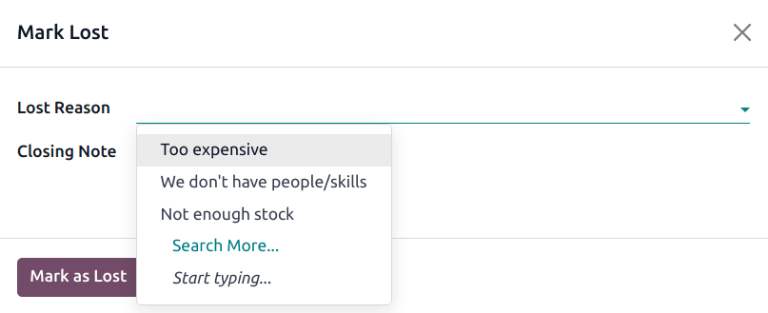
This opens the Mark Lost pop-up window. From the Lost Reason drop-down menu, choose an existing lost reason. If no applicable reason is available, create a new one by entering it into the Lost Reason field, and clicking Create.
Các ghi chú và bình luận bổ sung có thể được thêm vào bên dưới lý do bị mất trong trường Ghi chú kết thúc (Closing Note) được chỉ định.
Mẹo
Cả trường Lý do bị mất (Lost Reason) và Ghi chú kết thúc (Closing Note), trên cửa sổ pop-up Đánh dấu là Bị mất (Mark Lost) đều không bắt buộc. Tuy nhiên, nên điền các thông tin này để phục vụ việc truy xuất, đảm bảo trách nhiệm giải trình và hỗ trợ báo cáo.
Khi tất cả thông tin mong muốn đã được nhập vào cửa sổ pop-up Đánh dấu là bị mất (Mark Lost), nhấp vào Đánh dấu là bị mất (Mark as Lost).
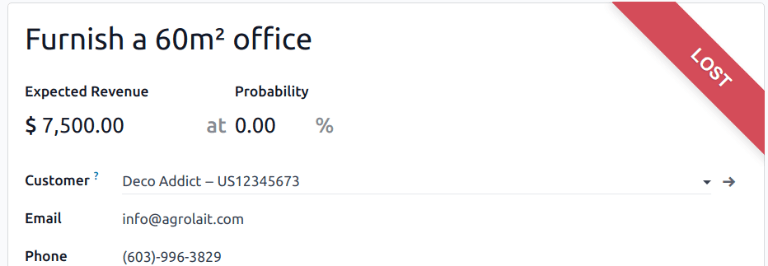
Sau khi nhấp vào Đánh dấu là Bị mất (Mark as Lost), một banner Bị mất (Lost) màu đỏ sẽ được thêm vào góc trên bên phải của cơ hội.
Ghi chú
Để đánh dấu một cơ hội không hoạt động (đã lưu trữ) là bị mất, hãy đặt trường Xác suất (Probability) thành 0 phần trăm.
Tạo/chỉnh sửa lý do bị mất
Để tạo một lý do bị mất mới, hoặc chỉnh sửa một lý do hiện có, điều hướng đến .
To edit an existing lost reason:
Click on the reason to be edited to highlight it.
Change the selected lost reason by editing the Description field.
When finished, click Save in the upper-left corner.
To create a new lost reason:
Click New in the upper-left corner of the Lost Reasons page.
In the new blank line, click in the Description field, then type the new lost reason.
Khi hoàn tất, nhấp vào Lưu.
Xem các cơ hội bị mất
To retrieve lost opportunities in Odoo CRM, open the . On the main Pipeline dashboard, click into the Search... bar at the top of the page, and remove all of the default filters.
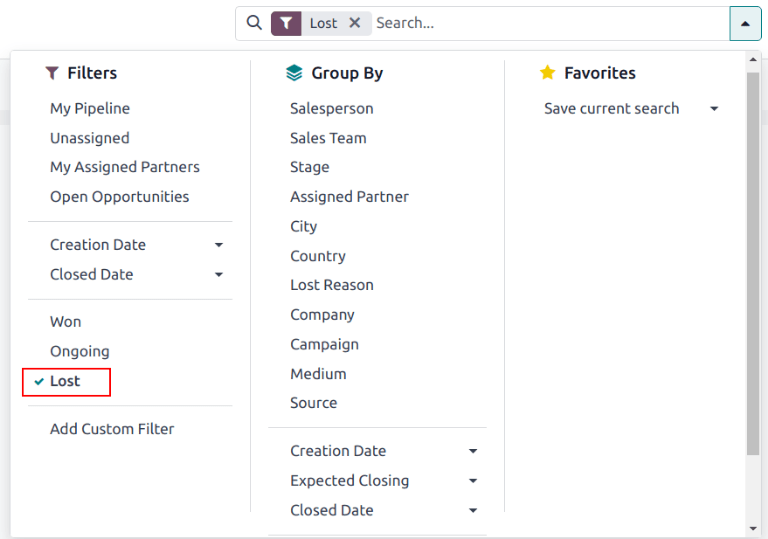
Open the Filters drop-down menu, by clicking the 🔻(triangle pointed down) icon to the right of the Search... bar to open the drop-down menu containing Filters, Group By, and Favorites options, designated into respective columns.
Chọn tùy chọn Bị mất (Lost) từ phần Bộ lọc (Filters). Sau khi chọn Bị mất (Lost), chỉ các cơ hội được đánh dấu là Bị mất (Lost) xuất hiện trên trang Quy trình bán hàng (Pipeline).
Sắp xếp các cơ hội theo lý do bị mất
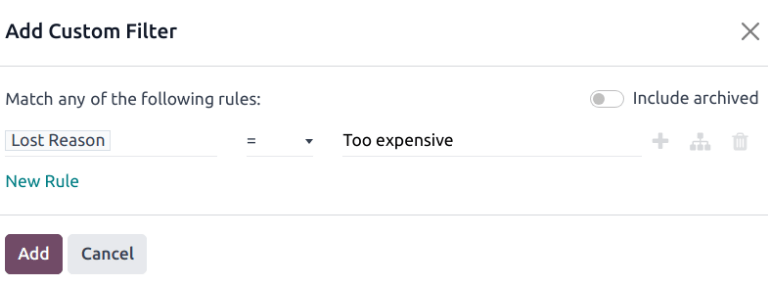
To filter opportunities by a specific lost reason, click the 🔻(triangle pointed down) icon to the right of the Search... bar again to open the drop-down menu. In addition to the Lost filter, under the Filters column, click Add Custom Filter, which opens an Add Custom Filter pop-up window.
On the Add Custom Filter pop-up window, click in the first field, and type Lost Reason
in the Search... bar, or scroll to search through the list to locate it. Then, click
into the next field, and select = from the drop-down menu. Click into the third field,
and select a lost reason from the drop-down menu. Finally, click Add.
Mẹo
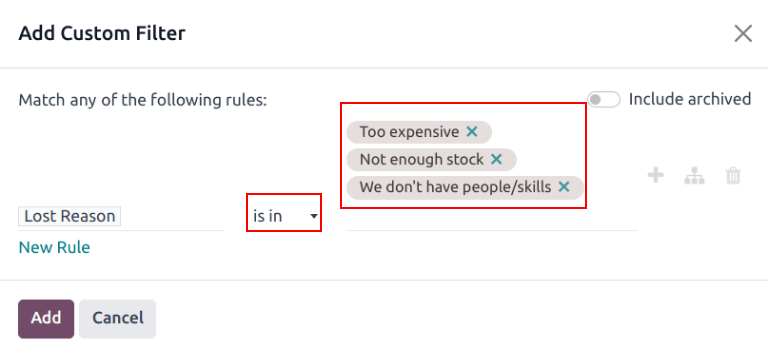
Để xem kết quả cho nhiều hơn một lý do bị mất, chọn toán tử nằm trong (is in) trong trường thứ hai của bộ lọc tùy chỉnh trong cửa sổ pop-up Thêm bộ lọc tùy chỉnh (Add Custom Filter). Việc chọn toán tử này cho phép chọn nhiều lý do bị mất trong trường thông tin thứ ba.
Khôi phục các cơ hội bị mất
To restore a lost opportunity, open the to reveal the Pipeline dashboard. Or, navigate to . From here, click the 🔻(triangle pointed down) icon to the right of the Search... bar to open the drop-down menu that contains Filters, Group By, and Favorites columns.
Dưới cột Bộ lọc (Filters), chọn Bị mất (Lost). Việc này sẽ hiển thị tất cả cơ hội bị mất trên trang Quy trình bán hàng (Pipeline).
Mẹo
To see all opportunities in the database, remove the default My Pipeline filter from the Search... bar.
Then, click on the Kanban card of the desired lost opportunity to restore, which opens that opportunity's detail form.
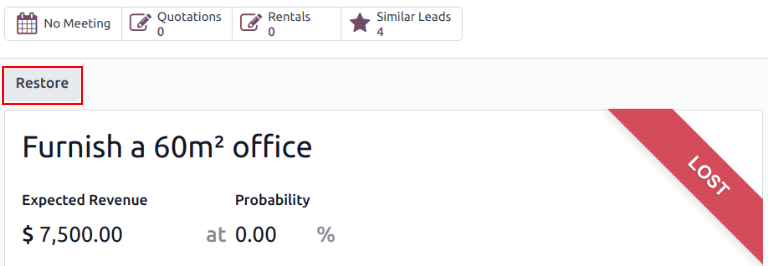
Từ biểu mẫu chi tiết của cơ hội bị mất, nhấp vào Khôi phục (Restore) ở góc trên bên trái. Việc này sẽ loại bỏ đầu đề Bị mất (Lost) màu đỏ khỏi biểu mẫu cơ hội, báo hiệu cơ hội đã được khôi phục.
Khôi phục nhiều cơ hội cùng lúc
To restore multiple opportunities at once, navigate to the main Pipeline dashboard in the CRM app, open the Filters drop-down menu, and select the Lost option.
Next, select the list view option, represented by the ≣ (list) icon in the upper-right corner. Doing so places all the opportunities from the Pipeline page in a list view. With the list view chosen, select the checkbox to the left of each opportunity to be restored.
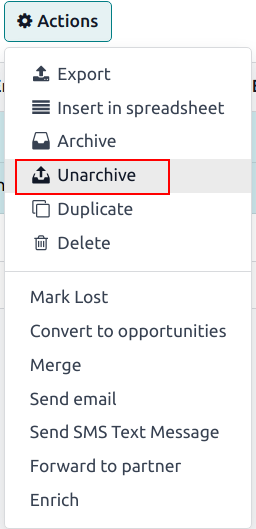
Once the desired opportunities have been selected, click the ⚙️ Actions drop-down menu at the top of the Pipeline page. From the ⚙️ Actions drop-down menu, select Unarchive.
Việc này sẽ loại bỏ các cơ hội đã chọn khỏi trang Quy trình bán hàng (Pipeline) vì chúng không còn phù hợp với tiêu chí bộ lọc Bị mất (Lost) nữa. Xóa bộ lọc Bị mất (Lost) khỏi thanh tìm kiếm để hiển thị các cơ hội mới được khôi phục này.
Quản lý lead bị mất
If Leads are enabled on a database, they can be marked as lost in the same manner as opportunities. Leads use the same lost reasons as opportunities.
Ghi chú
To enable leads, navigate to and check the Leads checkbox. Then, click Save. This adds a new Leads menu to the header menu bar at the top of the page.
Đánh dấu một lead là bị mất
To mark a lead as lost, navigate to , and select a lead from the list. Doing so reveals that lead's detail form.
Then, click Lost, located at the top of the lead's detail form.
This opens the Mark Lost pop-up window. From the Lost Reason drop-down menu, choose an existing lost reason. If no applicable reason is available, create a new one by entering it into the Lost Reason field, and clicking Create.
Các ghi chú và bình luận bổ sung có thể được thêm vào bên dưới lý do bị mất trong trường Ghi chú kết thúc (Closing Note) được chỉ định.
Khi tất cả thông tin mong muốn đã được nhập vào cửa sổ pop-up Đánh dấu là bị mất (Mark Lost), nhấp vào Đánh dấu là bị mất (Mark as Lost).
Khôi phục lead bị mất
To restore a lost lead, navigate to , then click the 🔻 (triangle pointed down) icon to the right of the Search... bar to open the drop-down menu that contains the Filters, Group By, and Favorites columns.
Dưới cột Bộ lọc (Filters), chọn Bị mất (Lost). Việc này sẽ hiển thị tất cả lead bị mất trên trang Lead.
Sau đó, nhấp vào lead bị mất mong muốn để khôi phục, thao tác này sẽ mở biểu mẫu chi tiết của lead đó.
Từ biểu mẫu chi tiết của lead bị mất, nhấp vào Khôi phục (Restore) ở góc trên bên trái. Việc này loại bỏ biểu ngữ Bị mất (Lost) màu đỏ khỏi biểu mẫu lead, báo hiệu lead đã được khôi phục.
Khôi phục nhiều lead cùng lúc
Để khôi phục nhiều lead cùng lúc, điều hướng đến , mở menu thả xuống Bộ lọc (Filters), và chọn tùy chọn Bị mất (Lost). Chọn hộp kiểm ở bên trái của mỗi lead cần khôi phục.
Once the desired leads have been selected, click the ⚙️ Actions drop-down menu at the top of the Leads page. From the ⚙️ Actions drop-down menu, select Unarchive.
Doing so removes those selected leads from the Leads page because they no longer fit the Lost filter criteria. Delete the Lost filter from the Search... bar to reveal these newly-restored leads.
Xem thêm