Colombia
Odoo's Colombian localization package provides accounting, fiscal, and legal features for databases in Colombia – such as chart of accounts, taxes, and electronic invoicing.
In addition, a series of videos on the subject is also available. These videos cover how to start from scratch, set up configurations, complete common workflows, and provide in-depth looks at some specific use cases as well.
Cấu hình
Cài đặt mô-đun
Cài đặt các mô-đun sau để có tất cả các tính năng của bản địa hóa Colombia:
Tên |
Tên kỹ thuật |
Mô tả |
|---|---|---|
Colombia - Kế toán |
|
Gói bản địa hóa tài chính mặc định. Mô-đun này bổ sung các tính năng kế toán cơ bản cho bản địa hóa Colombia: bảng kê khai tài khoản, thuế, khấu trừ và loại giấy tờ nhận dạng. |
Colombia - Báo cáo kế toán |
|
Includes accounting reports for sending certifications to suppliers for withholdings applied. |
Hóa đơn điện tử cho Colombia với Carvajal |
|
This module includes the features required for integration with Carvajal, and generates the electronic invoices and support documents related to the vendor bills, based on DIAN regulations. |
Colombia - POS |
|
Includes Point of Sale receipts for Colombian localization. |
Ghi chú
When Colombia is selected for a company's Fiscal Localization, Odoo automatically
installs certain modules.
Cấu hình công ty.
To configure your company information, go to the app, and search for your company.
Alternatively, activate developer mode and navigate to . Then, edit the contact form and configure the following information:
Tên công ty.
Address: Including City, Department and ZIP code.
Identification Number: Select the Identification Type (
NIT,Cédula de Ciudadanía,Registro Civil, etc.). When the Identification Type isNIT, the Identification Number must have the verification digit at the end of the ID prefixed by a hyphen (-).
Next, configure the Fiscal Information in the Sales & Purchase tab:
Obligaciones y Responsabilidades: Select the fiscal responsibility for the company (
O-13Gran Contribuyente,O-15Autorretenedor,O-23Agente de retención IVA,O-47Regimen de tributación simple,R-99-PNNo Aplica).Gran Contribuyente: If the company is Gran Contribuyente this option should be selected.
Fiscal Regimen: Select the Tribute Name for the company (
IVA,INC,IVA e INC, orNo Aplica)Commercial Name: If the company uses a specific commercial name, and it needs to be displayed in the invoice.
Carjaval credentials configuration
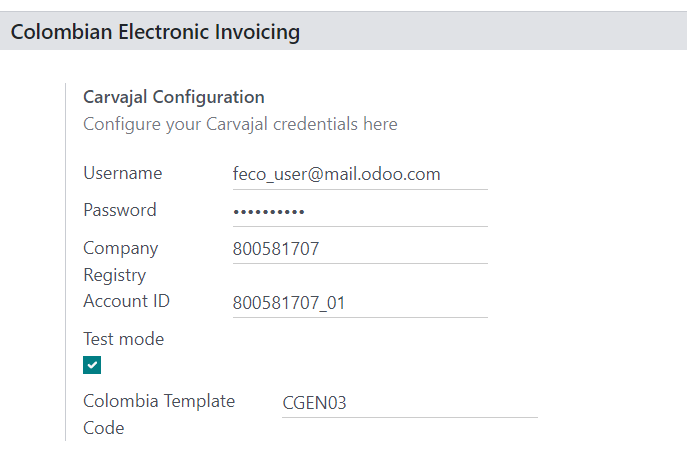
Once the modules are installed, the user credentials must be configured, in order to connect with Carvajal Web Service. To do so, navigate to and scroll to the Colombian Electronic Invoicing section. Then, fill in the required configuration information provided by Carvajal:
Username and Password: Username and password (provided by Carvajal) to the company.
Company Registry: Company's NIT number without the verification code.
Account ID: Company's NIT number followed by
_01.Colombia Template Code: Select one of the two available templates (
CGEN03orCGNE04) to be used in the PDF format of the electronic invoice.
Enable the Test mode checkbox to connect with the Carvajal testing environment.
Once Odoo and Carvajal are fully configured and ready for production, deactivate the Test mode checkbox to use the production database.
Quan trọng
Test mode must only be used on duplicated databases, not the production environment.
Report data configuration
Report data can be defined for the fiscal section and bank information of the PDF as part of the configurable information sent in the XML.
Navigate to , and scroll to the Colombian Electronic Invoicing section, in order to find the Report Configuration fields. Here the header information for each report type can be configured.
Gran Contribuyente
Tipo de Régimen
Retenedores de IVA
Autorretenedores
Resolución Aplicable
Actividad Económica
Bank Information
Master data configuration
Đối tác
Partner contacts can be created in the Contacts app. To do so, navigate to , and click the Create button.
Then, name the contact, and using the radio buttons, select the contact type, either Individual or Company.
Complete the full Address, including the City, State, and ZIP code. Then, complete the identification and fiscal information.
Identification information
Identification types, defined by the DIAN, are available on the partner form, as part of the Colombian localization. Colombian partners must have their Identification Number (VAT) and Document Type set.
Mẹo
When the Document Type is NIT, the Identification Number needs to be
configured in Odoo, including the verification digit at the end of the ID, prefixed by a hyphen
(`-`).
Thông tin tài chính
The partner's responsibility codes (section 53 in the RUT document) are included as part of the electronic invoicing module, as it is required by the DIAN.
The required fields can be found under :
Obligaciones y Responsabilidades: Select the fiscal responsibility for the company (
O-13Gran Contribuyente,O-15Autorretenedor,O-23Agente de retención IVA,O-47Regimen de tributación simple, orR-99-PNNo Aplica).Gran Contribuyente: If the company is Gran Contribuyente this option should be selected.
Fiscal Regimen: Select the tribute name for the company (
IVA,INC,IVA e INC, orNo Aplica)Commercial Name: If the company uses a specific commercial name, and it needs to be displayed in the invoice.
Sản phẩm
To manage products, navigate to , then click on a product.
When adding general information on the product form, it is required that either the UNSPSC Category (Accounting tab), or Internal Reference (General Information tab) field is configured. Be sure to Save the product once configured.
Thuế
Để tạo hoặc sửa đổi thuế, vào và chọn thuế liên quan.
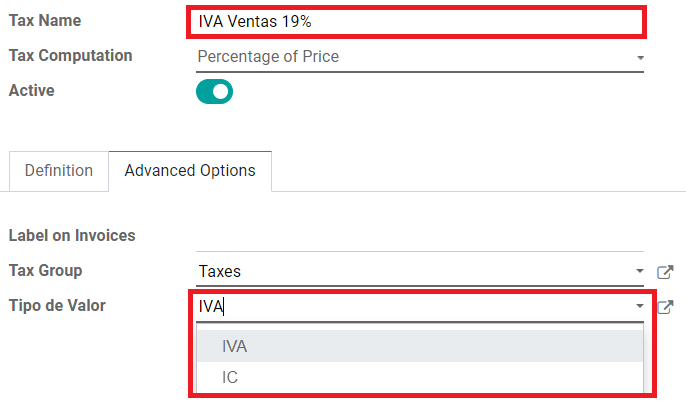
If sales transactions include products with taxes, the Value Type field in the Advanced Options tab needs to be configured per tax. Retention tax types (ICA, IVA, Fuente) are also included. This configuration is used to display taxes correctly in the invoice PDF.
Sổ nhật ký bán hàng
Once the DIAN has assigned the official sequence and prefix for the electronic invoice resolution, the sales journals related to the invoice documents must be updated in Odoo. To do so, navigate to , and select an existing sales journal, or create a new one with the Create button.
On the sales journal form, input the Journal Name, Type, and set a unique Short Code in the Journals Entries tab. Then, configure the following data in the Advanced Settings tab:
Electronic invoicing: Enable UBL 2.1 (Colombia).
Invoicing Resolution: Resolution number issued by DIAN to the company.
Resolution Date: Initial effective date of the resolution.
Resolution end date: End date of the resolution's validity.
Range of Numbering (minimum): First authorized invoice number.
Range of Numbering (maximum): Last authorized invoice number.
Ghi chú
The sequence and resolution of the journal must match the one configured in Carvajal and the DIAN.
Chuỗi số hóa đơn
The invoice sequence and prefix must be correctly configured when the first document is created.
Ghi chú
Odoo automatically assigns a prefix and sequence to the following invoices.
Sổ nhật ký mua hàng
Once the DIAN has assigned the official sequence and prefix for the support document related to vendor bills, the purchase journals related to their supporting documents need to be updated in Odoo. The process is similar to the configuration of the sales journals.
Hệ thống tài khoản
The chart of accounts is installed by default as part of the localization module, the accounts are mapped automatically in taxes, default account payable, and default account receivable. The chart of accounts for Colombia is based on the PUC (Plan Unico de Cuentas).
Quy trình làm việc chính
Hóa đơn điện tử
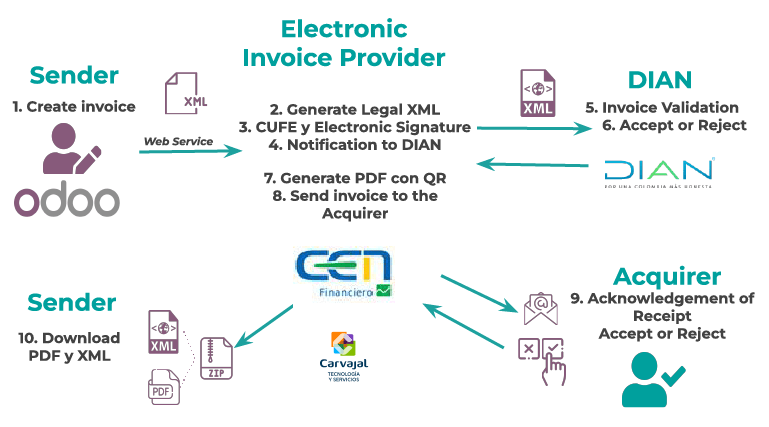
Sau đây là phân tích quy trình làm việc chính cho hóa đơn điện tử với bản địa hóa Colombia:
Sender creates an invoice.
Electronic invoice provider generates the legal XML file.
Electronic invoice provider creates the CUFE (Invoice Electronic Code) with the electronic signature.
Electronic invoice provider sends a notification to DIAN.
DIAN xác thực hóa đơn.
DIAN chấp nhận hoặc từ chối hóa đơn.
Electronic invoice provider generates the PDF invoice with a QR code.
Electronic invoice provider sends invoice to the acquirer.
Acquirer sends a receipt of acknowledgement, and accepts or rejects the invoice.
Sender downloads a
.zipfile with the PDF and XML.
Tạo hoá đơn
Ghi chú
Quy trình chức năng diễn ra trước khi xác thực hóa đơn không làm thay đổi những thay đổi chính được đưa ra với hóa đơn điện tử.
Electronic invoices are generated and sent to both the DIAN and customer through Carvajal's web service integration. These documents can be created from your sales order or manually generated. To create a new invoice, go to , and select Create. On the invoice form configure the following fields:
Customer: Customer's information.
Journal: Journal used for electronic invoices.
Loại hóa đơn điện tử: Chọn loại tài liệu. Theo mặc định, Factura de Venta được chọn.
Dòng hóa đơn: Chỉ định các sản phẩm với thuế chính xác.
Khi hoàn tất, nhấp Xác nhận.
Xác thực hóa đơn
After the invoice confirmation, an XML file is created and sent automatically to Carvajal. The invoice is then processed asynchronously by the E-invoicing service UBL 2.1 (Colombia). The file is also displayed in the chatter.
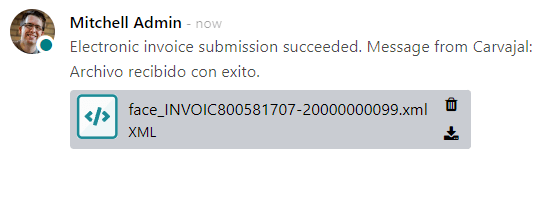
The Electronic Invoice Name field is now displayed in the EDI Documents tab, with the name of the XML file. Additionally, the Electronic Invoice Status field is displayed with the initial value To Send. To process the invoice manually, click on the Process Now button.
Reception of legal XML and PDF
The electronic invoice vendor (Carvajal) receives the XML file, and proceeds to validate its structure and information.
After validating the electronic invoice, proceed to generate a legal XML which includes a digital signature and a unique code (CUFE), a PDF invoice that includes a QR code and the CUFE is also generated. If everything is correct the Electronic Invoicing field value changes to Sent.
A .zip containing the legal electronic invoice (in XML format) and the invoice in (PDF
format) is downloaded and displayed in the invoice chatter:
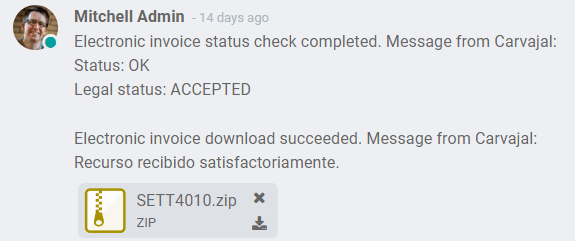
The electronic invoice status changes to Accepted.
Giấy báo có
Quy trình cho thẻ tín dụng giống như đối với hóa đơn. Để tạo thẻ tín dụng tham chiếu đến một hóa đơn, hãy vào . Trên hóa đơn, nhấp vào Add Credit Note, và hoàn thành các thông tin sau:
Phương thức tín dụng: Chọn loại phương thức tín dụng.
Hoàn trả một phần: Sử dụng tùy chọn này khi đó là số tiền một phần.
Hoàn trả toàn bộ: Sử dụng tùy chọn này nếu thẻ tín dụng là cho toàn bộ số tiền.
Hoàn trả toàn bộ và hóa đơn nháp mới: Sử dụng tùy chọn này nếu thẻ tín dụng được tự động xác thực và đối chiếu với hóa đơn. Hóa đơn gốc được sao chép thành một bản nháp mới.
Lý do: Nhập lý do cho thẻ tín dụng.
Ngày đảo ngược: Chọn nếu bạn muốn một ngày cụ thể cho thẻ tín dụng hoặc nếu đó là ngày bút toán.
Sử dụng nhật ký cụ thể: Chọn nhật ký cho thẻ tín dụng của bạn hoặc để trống nếu bạn muốn sử dụng cùng nhật ký với hóa đơn gốc.
Ngày hoàn tiền: Nếu bạn chọn một ngày cụ thể, hãy chọn ngày cho hoàn tiền.
Sau khi xem xét, nhấp vào nút Đảo ngược.
Giấy báo nợ
Quy trình cho nợ tương tự như thẻ tín dụng. Để tạo nợ tham chiếu đến hóa đơn, vào . Trên hóa đơn, nhấp vào nút Thêm nợ và nhập thông tin sau:
Lý do: Nhập lý do cho nợ.
Ngày nợ: Chọn các tùy chọn cụ thể.
Sao chép dòng: Chọn tùy chọn này nếu bạn cần đăng ký nợ với các dòng hóa đơn giống nhau.
Sử dụng nhật ký cụ thể: Chọn điểm in cho nợ của bạn hoặc để trống nếu bạn muốn sử dụng cùng nhật ký với hóa đơn gốc.
Khi hoàn tất, nhấp vào Tạo nợ.
Chứng từ hỗ trợ cho hóa đơn nhà cung cấp
Với dữ liệu chính, thông tin xác thực và nhật ký mua hàng được cấu hình cho chứng từ hỗ trợ liên quan đến hóa đơn nhà cung cấp, bạn có thể bắt đầu sử dụng chứng từ hỗ trợ.
Chứng từ hỗ trợ cho hóa đơn nhà cung cấp có thể được tạo từ đơn đặt hàng của bạn hoặc thủ công. Vào và điền thông tin sau:
Nhà cung cấp: Nhập thông tin của nhà cung cấp.
Ngày hóa đơn: Chọn ngày của hóa đơn.
Nhật ký: Chọn nhật ký cho chứng từ hỗ trợ liên quan đến hóa đơn nhà cung cấp.
Dòng hóa đơn: Chỉ định sản phẩm với thuế chính xác.
Sau khi xem xét, nhấp vào nút Xác nhận. Sau khi xác nhận, tệp XML được tạo và tự động gửi đến Carvajal.
Lỗi thường gặp
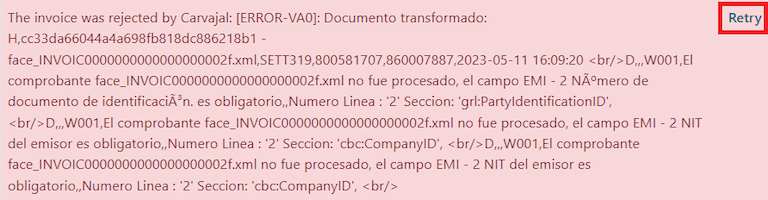
During the XML validation, the most common errors are related to missing master data (Contact Tax ID, Address, Products, Taxes). In such cases, error messages are shown in the chatter after updating the electronic invoice status.
After the master data is corrected, it's possible to reprocess the XML with the new data and send the updated version, using the Retry button.
Báo cáo tài chính
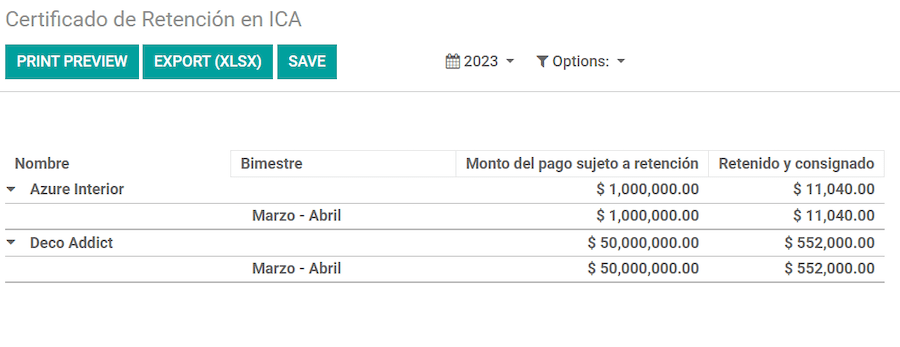
Certificado de Retención en ICA
Tờ báo cáo này là chứng nhận cho các nhà cung cấp về số tiền đã khấu trừ cho thuế Công nghiệp và Thương mại (ICA) của Colombia. Báo cáo có thể được tìm thấy tại .
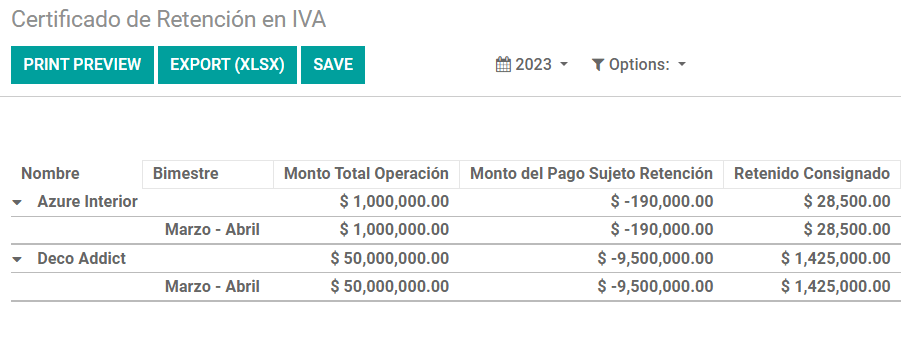
Certificado de Retención en IVA
Báo cáo này cấp chứng nhận về số tiền đã khấu trừ từ các nhà cung cấp cho việc khấu trừ thuế VAT. Báo cáo có thể được tìm thấy tại .
Certificado de Retención en la Fuente
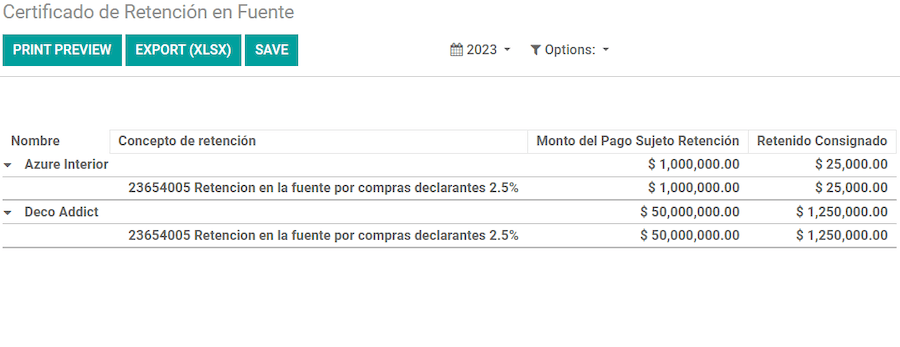
Chứng nhận này được cấp cho các đối tác về thuế khấu trừ mà họ đã thực hiện. Báo cáo có thể được tìm thấy tại .