Mexico
Webinar
A video on the Mexican localization is also available. This video covers how to implement this localization from scratch, including how to set up the configurations, how to complete common workflows, and provides an in-depth look at several specific use cases, as well.
Đầu trang
Các phân hệ bản địa hóa của Odoo dành cho Mexico cho phép ký hóa đơn điện tử theo các quy định của SAT cho phiên bản 4.0 của CFDI, một yêu cầu pháp lý áp dụng từ ngày 1 tháng 1 năm 2022. Những phân hệ này cũng bổ sung các báo cáo kế toán liên quan (chẳng hạn như: DIOT, hỗ trợ thương mại quốc tế, và việc tạo hướng dẫn giao hàng).
Ghi chú
In order to electronically sign any documents in Odoo, ensure the Sign application is installed.
Cấu hình
Yêu cầu
Cần đáp ứng các yêu cầu sau trước khi cấu hình các mô-đun bản địa hóa Mexico trong Odoo:
Be registered in the SAT, with a valid RFC.
Have a Certificate of Digital Seal (CSD).
Choose a PAC (Proveedor Autorizado de Certificación / Authorized Certification Provider). Currently, Odoo works with the following PACs: Solución Factible, Quadrum (formerly Finkok) and SW Sapien - Smarter Web.
Have knowledge and experience with billing, sales, and accounting in Odoo. This documentation only contains the necessary information needed to use Odoo.
Installing modules
Install the following modules to get all the features of the Mexican localization. The Accounting and Contacts modules are required to be installed for this configuration:
Tên |
Tên kỹ thuật |
Mô tả |
|---|---|---|
Mexico - Kế toán |
|
The default fiscal localization package, adds accounting characteristics for the Mexican localization, such as: the most common taxes and the chart of accounts – based on the SAT account grouping code. |
EDI dành cho Mexico |
|
Includes all the technical and functional requirements to generate and validate Electronics Documents — based on the technical documentation published by the SAT. This allows you to send invoices (with or without addedums) and payment complements to the government. |
EDI v4.0 for Mexico |
|
Necessary to create XML documents with the correct specifications of the CFDI 4.0. |
Báo cáo Bản địa hóa Mexico của Odoo |
|
Adapts reports for Mexico's Electronic Accounting: Chart of Accounts, Trial Balance, and DIOT. |
Mexico - Localization Reports for Closing |
|
Necessary to create the Closing Entry (Also known as the month 13th move). |
Xuất Polizas XML Mexico của Odoo |
|
Allows the export of XML files of Journal Entries for a compulsory audit. |
Odoo Mexican XML Polizas Export Edi bridge |
|
Complements the module |
Ghi chú
When installing a database from scratch and selecting Mexico as the country, Odoo automatically installs the following modules: Mexico - Accounting, EDI for Mexico, and EDI v4.0 for Mexico.
The following modules are optional. It's recommended to install them only if meeting a specific requirement. Make sure that they are needed for the business.
Tên |
Tên kỹ thuật |
Mô tả |
|---|---|---|
EDI cho Mexico (Tính năng Nâng cao) |
|
Adds the external trade complement to invoices: A legal requirement for selling products to foreign countries. |
EDI v4.0 cho Mexico (COMEX) |
|
Adapts the module |
Mexico - Phiếu Giao hàng Điện tử |
|
Lets you create a Carta Porte: A bill of lading that proves to the government you are sending goods between A & B with a signed electronic document. |
Electronic Delivery Guide for Mexico CFDI 4.0 |
|
Adapts the module |
Bản địa hóa Mexico của Odoo cho Kho/Hạ cánh |
|
Cho phép quản lý số hải quan liên quan đến chi phí hạ cánh trong chứng từ điện tử. |
Cấu hình công ty của bạn
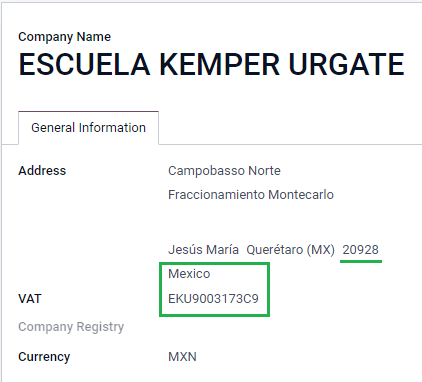
After installing the correct modules, the next step is to verify that your company is configured with the correct data. To do so, go to , and select Update Info under your company name.
Enter the full Address in the resulting form, including: ZIP code, State, Country, and RFC (VAT number).
According to the requirements of the CFDI 4.0, the name of the main company contact must coincide with your business name registered in the SAT, without the legal entity abbreviation.
Quan trọng
From a legal point of view, a Mexican company must use the local currency (MXN). Therefore, Odoo does not provide features to manage an alternative configuration. If you want to manage another currency, let MXN be the default currency and use a pricelist, instead.
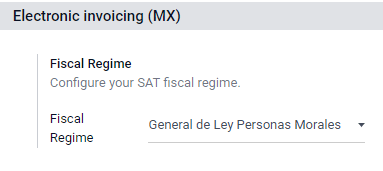
Next, go to , then select the regime that applies to your company from the drop-down list, and click Save.
Mẹo
If you want to test the Mexican localization, the company can be configured with a real address
within Mexico (including all fields), and add EKU9003173C9 as the VAT and ESCUELA
KEMPER URGATE as the Company Name. For the Fiscal Regime, use
General de Ley Personas Morales.
Liên hệ
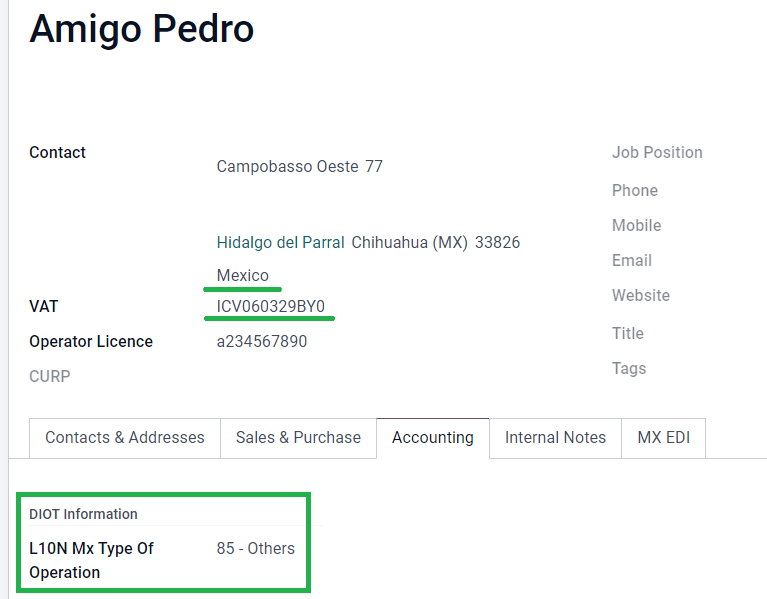
To create a contact that can be invoiced, go to . Then, enter the contact name, full Address including: ZIP code, State, Country, and RFC (VAT number).
Quan trọng
As with your own company, all of your contacts needs to have their correct business name registered in the SAT. This also applies to the Fiscal Regime, which needs to be added in the MX EDI tab.
Thuế
Some additional configurations for factor type and tax objects need to be added to the sales taxes in order to properly sign invoices.
Loại hệ số
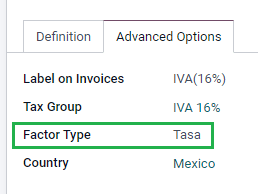
Trường Loại hệ số được tải sẵn trong các thuế mặc định. Nếu tạo thuế mới, bạn cần đảm bảo cấu hình trường này. Để thực hiện, hãy truy cập , sau đó bật trường Loại hệ số trong tab Tùy chọn nâng cao cho tất cả bản ghi, với Loại thuế được đặt là Bán hàng.
Mẹo
Mexico quản lý hai loại VAT 0% khác nhau để phù hợp với hai trường hợp:
0% VAT set the Factor Type as Tasa
VAT Exempt set the Factor Type as Exento
Đối tượng thuế
One requirement of the CFDI 4.0 is that the resulting XML file needs (or does not need) to break down the taxes of the operation. There are three different possible values that are added in the XML file:
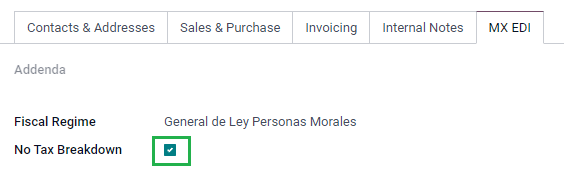
01: Not subject to tax - this value is added automatically if your invoice line doesn't contain any taxes.02: Subject to tax - this is the default configuration of any invoice line that contains taxes.03: Subject to tax and not forced to break down - this value can be triggered on-demand for certain customers to replace the value 02.
To use the 03 value, navigate to , and activate the No Tax Breakdown checkbox.
Quan trọng
The No Tax Breakdown value applies only to specific fiscal regimes and/or taxes. Consult your accountant first to see if it is needed for your business before making any modification.
Cấu hình thuế khác
Khi ghi nhận thanh toán, Odoo sẽ thực hiện di chuyển thuế từ Tài khoản chuyển thuế cơ sở dòng tiền sang tài khoản được thiết lập trong tab Định nghĩa. Để thực hiện di chuyển này, một tài khoản cơ sở tính thuế sẽ được sử dụng: (Base Imponible de Impuestos en Base a Flujo de Efectivo) trong bút toán khi phân loại lại thuế. Không xóa tài khoản này.
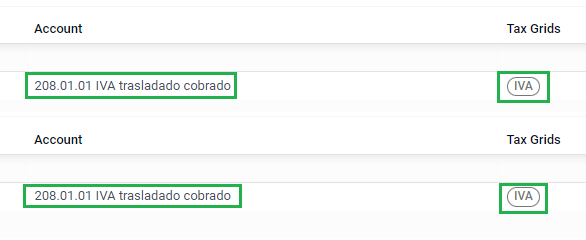
If you create a new tax in , you need to add
the correct Tax Grids for it (IVA, ISR or IEPS). Odoo only supports these
three groups of taxes.
Sản phẩm
To configure products, go to , then select a product to configure, or Create a new one. In the Accounting tab, and in the UNSPSC Product Category field, select the category that represents the product. The process can be done manually, or through a bulk import.
Ghi chú
All products need to have an SAT code associated with them in order to prevent validation errors.
Hóa đơn điện tử
Thông tin đăng nhập PAC
After you have processed your Private Key (CSD) with the SAT, you must register directly with the PAC of your choice before you start creating invoices from Odoo.
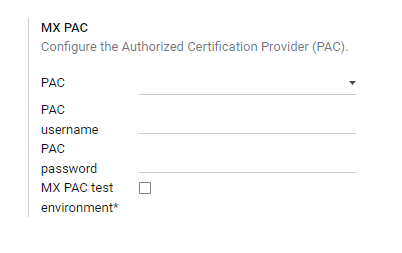
Once you've created your account with any of these providers, go to . Under the MX PAC section, enter the name of your PAC with your credentials (PAC username and PAC password).
Mẹo
If you do not have credentials, but want to test the electronic invoicing, you can activate the MX PAC test environment checkbox, and select Solucion Factible as the PAC. You do not need to add a username or password for a test environment.
Chứng chỉ .cer và .key
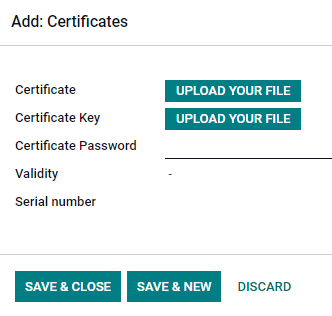
Các chứng chỉ số của công ty phải được tải lên trong phần Chứng chỉ MX. Để thực hiện, đi đến . Trong phần Chứng chỉ MX, chọn Thêm một dòng, và một cửa sổ sẽ mở ra. Nhấp Tạo, sau đó tải lên Chứng chỉ số của bạn (tệp .cer), Khóa chứng chỉ (tệp .key) và Mật khẩu chứng chỉ. Để hoàn tất, nhấp vào Lưu & đóng.
Mẹo
If you still do not have one of the contracted PACs and you want to test electronic invoicing, you can use the following SAT test certificates:
Mật khẩu:
12345678a
Quy trình
Hóa đơn điện tử
Quy trình lập hóa đơn trong Odoo dựa trên Phụ lục 20 phiên bản 4.0 của hóa đơn điện tử của SAT.
Hóa đơn bán hàng
Để bắt đầu lập hóa đơn từ Odoo, phải tạo hóa đơn khách hàng bằng cách sử dụng quy trình lập hóa đơn tiêu chuẩn.
While the document is in draft mode, changes can be made to it (the correct Payment Way or Usage that the customer might require can be added, for example.)
After you Confirm the customer invoice, a blue message appears stating: The invoice will be processed asynchronously by the following E-invoicing service: CFDI (4.0).
Pressing the Process Now button sends the document to the government so it can be signed. After receiving the signed document back from the government, the Fiscal Folio field appears on the document, and the XML file is attached in the chatter.
Mẹo
If you click Retry in the SAT status field on the invoice, you can confirm if the XML file is valid in the SAT.
If you are in a testing environment, you will always receive the message Not Found.
To send the signed invoice to your client by mail, you can send both the XML and PDF files together, directly from Odoo, by clicking the Send & Print button. You can also download the PDF file to your computer, by clicking the Print button, and selecting the desired print option.
Giấy báo có
Trong khi hóa đơn là loại tài liệu "I" (Ingreso), thì hóa đơn điều chỉnh giảm là loại tài liệu "E" (Egreso).
The only addition to the standard flow for credit notes is that, as a requirement of the SAT, there has to be a relation between a credit note and an invoice through the fiscal folio.
Because of this requirement, the field CFDI Origin adds this relation with a 01|,
followed by the fiscal folio of the original invoice.

Mẹo
Để trường Nguồn gốc CFDI được tự động thêm vào, hãy sử dụng nút Thêm hóa đơn điều chỉnh giảm từ hóa đơn, thay vì tạo thủ công.
Payment complements
Chính sách thanh toán
One addition of the Mexican localization is the Payment Policy field. According to the SAT documentation, there are two types of payments:
PUE(Pago en una Sola Exhibición/Payment in a Single Exhibition)PPD(Pago en Parcialidades o Diferido/Payment in Installements or Deferred)Xem thêm
The difference lies in the Due Date or Payment Terms of the invoice.
To configure PUE invoices, navigate to , and either select an invoice Due Date within the same month, or choose a payment term that does not imply changing the due month (immediate payment, 15 days, 21 days, all falling within the current month).
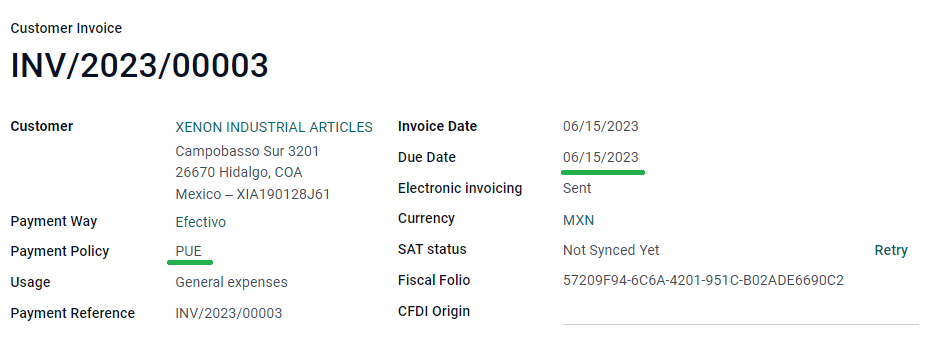
Mẹo
Some Payment Terms are already installed by default, and can be managed from .
To configure PPD invoices, navigate to , and select an invoice with a Due Date after the first day of the following month. This also applies if your Payment Term is due in the following month.
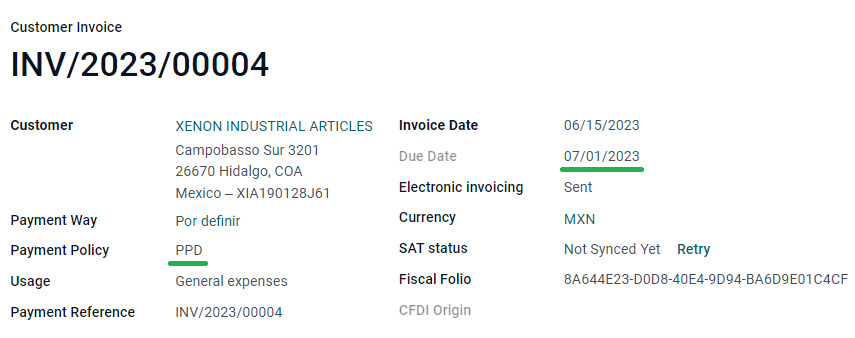
Quan trọng
Because the PPD policy implies that an invoice is not going to get paid at the moment, the correct Payment Way for the PPD invoices is 99 - Por Definir (To define).
Quy trình thanh toán
In both cases, the payment process in Odoo is the same, the main difference being payments related to PPD invoices trigger the creation of a document type "P" (Pago).
Nếu một khoản thanh toán liên quan đến hóa đơn PUE, nó có thể được ghi nhận bằng công cụ và liên kết với hóa đơn tương ứng. Để thực hiện, hãy đi đến , và chọn một hóa đơn. Sau đó, nhấp vào nút Ghi nhận thanh toán. Trạng thái hóa đơn sẽ thay đổi thành Đang thanh toán, vì khoản thanh toán sẽ được xác thực khi đối chiếu ngân hàng.
Xem thêm
While this process is the same for PPD invoices, the addition of the creating an electronic document means some additional requirements are needed to correctly send the document to the SAT.
From an invoice, you need to confirm the specific Payment Way where you received the
payment. Because of this, the Payment Way field cannot be set as 99 - Por Definir
(To Define).
If you are going to add a bank account number in the Accounting tab of a customer's contact card, it must have a valid account number.
Ghi chú
Các cấu hình chính xác nằm trong Anexo 20 của SAT. Thông thường, Tài khoản ngân hàng cần có 10 hoặc 18 chữ số cho chuyển khoản, 16 chữ số cho thẻ tín dụng hoặc nợ.
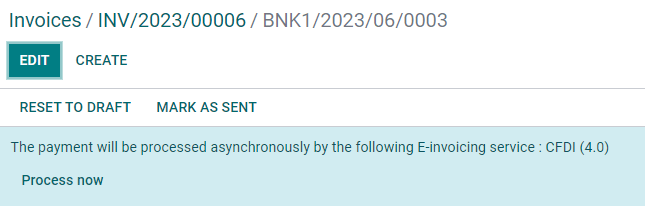
If a payment is related to a signed invoice with the Payment Policy PPD, Odoo
generates the corresponding payment complement automatically, once you click Process
Now.
Cảnh báo
A payment in MXN cannot be used to pay multiple invoices in USD. Instead, the payment should be separated into multiple payments, using the Register Payment button on the corresponding invoices.
Hủy hóa đơn
Có thể hủy các tài liệu EDI đã gửi đến SAT. Theo Reforma Fiscal 2022, kể từ ngày 1 tháng 1 năm 2022, có hai yêu cầu cho việc này:
With all cancellation requests, you must specify a cancellation reason.
Sau 24 giờ kể từ khi tạo hóa đơn, phải yêu cầu khách hàng phê duyệt việc hủy. Nếu không có phản hồi trong vòng 72 giờ, việc hủy sẽ được xử lý tự động.
Hủy hóa đơn có thể được thực hiện vì một trong các lý do sau:
01 - Hóa đơn phát hành có lỗi (với tài liệu liên quan)
02 - Hóa đơn phát hành có lỗi (không thay thế)
03 - Giao dịch không được thực hiện
04 - Giao dịch có tên liên quan đến hóa đơn toàn cầu
To initiate a cancellation, go to , select the posted invoice to cancel, and click Request Cancel. Then, refer to the Cancellation reason 01 - Invoice issued with errors (with related document) or Lý do hủy 02, 03 và 04 sections, depending on the cancellation reason.
Mẹo
Ngoài ra, yêu cầu hủy từ tab CFDI bằng cách nhấn Hủy trên mục dòng.
Cancellation reason 01 - Invoice issued with errors (with related document)
Trong cửa sổ bật lên Yêu cầu hủy CFDI, chọn 01 - Hóa đơn phát hành có lỗi (với tài liệu liên quan) từ trường Lý do và nhấn Tạo hóa đơn thay thế để tạo hóa đơn nháp mới. Hóa đơn nháp mới này thay thế hóa đơn trước đó, cùng với CFDI liên quan.
Confirm the draft and Send & Print the invoice.
Quay lại hóa đơn ban đầu (tức là hóa đơn mà bạn đã yêu cầu hủy lần đầu). Lưu ý trường Được thay thế bởi xuất hiện với tham chiếu đến hóa đơn thay thế mới.
Nhấn Yêu cầu hủy. Trong cửa sổ bật lên Yêu cầu hủy CFDI, tùy chọn 01 - Hóa đơn phát hành có lỗi (với tài liệu liên quan) được tự động chọn trong trường Lý do.
Nhấp Xác nhận.
Sau đó, việc hủy hóa đơn được tạo với mục dòng lý do trong tab CFDI.

Ghi chú
Nếu khách hàng từ chối việc hủy, mục dòng hủy hóa đơn sẽ bị xóa khỏi tab CFDI.
Khi sử dụng lý do hủy 01 - Hóa đơn phát hành có lỗi (có tài liệu liên quan), tiền tố
04|có thể xuất hiện trong trường :guilabel:`Folio tài chính*. Đây là tiền tố nội bộ được Odoo sử dụng để hoàn tất quy trình hủy và không có nghĩa lý do hủy là 04 - Giao dịch có tên liên quan đến hóa đơn toàn cầu.
Lý do hủy 02, 03 và 04
Trong cửa sổ bật lên Request CFDI Cancellation, chọn Reason hủy mong muốn và Confirm việc hủy.
Khi thực hiện, việc hủy hóa đơn được tạo với mục dòng lý do trong thẻ CFDI.
Ghi chú
Nếu khách hàng từ chối việc hủy, mục dòng hủy hóa đơn sẽ bị xóa khỏi tab CFDI.
Hủy thanh toán
Bạn cũng có thể hủy Bổ sung thanh toán. Để thực hiện, hãy truy cập khoản thanh toán thông qua và chọn Yêu cầu hủy EDI. Tương tự như với hóa đơn, một nút màu xanh sẽ xuất hiện. Nhấp Xử lý ngay và tài liệu sẽ được gửi tới SAT. Sau vài giây, bạn có thể nhấp Thử lại để xác nhận trạng thái hiện tại từ SAT.
Finally, the payment status is moved to Cancelled.
Ghi chú
Just like invoices, when you create a new Payment Complement, you can add the relation of the
original document, by adding a 04| plus the fiscal folio in the CFDI Origin field.
Trường hợp đặc biệt về lập hóa đơn
CFDI dla publiczności
If the customer you are selling goods or services to does not require an invoice, a CFDI to Public has to be created.
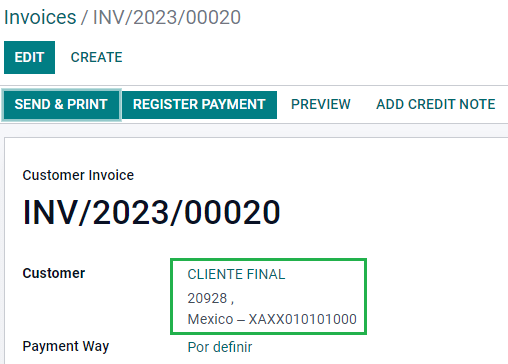
Nếu sử dụng tên Khách hàng là PUBLICO EN GENERAL, hệ thống sẽ báo lỗi. Đây là thay đổi chính trong CFDI 4.0 yêu cầu hóa đơn với tên cụ thể đó phải có thêm các trường bổ sung mà Odoo hiện chưa hỗ trợ. Để tạo CFDI cho công chúng, bạn cần nhập bất kỳ tên khách hàng nào không phải PUBLICO EN GENERAL. Ví dụ: CLIENTE FINAL.
In addition to this, it is required that the ZIP code of your company is added, the
generic RFC is set as XAXX010101000, and the Fiscal Regime of your customer must be
set as: Sin obligaciones fiscales.
Nhiều loại tiền tệ
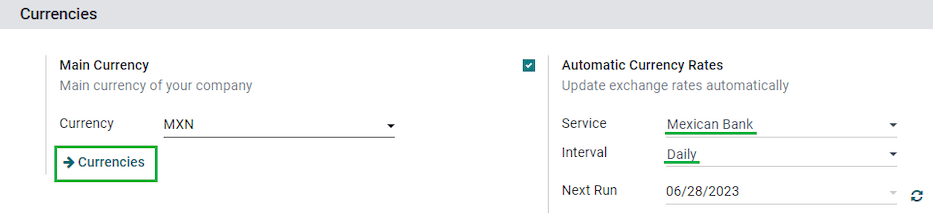
Đồng tiền chính ở Mexico là MXN. Mặc dù đây là đơn vị tiền tệ bắt buộc đối với tất cả công ty Mexico, nhưng vẫn có thể gửi và nhận hóa đơn (cũng như thanh toán) bằng các loại tiền tệ khác nhau. Để kích hoạt tính năng sử dụng đa tiền tệ, hãy đi đến , và đặt Ngân hàng Mexico làm Dịch vụ trong phần Tỷ giá tự động. Sau đó, đặt trường Khoảng thời gian theo tần suất bạn muốn cập nhật tỷ giá hối đoái.
Bằng cách này, tệp XML của chứng từ sẽ có tỷ giá hối đoái chính xác và tổng số tiền ở cả ngoại tệ và MXN.
It is highly recommended to use a bank account for each currency.
Ghi chú
The only currencies that automatically update their exchange rate daily are: USD, EUR, GBP, and JPY.
Khoản trả trước
Trong một số trường hợp, bạn có thể nhận thanh toán trước từ khách hàng cần được áp dụng vào hóa đơn sau. Để thực hiện điều này trong Odoo, cần liên kết chính xác các hóa đơn với nhau bằng trường Nguồn CFDI. Để làm được điều này, cần phải cài đặt ứng dụng Bán hàng.
First, navigate to the app to create a product Anticipo and configure it.
The Product Type must be Service, and use the UNSPSC Category
must be: 84111506 Servicios de facturación.
Sau đó, chuyển đến , và thêm sản phẩm Anticipo làm mặc định.
Create a sales order with the total amount, and create a down payment (either using a percentage or fixed amount). Then, sign the document, and Register the Payment.
When the time comes for the customer to get the final invoice, create it again from the same sales order. In the Create Invoices wizard, select Regular Invoice, and uncheck Deduct down payments.
Then, copy the Fiscal Folio from the first invoice, and paste it into the
CDFI Origin of the second invoice, adding the prefix 07| before the value. Then, sign
the document.
After this, create a credit note for the first invoice. Copy the Fiscal Folio from the
second invoice, and paste it in the CFDI Origin of the credit note, adding the prefix
07|. Then, sign the document.
With this, all electronic documents are linked to each other. The final step is to fully pay the new invoice. At the bottom of the new invoice, you can find the credit note in the Outstanding credits - add it as payment. Finally, register the remaining amount with the Register Payment wizard.
Thương mại ngoại thương
Thương mại ngoại thương là phần bổ sung cho hóa đơn thông thường, bổ sung một số giá trị vào cả XML và PDF cho các hóa đơn có khách hàng nước ngoài theo quy định của SAT, chẳng hạn như:
Địa chỉ cụ thể của người nhận và người gửi
Việc bổ sung Phân loại thuế quan xác định loại sản phẩm
The correct Incoterm (International Commercial Terms), among others (certificate of origin and special units of measure).
Điều này cho phép xác định chính xác các nhà xuất khẩu và nhà nhập khẩu, đồng thời mở rộng mô tả hàng hóa được bán.
Since January 1, 2018, external trade is a requirement for taxpayers, who carry export operations of type A1. While the current CFDI is 4.0, the external trade is currently on version 1.1
In order to use this feature, the modules l10n_mx_edi_extended and l10n_mx_edi_extended_40 have to be installed.
Quan trọng
Trước khi cài đặt, hãy đảm bảo doanh nghiệp của bạn cần sử dụng tính năng này. Nếu cần, hãy tham khảo ý kiến kế toán viên trước khi cài đặt bất kỳ mô-đun nào.
Cấu hình
Liên hệ
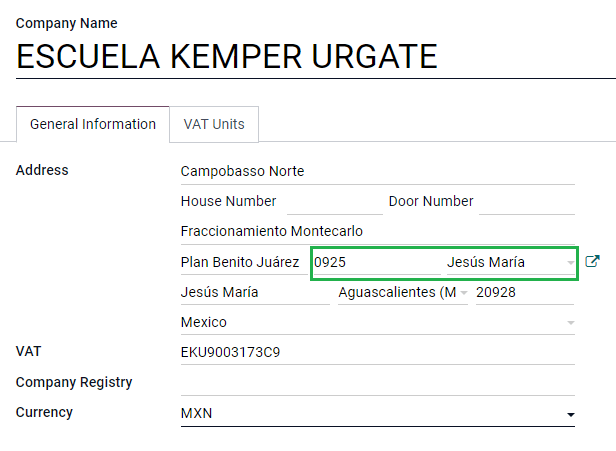
Để cấu hình thông tin liên hệ công ty cho giao dịch ngoại thương, hãy đi đến và chọn Công ty của bạn. Trong khi yêu cầu CFDI 4.0 yêu cầu bạn phải thêm Mã bưu điện hợp lệ vào thông tin liên hệ, thì phần bổ sung ngoại thương yêu cầu thêm rằng Thành phố và Bang của bạn cũng phải hợp lệ. Cả ba trường này phải trùng khớp với Danh mục chính thức SAT, nếu không bạn sẽ nhận được thông báo lỗi.
Cảnh báo
Add the City and State in the company's contact, not in the company itself. You can find your company's contact in .
The fields Locality and Colony Code are optional and can be added in the company directly in . These two fields have to coincide with the data in the SAT.
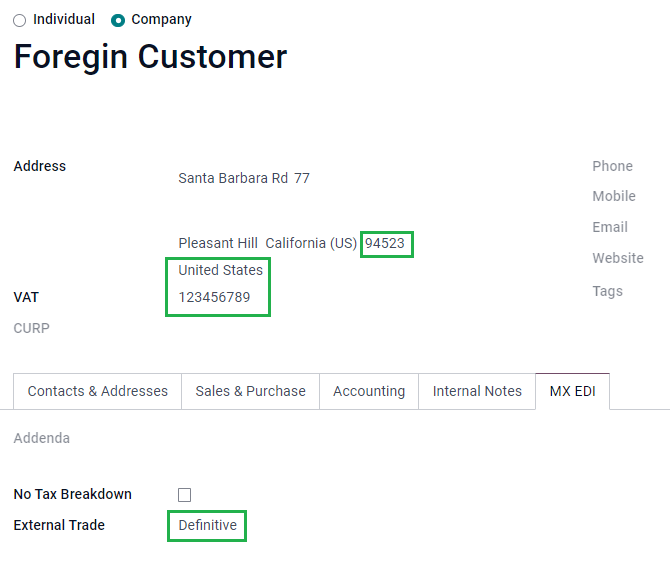
Để cấu hình dữ liệu liên hệ cho khách hàng nhận nước ngoài, điều hướng đến và chọn liên hệ của khách hàng nước ngoài. Liên hệ phải hoàn thành các trường sau để tránh lỗi:
Toàn bộ Địa chỉ công ty, bao gồm mã ZIP hợp lệ và Quốc gia nước ngoài.
The format of the foreign VAT (tax identification number, for example: Colombia
123456789-1)In the MX EDI tab, you need to address if the customer receives goods for a period of time temporarily (Temporary) or permanently (Definitive).
Quan trọng
If the new contact was created by duplicating another existing contact from Mexico, make sure to delete any carried over information from the Fiscal Regime field. In addition, do not enable the No Tax Breakdown option. Selecting this option hides mandatory fields that are required for external trade contact configuration.
Ghi chú
Trong các tệp XML và PDF kết quả, VAT sẽ tự động được thay thế bằng VAT chung cho giao dịch nước ngoài: XEXX010101000.
Sản phẩm
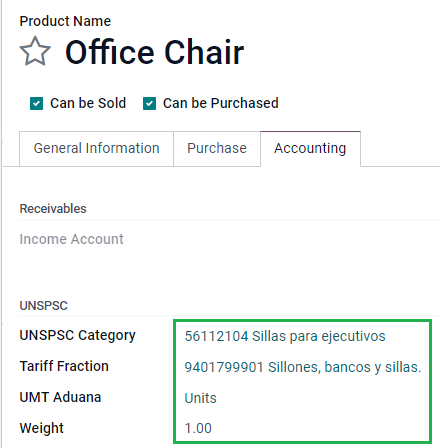
All products involved with external trade have four fields that are required, two of them exclusive to external trade.
The Internal Reference of the product is in the General Information tab.
The Weight of the product must be more than
0.The correct Tariff Fraction of the product in the Accounting tab.
The UMT Aduana corresponds to the Tariff Fraction.
Mẹo
Nếu mã UoM của Phân loại thuế quan là
01, UMT Aduana đúng làkg.Nếu mã UoM của Phân loại thuế quan là
06, UMT Aduana đúng làUnits.
Quy trình lập hóa đơn
Before creating an invoice, it is important to take into account that external trade invoices require to convert the amounts of your product into USD. Therefore, multicurrency must be enabled and USD must be activated in the Currencies section. The correct Service to run is Mexican Bank.
Then, with the correct exchange rate set up in , the only fields left are Incoterm and the optional Certificate Source in the Other Info tab.
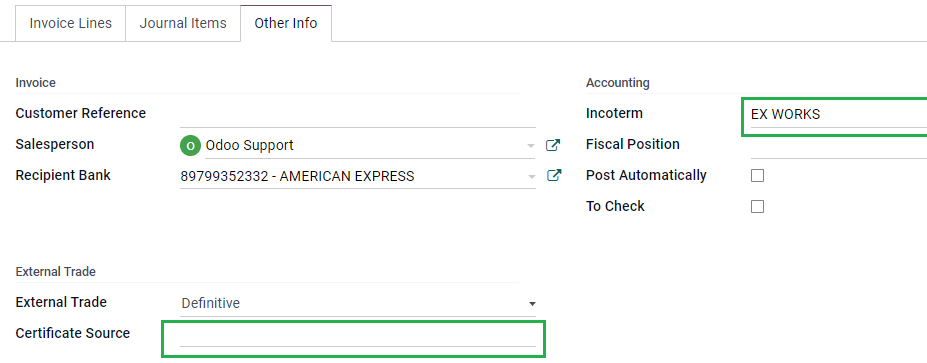
Finally, sign the invoice with the same process as a regular invoice, and click the Process Now button.
Phiếu giao hàng
A Carta Porte is a bill of lading: a document that states the type, quantity, and destination of goods being carried.
On December 1st, 2021, version 2.0 of this CFDI was implemented for all transportation providers, intermediaries, and owners of goods. Odoo is able to generate a document type "T" (Traslado), which, unlike other documents, is created in a delivery order instead of an invoice or payment.
Odoo có thể tạo file XML và PDF có (hoặc không có) vận chuyển đường bộ, và có thể xử lý các vật liệu được xử lý như Chất nguy hiểm.
In order to use this feature, the modules l10n_mx_edi_extended, l10n_mx_edi_extended_40, l10n_mx_edi_stock and l10n_mx_edi_stock_40 have to be installed.
In addition to this, it is necessary to have the Inventory and Sales apps installed, as well.
Quan trọng
Odoo does not support Carta Porte type document type "I" (Ingreso), air, or marine transport. Consult your accountant first if this feature is needed before doing any modifications.
Cấu hình
Odoo manages two different types of CFDI:
No Federal Highways: Is used when the Distance to Destination is less than 30 KM.
Federal Transport: Is used when the Distance to Destination exceeds 30 KM.
Other than the standard requirements of regular invoicing (The RFC of the customer, the UNSPSC code, etc.), if you are using No Federal Highways, no external configuration is needed.
For Federal Transport, several configurations have to be added to contacts, vehicle setups, and products. Those configurations are added to the XML and PDF files.
Danh bạ và phương tiện
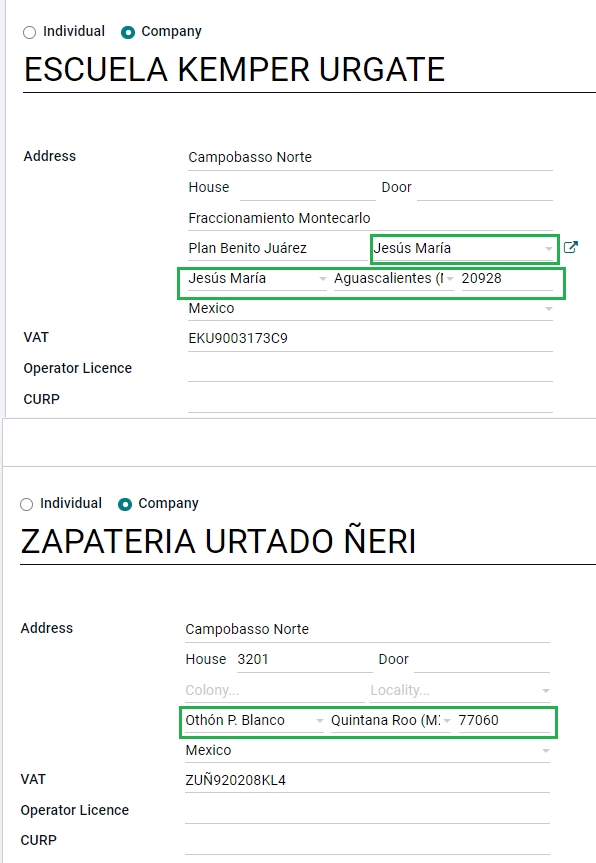
Like the external trade feature, the Address in both the company and the final customer
must be complete. The ZIP code, City, and State must coincide
with the Official SAT Catalog for Carta Porte <sat-catalog_>_.
Mẹo
The field, Locality, is optional for both addresses.
Quan trọng
The origin address used for the delivery guide is set in . While this is set as the company address by default, you can change it according to your correct warehouse address.
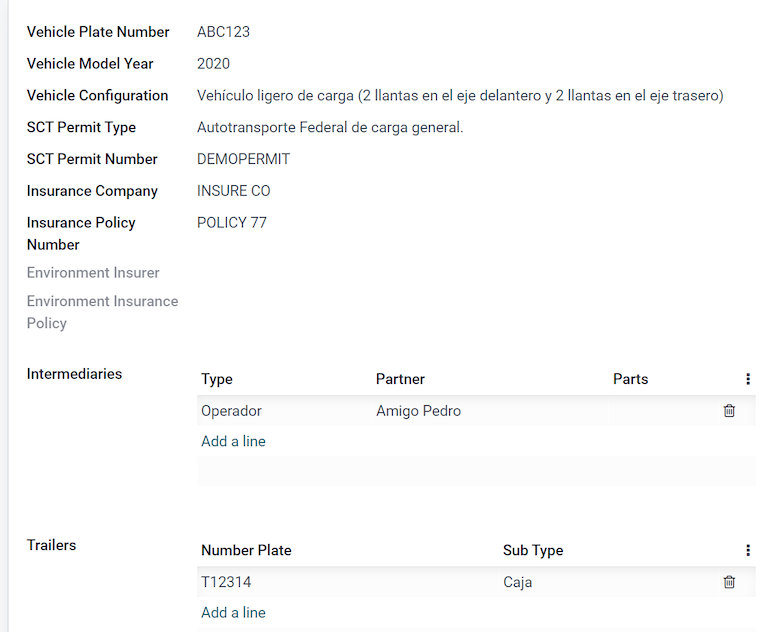
Another addition to this feature is the Vehicle Setups menu found in . This menu lets you add all the information related to the vehicle used for the delivery order.
All fields are mandatory to create a correct delivery guide.
Mẹo
The fields, Vehicle Plate Number and Number Plate, must contain between 5 to 7 characters.
In the Intermediaries section, you must add the operator of the vehicle. The only mandatory fields for this contact are the VAT and Operator Licence.
Sản phẩm
Tương tự như lập hóa đơn thông thường, tất cả sản phẩm phải có UNSPSC category. Ngoài ra, có hai cấu hình bổ sung cho các sản phẩm liên quan đến phiếu giao hàng:
Product Type phải được đặt là Storable Product để tạo chuyển động kho.
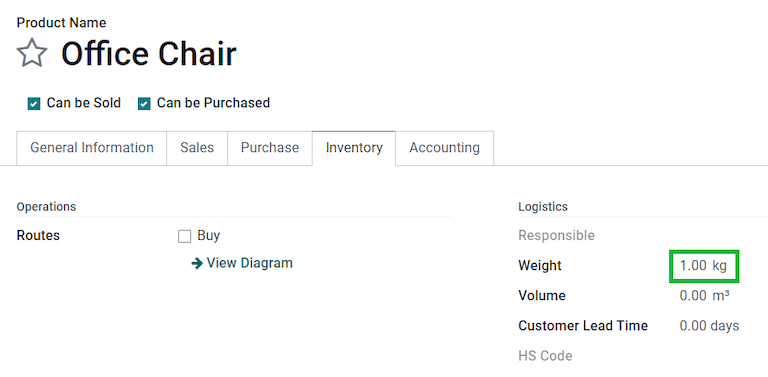
In the Inventory tab, the field Weight should have more than
0.
Cảnh báo
Creating a delivery guide of a product with the value 0 will trigger an error. As the
Weight has been already stored in the delivery order, it is needed to return the
products, and create the delivery order (and delivery guide) again with the correct amounts.
Luồng bán hàng và tồn kho
To create a delivery guide, first, you need to create and confirm a sales order from . This generates a Delivery smart button. Click it, and Validate the transfer.
After the status is set to Done, you can edit the transfer, and select the Transport Type (either No Federal Highways or Federal Transport).
If your delivery guide has the type No Federal Highways, you can save the transfer, and then click Generate Delivery Guide. The resulting XML can be found in the chatter.
Ghi chú
Other than the UNSPSC in all products, delivery guides that use No Federal Highways do not require any special configuration to be sent to the government.
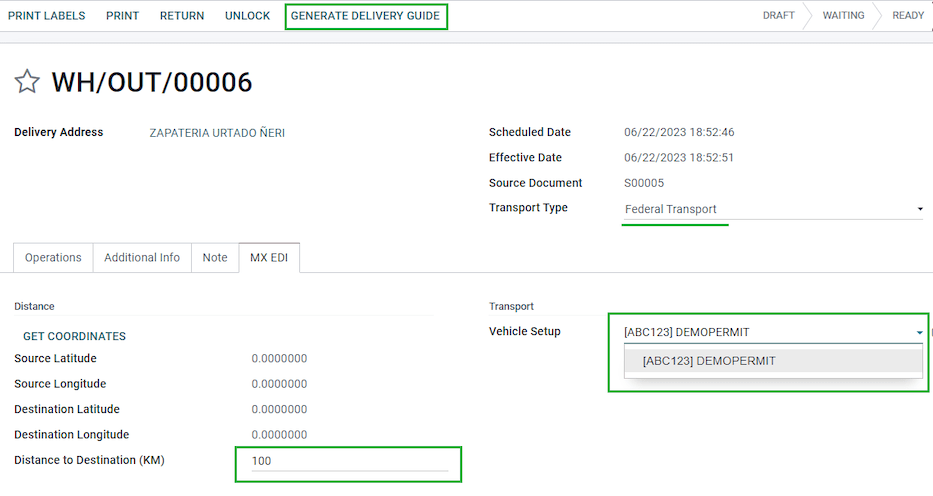
If your delivery guide has the type, Federal Transport, the tab MX EDI
appears. There, enter a value in Distance to Destination (KM) bigger than 0, and
select the Vehicle Setup used for this delivery.
Mối nguy hiểm nguy hại
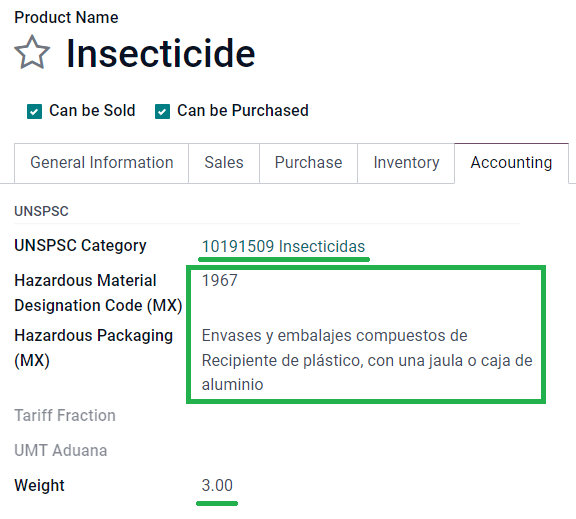
Một số giá trị trong UNSPSC Category được coi trong official SAT catalog là mối nguy hiểm nguy hại. Các danh mục này cần xem xét bổ sung khi tạo phiếu giao hàng với Federal Transport.
First, select your product from . Then, in the Accounting tab, the fields Hazardous Material Designation Code (MX) and Hazardous Packaging (MX) must be filled with the correct code from the SAT catalog.
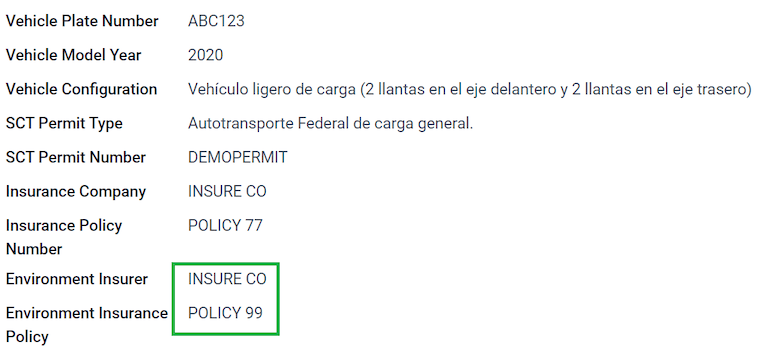
In , the data from the Environment Insurer and Environment Insurance Policy has to be filed, as well. After this, continue with the regular process to create a delivery guide.
Số hải quan
A customs declaration (Pedimento Aduanero) is a fiscal document that certifies that all contributions to the fiscal entity (the SAT) has been paid for, including the import/export of goods.
According to the Annex 20 of CFDI 4.0, in documents where the invoiced goods come from a first-hand import operation, the field, Customs Number, needs to be added to all lines of products involved with the operation.
To do so, the module l10n_mx_edi_landing must be installed, in addition to the Inventory, Purchase and Sales apps.
Quan trọng
Không nhầm lẫn tính năng này với thương mại ngoại. Các số hải quan liên quan trực tiếp đến việc nhập khẩu hàng hóa, trong khi phụ lục thương mại ngoại liên quan đến xuất khẩu. Hãy tham khảo ý kiến kế toán của bạn trước nếu cần tính năng này trước khi thực hiện bất kỳ thay đổi nào.
Cấu hình
In order to track the correct customs number for a specific invoice, Odoo uses landed costs. Go to . Make sure that Landed Costs is activated.
Begin by creating a service-type product called, Pedimento. In the Purchase tab,
activate Is a Landed Cost, and select a Default Split Method.
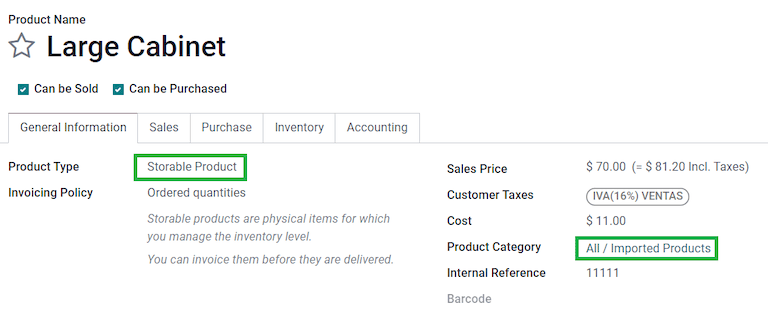
Then, configure the storable products that hold the customs numbers. To do so, create the storable products, and make sure the Product Category has the following configuration.
Phương pháp tính giá: Là FIFO hoặc AVCO
Inventory Valuation: Automated
Stock Valuation Account: 115.01.01 Inventario
Stock Journal: Inventory Valuation
Stock Input Account: 115.05.01 Mercancías en tránsito
Stock Output Account: 115.05.01 Mercancías en tránsito
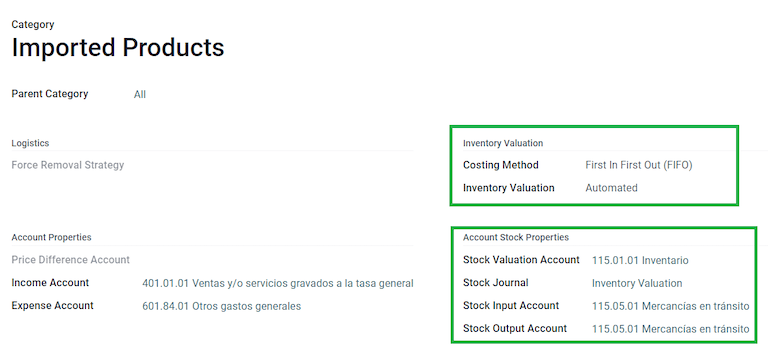
Quy trình mua hàng và bán hàng
After you configure your product, follow the standard purchase flow.
Create a purchase order from . Then, confirm the order to display a Receipt smart button. Click on the Receipt smart button to Validate the receipt.
Go to , and create a new record. Add the
transfer that you just created, and both: the product Pedimento and Customs number.
Optionally, you can add a cost amount. After this, validate the landed cost. Once Posted, all products related to that receipt have the customs number assigned.
Cảnh báo
You can only add the Pedimentos number once, so be careful when associating the correct number with the transfer(s).
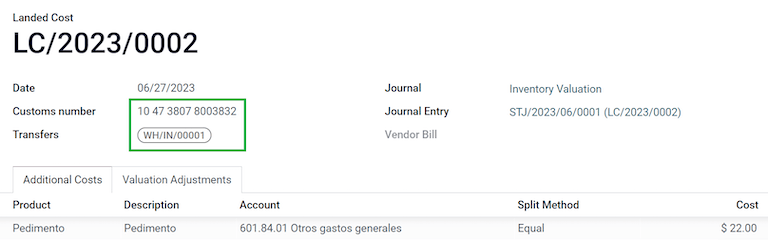
Now, create a sales order, and confirm it. This should trigger a Delivery smart button. Validate it.
Finally, create an invoice from the sales order, and confirm it. The invoice line related to your product has a customs number in it. This number should match the customs number added in the Landed Costs record you created earlier.
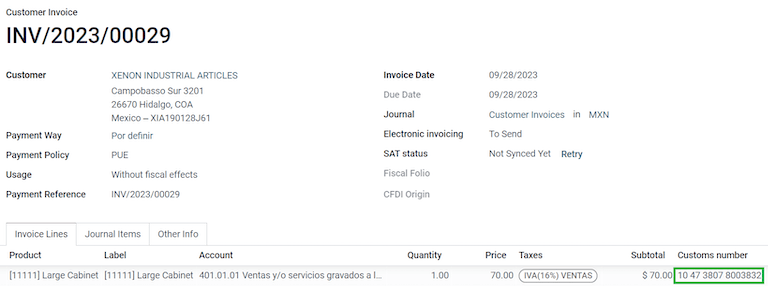
Electronic accounting
Đối với Mexico, Kế toán điện tử đề cập đến nghĩa vụ lưu giữ hồ sơ và báo cáo kế toán qua phương tiện điện tử, và nhập thông tin kế toán hàng tháng thông qua trang web SAT.
Nó bao gồm ba tệp XML chính:
The updated list of the chart of accounts that you are currently using.
A monthly trial balance, plus a closing entry report, also known as: Trial Balance Month 13.
Either optional, or for a compulsory audit, an export of the journal entries in your general ledger.
Các tệp XML kết quả tuân theo các yêu cầu của Anexo Técnico de Contabilidad Electrónica 1.3.
In addition to this, you can generate the DIOT: A report of vendor's journal entries that involve IVA taxes that can be
exported in a .txt file.
In order to use these reports, the modules l10n_mx_reports, l10n_mx_reports_closing, l10n_mx_xml_polizas and l10n_mx_xml_polizas_edi have to be installed, as well as the Accounting.
Quan trọng
Các đặc điểm và nghĩa vụ cụ thể của các báo cáo mà bạn gửi có thể thay đổi tùy theo chế độ tài chính của bạn. Luôn liên hệ với kế toán viên trước khi gửi bất kỳ tài liệu nào cho chính phủ.
Hệ thống tài khoản
The chart of accounts in México follows a specific pattern based on SAT's' Código agrupador de cuentas.
You can create any account, as long as it respects SAT's encoding group: the pattern is
NNN.YY.ZZ or NNN.YY.ZZZ.
Example
Một số ví dụ là 102.01.99 hoặc 401.01.001.
When a new account is created in , with the SAT encoding group pattern, the correct grouping code appears in Tags, and your account appears in the COA report.
Once you create all your accounts, make sure the correct Tags are added.
Ghi chú
You cannot use any pattern that ends a section with a 0 (such as 100.01.01, 301.00.003 or
604.77.00). This triggers errors in the report.
Once everything is set up, go to , click the (down arrow) next to the PDF button, and select COA SAT (XML). This generates an XML file with your accounts, which you can upload directly to the SAT website.
Cân đối thử
Bảng cân đối thử báo cáo số dư ban đầu, thẻ tín dụng và tổng số dư của các tài khoản, với điều kiện bạn đã thêm đúng nhóm mã hóa của chúng.
To generate this report in an XML format, go to . Select the month you want to download in the calendar, then click the (down arrow) next to the PDF button, and select SAT (XML).
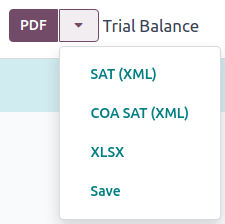
Ghi chú
Odoo không tạo Balanza de Comprobación Complementaria.
Month 13 trial balance
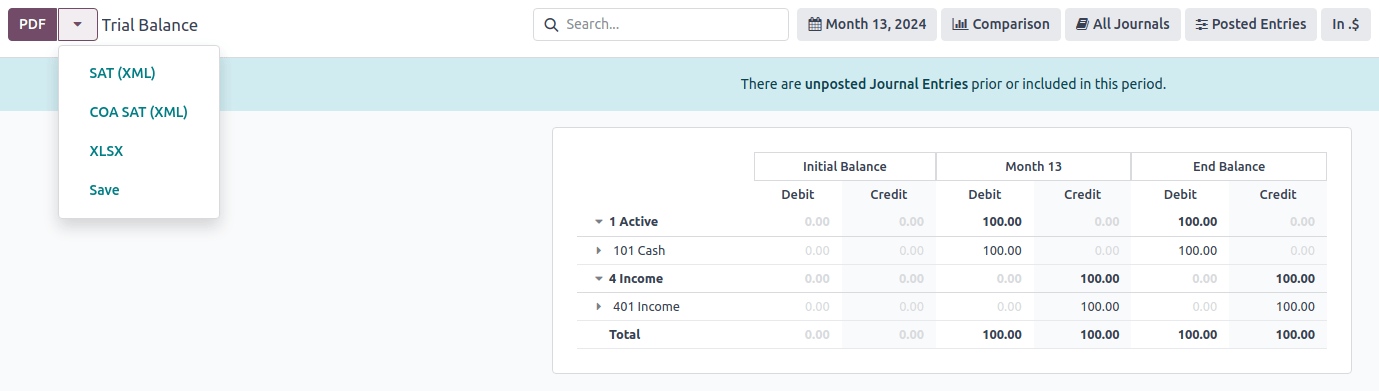
The Month 13 report is a closing balance sheet that shows any adjustments or movements made in the accounting to close the year.
To generate it, proceed as follows:
Go to and create a new entry for all the amounts to be changed, balancing the debit and/or credit of each one.
In the Other Info tab, enable the Month 13 Closing option.
Go to , click the calendar, and select Month 13.
Click the (down arrow) next to the PDF button, and select SAT (XML).
Sổ cái chung
By law, all transactions in Mexico must be recorded digitally. Since Odoo automatically creates all the underlying journal entries of your invoicing and payments, you can export your journal entries to comply with SAT's audits and/or tax refunds.
Mẹo
You can filter by period, or by journal, according to your current needs.
To create the XML, go to , click the (down arrow) next to the PDF button, and select XML (Polizas). In the XML Polizas Export Options window, choose between four different Export types:
Kiểm toán thuế
Chứng nhận kiểm toán
Trả hàng
Bồi thường
For Tax audit or Audit certification, you need to write the Order Number provided by the SAT. For Return of goods, or Compensation, you need to write your Process Number, also provided by the SAT.
Ghi chú
If you want to see this report without sending it, use ABC6987654/99 for Order
Number and AB123451234512 for Process Number.
Báo cáo DIOT
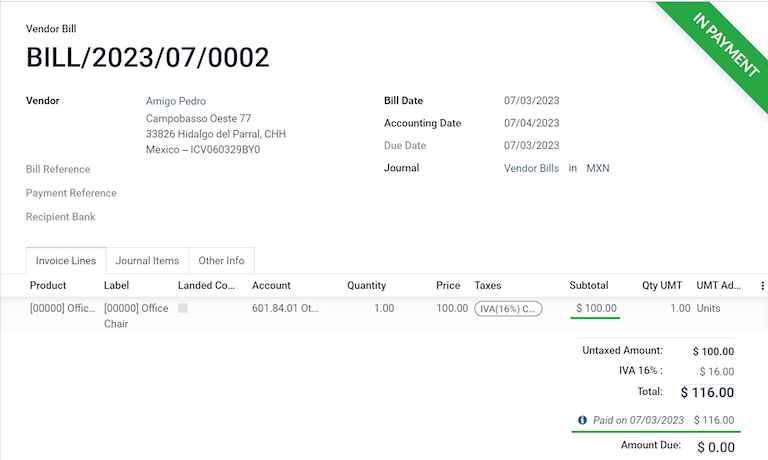
The DIOT (Declaración Informativa de Operaciones con Terceros / Informative Declaration of Operations with Third Parties) is an additional obligation with the SAT, where the current status of creditable and non-creditable payments, withholdings, and refunds of VAT from your vendor bills, are provided to the SAT.
Unlike other reports, the DIOT is uploaded to a software provided by the SAT that contains the
A-29 form. In Odoo, you can download the records of your transactions as a .txt file that
can be uploaded to the form, avoiding direct capture of this data.
The transactions file contains the total amount of your payments registered in vendor bills, broken down into the corresponding types of IVA. The VAT and Country is mandatory for all vendors.
To generate the DIOT report, go to .
Select the month you want to download in the calendar, then click the
(down arrow) next to the PDF button to select Report: DIOT (MX)
and download the .txt file.
Quan trọng
You need to fill the L10N Mx Type of Operation field in the Accounting tab of each one of your vendors to prevent validation errors. Make sure that your foreign customers have their country set up for L10N Mx Nationality to appear automatically.