
Thuế
There are numerous types of taxes, and their application varies greatly, depending mostly on your company's localization. To make sure they are recorded with accuracy, Odoo's tax engine supports all kinds of uses and computations.
Thuế mặc định
Default taxes define which taxes are automatically selected when creating a new product. They are also used to prefill the Taxes field when adding a new line on an invoice in Accounting Firms mode.
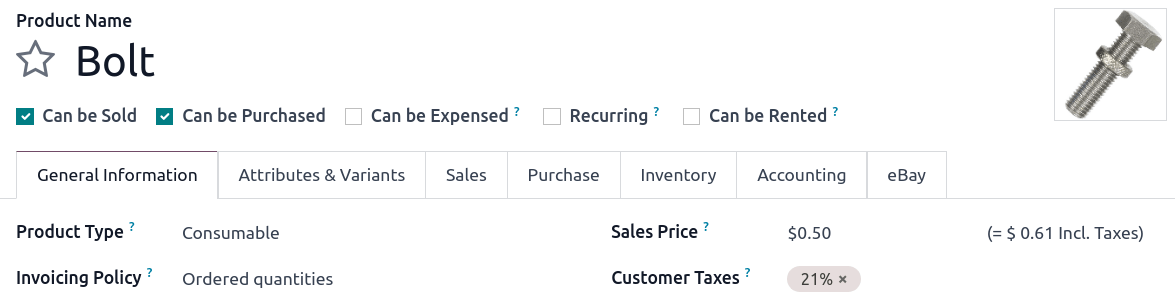
To change your default taxes, go to , select the appropriate taxes for your default sales tax and purchase tax, and click on Save.
Ghi chú
Default taxes are automatically set up according to the country selected at the creation of your database, or when you set up a fiscal localization package for your company.
Activate taxes from the list view
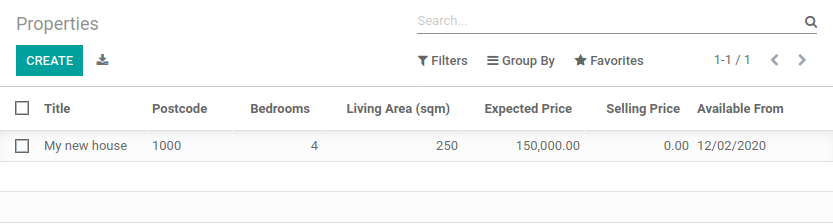
As part of your fiscal localization package, most of your country's sales taxes are already preconfigured on your database. However, only a few taxes are activated by default. To activate taxes relevant to your business, go to and enable the toggle button under the Active column.
Cấu hình
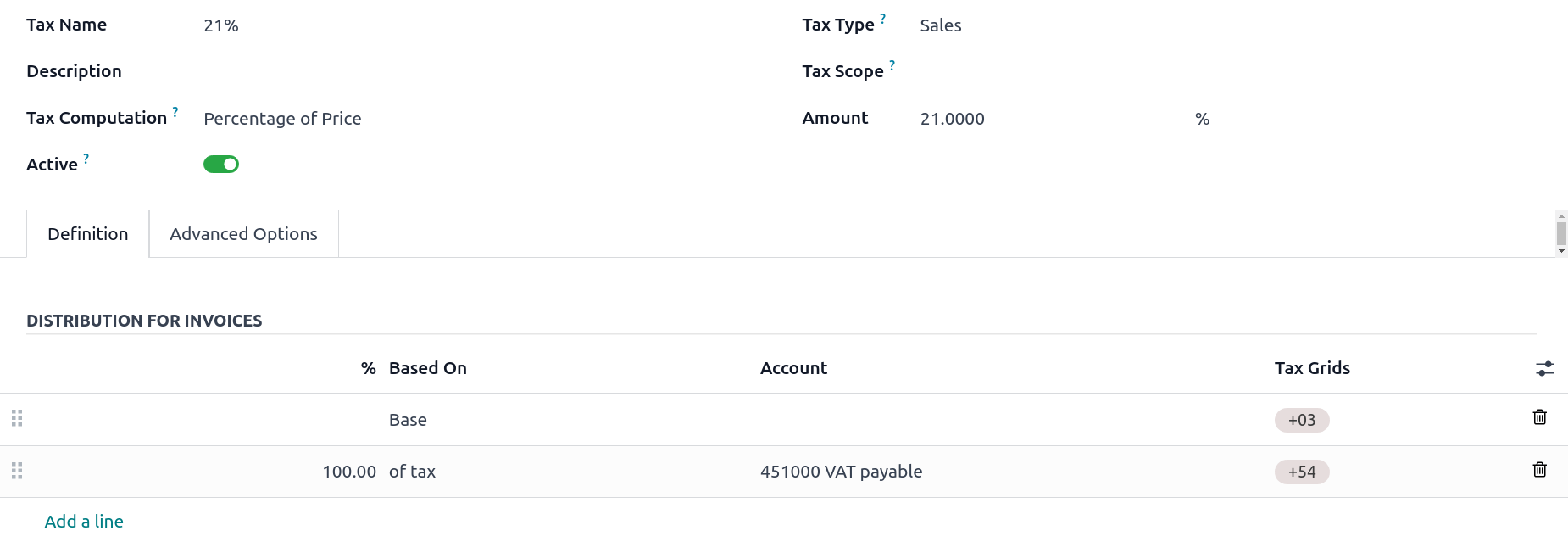
To edit or create a tax, go to and open a tax or click on New.
Basic options
Tên thuế
The tax name is displayed for backend users in the Taxes field in sales orders, invoices, product forms, etc.
Cách tính thuế
The Tax Computation field determines how the tax amount is computed from the sales price. The following options are available:
Nhóm thuế: sự kết hợp của nhiều loại thuế khác
Cố định: một số tiền cố định
Phần trăm của giá: một phần trăm của giá bán chưa bao gồm thuế
Phần trăm của giá đã bao gồm thuế: một phần trăm của tổng số đã bao gồm thuế
Python Code: a custom user-defined formula
Nhóm thuế
Thuế là sự kết hợp của nhiều thuế phụ. Bạn có thể thêm bao nhiêu loại thuế tùy thích, theo thứ tự mà bạn muốn chúng được áp dụng.
Quan trọng
Đảm bảo trình tự thuế là chính xác, vì thứ tự hiển thị xác định thứ tự áp dụng và có thể ảnh hưởng đến việc tính thuế, đặc biệt nếu một loại thuế ảnh hưởng đến cơ sở của các loại thuế tiếp theo.
Cố định
Thuế có số tiền cố định theo đơn vị tiền tệ mặc định. Số tiền vẫn giữ nguyên trên mỗi đơn vị, bất kể giá bán.
Cách tính là \(\text{số tiền thuế} = \text{số tiền thuế cố định} \times \text{số lượng}\).
Example
Một sản phẩm có giá bán là $1000, và chúng ta áp dụng thuế Cố định $10. Khi đó chúng ta có:
Giá bán sản phẩm |
Giá không bao gồm thuế |
Thuế |
Tổng |
|---|---|---|---|
1.000 |
1.000 |
10 |
1.010,00 |
Phần trăm giá
Thuế suất là phần trăm của tổng phụ chưa bao gồm thuế.
The exact tax computation depends on the Included in Price field, which determines whether the sales price should be treated as tax-excluded or tax-included:
If Included in Price is disabled, the computation is \(\text{tax amount} = \text{sales price} \times \text{tax rate}\).
Example
A product has a sales price of $1000, and we apply a 10% Percentage of Price tax that is not Included in Price. We then have:
Giá bán sản phẩm |
Giá không bao gồm thuế |
Thuế |
Tổng |
|---|---|---|---|
1.000 |
1.000 |
100 |
1.100,00 |
If Included in Price is enabled, the computation is \(\text{tax amount} = \text{sales price} \times \frac{\text{tax rate}}{1 + \text{tax rate}}\).
Example
A product has a sales price of $1000, and we apply a 10% Percentage of Price tax that is Included in Price. We then have:
Giá bán sản phẩm |
Giá không bao gồm thuế |
Thuế |
Tổng |
|---|---|---|---|
1.000 |
909.09 |
90.91 |
1.000,00 |
Phần trăm giá đã bao gồm thuế
Quan trọng
This tax computation is rarely used and only useful in countries (e.g., Brazil, Bolivia) that quote tax rates as a percentage of the tax-included total. For the more common need to compute tax amounts from a tax-included price, use the Percentage of Price tax computation with the Included in Price option.
Thuế suất là phần trăm của tổng số đã bao gồm thuế.
The exact tax computation depends on the Included in Price field, which determines whether the sales price should be treated as tax-excluded or tax-included:
If Included in Price is disabled, the computation is \(\text{tax amount} = \text{sales price} \times \frac{\text{tax rate}}{1 - \text{tax rate}}\).
Example
A product has a sales price of $1000, and we apply a 10% Percentage of Price Tax Included tax that is not Included in Price. We then have:
Giá bán sản phẩm |
Giá không bao gồm thuế |
Thuế |
Tổng |
|---|---|---|---|
1.000 |
1.000 |
111,11 |
1.111,11 |
Lưu ý rằng thuế suất thực tế theo giá chưa bao gồm thuế là \(\frac{111.11}{1000} = 11.111\%\).
If Included in Price is enabled, the computation is \(\text{tax amount} = \text{sales price} \times \text{tax rate}\).
Example
A product has a sales price of $1000, and we apply a 10% Percentage of Price Tax Included tax that is Included in Price. We then have:
Giá bán sản phẩm |
Giá không bao gồm thuế |
Thuế |
Tổng |
|---|---|---|---|
1.000 |
900 |
100 |
1.000,00 |
Lưu ý rằng thuế suất thực tế theo giá chưa bao gồm thuế là \(\frac{100}{900} = 11.111\%\).
Python code
Quan trọng
If a tax can be expressed as a multiple of the quantity of the product to which it applies, it can be defined as a Fixed tax. Doing so is strongly recommended over defining a Python Code tax.
A tax defined as Python Code consists of two snippets of Python code that are executed in a local environment that can access the unit price, quantity, product, and partner. Python Code defines the amount of the tax, and Applicable Code defines whether the tax is applied. Enter a formula for each field at the bottom of the Definition tab.
Example
A product has a sales price of $1000, and we apply a Python Code tax with the following configuration:
Python Code:
result = price_unit * 0.10andApplicable Code:
result = True.
Khi đó chúng ta có:
Giá bán sản phẩm |
Giá không bao gồm thuế |
Thuế |
Tổng |
|---|---|---|---|
1.000 |
1.000 |
100 |
1.100,00 |
Đang hoạt động
Only active taxes can be added to new documents.
Quan trọng
It is not possible to delete taxes that have already been used. Instead, you can deactivate them to prevent future use.
Ghi chú
This field can be modified from the list view.
Loại thuế
The Tax Type determines the tax application, which also restricts where it is displayed.
Bán hàng: Hóa đơn khách hàng, thuế sản phẩm khách hàng, v.v.
Mua hàng: Hóa đơn nhà cung cấp, thuế sản phẩm nhà cung cấp, v.v.
Không
Mẹo
You can use None for taxes that you want to include in a Group of Taxes but that you do not want to list along with other sales or purchase taxes.
Definition tab
Allocate with precision the amount of the taxable basis or percentages of the computed tax to multiple accounts and tax grids.
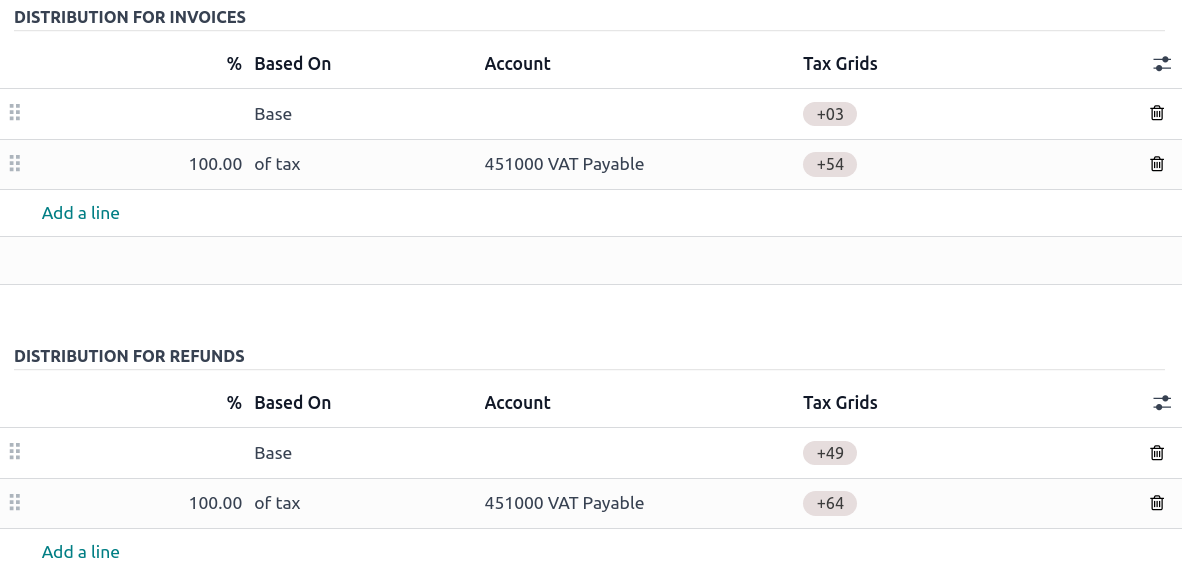
Based On:
Base: the price on the invoice line
% of tax: a percentage of the computed tax.
Account: if defined, an additional journal item is recorded.
Tax Grids: used to generate tax reports automatically, according to your country's regulations.
Tab Tùy chọn nâng cao
Nhãn thuế trên hóa đơn
The tax label is displayed on each invoice line in the Taxes column. This is visible to front-end users on exported invoices, in customer portals, etc.

Nhóm thuế
Select which tax group the tax belongs to. The tax group name is the displayed above the total line on exported invoices and in customer portals.
Tax groups include different iterations of the same tax. This can be useful when you must record the same tax differently according to fiscal positions.
Example
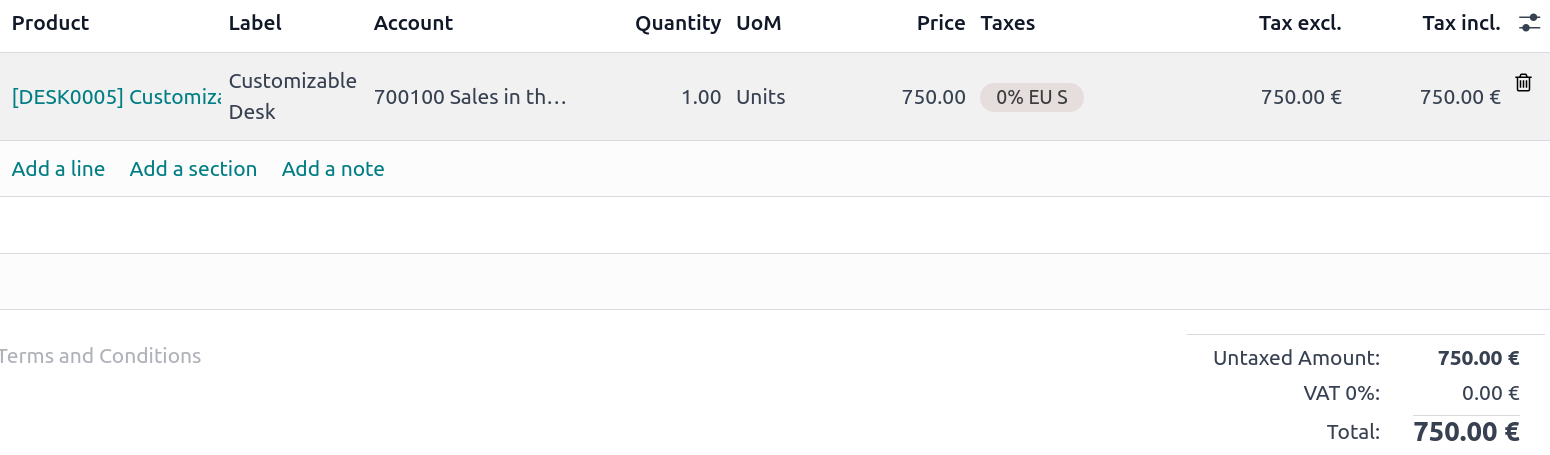
Trong ví dụ trên, thuế 0% EU S dành cho khách hàng nội khối châu Âu ghi nhận số tiền vào các tài khoản và bảng thuế cụ thể. Tuy nhiên, đối với khách hàng vẫn là thuế 0%. Đây là lý do tại sao nhãn hiển thị 0% EU S và tên nhóm thuế phía trên dòng Tổng cộng hiển thị VAT 0%.
Quan trọng
Taxes have three different labels, each one having a specific use. Refer to the following table to see where they are displayed.
Back-end |
Taxes column on exported invoices |
Above the Total line on exported invoices |
Include in analytic cost
With this option activated, the tax amount is assigned to the same analytic account as the invoice line.
Bao gồm trong giá
With this option activated, the tax will treat the sales price on which it is applied as a total including the tax amount. The tax computation will split the sales price into a base amount and a tax amount. This makes it suitable for B2C sales in most countries where prices are quoted tax-inclusive.
Total = Sales Price = Computed Tax-Excluded price + Tax
Example
A product has a sales price of $1000, and we apply a 10% Percentage of Price tax with Included in Price. We then have:
Giá bán sản phẩm |
Giá không bao gồm thuế |
Thuế |
Tổng |
|---|---|---|---|
1.000 |
909.09 |
90.91 |
1.000,00 |
Ghi chú
For a guide on configuring tax-excluded and tax-included prices for B2B and B2C customers, see Định giá B2B (chưa bao gồm thuế) và B2C (đã bao gồm thuế).
Ảnh hưởng cơ sở tính thuế kế tiếp
If this setting is enabled, any subsequent tax applied on the same product line that has Base affected by preceding taxes will be based on a modified sales price. The exact behavior depends on whether the tax with Affect base of subsequent taxes is Bao gồm trong giá or not.
If Included in Price is disabled, subsequent taxes with Base affected by preceding taxes will be based on a modified sales price equal to the original sales price plus the tax amount.
Example
A product has a sales price of $1000, and we apply a 10% Percentage of Price tax with Affect base of subsequent taxes. Any subsequent tax with Base affected by preceding taxes will be based on a modified sales price of $1100.
If Included in Price is enabled, subsequent taxes with Base affected by preceding taxes will be based on a modified sales price equal to the original sales price minus the tax amount.
Example
A product has a sales price of $1100, and we apply a 10% Percentage of Price tax with Included in Price and Affect base of subsequent taxes. Any subsequent tax with Base affected by preceding taxes will be based on a modified sales price of $1000.
Cài đặt này được xem xét mỗi khi nhiều loại thuế được áp dụng cho cùng một dòng sản phẩm, dù thông qua group of taxes hay nhiều loại thuế được thêm trực tiếp vào dòng sản phẩm.
Cảnh báo
The order in which you add the taxes on a product line has no effect on how amounts are computed. If you add taxes directly on a product line, only the tax sequence determines the order in which they are applied.
To reorder the sequence, go to , and drag and drop the lines with the handles next to the tax names.

Base affected by preceding taxes
This setting, which is only visible in developer mode, determines whether any previous tax that affects the base of subsequent taxes will modify the sales price that this tax is based on.
Ghi chú
Taxes with Included in Price always behave as if this setting is enabled.
Thuế bổ sung
"Thuế bổ sung" là thuật ngữ chung đề cập đến các loại thuế bổ sung ngoài thuế tiêu chuẩn hoặc thuế cơ bản do chính phủ áp đặt. Các loại thuế bổ sung này có thể là thuế xa xỉ, thuế môi trường, thuế nhập khẩu hoặc xuất khẩu, v.v.
Ghi chú
Phương pháp tính các loại thuế này khác nhau ở các quốc gia. Chúng tôi khuyên bạn nên tham khảo quy định của quốc gia mình để hiểu cách tính chúng cho doanh nghiệp của bạn.
Để tính thuế bổ sung trong Odoo, tạo một loại thuế, nhập tên thuế, chọn Cách tính thuế, đặt Số tiền, và trong tab Tùy chọn nâng cao, bật Ảnh hưởng đến cơ sở của các loại thuế tiếp theo. Sau đó, kéo và thả các loại thuế theo thứ tự chúng nên được tính.
Example
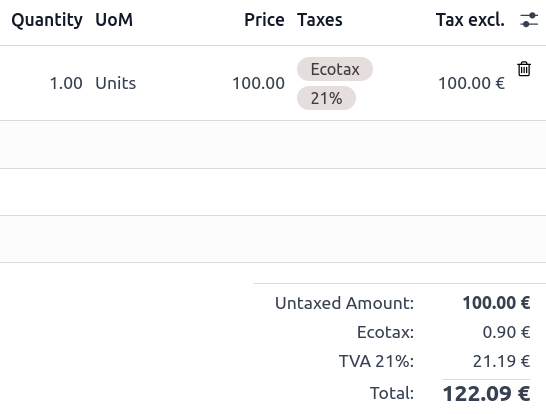
Ở Bỉ, công thức tính thuế môi trường là:
(giá sản phẩm + thuế môi trường) x thuế bán hàng. Do đó, thuế môi trường của chúng tôi phải đứng trước thuế bán hàng trong trình tự tính toán.Trong trường hợp của chúng tôi, chúng tôi đã tạo thuế môi trường 5% (Ecotax) và đặt nó trước thuế cơ bản của Bỉ là 21%.

Xem thêm